


Although most operating systems nowadays have built-inVoice inputFunction, but anyone who has used it knows that the recognition accuracy is actually quite poor. After you finish speaking, you might still need to make substantial edits. And this article introduces “Wispr Flow”AI Voice input tools are completely different—not only are they extremely accurate, but they also convert speech at remarkable speed. For instance, after you finish speaking twenty characters, the results appear in just about two seconds, and it even adds the correct punctuation between each sentence.
In addition, some phrases you commonly use can also be added to your personal…dictionaryallowing AI to learn and thereby improve accuracy. You can also create voice shortcut phrases—just say a simple word or sentence, and it will automatically expand into the full text content you’ve set (for example, saying “Email」-> example@gmail.com)。
Wispr Flow Super Useful AI Voice Input Text Tool Introduction and Operation Tutorial
Wispr Flow is a tool that combines speech recognition (ASR) with large language models (LLMAn AI voice input tool: ASR is responsible for converting speech to text, while the LLM intelligently cleans up the content, removing unnecessary filler words such as “uh”, “um”, etc., and automatically adjusts punctuation, grammar, and tone so that the output text better matches writing conventions.
The user in anyappAmong these, you can directly input text through Wispr Flow for everything—whether writing emails, taking notes, chatting, or editing documents, all text entry can be done by speaking. Latency is also quite low; the fastest time from voice input to final text output is only about 0.7 seconds.
Support Windows、macOS with iOS The platform has both free and paid versions. The free version has a weekly word limit. Registering for the first time using the link below will give you a one-month trial of the pro version.
Key Features
- Self-built ASR speech recognition model with accurate recognition and low latency (<0.7 seconds)
- Use Llama LLM for post-processing to automatically correct grammar and tone.
- Supports multilingual voice input (over 100 languages)
- You can create a personal dictionary.
- Features Snippets (voice shortcut phrases) that trigger frequently used text templates via voice.
- Cross-platform support: Windows, macOS, iOS
- Free and paid versions available.
I’m using a Mac operating system, so the demonstrations below will be based on Mac.
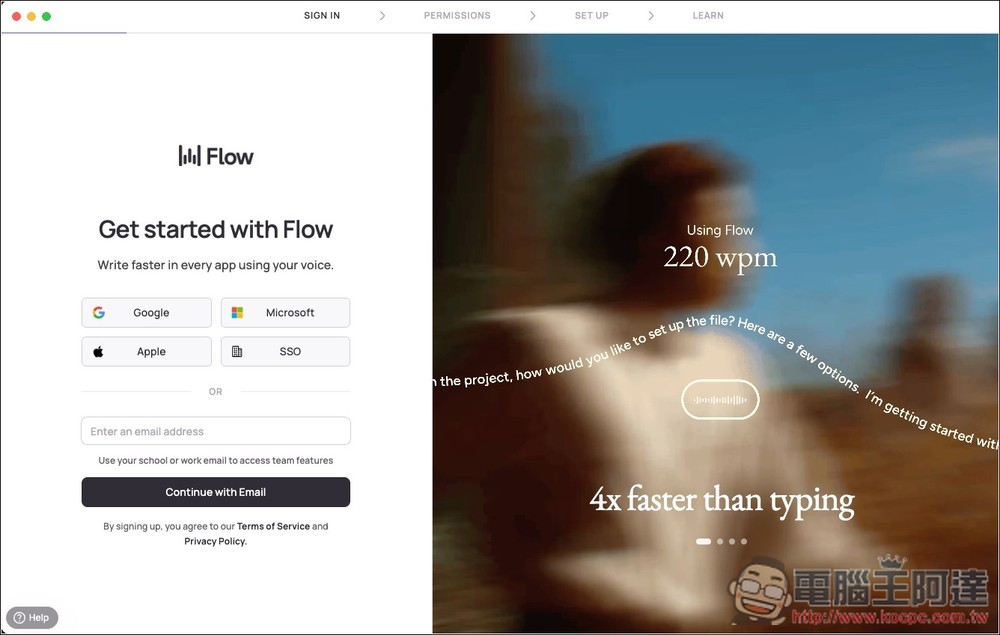
On first launch, you’ll need to register and sign in to your Wispr Flow account. It also supports quick sign-in via Google, Microsoft, Apple, and SSO:
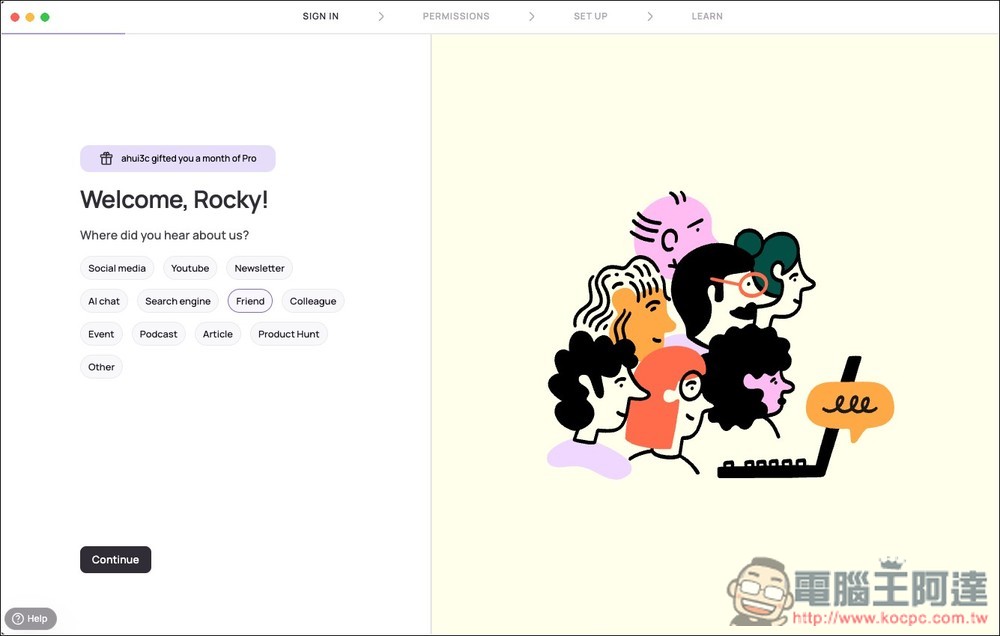
Next, they will ask some basic questions, such as where you heard about this tool and what your occupation is:
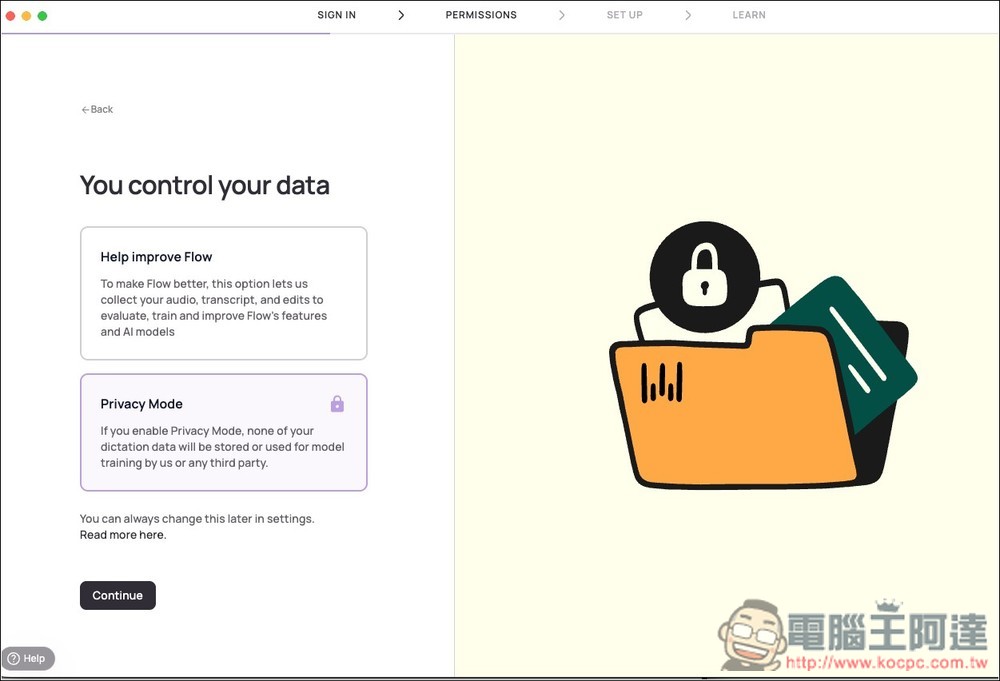
They will also ask if you want to share usage data with them. If you don’t want to, remember to switch to Privacy Mode:
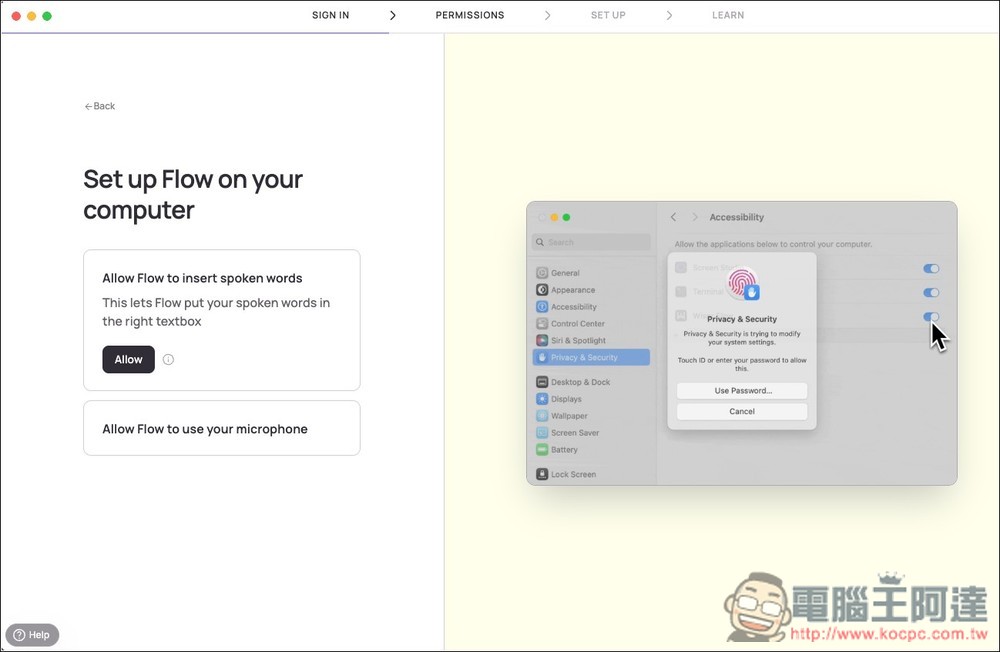
The Mac version requires certain permissions, such as the microphone:
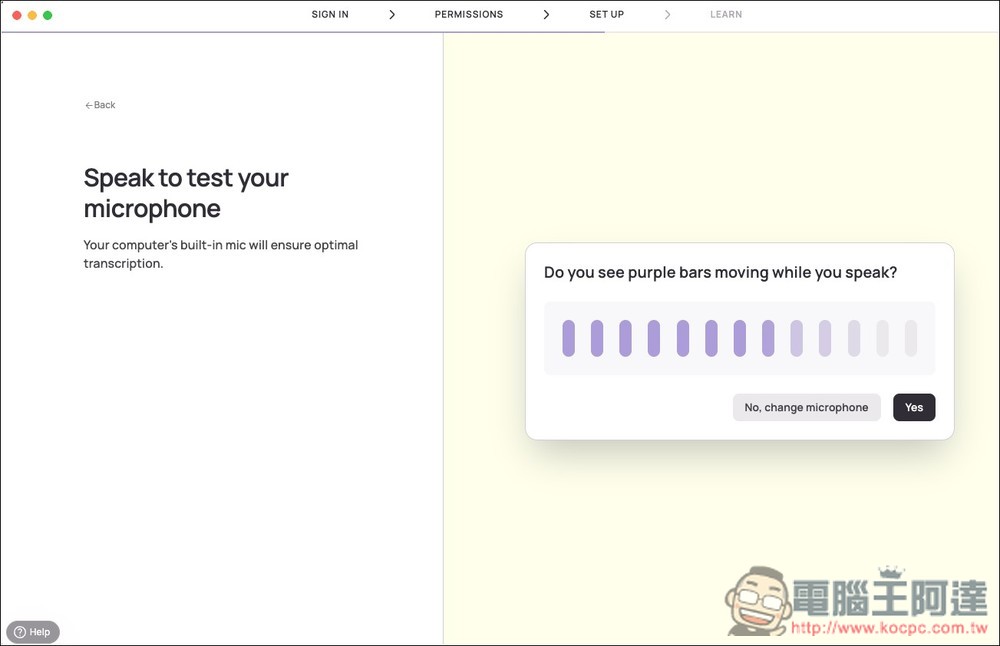
Next, the microphone will be tested. If you see the image on the right moving, that means it’s working properly:
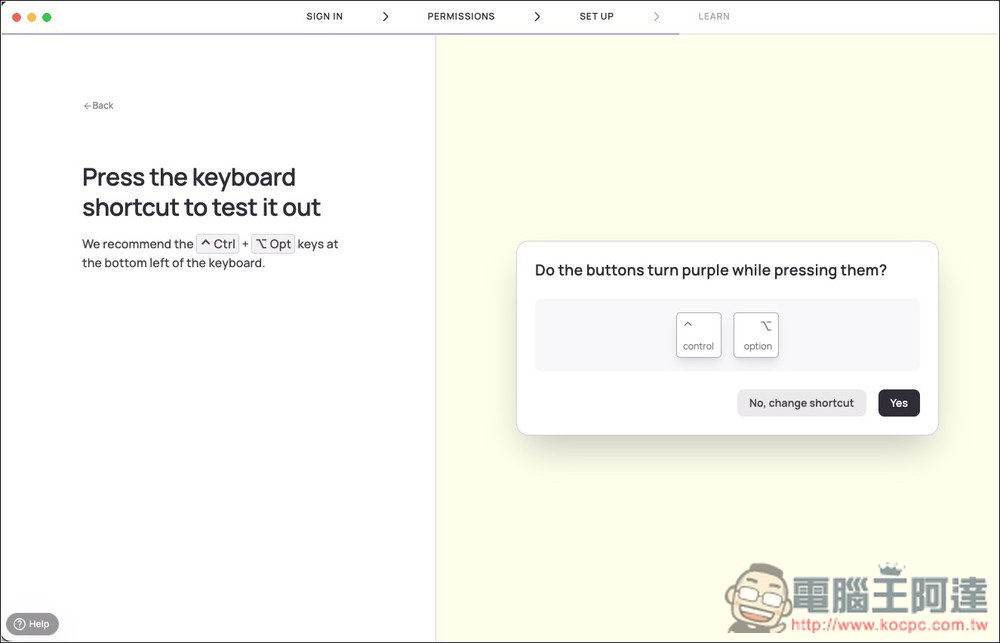
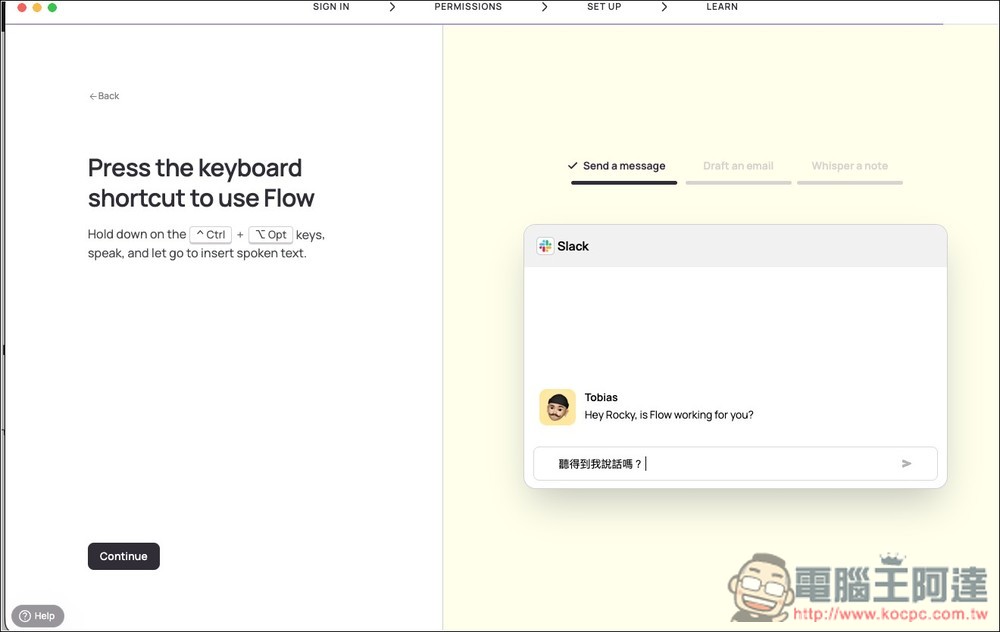
It will also preset the shortcut keys. If you want to modify them, click the Change Shortcut button next to it. If the shortcut key test changes color when pressed, you can click Yes to proceed to the next step.
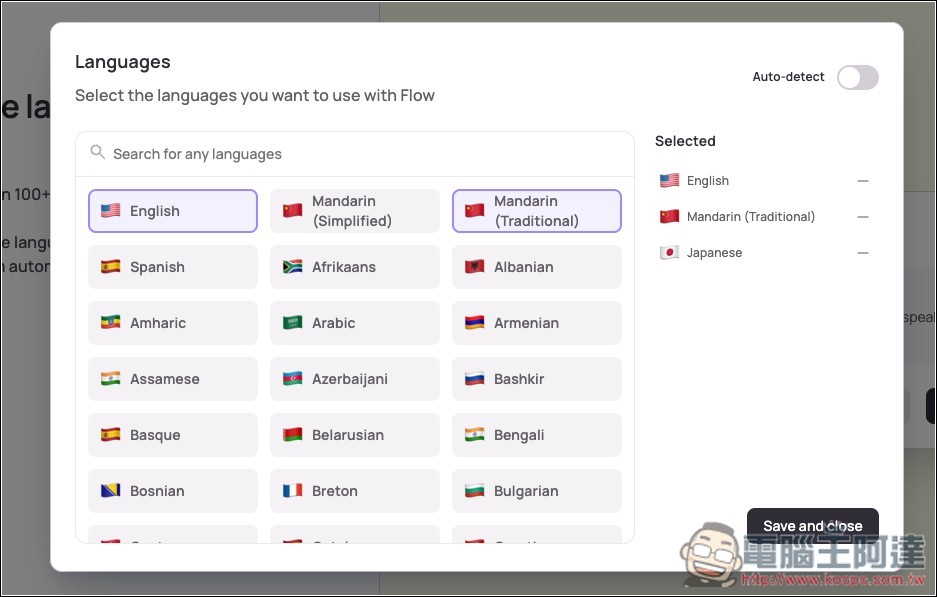
Wispr Flow supports over a hundred languages; by default, all are checked, letting it automatically detect the language you’re speaking. However, I’d suggest changing that, because it supports both Simplified and Traditional Chinese. If you use Auto, the words you speak will very likely be converted to Simplified Chinese:
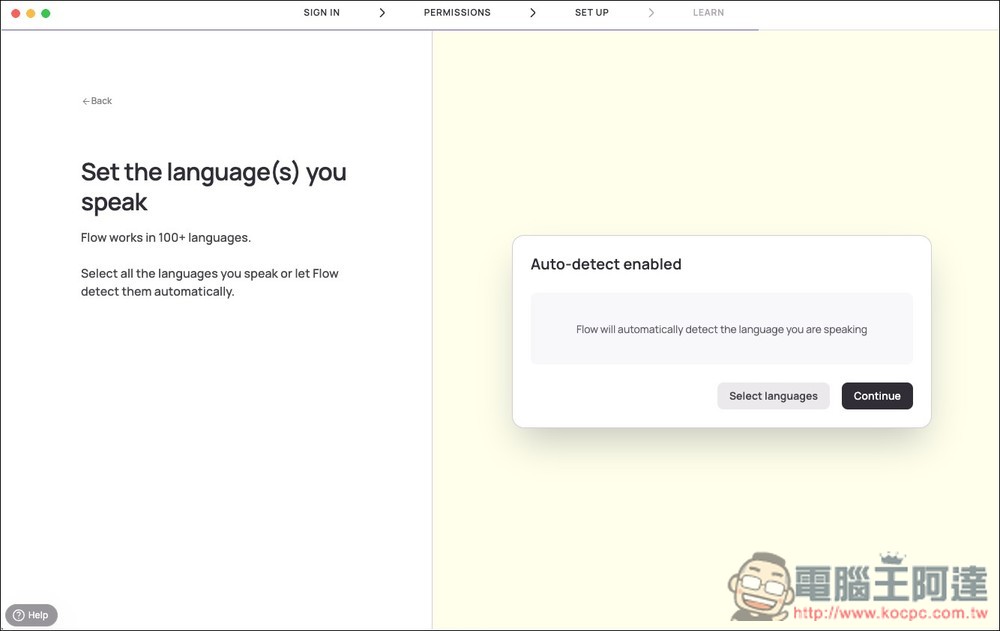
Just check off the languages you commonly use, like I use English, Traditional Chinese, and Japanese:
Finally, test whether it’s working properly. Press the shortcut key to speak (keep holding it while speaking), then release it when you’re done, and check whether the text appears correctly on the screen.
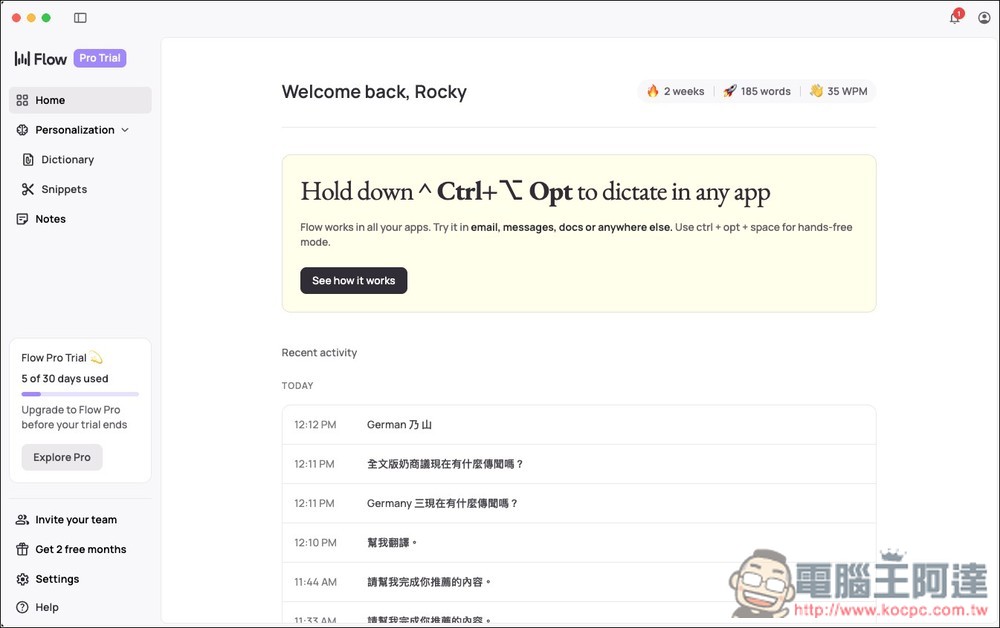
This is the Wispr Flow console. Below, it records your recent speech-to-text activity:
You can refer to the GIF below for the usage process. When you press and hold the shortcut key and speak, a black bar will appear at the bottom. After you release, it will start recognizing, and after waiting a few seconds, the content you just spoke will appear on the screen. In any application, you can wake up Wispr Flow for AI voice input text:
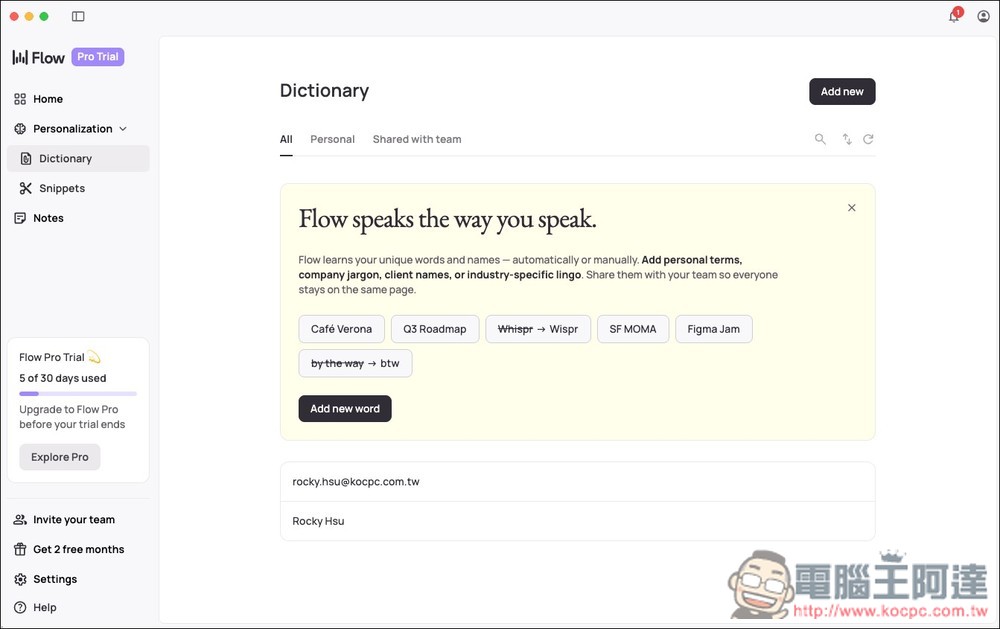
The Dictionary in the console lets you add frequently used words or phrases so the AI can learn them. That way, when you later say related terms, you don’t have to worry about the AI recognizing them as something else. I’d suggest you start by using AI voice input to enter text, and when the AI keeps misrecognizing things, add those entries here:
Snippets are voice shortcut phrases: you can set it so that when you say a certain word or sentence, it automatically converts to specified content.
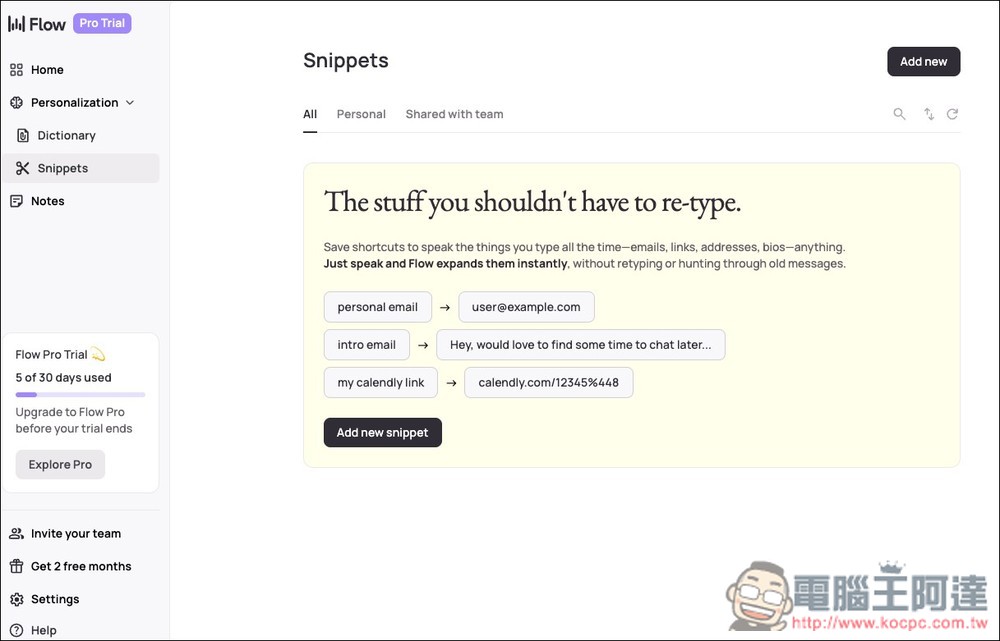
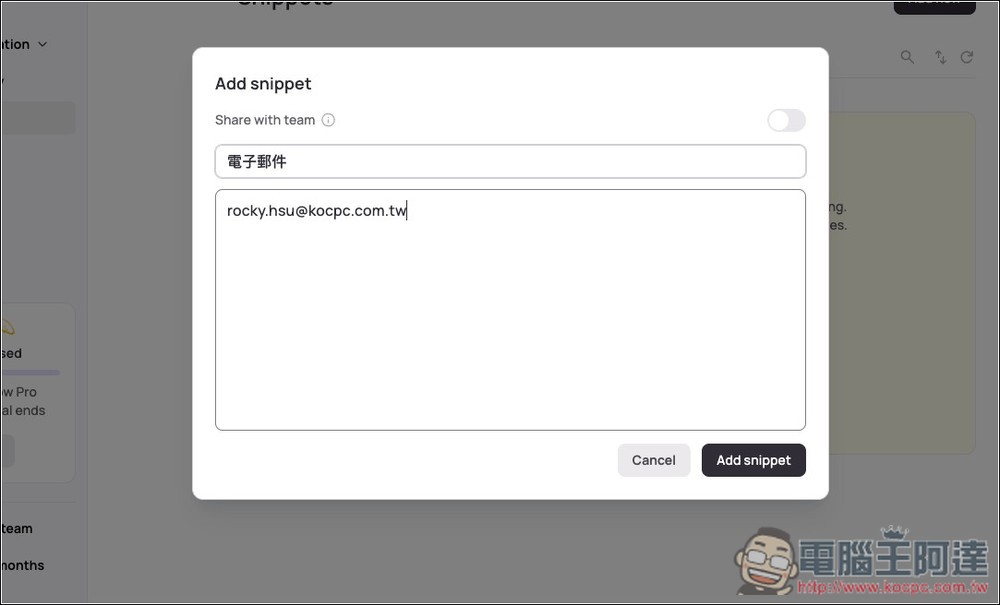
For example, if I set up my email, then in the future, whenever I say “email,” the content will be my email address, not the four characters “email.”
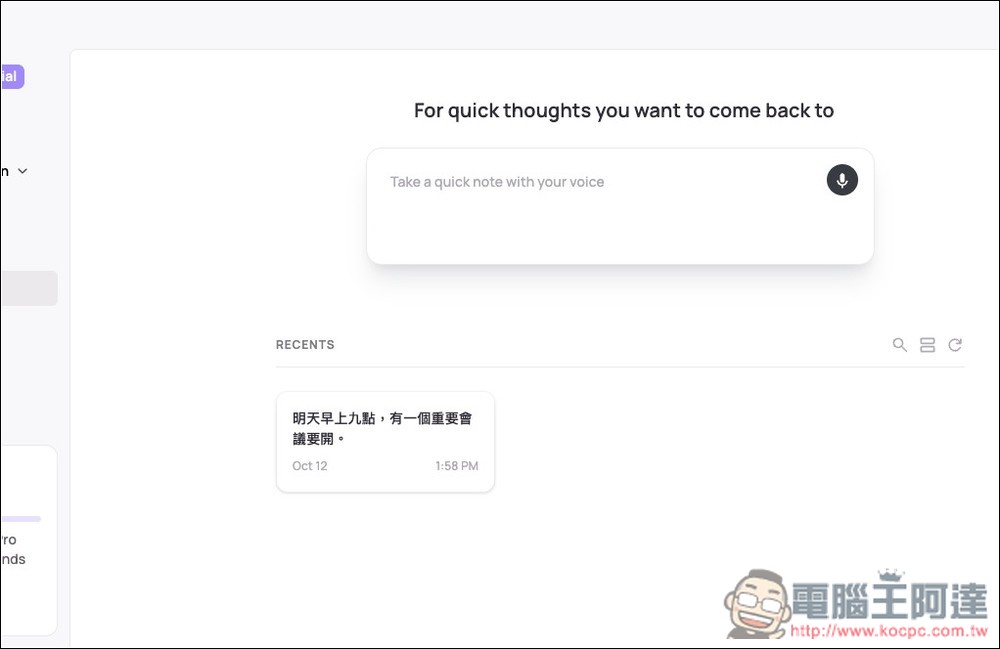
It also provides a voice memo feature, allowing you to save things you need to jot down (such as creative ideas, to-do items, work matters, etc.) here:
Source: KOCPC Chinese