


Nowadays, there are many free remote desktop software options, such as TeamViewer, Anydesk, Google Remote Desktop, etc. Although they are basically the same, everyone has different usage habits and different pursuits. If you are someone who attaches great importance to latency, DeskIn, which is recommended in this article, is well worth a try. It boasts an extremely low latency. My test was indeed smooth, and the operation is easy to get started. In addition, you also need Email when connecting remotely for the first time. Certification equipment is enough, and the overall security design is pretty good.
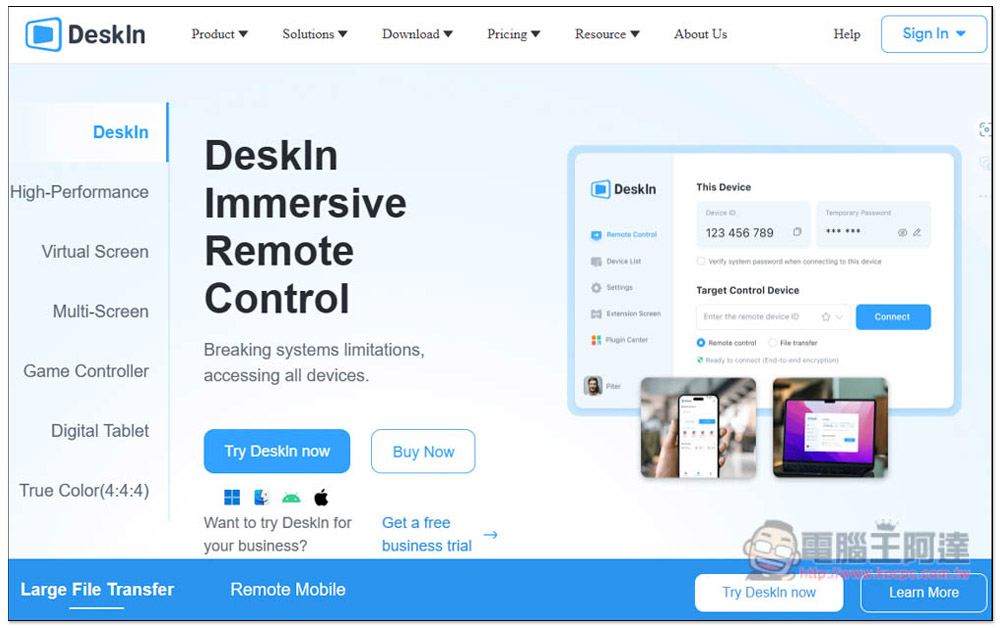
DeskIn is a simple and easy-to-use remote desktop software. The free version can register up to 3 devices.
DeskIn supports Windows, Mac, Android and iOS operating systems. For the mobile version, you can download and install it by going to the App Store. For the computer version, click the link above to go to the official website to download the installation file.
The interface of the computer version is somewhat similar to TeamViewer. In the remote control page, the code of this device will be displayed. However, I have set my own security password and did not use the random password it randomly generated, so it is not displayed. I also recommend using your own secure password, which is more secure, but the premise is that the password cannot be too simple:
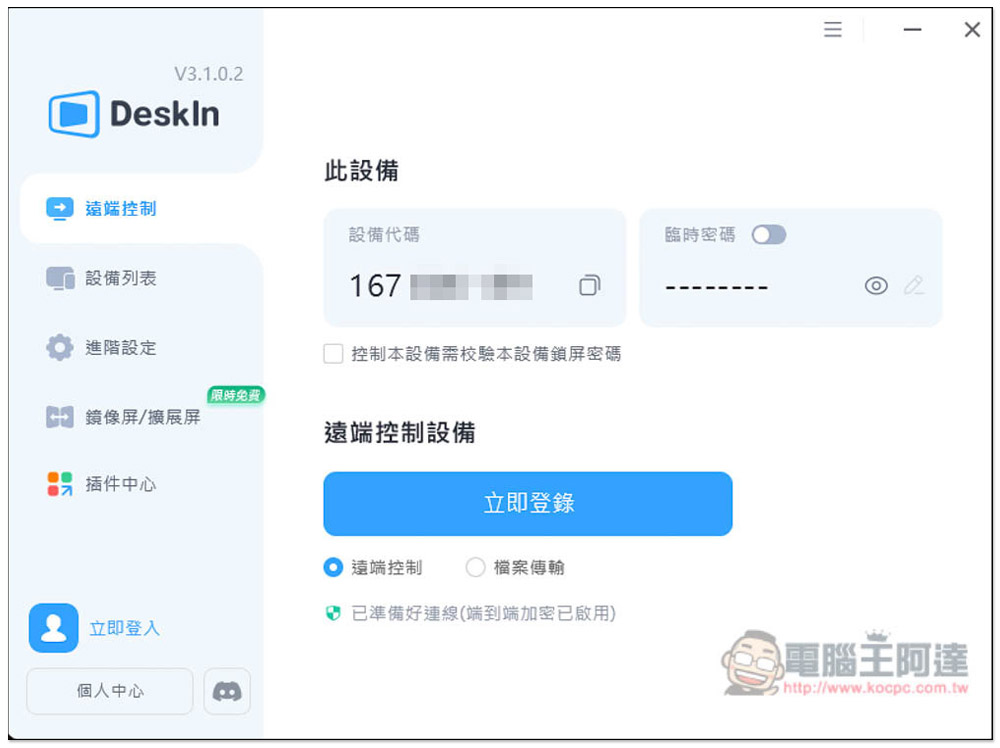
Before remote connection, you need to log in and register for free.
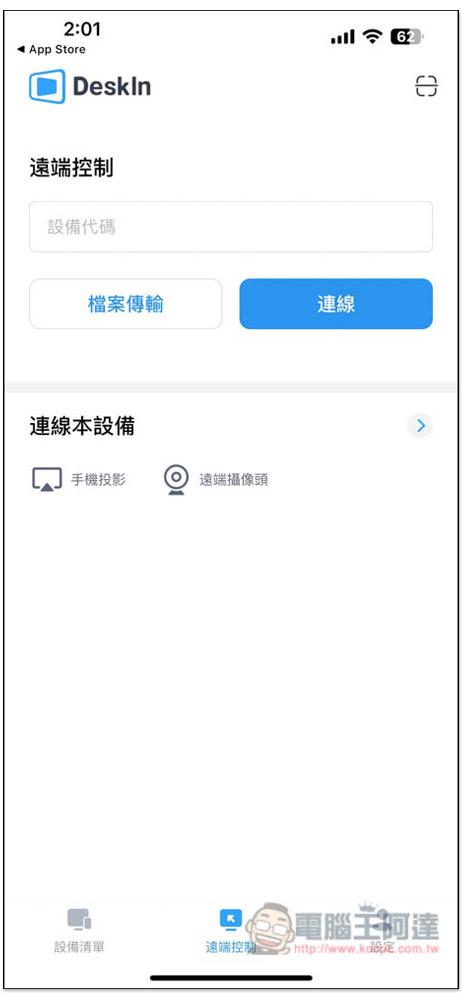
For the mobile version interface, fill in the device code into the remote control box above and click Connect. File transfer is a paid function and cannot be used in the free version:
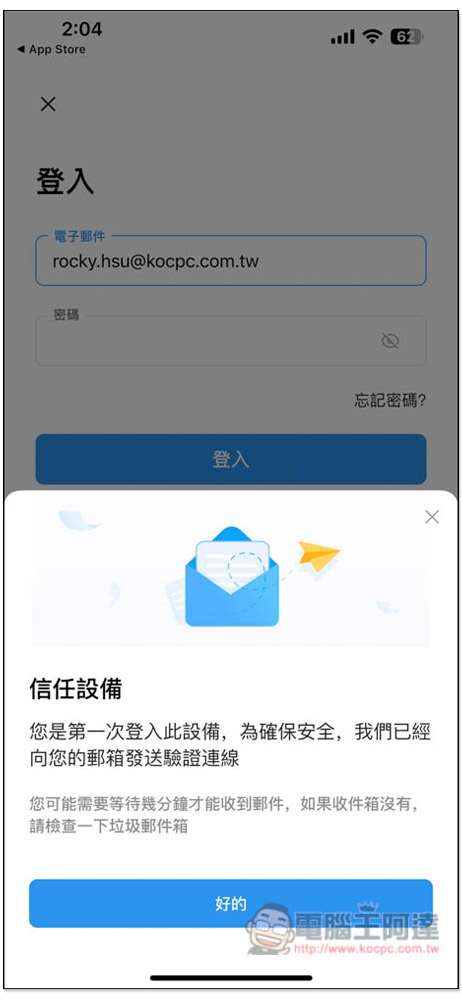
When logging in to your account for the first time, you need to go to the mailbox to receive the email, click on the link in the letter, and add the device to the trust list to continue. This design is quite good and can greatly reduce the risk of account theft:
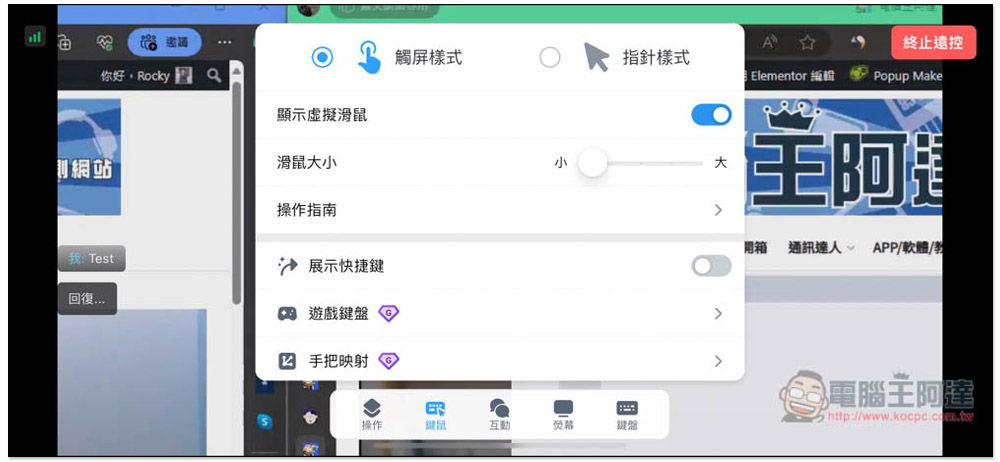
The picture below is the screen when I use my mobile phone to connect to the computer. The default is touch mode, so you can directly click on the function you want to use on the screen, or zoom in and out. There is also a small mouse icon in the middle, which allows us to enable the mouse function at any time:
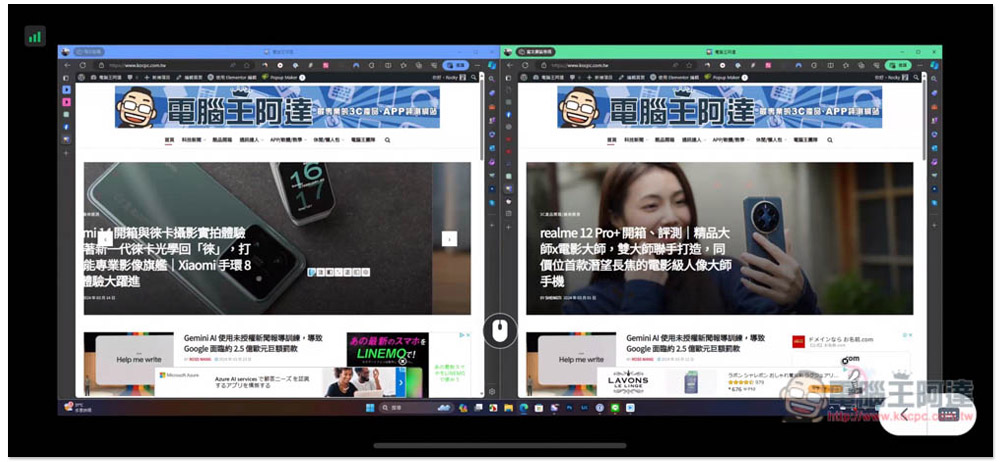
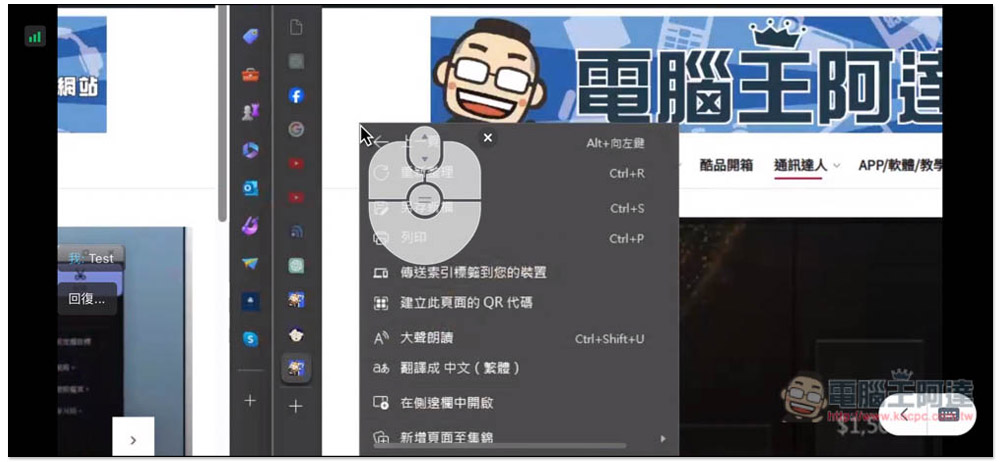
Like this, if you want to use the right-click menu, just open the mouse icon and click the right button. The operation is very intuitive, and you don’t have to remember what to press and hold to change the right button:
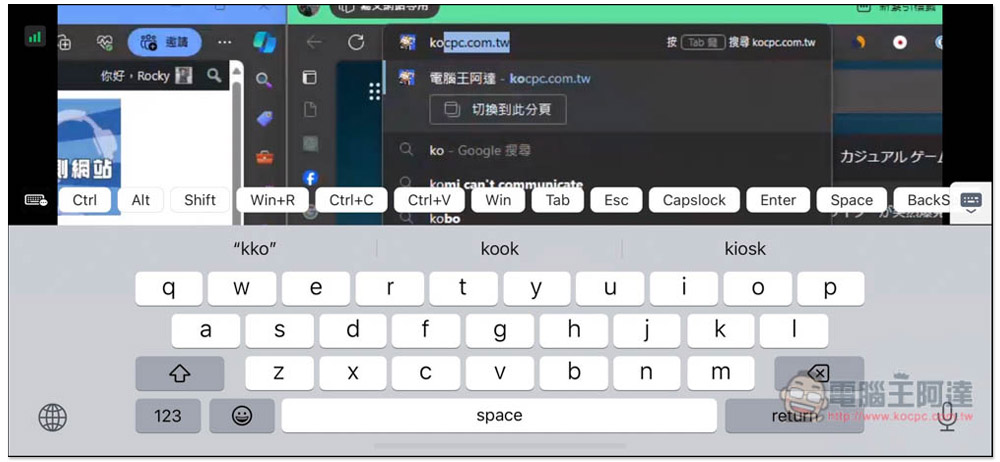
Of course, there is also a keyboard input function, and there are commonly used shortcut keys above, including Ctrl+C to copy, Ctrl+V to paste, Capslock, etc.:
In the menu section, the free version can use messaging, voice calls and notes in the interactive menu:
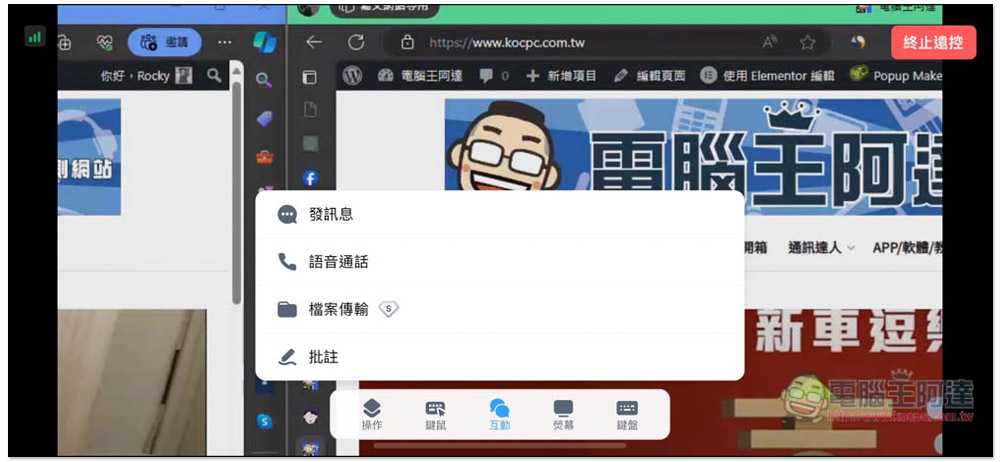
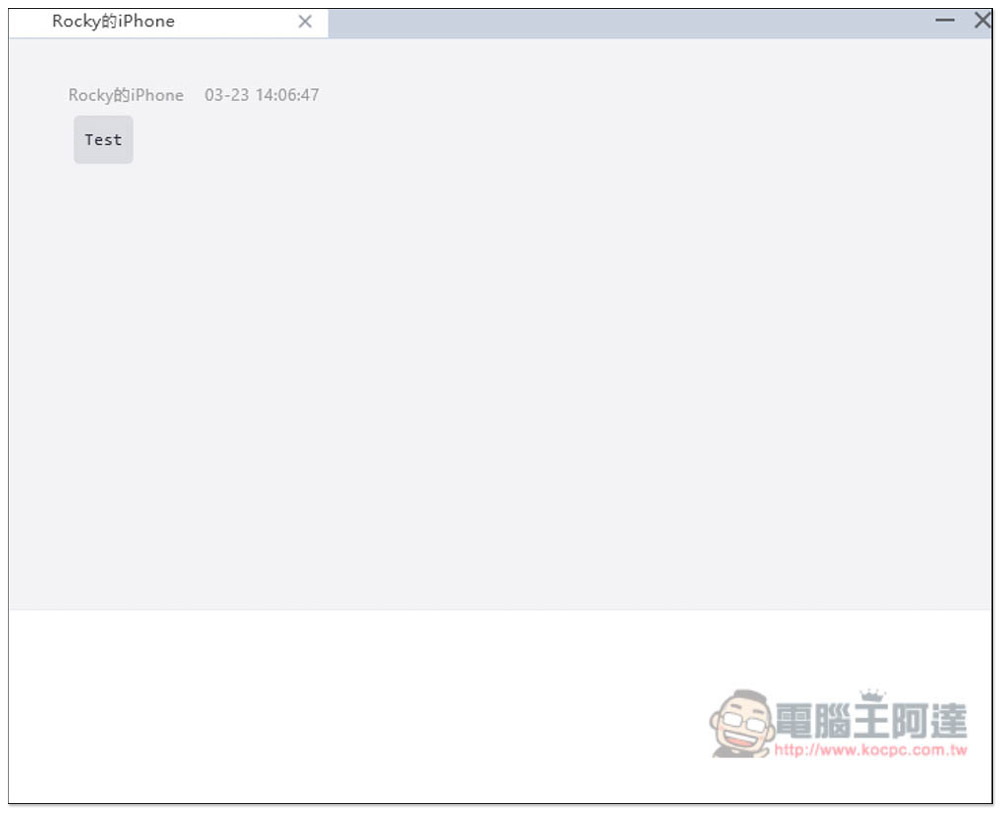
After the message is sent, the message window will pop up on the remotely connected device. This is very useful for helping others deal with computer matters or discussing:
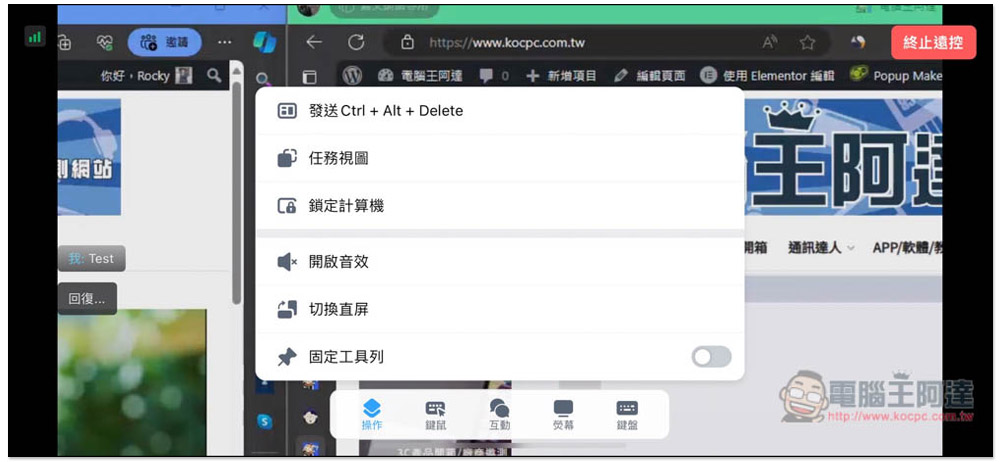
The operation part includes Ctrl+Alt+Delete, task view, lock computer (computer), turn on sound effects, switch to straight screen, and fixed toolbar:
People who are not used to using touch mode can also switch to pointer mode:
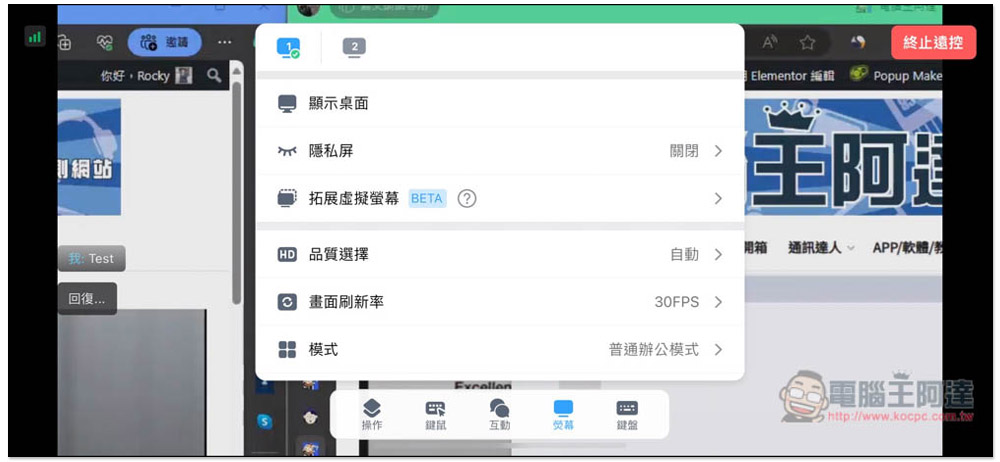
As for the screen part, you can quickly switch between different screens at the top, which I quite like. Multiple screens can be easily switched on a mobile phone. There is also a very useful display desktop function. Although the screen refresh rate supports 60FPS, the free version only reaches 30FPS, which is a pity:
Of course, it can also be used remotely from a computer to a mobile phone, but the iOS part can only be projected, and cannot be operated on the computer side:
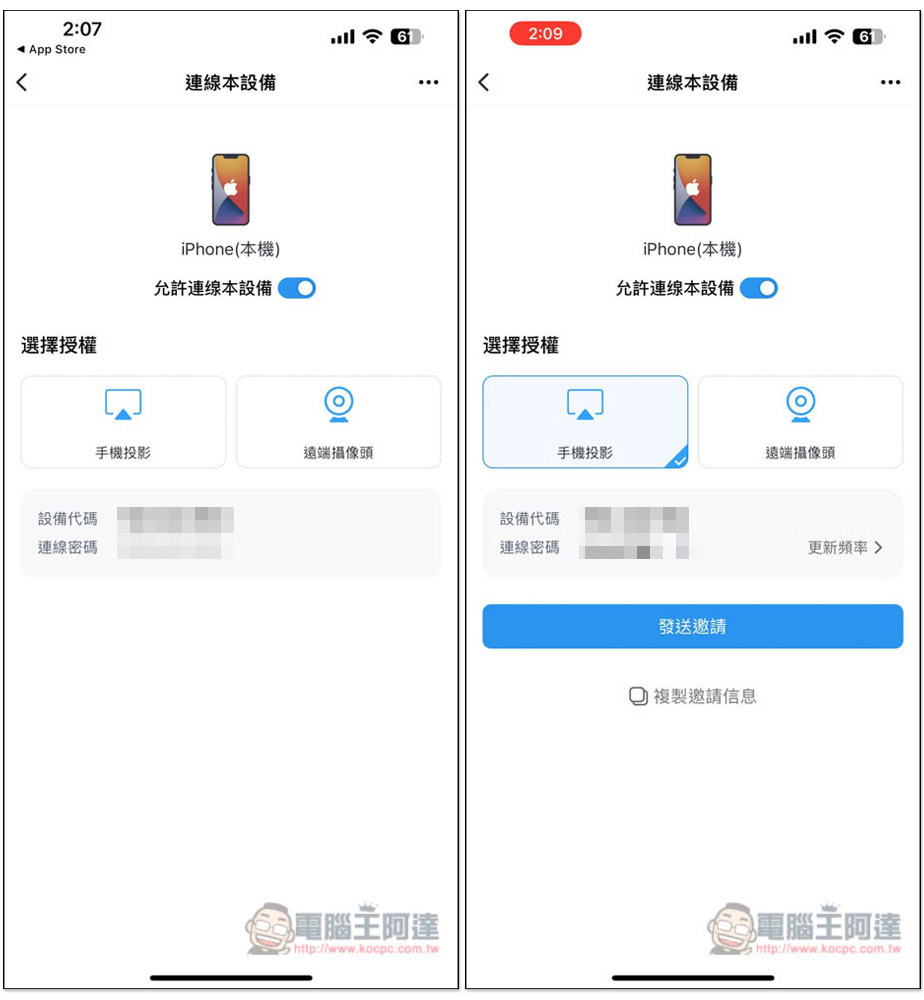
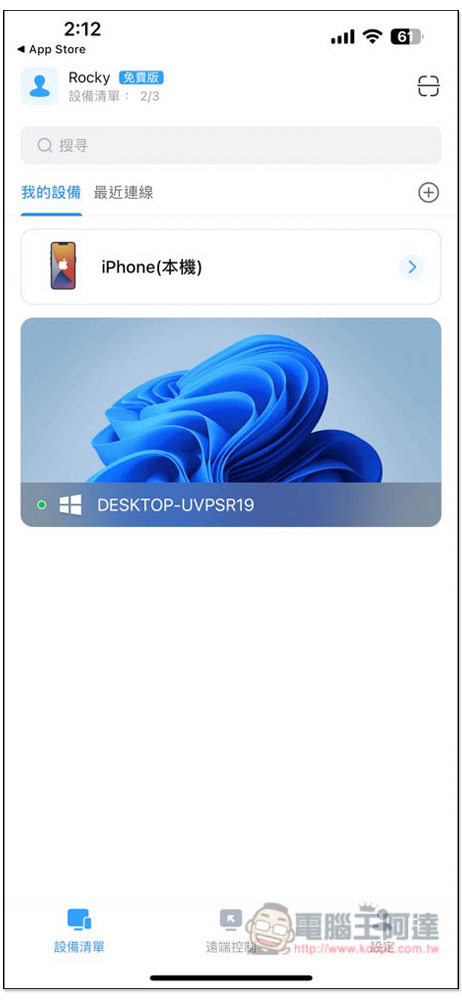
Devices logged in with the same account will automatically appear in the “My Devices” list, allowing us to quickly connect in the future. The free version can register up to 3 accounts:
Overall, DeskIn is a very useful remote desktop software. During my test, the latency rate was really low, I could play games without any problem, and the functions are complete. Unfortunately, file transfer is only available to paying users, otherwise it would have been even better.
Source: KOCPC Chinese