


When traveling to take photos, many people hope that their photos will not be taken by other strangers, but this is very difficult, especially in some popular attractions. For perfect photos, you may go to Facebook to ask experts to help remove them. In the future, you may wish to try this “Inpaint-web” free tool, which can be run with a browser, no installation is required, and all processing is completed locally. Your photos will not be uploaded to any server, so it is very safe, and the object removal effect is also very good. It also provides 4 Magnification function that doubles the picture resolution.
However, it should be noted that the removal of objects and enlargement of images are calculated through the AI model, so the processing process will use your device hardware. If it is older hardware, it may take more time to process.
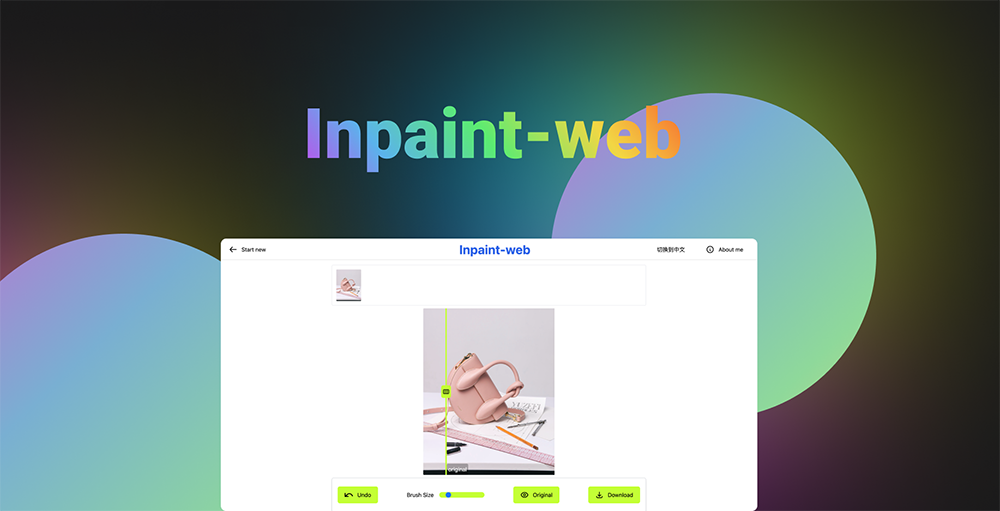
Inpaint-web runs locally, and you can use the browser to remove objects from images and enlarge images.
Inpaint-web is an open source free tool available in GitHub Share the project. Anyone who is interested can check it out.
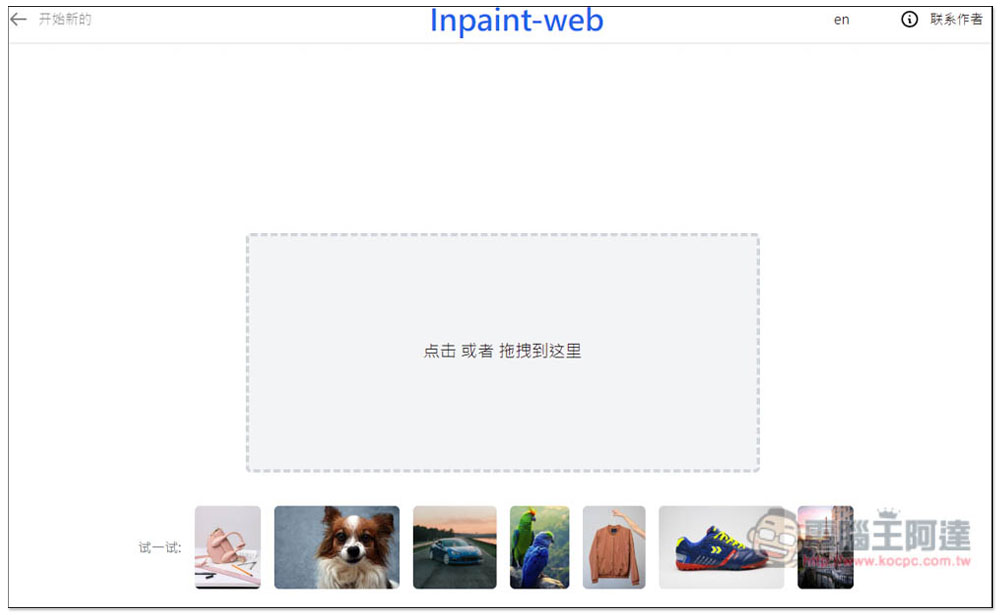
After clicking the link above to enter Inpaint-web, you will need to download the AI model for the first time. The file is not large, I remember it is only about 70MB. After the download is completed, you will enter the page below. Then you can drag in the image you want to remove objects or enlarge. There are also several sample images below that you can use:
You will then enter the post-production interface without any uploading process. There are many passers-by in the background of Ada’s photo. I tried to use this tool to remove them. You can adjust the brush size in the lower left corner, and just draw the objects you want to remove. Each time you finish painting, it will be processed immediately. You don’t have to wait for everything to be painted before processing. This is quite good:
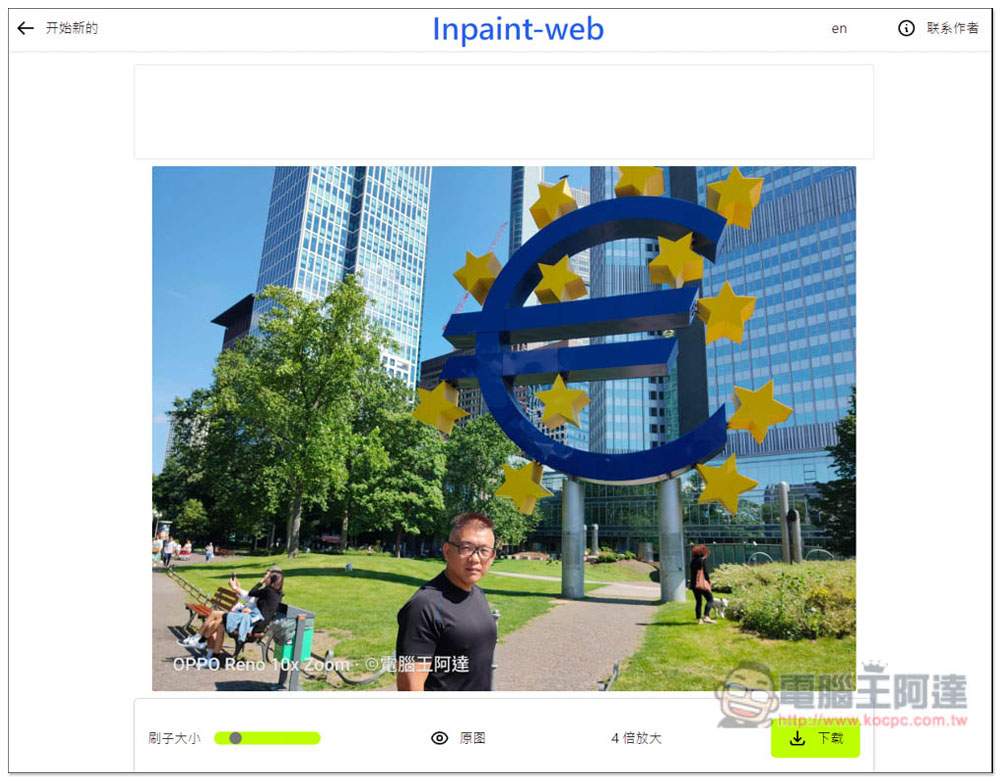
Like this, draw the object to be removed, it can be a person or an object. It is recommended to draw more accurately, the effect will be better:
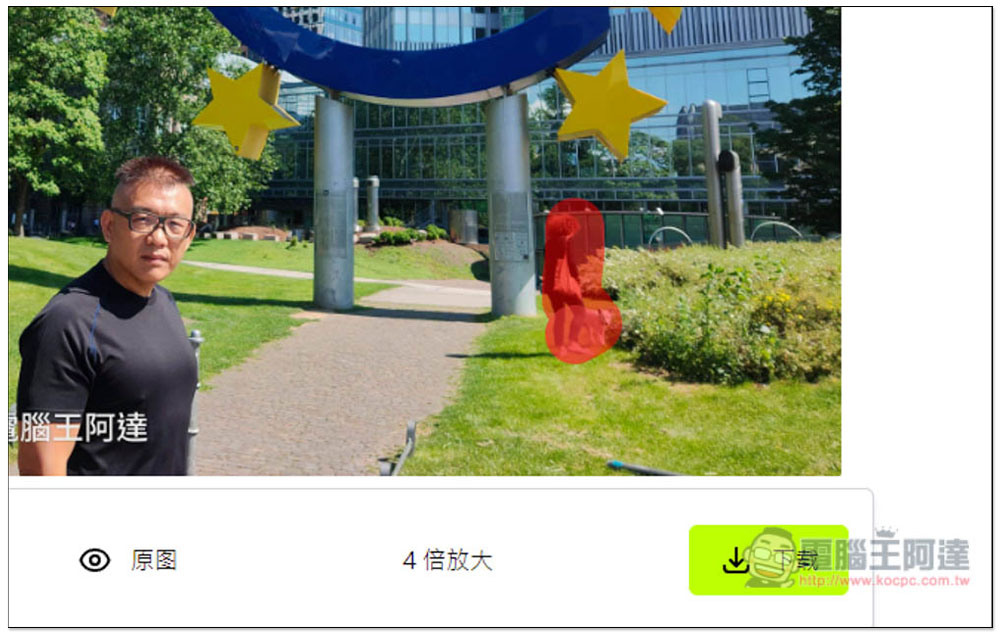
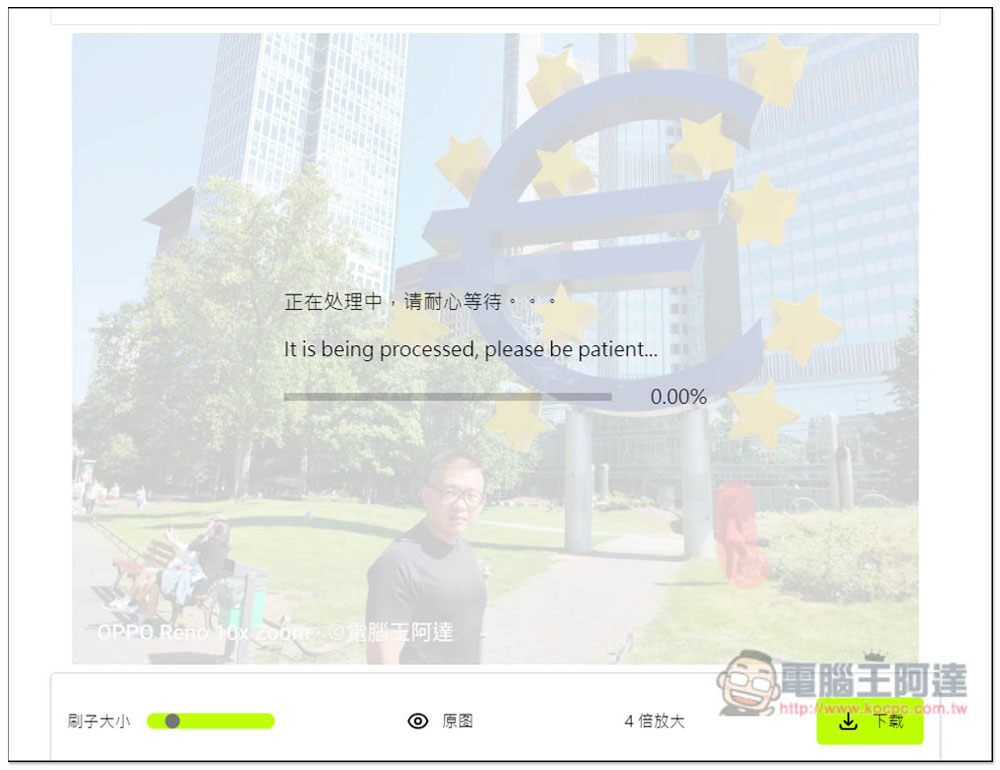
After drawing, this screen will appear, saying “Processing, please wait patiently…”. The speed depends on your device hardware. For me, it is quite fast and can be completed in a few seconds. My computer has an i5-13600K + RTX 3080 graphics card. For your reference:
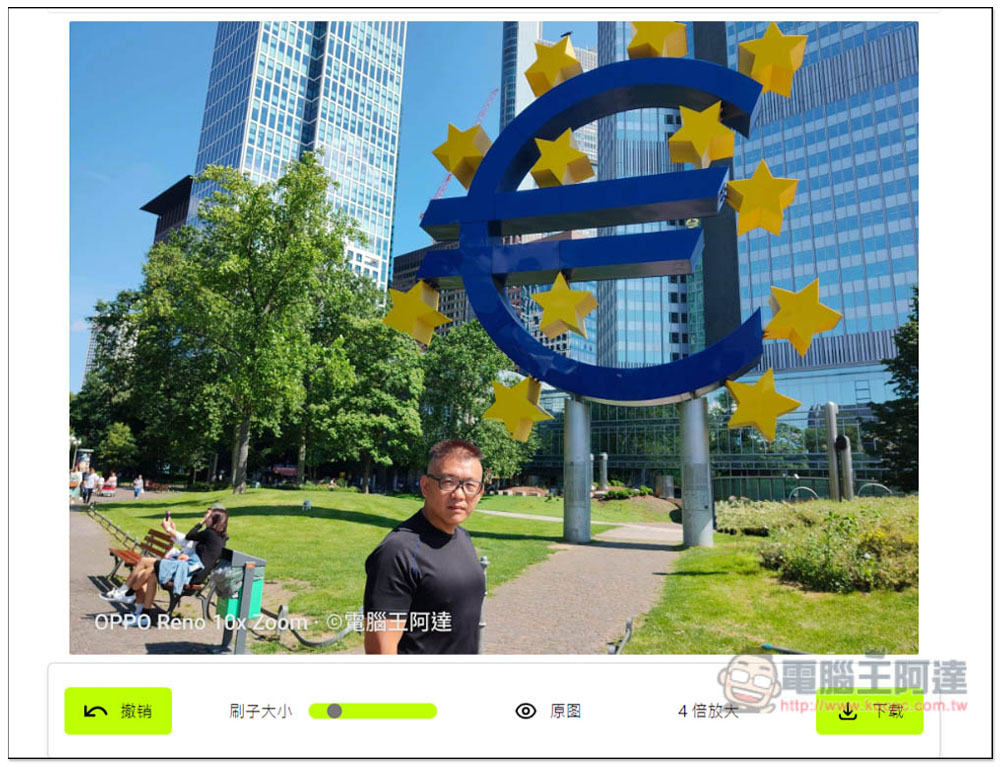
The person on the right originally disappeared, and it was quite natural:
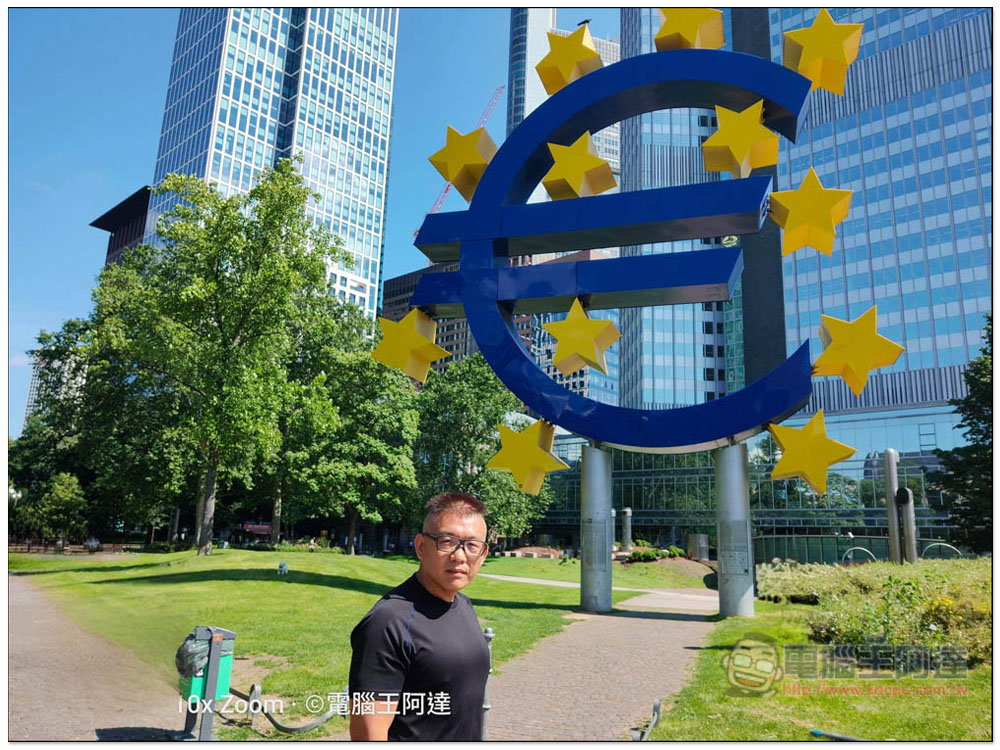
Below is the final photo after I removed all the others. I didn’t paint too carefully, just roughly painted it. The whole process only took less than a minute to get this photo, which is really good. If you want to remove objects from any photos or pictures in the future, just use this tool and you don’t have to look for a master anymore. Of course, if the photo is too complex, the effect may not be so good:
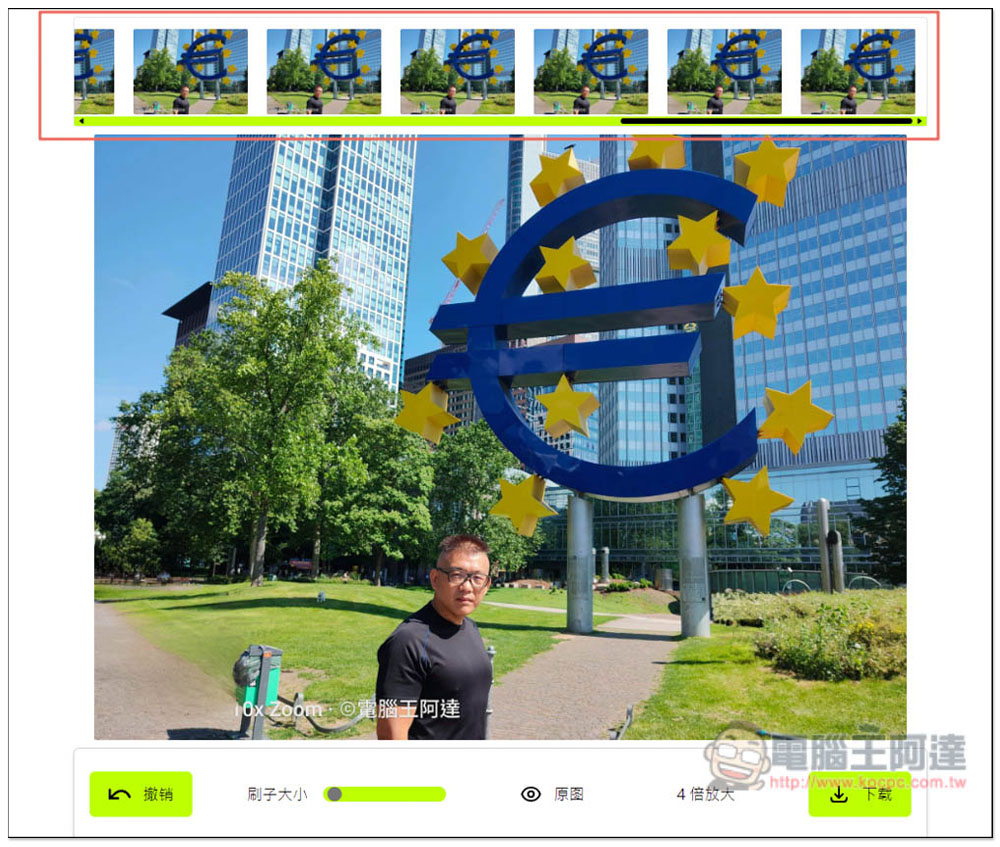
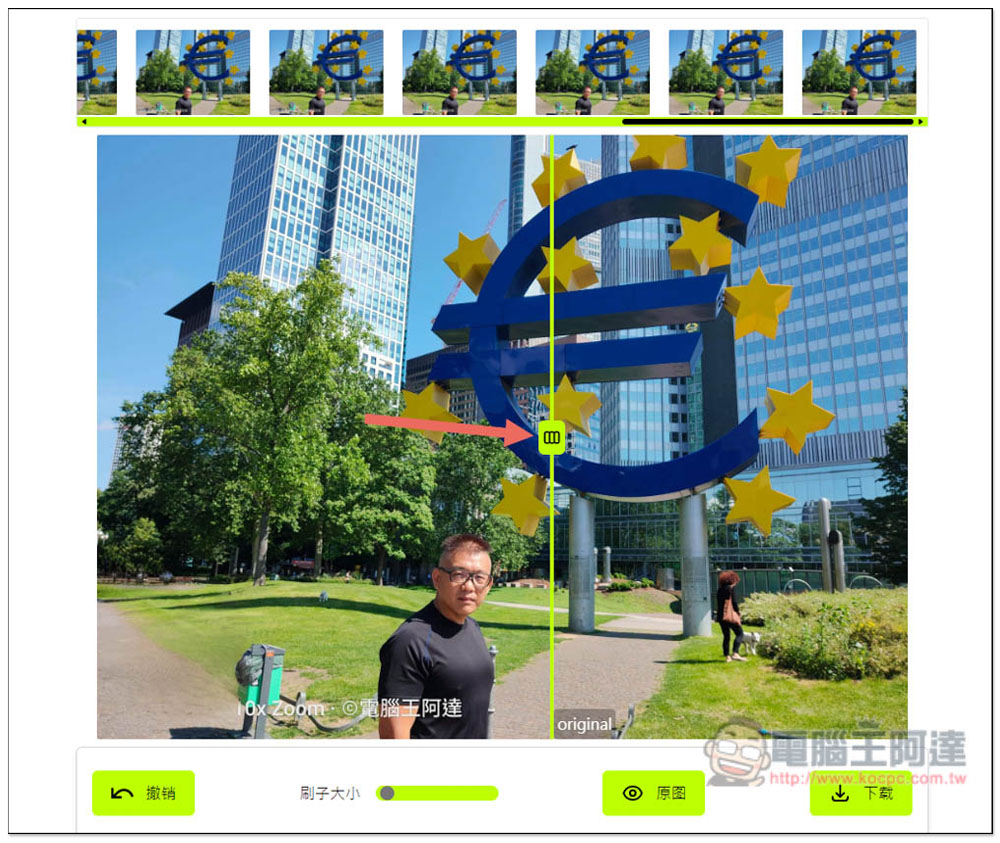
The top row also records each removal process, which means that if you are not satisfied with anything, you can restore it at any time, which is very convenient:
There is also a slider function to browse before and after editing:
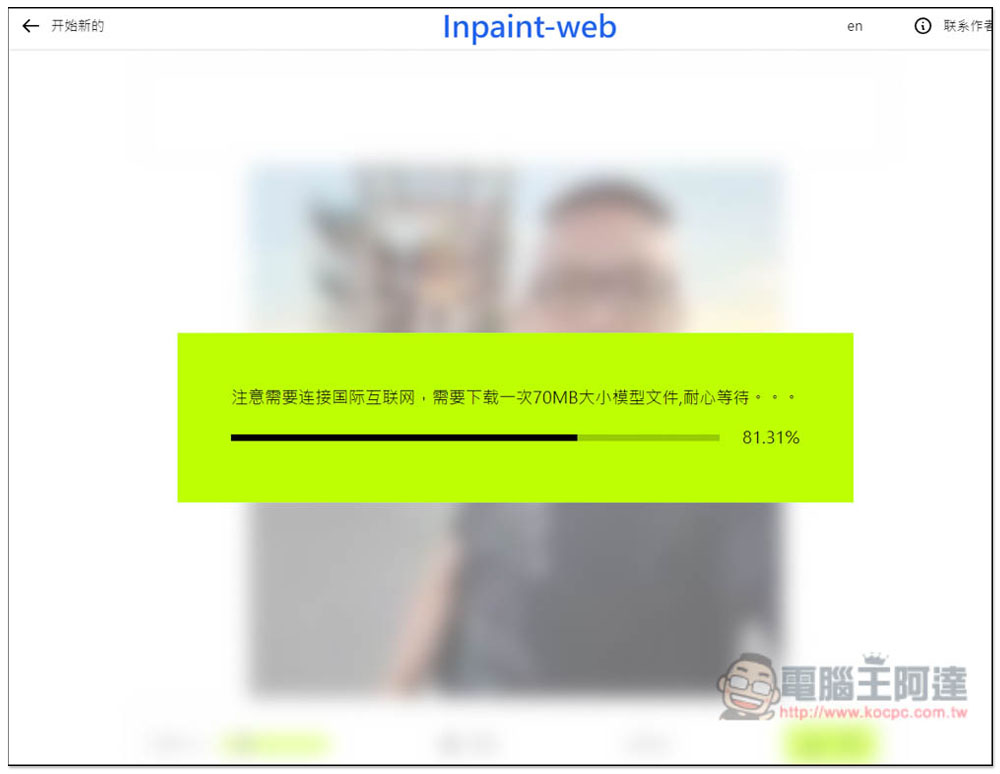
The first use of the image enlargement function also requires downloading the model, which is also 70MB:
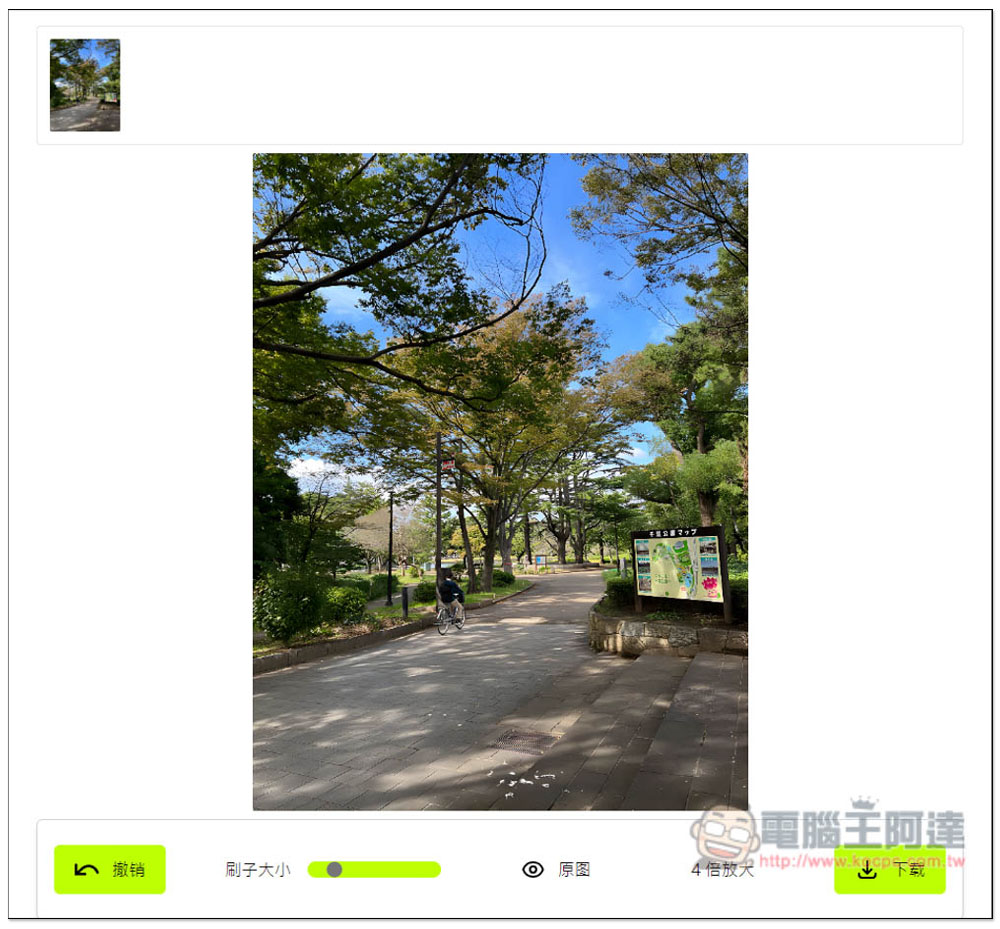
Click on the 4x magnification below, and the image will be enlarged immediately. But what is strange is that I have tried two or three images and failed, and some are OK. I am not sure why. If the enlargement is successful, there will be an editing record above:
I think the effect of zooming in is pretty good, but the photo quality will become very smooth and not so realistic. The left is the original photo, and the right is the enlarged photo:
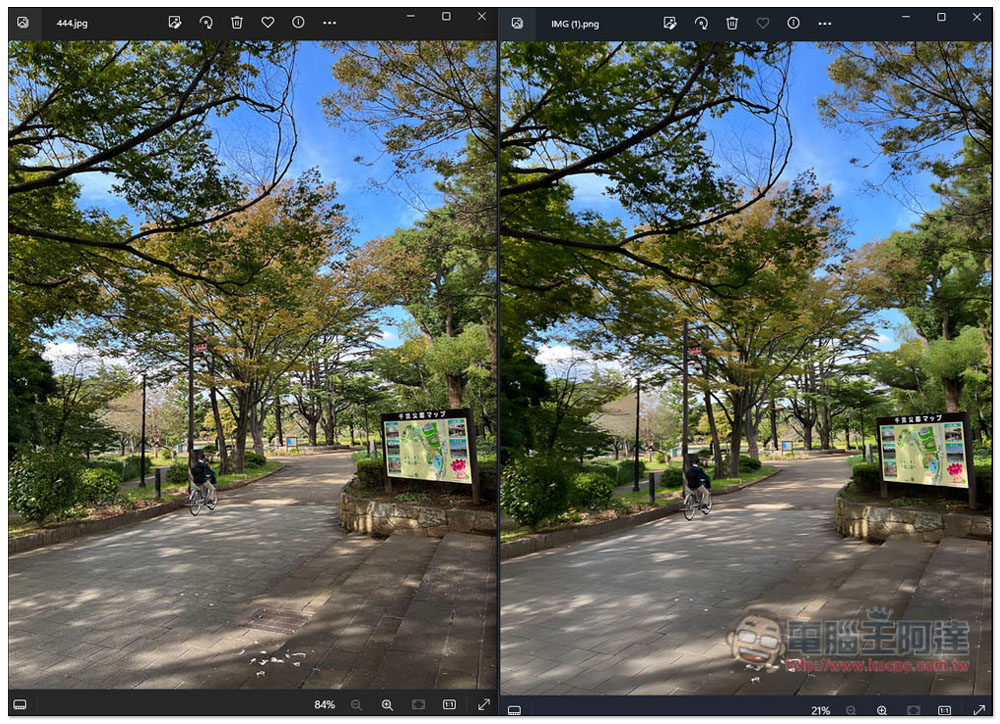
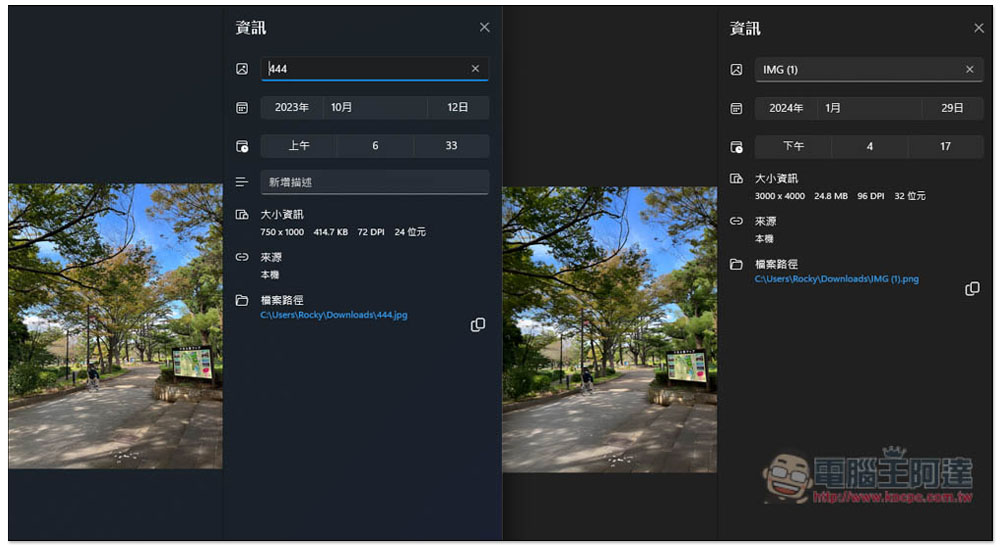
It is indeed magnified four times:
Source: KOCPC Chinese