


Microsoft is rolling out a new home page for Copilot on Windows 11, replacing the traditional chat-first interface typically seen on AI assistants. The new Copilot home UI brings a vibe similar to the Windows 11 Start menu, as it incorporates nearly everything from the Start menu—namely, a home for finding apps or files. With Copilot, all AI features can be accessed from this home page.
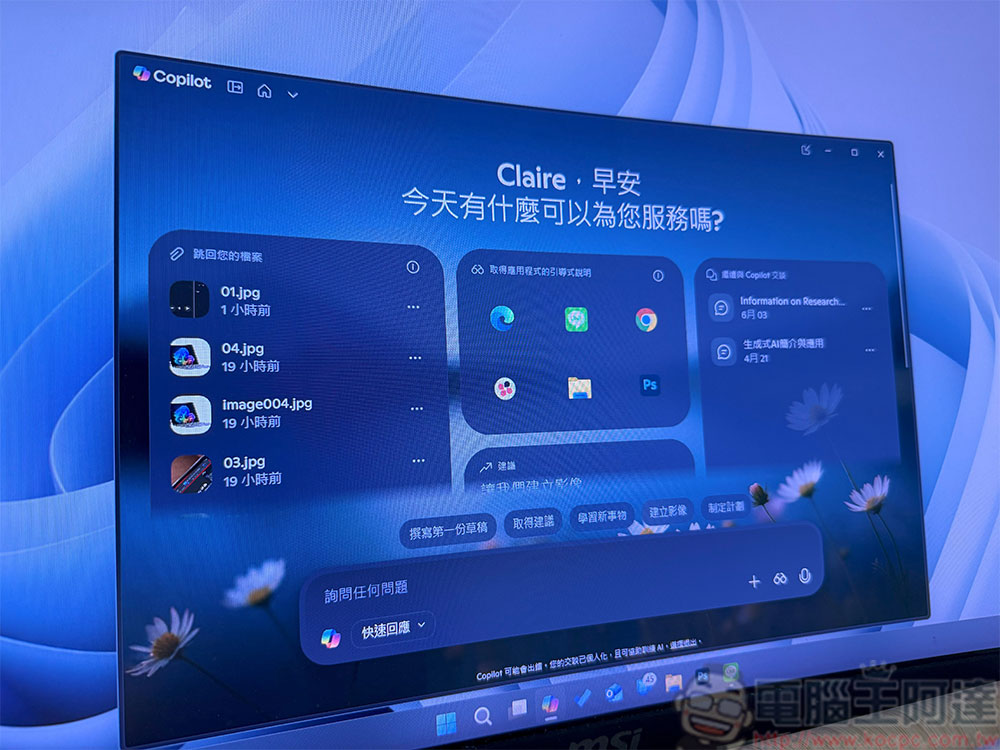
Microsoft adds a home page UI to Copilot for Windows 11
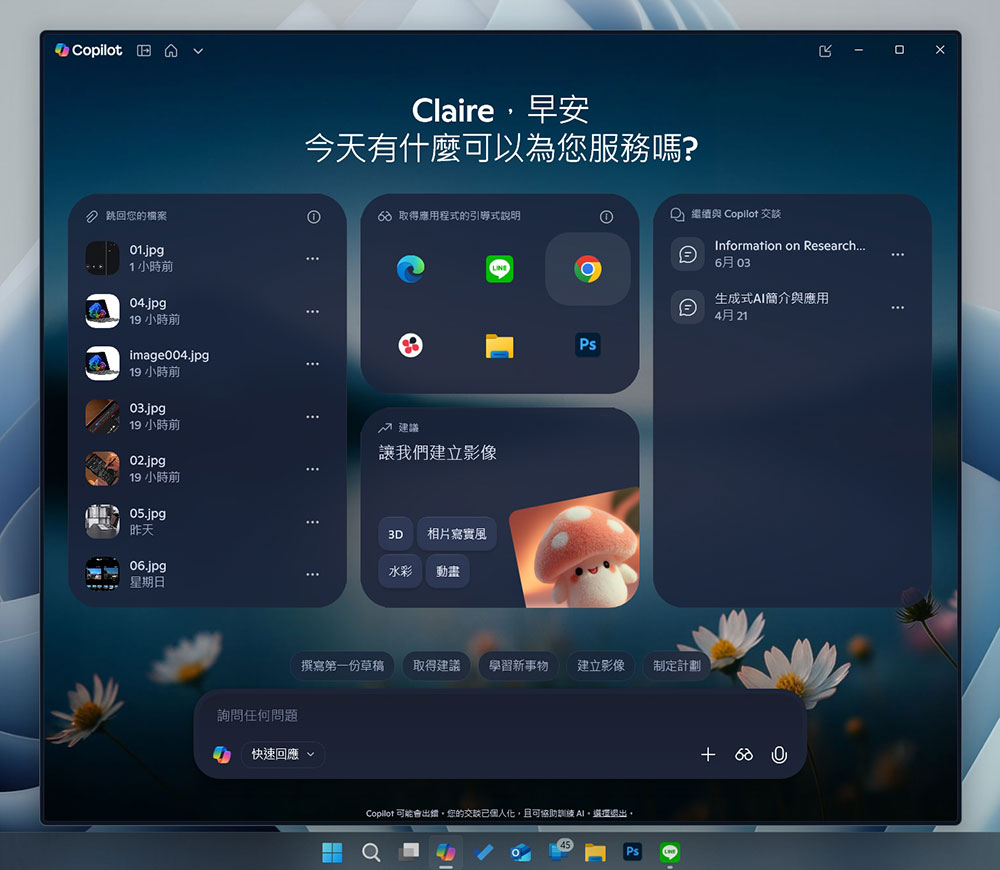
When you click the Copilot icon on the taskbar, what you see will be different from the simple chat format of the past. The new Copilot home page still greets you, but the most noticeable change is in the title bar, which now lets you switch between a home-style view and the older UI that’s more focused on conversation. The home page has four main sections, somewhat similar to the live tiles in Windows 8, but they’re not static displays — instead, you can use the cards on Copilot to jump to files.
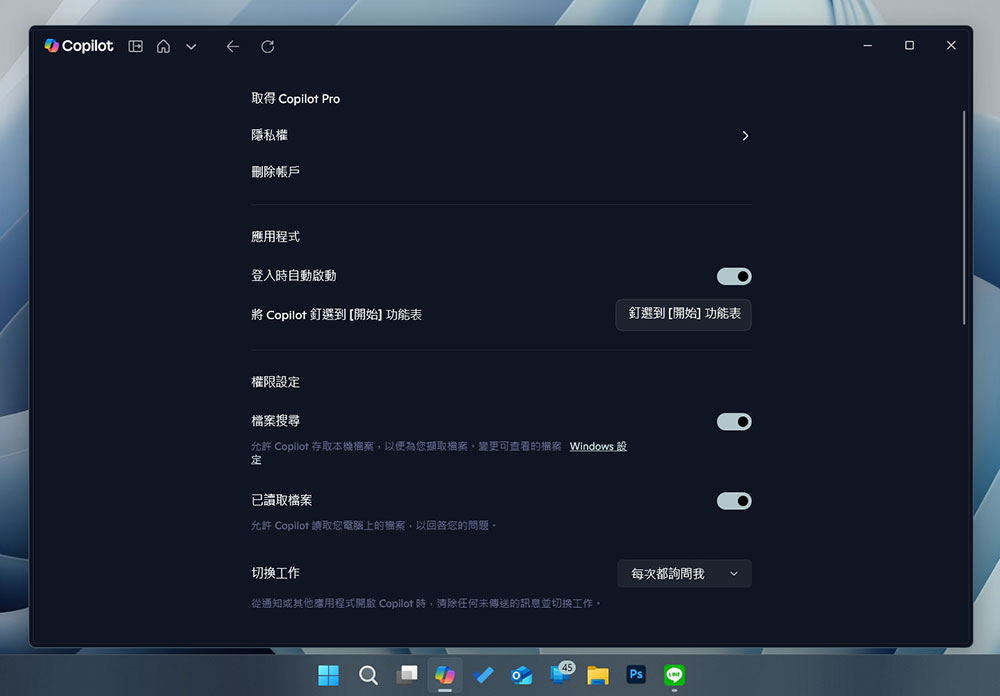
Copilot can access all documents stored on your Windows device, but you need to enable both file search and file reading in Copilot’s settings to grant it permission.
During testing, we noticed that the “Jump back to your files” section on Copilot pulls your recently used files from the Quick Access tab in File Explorer. However, Copilot only shows a list, but you can click the three-dot menu next to the file name to access three main options: Open, Attach to prompt, and Summary. When I choose “Open” for a Word document, Copilot opens it with the default file-opening application on your computer system, so the new Copilot homepage doesn’t necessarily try to confine you to the AI environment.
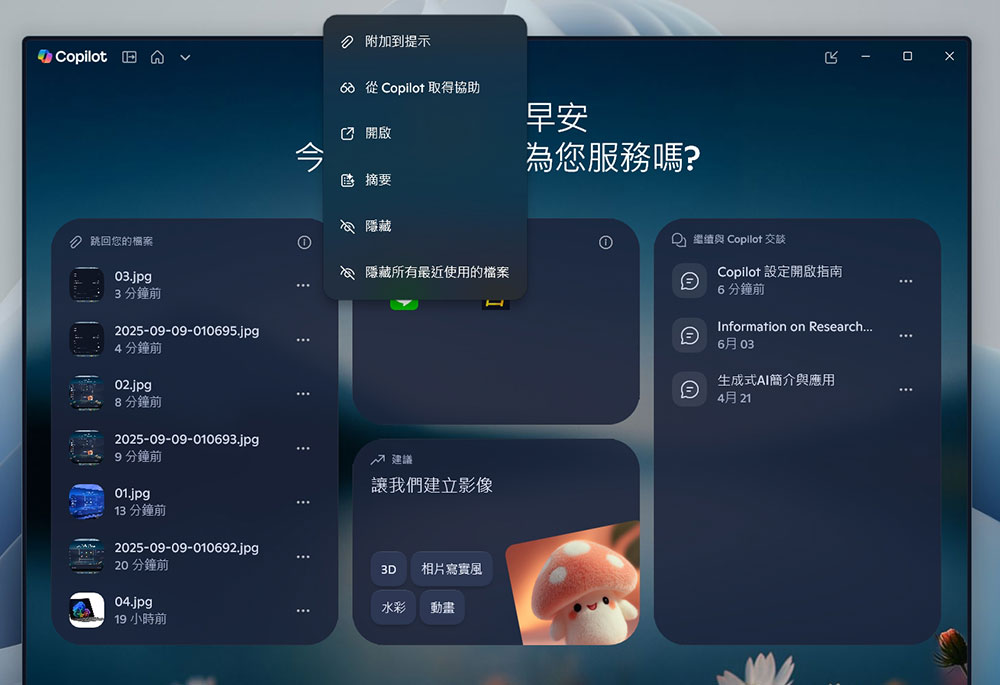
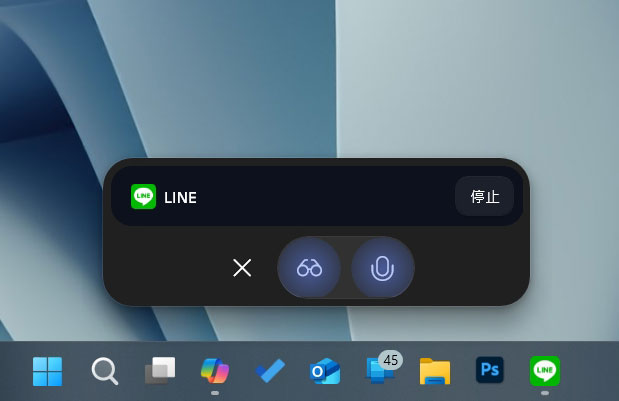
When you select attach to prompt, it actively drops files into the compose conversation so Copilot can analyze them after you send. Then, there’s also a toggle that lets you hide all recent files, which removes the entire section from Copilot’s home page, so once the “jump back to your files” area is removed, the number of blocks also decreases. Other sections each have their own functions, but one of them lets you return to previous conversations on Copilot. You’ll also notice a new “guided instructions for getting apps” block on the home page, which might be Copilot’s most interesting feature—it shows recently used apps, and when I click on any tile, it launches a Copilot vision conversation window that can see your screen, hear your voice, and help you understand how to use the selected app.
Microsoft doesn’t want to limit Copilot to just “chatting with AI…” Through the home page, Microsoft wants you to get Copilot’s help with documents or spreadsheets, or use AI to find files stored on your PC, integrating the Copilot experience throughout the system. The new Copilot home UI is rolling out to everyone—if you don’t see it right away, please be patient.
Source: KOCPC Chinese