


Generally speaking, if you do not install an additional GPU, your computer will automatically use the internal graphics in the CPU to process the image part. But if your CPU has built-in graphics, but you add a graphics card, or have multiple graphics cards, you may find that Windows 11 sometimes foolishly uses only one of them to drive your applications and games, without prioritizing the other GPU. Fortunately, you can tell the operating system which application or game should use which GPU by default through a simple setting change. This time we will teach you how.
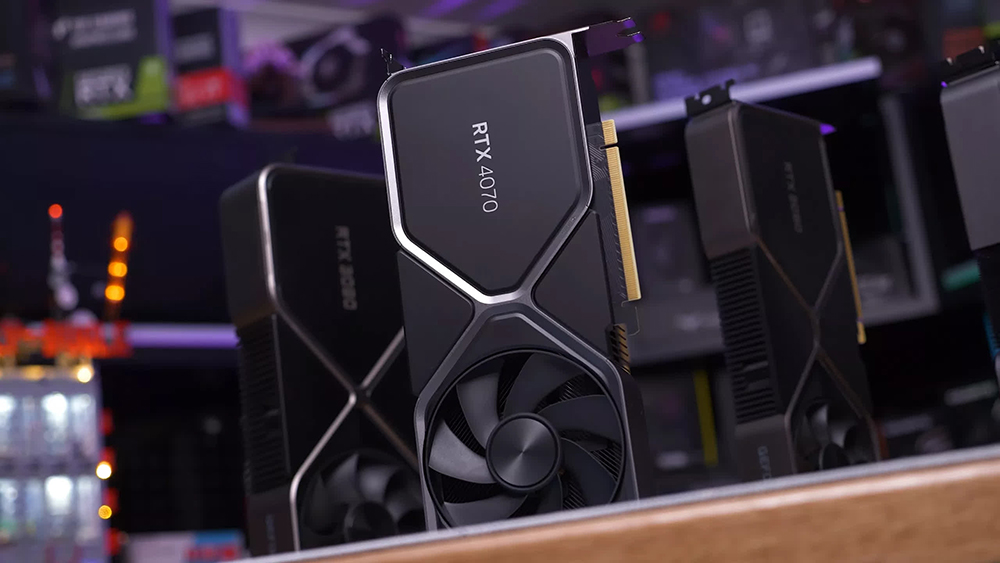
How to set GPU for each app in Windows 11? (especially games…)
The Windows operating system now decides on its own which GPU each application should call. No matter what preferences you set in Nvidia’s Control Panel or AMD’s Adrenaline, in most cases Windows will ignore your settings. There are some advantages and disadvantages to this. The advantage is that it is now easier to specify which GPU should be used for each game individually. The disadvantage is that it may take you a while to properly specify which GPU should be used for each application.
Anyway, if you have this need, you can do it as follows:
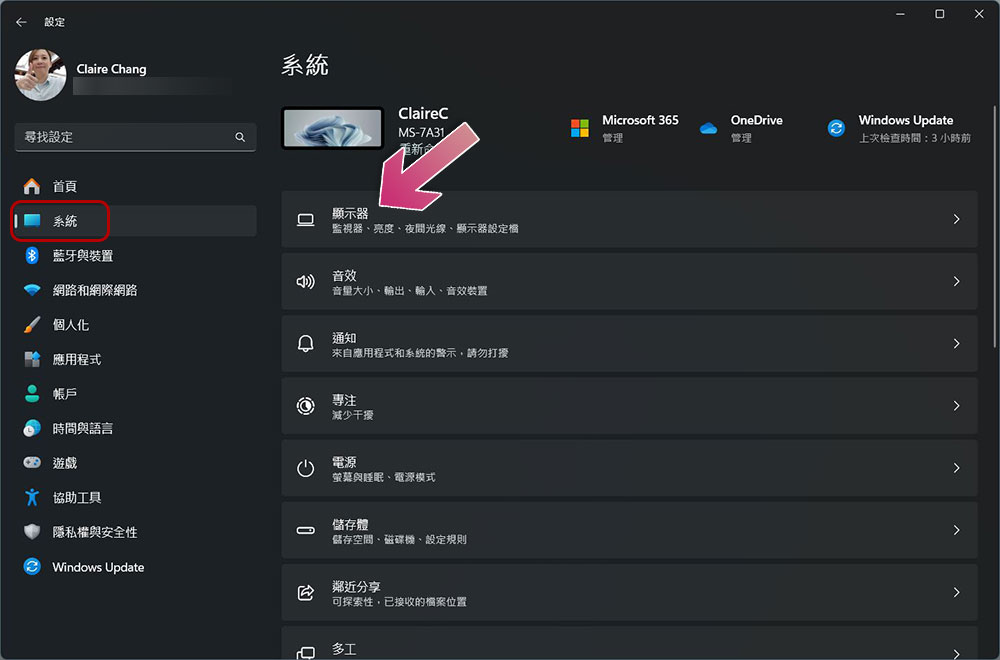
- Open the Settings app, click “System” in the left sidebar, and then select “Displays.”
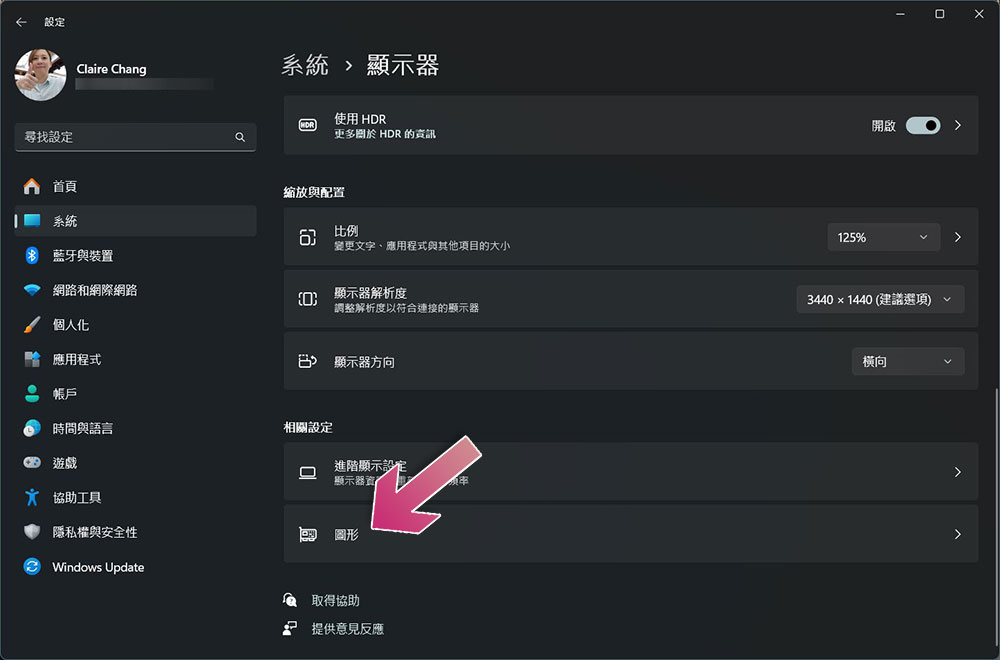
- Then scroll down and find “Graphics” in the relevant settings category.
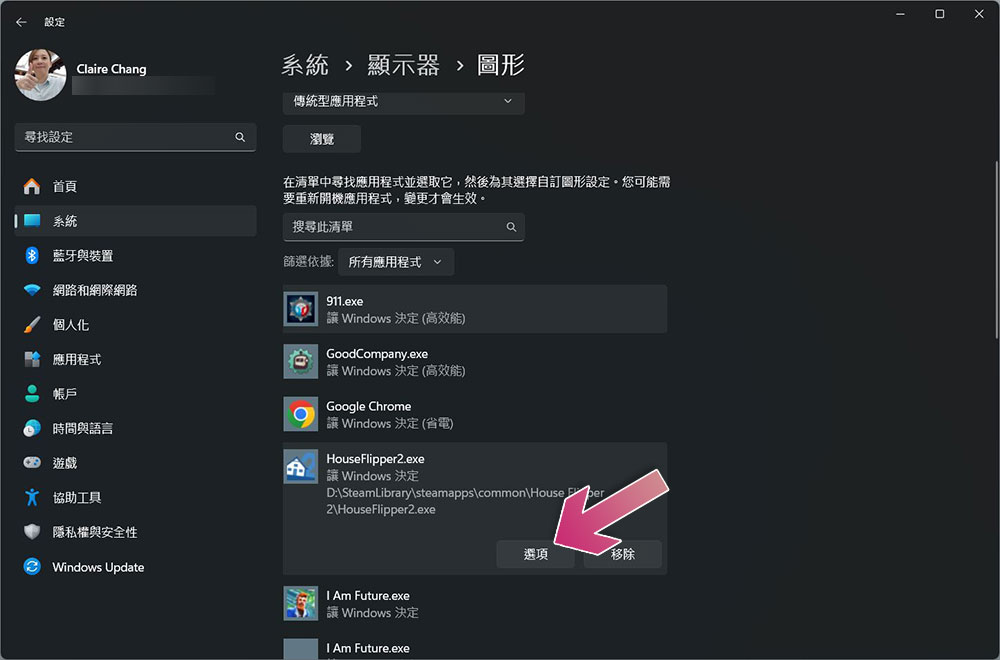
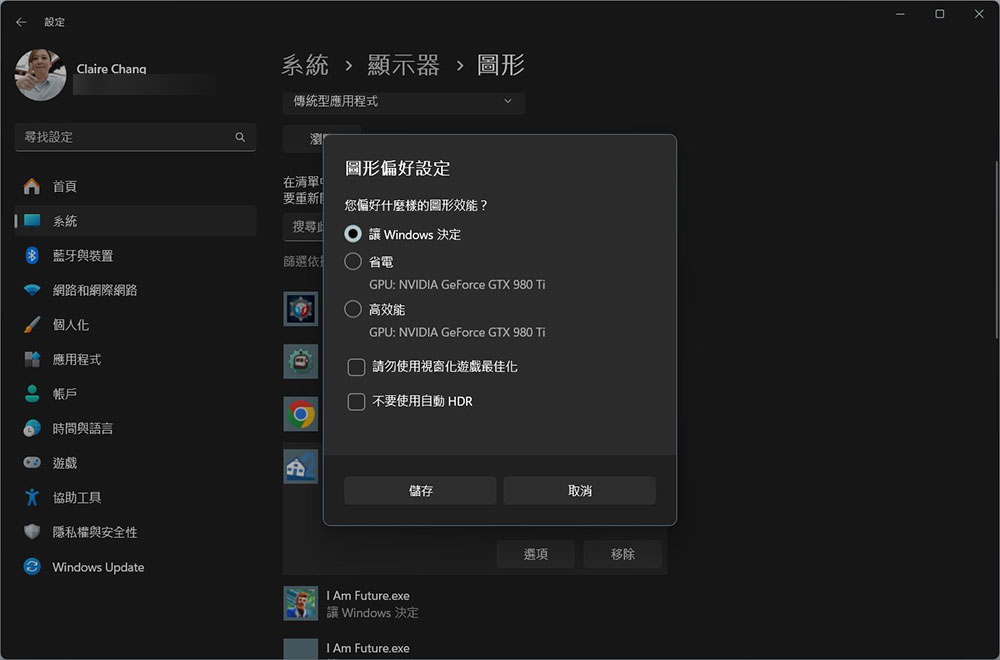
- Then click to expand the game or application you want to specify, and then click “Options.”
- The default setting is “Let Windows decide”. You can customize whether you want high performance or power saving from the options, and you can even check whether you want window painting game optimization and automatic HDR. After selecting, click Save to close. The more troublesome thing is that you have to choose one by one, which will take a little time.
Should you change your GPU settings?
It’s worth noting that in most cases, Windows effectively decides which GPU should power each application. Therefore, for most users, letting Windows decide is a good decision, especially if you’re not sure whether certain processes require a discrete GPU to perform their operations. However, sometimes Windows may not function properly. In this case, even if you have a perfectly functioning GPU installed in your system, you may experience poor performance when playing games or using intensive applications. When this happens, manually assigning the GPU to the application can usually solve the problem.
It’s also worth noting that if you’re using a high-end laptop, Windows may prioritize using the built-in graphics card over the discrete GPU to save you power when it’s not plugged in or the battery is low.
Source: KOCPC Chinese