


When using your computer, do you often feel that your computer is lagging and the CPU usage of Microsoft Defender Antivirus Service is very high? This is caused by the built-in anti-virus software in Windows. By default, Windows 11/10 will occupy up to 50% of the CPU usage. The good news is that this can be manually limited. Let’s teach you how to set the Windows Defender CPU usage so that it no longer exceeds the limit and releases more hardware resources.
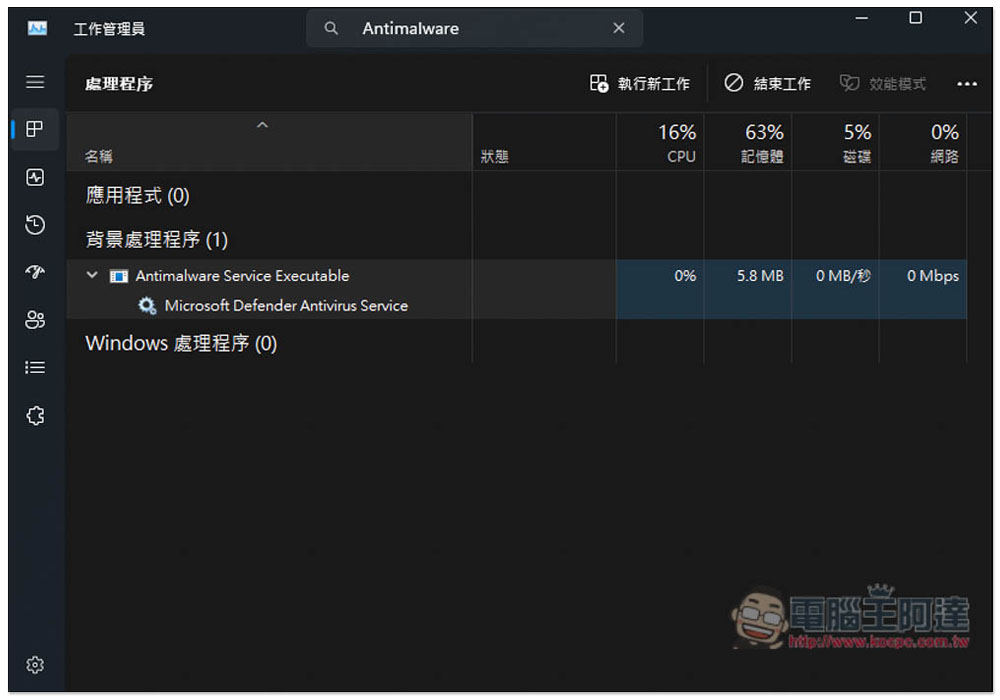
Do you always feel that your computer is not running smoothly? Teach you how to limit Windows Defender CPU usage so it no longer takes up a lot of resources
Windows Defender is the built-in anti-virus software of the Windows operating system. It will run scanning actions in the background from time to time to ensure the security of your computer files. For some mid-to-high-end CPU users, this may not be a problem. However, if you are using a low-end processor and the CPU specifications are not good enough, you may always feel that the computer is not running smoothly. You can limit the CPU usage of Windows Defender by following the operation below.
1. Open the “Local Group Policy Editor”
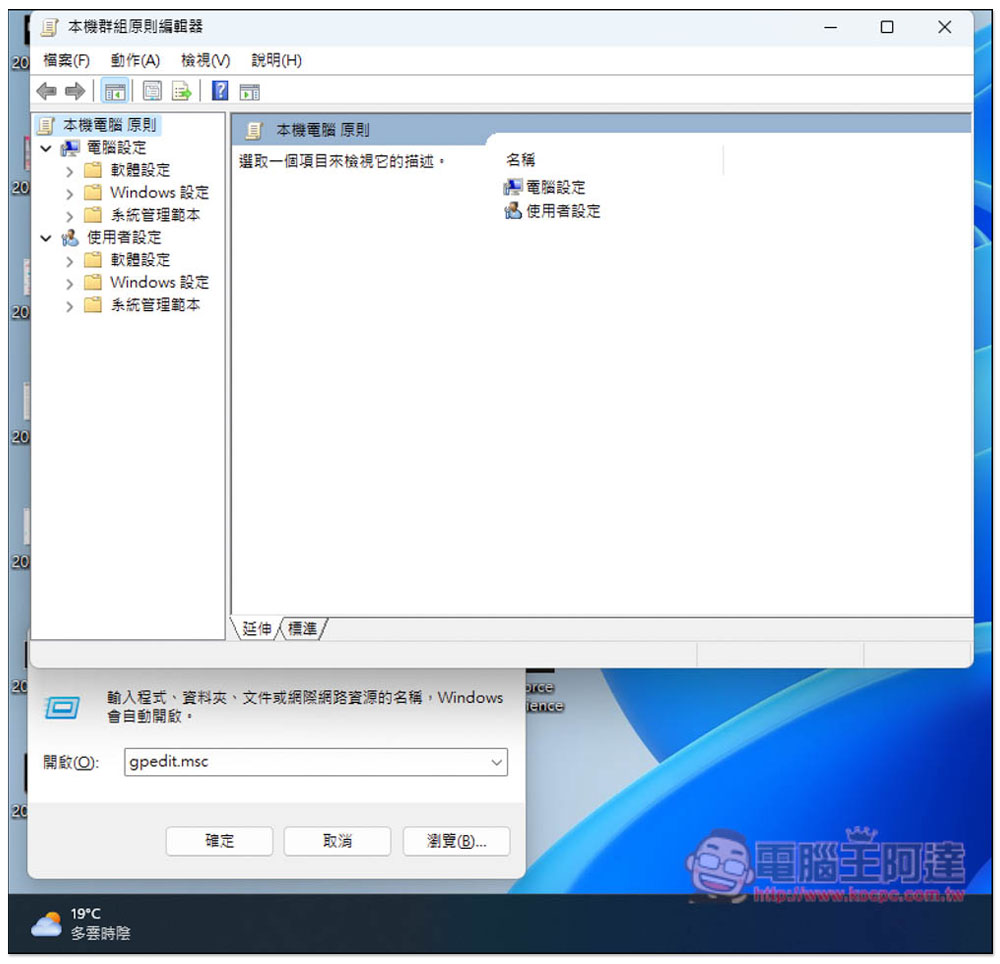
Use the “Win + R” shortcut key to open the search function, enter “gpedit.msc” and press OK to open the “Local Group Policy Editor” function:
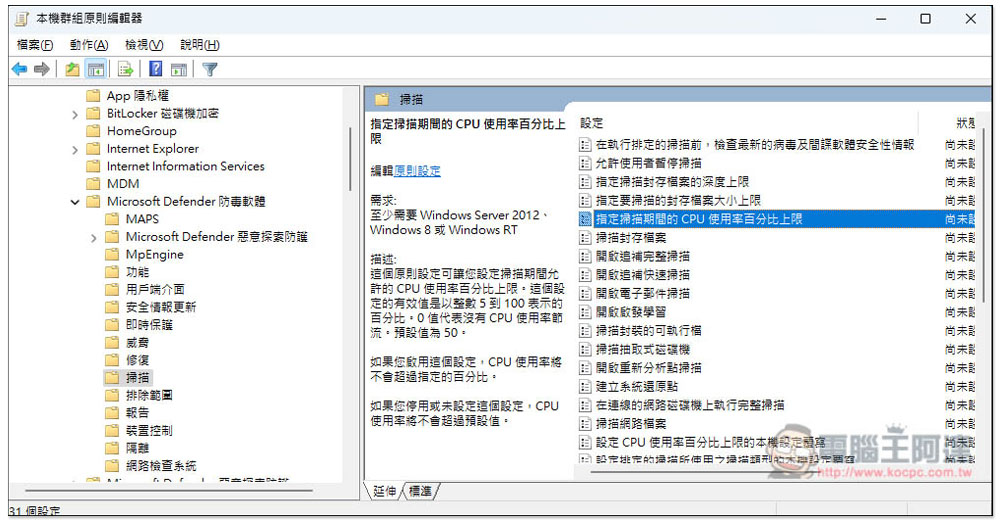
Open Computer Settings -> System Management Templates -> Windows Components -> Microsoft Defender Antivirus Software -> Scan, then on the right you can find “Specify the upper limit of CPU usage percentage during scan”, double-click to open:
Change the “CPU Usage Percentage Limit During Specified Scan Period” number below to what you want. You can set it from 5 to 100. The default is 50. If you want to lower it, change it to a number between 5 and 50. The lowest is 5. Once set, this percentage will not be exceeded whenever Microsoft Defender enables automatic scanning. After completing the input, press Apply and OK, and you are done:
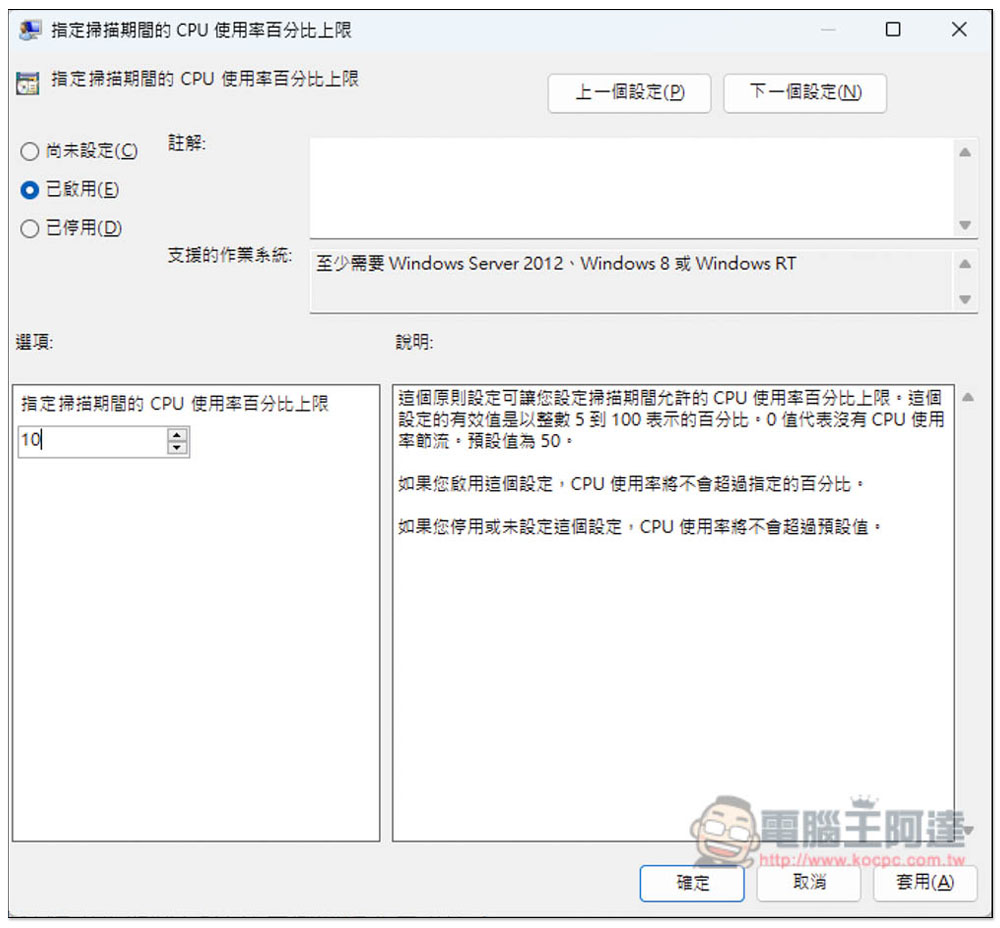
However, it should be noted that when you lower the CPU usage percentage limit of Microsoft Defender, it will also affect the scanning performance. Simply put, the scanning speed will be slower.
How to check the current maximum CPU usage of Microsoft Defender
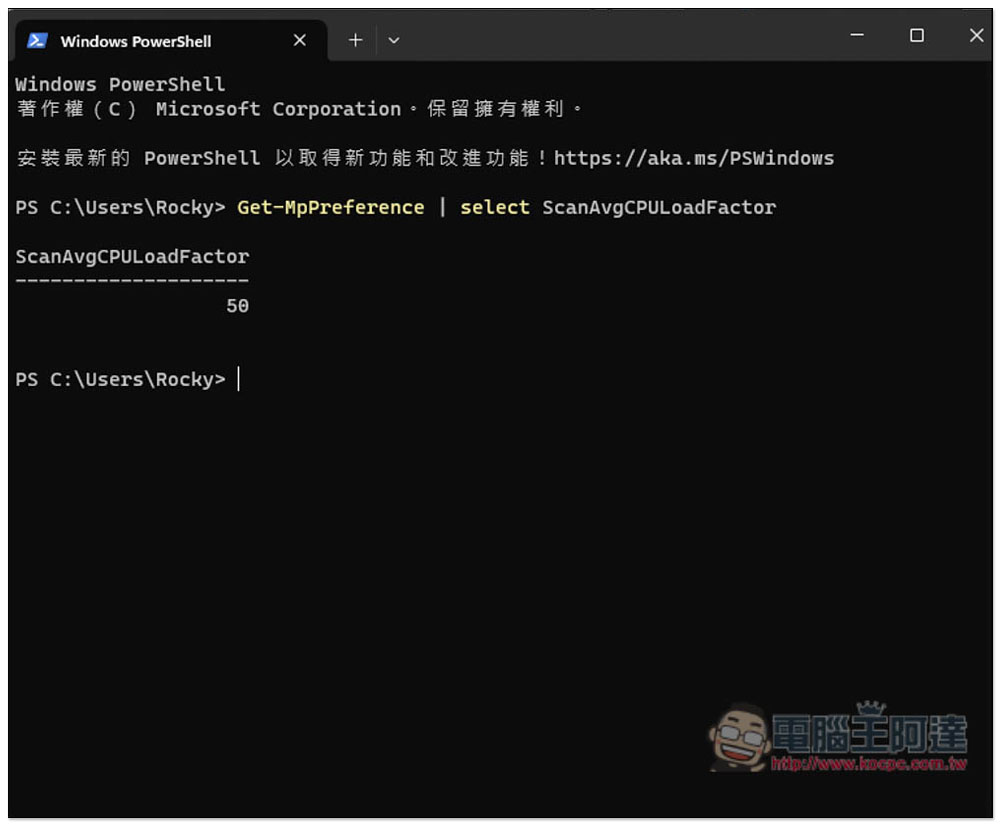
After the setting is completed, if you want to confirm whether the maximum CPU usage of Microsoft Defender is correct, you can check it through PowerShell. The operation method is as follows:
- Turn on the PowerShell function and search for PowerShell in Windows to find this tool
- Enter the following command:
Get-MpPreference | select ScanAvgCPULoadFactor - Then the value of ScanAvgCPULoadFactor will be displayed. This is the maximum CPU usage. I did not adjust it, so it is still the default 50.
Finally, I would like to remind you that this method can only improve the CPU usage of Microsoft Defender. If the computer is not smooth and stuck for other reasons, it may not be helpful. For those whose computers have not been upgraded for a long time, it is recommended to change to one with better specifications.
Source: KOCPC Chinese