


In the world of mobile technology and high-fidelity vision on modern displays, iPhone is at the forefront. With the launch of the latest iPhone 15 and iPhone 15 Pro series, you may want to make more full use of the Super Retina XDR screen, so you have to make some settings on the screen itself, but you may be unfamiliar with the term “True Tone” that appears in it, so what is it?
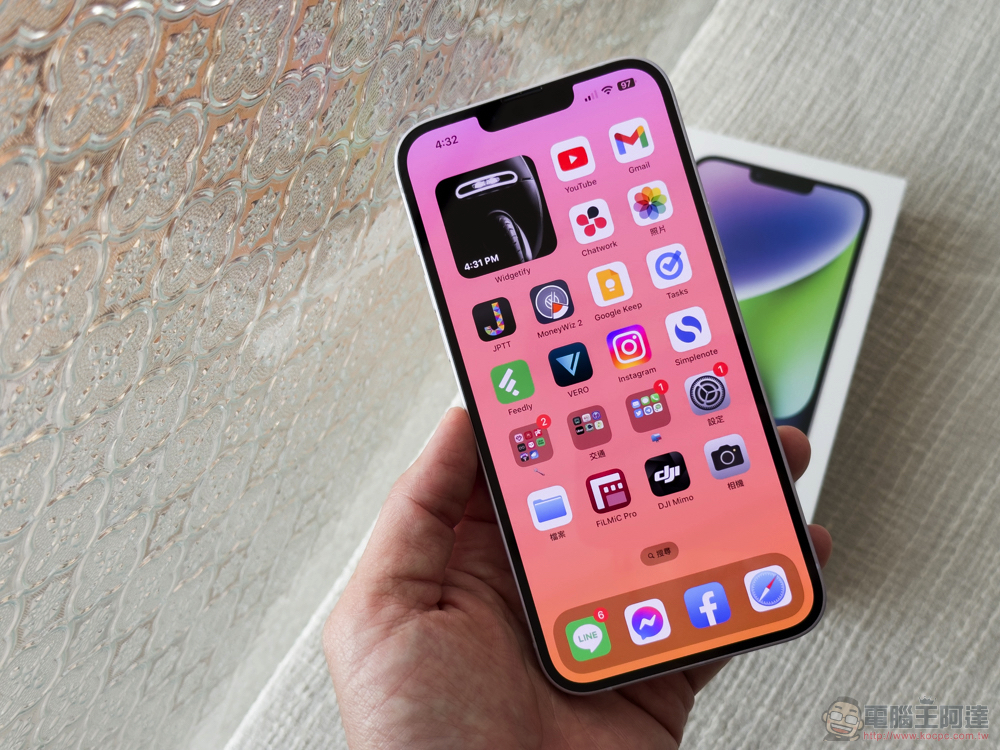
What is True Tone in iPhone screen settings and should you turn it off?
“True Tone” is a display setting that is mainly used on iPhone 8 and later models with more sophisticated technology and automatically corrects the colors that appear on the screen. However, some users have complained that it actually reduces visual fidelity and quality, or some speculate that it drains iPhone battery faster. If you have studied the display options on the iPhone and are curious about whether to turn it off or on, then you are definitely not alone. This time the author will compile everything you need to know about “True Tone”.
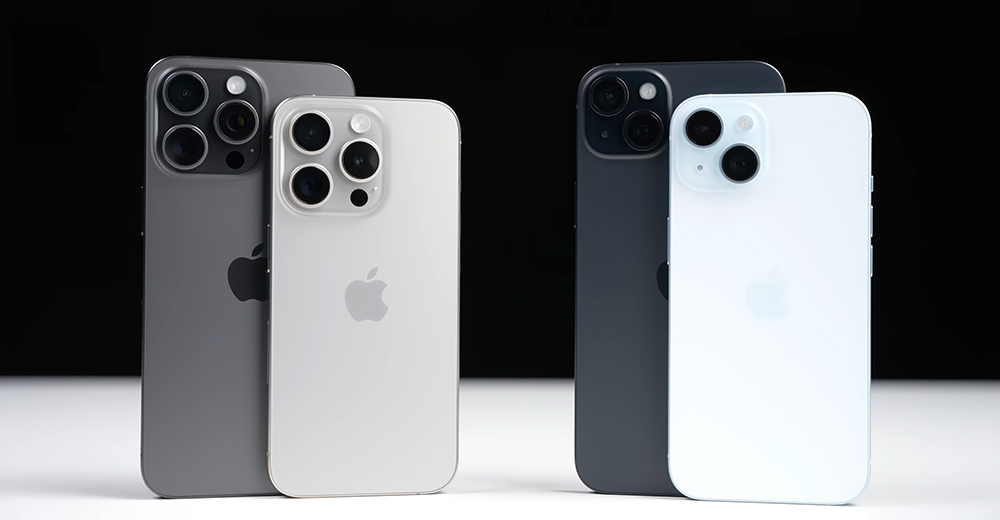
What is True Tone on iPhone?
True Tone is a setting on many Apple devices that adjusts the color of your iPhone screen to match the lighting in your environment. By default, True Tone uses the advanced sensors on iPhone to help blend the color intensity of the screen with the surrounding environment, thereby reducing irritation to the user’s eyes. It achieves a more natural visual effect by adjusting the white balance of the screen to match the surrounding lighting.
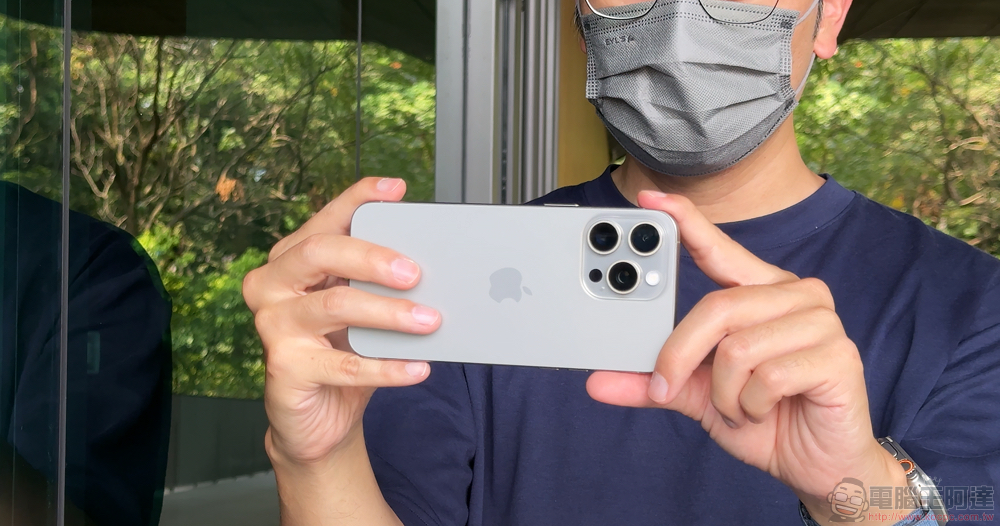
More specifically, different light sources have different color temperatures, since most lights do not cast pure white light. Whether it’s candles, fluorescent lamps, or natural light from the sun, True Tone collects information from your surroundings and automatically adjusts the screen to match whatever light source is around you. True Tone is available on a variety of Apple devices, including iPhone 8 and later, iPhone SE 2nd generation and later, and iPad 9th generation and later. A full list of compatible devices can be found at Apple websitefound on .
Should you use True Color?
Some users with less discerning visual senses may overlook the fact that True Tone is enabled on their device, as its purpose is to blend in and be unnoticeable. On the positive side, True Tone is designed to reduce eye strain by better integrating the visuals of the iPhone screen with the environment, and can make images look more natural by the same token.
However, some people find that True Tone reduces the visual fidelity of watching videos and photos on iPhone. While this is not the case (True Tone does not adjust resolution or visual quality), this setting does slightly adjust the colors displayed by the monitor, which may be seen as a reduction in image quality. True Tone, like any other feature on the iPhone, may use some processor resources and battery power, although the difference is usually so small that it’s almost negligible and can be considered an urban legend. In fact, there are other better ways to extend the battery life of your iPhone, such as reducing the brightness of the screen or using low-power modes.
How to turn off original color?
If you want to test to see if your device performs better without True Tone turned on, or if you like the way your videos and pictures look better, luckily, it’s easy to turn off the display settings that are enabled by default:
- Open the Settings app and go to “Screen Display & Brightness”.
- Just turn off the True Tone switch located in the brightness section.
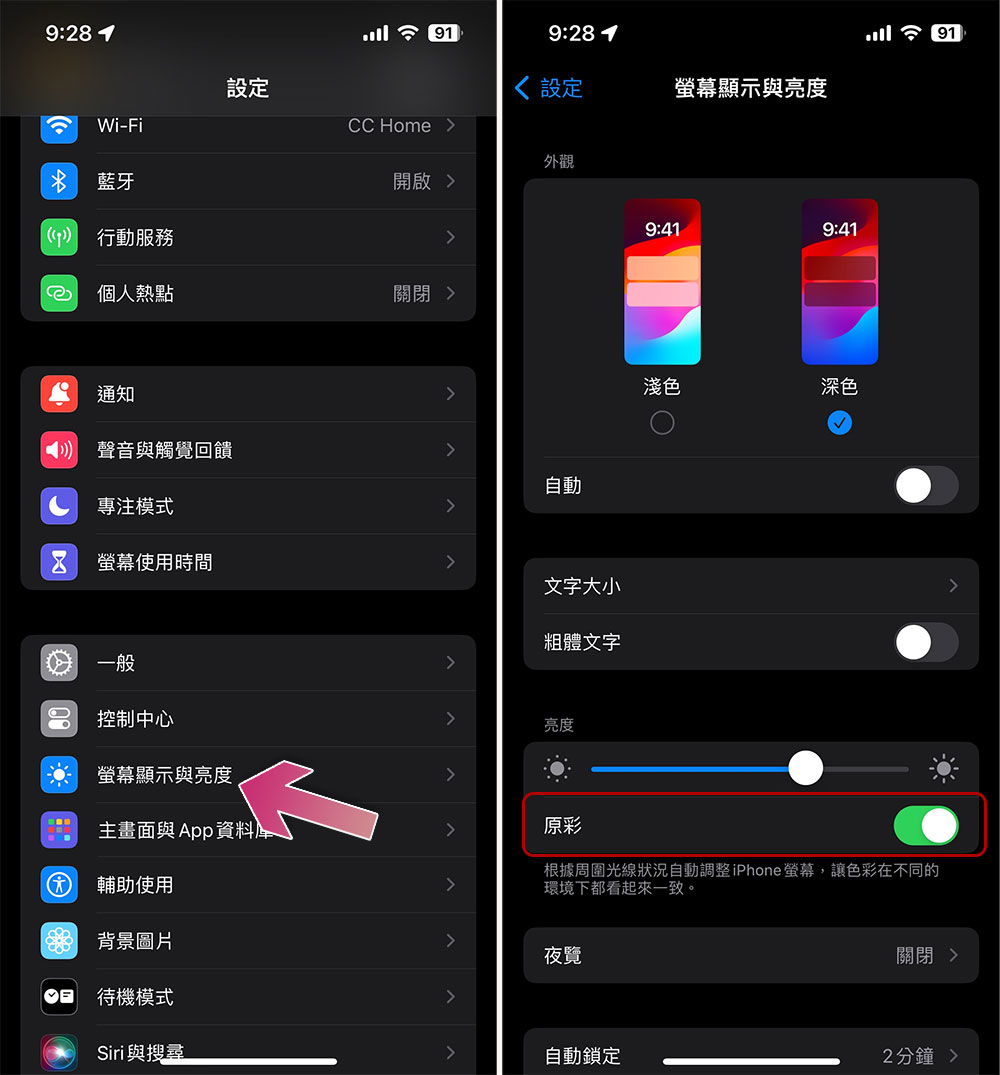
Of course, to turn on the original color display again, it is in the same position, just turn on the switch. In this section, you can also adjust other brightness settings on your phone or use Dark Mode, which primarily makes the screen less taxing on the eyes. Night Shift is another setting that adjusts the colors on the screen to the warmer side of the spectrum, which can further help you avoid any unnecessary eye strain, but the downside is that colors appear to be cast (not for you if you’re strict about color accuracy).
Source: KOCPC Chinese