


The vast majority of people should be on Google AI Studio or Gemini up, experience Google’s latest launch Nano Banana(Gemini 2.5 Flash Image), and this post recommends a better approach. A few days ago, a developer created this free online tool called “Nano Banana Infinite Canvas,” hosted on Google AI Studio. Its biggest feature is the canvas-based design, which lets you upload images, draw manually, or enter text directly on the canvas to edit and generate images. Compared to pure text prompts, it’s much more intuitive to use.
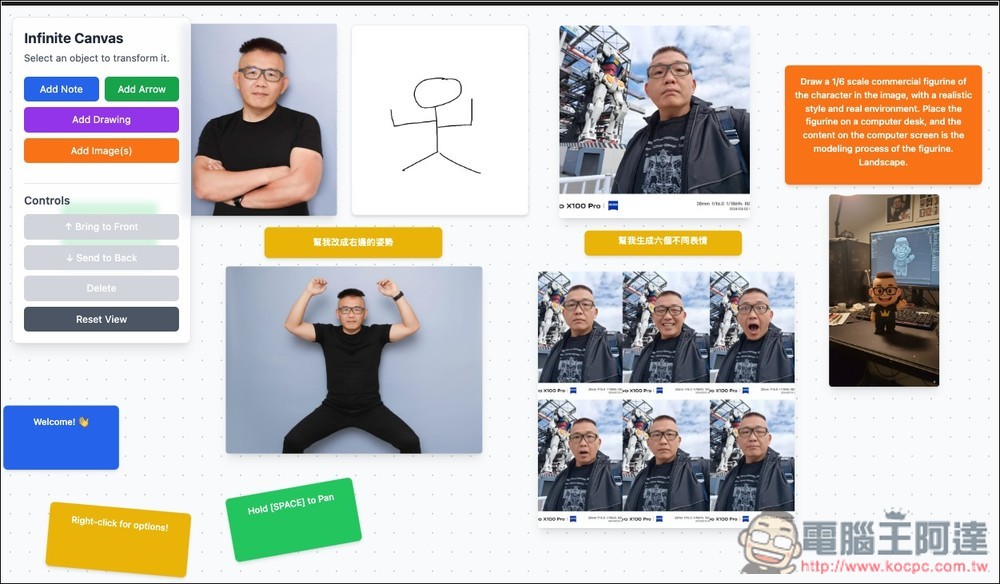
The most intuitive free tool for using Nano Banana! Edit and generate images through a canvas.
Nano Banana Infinite Canvas is by a prompt_case Developed by netizens, this is a free image editing tool based on Gemini Nano Banana. Through a more flexible and interactive infinite canvas operating interface, it unleashes the true image editing power of Nano Banana. The latest version is currently V2.2. Here are the main features:
- All-new drawing mode: Draw directly on the canvas with your mouse, easily guiding AI to generate custom objects or edit the image.
- Generate two images at once: Each generation gives you two images simultaneously, making it easier to choose freely.
- Global image download: Now just right-click to download any image on the entire canvas.
- More prominent arrow color: The arrow default has been changed to red, making the indicated direction clear at a glance.
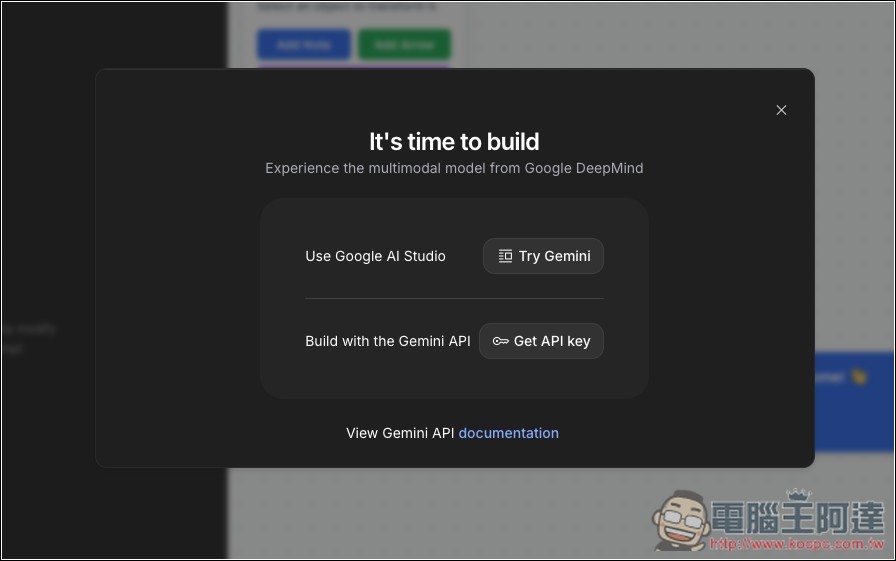
After entering Nano Banana Infinite Canvas via the link above, if this screen appears, you can simply press x to close it:
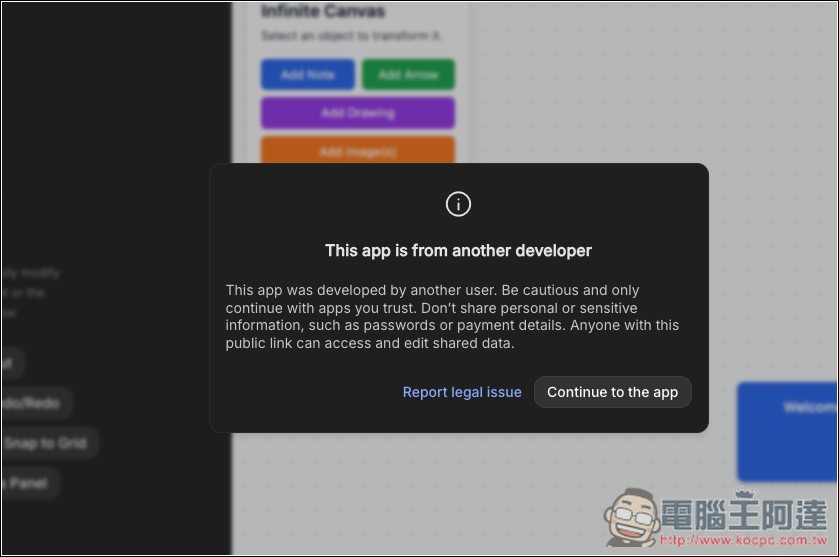
Next, when you see “This app is from another developer”, click “Continue to the app” here to continue:
You’ll enter the infinite canvas then. You can ignore the Code assistant on the left; if it’s in the way, just make the left panel smaller. The main focus is the canvas on the right.
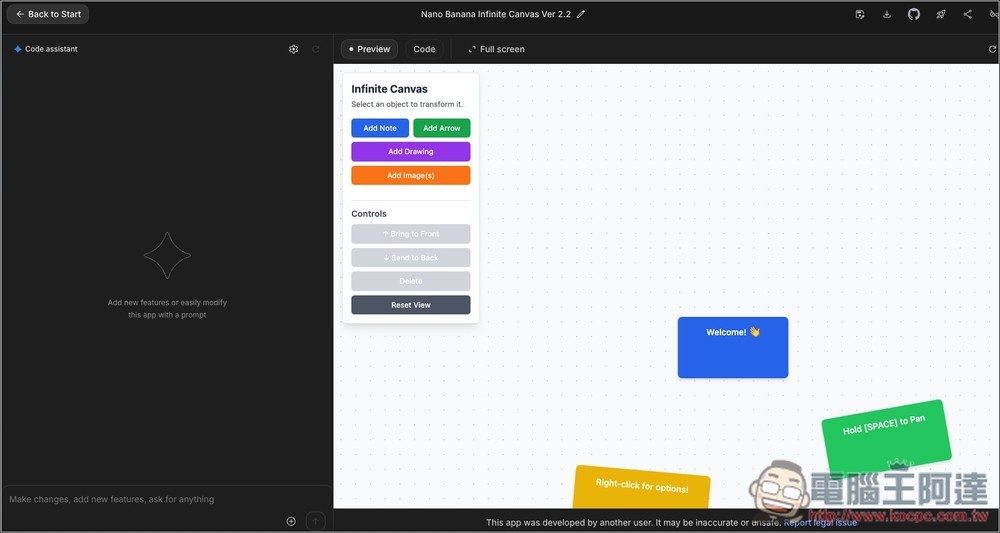
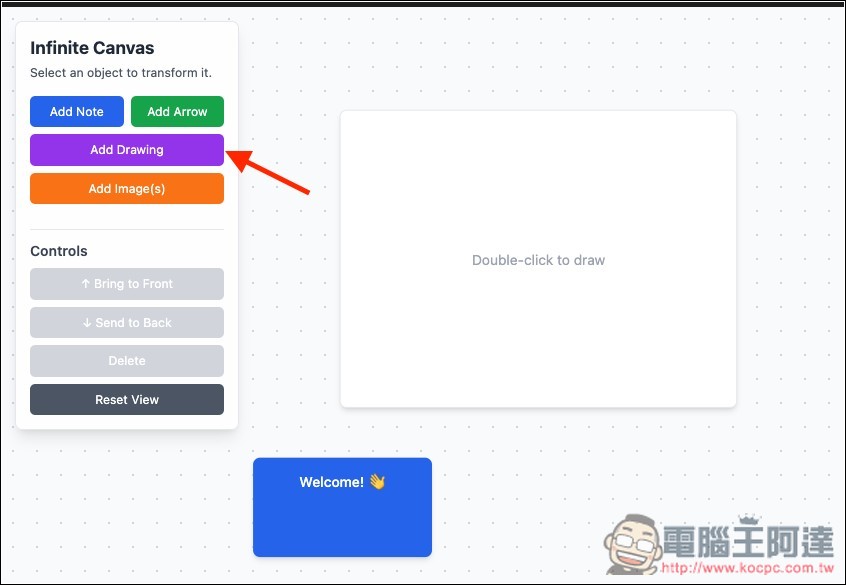
Currently there are four tools for adding to the canvas: Add Note, Add Arrow, Add Drawing, and Add Images. I’ll first demonstrate adding a drawing and using the artwork to generate an image. After clicking, a “Double-click to draw” appears on the canvas. Double-click on it:
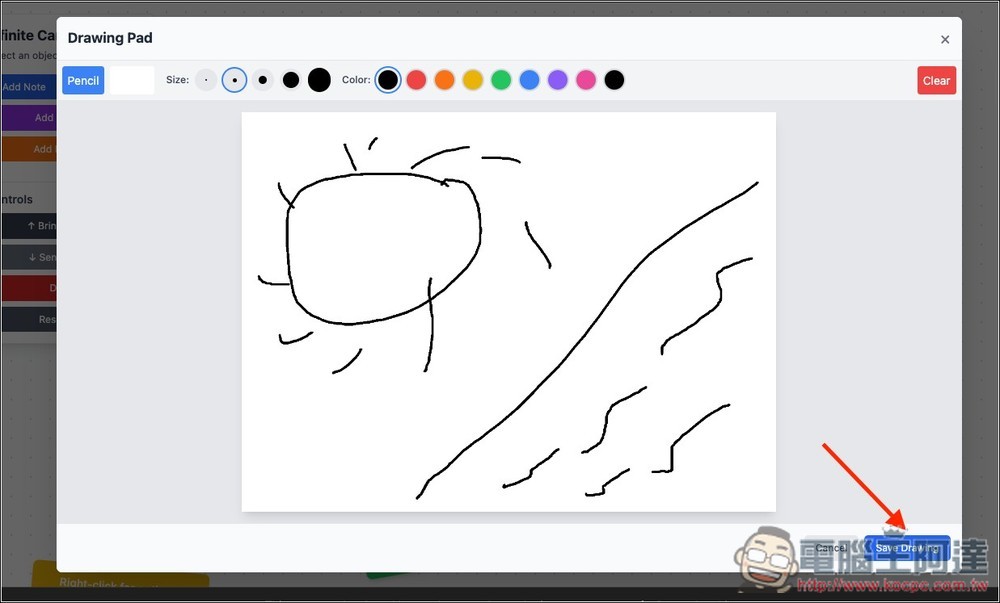
You will enter the drawing board, where you can choose the brush thickness and color. After you finish drawing, press the Save button at the bottom right:
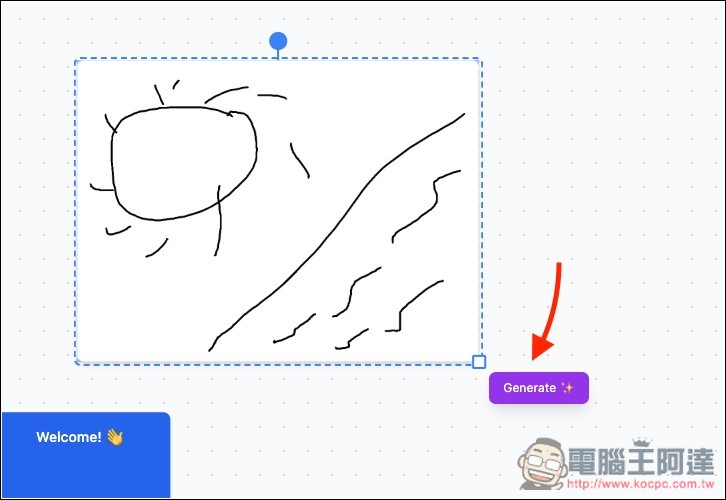
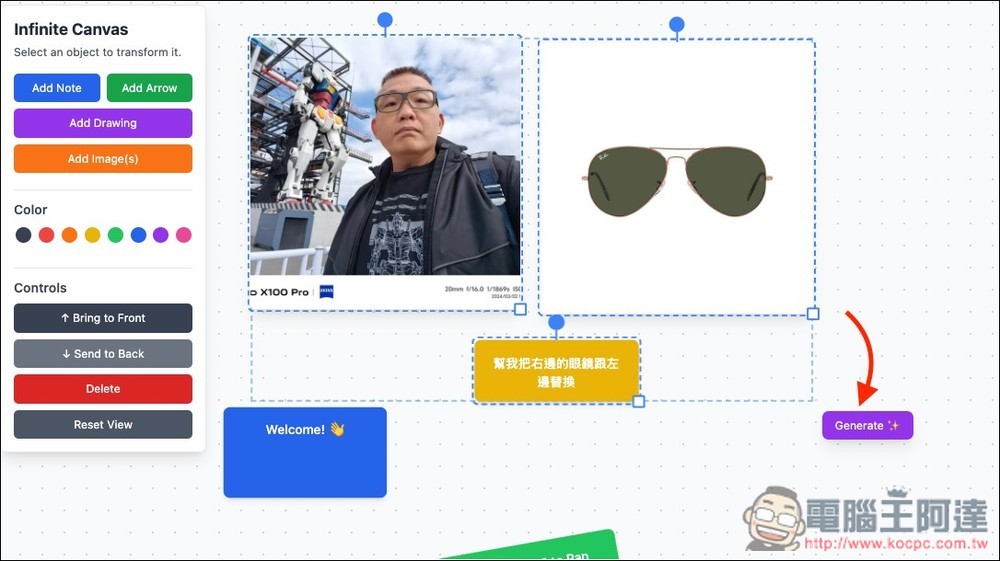
Once back on the canvas, select this image and a Generate button will appear in the bottom-right corner:
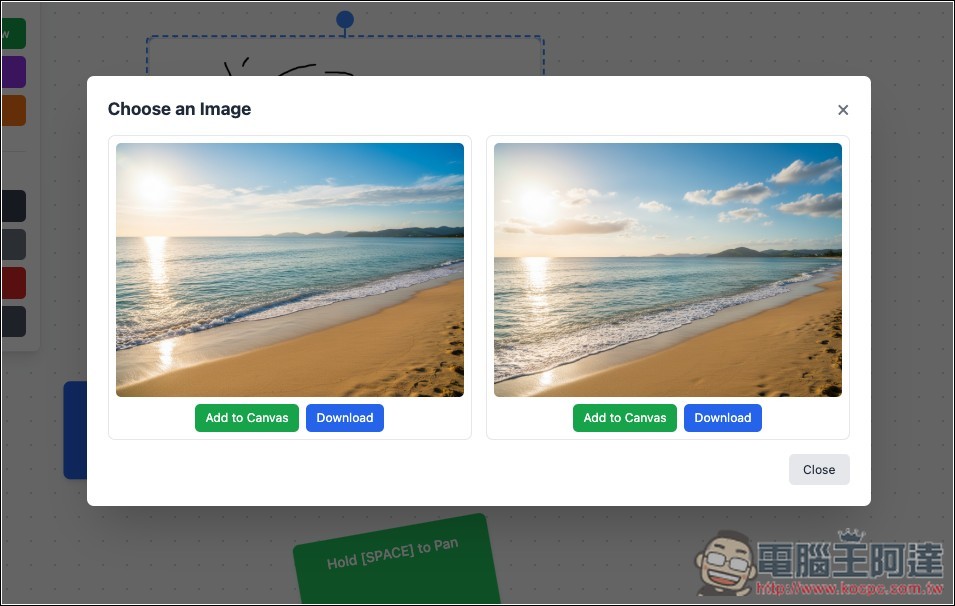
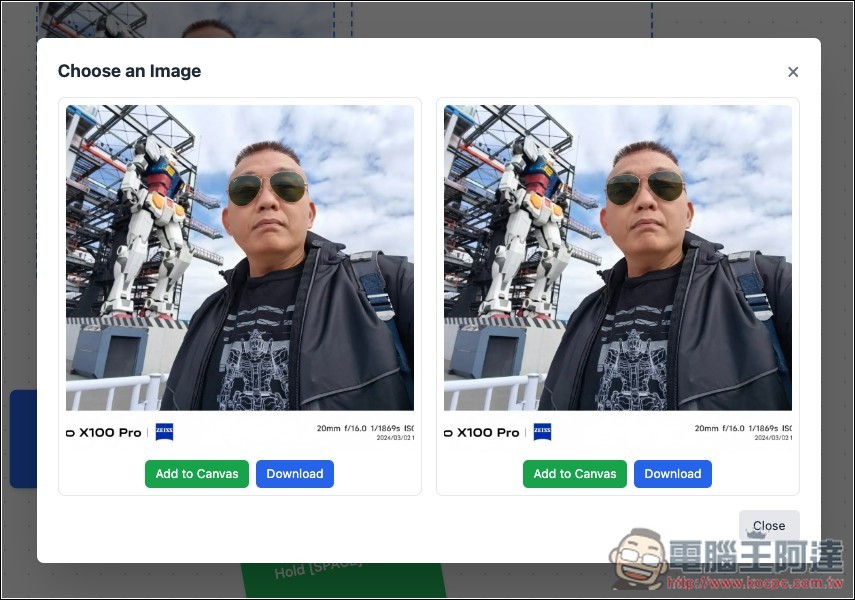
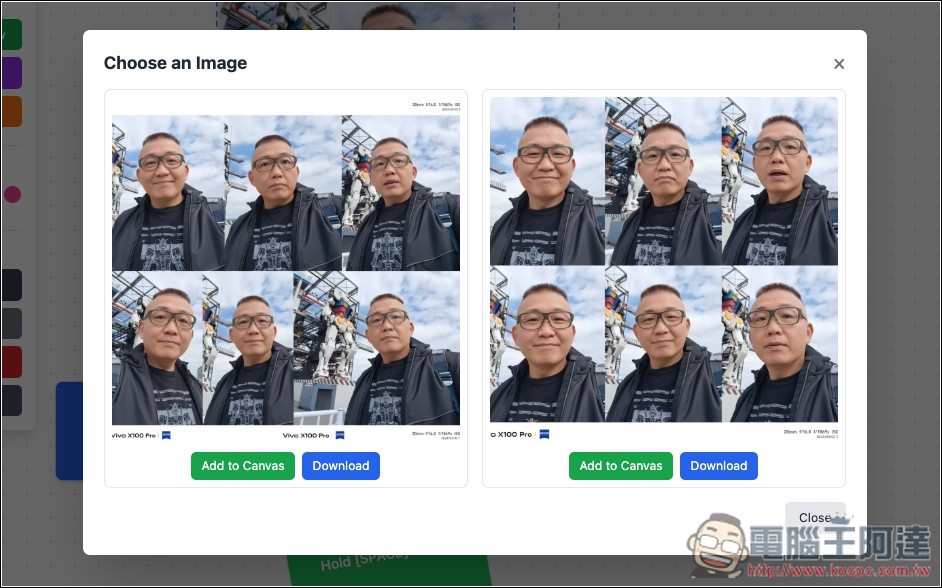
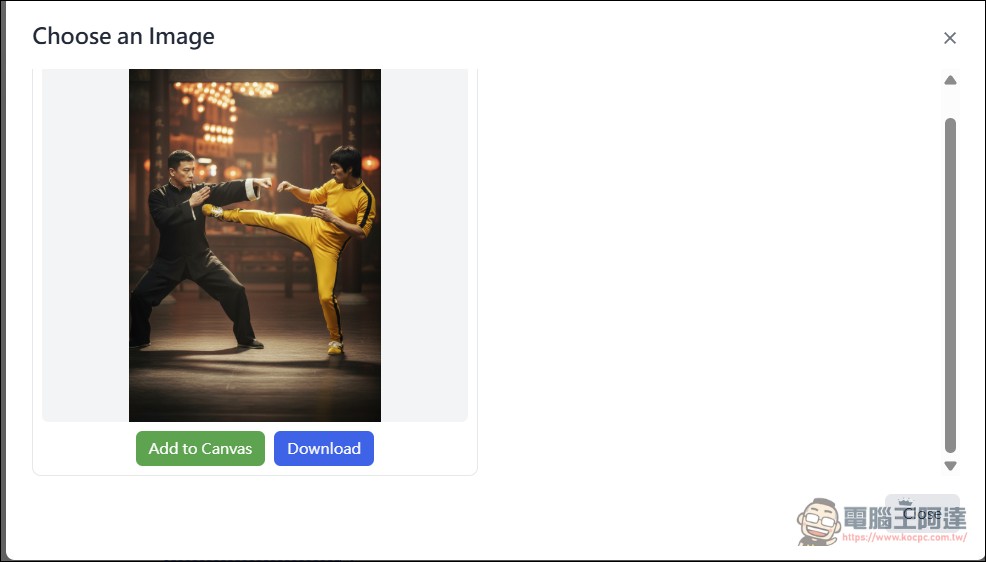
Wait a few seconds, and Nano Banana will generate new images based on this sketch, producing two each time. If you’re satisfied, you can download it directly or add it to the canvas (Add to Canvas). If not, you can close it and then modify the sketch you just drew:
Next, replace the items onto the photo. Press Add Image(s) to upload images; you can select multiple at once. I’m using Ada’s photo and sunglasses:
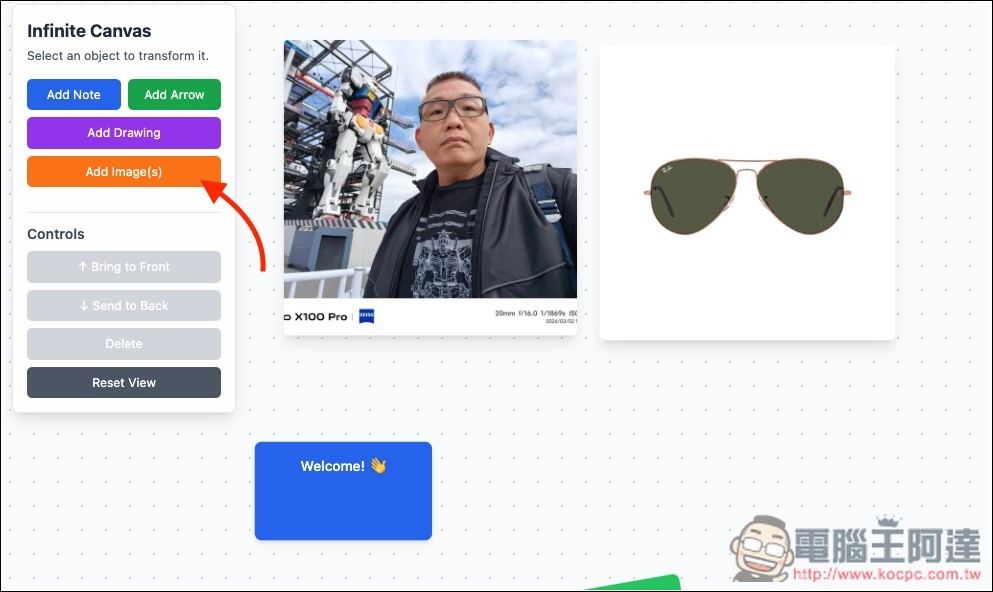
Next, click Add Note to add a note on the canvas, and enter the text description (prompt) I want Nano Banana to modify: Help me swap the glasses on the right with the left ones.
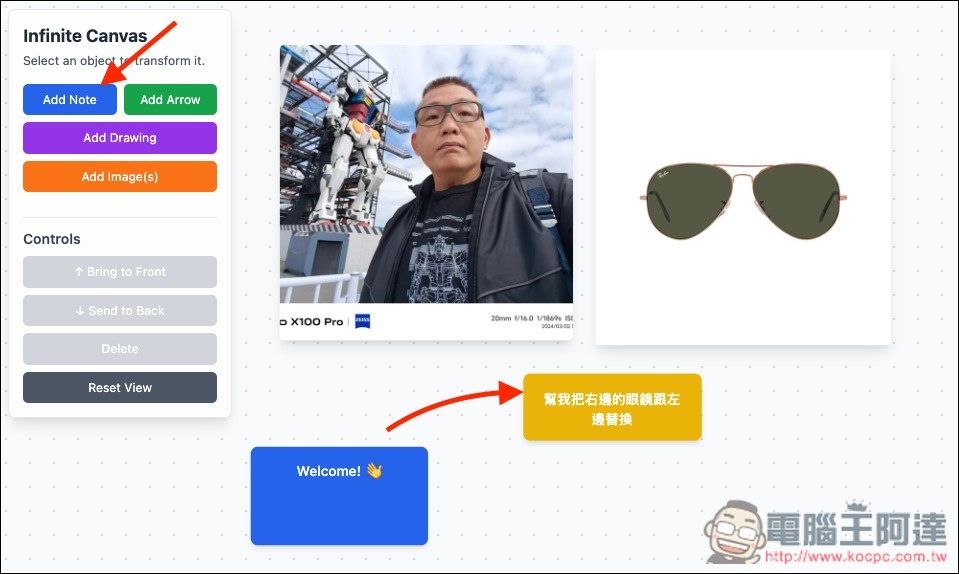
Select all three objects, then press the Generate button:
Nano Banana successfully put the sunglasses I specified onto Ada in the photo:
Of course, you can also edit a single image or multiple images. For example, in the image below, I asked it to generate six different cute expressions:
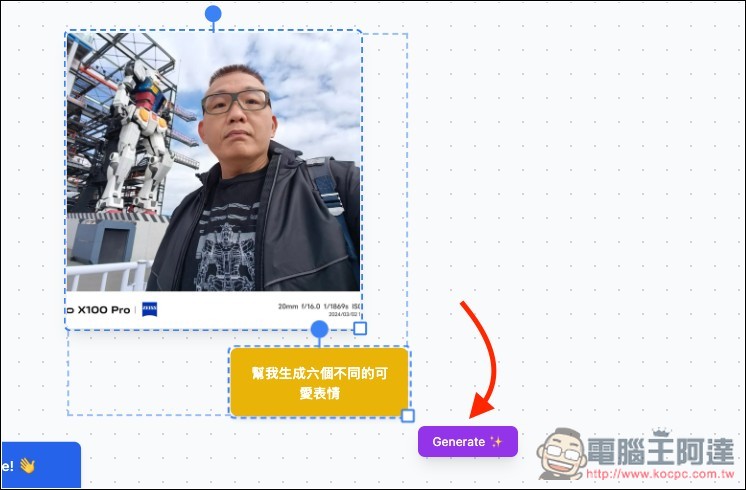
Nano Banana just generated the same image for me, but with Ada showing six different expressions:
You can even use sketches to modify images. Below, I drew a sketch of a person’s pose and asked Nano Banana to change Ada’s image into that pose.
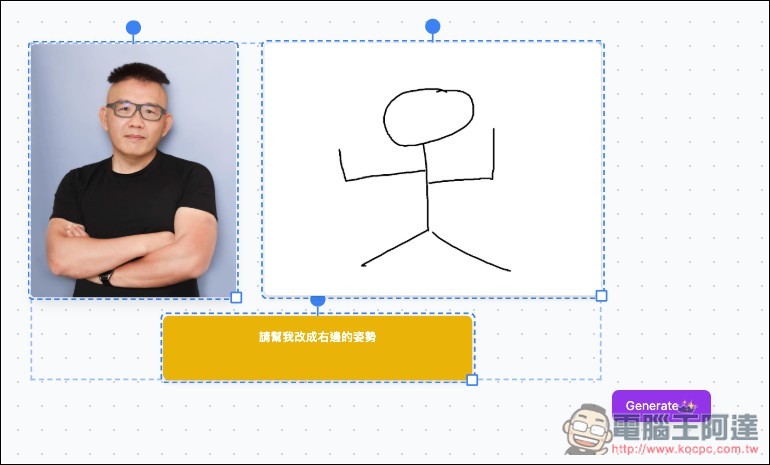
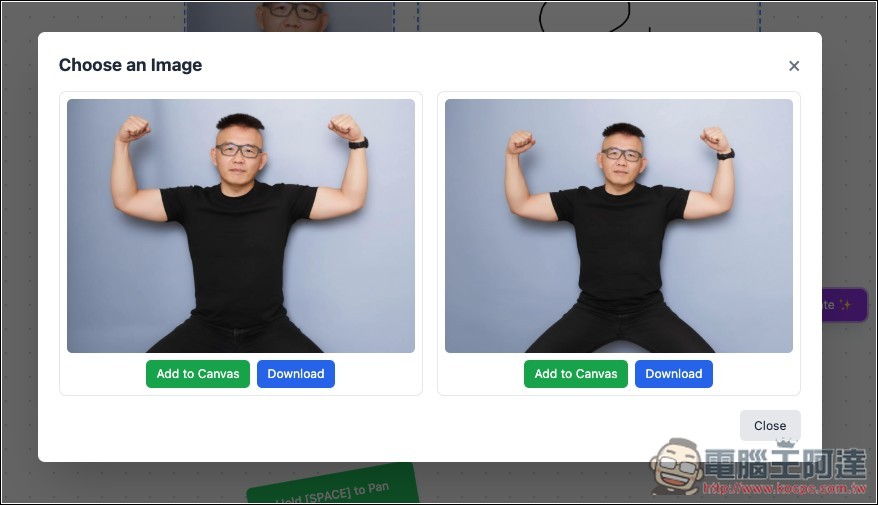
Nano Banana Perfect Implementation:
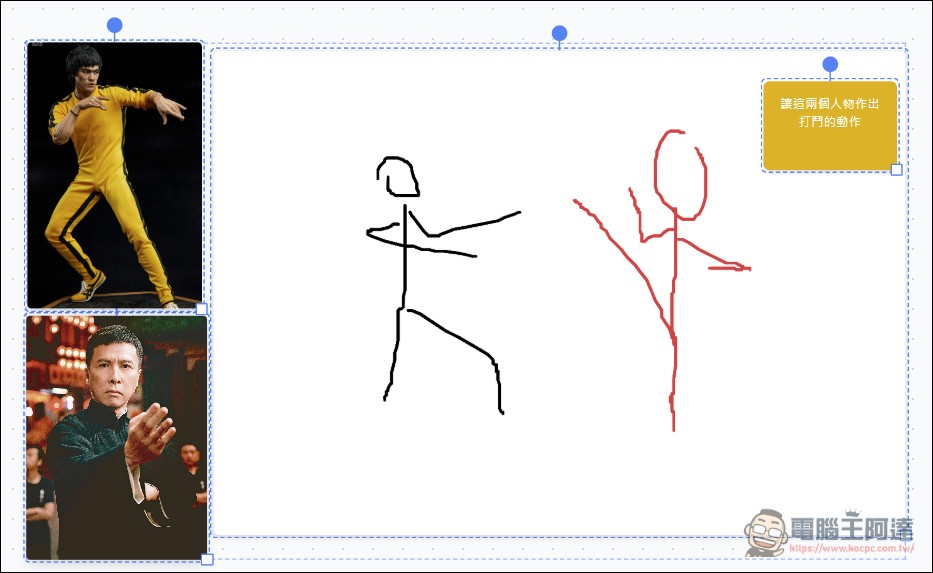
You can also doodle two people fighting like this, then insert the specified photos of people and command it to generate the fighting action:
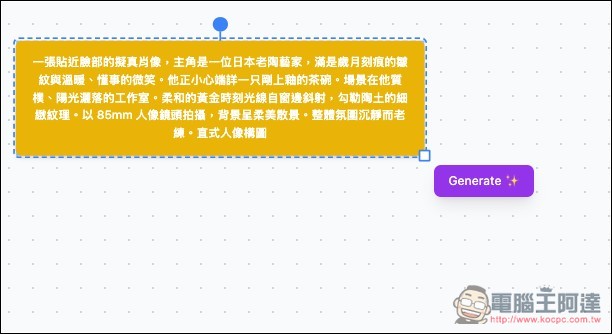
Plain text generation works the same way — just enter the prompt in the notes, select it, and click generate:
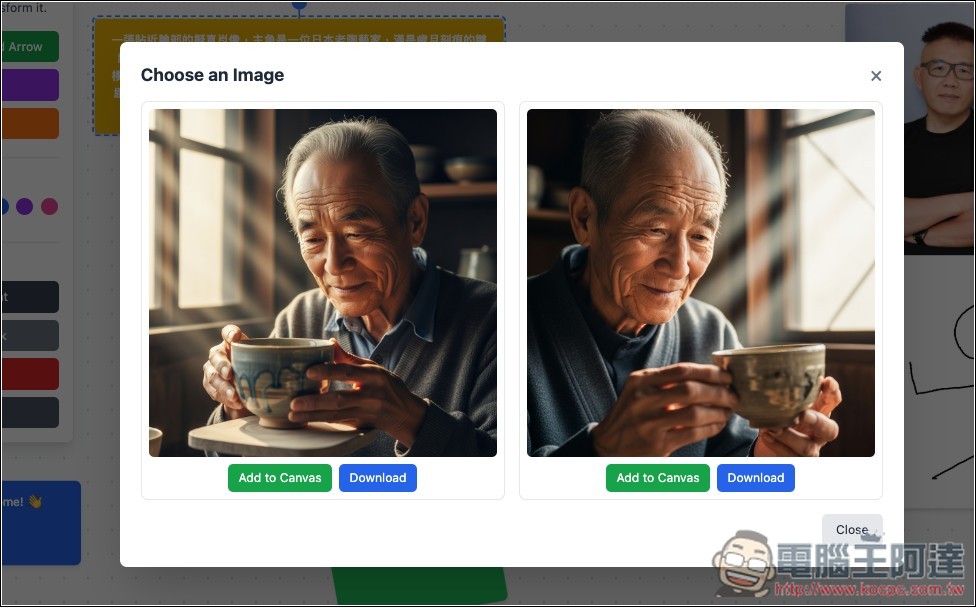
The image has been generated:
And that’s not all—once you have the canvas, you can use way more imagination to take control of how Nano Banana generates and edits. It’s really useful, and you all should definitely give it a try.
Source: KOCPC Chinese