


Apple’s weather app may not be the most accurate or stable, but it may be among the top apps used by iPhone users. Whether you’re checking the daily weather forecast or curious about what’s going on this week, keeping up with local reports is something you do almost every day. But have you ever wondered what the weather is like elsewhere at this time?
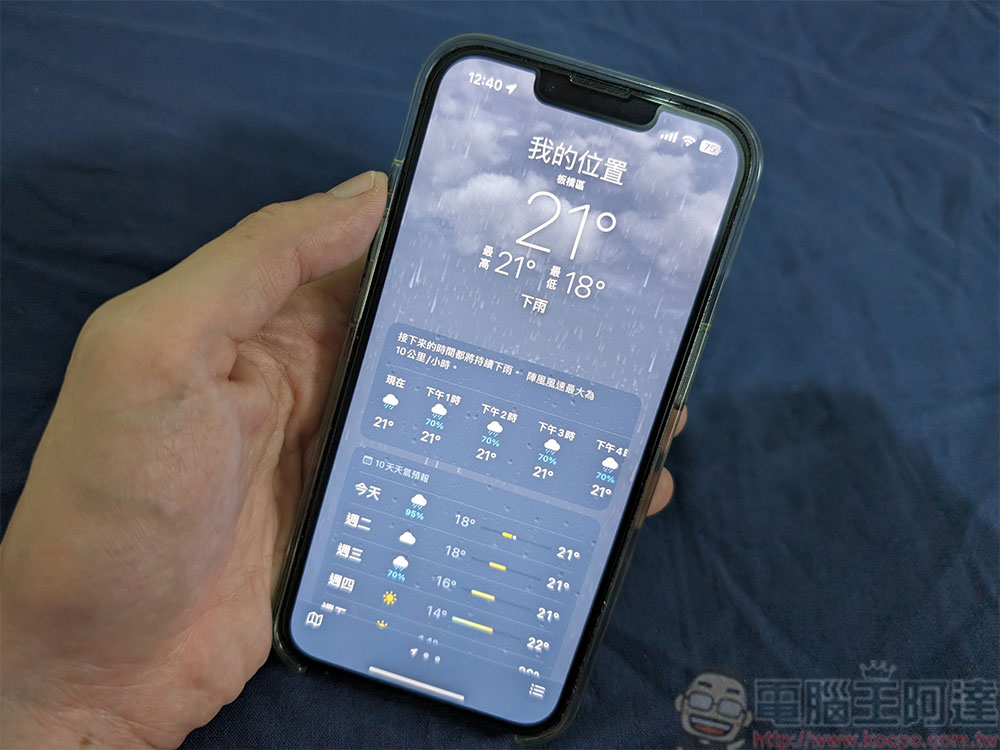
How do I add another location to the Weather app on iPhone?
Aside from curiosity, there are plenty of reasons to want to add another location to your iPhone’s Weather app. If you are about to travel to another country or city, you need to know which clothes to pack that are most suitable for the local weather and environment; maybe you have relatives and friends abroad and want to care about the current situation of their environment, etc. Luckily, the iPhone’s Weather app makes it easy to check weather forecasts from around the world, and even better, adding another location to the Weather app is simpler than you think.
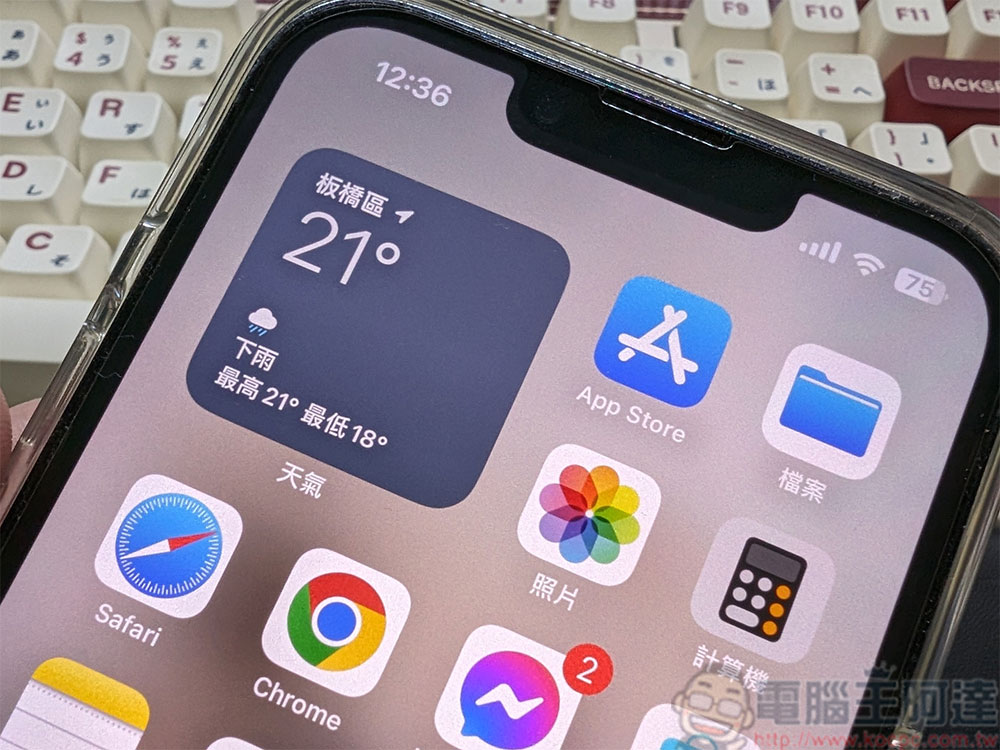
No matter the city, iPhone allows users to add almost any location to the Weather app. You can also create a personalized list of areas that are important to you and switch locations within easy reach. To add other locations to the weather app, follow the steps below:
- Open the weather app.
- Click the list icon in the lower right corner.
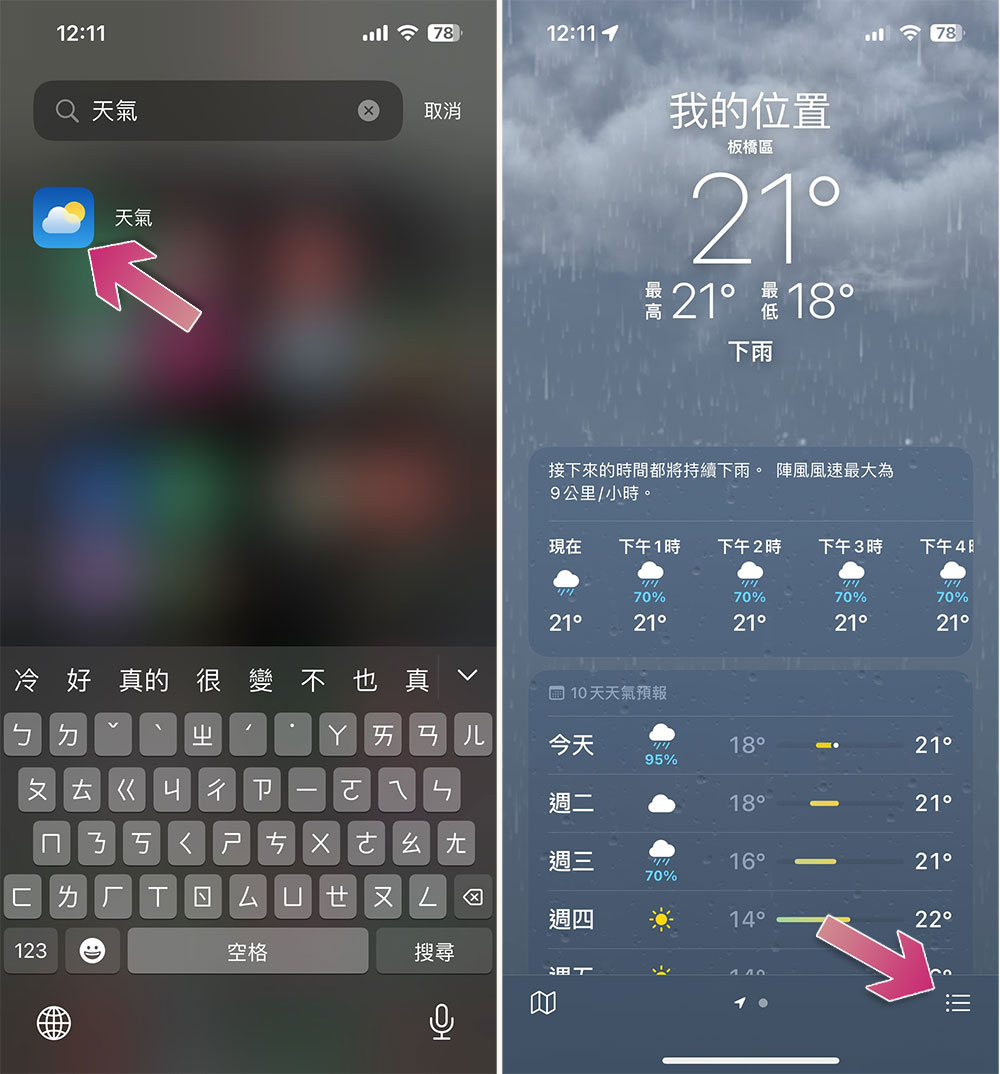
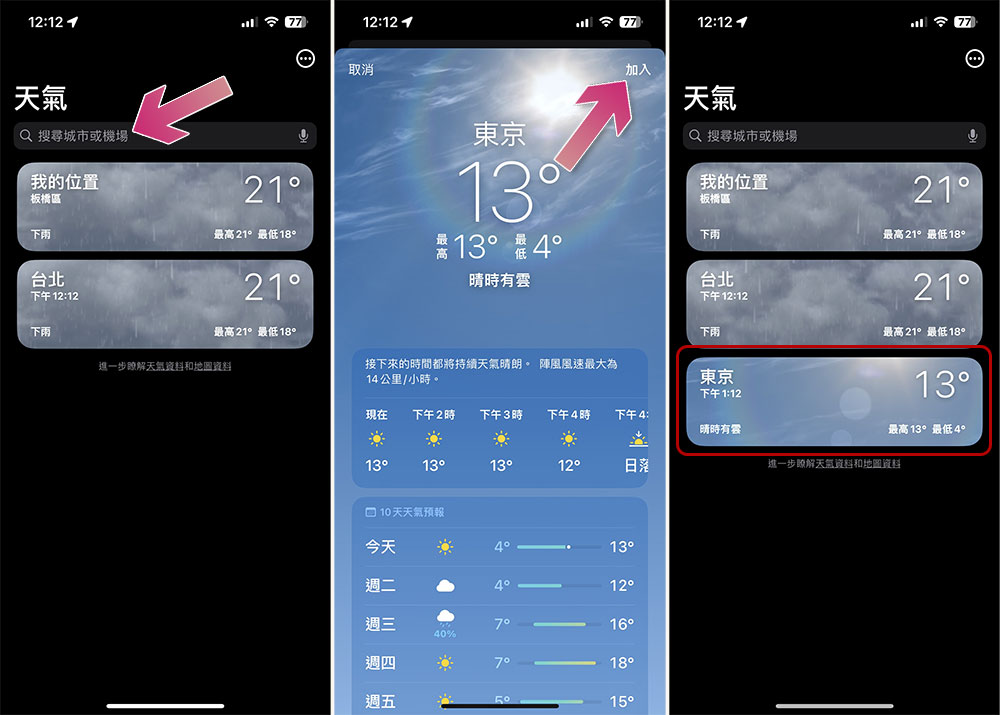
- Enter the city or region you want to find in the search field at the top of the screen.
- Then click “Join” in the upper right corner after the weather is displayed.
- Next you’ll see the location appear in your list.
The designated location will now be added to your weather app, allowing you to check the local weather forecast at any time. For a quick look, all you need to do is tap the list icon in the lower right corner of the Weather app again, and it will display all your saved locations in a nice list. If you want to delete any item from the list, just swipe the location to the left on the options and tap the red trash can symbol. Additionally, you can adjust the order of all locations in the list by clicking the icon in the upper right corner and selecting “Edit List.”
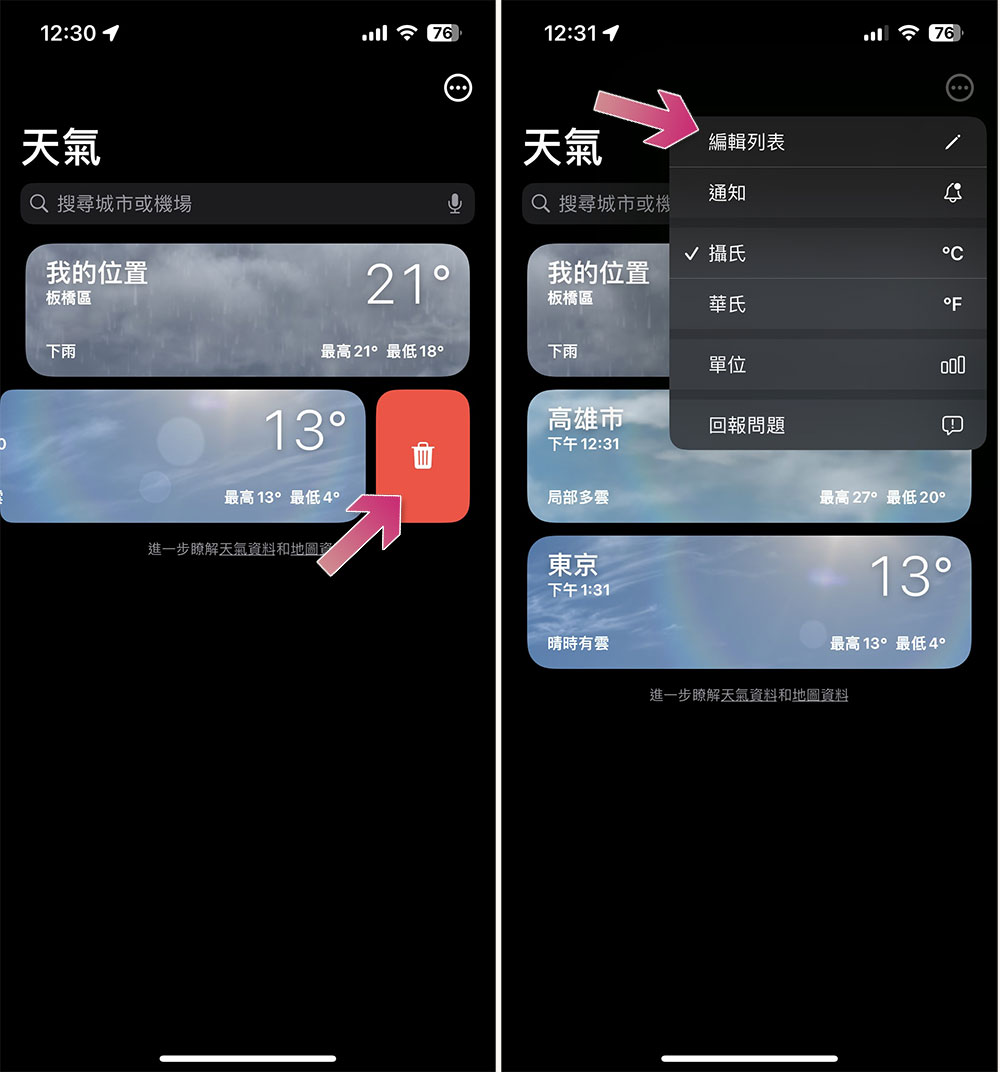
This function setting is highly recommended for people who frequently need to travel to specific places or plan to travel abroad. They can quickly check the weather overview of the destination from the customized list, make complete preparations before traveling, and bring clothing suitable for the local weather. With just a few clicks of your finger, you no longer need to open a browser to check the weather online!
Source: KOCPC Chinese