


Apple’s Mail app doesn’t offer many controls over how much storage it uses, and it’s overall designed to download and store large chunks of a user’s emails so they can be indexed and searched using Spotlight. On iPhone and iPad, if you write a lot of emails and often have attachments, the Mail app may take up several gigabytes of storage space to store a complete offline copy of your emails. But you can still do something within the allowable range to reduce the storage burden on your phone.
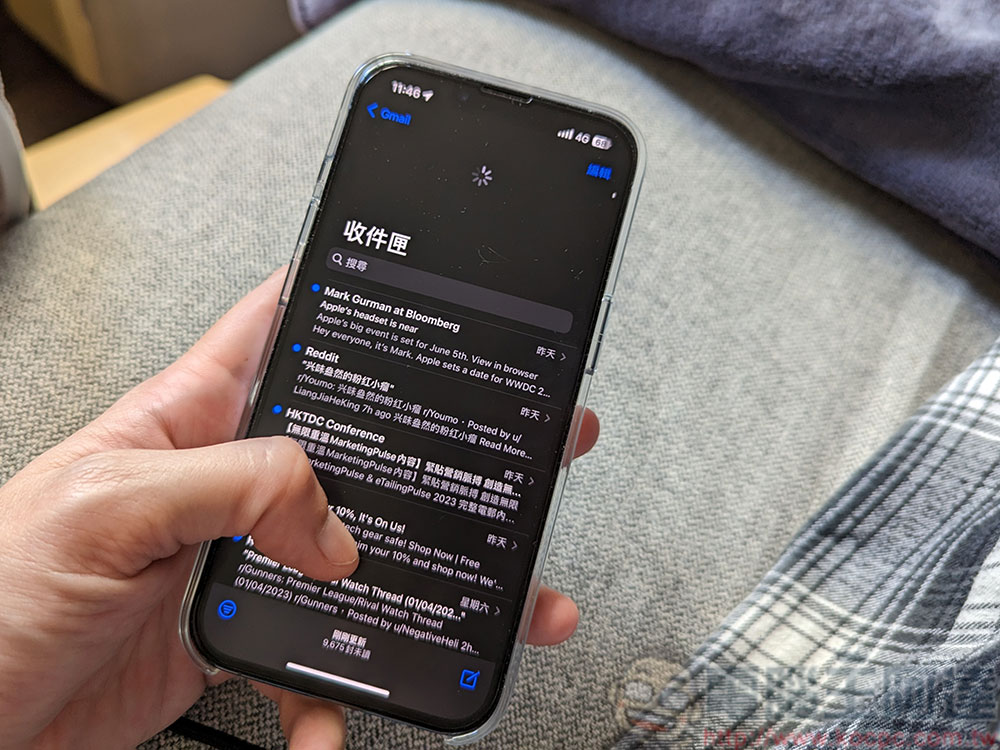
How do you free up space taken up by the Mail app on your iPhone or iPad?
Check the storage usage of mail
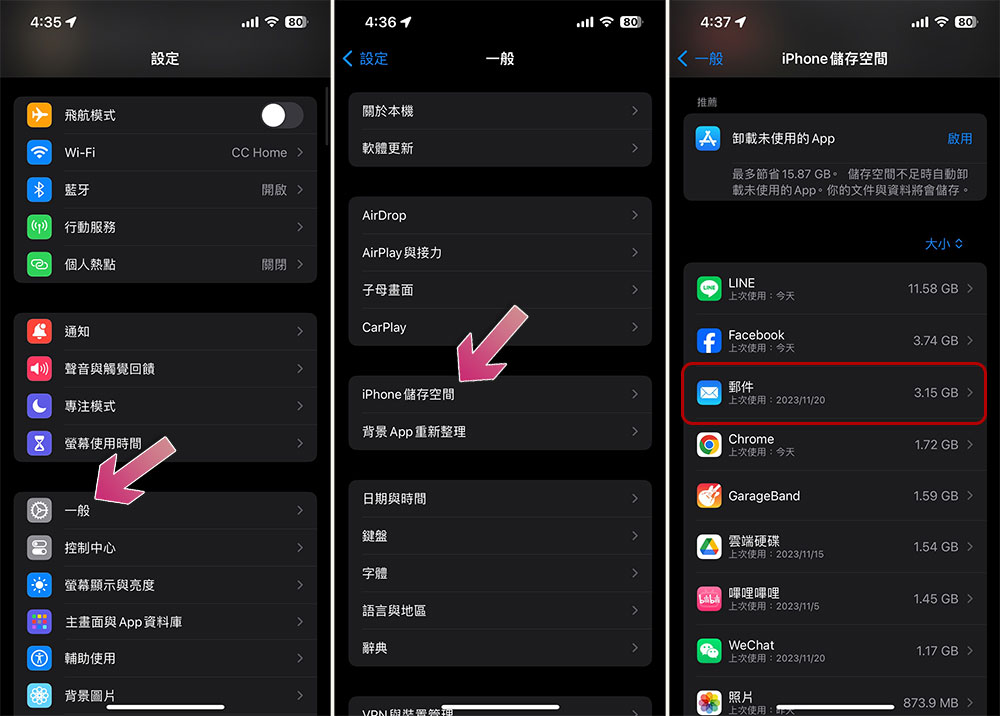
You can see how much space the Mail app is using on your iPhone or iPad, just like any other app.
- Open the Settings app on your iPhone or iPad and click “General.”
- Click on the “iPhone” storage space in the general internal page, and then wait for the analysis to be completed.
- Scroll down to find the “Mail” application and you can see the used mail space at the back.
Worst solution: manually delete messages
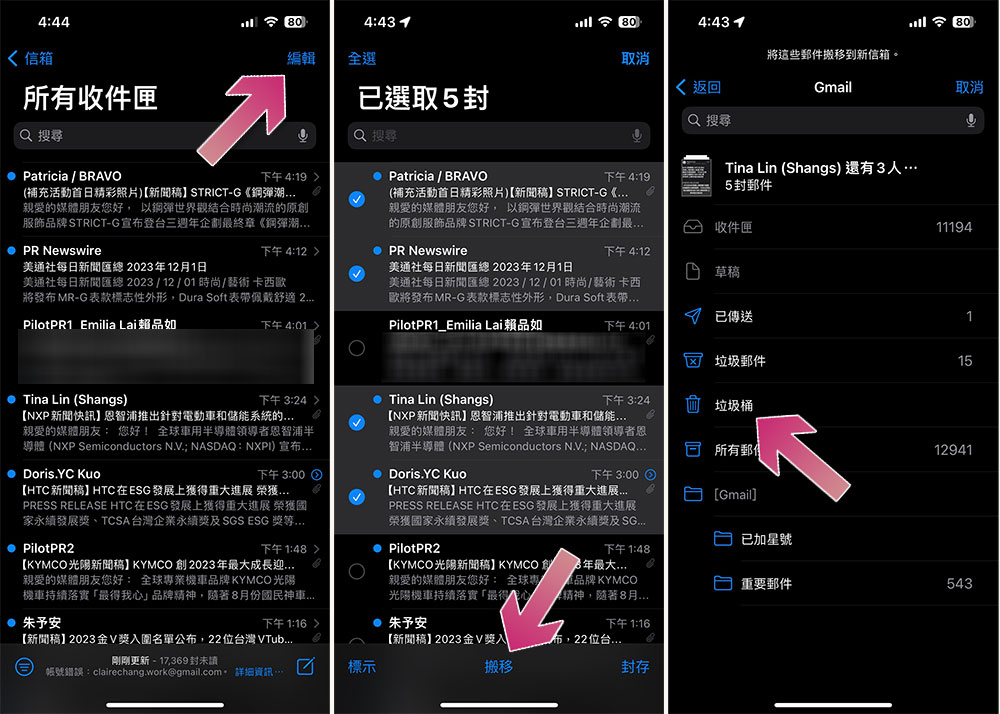
If you have enough time to share with others, you can do it in the most cheerful way. Just open the Mail app and start deleting emails, focusing on emails with attachments.
- Click “Edit” in the upper right corner.
- After selecting the email, click “Move”
- Just select “Trash”.
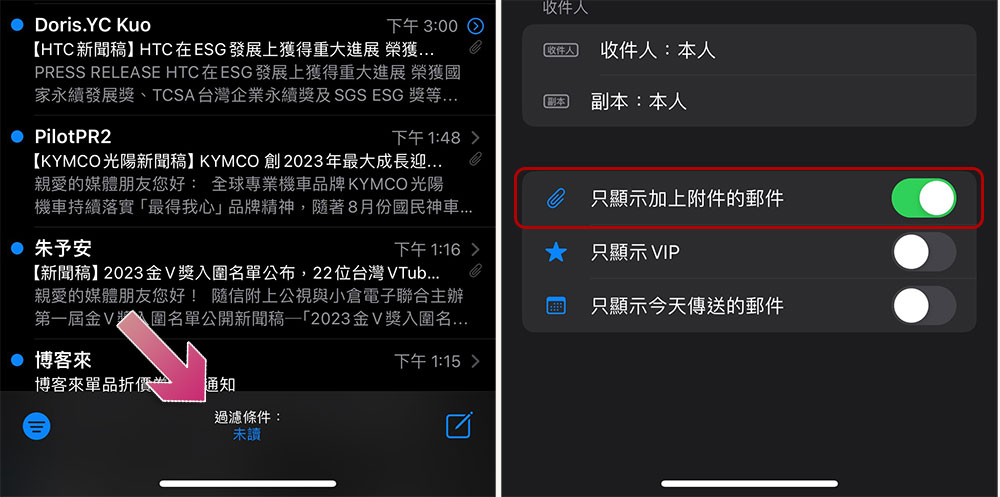
If you want to filter out emails with attachments, follow these steps:
- Click on the three horizontal lines in the lower left corner of the Mail app.
- Then click “Filter Conditions” in the middle.
- Turn on the “Only show emails with attachments” switch below.
If you use IMAP for email, any deletions of emails from your phone will be synchronized to the server. Of course, this synchronization process takes a while, and you can’t just delete attachments from emails, just delete the entire email.
Better solution: delete and rejoin account
Of course you have a better solution – force your iPhone or iPad’s Mail app to restart. To do this simply discard all copies of your offline mail by deleting your current email account and rejoining them. Assuming you use IMAP or Exchange to send email, you won’t actually lose any emails as a result, they will still be stored on the email provider’s servers and you can access them by logging into the service’s website from the web. However, if you are using the older POP3 protocol, these emails may only be stored on your device.
To do this, follow these steps:
- Open the Settings app and scroll down to find “Mail.”
- After entering, click “Account”.
- Select the email account you want to delete from the list and click “Delete Account” at the bottom after entering.
- Restart your iPhone or iPad to ensure all offline cache is completely cleared.
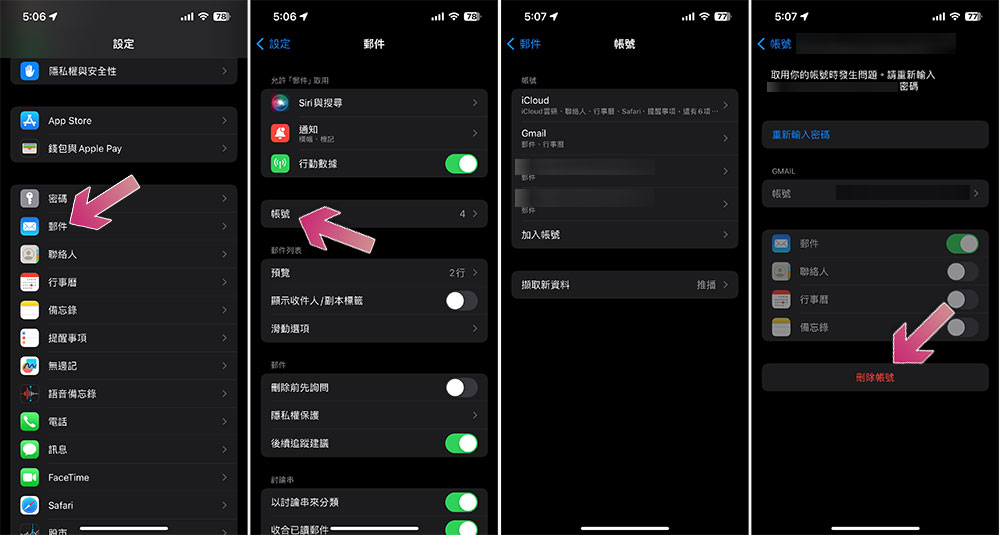
When you open the Mail app after booting, you will be asked to provide your email account details again (if you only have one mailbox). Once set up, your iPhone will start downloading emails again, but this will clear the accumulation of email cache and attachment files.
Limit the number of emails the service provides to Mail
In the long run, the above approach may not be enough to reduce the space used by the mail application in the long run. Fortunately, there is a way to prevent the Mail app from downloading all emails in an email account, just not from within the Mail app itself.
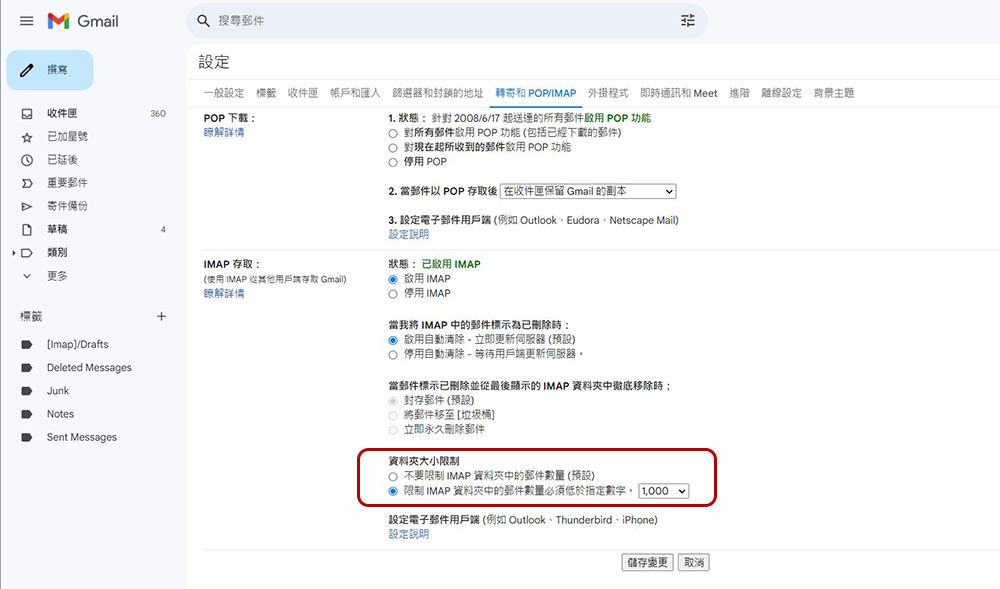
Your email service may offer an option that allows you to limit the number of emails it serves to IMAP clients (such as the Mail app). For example, if you use Gmail, you can log in to gmail.com, open the settings page, switch to “Forwarding and POP/IMAP”, then switch the setting in “Folder size limit” to the “Limit the number of messages in IMAP folders to a specified number” option and set the subsequent number to “1000”. The mail application will not be able to download more than 1000 messages from each folder it sees. Other email services may have similar options, which you can view using your browser.
Use another email app instead of Apple Mail
Unfortunately, the Mail app isn’t that easy to control, and after deleting and re-adding the account, it can end up taking up a lot of storage space again, and not all email services allow you to limit the number of emails your email service shows to the Mail app.
Apple doesn’t provide any option to control the storage space used by the Mail app, but you can use other email apps according to your needs. For example, if you use Gmail, you can install Google’s Gmail app from the App Store; if you use Microsoft’s Outlook.com, download the Outlook app for iOS instead. These apps typically don’t try to cache large amounts of email offline, so they take up much less storage space.
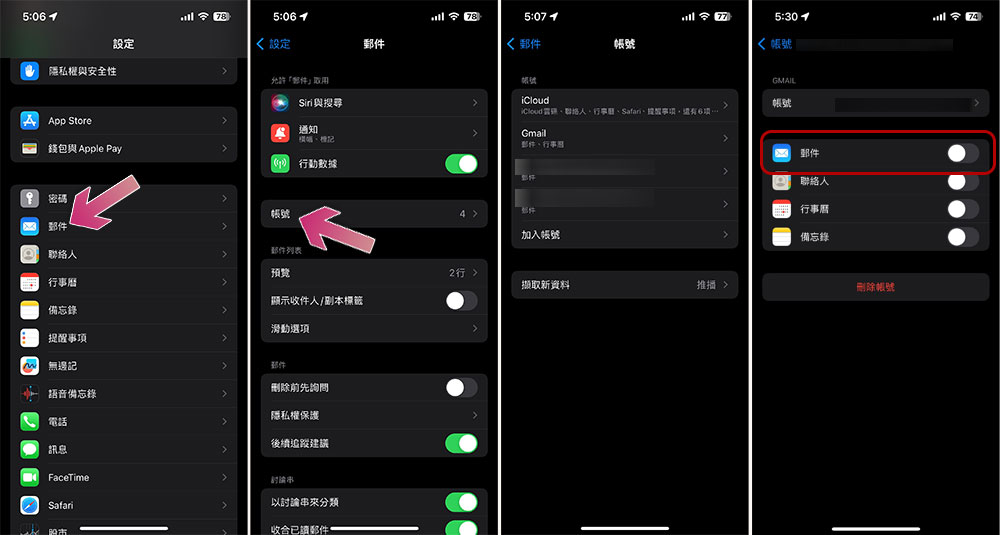
After setting up a new email application, you can follow the instructions above to delete your email account from the built-in Mail application, and it won’t download email or use any space. If you want to continue syncing your calendar and contacts with your account but not using it in the Mail app, go to the Settings app, scroll down to Mail, select Accounts, click the account name and turn off Mail for that account. This way you can still have your contacts and calendar, but your email won’t take up any space.
Apple’s Mail app, both on mobile and Mac, doesn’t offer much control over the amount of storage it uses. Phone storage is at a premium for everyone these days. To make sure space is used wisely, remember to clean out your mail regularly.
Source: KOCPC Chinese