


In the past, mobile operating systems, especially Android, anything could happen and you had to wait a long time for a fix. Overall, today’s mobile operating systems are much more stable than they were 10 years ago. Fortunately, Android now has mechanisms like Project Mainline to deliver updates to users more consistently, and many manufacturers have improved their update timelines as a result. As a result, most major issues are usually resolved relatively quickly, and at least most brands are updated much faster than before.
12 most common Android problems and how to fix them
Even though mobile operating systems have made great progress so far, there are still some things that may go wrong. For example, users forget their lock password or pattern and don’t know how to access their phone or restore it to factory settings so it can be used again. Generally speaking, Android issues are temporary issues that are relatively easy to fix, and fixing modern smartphone glitches isn’t that difficult. For the most part, lag, battery drain, and connection issues are the most common ones that people encounter, but there are other less common issues that may pop up from time to time, so let’s fix them together so you can continue to use your phone with peace of mind.
Quick directory navigation
- Battery drained too much
- Phone slows down or freezes frequently
- connection problem
- The message cannot be transmitted
- Phone overheating
- Storage too low error
- App keeps crashing
- Google Play isn’t working properly
- Phone won’t charge or charges slowly
- The phone may have malware
- App cannot sync or is not fully synced
- Forgot PIN or password
Battery drained too much
One of the most common problems you’ll encounter when using your phone is sudden and unexpected battery drain. This can happen for a number of reasons, but the most common is when a process on your phone gets out of control and causes serious repercussions. Typically, troubleshooting simply involves finding the offending process and forcing it to stop. You can go into the “Battery” function in the Settings app to see which apps are using the most power. The ones that are using the most power should be at the top of the list. You have three options, the first is to turn the phone back on to see if that solves the problem. The second thing worth trying is to go to “Applications” in the Settings app and force-stop the app. Finally, you can uninstall or reinstall the app to see if that stops it from draining your battery.
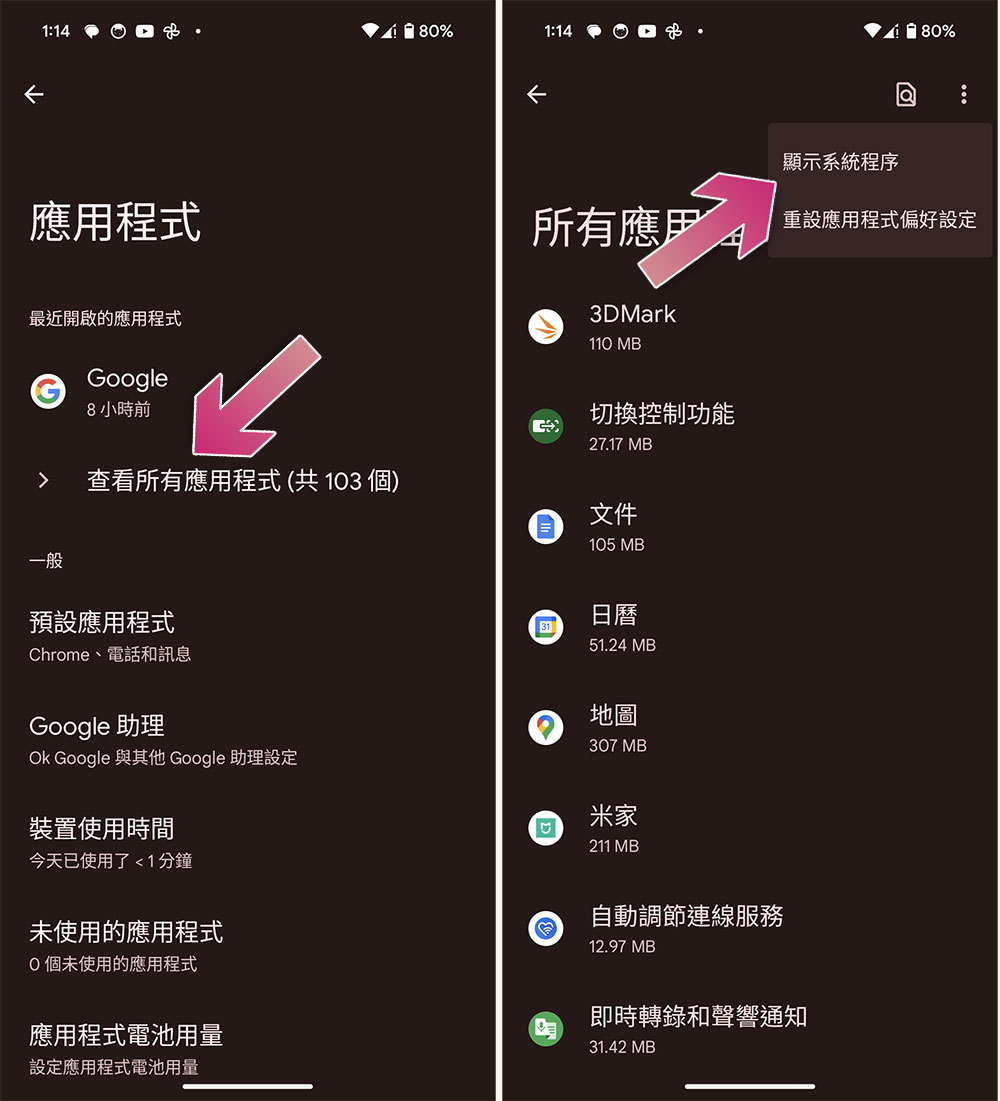
If the problem you encounter is that the system process consumes too much power repeatedly every once in a while, you can still view all applications in “Applications” in the Settings application, then click the three-dot menu in the upper right corner and click “Show System Programs” to find and force close the problematic process. Otherwise, your best bet is to check the app and system update settings in the Play Store or click this link from your phone (Click here) to confirm whether Google Play services need updating.
Phone slows down or freezes frequently
The main cause of slowdown, stuttering, and freezing problems on your phone is pretty much the same as battery drain: There’s an app, game, or process on your phone that’s using up all your CPU or RAM and causing the app to freeze. The quickest and easiest way to fix this problem is to close the offending app or game, but you can also restart your phone to clear everything in RAM and try again.
Another potential problem is poor software. Check your phone for available system updates, and then check the Google Play Store for available app or game updates. Usually, freeze issues are caused by developer error, and their fixes are usually pretty timely. You can also check your battery statistics to see if any apps are consuming battery abnormally. If an app starts acting rogue, it can also eat up other system resources besides the battery.
If none of the above methods solve the problem, it may be hardware related. After all, Android phones come in all shapes, sizes, and price points, and budget-oriented phones tend to have better battery efficiency but weaker overall performance, which can also result in the phone occasionally slowing down or freezing as the hardware has to catch up with what you’re doing, and there’s not much you can do about it other than consider buying a new phone.
connection problem
Connection issues can be frustrating because they have few causes and take some time to deal with. If it’s your home or mobile service provider that goes offline, there’s not much you can do until they fix the problem and get everything back to normal again. However, if the problem is on your end you can try some troubleshooting steps to fix it.
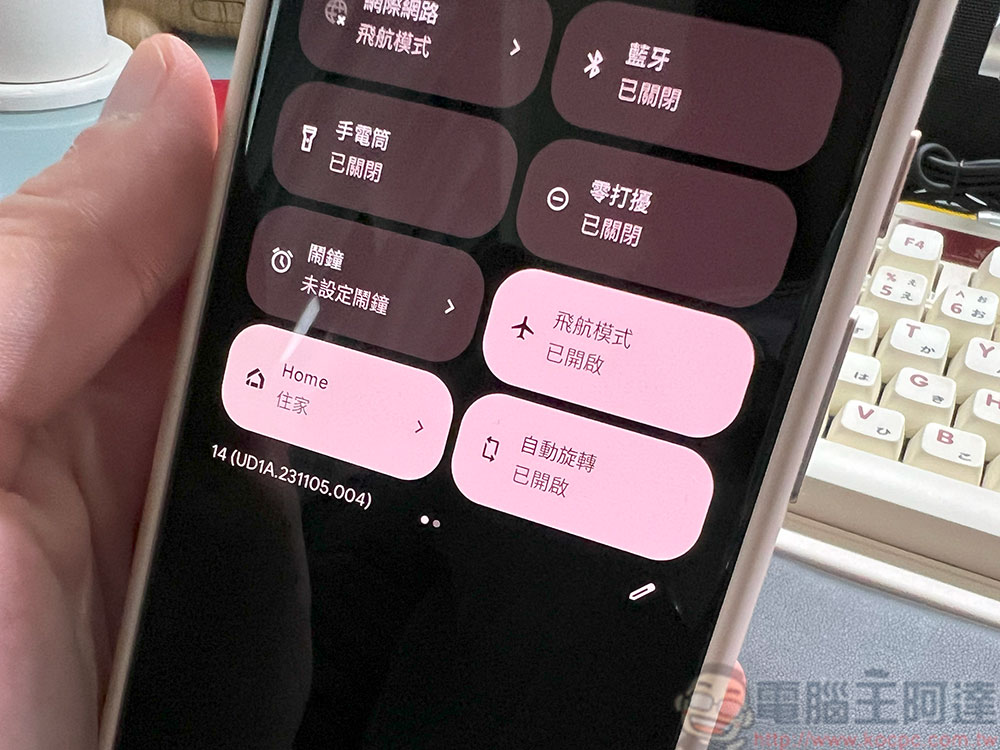
The first and most successful option is to perform the classic “turn off and on again” technique. The easiest way is to open the Quick Settings menu and turn on Airplane Mode. This will turn off all connections, including Bluetooth, mobile data, and Wi-Fi, wait a few seconds, and then turn them back on. If the above method doesn’t work, try restarting your phone. If you’re still experiencing connection issues, restart other devices you’re connected to, such as your router or smartwatch, to see if those devices are also having issues.
In addition to this, you may also need to contact your Internet service provider to see if the network in this area is normal, and then try some additional troubleshooting steps. For example, home network providers can update signals from their terminals to re-establish connections, etc. Your mobile provider may also recommend that you visit a store to get a new SIM card.
The message cannot be transmitted
Messages not being sent is an extension of connection issues and is the only reason why messages are not sending in 2023, so use the same method as the previous item to fix your connection. Try turning your phone off and on again to re-establish the connection, calling your mobile provider to check for an outage, and checking the Google Play Store for updates to the messaging apps you use. One of the three things mentioned above is pretty much the problem.
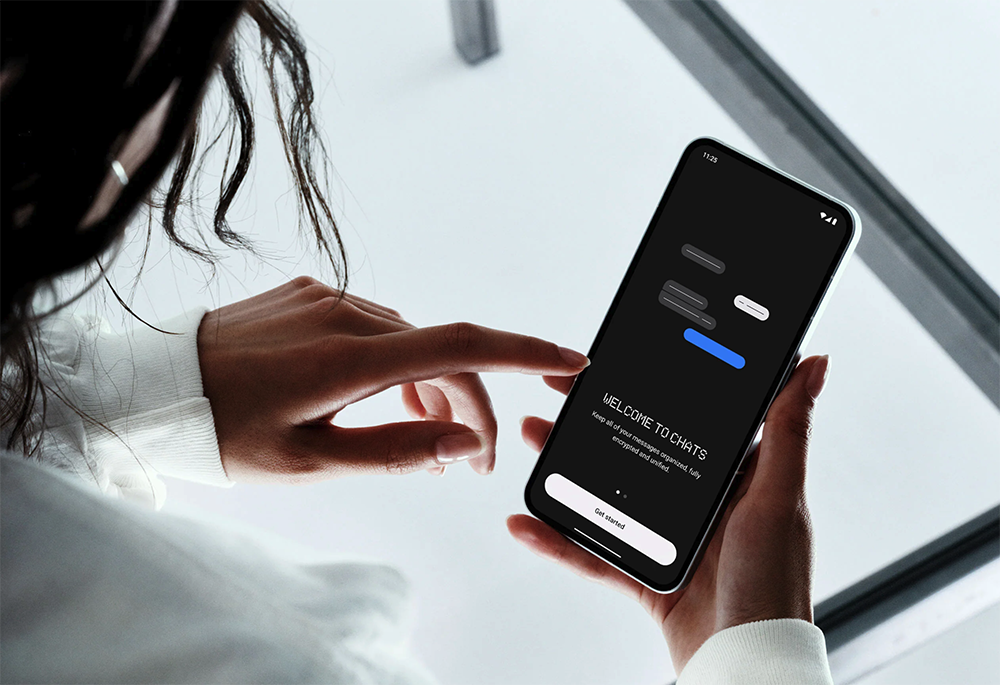
Another way to resolve this issue is to download another SMS app from the Google Play Store and try sending a text. If this works, the problem is with the app and not with the network connection. You can then uninstall and reinstall the standard SMS app, or you can go into your phone’s settings, go to App settings, find the SMS app, and force close it, clearing its data and cache. This will usually resolve the problem if the issue is app-related rather than network-related.
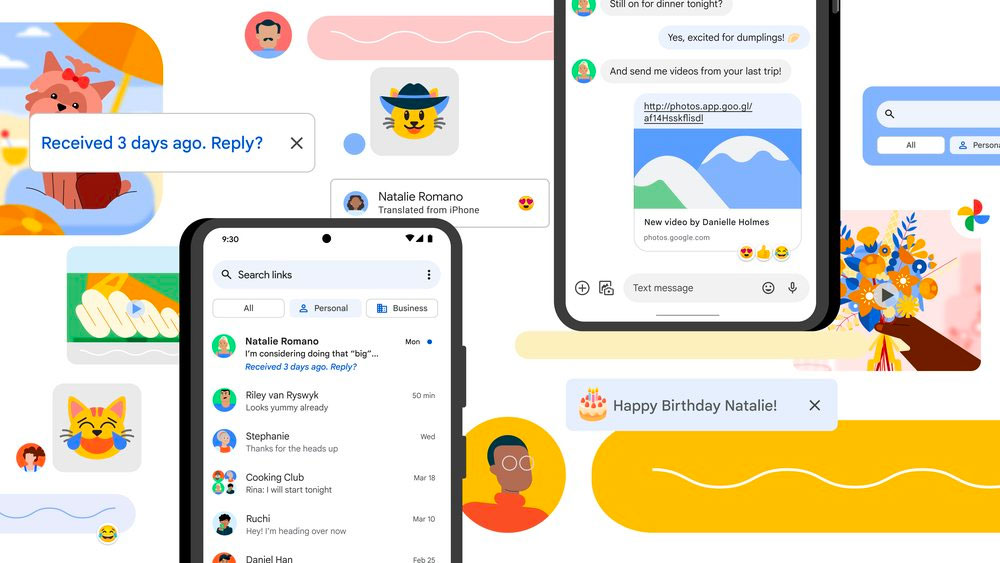
Finally, since a lot of people use Google’s messaging app, that means a lot of people are also using RCS. Since RCS is sent over data, unlike older text messages sent over a phone signal, you can try going into the settings in Google SMS, turning off RCS, and trying to send another text message. If this works, then the problem is with your data connection and not your mobile connection, and it’s possible that your network is just down. If none of the above works, go do something else first and try again in an hour or two.
Phone overheating
Unlike most Android problems, which steadily improve over time, overheating is as prevalent as ever. After all, phones are getting more powerful every year, and the more power they generate, the more heat they generate. Sometimes, it gets too much, especially in years when the die runs hotter than usual, like the Qualcomm Snapdragon 8 Gen 1 , so a phone with that processor, while perfectly fine, gets hotter than average under heavy use. There are a lot of hot components in your phone, so it can get hot under heavy use.
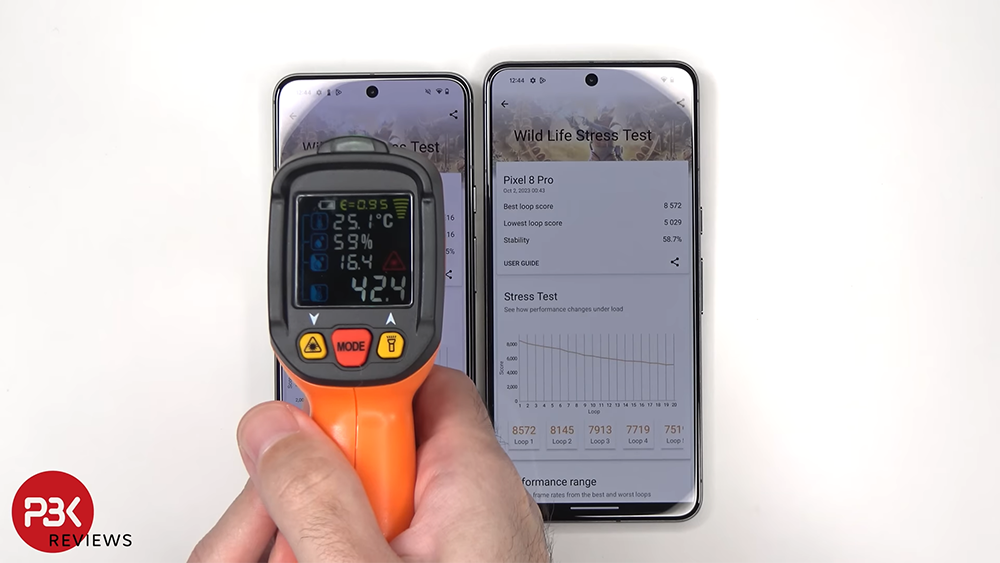
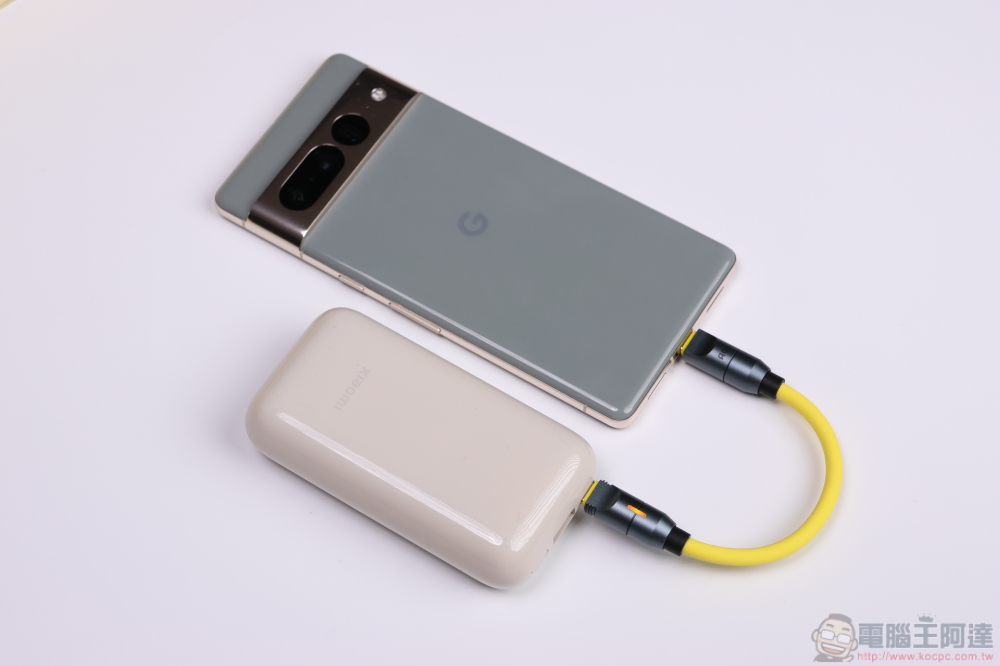
The first thing you should do is unplug any charger from your phone. Charging your phone will make it hot, and if you play games or do some heavy work on your phone, it will get even hotter than usual. So, stop whatever you’re doing, unplug your phone for a while and see if that cools it down. If this works, try to avoid strenuous activity while charging.
Another good idea is to restart your phone. This will shut down everything and restart the phone, which should effectively cool it down. If none of the previous options work, go back to your battery settings and see if any apps are using a lot of battery life and uninstalling them should fix the problem. You can then reinstall the app and see if it runs properly.
Storage too low error
Insufficient storage space is a common problem, and the solution is simple. Except for special circumstances, all you need to do is clear up the space on your phone. Although there are occasionally software errors that say you don’t have enough storage space, these are very rare. In most cases, your phone is probably just full of apps, games, photos, videos, and music that need to be moved, deleted, or backed up.
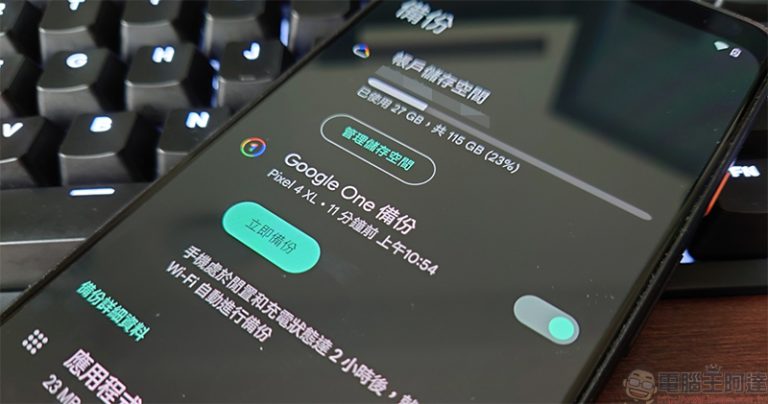
The easiest way is to back up all your photos to the cloud and then delete them from your device. Google 云端硬碟可以透过 Google 相簿执行此操作,但是如果你想要用这种方式,则必须付费订阅才能获得更多储存空间。 If you’re an Amazon Prime subscriber, you get unlimited photo backups with Amazon Photos. After uploading all the photos to the cloud, you can delete the contents of the photo album on your phone to free up a lot of space.
The second biggest cause of storage problems is download folders. Get a file browser like Files by Google, use it to navigate to your downloads folder, and delete any files you’ve downloaded and no longer use. Files by Google also has a storage cleanup feature that you can use to clear more space. Finally, you can uninstall old apps and games you no longer use. Modern game archives have become very large, so this is a more efficient solution than you might think.
App keeps crashing
App crashing has been a fairly common problem for as long as Android has been around. After all, there are hundreds of Android devices in the world, and developers sometimes struggle to get their apps to run flawlessly on every phone across multiple Android versions and multiple hardware configurations, which is a major cause of crashes. The first thing you should do is head to the Google Play Store to see if there are updates for the app. Developers work on fixing app bugs, and app crashing errors are very serious for them, so developers usually fix them quickly.
If no updates are available, another option is to clear data and cache. To do this, go into your phone’s Settings and then into the Apps section. Scroll down until you find the offending app, click on it and clear cache and data, then reopen the app to see if the issue is resolved. If not, try uninstalling and reinstalling the app. Finally, if none of the above works, uninstall the app and look for an alternative until the developer has completely fixed the issue.
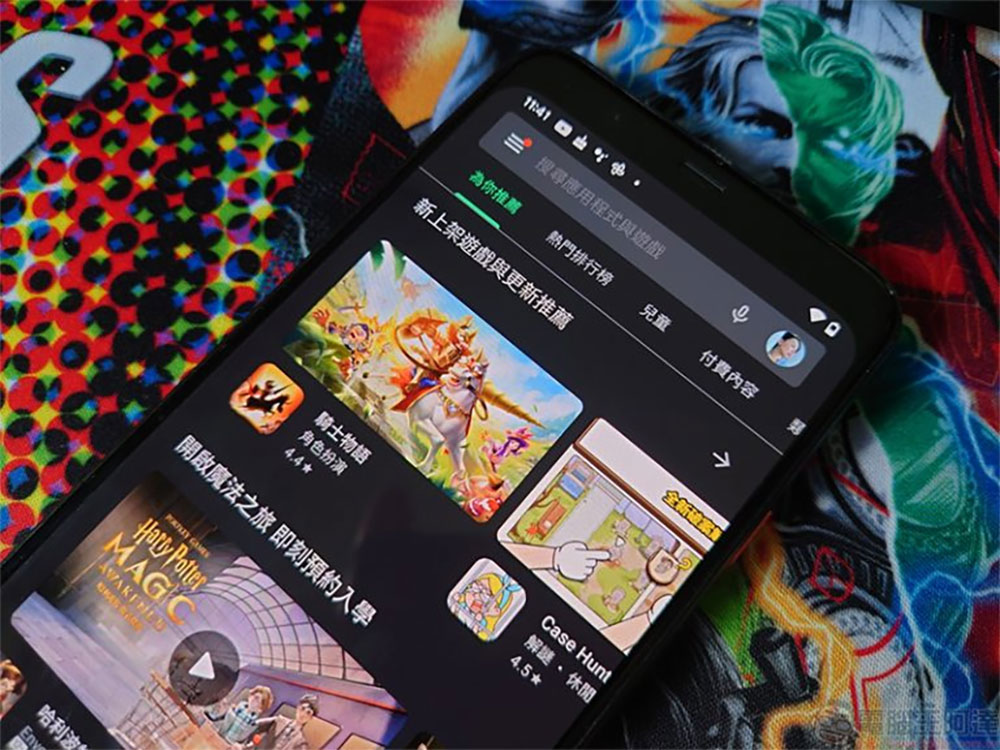
The biggest problem with app crashes is that people rarely report it, but you can help be part of the solution here. Go to your app’s Google Play homepage and find the developer email listed at the bottom. Email the developer to let them know the app is crashing and tell them what steps you took to get it to crash with the phone model. This way, developers can quickly know where to start looking for the source of the problem and fix it faster.
Google Play isn’t working properly
The Google Play Store is arguably the most important part of the Android experience. It’s where apps and games come from and where they get updates. Project Mainline also uses the Play Store to download updates in the background. The bad news is that when the Play Store goes down it can cause quite a bit of trouble, and the good news is that the fixes for all of them are pretty much the same regardless of the problem.
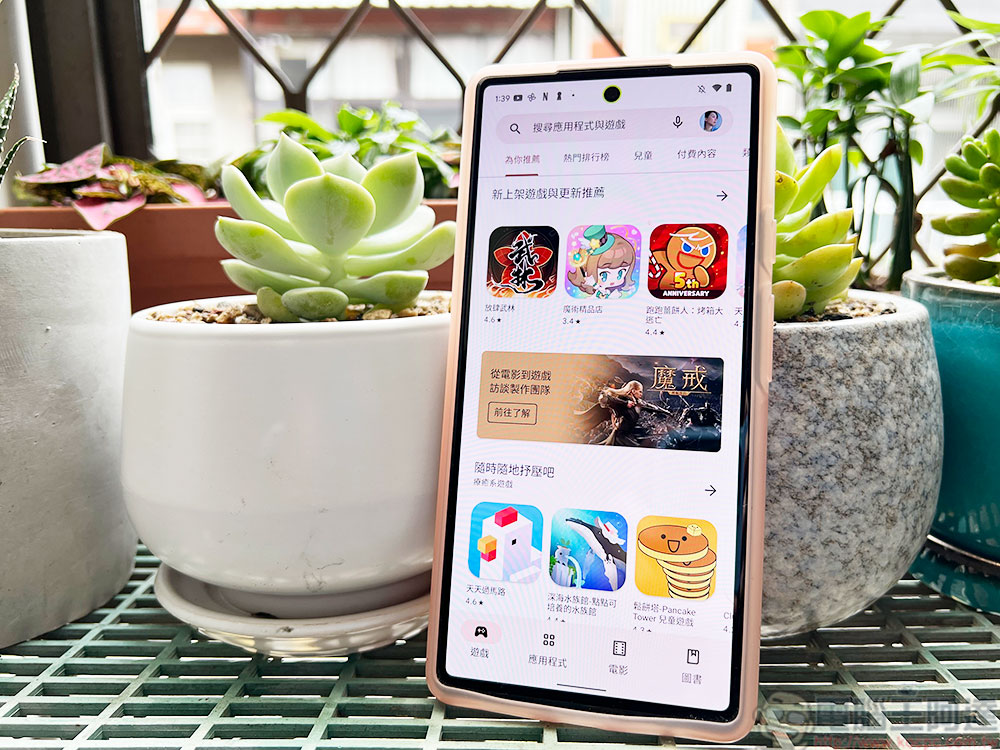
First, you should check the Play Store for updates. You can do this by going into the Play Store, clicking on your profile picture, and then clicking on Settings. From there, click on the About option and view the Google Play version. There will be a button to update the Google Play Store below this option, click on it to see if the Play Store needs to be updated. You can also go into your phone settings, go to the Apps section, then find the Play Store, delete the cache and data from there and try again. These two methods will solve the vast majority of problems.
If none of these work, there are probably just a few other issues. Check your connections to make sure the network connection is working properly, and if so, see if that resolves the issue. You can also try switching from mobile data to Wi-Fi or vice versa to see if your phone’s other connection methods help. It’s also possible that Google’s servers are just having a rough day, in which case the only solution is to give it a few hours and try again.
Phone won’t charge or charges slowly
Charging is a real pain point, your device must be charged to continue functioning, and people often plug in the charger when the power is low and they need to recharge. So when charging issues arise, it can be very worrying. Thankfully, troubleshooting is usually relatively simple as it’s almost always a hardware issue, but in the unlikely event that it’s a software issue, restarting the phone and installing any updates will usually fix it.
For hardware issues, the first step is to try to switch to another charging transformer and another charging cable. Sometimes the charger and charging cable get damaged, so the best way to solve this problem is to replace them. You should also check your charger and charging cable to make sure they can support your phone’s maximum charging speed. For example, OPPO phones charge very quickly, but you have to use the right charger or it won’t work. Using a compatible charger can solve the problem of slow charging.
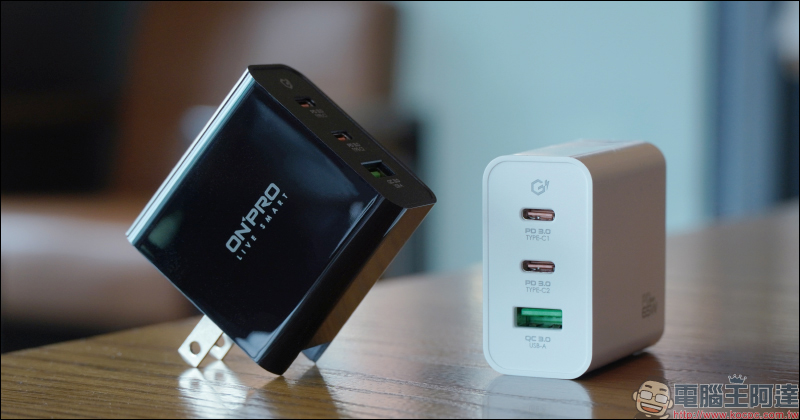
If replacing the charger and charging cable doesn’t work, try cleaning the charging port. You can carefully remove dust or dirt using compressed air and a non-metallic blunt tool such as a toothpick. Unfortunately, if changing the cable and cleaning don’t work, there’s a good chance your charging port is broken. If this is the case, you will only be able to seek repair services.
The phone may have malware
Despite Google’s efforts in recent years to improve Android security, it’s still possible to get malware on your phone. Google Play Protect basically prevents you from installing any malware, and once it detects malware on your phone, it removes it. However, no system is perfect, so even with Google Play Protect, it’s possible to get infected with malware, especially if you download and install apps from third-party sites. Luckily, at least on Android, getting rid of it is usually easy.

The first step is to get a trusted antivirus app and scan your device. Malwarebytes is a good choice because the scanning feature is free and Malwarebytes is a trustworthy company. If your phone detects malware, you can check for specific instructions on how to remove it, and generally you can uninstall it like any other Android app. If Malwarebytes scans something inappropriate, you can also download another trusted service such as Norton or AVG to scan it.
In most cases, a factory reset will remove malware from your device. You can first back up your documents, files, photos, videos, etc., then restore the factory settings and then set up your phone from scratch. Very few malware can survive a factory reset, and while there are still accidents, it requires such specific circumstances that it almost never happens in typical use.
App cannot sync or is not fully synced
Sync issues can be annoying and can delay notifications, prevent emails from showing up, or even mess with your fitness data. Regardless of the situation, synchronization issues are solved the same way, so let’s get started! The first thing you should do is check your network connection. If the signal is weak, the sync may time out and not complete successfully. You can try switching from mobile data to Wi-Fi or vice versa to see if there is a stronger signal for you to use.
Next are the steps mentioned many times in this tutorial. First, make sure all your apps are up to date. Then, go to Settings, then Apps, and find the app that isn’t syncing correctly. Force close it and delete cache and data, then reopen the app and try again; repeat this process for Google Play Services as well, as it controls sync. If none of this works, try restarting your phone, and if you’re unlucky, leave it for an hour or two and try again in case there’s a server issue.

Another thing you can try is opening the app and looking at the sync settings. Sometimes apps have ticked settings that prevent proper synchronization. Additionally, Android can put apps into a hibernation state, during which they cannot sync, send notifications, or perform any actions. Opening the app will wake it up and get it online to sync again.
Forgot PIN or password
Unfortunately, there’s no quick or easy way to deal with this problem. After all, if it was easy to brute force a screen lock, it wouldn’t be a very secure lock method, would it? If you forget your password or PIN, the same protections that keep strangers out can shut the door on you. Even if you do try a brute force attack, many Android devices have set limits where the phone will factory reset itself or prevent you from trying again for a certain time period.
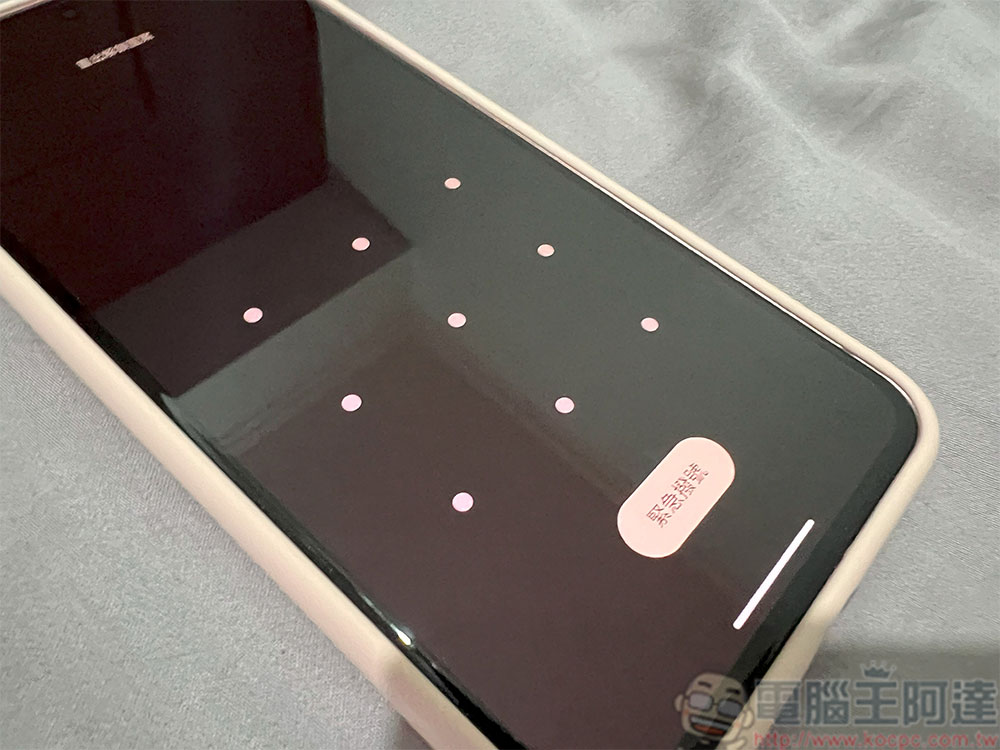
You can restore your phone to factory settings in the following two ways. The first is to go into Android recovery and reset it this way. The other is to use Android’s native “Find Device” service to restore the phone to its original factory settings.Google has a tutorial on how to do a factory reset and how to use Find Device to restore it., both of which should work on most modern Android devices.
Source: KOCPC Chinese