


Every autumn and winter, with the release of flagship mobile phones from many brands and the discounts offered during shopping festivals, it is also the peak season for many people to upgrade to new mobile phones. However, the biggest worry when changing your phone is losing important data, including LINE data. This time, I will share with you the official health check tips for switching LINE accounts, and how to avoid errors that may cause the data to be lost!
Tips for LINE account health check when switching devices: 3 steps to complete the LINE account health check and whether the backup is complete
I finally bought my favorite new phone, and now I’m ready to transfer my LINE account to the new phone. But do you know what preparations should be made before changing the phone?
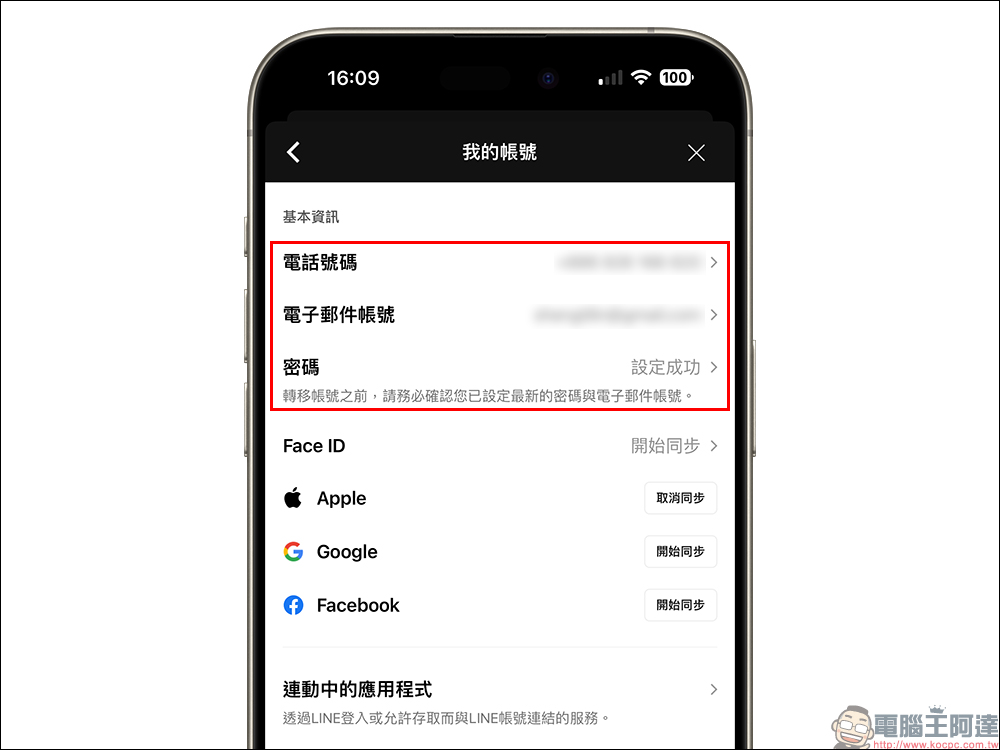
Confirm whether the basic account information settings are completed
Before switching to a new phone, in order to successfully transfer your account to the new phone, you must first confirm whether three basic information have been set up, including phone number, email account and password, which can make logging in from the new phone more secure and smooth. So how to set basic information? First click “Settings” at the top of the LINE homepage, then select “My Account” to set it up.
Confirm whether backup is complete
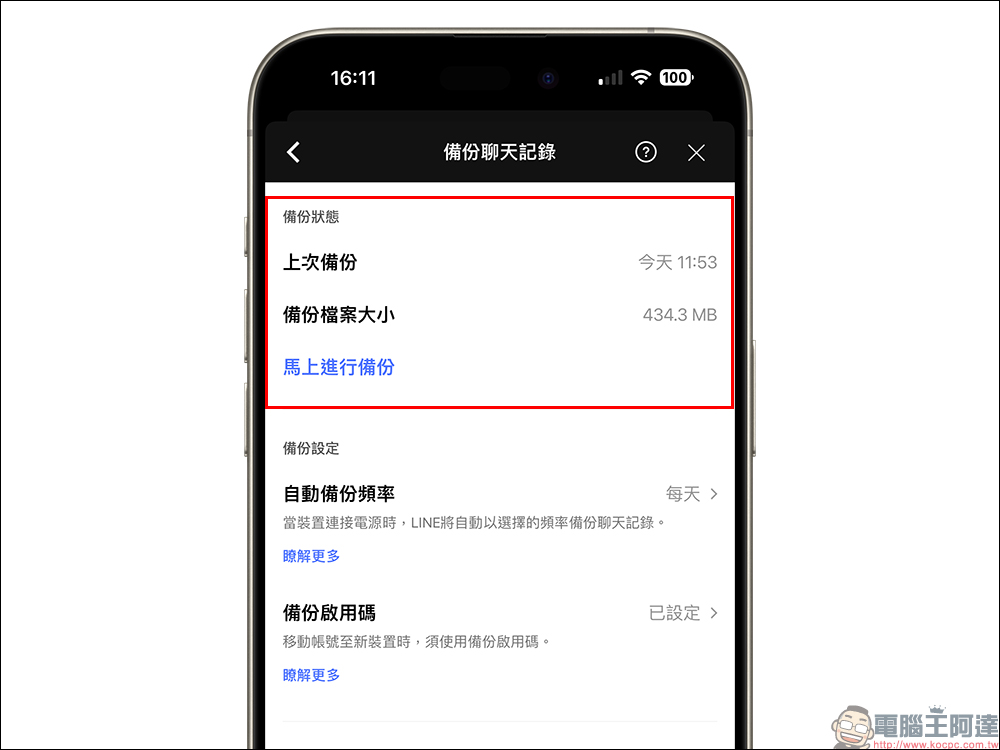
LINE chat history is very precious to many LINE users. Checking the status of the chat backup record before switching phones will also allow you to successfully transfer the latest chat history to the new phone after logging in to the new phone. The same is done from the settings on the LINE homepage, enter “Backup Chat History” and select “Backup Now. You can also turn on the automatic backup frequency so that the LINE system can automatically complete the backup regularly.
If it takes a long time to back up chat history, it is recommended that you delete some unimportant LINE chat rooms before backing up chat history in LINE to reduce the size of the backup file.
In addition, it is also recommended to set a “backup activation code” so that if the phone is accidentally lost or switched across systems, the chat history of the past 2 weeks can be restored.
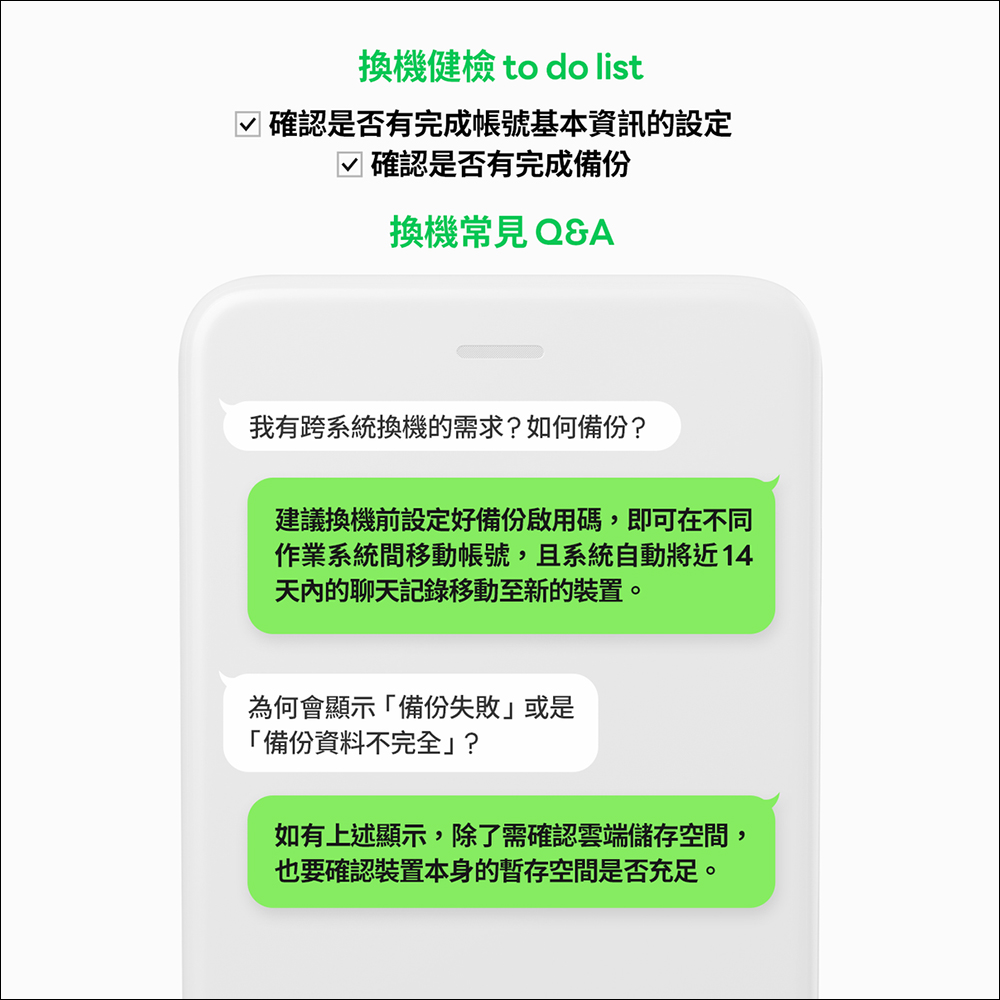
Frequently Asked Questions about Phone Replacement
In addition to the above two types of health check-ups when changing phones, many users often have questions when changing LINE phones.
- Question: If there is a need for cross-system replacement, how to back up?
Answer: It is recommended to set the backup activation code before changing your phone so that when you move your account between different systems, the system will transfer the chat history within the past 14 days to the new phone. - Question: Why does “Backup Failed” or “Backup Data Incomplete” occur when backing up LINE chat history?
Answer: If you encounter the prompt “Backup failed” or “Incomplete backup data” when backing up chat history in LINE, it is recommended to first confirm whether the cloud storage space and the temporary storage space of the phone itself are sufficient. In addition, you can also check whether the mobile phone is successfully connected to the cloud storage space and whether the network connection quality is smooth.
Additional screening at the same scene: Chat room list occasionally reminds you of precautions
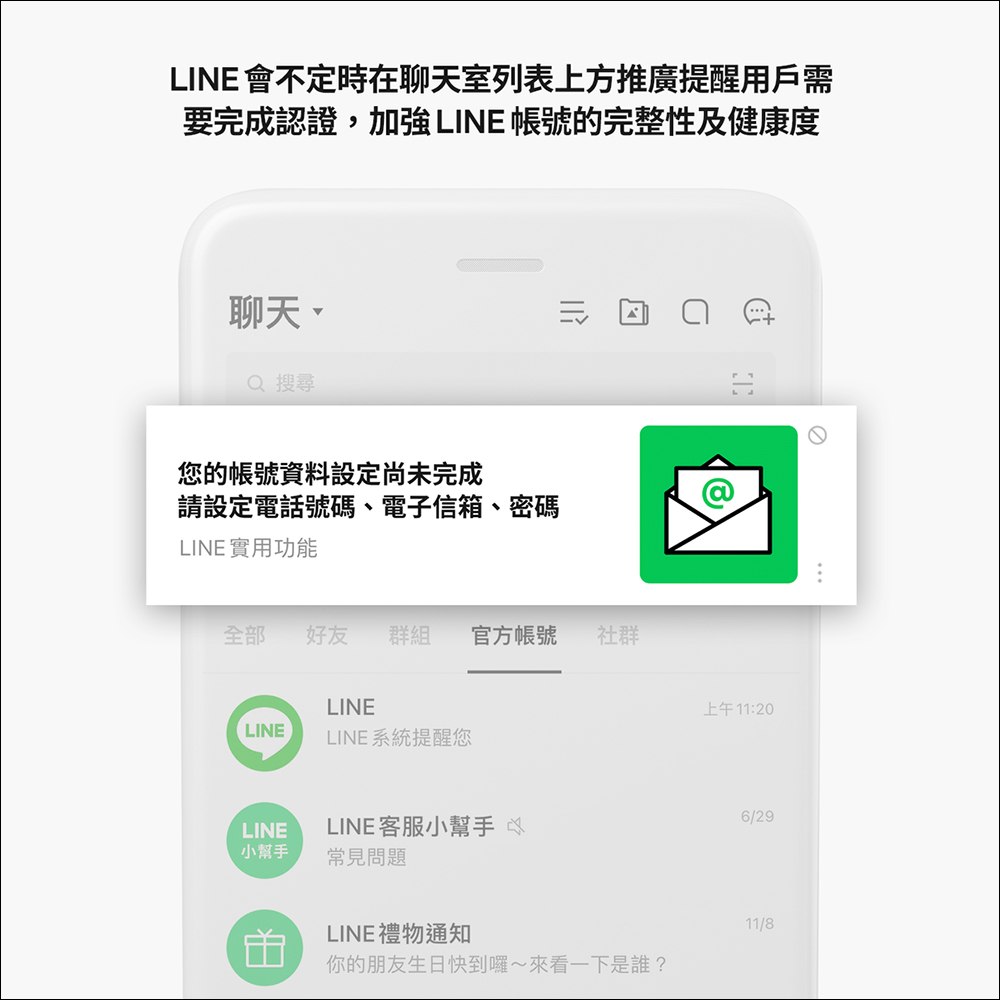
The LINE system will from time to time promote reminders for users above the chat room list, such as reminding users that they need to complete authentication and enhance the integrity and health of their LINE accounts. If you see the relevant push, you can feel free to click to enter the LINE account settings!
Further reading:
LINE free sticker collection: 23 free LINE stickers available for download for a limited time

Source: KOCPC Chinese