


With the launch of the public beta version of watchOS 10.1 Beta 2, we are finally able to play this new feature on the Apple Watch that is only available on S9 SiP and above models. Keep reading and it’s super easy! In-depth hands-on play (life experience experience) of Apple Watch’s latest Double Tap “double tap” gesture function.
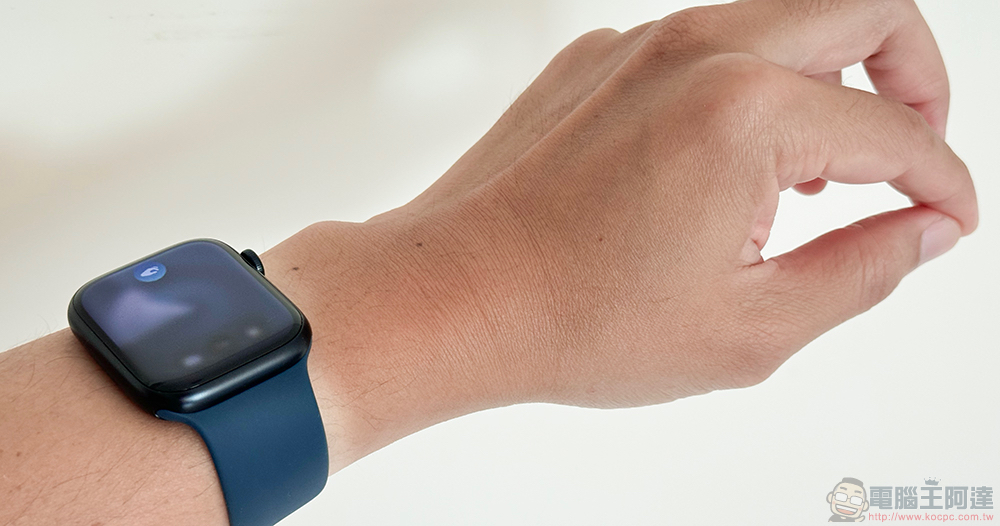
Super convenient! In-depth hands-on play with the latest Double Tap “double tap” gesture function of Apple Watch (life experience experience)
Even though we in the United States are targeting Apple Watch Series 9 and Apple Watch Ultra 2 In the hands-on play, I have experienced the new “Double Tap” gesture for the first time, which is the latest function that can be realized in watchOS with the hardware margin provided by the latest Apple Watch. Although we had a preliminary answer at that time as to how it was different from the auxiliary touch function that we had previously installed on other Apple Watch models.
However, I am still very curious. Just seeing the official description of this new gesture that “can obtain information from the accelerometer, gyroscope and heart rate sensor, and use a new machine learning algorithm to detect the unique subtle wrist movements and blood flow changes when the index finger and thumb tap each other twice” feels like a completely black technology. What does it feel like to actually use it?
With the launch of the public beta version of watchOS 10.1 Beta 2, we are finally able to play this new feature on the Apple Watch that is limited to the latest S9 SiP and later models.
How to enable “Two-finger double-tap gesture”
After installing the latest version of watchOS 10.1, you will soon see a new “gesture” icon in the system settings of Apple Watch.
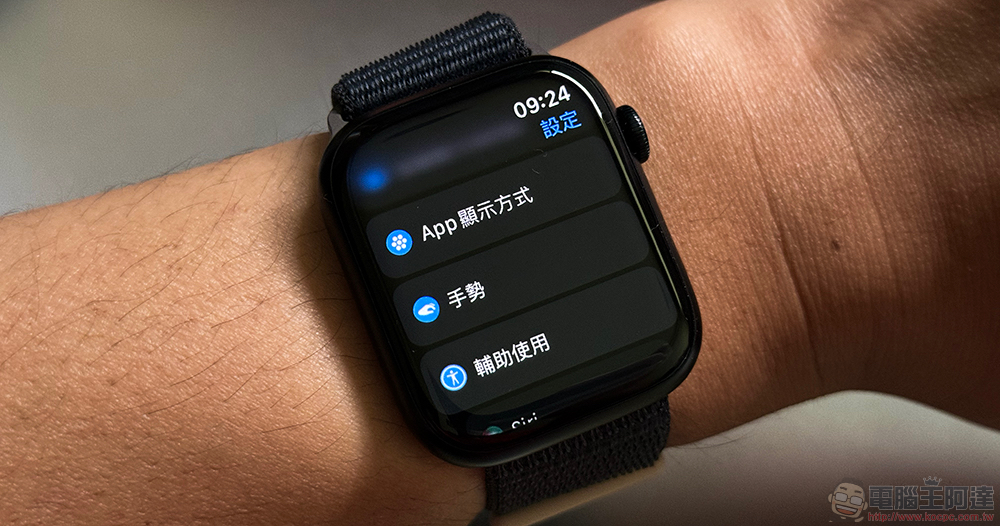
In this option, you can see that the “Mute with screen covered” originally included in the ringtone settings of watchOS is summarized here, and you can also find the settings page for the “double-click each other” main function that I want to introduce in this article.
In addition to enabling this function, this settings menu also includes the “pause/play” and “skip” options for the playback function; it was also discovered that in addition to the “forward” of the carousel page, the smart stack can also perform the “select” function of the first function in the smart stack – including the operation of widgets such as timers and music, which can all be controlled through “select”.
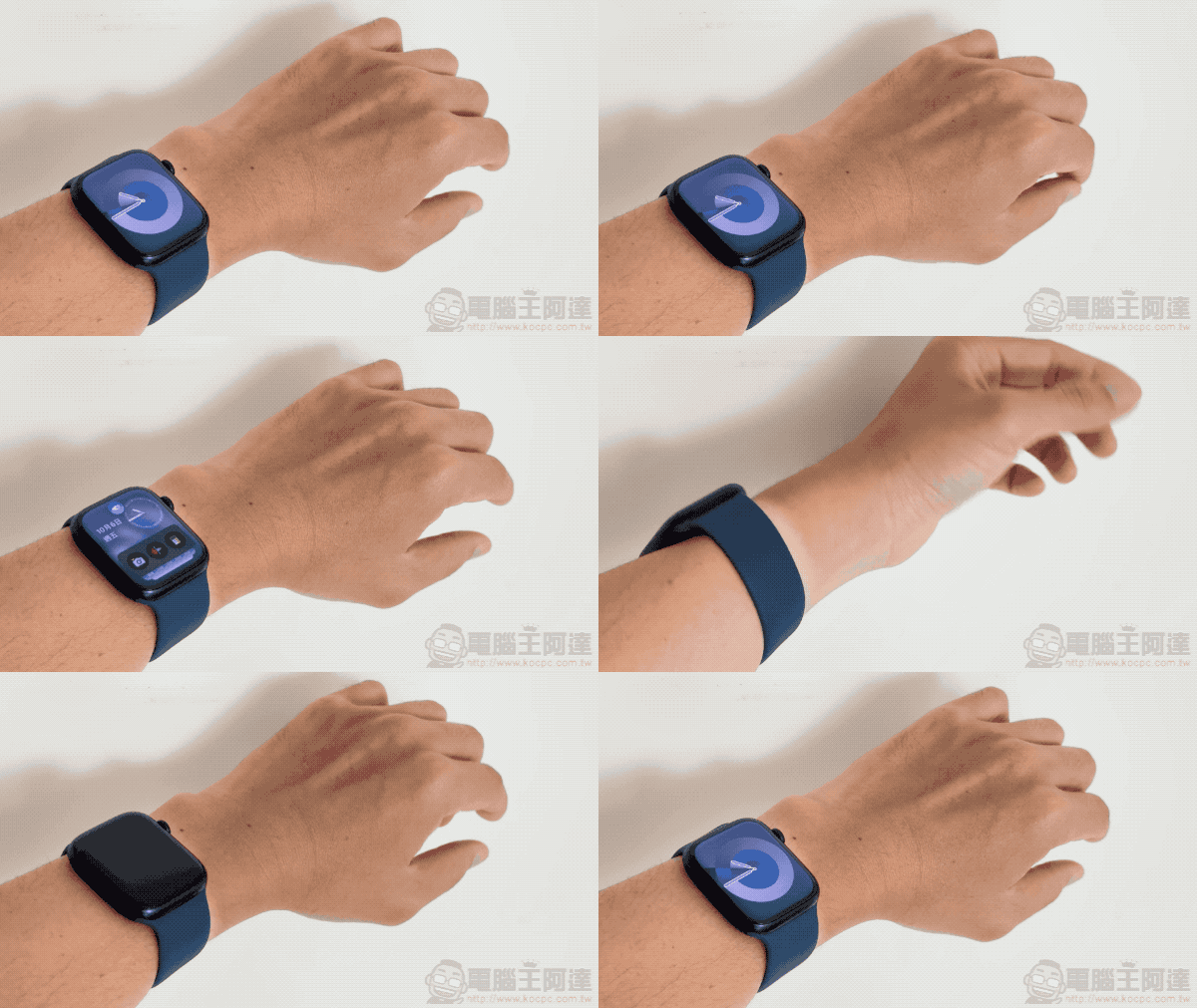
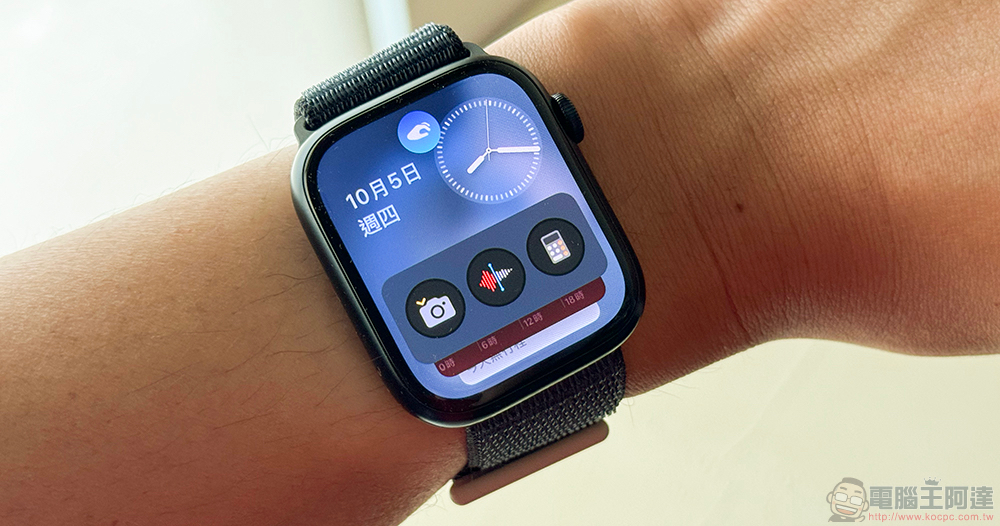
Take wisdom stacking as an example. After turning on the double-tap gesture function, you can tap each other twice with your “index finger” and “thumb” on the normal surface. Activate the gesture function to call up this new watchOS 10 interface that is very similar to the previous Siri watch face – in addition, you can continue to double-tap to rotate the page function; when viewing notifications, you can also support such a scrolling page function.
Each “double tap” will be accompanied by a screen prompt and two short tactile vibrations; if a function is selected through gestures, an additional vibration will be added, so that you can truly feel that you have clicked to execute a specific function. Therefore, after using it so far, you will find it a bit difficult to accidentally touch it without realizing it – I believe this is something the developers who created this feature hope to avoid.
Life experience
First of all, I must raise my hand and admit that even though the panel size and functions of Apple Watch are becoming more and more powerful, the function that I rely on most on the smart watch is actually reading notifications (covering my face). Okay, now I knowThe importance of recording and observing sleep statusAfter that, another most commonly used one is sleep detection!
So if you, like the author, have previously discovered that after auxiliary touch is enabled, you can use similar gestures to “skip notifications” and open it immediately to use it (you won’t have a bunch of notifications every time you open the phone). So this extra “two-finger tap” experience that has been pulled out should be enough to recommend that everyone consider buying a new watch to use – because it is much easier to use!
Use in notifications
Take the email notifications from the Gmail app that you receive most often as an example. Compared with the previous auxiliary use of “quick action”, it can only brush out notifications (unless you slowly select components on the screen through gestures such as making fists, but then the meaning of quick operations is somewhat lost). Now you can scroll through the screen by double tapping each other. If you double tap each other to see the notification, you can mark the message as read.
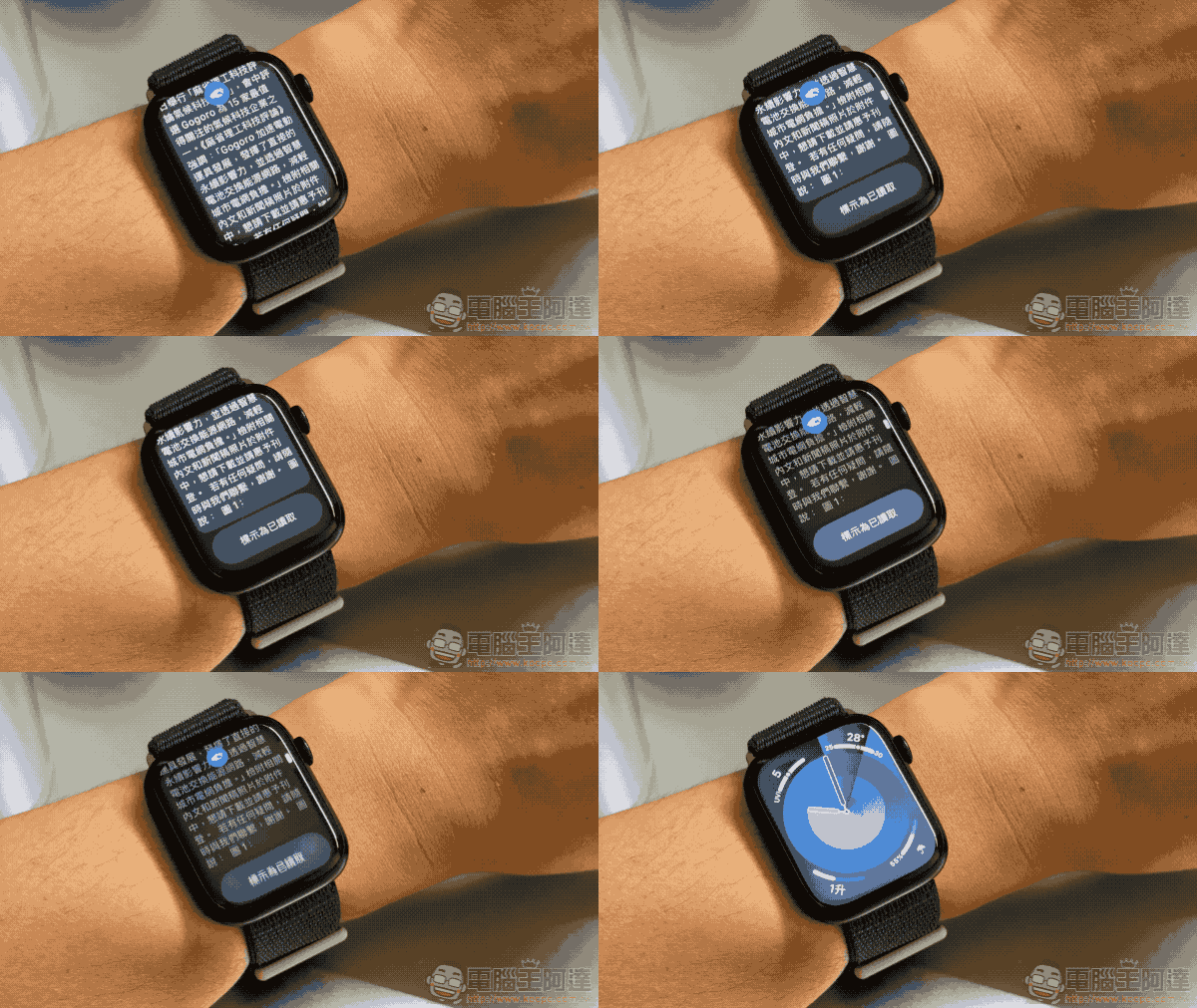
In fact, just because you can turn pages very intuitively, the new generation double-click gesture is already much easier to use than before.
In notifications that do not yet support or specify the double-click function, you will basically directly select the “Skip” button to close the notification you are seeing as in the previous auxiliary use – if you do not want to sweep away the notification, you can not continue to perform the gesture, or just put down your wrist or let the screen turn off; if you do not want the gesture to perform button operations, stop the action when the page is scrolled to the end (when you see the button), so as to avoid triggering other actions.
Speaking of which, although Gmail defaults to “read”, it is reasonable and safe. But based on my own usage situation, there is a high chance that after reading the email notification, I will want to select “Delete” to save space in the email service. Regarding this point, it may depend on whether the App developer intends to specify other functions in the future, or whether a single application can have additional settings for selecting what functions it wants to perform by double-clicking in the future (hopefully there will be).
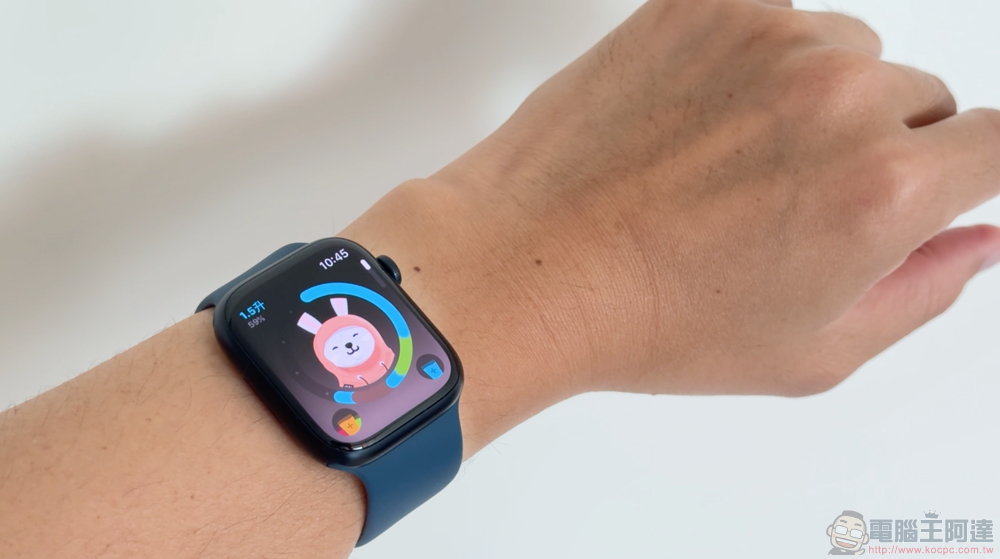
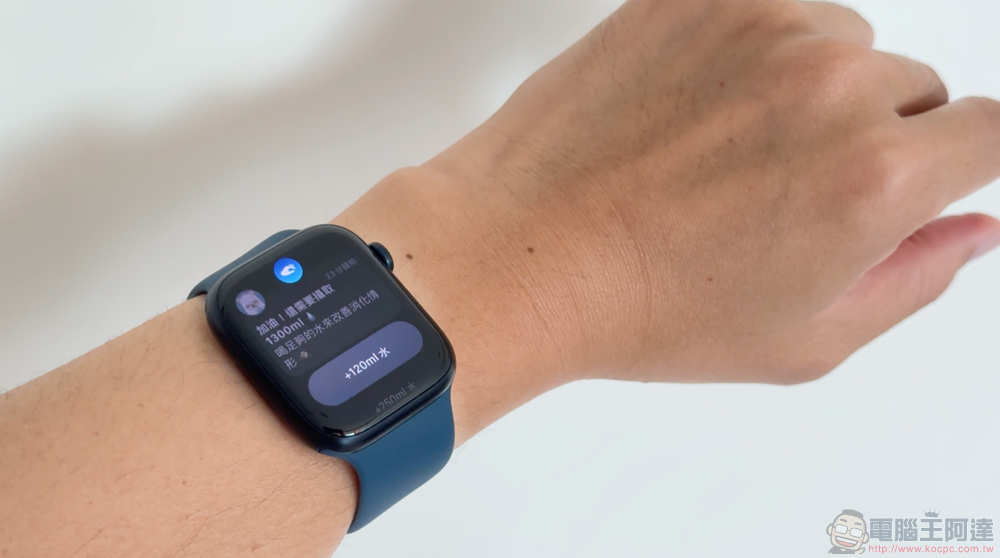
Although as far as we know, when the “double tap” gesture function is not specified by the developer, machine learning will determine which option is the notification function that the user needs most at the moment. However, the water drinking reminder app “Waterllama” that I often use, when it comes to the gentle reminder to drink water, it chooses the amount of water that I usually drink least often, 120ml, which feels a bit uncomfortable (it can only be said that this may still need to be chosen by yourself~laughs).
Another feature that I personally find very useful in the notification function is that you can use gestures to complete voice transcription replies in notifications from messaging apps such as Line or FB Messenger. The video above is a demonstration of how to go from “view notification” to “reply” to “send” with just two gestures.
To be honest, in the past, when I saw notifications from the messaging software on my watch, I might have been a little too lazy to scroll the screen to choose a reply – I should have just reached for my phone. But now the experience of “clicking each other twice” is really smooth, and watchOS’s interpretation of Chinese is getting better and better. So I will probably respond to messages or answer calls in this way more and more often (although I rarely use my watch to answer calls…).
Use in apps
Although there are currently not many watchOS apps that support double-clicking each other “in-app” – the main official demonstration is that smart stacking also has functions such as timers and memo sounds (PS: In unsupported screens, the “gesture” icon will shake left and right after double-clicking to indicate that the function is not available). Furthermore, taking a step back, since you have already pointed and activated the app with your finger, it seems that it is not too troublesome to continue to use your finger to start recording and timing?
But I have to say, I really hope that developers of other applications can also specify some functions that can be directly operated through “double clicks” in their own watchOS smart watch applications – taking the Gogoro app as an example, maybe turning the vehicle power on or off? My favorite function in the current official demonstration is the ability to activate the shutter by double-clicking when taking photos/videos remotely with the watch.
All I can say is that this is really “too convenient for taking selfies!”
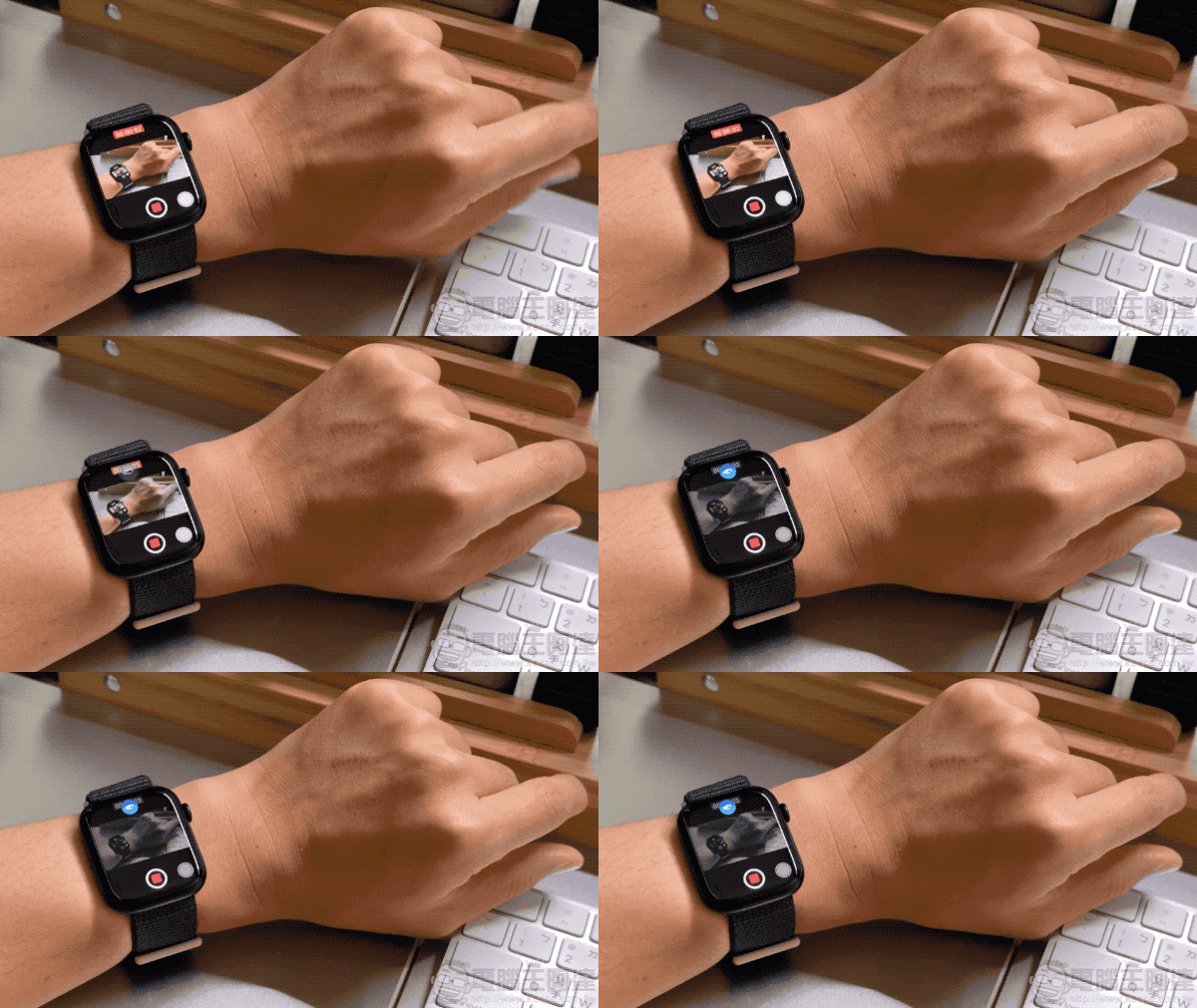
▲Picture: I hope you won’t ask me why there is no subsequent scene in the above animated picture after the gesture is completed (ah, the recording stopped).
Thinking about it again at this time, it seems that recording and timing are also subject to the opportunity for someone to use gestures to control them under certain circumstances? I really hope that the original manufacturers and third-party applications can gradually add such support!
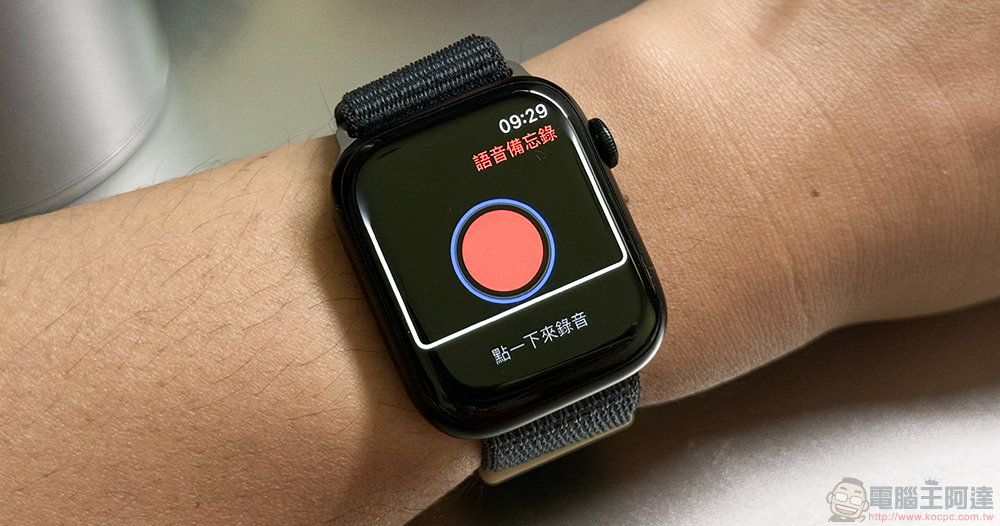
By the way, if you are like me and encounter a bug like the picture above, there is a strange frame. Then you should also be one of those who has turned on the “Assistive Touch” function before. The solution is to go back and turn on assistive touch first and then turn off the “quick actions” inside it. Then turn on the “double tap” function again and this problem should no longer occur. I believe this situation should be corrected before the official version is released (right).
How is it different from Assistive Touch?
For Apple Watch users who have used the auxiliary function before, they should be very curious about the difference between “double tap” and “quick action” in auxiliary touch. And whether they can be used together or not.
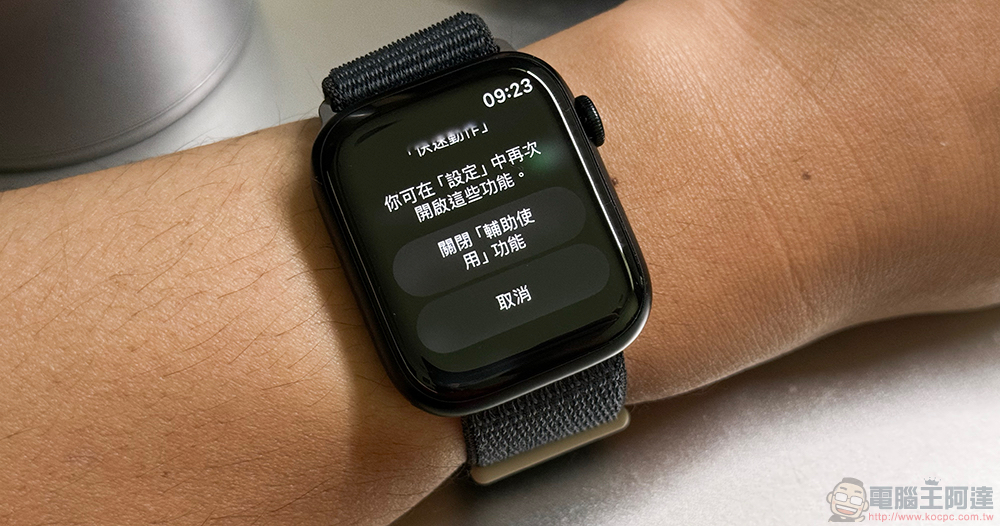
First of all, it is regrettable to say that these two functions are mutually exclusive – when “double-click each other” is turned on, you will be prompted to turn off the assistive use function (as shown in the picture above). Before I mention the big differences between the two functions in detail, I think everyone should be mentally prepared that the design concept of this function should be “simplicity” as the highest guiding principle – that’s why it happens that the functions are clearly similar but are provided separately.
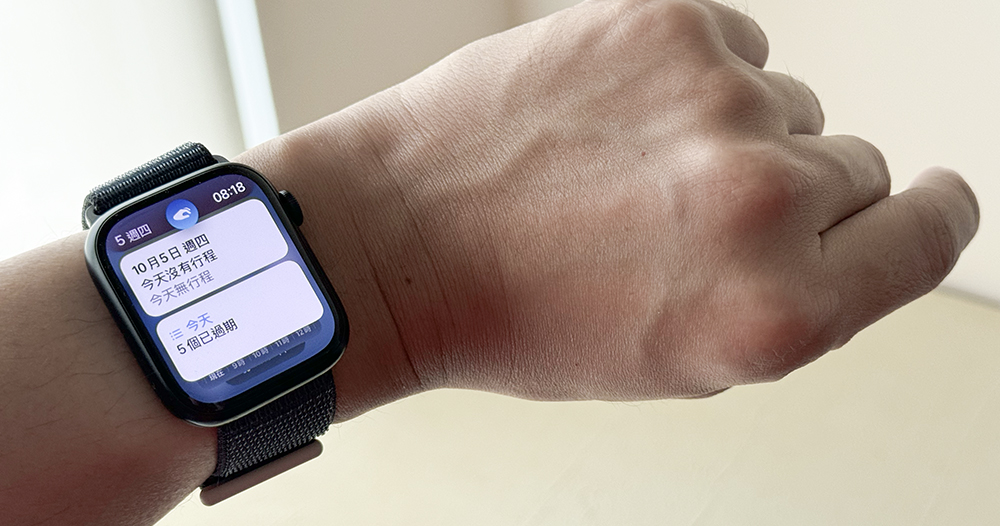
Well, no matter how you look at it, this seems to be a function extracted from the auxiliary function to enhance the experience, and you can also see from the options that Apple has reserved setting functions for more advanced use. However, the “double-click” function actually only has one concept, that is, in any screen or application, it will only have one purpose function and a single gesture (for now).
In comparison, the previous auxiliary touch function was relatively very, very complicated.
But after all, the series of auxiliary functions are functions prepared for people with special needs, so it is not an exaggeration to provide users with complete functional operations – in terms of functions, they will need to correspond to the users who may need to fully operate the system in this way. Therefore, functions such as “make a fist” and “click each other once/twice” will be provided to achieve “forward selection”, “press the crown”, “click” and other functions. Even the “indicator” can be called out and operated through the gyroscope.
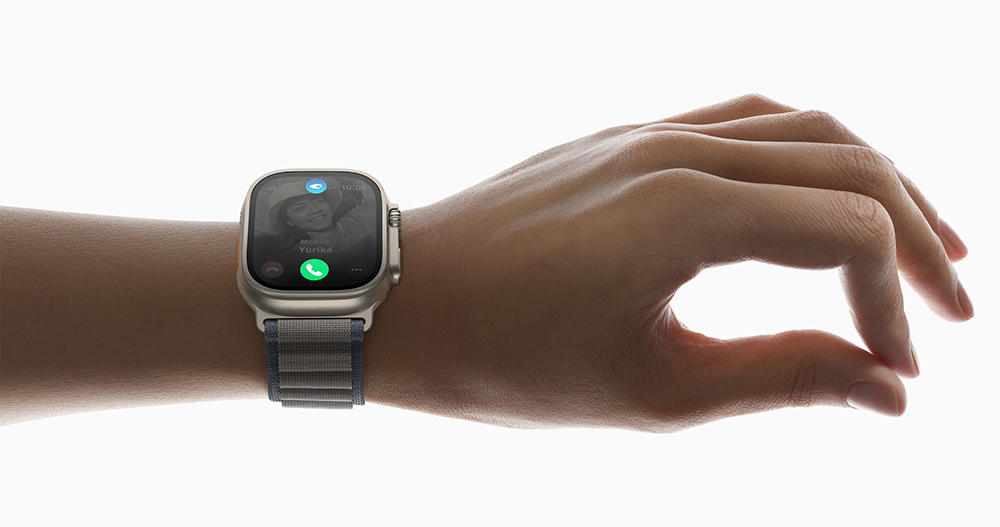
▲Image source: Apple
So even if the auxiliary touch function calls out a new “Smart Stacking” screen, it won’t be a problem. Therefore, for old users, they may feel that Apple just made a slightly different version of the function.
But I personally believe that when most people need to use the gesture function when using a smart watch, it is probably when their hands are not free, right? Speaking of which, in this state, there is probably no intention to perform any complicated operations. Therefore, “Two clicks on each other” will focus on only performing the “most important actions/tasks”.
Personally, I think this straightforward concept is the biggest fundamental difference between the two functions. This also explains why the new gestures don’t have the “notification bar” function that I’m looking forward to – although I really hope that Apple will slap me in the face and add this function in the future.
Conclusion: The refreshing feeling of getting straight to the point
Even now, most apps do not specifically provide support for “double-click each other”. But based on the notification experience alone, I already like this feature quite a bit – I believe that as more and more people use supported Apple Watch models, more app developers will be willing to introduce this simple task operation function.
In this sense, Apple seems to want to encourage developers to work harder to provide watchOS applications with a single-click… Oh no, it should be said to be a “Double Tap” direct-to-simplified operation function.
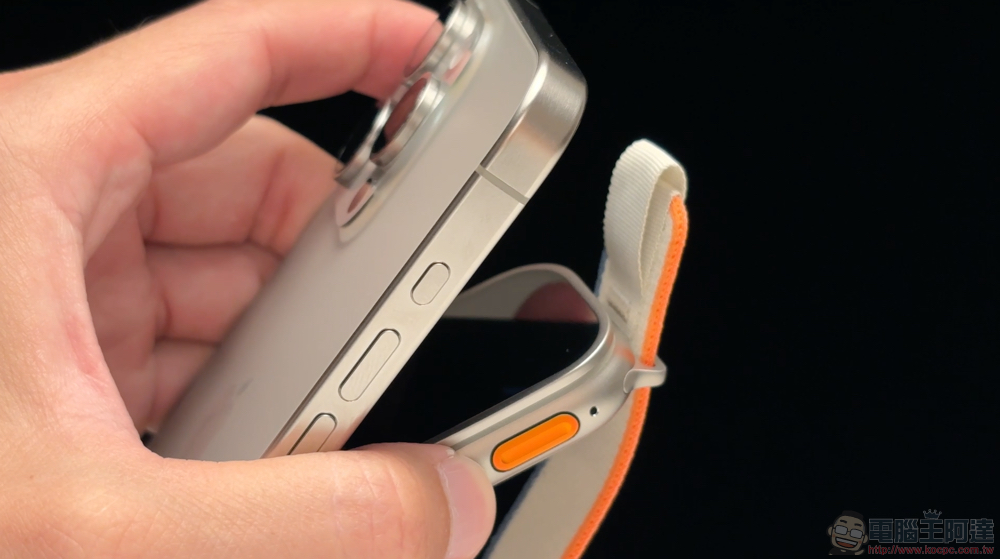
Looking at it this way, maybe the double-tap gesture could be considered a virtual version of the action button on the Apple Watch Ultra! ?
And whether this also means that in future iPhone 15 Pro or Apple Watch Ultra models, we will see a similar in-app shortcut function experience through action buttons. This is also something that makes people curious and expectant. In fact, if you think about it carefully, the fitness function of Apple Watch Ultra has been quickly launched through action buttons. As a result, “clicking each other twice” has no effect in the physical training app, which is really wonderful XD.
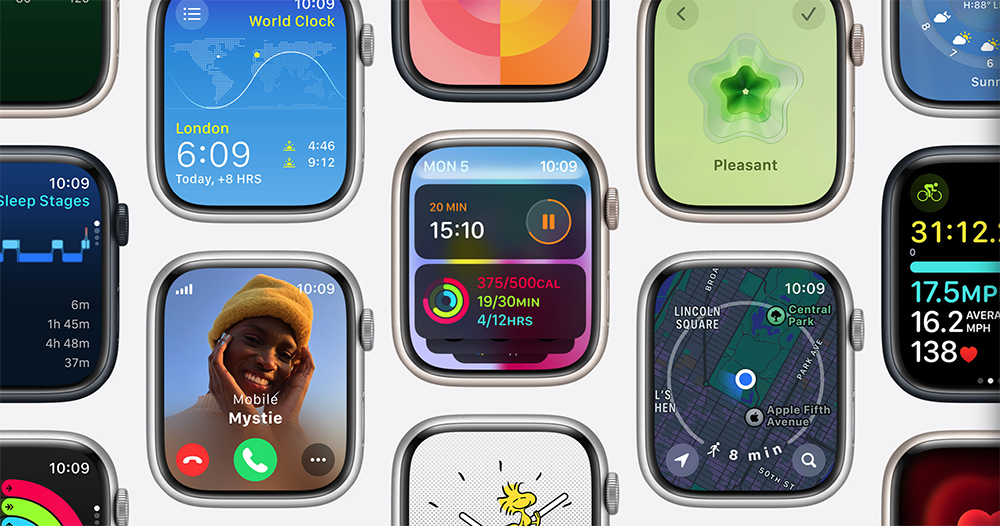
▲Image source: Apple
Finally, since you can directly launch the smart stack with “two clicks”, this has also led to some changes in the way I use Apple Watch – after all, the smart stack can already pin gadgets with quick functions, plus I can cycle through some necessary information. Then you will feel that the information on the surface does not seem to be so complicated.
So I start to want to cancel the complex functions and status display of Apple Watch, so that the superficial “time” becomes the protagonist again. I wonder if everyone has similar thoughts? It feels like the surface needs some adjustments again (roll up your sleeves).
Further reading:
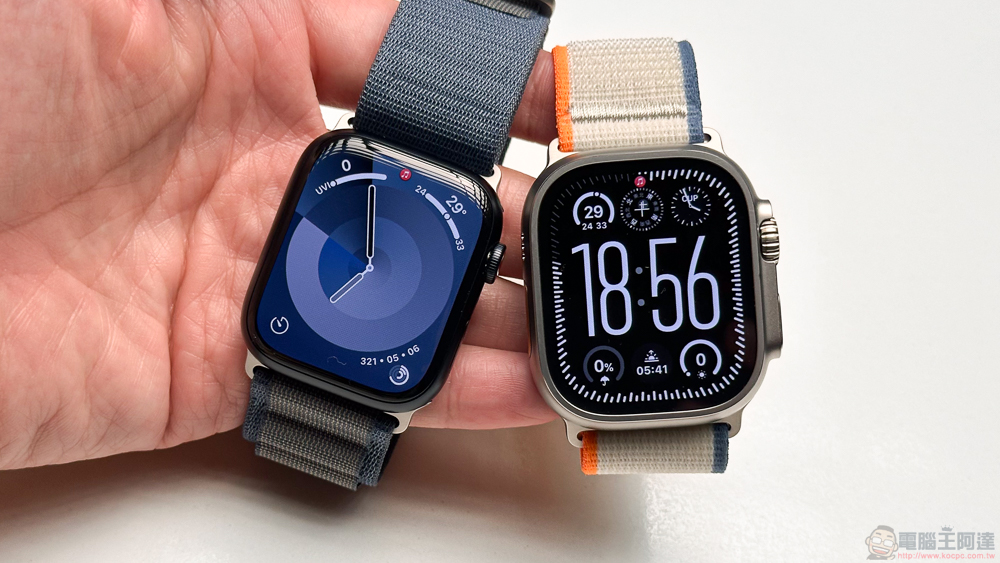
Apple Watch Series 9/Ultra 2 unboxing experience: A good “9” sinks into the bottom of the jar
Source: KOCPC Chinese