


Mobile phones are extremely personal and full of privacy devices. They may contain a lot of content that you don’t want anyone else to see, so basically we don’t borrow each other’s phones. But sometimes, you may have to hand over your phone when you “have to say yes”, such as when a friend doesn’t have his phone and needs to borrow it. Most Android devices have a “guest mode”. When you switch to this mode, you can lend your phone to others without worrying about your privacy being snooped.
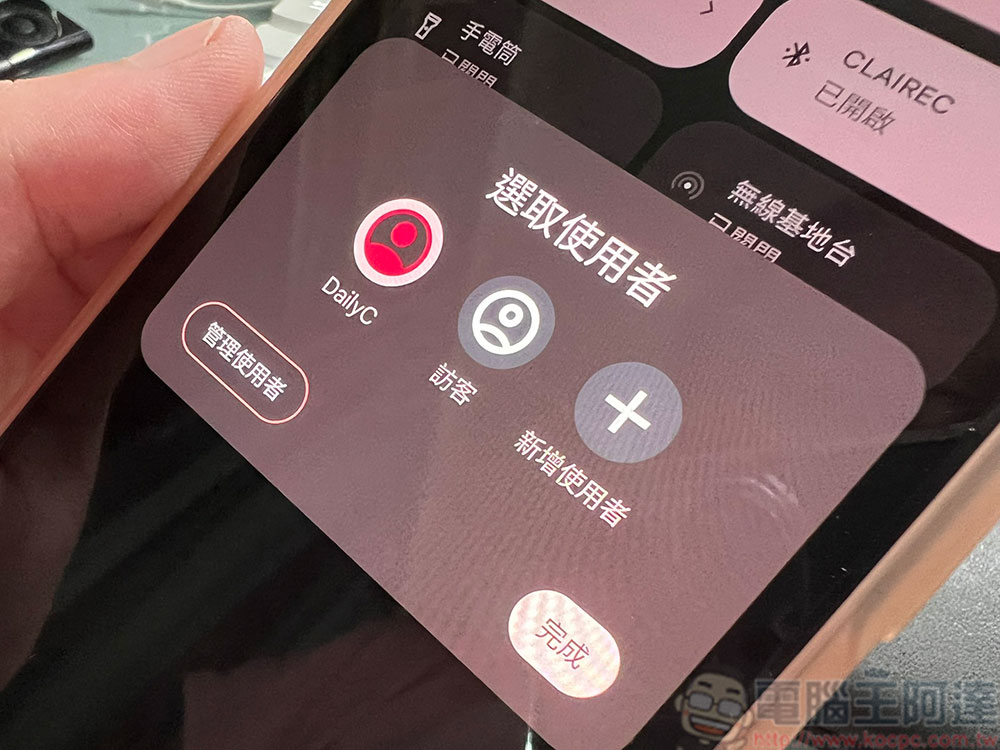
How to set up guest mode on your Android device?
Setting up guest mode will differ depending on the Android device you have. For example, Samsung only has this mode on tablets, but here we use Google Pixel to demonstrate, and it is also the process and method closest to setting up guest mode on other Android devices. If not, you can look for it on your phone.
Turn on guest mode function
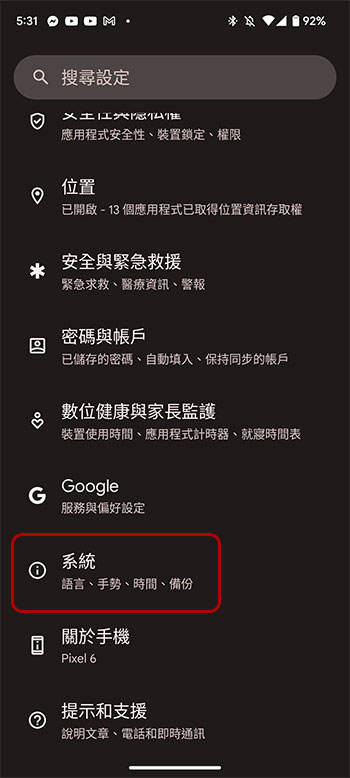
- First, open the Settings app, scroll down to the bottom section, and find “System.”
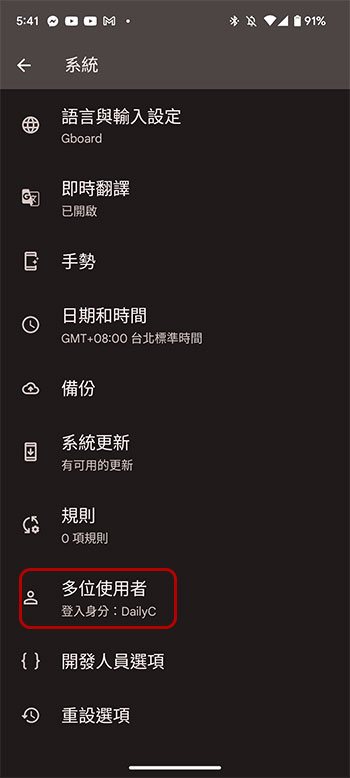
- Click to enter “Multiple Users”.
- The first thing you have to do is to turn on the multiple users switch, and then click “Add Guest”.
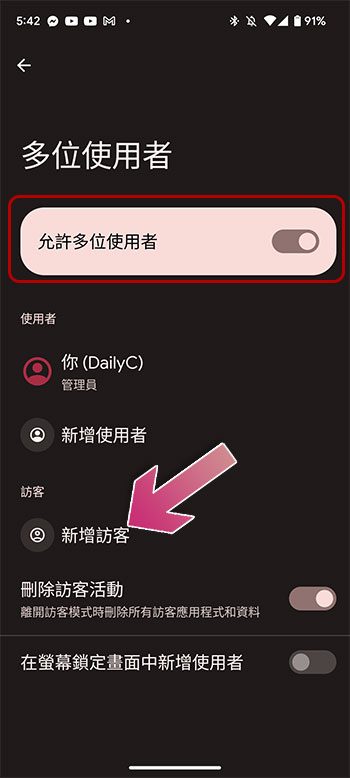
- The guest profile is now created. From here you can switch to guest mode, enable calling for the guest profile for this account, or delete the guest profile.
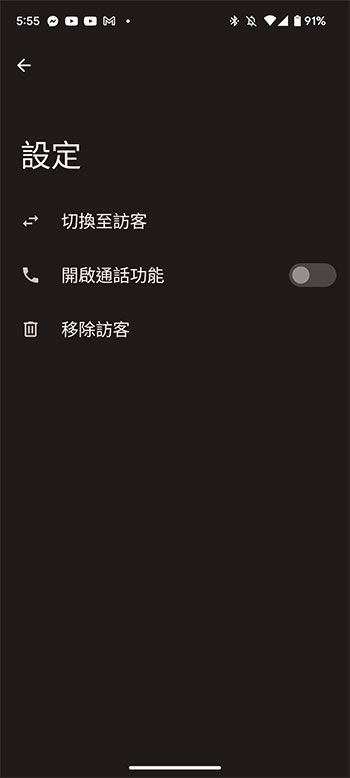
An easier way to switch to guest mode
Although it is mentioned above that you can switch, you may find it a bit troublesome to operate, and your friends may be impatient to wait. There is an easier and faster way to switch from main user to guest mode.
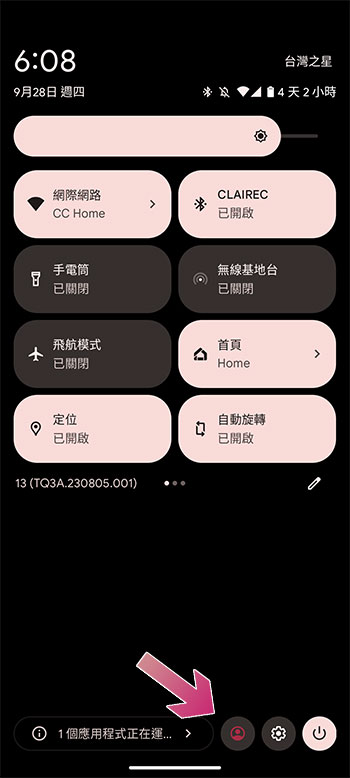
- Swipe down from the top of the screen to bring up the quick control panel. When fully expanded, you will see an avatar-like icon below.
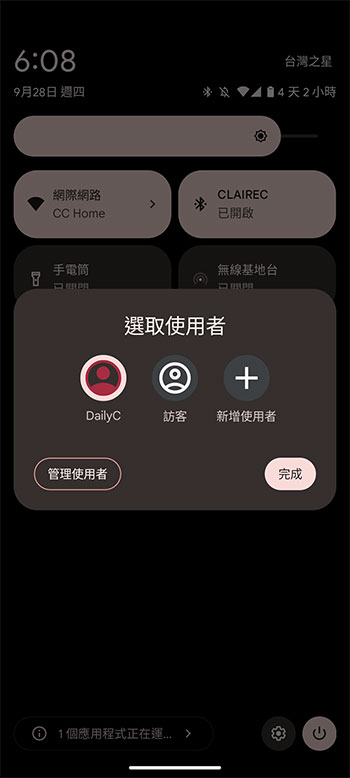
- Click to switch users from the menu. Select guest to enter guest mode.
If your Android phone or tablet supports the guest mode function, it is very simple to use. Unfortunately, not every device supports it.
Source: KOCPC Chinese