


For modern people, mobile phones are an extremely personal tool. Logically speaking, they should always remain in the state you set, allowing you to use them in the most convenient and comfortable way. However, sometimes things are not as satisfactory. Does your iPhone seem to automatically lower the volume of music, videos, or ringtones after using it for a period of time? Don’t worry, you can fix this issue with some simple iOS features and further troubleshooting.
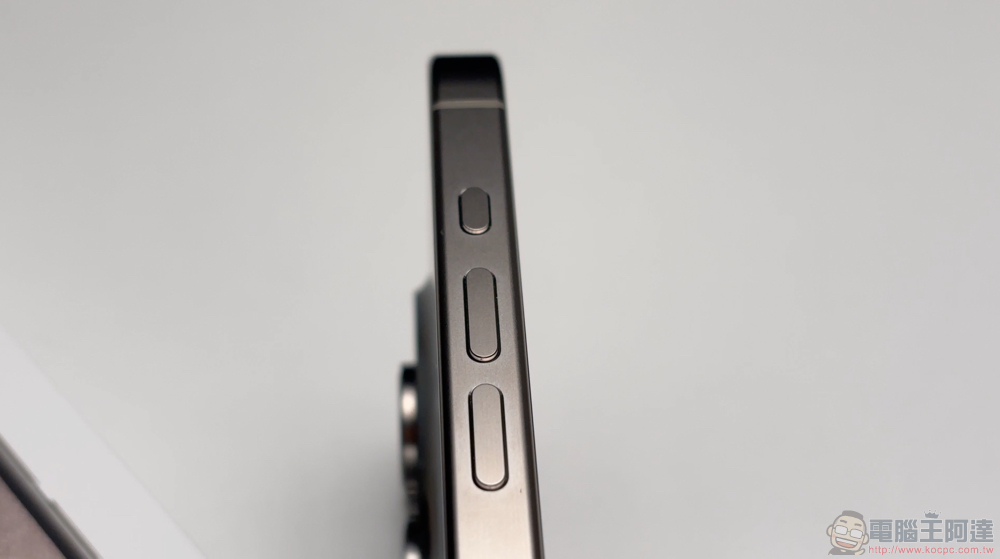
iPhone volume (ringtones, media, etc.) automatically lowers? Try these fixes
Why iPhone automatically lowers volume
There are various possible reasons why the iPhone volume automatically decreases. Here are the most common “causes”:
- You have Screen Gaze Awareness turned on, so the volume drops when you look at your iPhone.
- The device is set to reduce high volume levels when using headphones to protect your hearing.
- Press the volume button accidentally.
- Your iPhone is in Do Not Disturb or Focus mode.
- The physical volume button is damaged or has been exposed to water.
How to Prevent iPhone Volume from Automatically Lowering
We started with iOS features that affect device volume and related changes. Since it’s a software-based fix, it’s easy to do. If it works, it means your phone is not experiencing any hardware issues or damage.
Disable “screen gaze awareness”
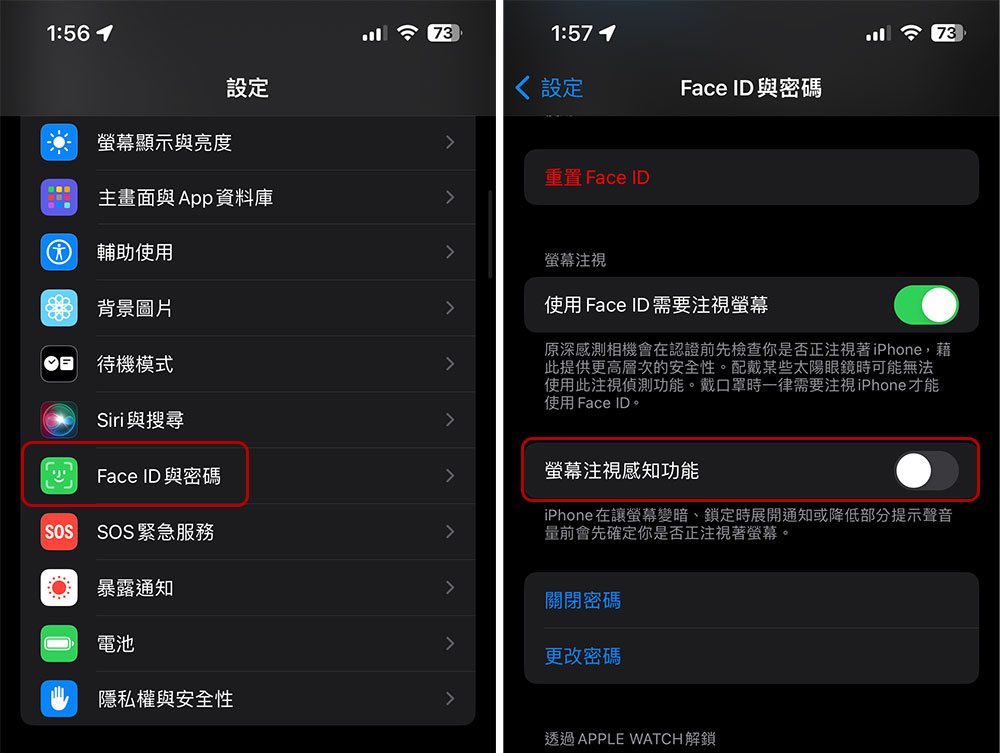
Screen Gaze Awareness on iPhone uses the TrueDepth camera to detect whether you are paying attention to the device (iPhone X and later, excluding iPhone SE). It lowers the volume of ringtones and other notifications and reminders when you’re looking at the screen, and automatically dims the display to save power when it thinks you’re not paying attention. So if you notice a decrease in ringtone volume on your iPhone, it could be that Screen Gaze Awareness is automatically lowering the volume in the background. Here’s how to turn it off:
- Open the Settings app and click on “Face ID & Password.”
- Turn off “Screen Gaze Detection”.
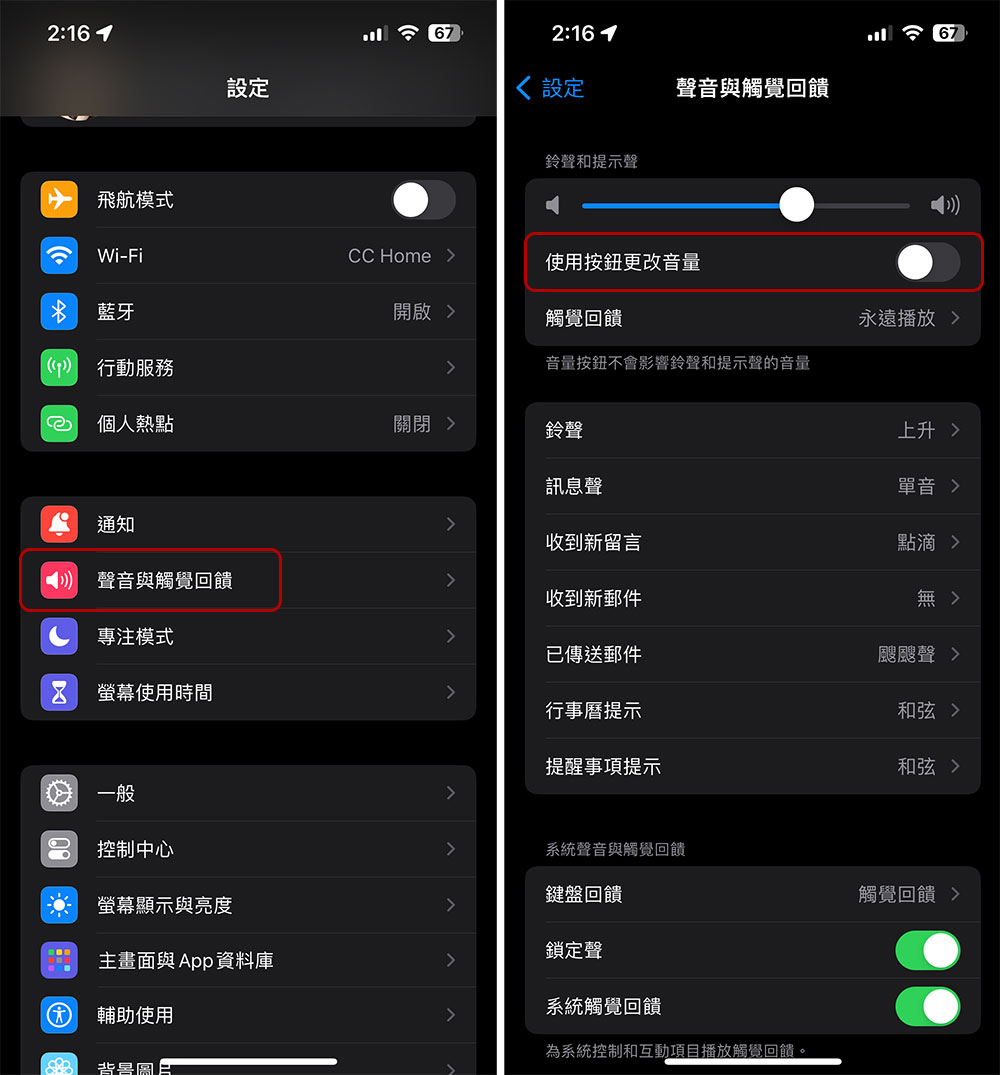
Turn off “Use buttons to change volume”
The iOS default is to use physical buttons to adjust the volume of the ringtone. When you put the phone in your pocket or bag, you may miss the call because the volume is lowered or muted due to other objects touching it or accidentally pressing it. If this happens frequently, consider disabling the ability to change volume with buttons in settings:
- Open the Settings application and click to enter “Sound and Haptic Feedback”.
- Turn off “Use buttons to change volume.” If you want to turn it back on one day, just follow these steps.
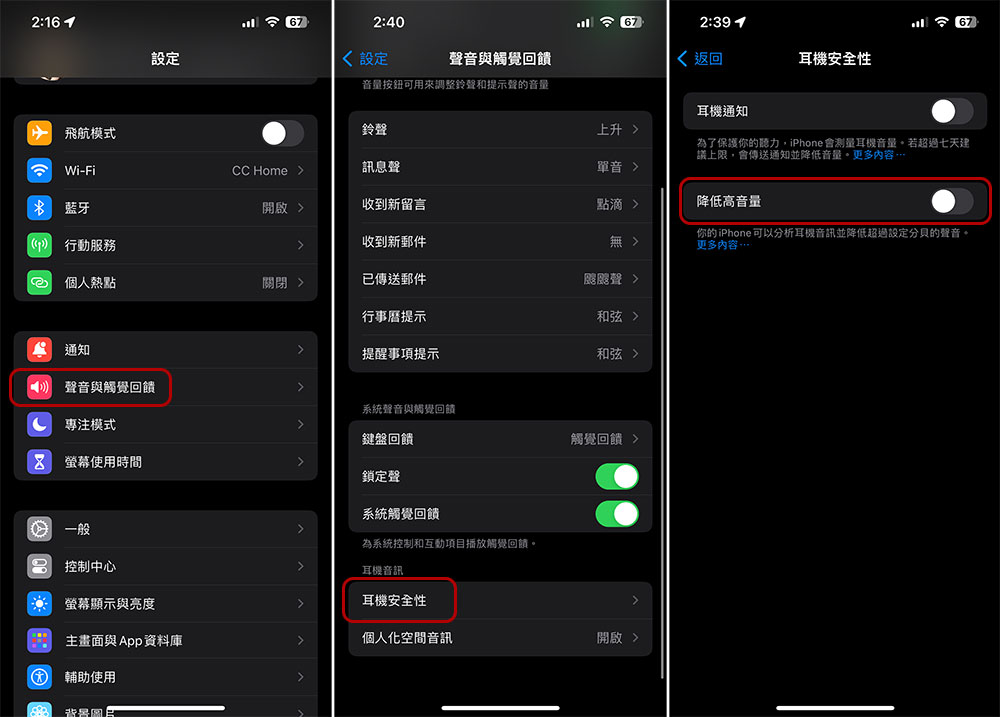
Turn off “Reduce high volume”
The High Reduction feature on iPhone automatically lowers the volume when the volume played through headphones exceeds a certain level. While the purpose is to protect your hearing from damage at high volumes, it can also make your iPhone too quiet because it automatically lowers the volume when you listen to music with headphones. Here’s how to turn it off:
- Open the Settings app and click to enter “Sound and Haptic Feedback”.
- Scroll to the bottom and click “Headphone Security”.
- Turn off “High Volume Down”.
Turn off Bluetooth or disconnect the device
Sometimes, the volume may also change due to the Bluetooth device connected to the iPhone. If the paired wireless speaker has a physical volume control, the volume limits and controls of the hardware itself will also affect the volume. For example, if the volume of your Bluetooth speaker is only turned on to 8, even if you use your iPhone to increase the volume, it will only reach a maximum of 8. Likewise, if the iPhone speakers are connected to nearby AirPods or any other wireless audio device (such as headphones or a car stereo), you won’t hear sound from the iPhone speakers.
Turn off focus mode (and check if there are any existing schedules)
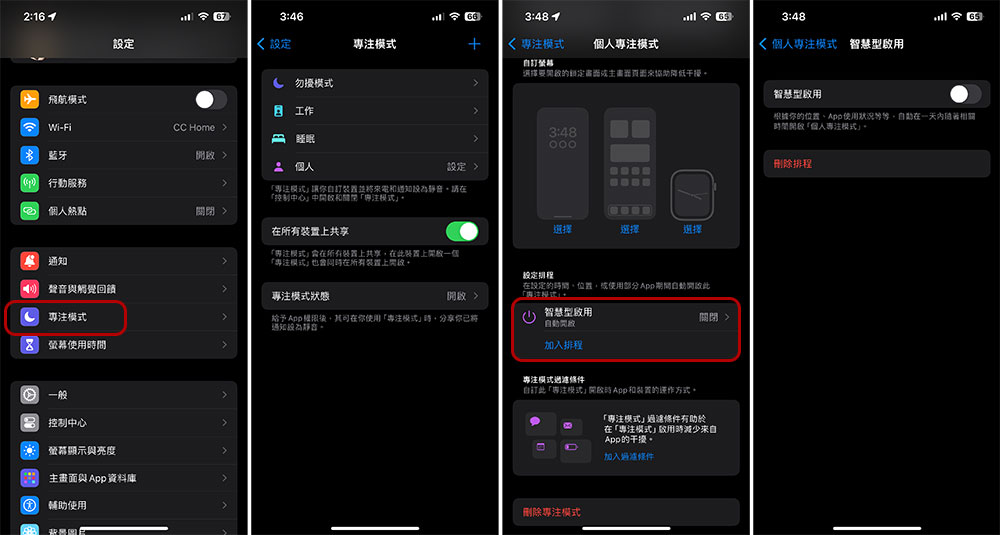
Focus Mode is an iOS feature designed to reduce distractions and help you focus on what you’re doing, and when enabled, it temporarily silences notifications and other notifications on your device. If your iPhone randomly becomes silent or stops ringing at certain times of the day or in certain locations, Focus Mode may be the culprit, and you may have accidentally enabled it, set up a schedule, or turned on Smart Start. When focus mode is enabled, an icon appears in the status bar and lock screen. You can turn it off on your iPhone by following these steps:
- Open the Settings app and click to enter “Focus Mode”.
- Here you can view and manage all available focus modes, including “Do Not Disturb”, “Sleep” and “Work” as well as customized personal specific modes.
- Check the scheduled projects and turn off the smart enable function inside them. This will prevent Focus Mode from automatically turning on based on the time of day or your location. You can also disable Focus Mode through Control Center.
Volume drops randomly when playing music?
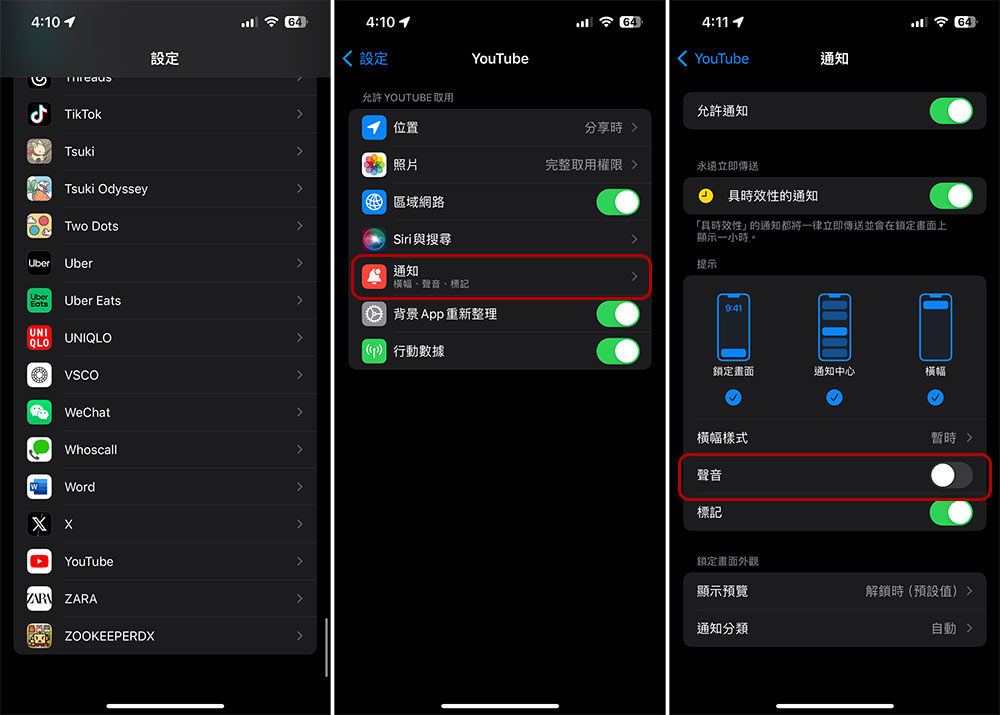
If your iPhone volume randomly drops or fades for a second or two while watching a video or listening to music, it’s most likely caused by app notifications. iPhone is designed to temporarily lower the volume so users can hear audio cues from messages, apps, and games on their phone. For a distraction-free media experience, it is recommended to toggle the mute switch to mute your iPhone. If you often receive notifications from a specific application, even to the point of being unbearable, you can set it up in the following ways:
- Open the Settings app and click on the name of the target app.
- Click “Notifications”.
- Turn off “Sound”. This way you can keep the notification but turn off the notification sound so you won’t be disturbed while listening to music.
Restart your iPhone
Although “restarting the phone will cure all diseases” is a bit exaggerated, it can actually cure all kinds of minor ailments. Restarting your iPhone may clear any temporary errors or glitches caused by iOS or third-party apps, and it may also fix an issue where an app may be causing your phone’s volume to become lower.
Reset settings
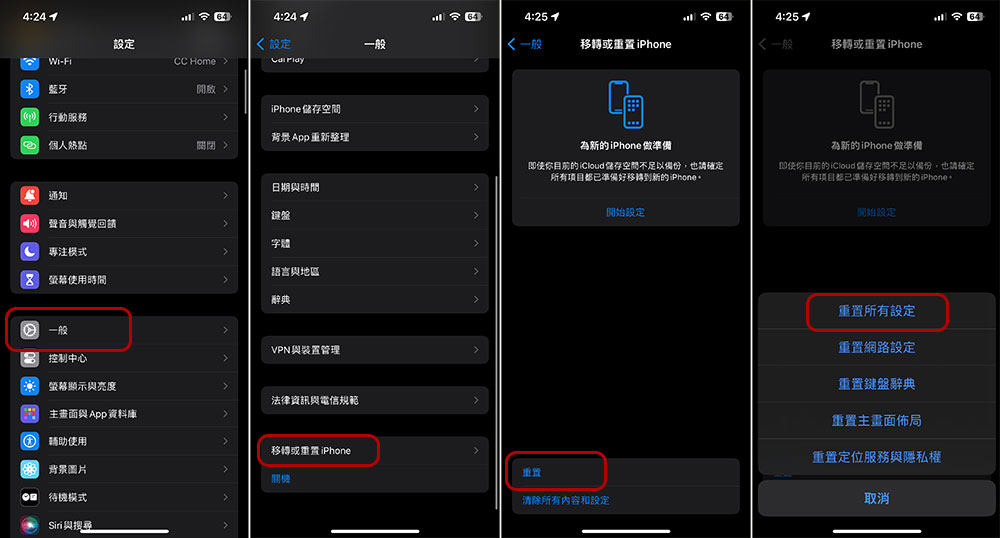
If you can’t figure out what’s causing the unusual volume changes on your iPhone, it’s best to reset the settings. Resetting the settings will not affect the files or applications in the phone. It just restores all settings to the default state, so don’t worry. Please follow the steps below to reset all iPhone settings to factory defaults:
- Open the Settings application and enter “General”.
- Scroll to the bottom and click “Move or Reset iPhone”.
- Click “Reset” below.
- Then select “Reset all settings”. Then enter the password to confirm.
Nothing works? Contact Apple Customer Support
If none of the above software solutions have any effect and your iPhone keeps randomly fluctuating in volume, it is recommended that you back up your iPhone and perform a full factory reset. However, if you are not confident about your backup device, it is best to contact Apple customer support and check your iPhone to get their suggestions for solving the problem.
Source: KOCPC Chinese