


Sometimes you will see questions in forums or online discussions about how the “Desktop Window Manager” consumes a lot of memory, and people don’t know what to do about it. So, what is a desktop window manager? Is it malware? Where does it exist on the computer, and what is its purpose? Regarding this familiar face that is common among work administrators, this time we will take you to get familiar with it.
What is a “desktop window manager”? What should I do if it takes up too many resources?
What is a desktop window manager?
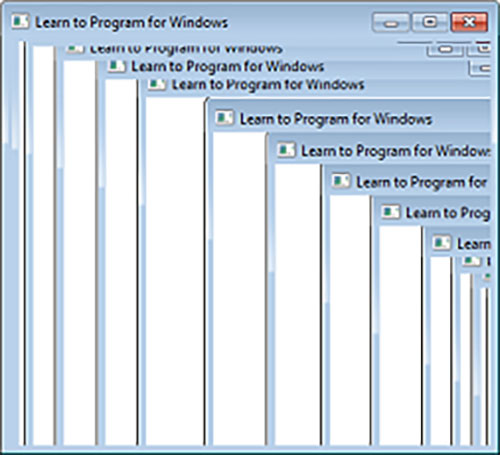
Back before Vista, the desktop window manager was called the “desktop compositing engine” and Windows programs would draw directly to the screen. In other words, the program writes directly to the memory buffer displayed by the video card. This approach may cause visual problems if the window does not redraw correctly. For example, if a user drags one window away from another window and the window below is not moving quickly enough, the top window may leave an afterimage of its tail. This behavior occurs because both windows draw to the same memory area. When dragging the top window, the windows below it must be redrawn. If the redrawing speed is too slow, the previous image display will not disappear in time.
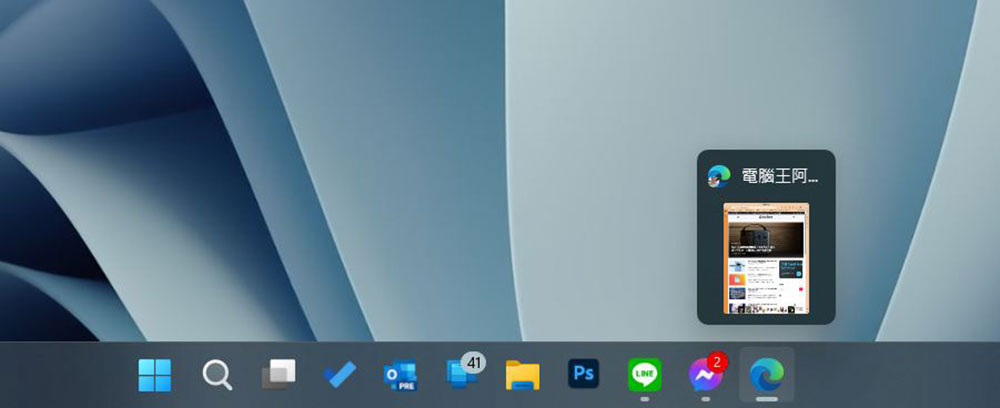
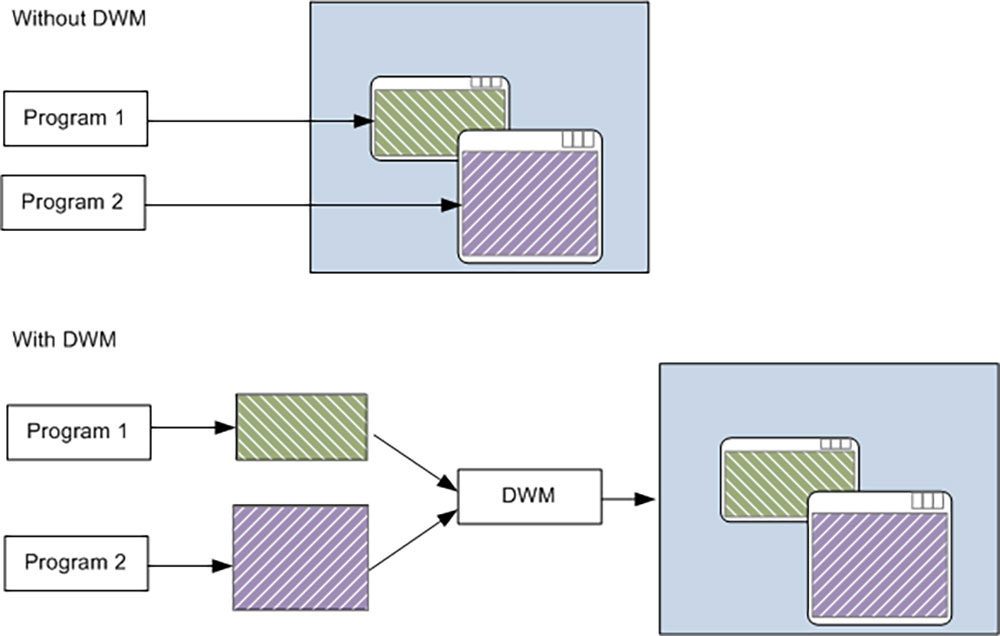
Desktop Window Manager (dwm.exe) is a composite window manager that can render all the beautiful effects in Windows, including transparent windows, live taskbar thumbnails, Flip 3D, and even support for high-definition displays. Instead of drawing its display directly on the screen, an application writes a picture of its window to a specific location in memory, and Windows then builds a composite view of all the windows on the screen and sends it to the monitor. Because Windows is compositing and displaying the contents of each window, it can add effects such as transparency and window animation when layered windows are displayed.
Can I turn off the desktop window manager?
No, you can’t. Until the Vista era, desktop window managers were controlled through a service that you could manually close to disable all visual effects. Starting with Windows 7, desktop window managers have become an integral part of Windows. When the desktop window manager is enabled, windows are no longer drawn directly to the display buffer. Instead, each window is drawn to an off-screen screen memory buffer, also known as the offline interface. The desktop window manager then composites these surfaces onto the screen. This is critical for building graphical user interfaces, and this integration is further deepened in Windows 10 and Windows 11. The good news is that Desktop Window Manager has improved resource management so much that you don’t actually need to close it.
What should I do if my desktop window manager consumes a lot of memory and CPU?
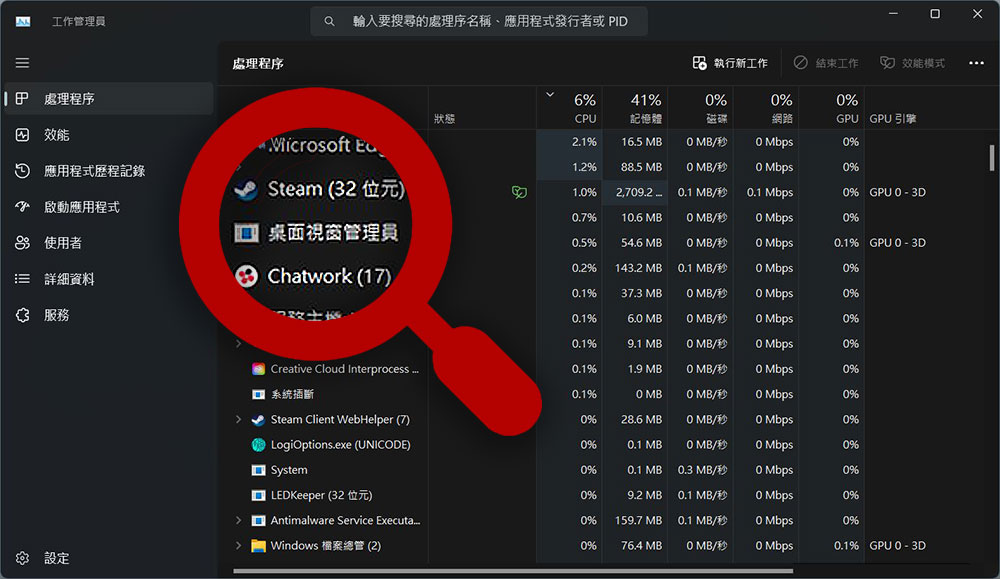
Desktop window managers are said to use very few resources. In the example below, there are 6 running applications open on my computer, including the Microsoft Edge browser with more than 10 tabs open. Even so, the desktop window manager was using well under 1% of CPU and less than 100MB of RAM, a very typical load. You’ll rarely see it climb much higher than this, and even if it does sometimes soar higher, it should fall back to normal levels pretty quickly. Since the desktop window manager does perform graphics-related tasks, you’ll also often see it using the GPU. Occasionally there will be errors causing high RAM usage, but values in the 0.1 – 3% range are considered normal, and intermittent slightly higher spikes are generally considered normal.
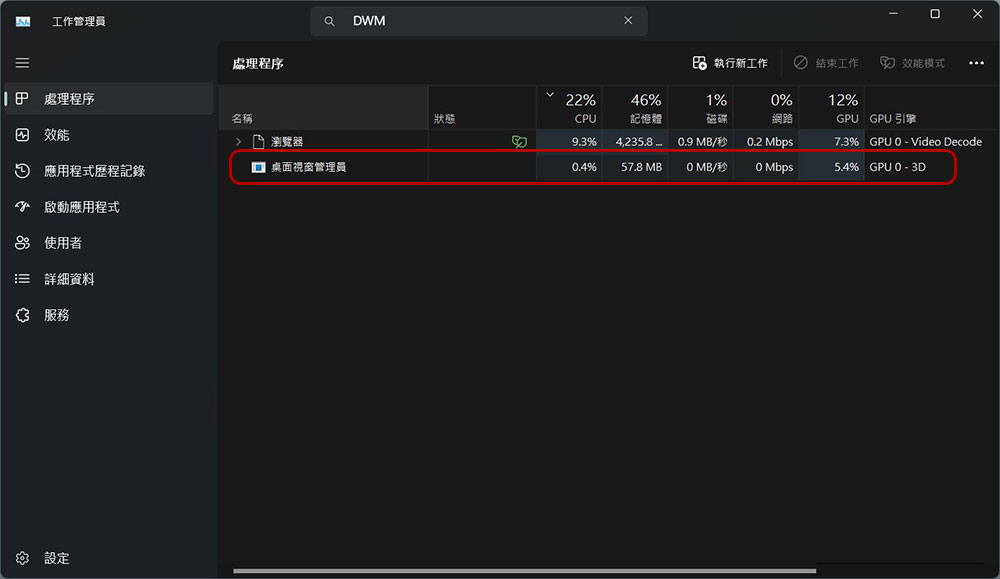
If you do find that your desktop window manager is using more RAM, CPU, or GPU than you thought, there are a few things you can try:
- Make sure your hardware drivers are updated, especially those for built-in or discrete graphics cards. Desktop window managers will offload a lot of work to the GPU to reduce load on the CPU.
- Right-click the handler in the job manager and select Kill handler to force it to restart, or restart your computer.
- Check your computer for malware. Certain types of malware are known to cause problems with desktop window managers.
If you try to end the desktop window manager handler, Windows will display a warning: “Ending this handler will cause Windows to become unstable or shut down, causing you to lose unsaved data. Are you sure you want to?” We went ahead and ended it anyway. At this point, the desktop will flash once, indicating that the handler immediately restarted, no applications crashed, and nothing malfunctioned. In general, caution should be exercised when ending a Windows handler, but it can be terminated very safely (to force a restart) without cause for concern.
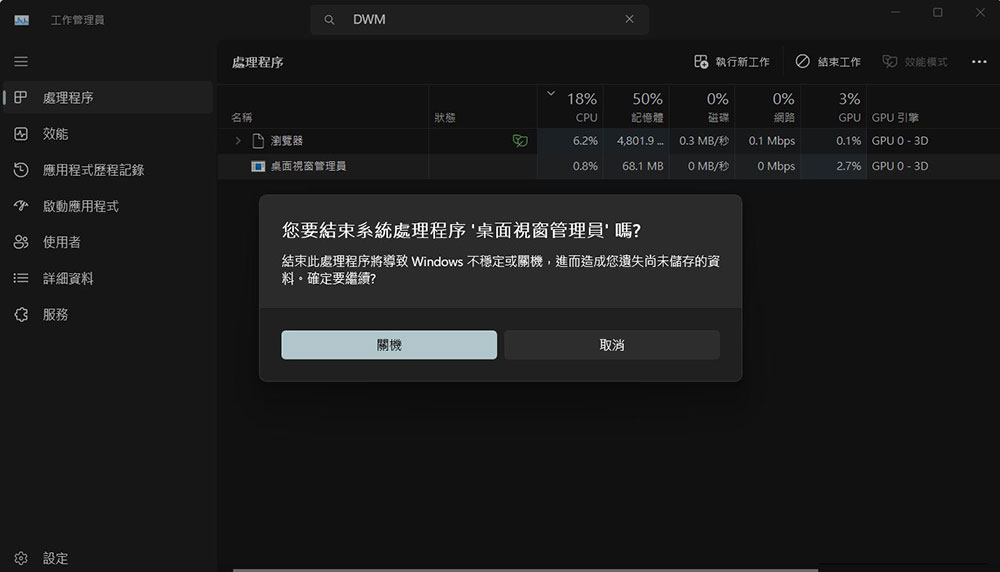
Is the desktop window manager handler a virus?
The desktop window manager handler itself is an official Windows component. While it’s possible that the virus replaced the real handler with its own executable, this is highly unlikely. If you want to be sure again for peace of mind, you can check the base file location of the processing file. In the job manager, right-click on the Desktop Window Manager handler and select the “Open file location” option.
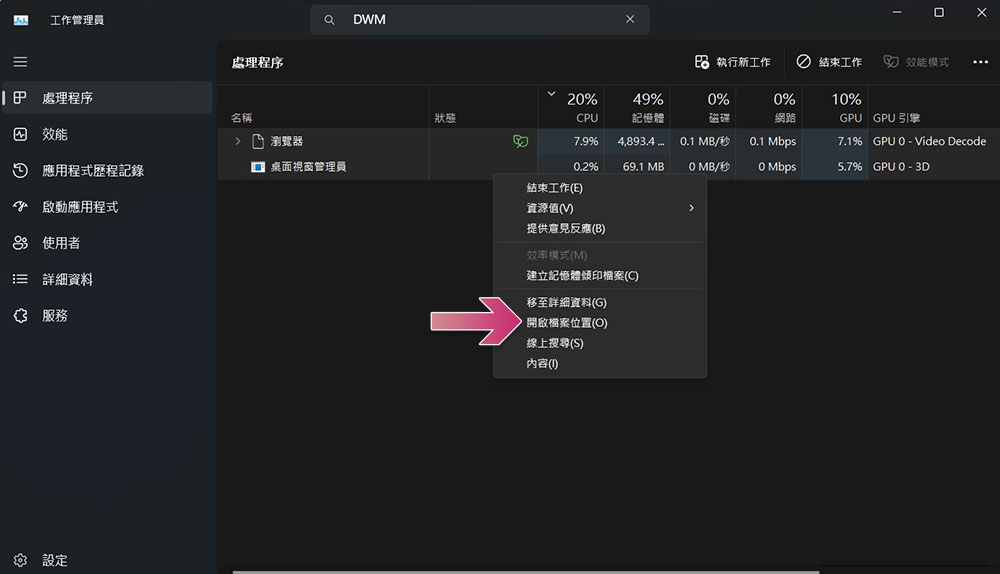
If the file location of dwm.exe is stored in “C:\Windows\System32”, then you can rest assured that you are definitely not encountering a virus.
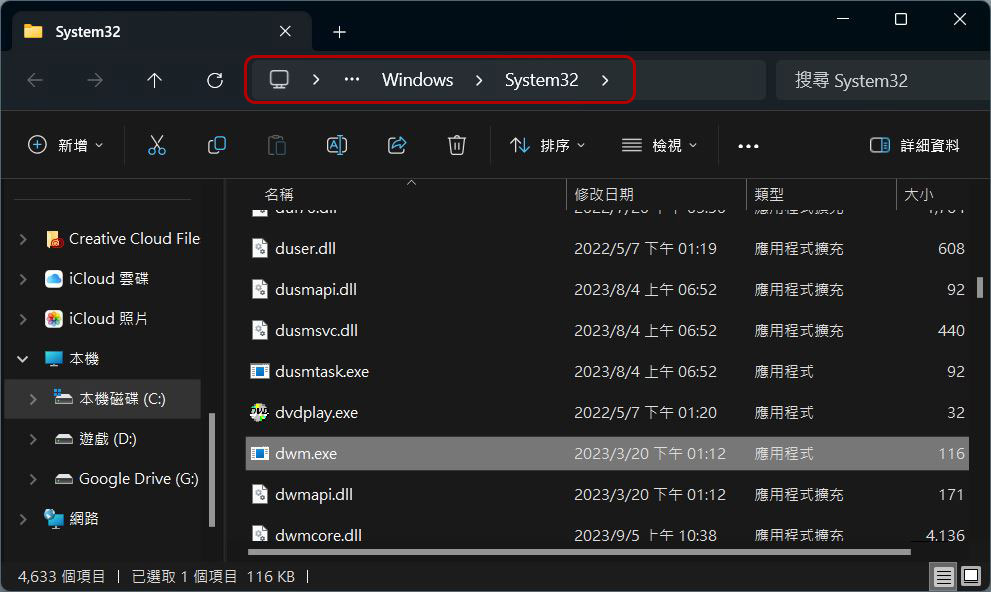
If you still want extra peace of mind, you can always check your computer system using your favorite virus scanner. Alternatively, you can copy the executable file and upload it to VirusTotal Wait for the online service to simulate running it. It’s better to be safe than sorry, and prevention is better than remedy!
Source: KOCPC Chinese