


You can find the automatic brightness adjustment function on Android smartphones or higher-end Android tablets. It automatically adjusts the brightness of the screen according to ambient lighting conditions. This function is enabled by default. Ideally, it would help users read content on the screen more easily under different lighting conditions, which would in turn help you save power on your device.

Is the screen’s “automatic brightness adjustment” not working well? How to reset calibration on Android
Auto-Brightness uses on-device machine learning to determine your preference for adjusting the brightness slider in different lighting conditions. Your device remembers your preferred screen brightness in the sun, indoors, or before going to bed and integrates it into your default options. This function sounds very user-friendly and ideal, but it doesn’t always work well, and sometimes it can appear too bright in a dark room or very dark in sunlight. If you’ve given your phone a few days to improve, there are three things you should do to retune it. This demonstration uses Pixel mobile phones as an example. Different brands of mobile phones may use different names and paths, but they should be similar.
Reset or clear auto-brightness data on your phone
When you find that the automatic brightness adjustment behavior is a little weird, the first thing you should try is to reset the feature to its factory default state and then learn it again. This is not an absolutely guaranteed effective repair method, but it is the fastest recalibration method. The method is very simple and definitely worth a try. However, this function is hidden for ordinary users. You must first go to About in the phone and click on the version number to enter the developer mode.
※ Samsung mobile phones do not have this option.
- Open the Settings app and click to enter “Applications”.
- Click “See all XX apps”.
- Find “Device Health Services” from the list.
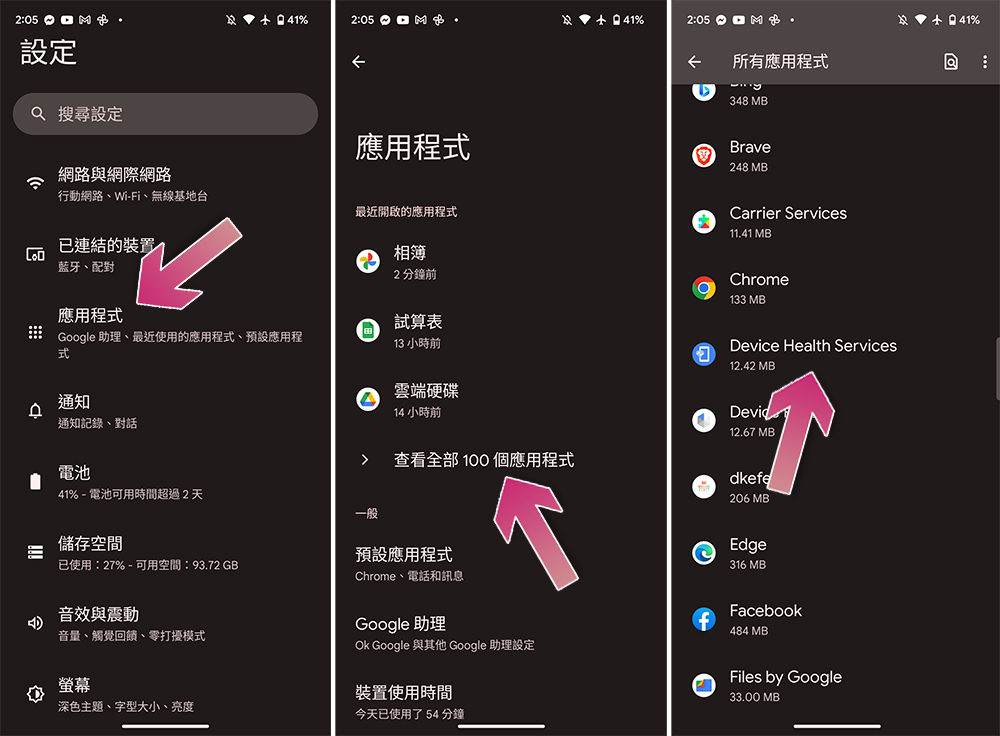
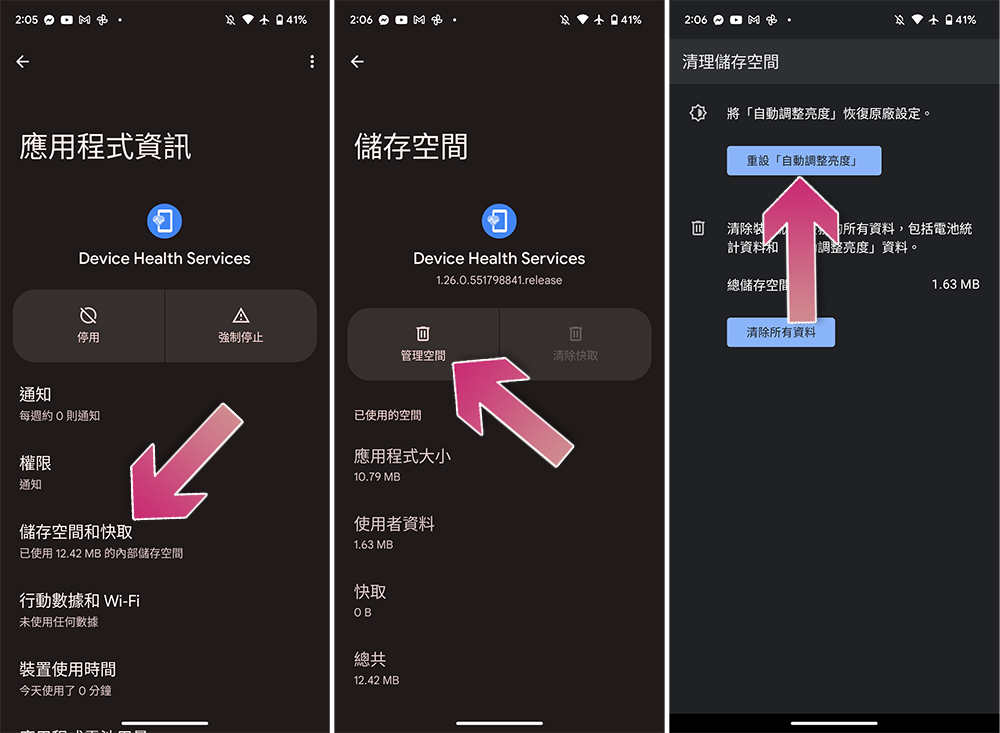
- After clicking to enter the inner page, click “Storage and Cache” below.
- Next click “Manage Space”.
- Finally, click “Reset Automatically Adjust Brightness” and click OK.
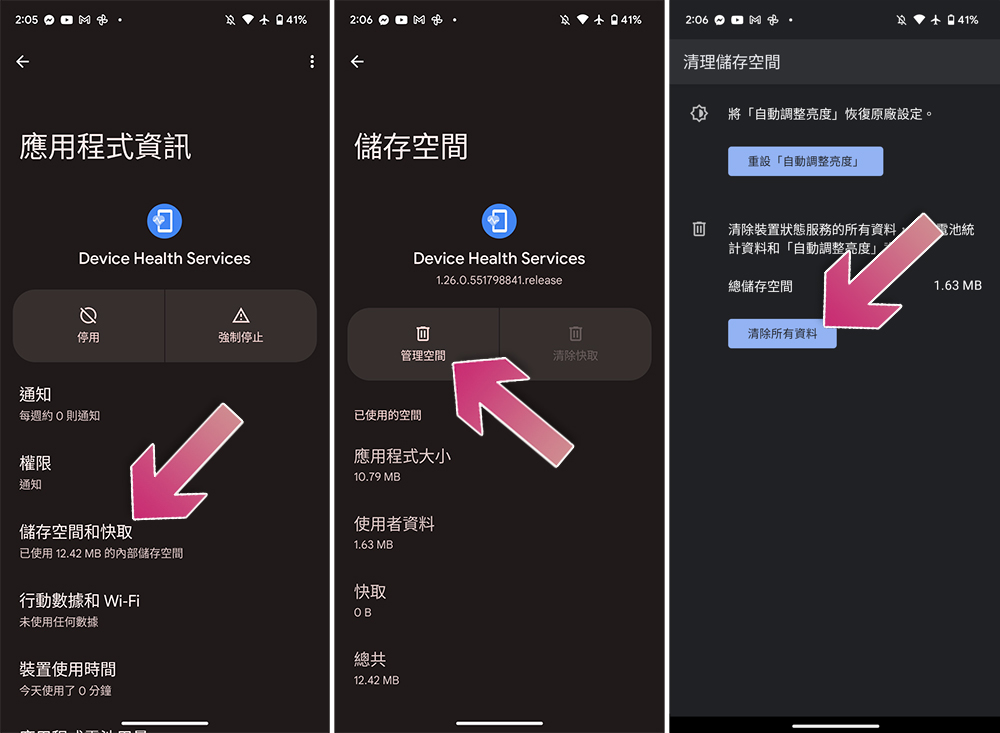
If resetting still doesn’t get automatic brightness adjustment back to normal, try clearing app data. The method is the same as above, except that the item clicked in the last step is different. Selecting “Clear All Data” will delete all content in the service’s apps (including battery statistics). Therefore, only choose to go this route if the reset option fails.
- Open the Settings app and click to enter “Applications”.
- Click “See all XX apps”.
- Find “Device Health Services” from the list.
- After clicking to enter the inner page, click “Storage and Cache” below.
- Next click “Manage Space”.
- Finally, click “Clear All Data” and click OK.
Check for Android system updates
If the above method doesn’t work for you, don’t forget to also check if your device’s operating system has been updated, as it may include a fix for the auto-brightness feature. While Google usually lists auto-brightness bug fixes in its changelog, it occasionally omits details that affect some users. These issues may cause problems beyond what you can troubleshoot on your own, and if this is the case, you may need to wait for the device manufacturer to release an official fix. Make sure the issue is listed on the manufacturer’s forum and mention it on social media, as manufacturers tend to move faster when the bug becomes more visible or discussed.
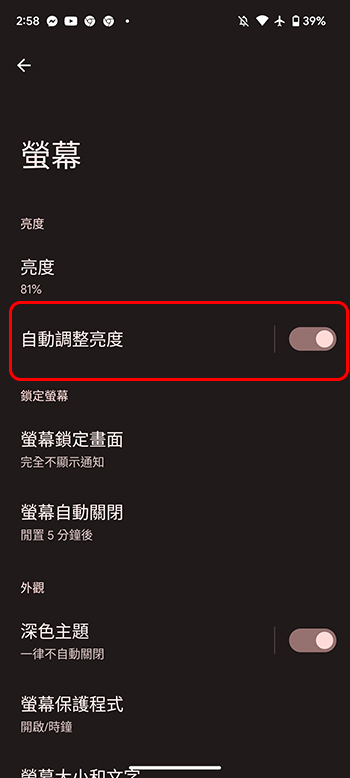
Turn off automatic brightness adjustment
This should be considered a last resort. If you can’t stop it from acting like a neurotic after completing the above steps, and you can’t ignore this problem, then you have no choice but to turn off the automatic brightness adjustment function (if you think it doesn’t matter, just ignore it). After turning it off you have to manually adjust the brightness yourself for various lighting conditions, which may make you look less obtrusive and simple at the same time.
Auto-brightness is a great feature when it works properly, so you don’t have to constantly adjust the lighting when you’re outside on a sunny day, or worry about your phone’s screen being so bright that you’re blinded in a darkened room, but it can be frustrating when it doesn’t work as expected, so follow us to figure it out!
Source: KOCPC Chinese