


Nowadays, many websites have notification functions, so when you open them in Google Chrome, you will always be asked whether you want to allow notifications. This is really annoying, especially some websites will ask you many times. If you don’t know how to use this function and don’t want to keep seeing messages from websites requesting notifications, this article will teach you how to manage Google Chrome notification settings. You can set the notification function to be turned off, or so that websites can no longer ask to send notifications.
How to manage Google Chrome notification settings on desktop
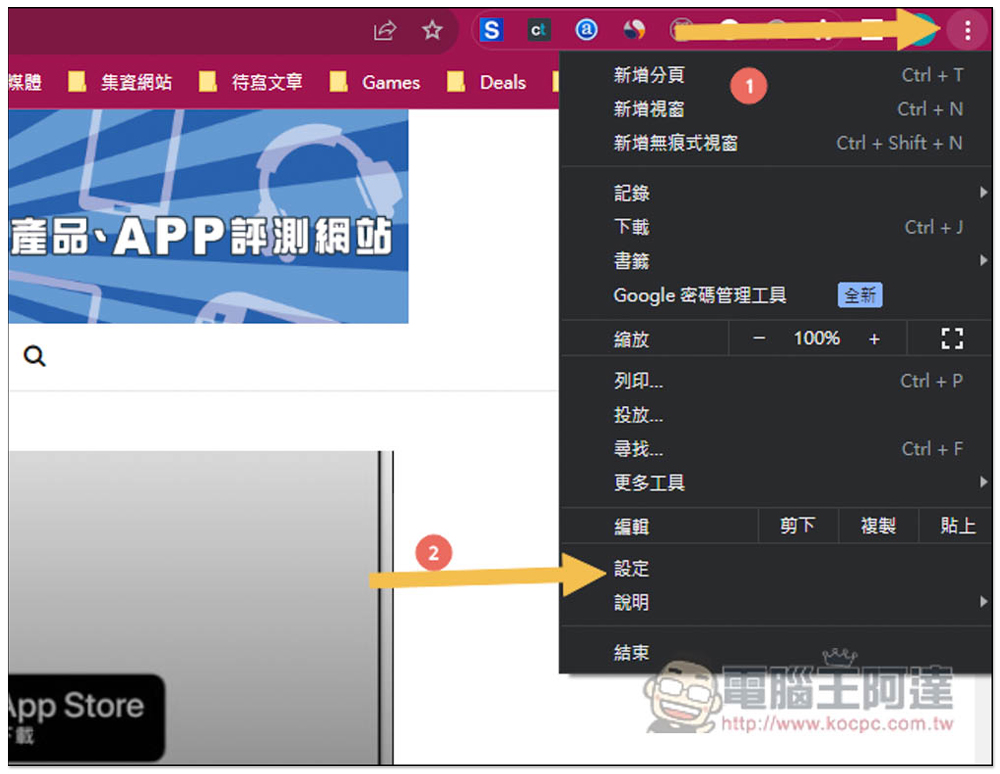
Let’s first look at the steps to manage the entire Google Chrome notification. Please open the… menu on the upper right and enter the “Settings” option:
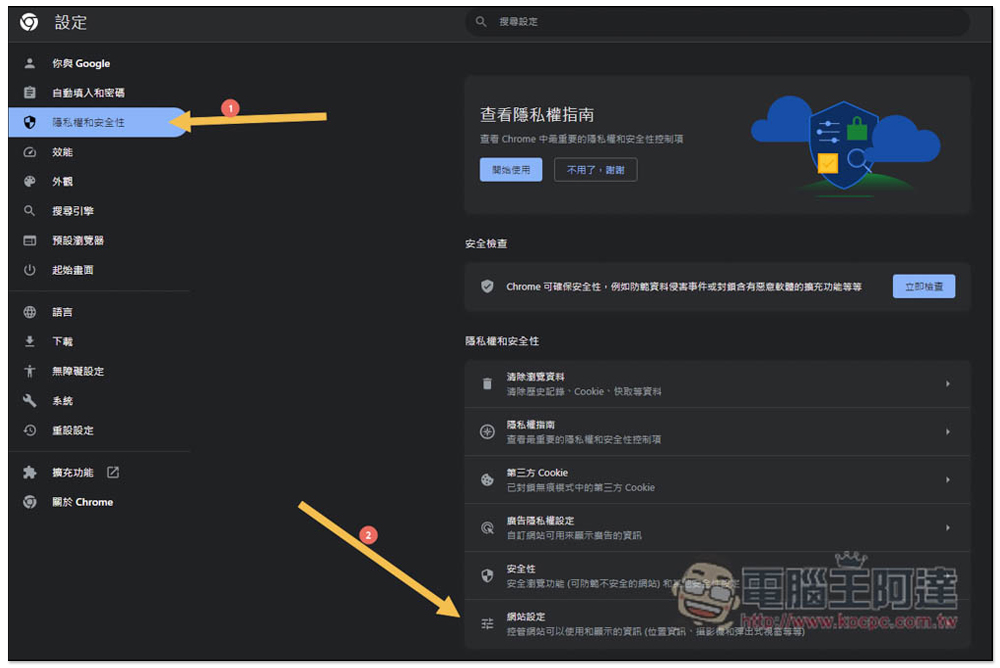
Click “Privacy and Security” on the left, and then find “Site Settings” on the right:
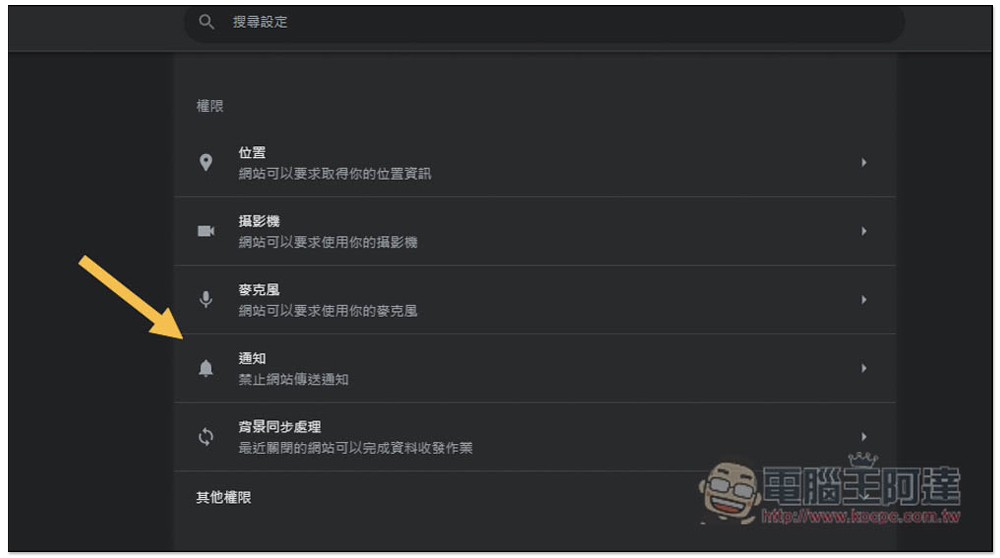
Go to “Notifications” in the menu of website settings:
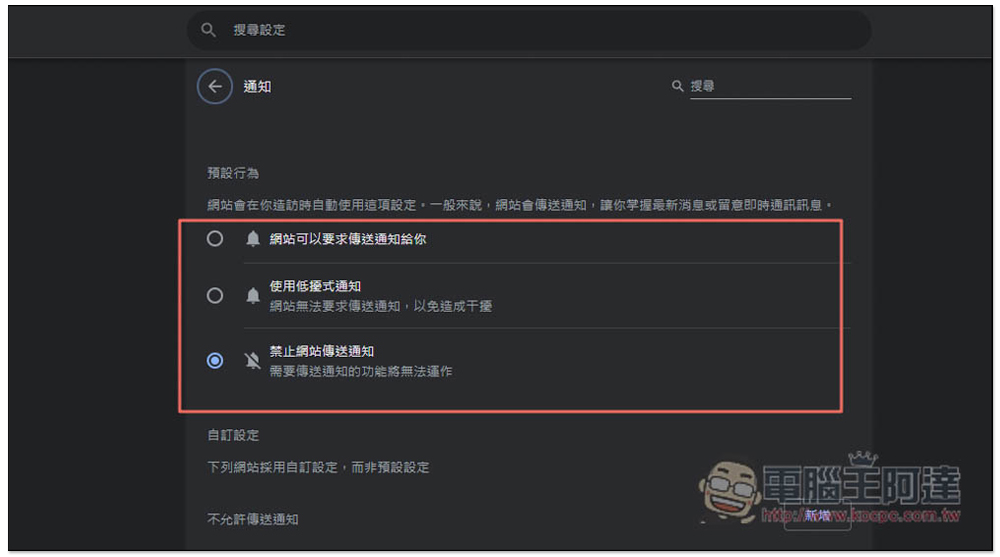
You will see three options, it depends on which one you want to set. “Disable websites from sending notifications” will turn off the notification function of all websites:
- The website may request that notifications be sent to you
- Use low-obtrusion notifications
- Prevent sites from delivering notifications
Here’s Google’s full explanation on using low-obtrusion notifications
Sites will be blocked from delivering disruptive notifications. Sites can still ask you to allow notifications, but instead of showing a pop-up, you’ll just see a bell icon next to the site’s URL. Just click the bell icon to grant access.
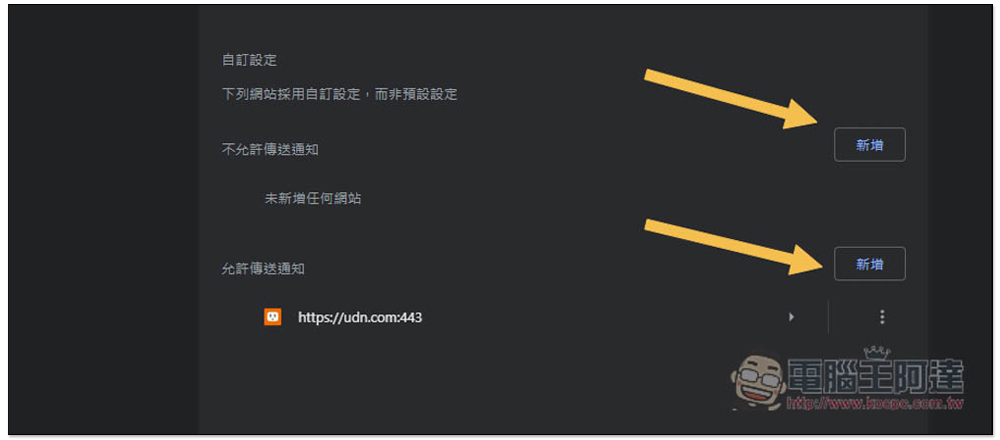
You can also set up sites that “block notifications” or “allow notifications” and adjust the list of sites that have previously been allowed to send notifications.
Click Add on the right to add the website URL you want to the specified category:
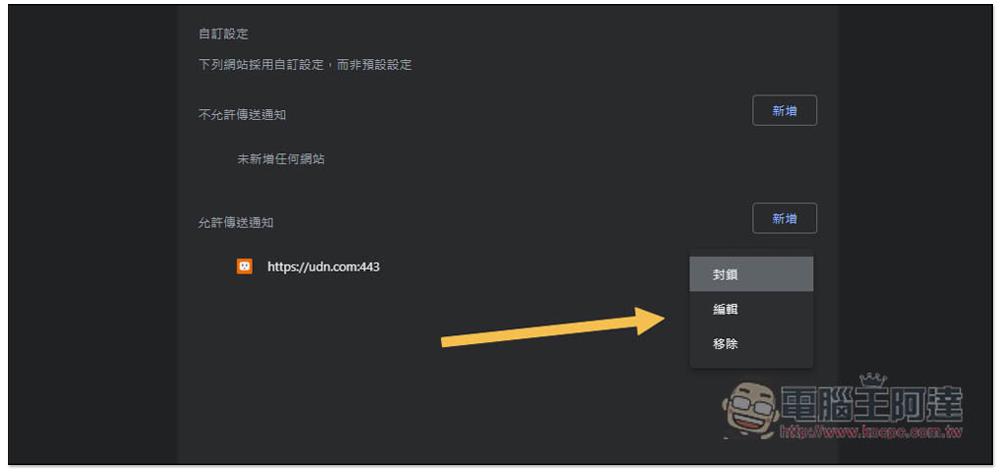
Websites that have allowed notifications in the past will be displayed in the “Allow notifications” list below. You can manage them by opening the… menu on the right:
Mobile version management How to manage Google Chrome notification settings
The management method of the mobile version is similar, but the display list and functions may be a little different. The first is the Android version of Google Chrome.
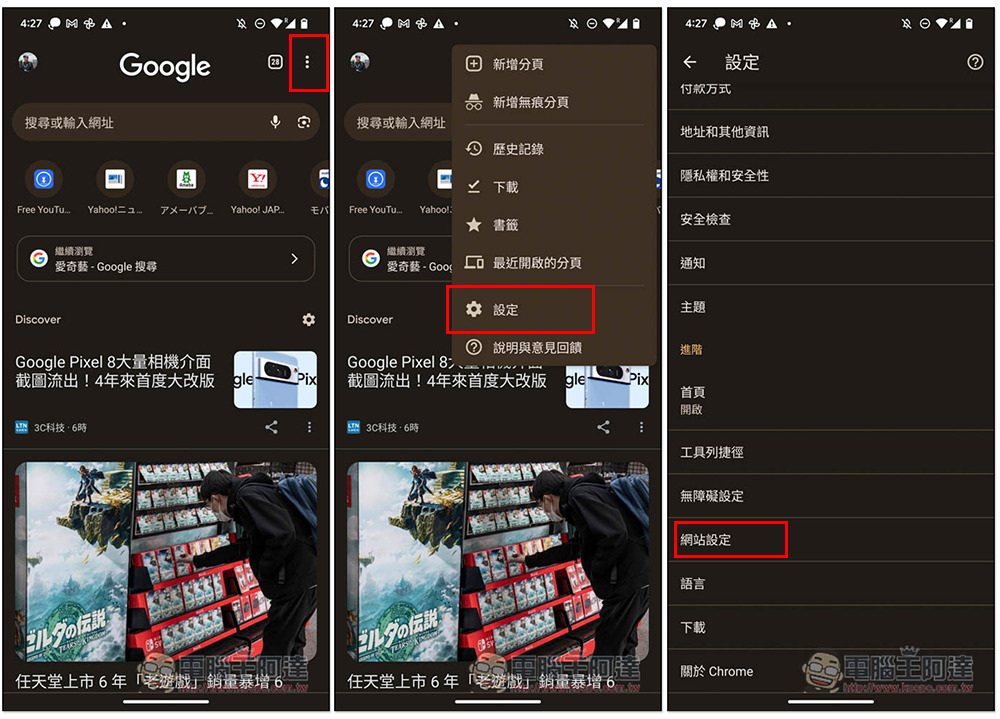
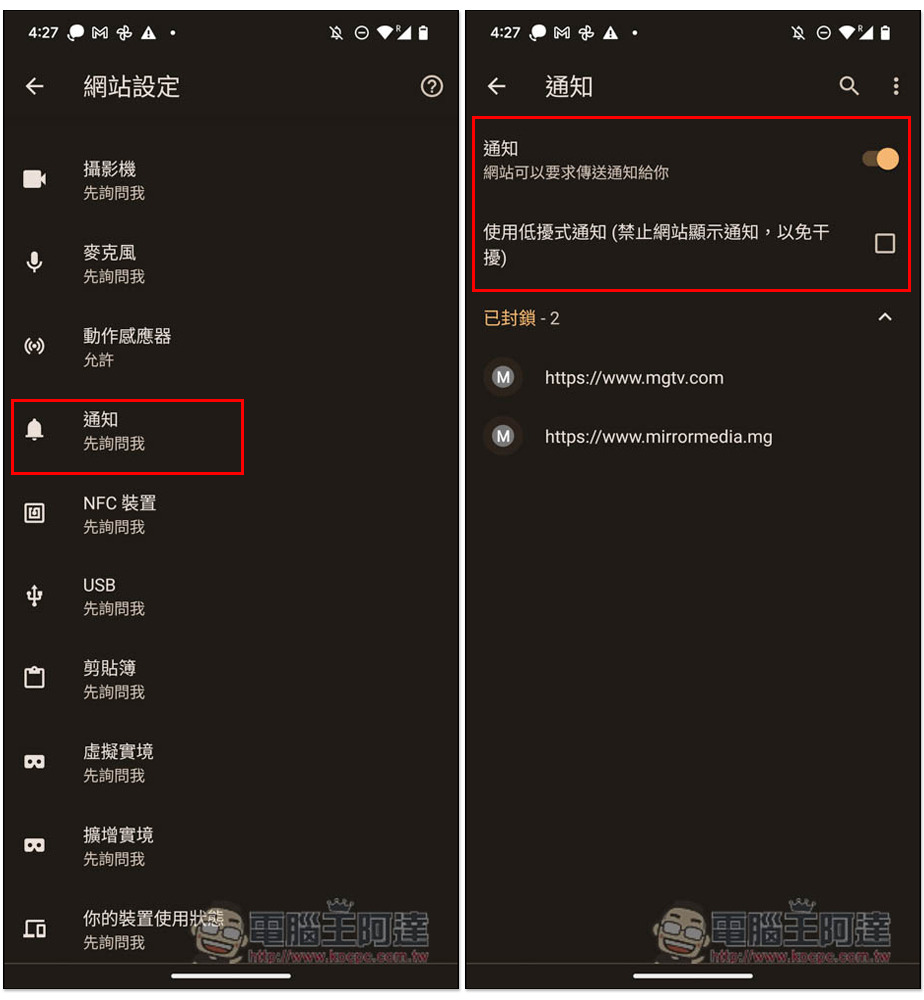
After opening Google Chrome, open the… menu in the upper right corner, enter settings, and then find “Website Settings”:
Enter “Notifications” to set the mode you want. Notifications are turned on by default. You can also enable “Use low-intrusion notifications” below:
The iOS version of Google Chrome automatically blocks pop-up windows by default, so it stands to reason that you won’t see a window that allows notifications, but if you still encounter it, you can check it out.
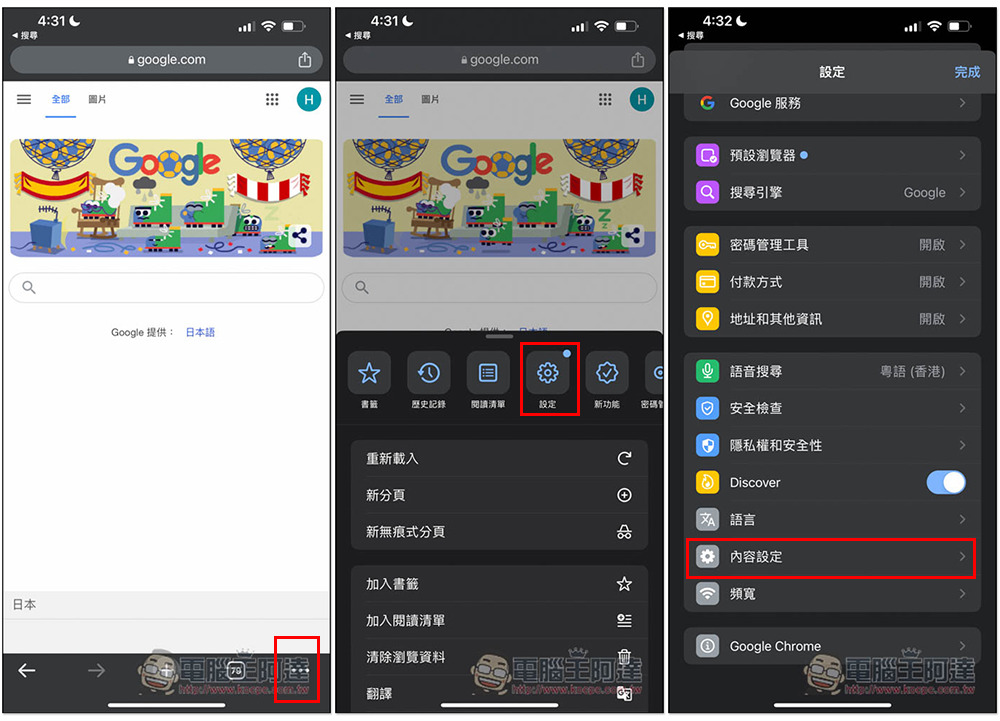
Open the… menu in the lower right corner, click the settings icon, and enter “Content Settings”:
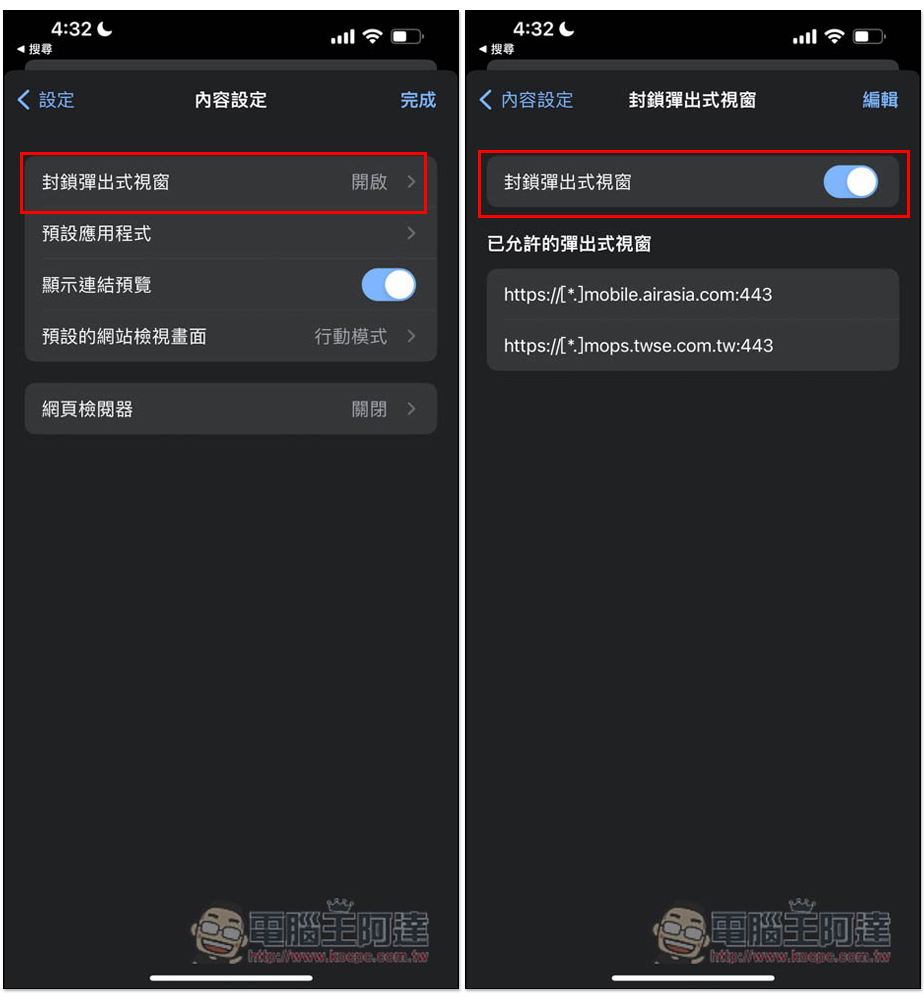
Then you can find the setting of “Block pop-up windows” and check whether it is turned on after entering:
Summarize
For Google Chrome users, knowing how to manage notifications can be said to be one of the must-learn skills, because you will definitely encounter situations where you no longer want to receive notifications, and over a long period of time, the setting position of Chrome will basically not change much, so as long as you know how to do it, you can quickly adjust it to the state you want in the future.
Source: KOCPC Chinese