


If your iPhone can’t back up to iCloud, it could be a big impediment to the seamless experience you rely on and love. First, it means you can’t sync photos, files, and settings between other devices, which can be frustrating at times. It also means that if your phone is lost or damaged, you’ll lose all the unique data on it. What should you do if you encounter a problem with your iPhone not being able to back up? We have listed four possible causes and solutions. Give them a try, they may help you.

Why can’t I back up my iPhone? How to fix it?
If you can’t back up to iCloud, you won’t be able to restore the data on it even if you buy a new iPhone. But thankfully, not being able to back up is not a big problem for your iPhone, and you can use some troubleshooting tips to identify the problem.
You don’t have enough iCloud space
Apple provides 5GB of iCloud storage space for free to every user, but even the lightest users will find that this storage capacity is far from enough. This is also the most common reason for iCloud backup failure. If there is not enough iCloud storage space, the backup will not succeed. You can check your iCloud storage to make sure you have room left.
- Open the Settings app and click on your profile picture.
- Select “iCloud” and check whether the storage space is used up.
- If the remaining capacity is running low, click “Manage Account Storage Space” to delete some old backup files to free up some space.
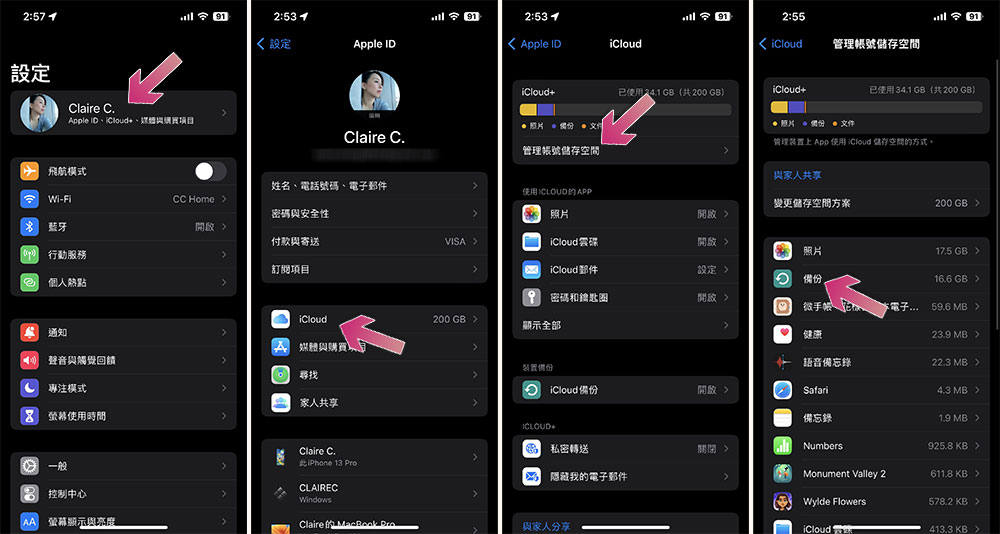
If you have a sufficient budget, you can of course choose to upgrade iCloud+ to get more storage space, and Apple’s pricing is also very reasonable, ranging from US$0.99 to US$9.99 per month, and can be expanded from 50GB to up to 2TB of space.
Your Wi-Fi signal is weak or your phone is not connected to power
In addition to storage space, another basic requirement for successful iCloud backup is that your iPhone must be connected to Wi-Fi. If you have confirmed your network connection but the backup is still not progressing, it is likely that your Wi-Fi signal is too weak or is interrupted frequently. If you confirm that it is a slow network connection problem, you can do somesimple adjustmentto improve Wi-Fi speed and signal stability. After fixing the network problem, you can open the Settings app, click on the avatar and enter iCloud, click on iCloud Backup to start the backup immediately.
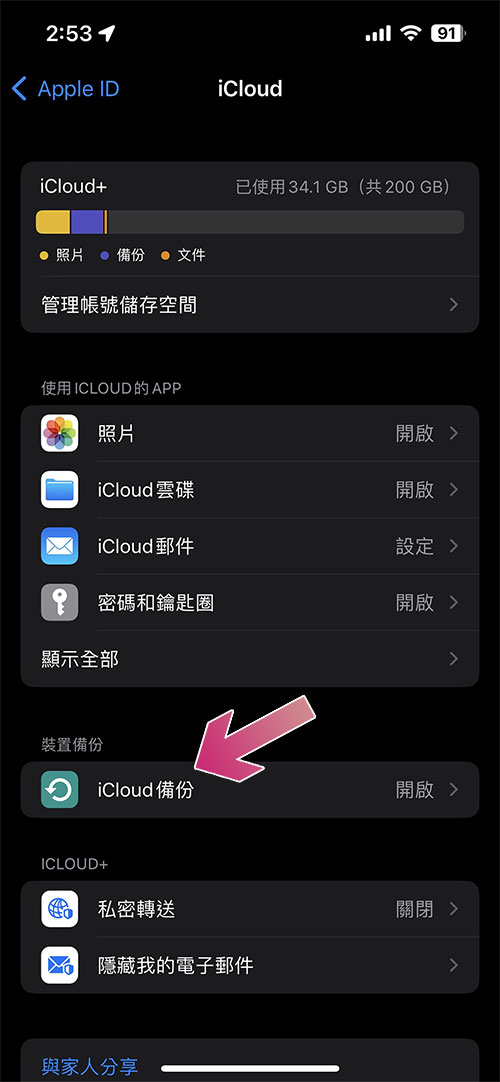
Another possible reason why your iPhone won’t back up is that it’s not plugged into a power source. According to the little notification you see on the iCloud Settings menu, automatic backup is only triggered when your iPhone is connected to power, locked, and Wi-Fi, so of course it won’t happen if your iPhone is unplugged. For many users, iCloud backups typically occur overnight, as this is when most people leave their phones plugged in and idle for long periods of time.
There’s something wrong with your iCloud account
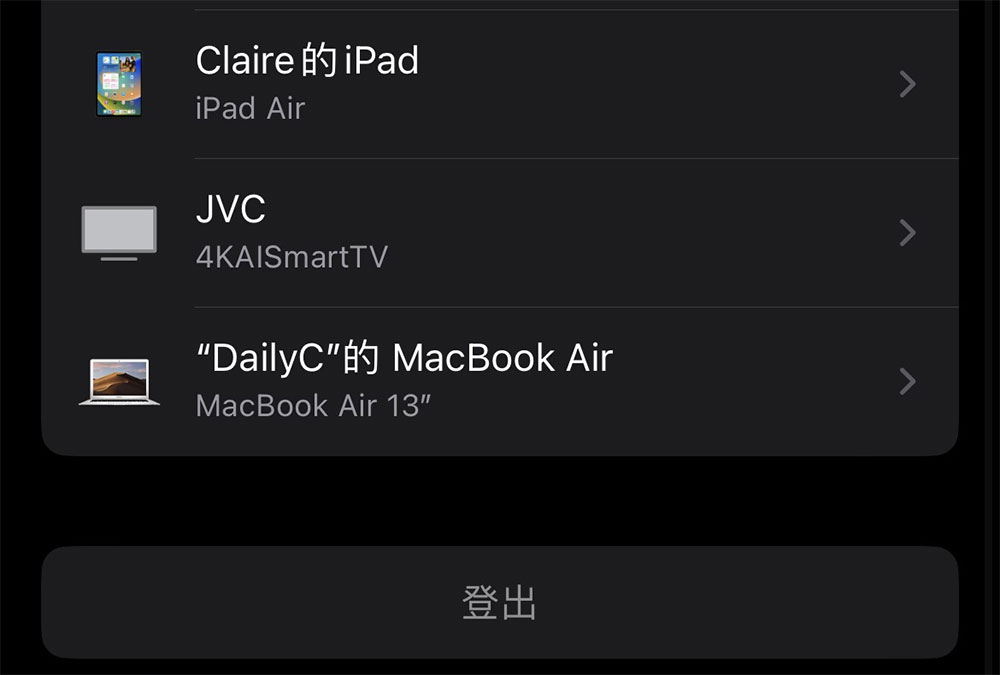
If none of the above is the reason why your iPhone won’t back up, the problem could be a malfunction with iCloud or your iPhone. Of course we all hate to be this chosen one, but the solution to both problems is to reboot (turn it off and on again). To reset your iCloud, you must first log out and back in. To do this, open the Settings app and click on your profile picture at the top. Scroll to the bottom and click “Log Out”. You may be asked for your Apple ID password to authorize the instruction (you may also need to confirm that Find is disabled first). Next approve the prompt to keep a copy of your data on your iPhone so everything can be restored when you sign back in. Once complete, wait a few minutes before logging back into your iPhone using your Apple ID and password, and then try the backup again.
Reset your iPhone
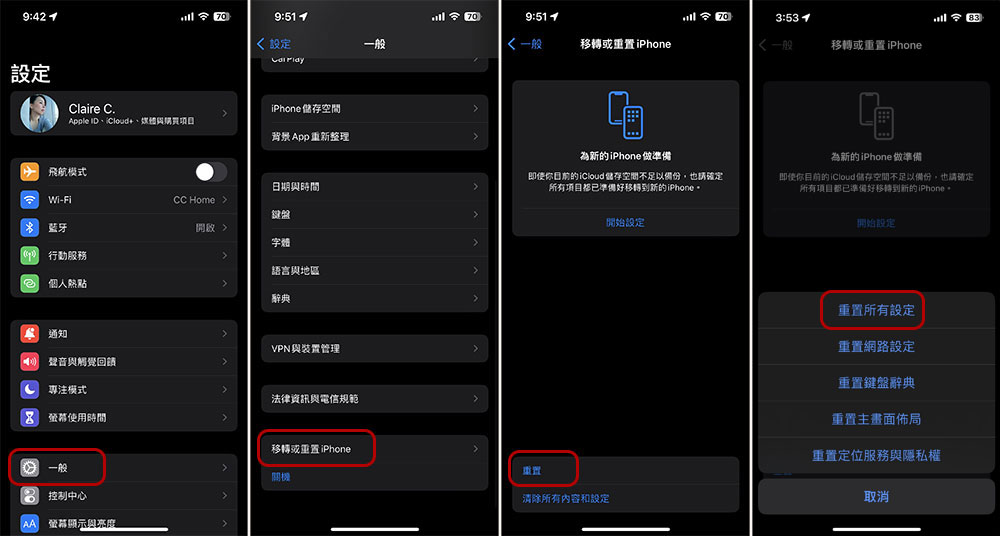
Another way to get iCloud backup working properly is to restart your iPhone. This clears all networks and connections and can fix any glitches that caused iCloud backup to fail. If that fails, try resetting your iPhone’s settings. Resetting the settings will not clear the data inside, it will only clear the accounts that have been logged in to the phone, and restore some options (such as accessibility settings) to their default values. It will also have the opportunity to repair any glitches that interfere with iCloud backup.
- Open the Settings app and click “General”.
- Scroll to the bottom and click “Move or Reset iPhone”.
- Click “Reset”.
- Select “Reset all settings”.
In rare cases, none of the above issues and repair methods can solve your iPhone backup problem, please consult a professional for assistance. At the same time, you can also perform local backup on your Mac or PC,Details can be found in Apple Support。
Source: KOCPC Chinese