


There are many convenient and practical functions in Windows 11. In addition to improving your work efficiency, it also saves you a lot of time. Microsoft has also implemented this core in many small details. The “File Manager” you often use is an example. There is a section on the File Explorer homepage called “Quick Access” where you can pin frequently used folders for faster access next time.
How to restore Quick Access in Windows 11 File Explorer? (Same scene as a bonus: displaying and clearing history)
If you find that you suddenly can’t find the pinned item in your computer’s Quick Access, or that the entire Quick Access content disappears for you, either way, you can force your computer to restore Quick Access and display all the folders in it. Below we will tell you how to do it.
First, set File Explorer to open and go to the home page.
When you can’t see your favorite quick access items in the left sidebar of File Explorer, please check it for File Explorer first and set it to open and go to the homepage to restore content display.
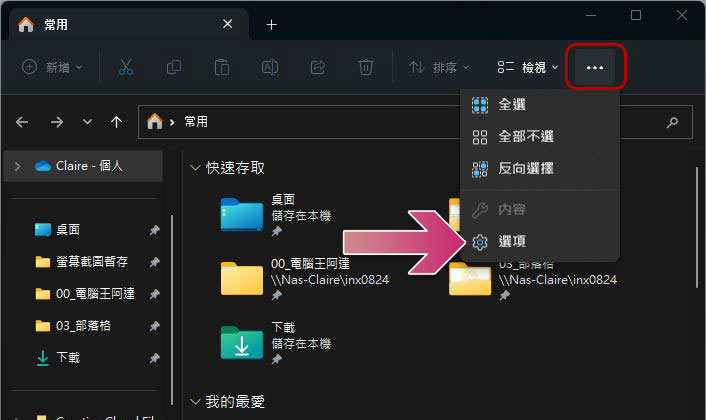
- Please open a file manager window first, then click on the three-dot menu at the top of the window and select “Options”.
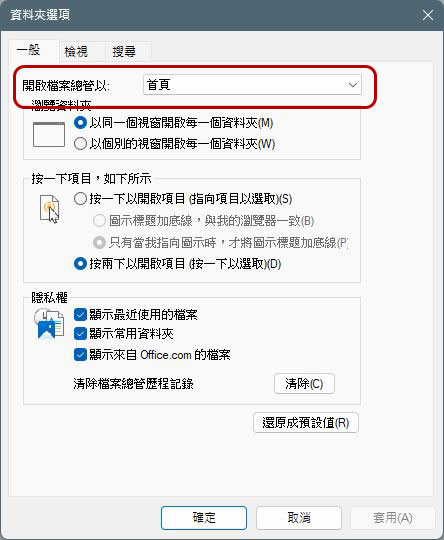
- In the Folder Options window, set the top “Open File Explorer with:” to “Home”, then click OK and apply.
- Close File Explorer and reopen it to see the quick access field.
Re-pin folders for quick access
If the problem you encounter is that some folders are suddenly missing from the Quick Access field, or their contents have been cleared, please re-pin the folders to restore them to their Quick Access location.
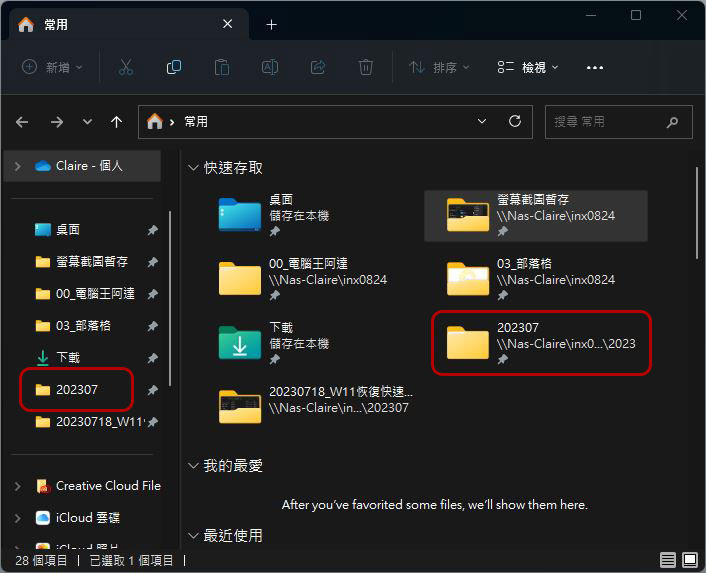
- First find the location of the folder you want to pin, for example: “202307” in the picture below.
- Select the folder, right-click it, and select Pin to Quick Access.
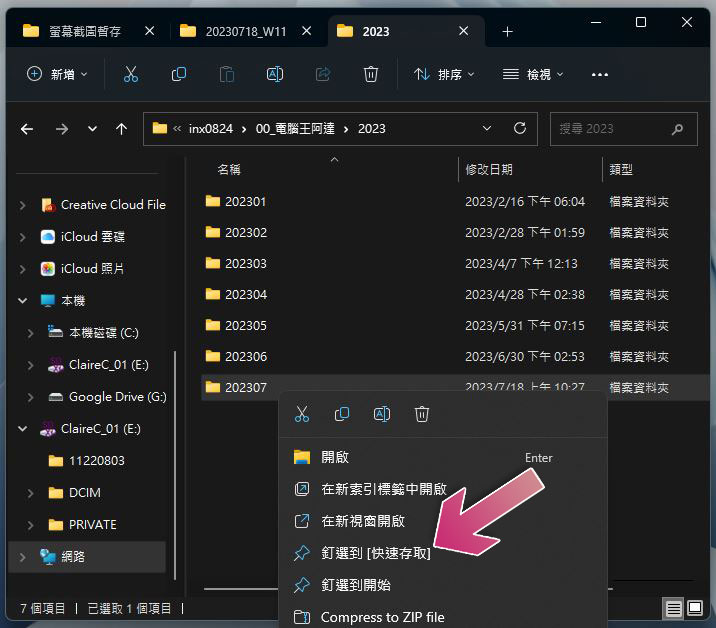
- Next, you can see the pinned item in the quick access column. This will also appear in the left sidebar, and you can select it from the sidebar at any time without having to go back to the home page every time.
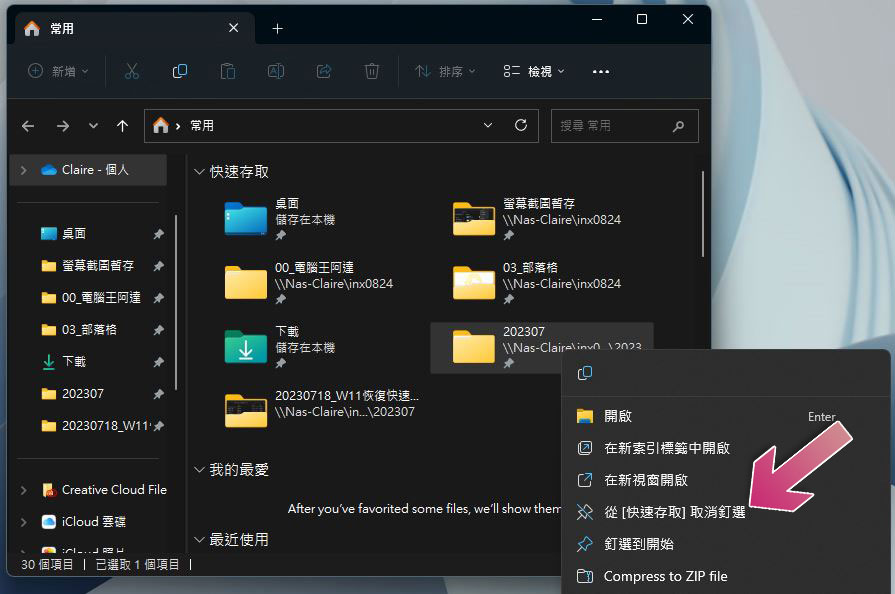
- If you’ve completed a project or want to remove a folder from Quick Access, just select the folder in Quick Access, right-click on it and select “Unpin from Quick Select.”
Extras on the same scene: displaying and clearing history
Sometimes certain documents and files are not necessarily used every day, but they are used recently. Then there is a “Recently Used” column under the quick access on the File Manager homepage to help you find it faster. Next, let’s talk about how to make File Explorer display “recently used” and how to clear these historical records.
Show recently used history
- Open a File Explorer window, then click the three-dot menu at the top of the window and select “Options.”
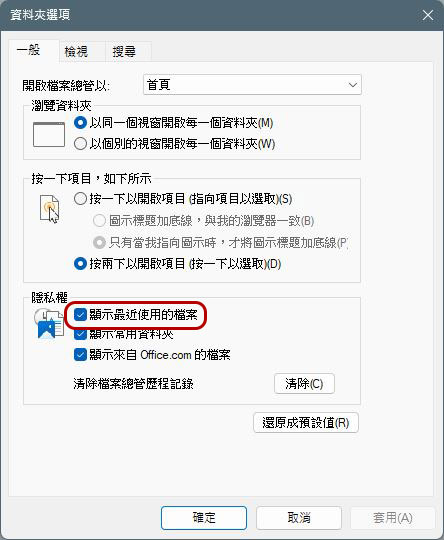
- From the settings window, check the checkbox in front of “Show recently used files” and click OK to apply.
Clear recent history
- Open a File Explorer window, then click the three-dot menu at the top of the window and select “Options.”
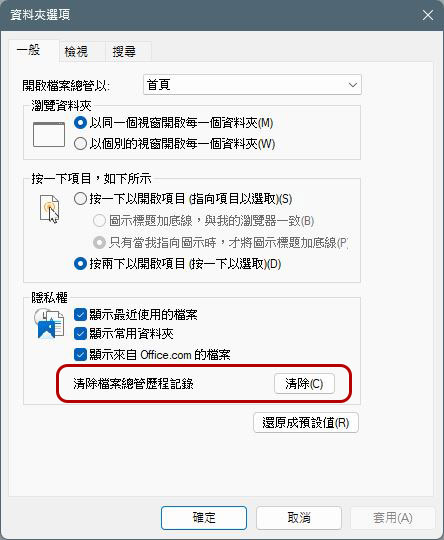
- From the settings window, click the “Clear” button behind the “Clear File Manager History” item, then click OK and Apply.
Source: KOCPC Chinese