


In Taiwan, the entry fee for all-you-can-eat mobile Internet is not high, so users generally choose it and can surf the Internet without any worries. But if the plan you are using has restrictions, you want to apply for a roaming plan when traveling abroad, or you have a network card that limits the amount of data, then you will realize how valuable every gigabyte of network data is. This time we will learn how to turn on low data mode on iPhone in case you need it.

How to turn on low data mode on iPhone? Why do you need to use it?
There is an important feature “Low Data Mode” built into the iPhone that can prevent excessive data consumption. You can even set it separately for each network connection type, such as turning it on only when connected to the mobile network. So, what exactly does it do? According to Apple, it limits background data usage for apps you might not even remember are running. It also turns off automatic app updates, reduces streaming quality, and limits iCloud backups. With this model in place, you may find yourself using less data than ever before, saving you a lot of data-related stress in the long run.

How to enable low data mode?
Since the low data mode on the iPhone is not in a unified management interface, I will separate the Wi-Fi and mobile networks next so that you can better learn how to set up the two different network connections individually.
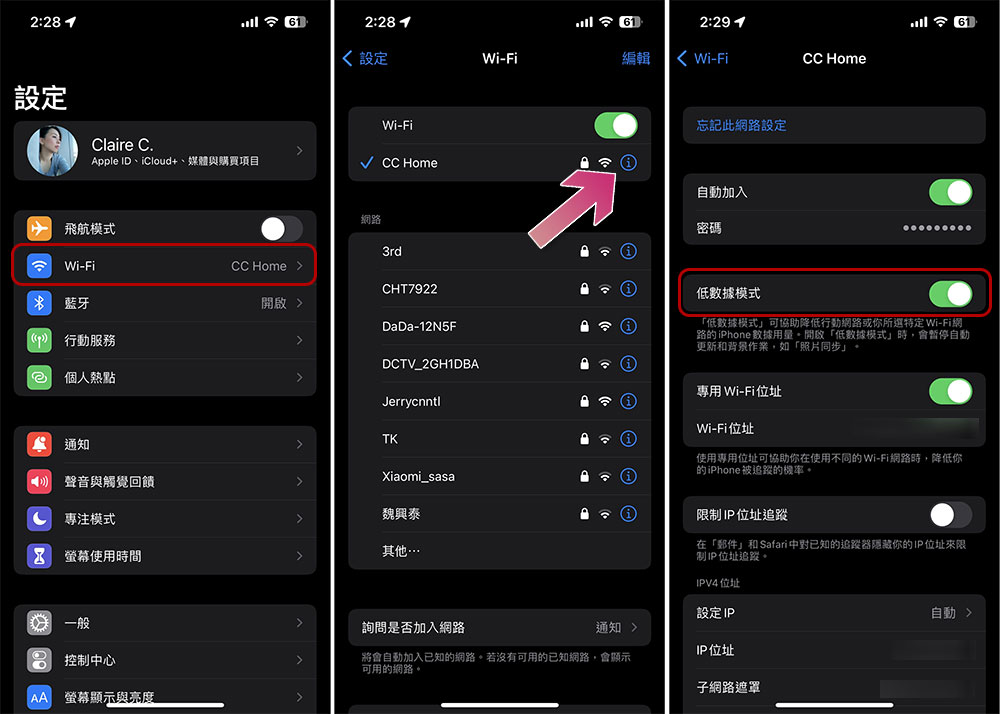
【W-Fi】
- Open the “Settings” app and click to enter “Wi-Fi”.
- Click the “i” next to the Wi-Fi you are connecting to.
- Turn on the “Low Data Mode” switch.
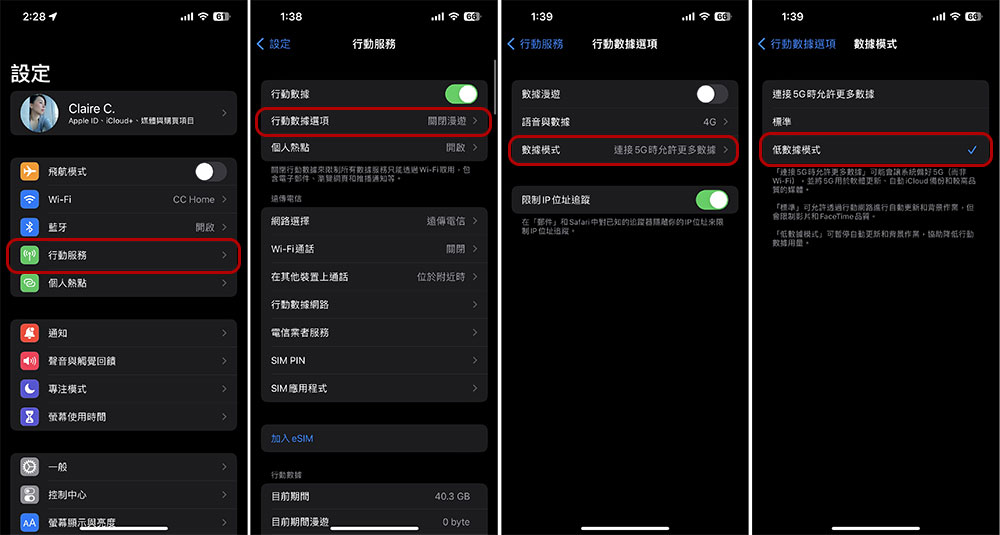
[Mobile network – applicable to LTE, 4G, and 5G]
- Open the “Settings” app and click to enter “Mobile Services”.
- Click to enter “Mobile Data Options”.
- Select to enter “Data Mode”.
- Switch the data mode to “low data mode”.
When there is an upper limit on the amount of data, if you use Wi-Fi to access the Internet, you may be less worried about data usage. However, if you go abroad and connect to a mobile network, you must pay attention to upload and download data. How to control data traffic has become a very important issue to save money and trouble. Making good use of the iPhone’s built-in low data mode function can help you save network data usage and save a lot of money on expanding your data volume. Be sure to learn it!
Source: KOCPC Chinese