


ChatGPT Since its launch, the recording mode has attracted a lot of attention, but the first wave was only available to Pro, Enterprise, and Edu users, leaving many people unable to use it. After about a month,OpenAI Finally opened up to Plus users! I just tested it and it’s really there. And as with past practice,Mac Users on the Mac version get it first; Windows users will have to wait a bit longer.
Mac version ChatGPT Plus users can also use ChatGPT recording mode now
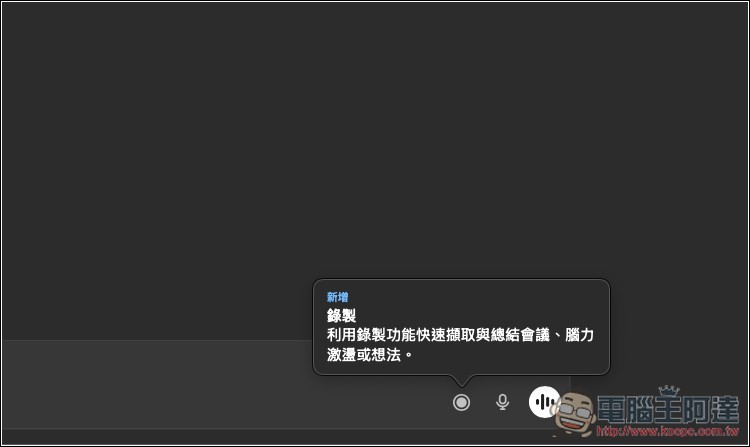
As long as you’re a ChatGPT Plus user, when you open the Mac version of ChatGPT now, you should see this prompt about the new recording feature: “Use the recording feature to quickly capture and summarize meetings, brainstorming, or ideas.”
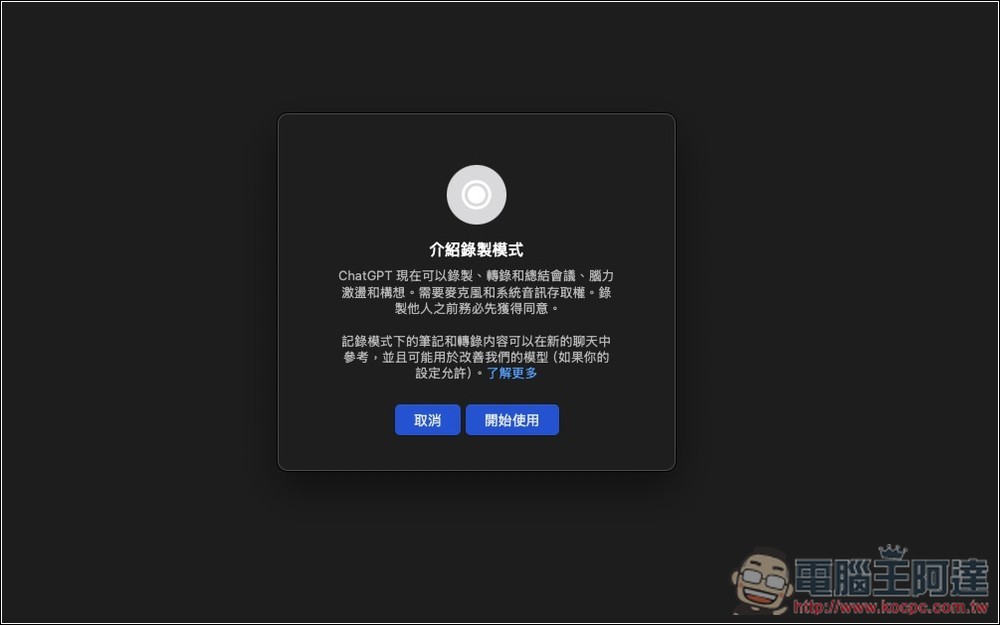
After clicking to open, a description “Introduction to Recording Mode” will pop up. The key point is to remember to allow access to the microphone and system audio. Additionally, if you don’t want transcriptions to be used to improve OpenAI models, remember to turn it off in settings; you can click “Learn more” to view related instructions. Then click Get Started:
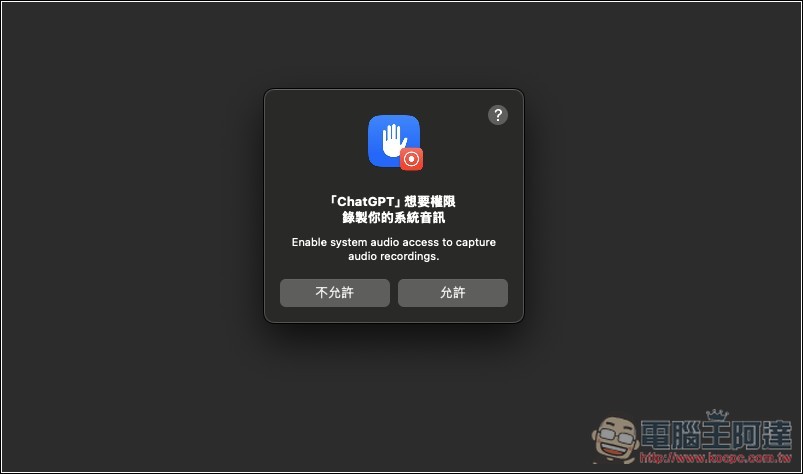
Allow ChatGPT’s recording permission:
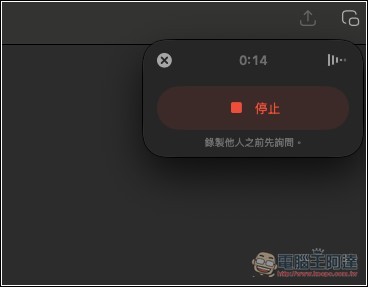
Next, at the top right corner of the window, ChatGPT’s recording feature will appear. When you’re done recording or want to pause temporarily, just press stop:
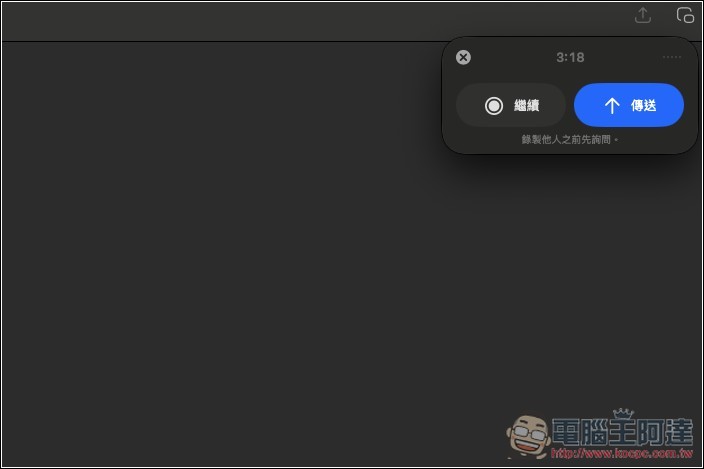
Two buttons will appear: “Continue” and “Send.” To continue recording, press the first one; to have ChatGPT summarize the key points and get a transcript, press Send:
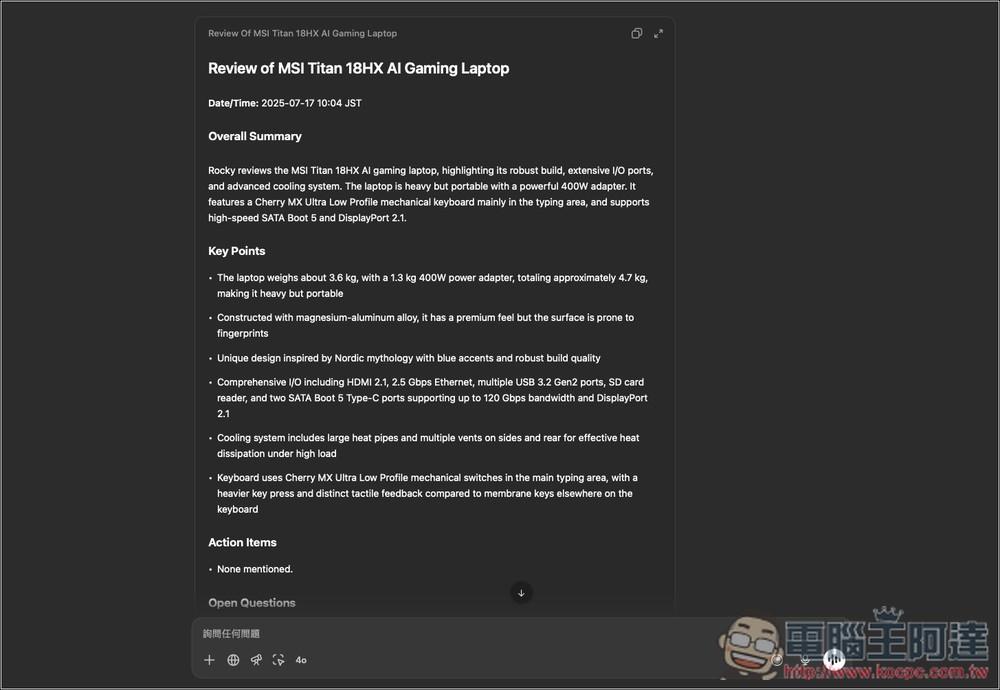
I recorded a bit over 3 minutes of content, and it finished in about 30 seconds, which is very fast. However, the key points summary in ChatGPT’s voice mode first reply seems to default to English, but no need to worry, just ask it to change to Chinese:
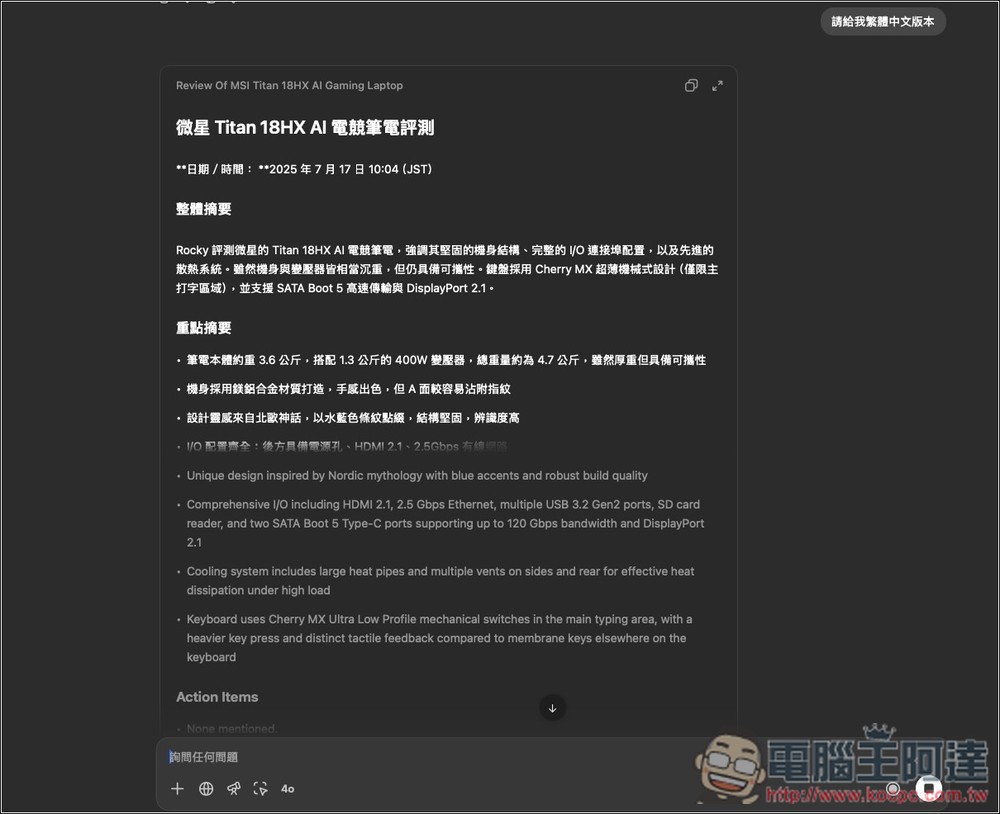
As shown in the image below, I asked it to change the content to the Traditional Chinese version:
If you want to get a transcript of the recording, just tell ChatGPT something like “give me the transcript,” and ChatGPT will provide the content, labeling the different speakers as Speaker 1, Speaker 2, and so on.
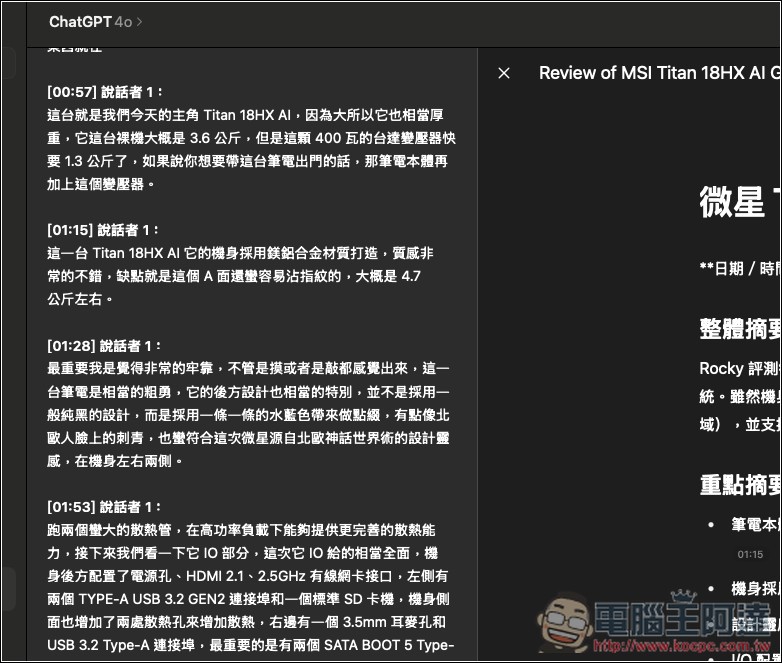
I also have a test—during speaker 1’s speech, I suddenly blurted out, “Let me test if this can record my voice?” To my surprise, it actually worked, and it even labeled me as speaker 2. This shows that ChatGPT’s mode can truly recognize different speakers’ voices.
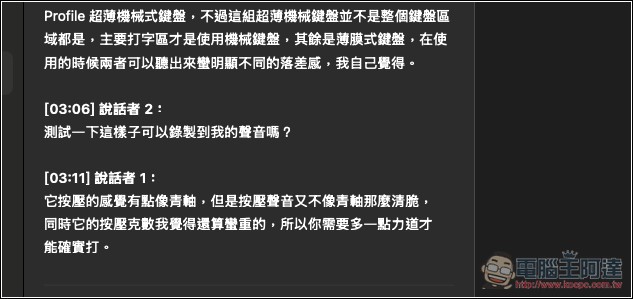
However, one thing to note is that I checked the transcript and it’s about 99% accurate, but there are still a few errors, such as “a sentence was cut off and not recorded (this might be because the speaker’s voice was too soft and wasn’t picked up)” or “a sentence was placed in the wrong position—it should belong to the previous section but ended up in the next one.” So you still need to check the transcript yourself.
As for the audio recording, just as previously guessed, it can’t be obtained. ChatGPT deletes it automatically after transcribing, so if you also want to have the recording, you’ll need to record it separately.
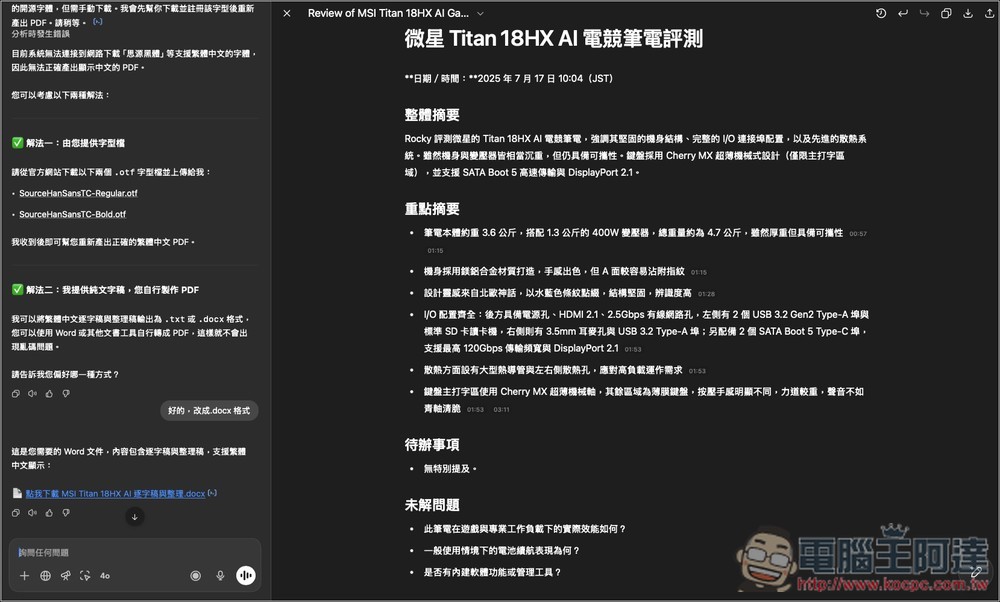
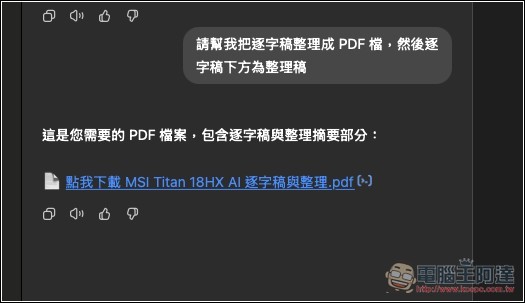
Later, you can ask ChatGPT any questions, or ask it to output as text files such as PDF, DOCX, TXT, etc. For example, I asked ChatGPT to output my verbatim transcript plus the organized content as a PDF:
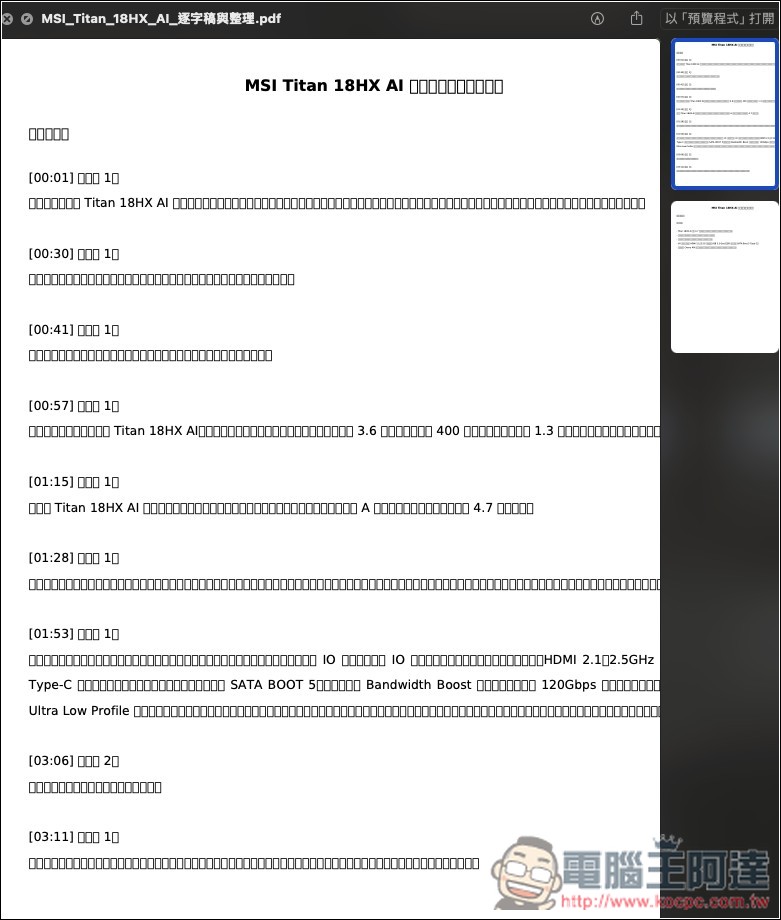
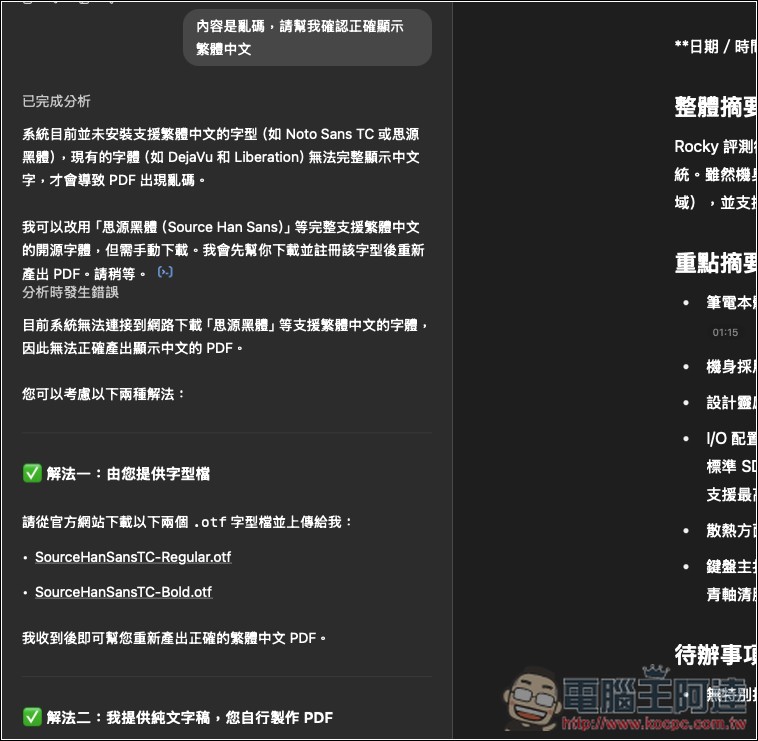
But Mac seems to have issues with fonts not displaying correctly, and PDF files become garbled:
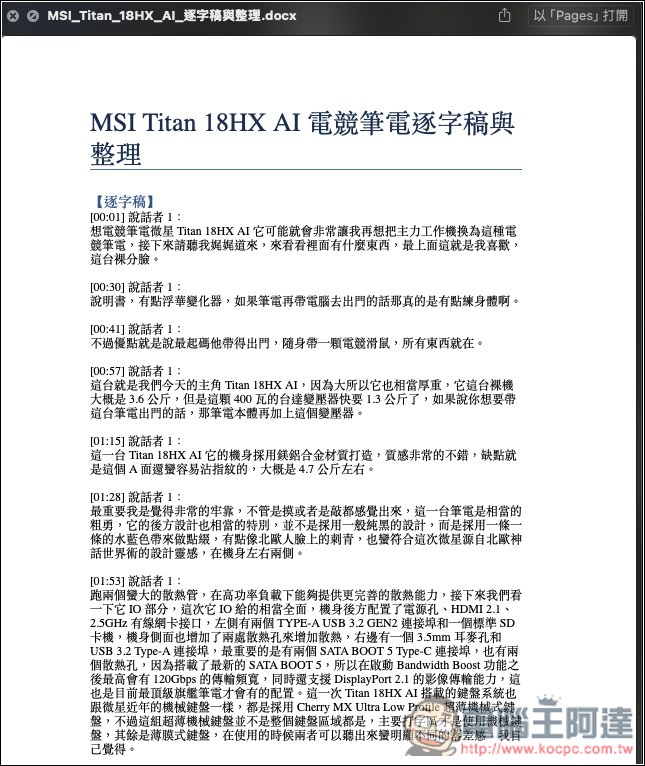
Then, following the method ChatGPT provided, I switched to exporting a DOCX file:
The content is now displayed correctly:
As for when the ChatGPT Windows version will be available, based on past experience, it might take a while.
As for the free version, I guess there’s a chance it might become available in the future, but that probably won’t happen until the ChatGPT Windows version is released.
Source: KOCPC Chinese