


Most email services refuse to accept attachment files exceeding a certain size. When the file is larger than the upper limit, it cannot be entrained and sent using the most common operation methods. While attachment sizes haven’t kept pace with the times, there are other, easier ways to send large attachments to others via email. This time the author will tell you how to solve this problem so that attachments are no longer an obstacle to your communication.

Email attachment size limit? Teach you how to send large files via email
What is the attachment size limit for email?
In theory, there are no limits on the data you can attach to an email, and email standards don’t specify any kind of size. In fact, most email servers, as well as some email clients, enforce their own caps, which in most cases will limit email attachments to around 20MB.
Gmail allows you to attach files up to 25MB in an email, but this only works if you’re sending to other Gmail users. When an email leaves a Gmail server, it may be rejected by other email servers. The maximum file size on Outlook is only 20MB. When you send an email through these services, they will automatically provide you with help and suggest solutions, such as putting Gmail attachments into Google Drive. Outlook can do the same with OneDrive.
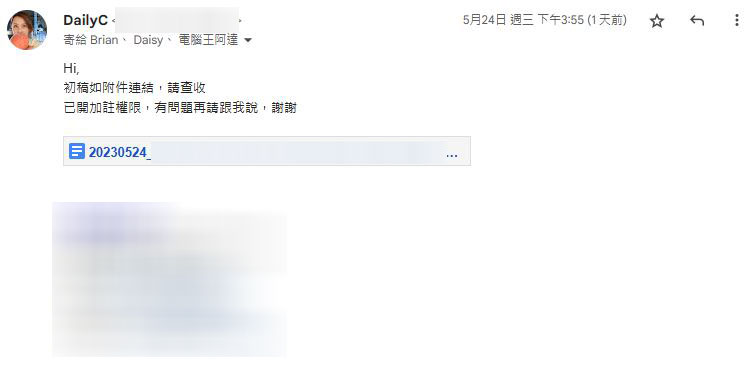
Another point is that email attachments are usually MIME encoded, which increases the original file size by about 33%, so if your file is originally only 10MB, but after being attached, the size will become about 13MB.
Fold large files to email via cloud storage service
The easiest way is to store the files you want to transfer on a cloud service such as Dropbox, Google Drive, or OneDrive. You can then share it with someone and notify them via email. The other party can click on the link and download the file directly to their computer.
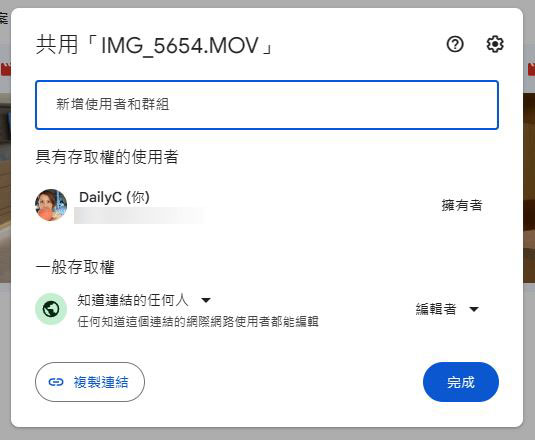
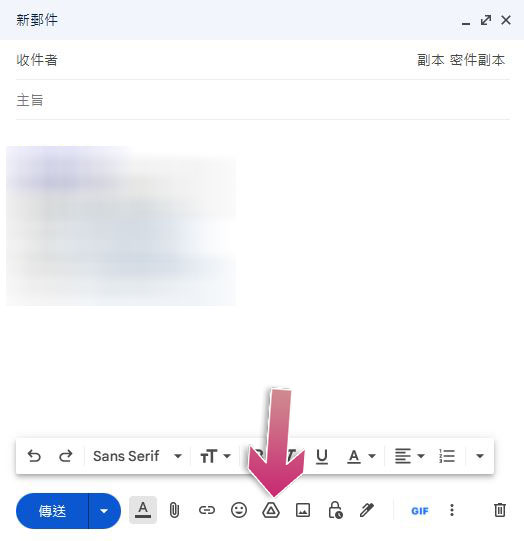
If you use Gmail or Outlook.com, you’ll notice that Google and Microsoft have integrated Google Drive and OneDrive into their respective email services. When sending an email, just press the Google Drive or OneDrive button to share files via email. Gmail and Outlook will guide you to select a file that already exists in the cloud space or upload a new file. This is also a service option that many email providers promote to users.
If you use something like Dropbox, you can share files from cloud-stored sites. For example, for files on the Dropbox website, if you use Dropbox, select the share link. If you have the Dropbox app installed on your computer, you can also find the sharing feature by right-clicking on any file in your Dropbox folder. Every major cloud storage provider offers this feature, and it’s the most reliable way to share large files.
Cut large files to send
If you are not interested in cloud storage and want to send large files in a more classic way, you can cut the files into smaller files and send them. For example, if you want to send a 50MB file via email, you can use a compression application such as 7-Zip to create a zip file and then split the file into five 10MB files. After the files are cut, you can attach all the cut files individually in one email. The recipient must download each attachment and then use an unzip program to extract and assemble the complete file from each attachment.
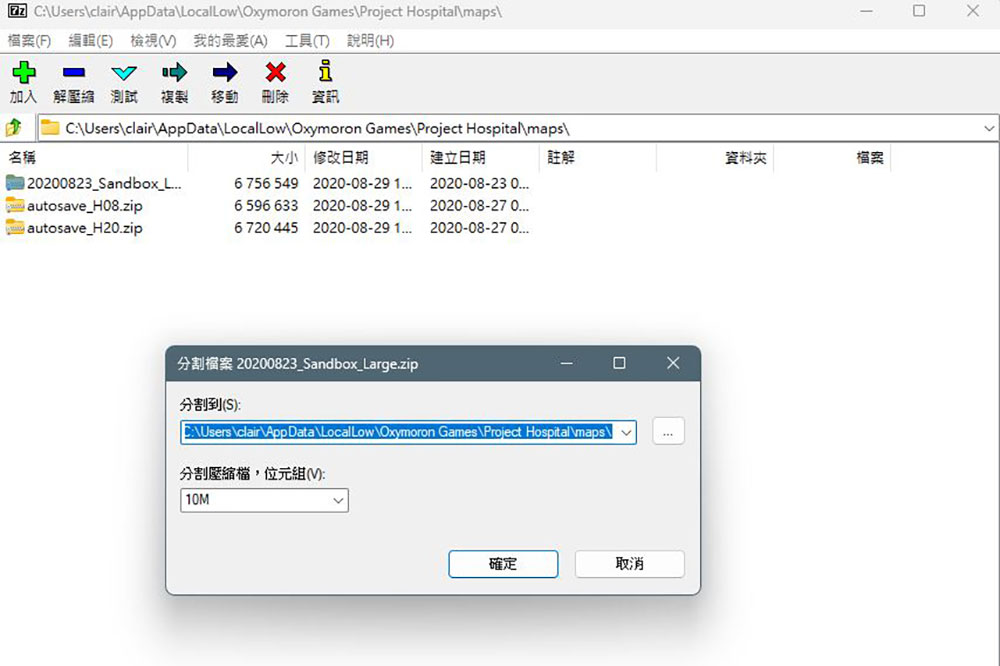
While it may be a bit cumbersome, this traditional method still works as well as ever. But some recipients may be confused by individual attachments, can’t handle it, or don’t like it, so you’re better off choosing an easier method to avoid setting yourself up for trouble.
Use a large file sending service
To help solve the problem of large attachments, many file sending services have sprung up online over the years. These services allow you to upload files and then give you a set of links to the files. You can then paste the link into an email and the recipient will click the link to download the file.
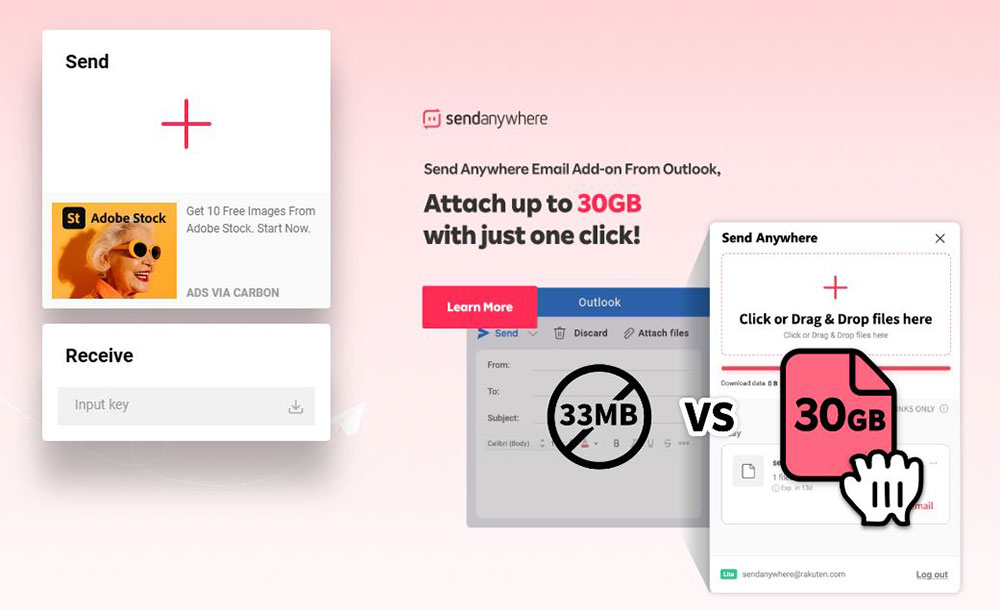
Of course, these services have to make money in some way, so by displaying ads, limiting the size of files that free users can upload, or requiring a subscription. Please note that when you use a large online service, you are hosting your files for that service. If the content of your file is not particularly sensitive, this may be fine, but if the content is more sensitive or you value privacy more, please avoid uploading sensitive data to a free service that you have never heard of before. Of course, you can also encrypt the file before uploading it. Although this will also add extra trouble to the recipient, the security will be higher.
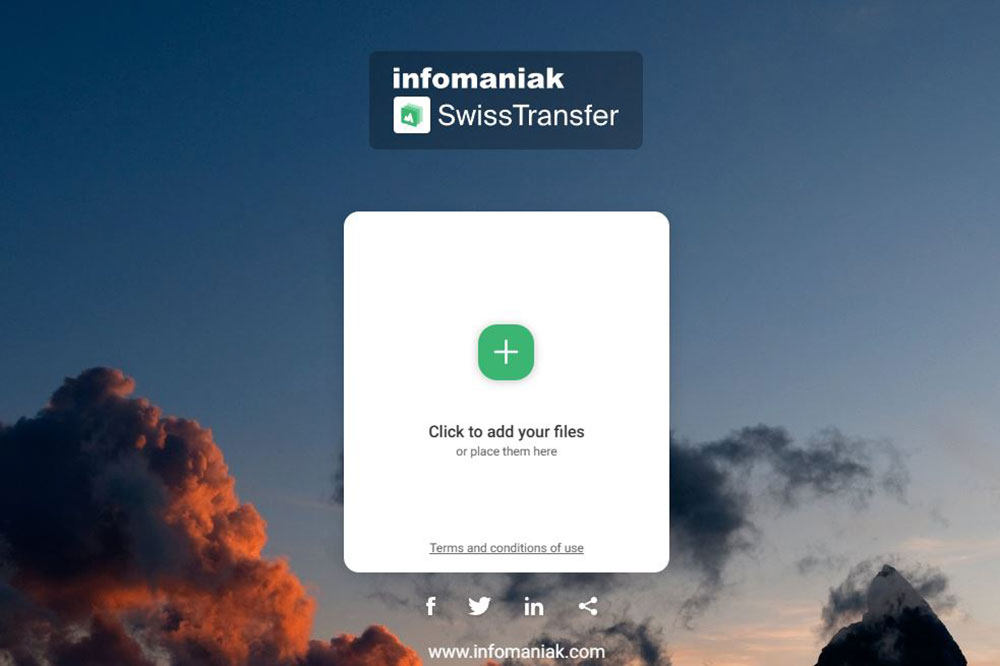
These file sending services can all be chosen for sending large files, as long as you are okay with any advertising or restrictions and understand the possible risks involved, especially sensitive files. However, the author usually recommends using cloud storage services as the first choice.
Source: KOCPC Chinese