


Making PPT presentations can be said to be a very time-consuming task. Although there are many templates on the Internet that can be directly applied, you still have to think of the content yourself. Some people may now use ChatGPT to quickly generate it, and then they have to move the content to PPT themselves, which is still very time-consuming. This article will recommend a recently discovered super powerful AI PPT production online tool “Gamma”.
After entering the theme of the PPT presentation you want to make, AI will not only automatically generate the text content, but also directly apply it to the presentation template you selected. The layout and matching of pictures are also automatically completed by AI. You can easily create a super beautiful PPT presentation in a few minutes. You can also add the additional content you want through AI later. It is really easy to use.
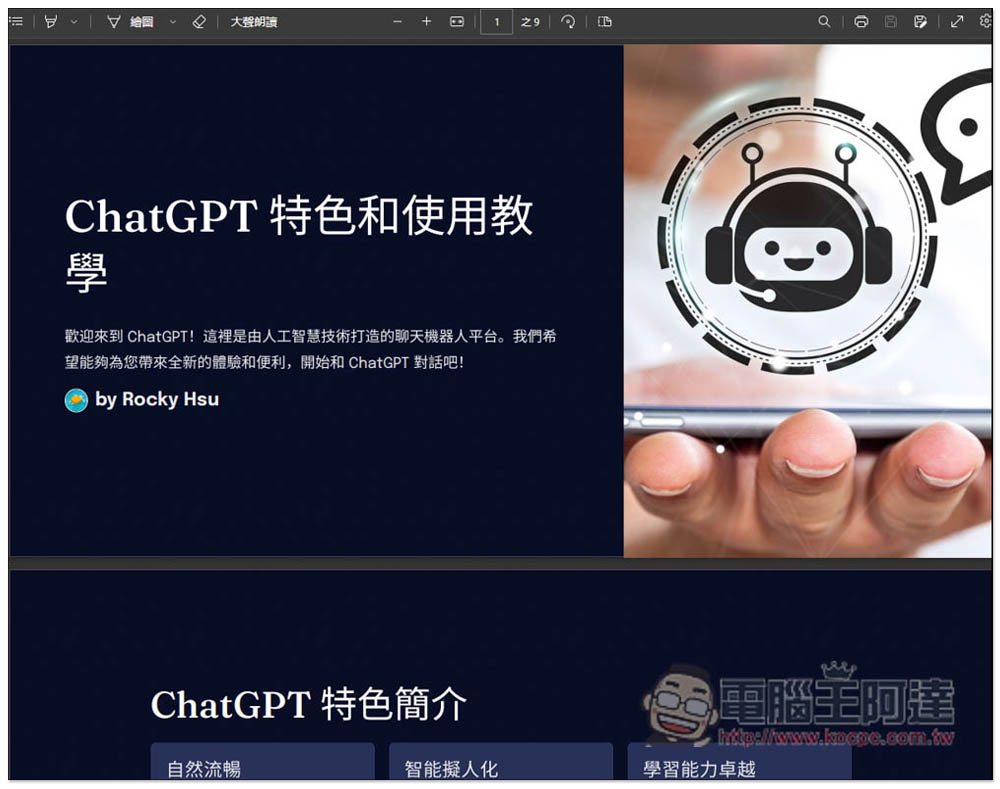
Gamma uses AI to easily create beautiful PPT presentations. Entering the title will help you generate all content and pictures.
Although Gamma is an AI tool developed by a foreign company, its content supports multiple languages, including Traditional Chinese. Free users will be provided with 400 Credits. I tested making a Chinese PPT presentation for less than 100 Credits, so it should basically allow you to make three copies for free:
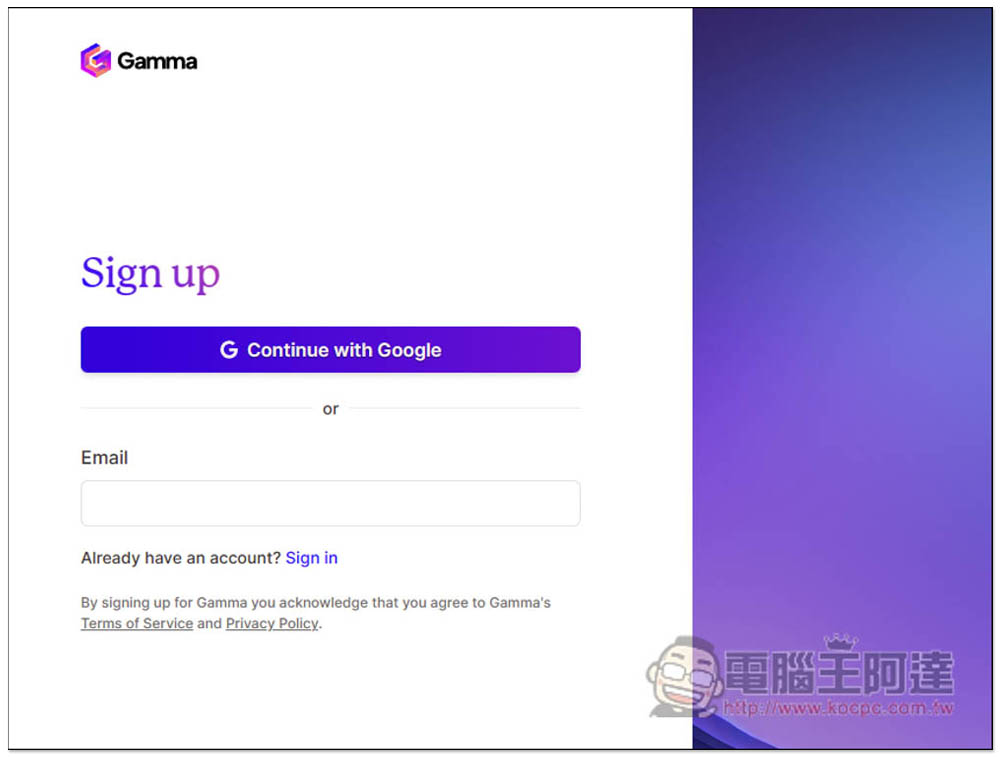
Provides quick registration with Google account, you can also click Sign in below to register with Email:
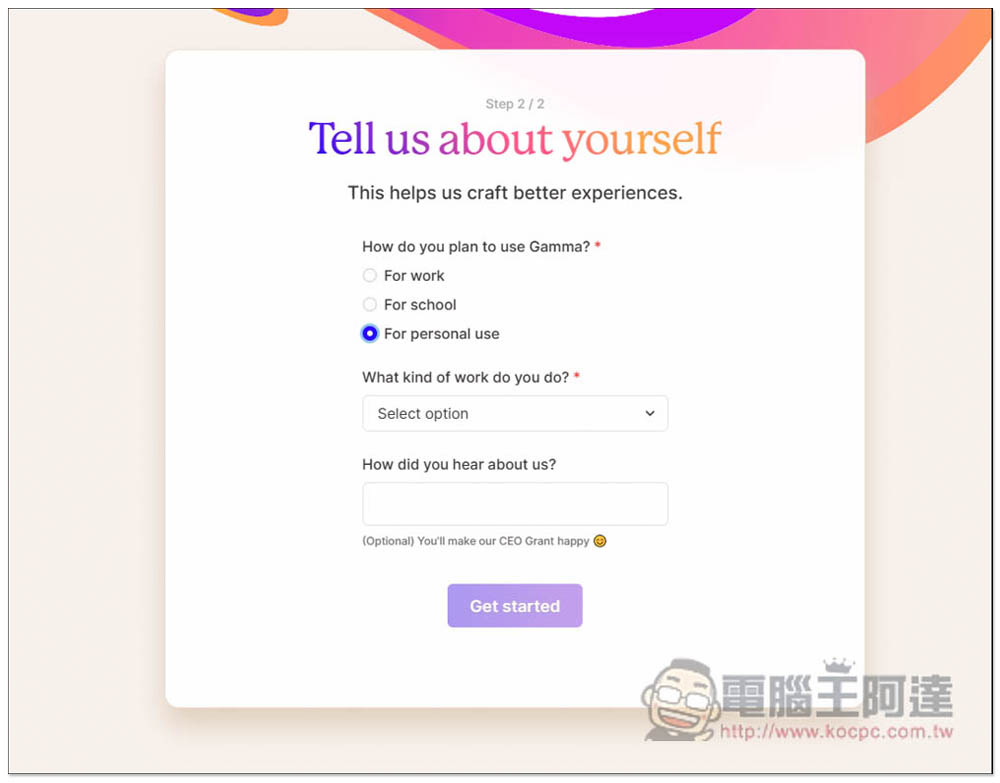
Then two simple questions will pop up. The first one asks whether you are using it for a company, team, or individual:
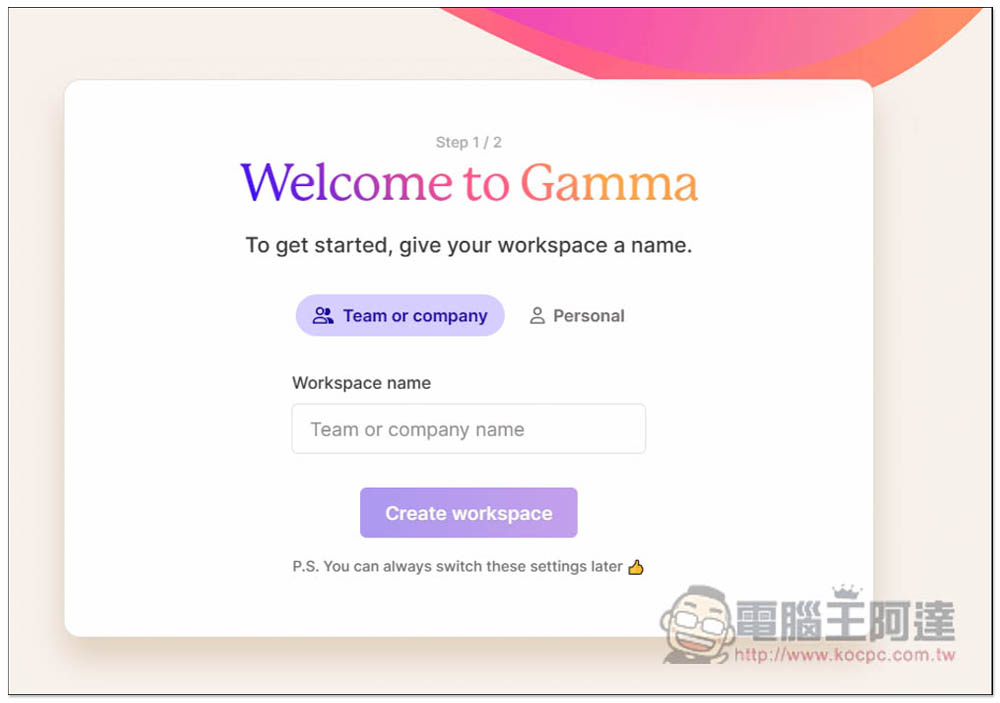
The second one is what it is used for. I choose personal use:
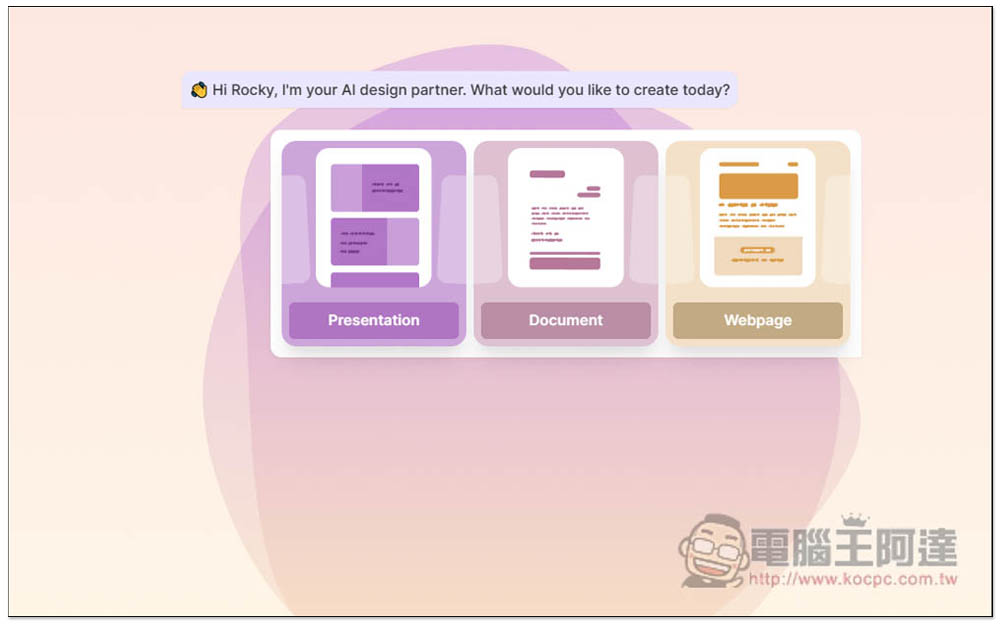
After answering, you can start using it. There are three AI generation tools, including: “Presentation”, “Document” and “Webpage”:
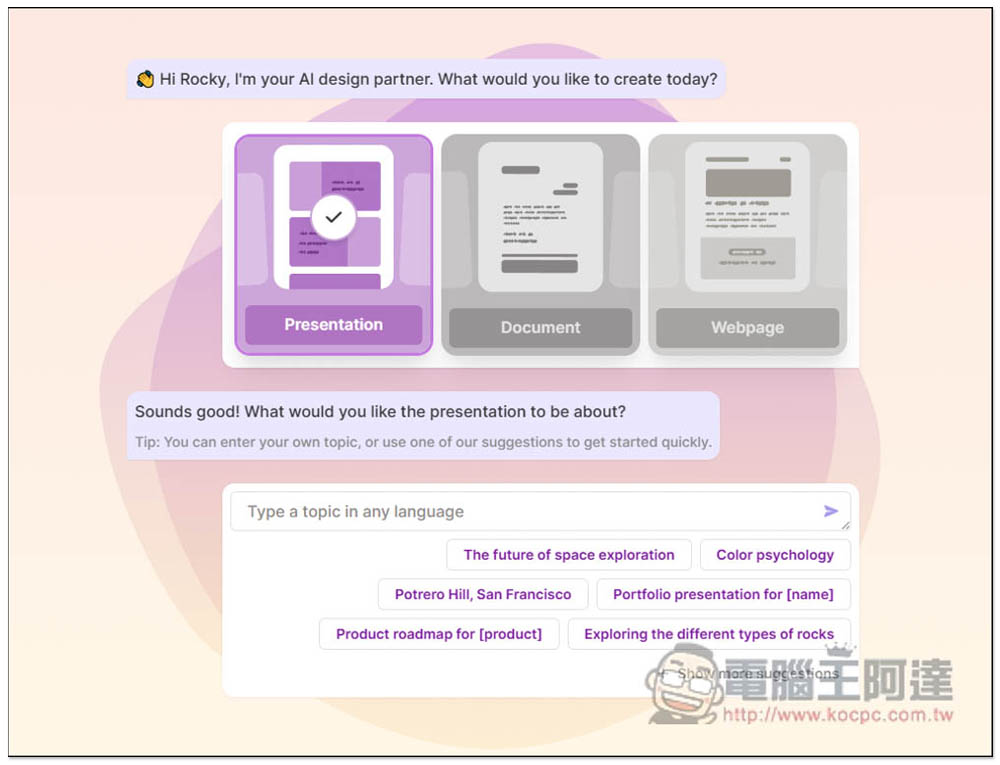
After I select the PPT presentation, it will ask what kind of theme I want. Here are some suggestions. You can also directly enter the theme you want in the Type field. All languages are supported:
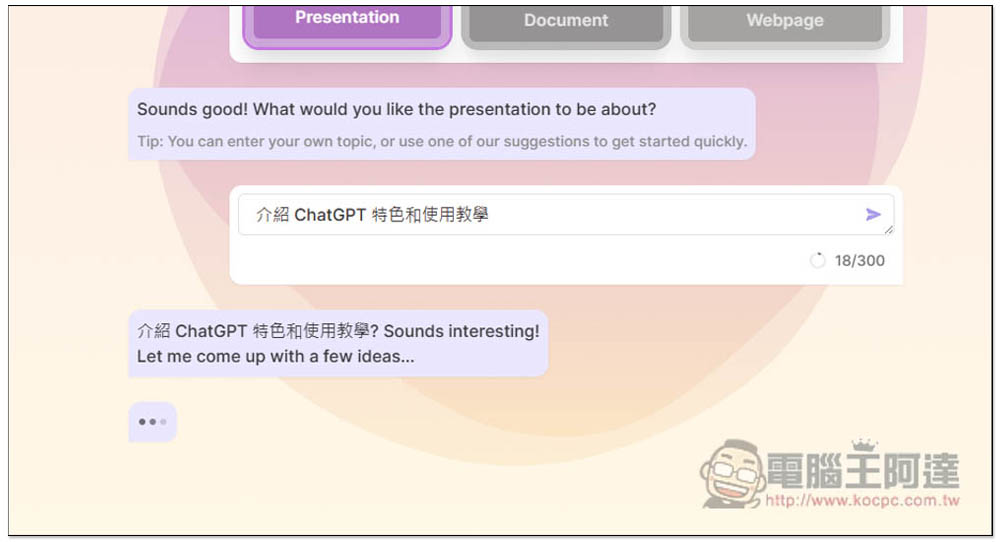
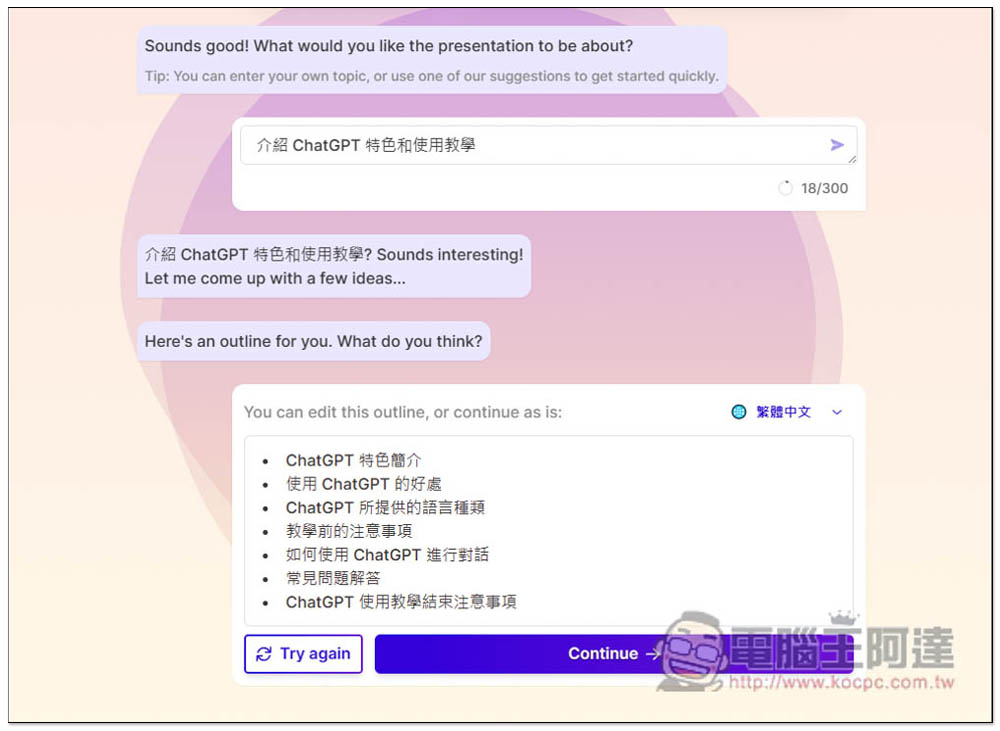
I asked it to make a PPT presentation “Introducing ChatGPT features and usage tutorials”. Sometimes it gets stuck here. If there is no reply for a long time, I suggest you refresh the page and ask again:
Then it will give me a briefing outline, which is the title of each briefing. For my theme, it gave me 7 briefings. They look pretty good. If you are satisfied, click Continue. If you don’t like it, you can click Try again to try again:
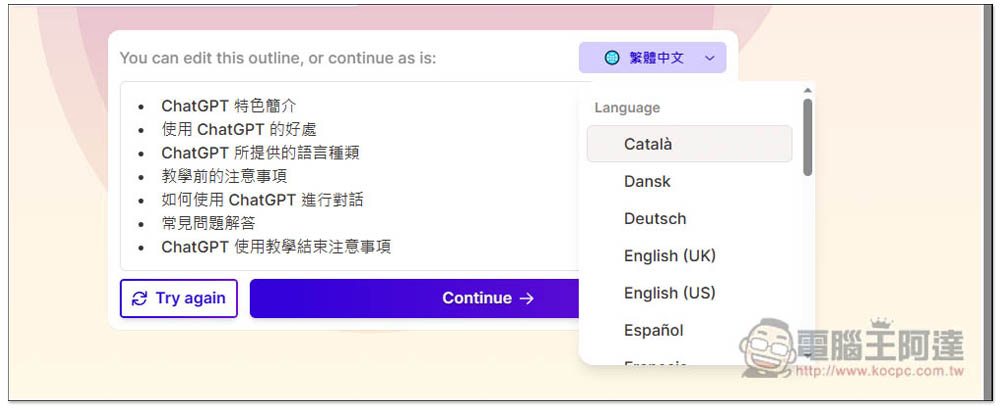
Other languages can be changed in the upper right corner:
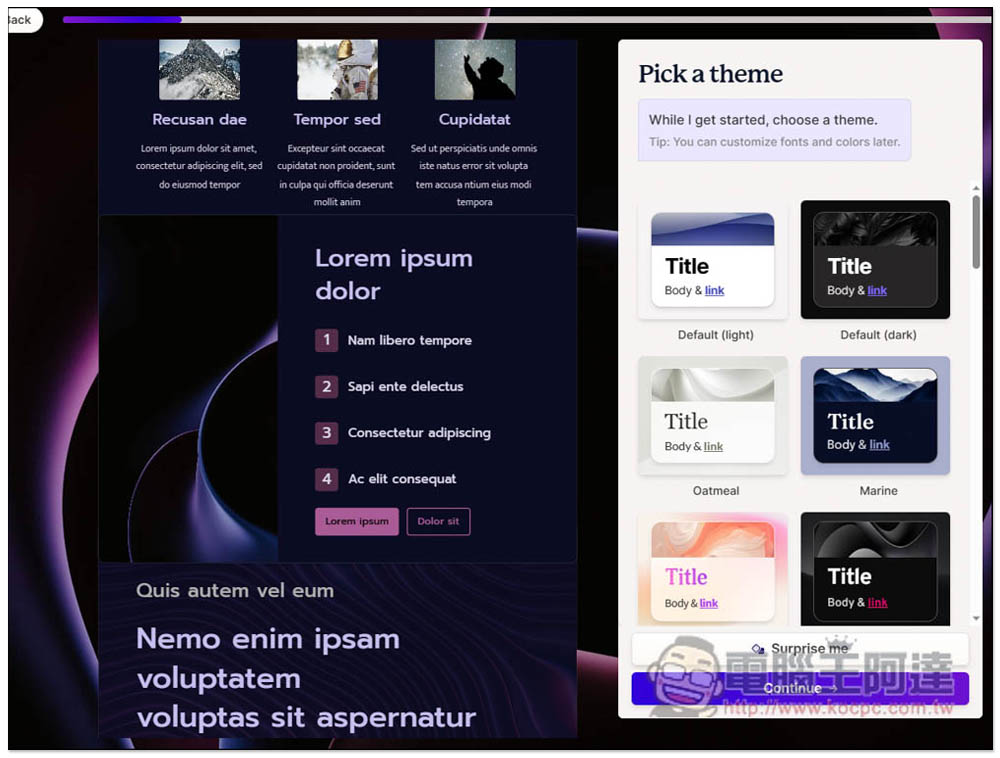
The next step is to choose the template you like. There are many templates provided, and each one is very high-quality:
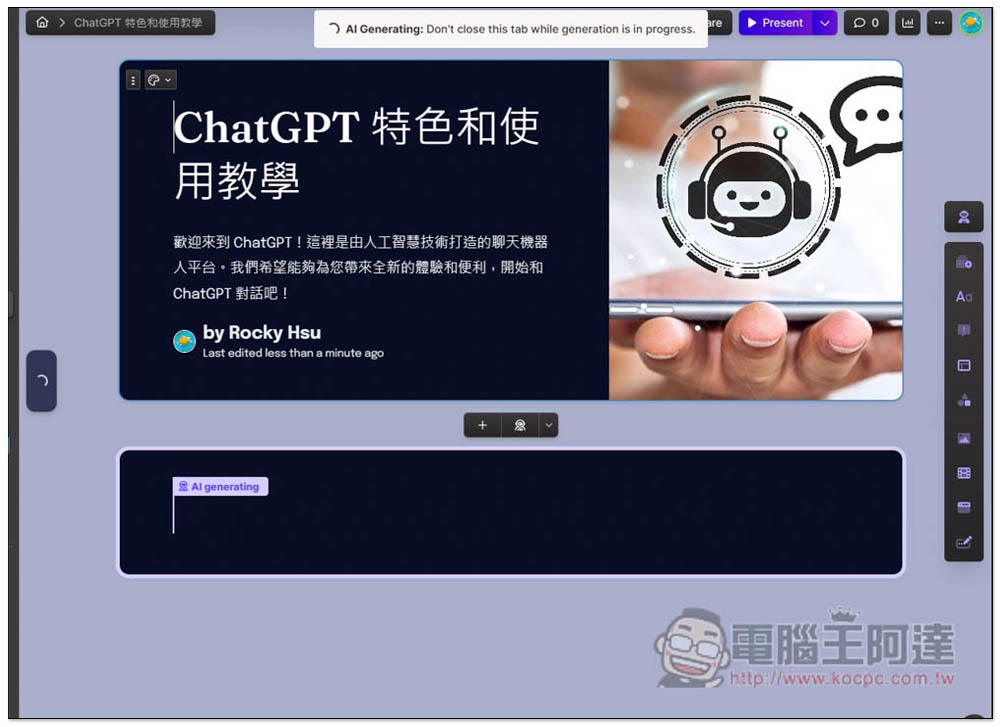
After selecting the template, it will start to generate appropriate text content, layout and images for each presentation. The first presentation is of course the theme:
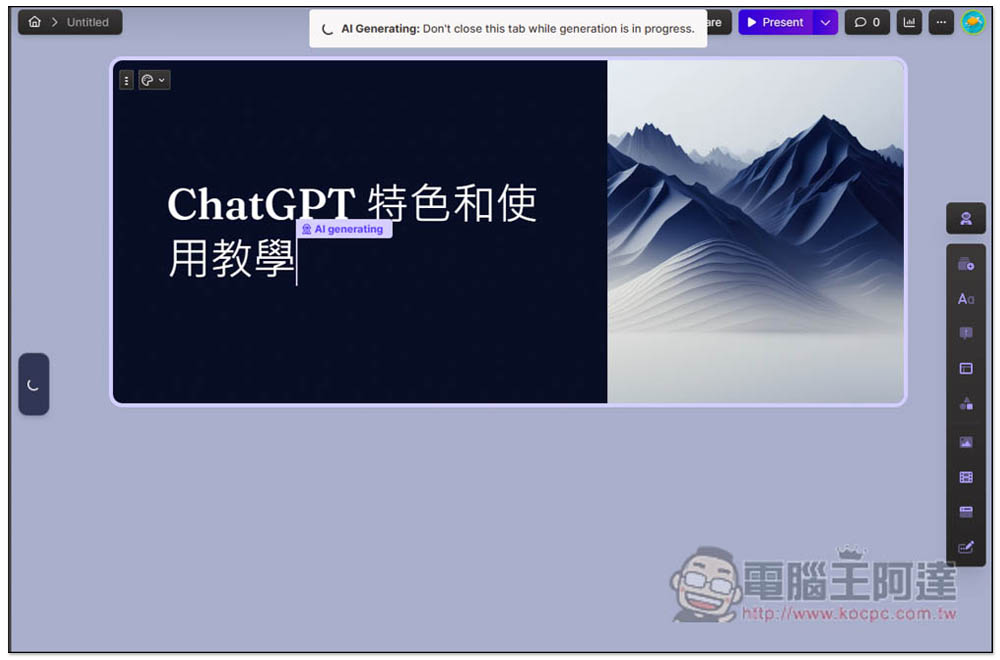
The great thing is that the picture it matches is very suitable. It is a picture that can perfectly show the chat with the robot. There is a brief introduction and the name of the producer below the theme:
Each presentation will have a different layout:
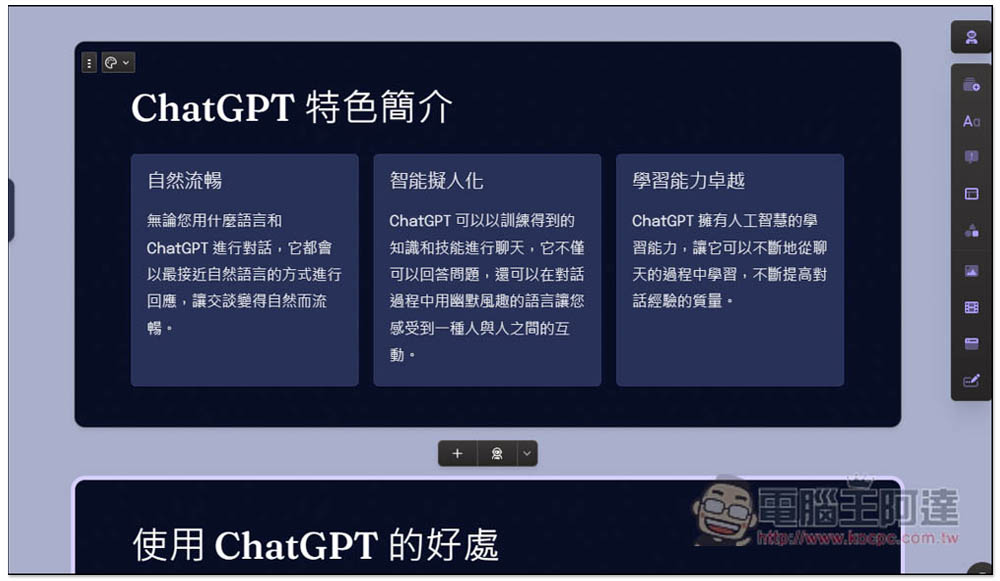
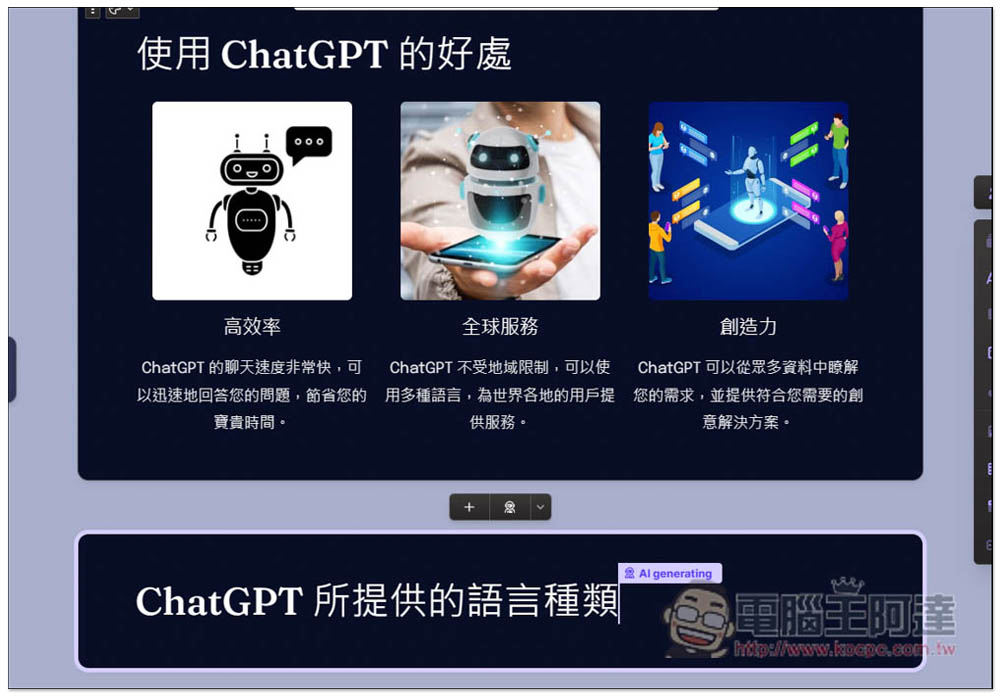
It will also be accompanied by picture description:
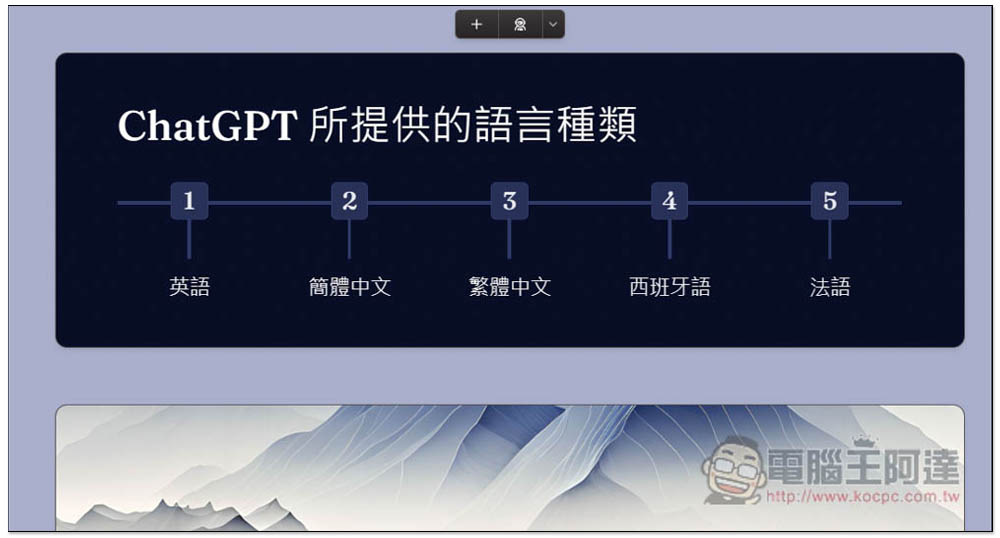
There is even this kind of numerical arrangement, which is really rich. However, it is a pity that the content of this picture has a small error. ChatGPT supports more than just these 5 languages. There should be more, and infinite symbols must be added at the end to be more correct:
The next one is the same. The title should be “Precautions before use”, not teaching. This part can be edited and modified later:
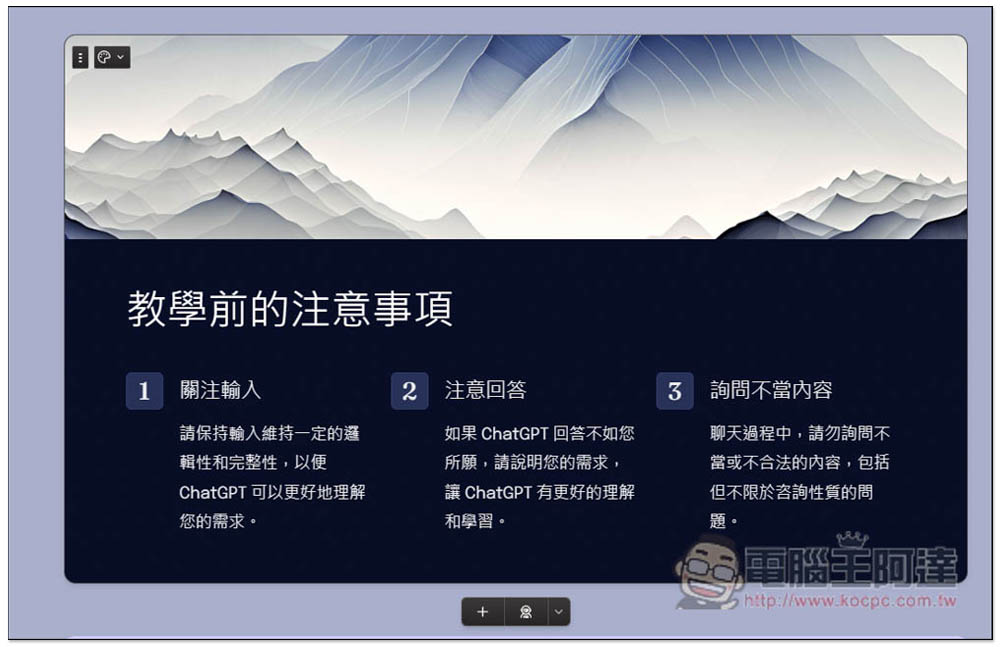
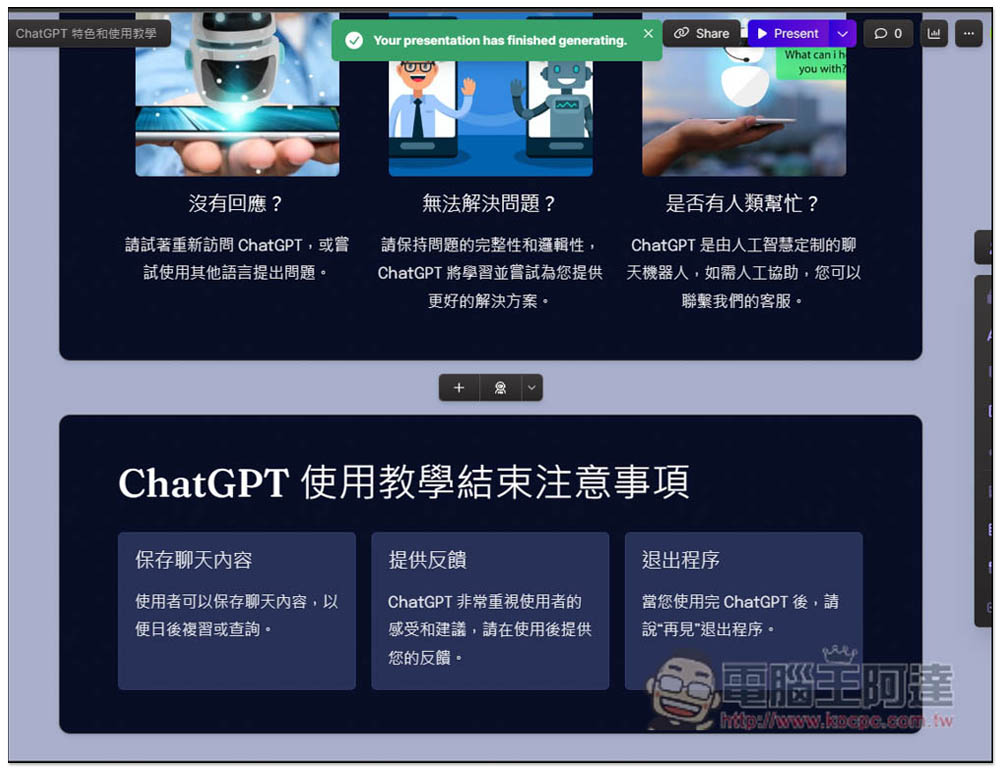
After completion, the message Your presentation has finished generating will pop up at the top:
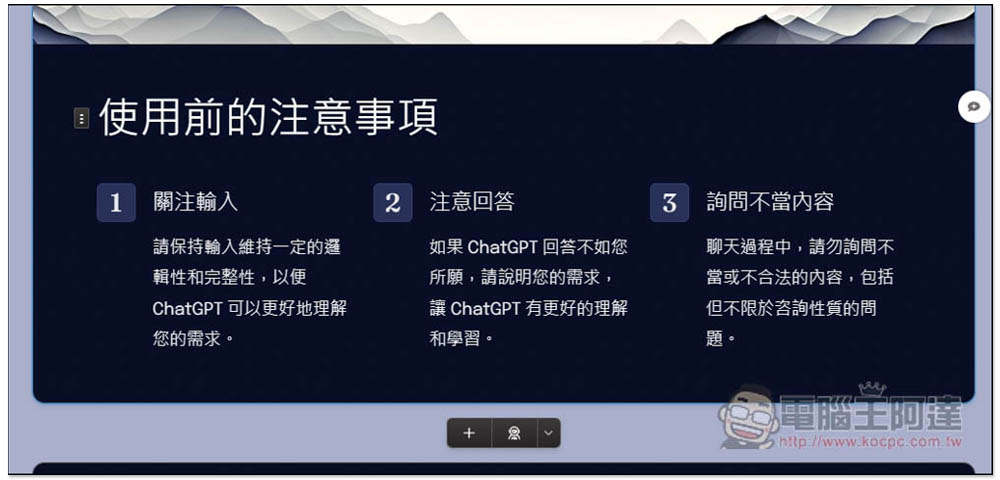
Then you can start editing the places you think are wrong, like I changed the teaching to use:
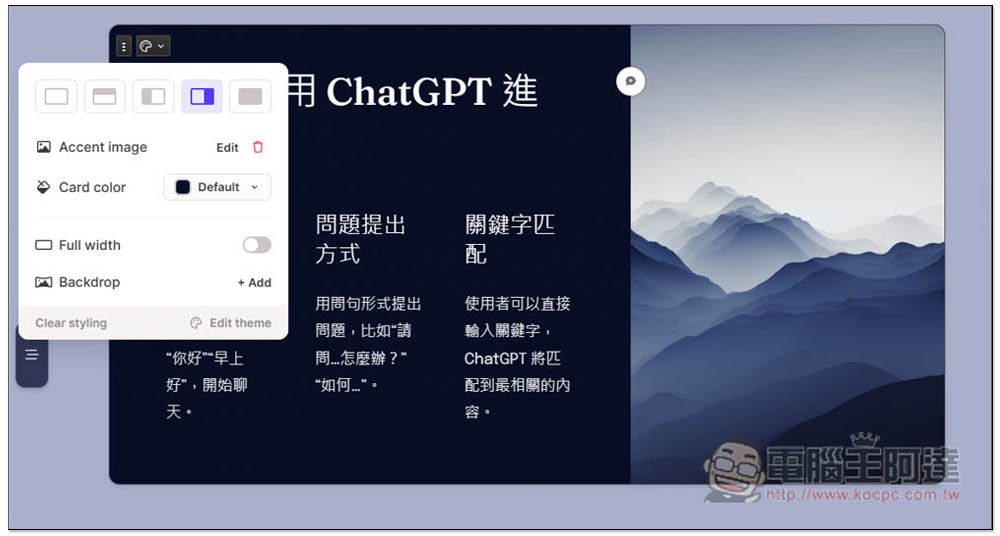
You can change the layout mode in the upper left corner:
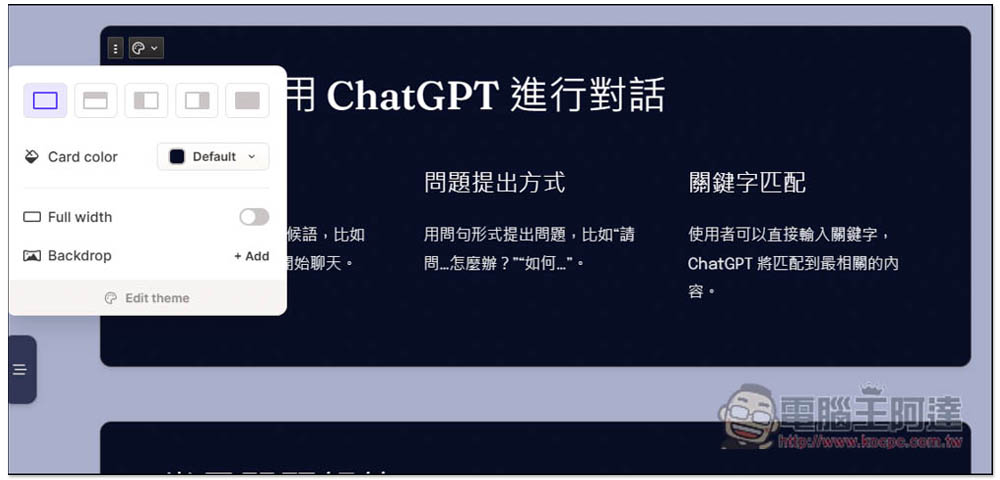
Like this, I changed it to have a picture matching on the right:
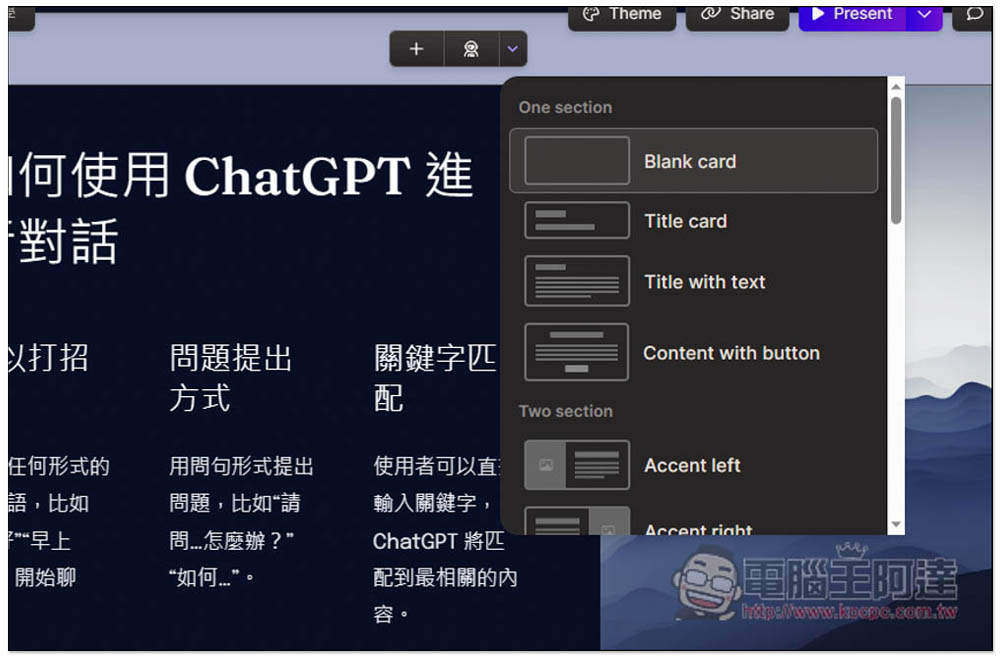
New presentations can also be inserted:
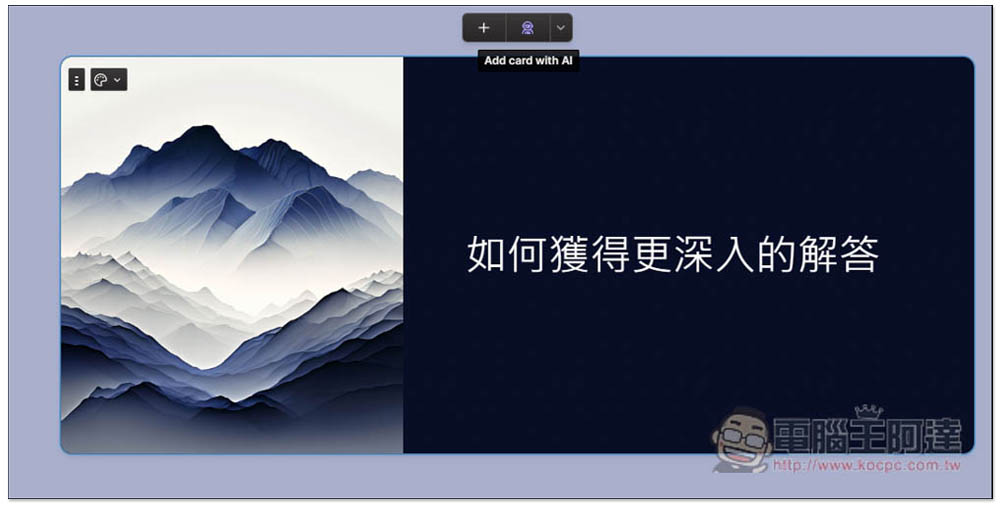
You can add content to the new briefing by yourself, or ask AI to generate it for you. There is an Add card with AI function above:
Click it and a chat window will pop up. Just enter the content title you want to generate. Likewise, sometimes there will be a failure or error. In this case, just send it again:
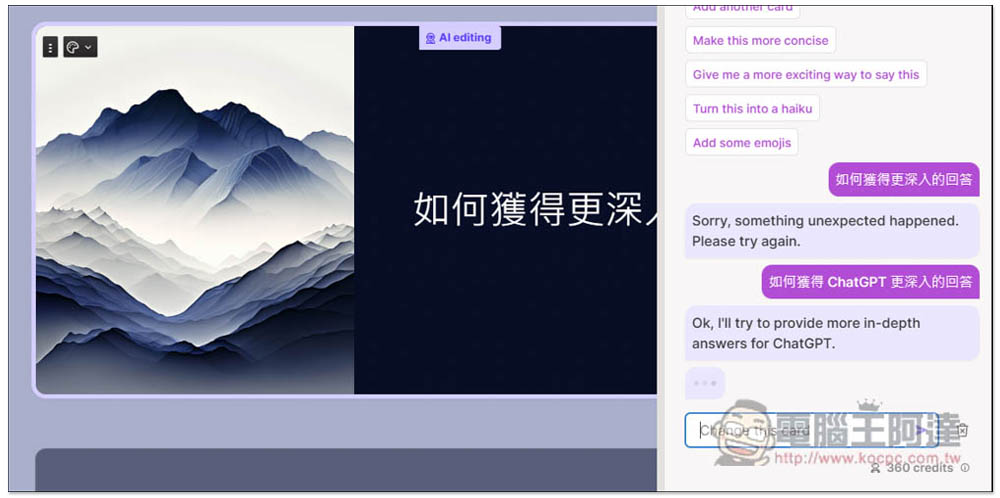
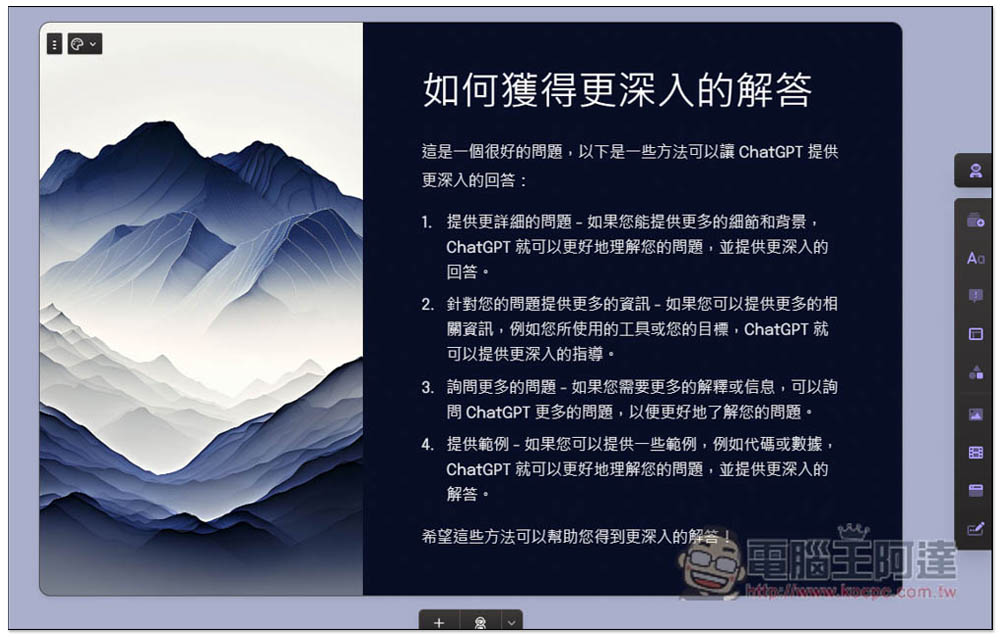
Like this, the answers obtained by the AI will be automatically entered into the briefing:
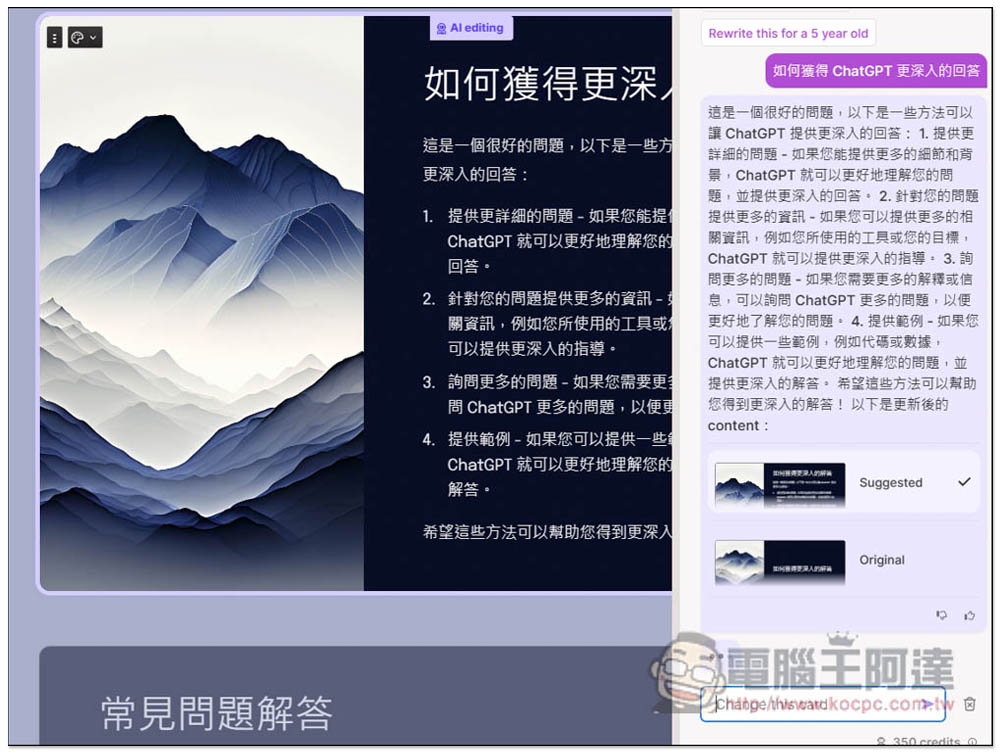
The content is really good. It used to take dozens of minutes just to produce such a briefing, but now it can be completed in a few seconds:
After the production is completed, press the Present function to preview the presentation file:
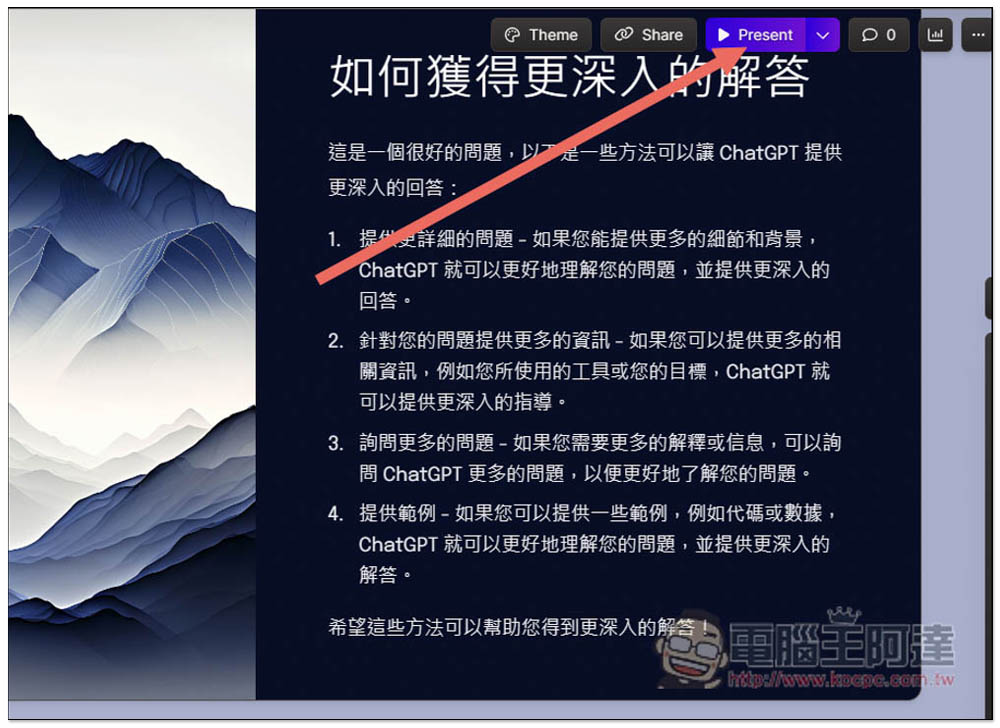
As shown below:
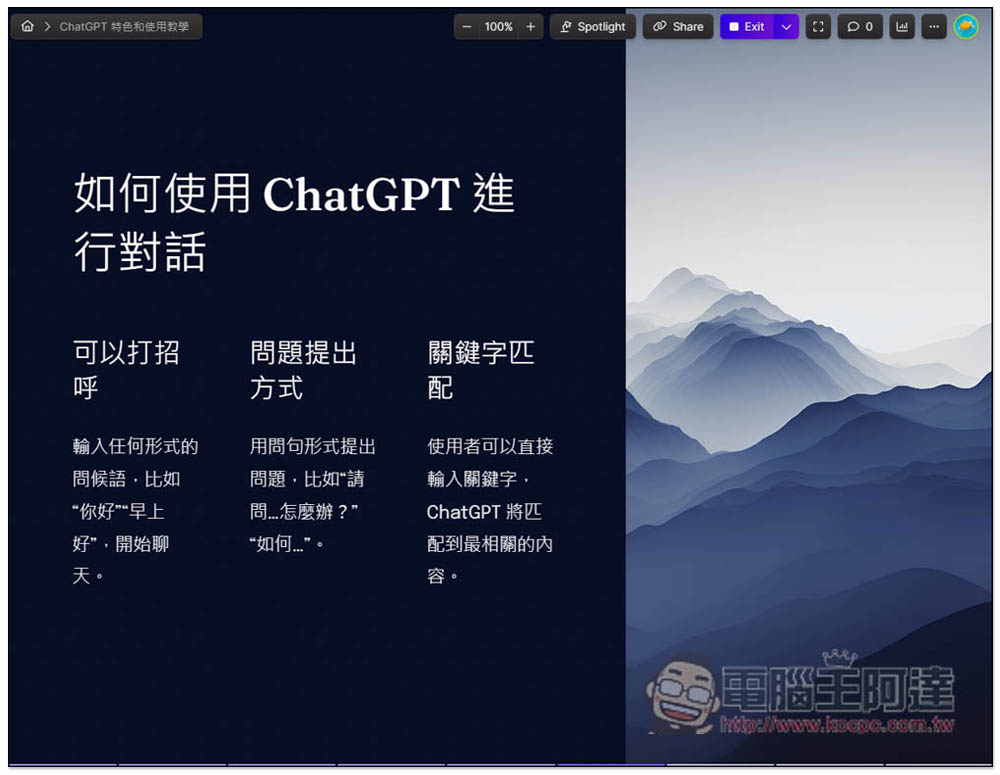
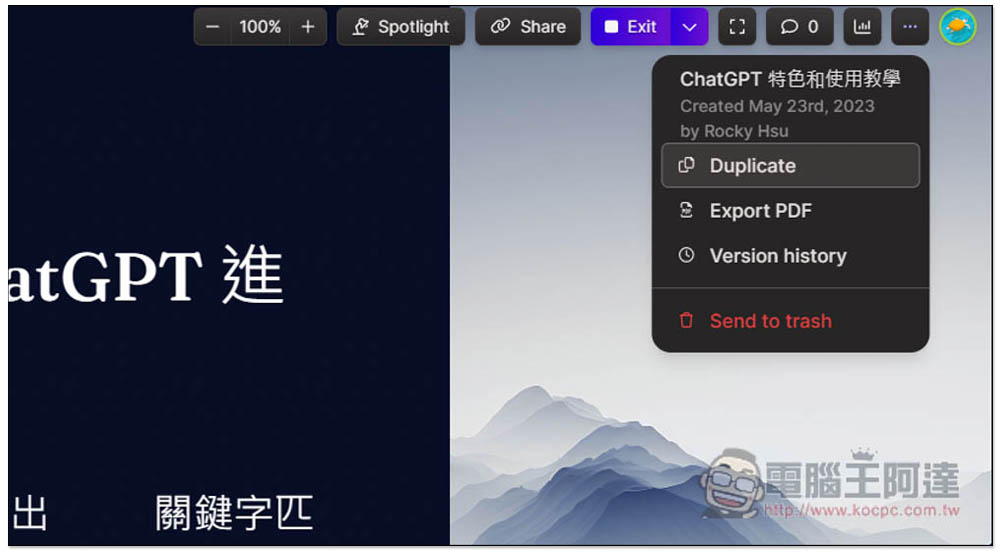
If you are satisfied, click the arrow next to Exit in the upper right corner to find the “Export to PDF” option:
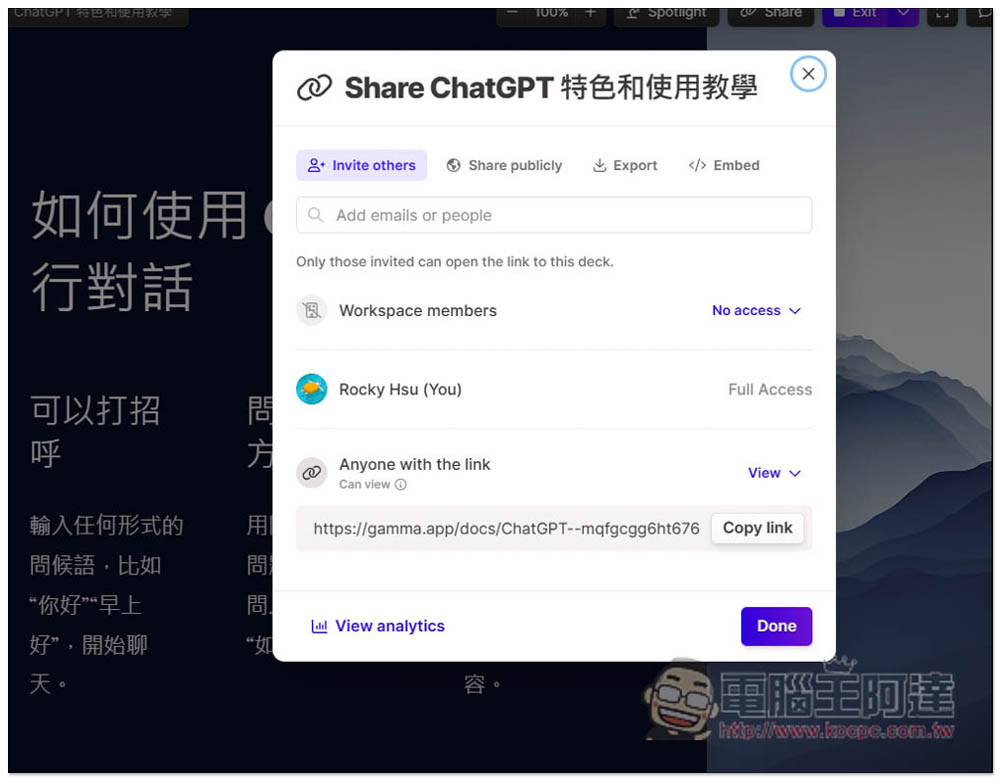
It also provides the function of generating sharing links:
This online tool has many more functions, and the rest is left to the readers to play with.
Source: KOCPC Chinese