


Caliber is a very well-known open source software for reading e-books. For those who often read e-books, most of them should have used it. We have introduced one before Chrome extensionsIt is possible to translate the entire e-book. Caliber has recently launched a free plug-in called “Ebook Translator” that can do this, which means that you can translate the entire foreign e-book directly through Caliber without using a browser. It also supports many translation services, including Google, DeepL, ChatGPT, etc.

“Ebook Translator” Caliber plug-in, using Google, DeepL, ChatGPT to translate the entire e-book
There are two installation methods for “Ebook Translator”, depending on whether you want to install it directly in Caliber’s plug-in function, or download it from GitHub and install it manually.
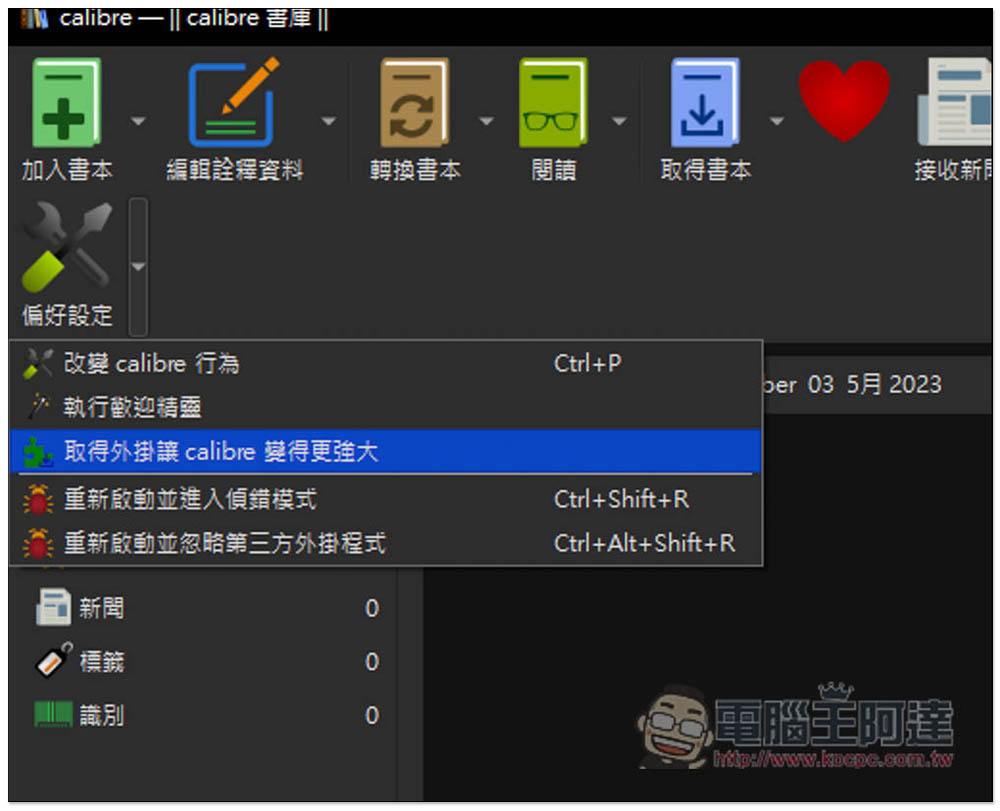
Here I demonstrate the installation from Caliber’s plug-in function. Click the inverted triangle icon on the right side of the preferences, and you will see the “Get plug-ins to make Caliber more powerful” option:
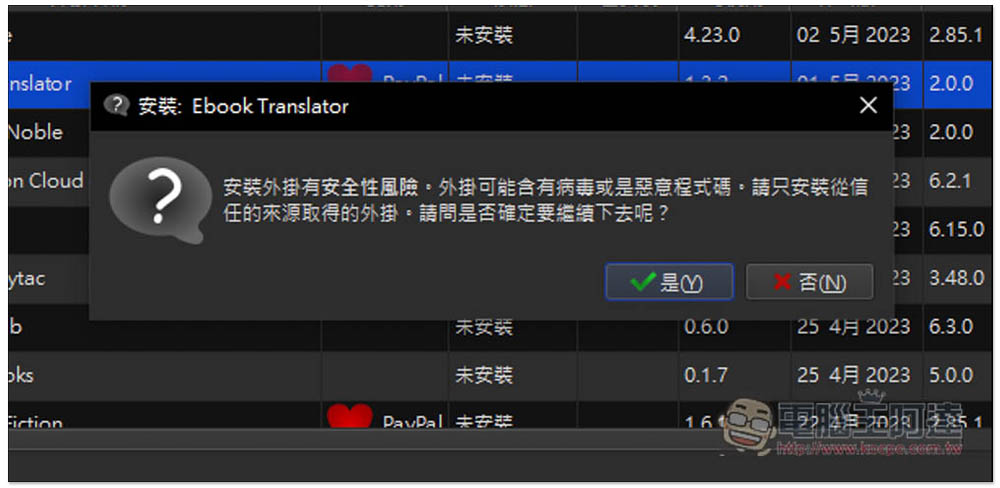
After opening the user’s plug-in window, the second one is Ebook Translator. Please click on it and click Install below:

This warning will pop up, click this:
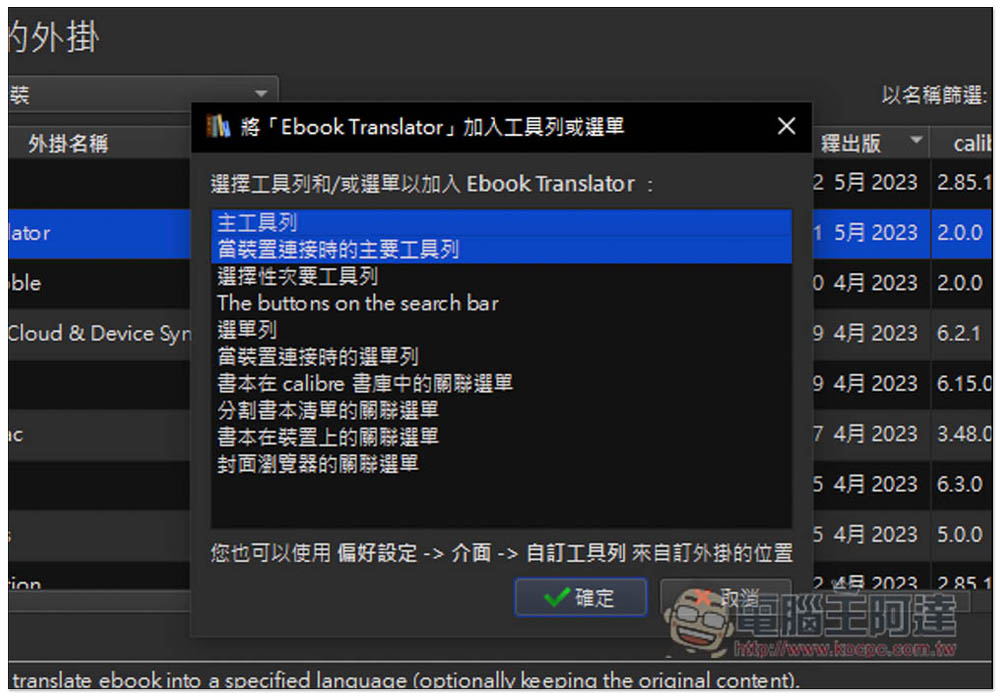
Here, keep the top two selected options and press OK directly:
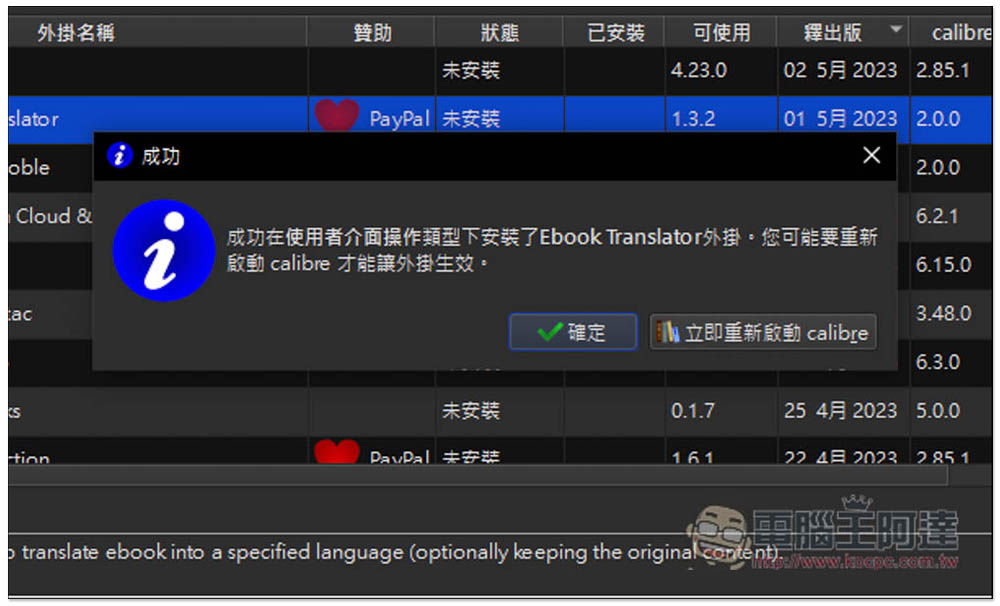
You will need to restart caliber:
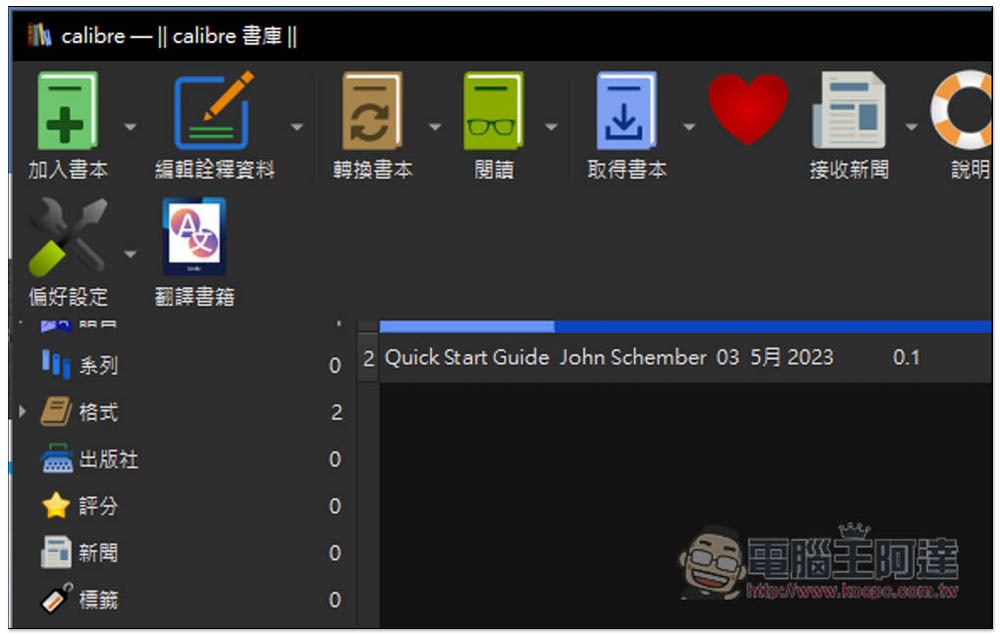
After the restart is complete, you will see the new “Translate Books” icon in the list above. At this time, please first click on the foreign e-book you want to translate, and then click on Translate Books:
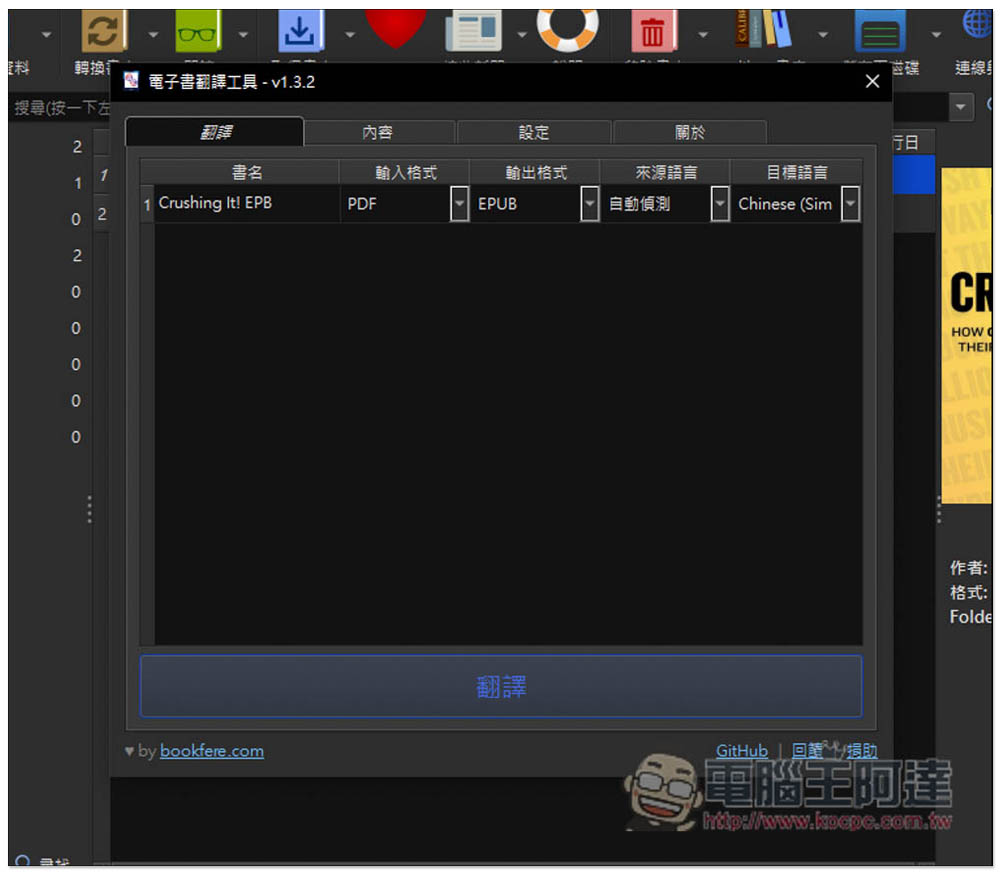
Then you will enter the translation tool interface and select the output format, source language (basically automatic detection is enough), and target language:
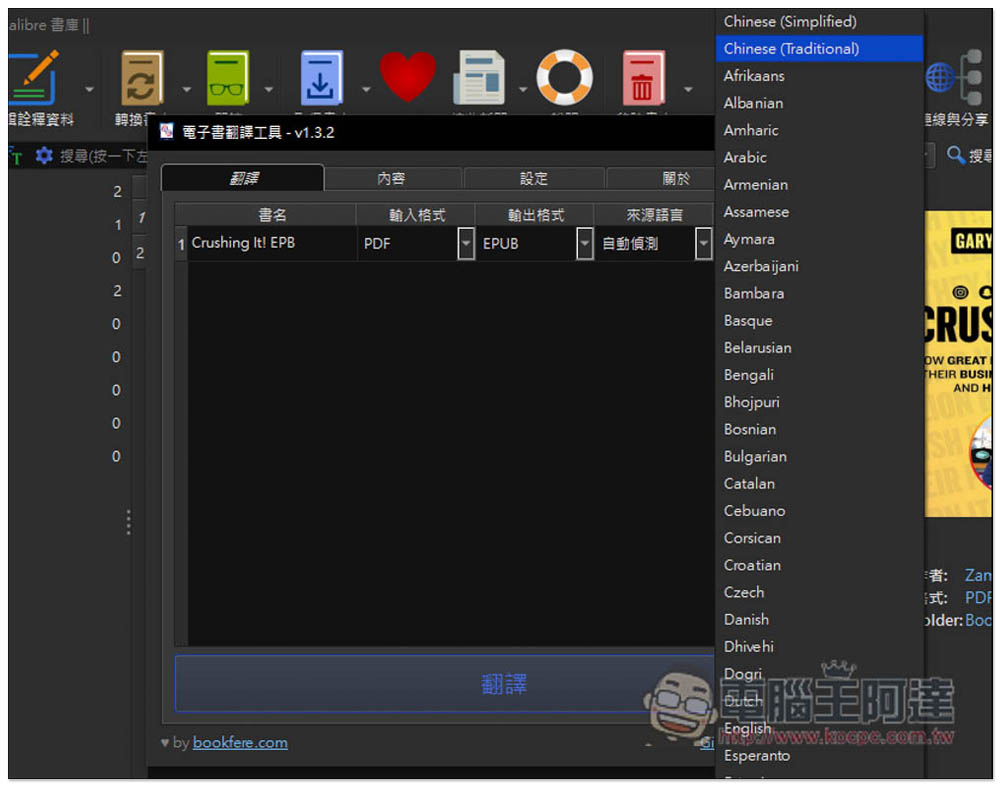
Remember to change the target language to Traditional Chinese. The default translation service is Google. If you want to use Google, just click Translate:
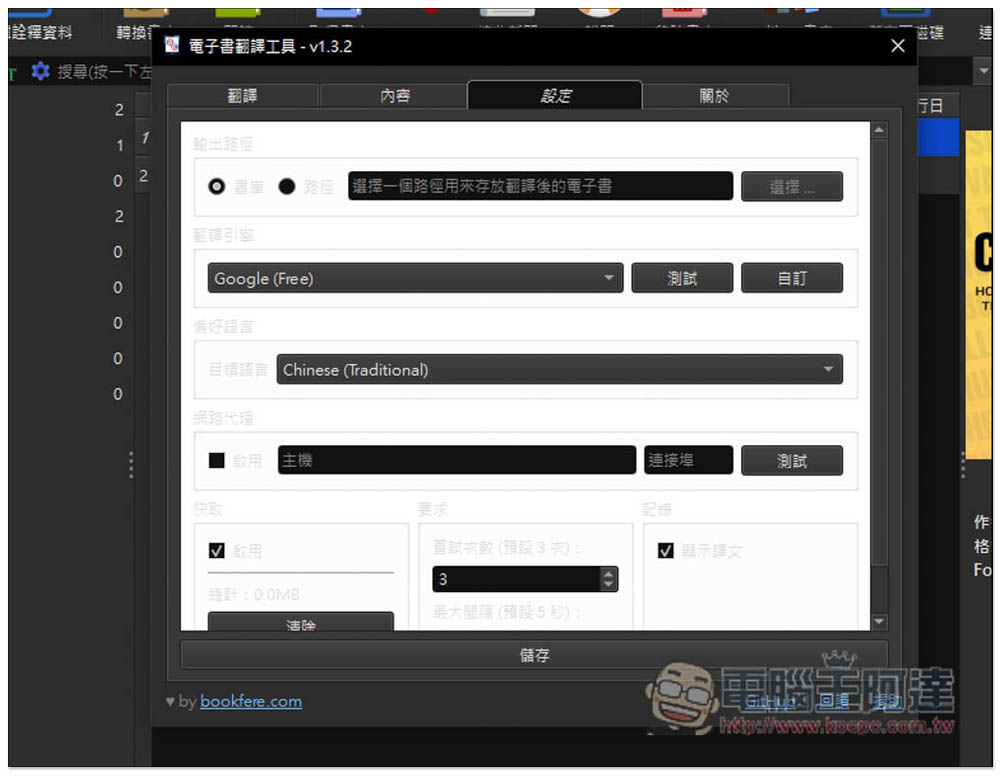
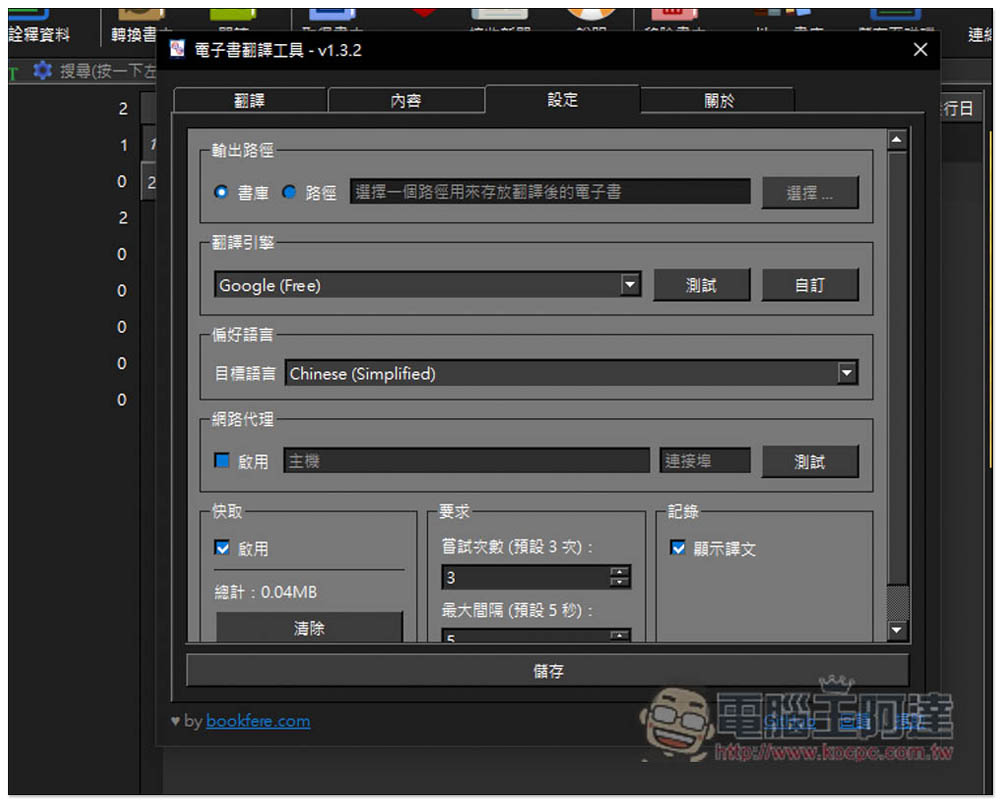
You can change the translation engine you want to use in the settings menu. The default interface color scheme is a bit strange and difficult to read. If this is the case for you, I will tell you how to modify it below:
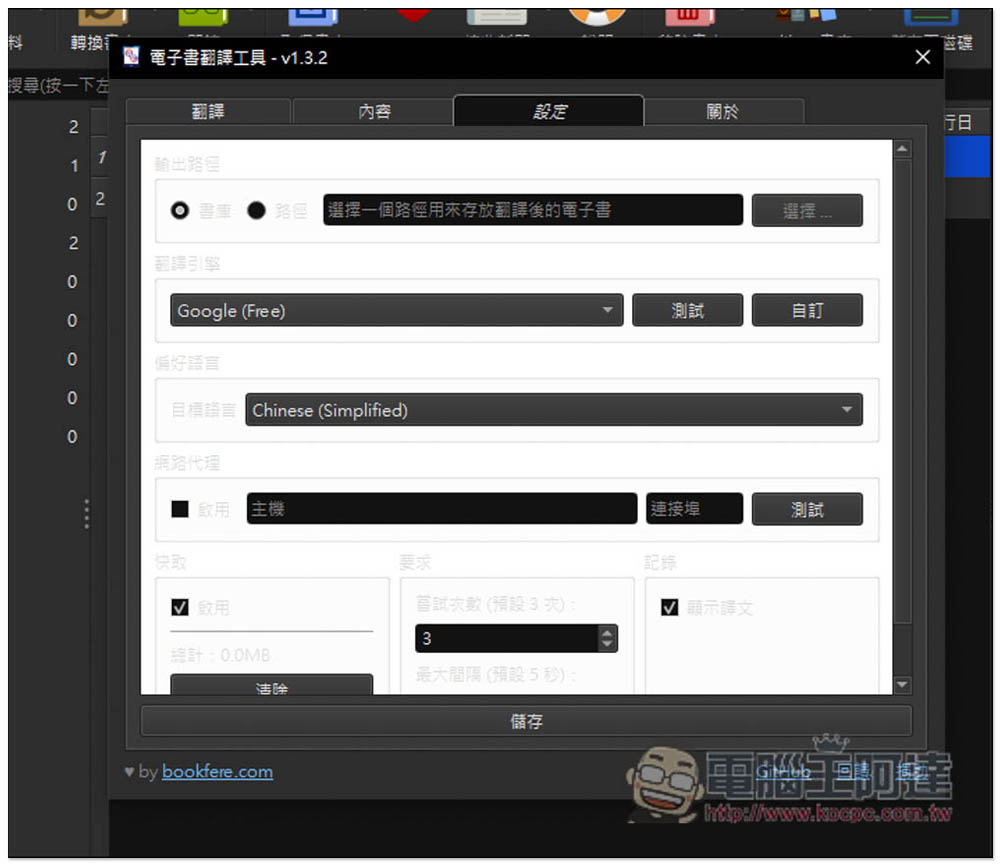
For the translation engine part, the free ones are Google and DeepL. Those with “Free” next to them mean that others need to enter the API, including ChatGPT:

Remember to change the target language to Traditional Chinese, and then click below to save. This way, when you want to translate e-books in the future, the default target language will be Traditional Chinese, and there is no need to adjust it manually:
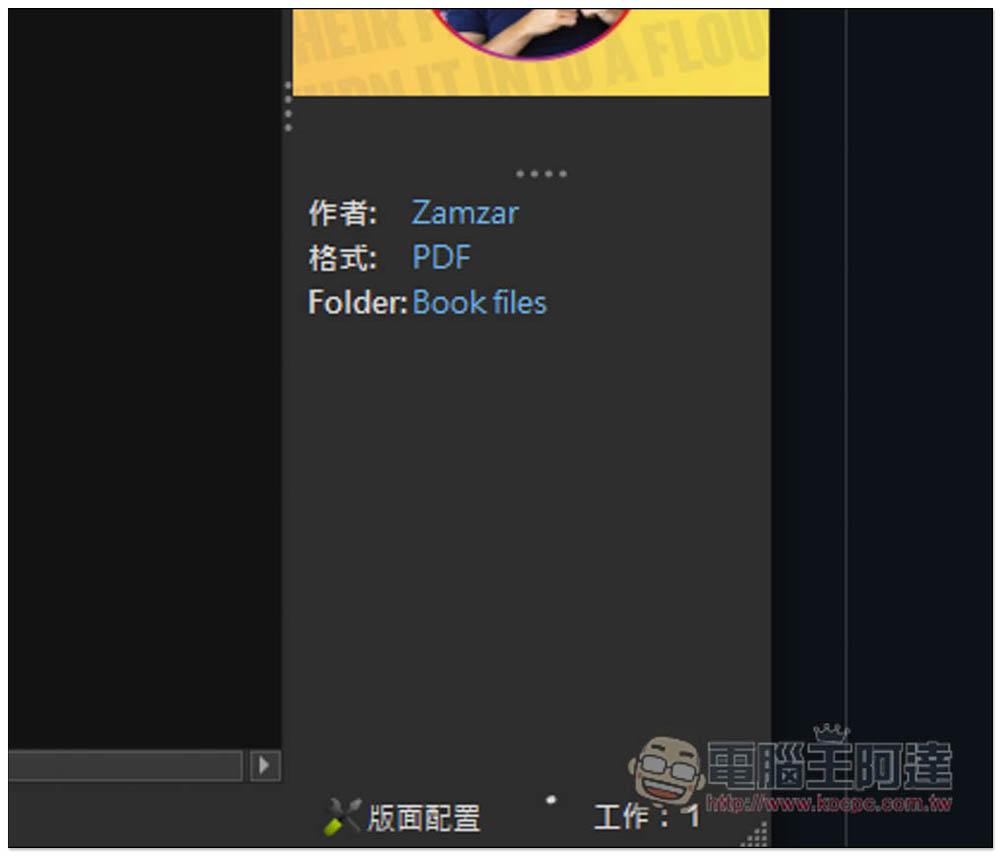
After clicking Translate, work tasks will appear in the lower right corner of the software interface:
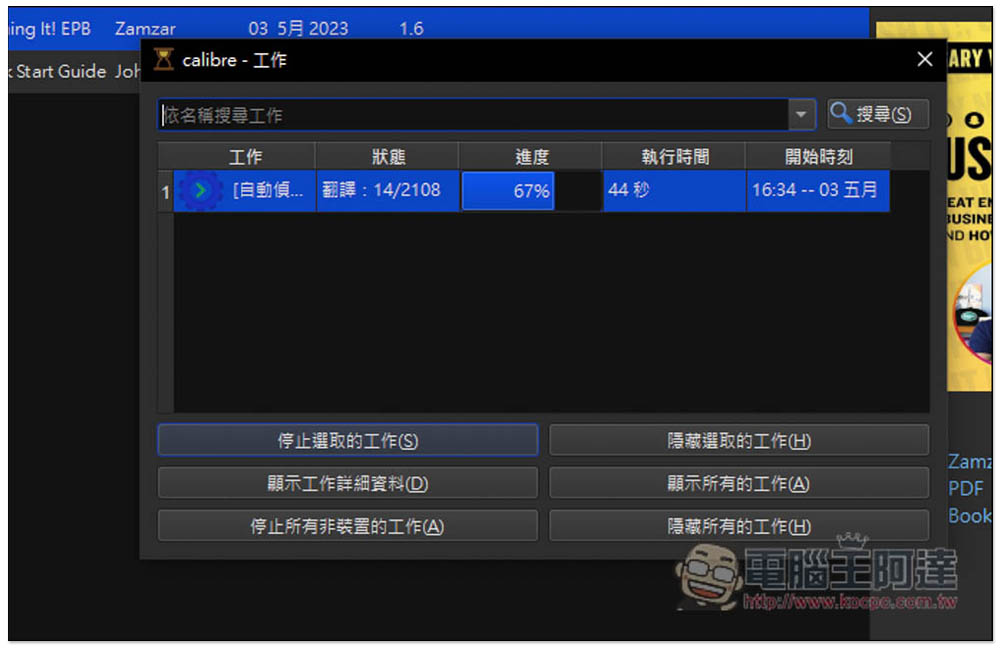
Click to view the current progress. I first used Google Translate. Compared with the “immersive translation“, “Ebook Translator” is obviously a lot slower. I completed this book in a few seconds in immersive translation, but Ebook Translator took dozens of minutes:
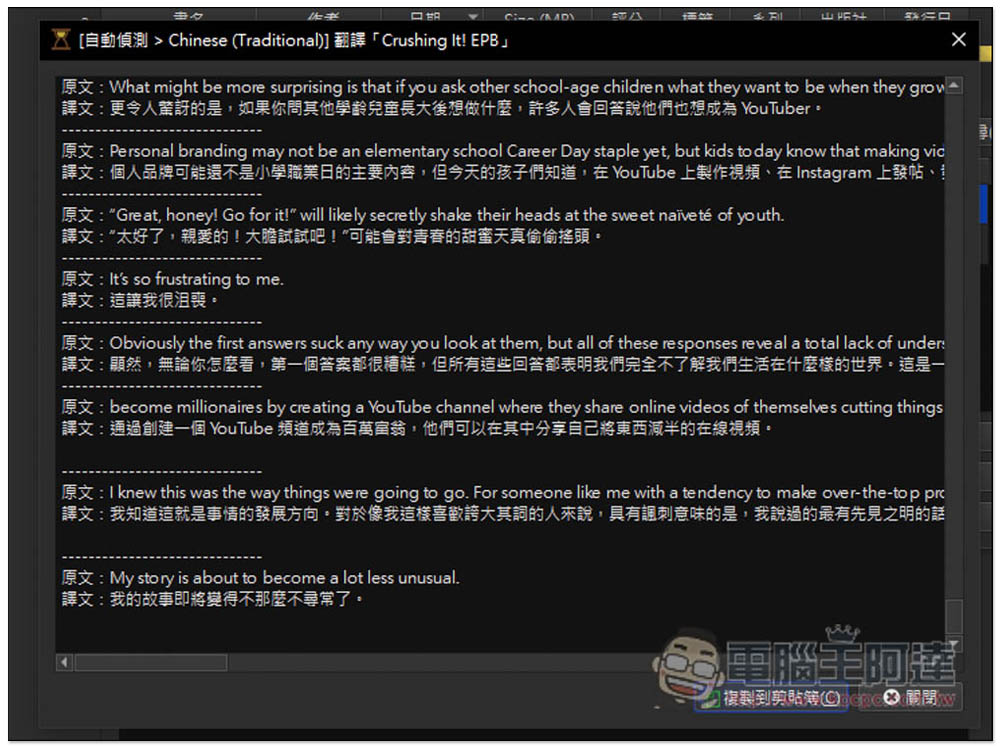
However, the advantage is that you can read while translating. Unfortunately, the line will not wrap automatically when touching the right side, and overall it is not easy to read. For those who can’t wait, you can click the “Copy to Clipboard” function at the bottom right, and then paste it in other tools for reading:
Next, I tested ChatGPT and it was successful. The translation speed was okay, but…:
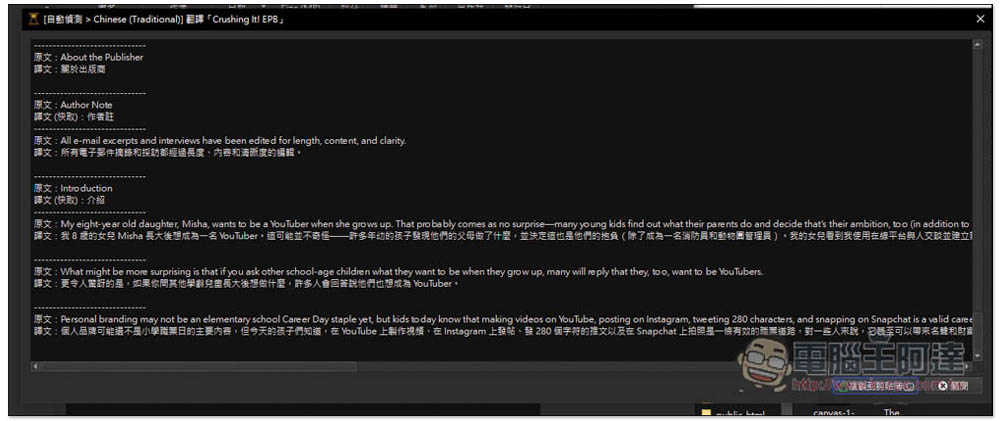
There will still be situations where there are too many requests and you keep trying again:
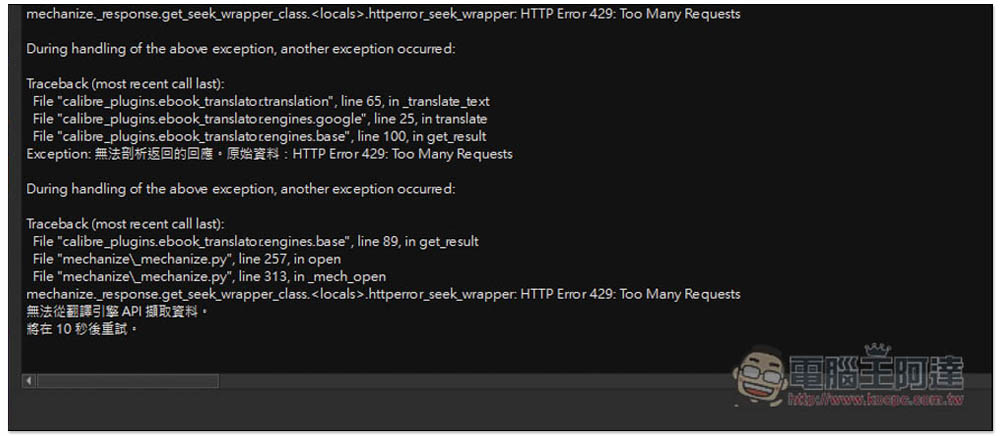
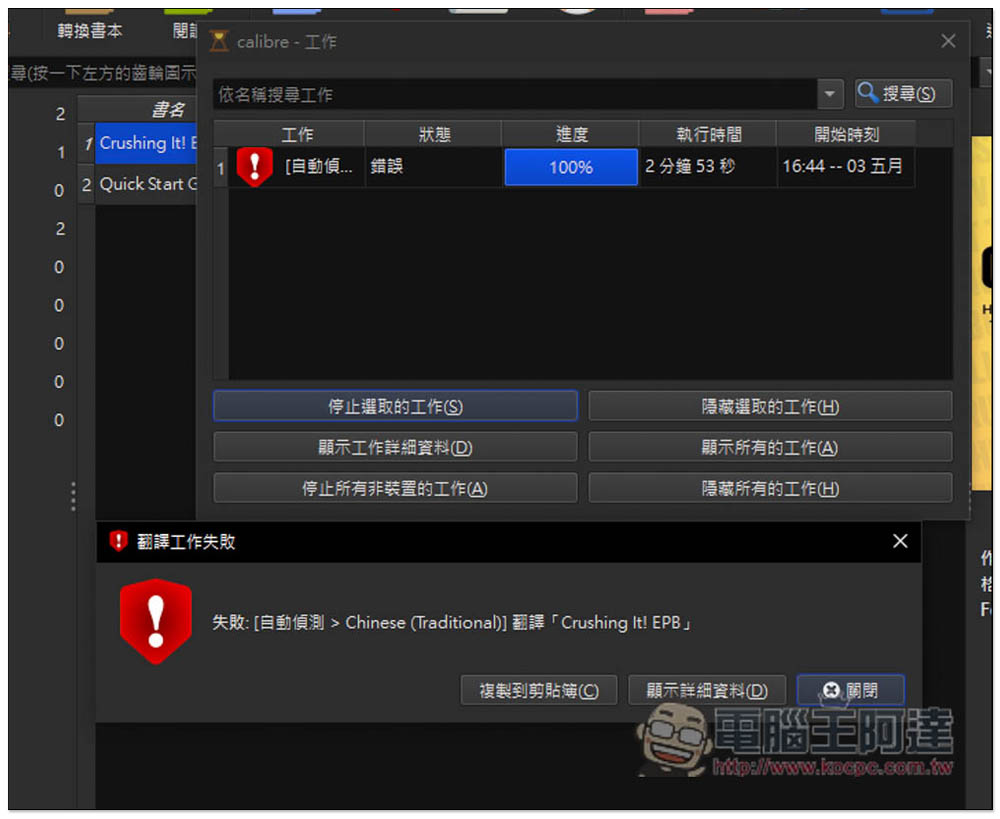
If you retry too many times, it will fail, and it seems that it cannot continue to work, and you must try it again:
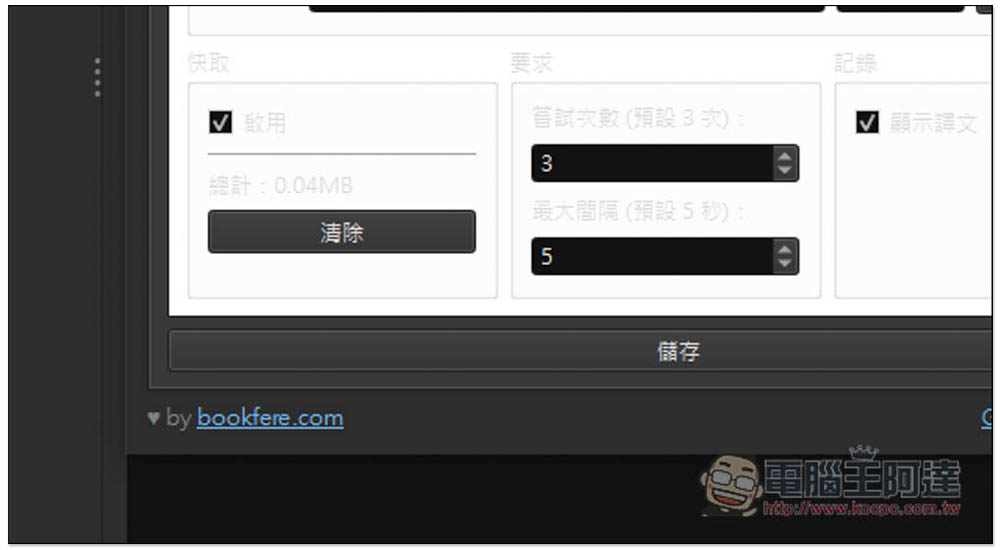
For those who want to use ChatGPT for translation, it is recommended to increase the number of requests, or else use Google or DeepL to translate:
The interface appearance color matching problem mentioned earlier can be adjusted in the preferences and the user interface mode is changed to the system default value:
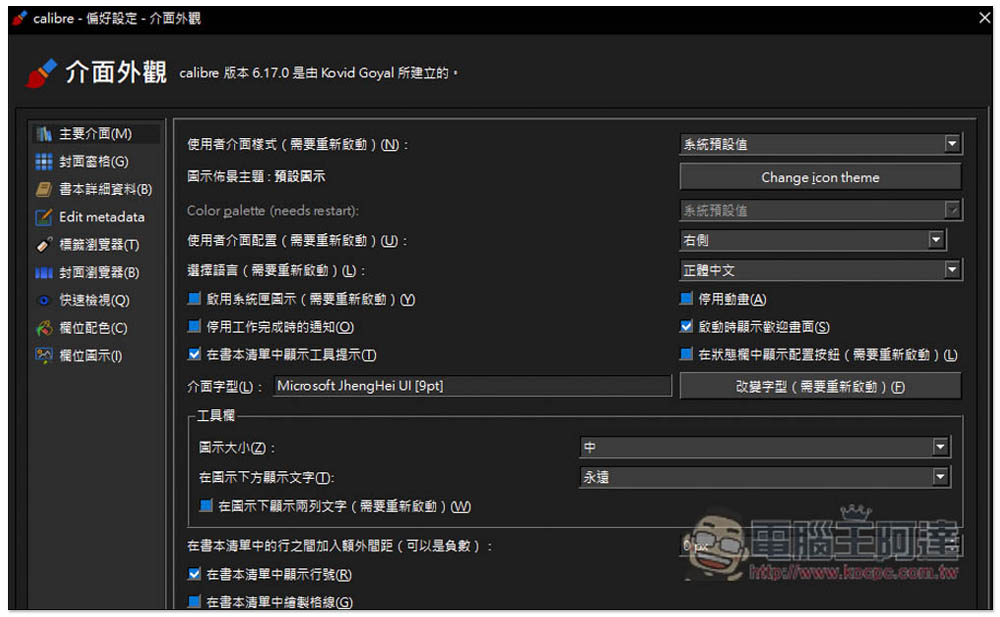
It will get better:
Source: KOCPC Chinese