


When you get a new Mac computer and start using it, macOS Ventura will operate according to the default settings, but sometimes these settings do not fully meet everyone’s actual needs, personal preferences, or expectations. For example, in order to ensure that everyone has the latest features and security fixes, Apple sets operating system updates and application updates to be automatic by default, but you may not want it to be so proactive, so you are in the right place! This tutorial will tell you how to turn off and enable macOS automatic update settings.
How to prevent and enable macOS from automatically installing apps and system updates?
The default automatic update of macOS is very convenient, but there are some situations where you don’t want it to do this. For example, the applications you must use will be affected by the update and will not work, or using the mobile network while going out will occupy the data (if you are not full), the mobile network is unstable, the laptop power is tight, and other reasons, you may want to turn off the automatic update function and wait until you get home or arrive at the office to update the operating system and applications when all conditions are relatively more stable.

Fortunately, although it’s on by default, you can easily turn it off and on again with a few steps.
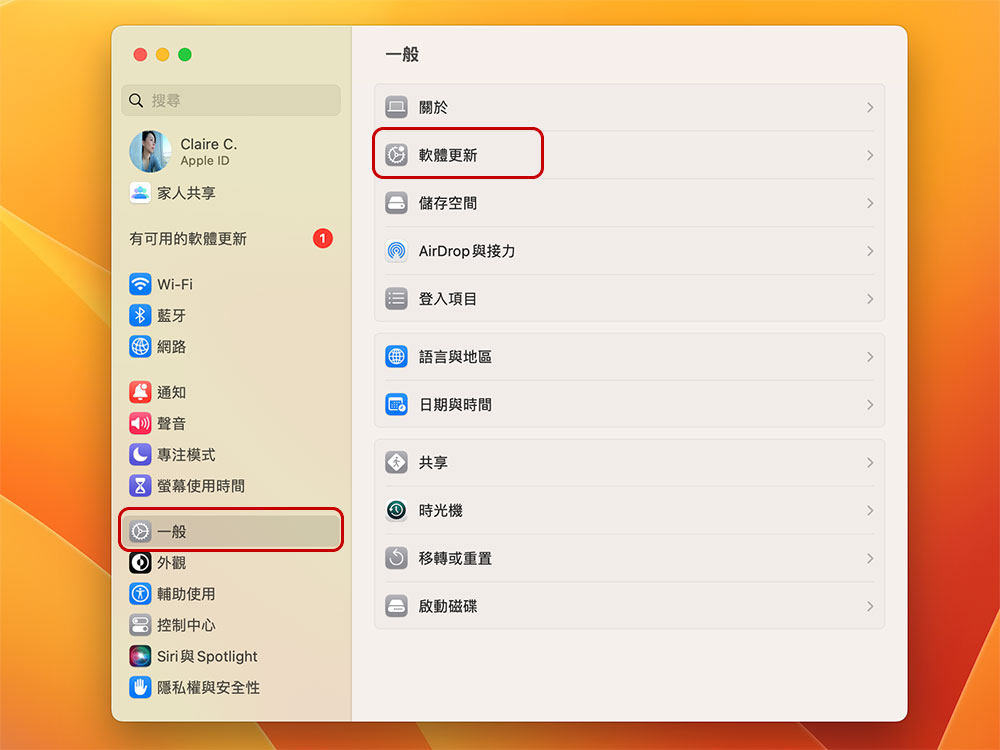
- Open the “Settings” application in your Mac, select “General” in the sidebar, and click “Software Update” in the project page.
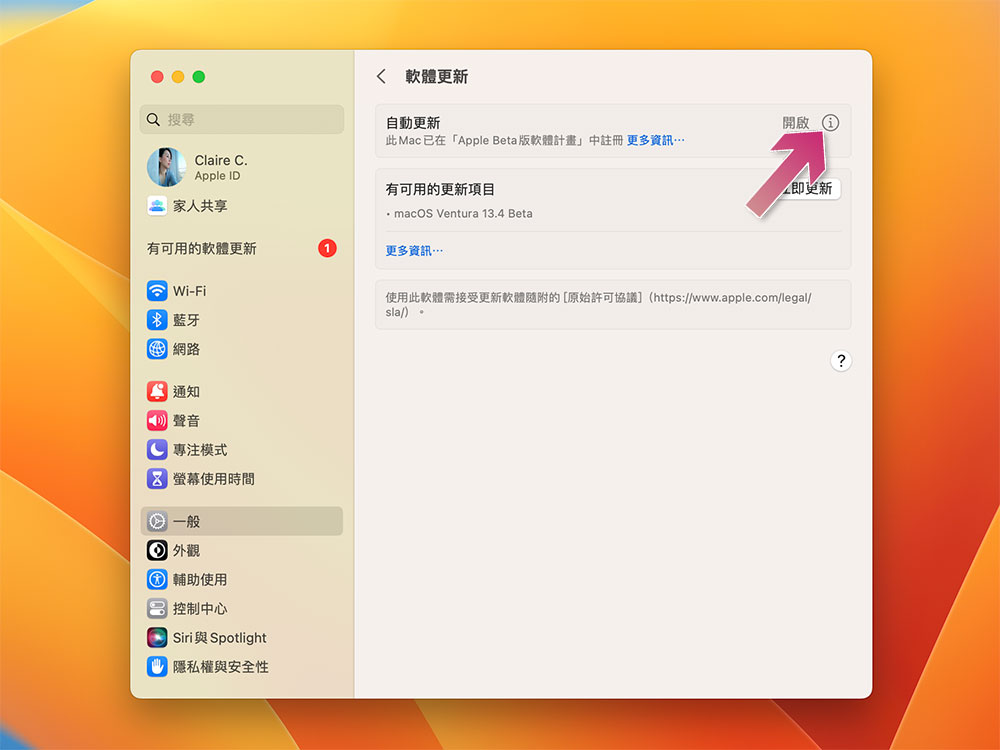
- Click the light gray “i” behind “Automatic Updates”.
- Turn off the switches behind “Install macOS updates” and “Install application updates from the App Store”. You will be asked to verify Touch ID. After closing, you will have to manually check whether there are system updates in the software update from time to time, and check whether the application needs to be updated in the App Store.
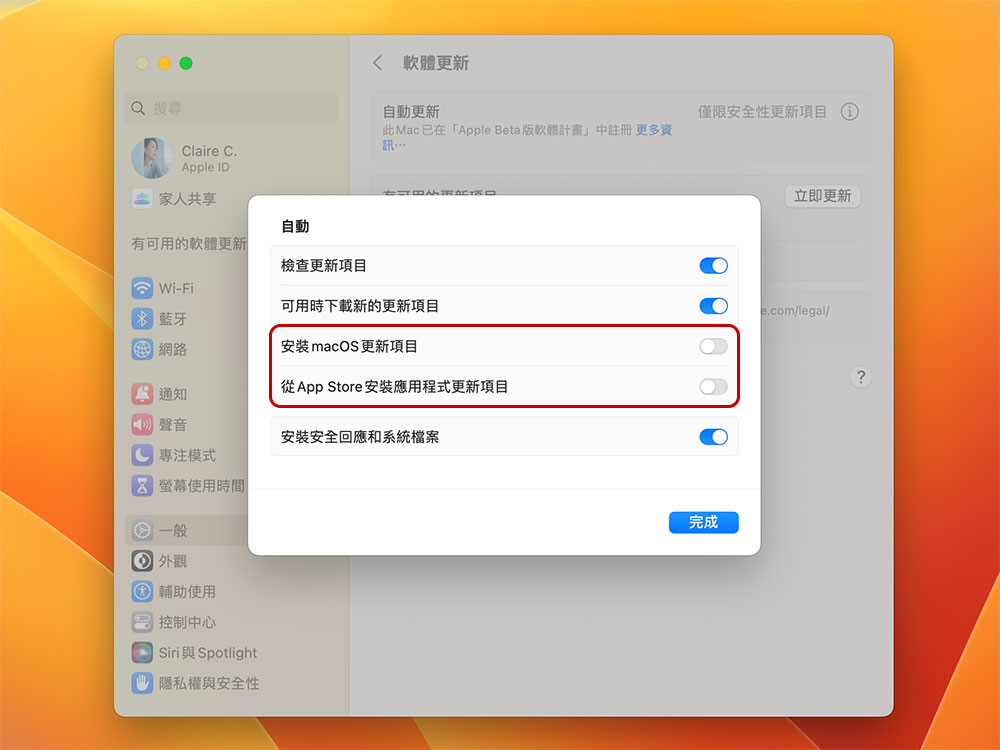
As you can see, the process of preventing macOS from automatically installing updates is very simple. If you change your mind, you can turn automatic updates back on at any time by following the same steps listed above. However, the author recommends that you do not turn off the “Install security responses and system files” option. This is because Apple can provide critical security fixes through this mechanism. It is recommended that all users install them as soon as possible on the first day after receiving them.
Source: KOCPC Chinese