


When chatting with ChatGPT, you will more or less need to copy the reply content of ChatGPT. Normally, you should manually highlight and then copy it when using it in other places. In the long run, it is actually quite tedious. This article will recommend a button “Copy for Chat GPT extended function” that can give ChatGPT one-click copy of the reply content. It also supports shortcut keys, which means that if you remember, you can quickly copy the reply by pressing the shortcut key after answering. It is very convenient and can be installed on Google Chrome and Microsoft Edge.
Copy for Chat GPT extension function, adds a one-click copy answer content button to ChatGPT, and also supports shortcut keys
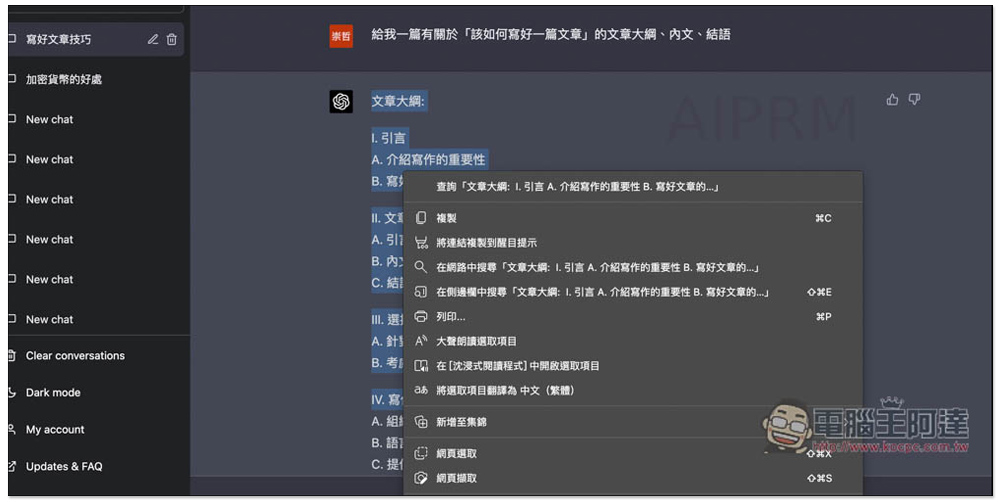
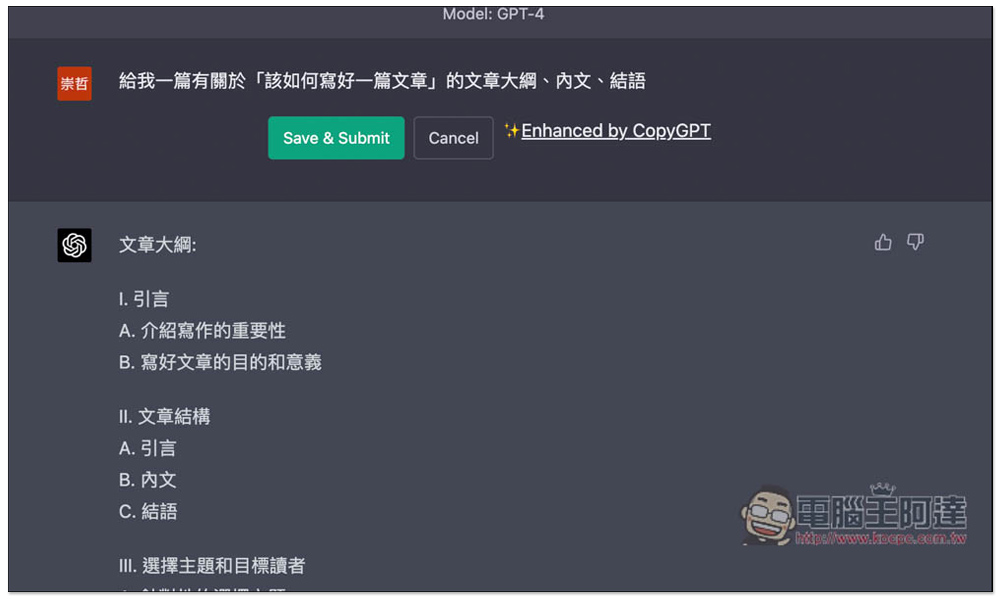
The picture below is a normal ChatGPT screen. There is no button to copy the answer with one click. If you want to copy the answer content and use it elsewhere, you can only manually highlight it, and then press the copy shortcut key or click Copy in the right-click menu:
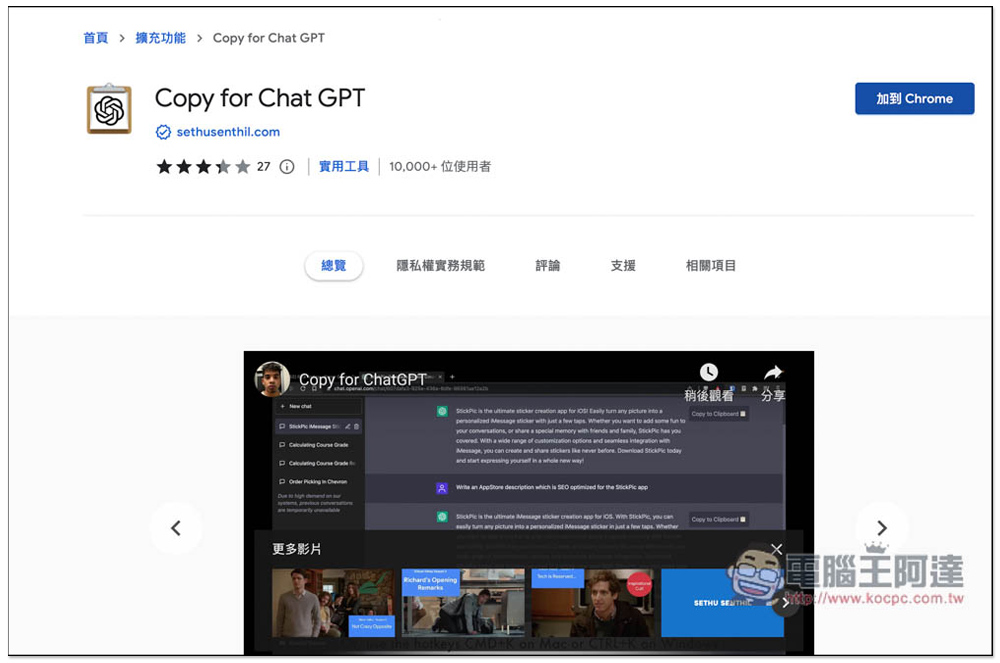
Copy for Chat GPT is an extension of Chorme and can also be installed on Microsoft Edge. Edge will be used as an example below.
After entering the extension store page, click the “Add to Chrome” button on the right:
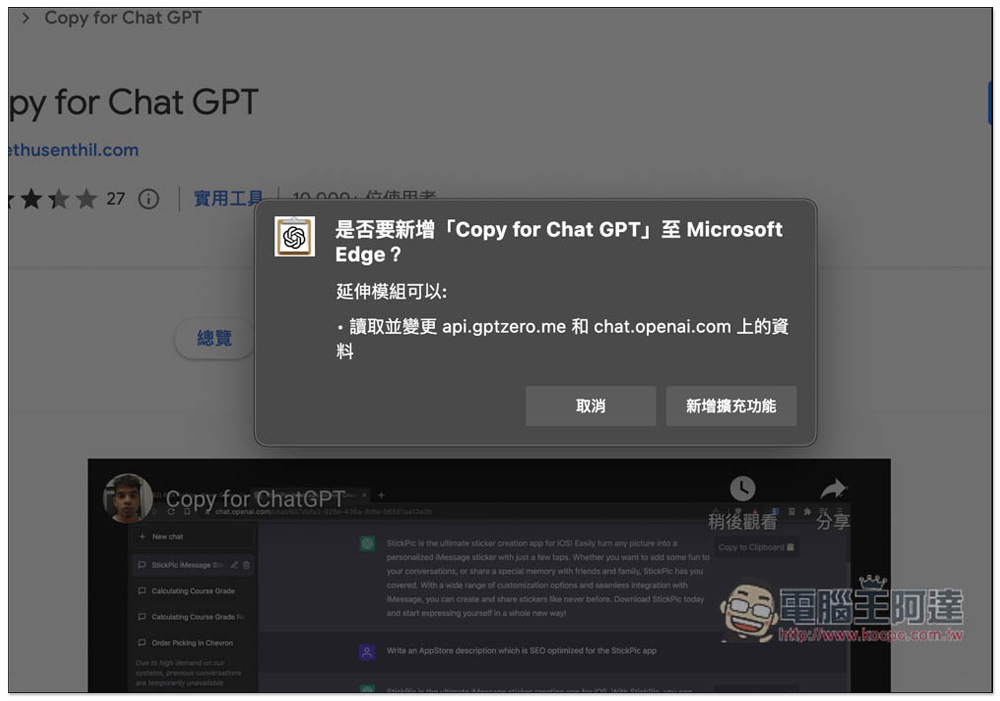
This message will pop up, click “Add extension”:
Displaying this message means that the installation is complete. The extension will be hidden and can be used directly without opening it:
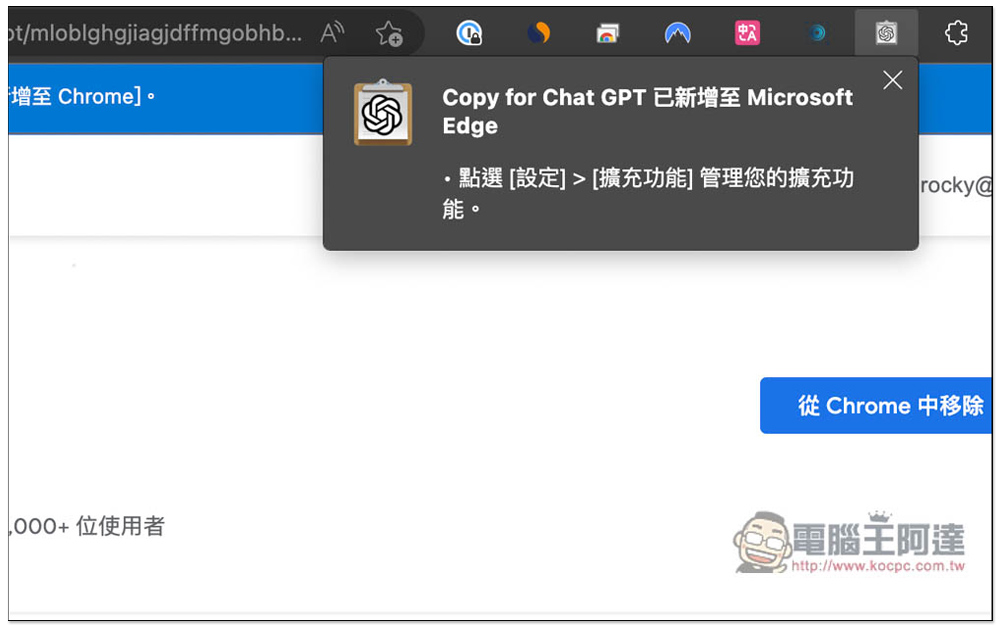
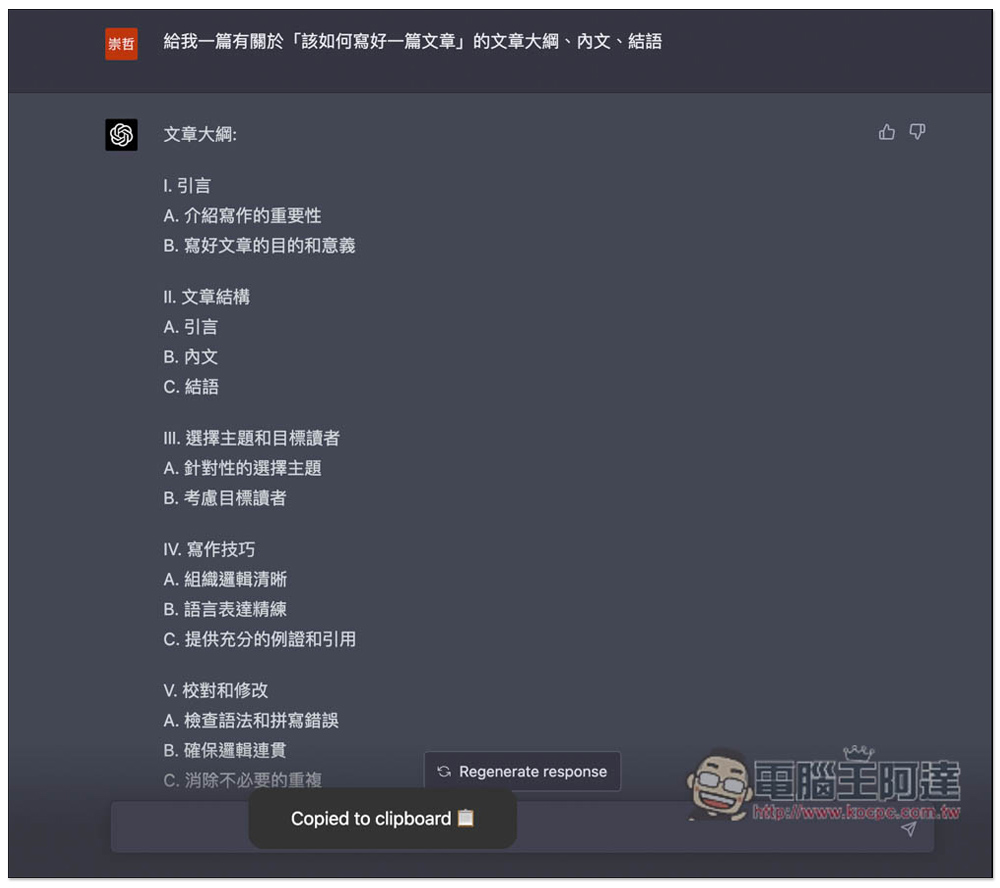
The copy shortcut key for Copy for Chat GPT is CMD+K. I recommend using the shortcut key directly, it is very convenient. After ChatGPT has finished replying, if you want to copy the answer, click the shortcut key and the content of the “last answer” will be automatically copied to the clipboard, and a “Copied to clipoard” message will pop up at the bottom:
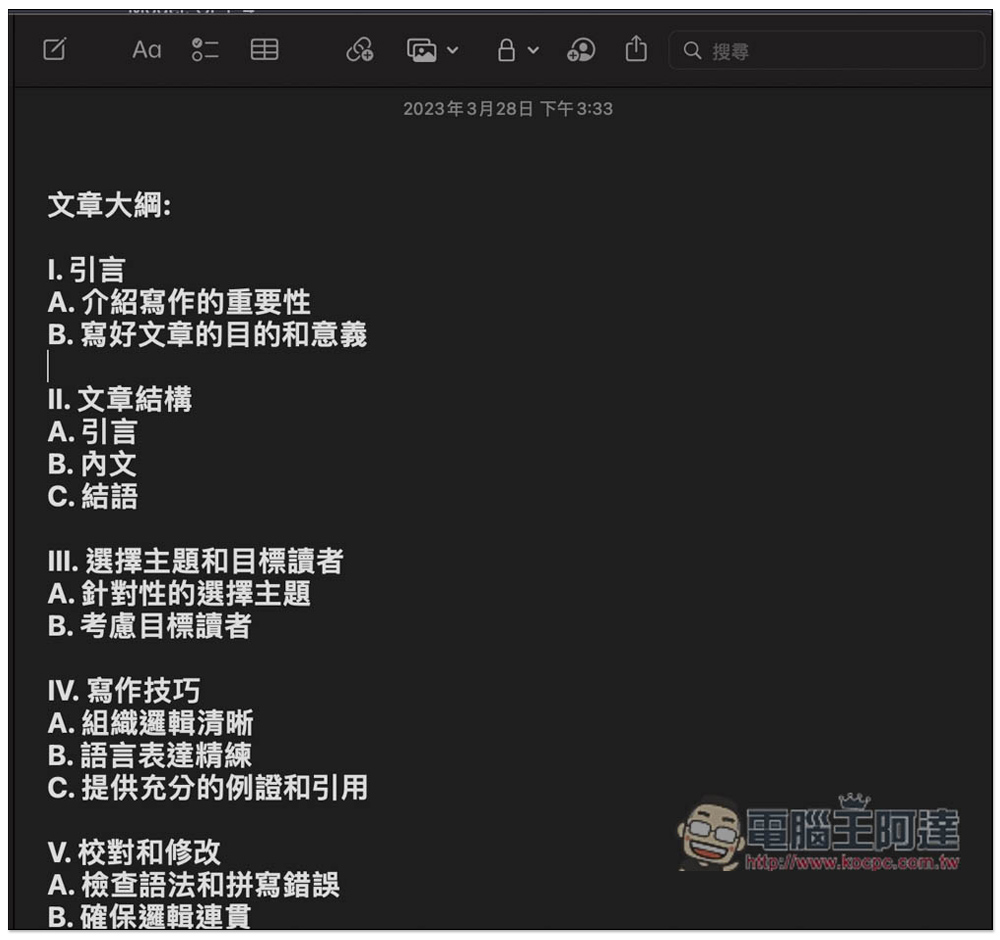
At this time, I posted it elsewhere and copied it completely:
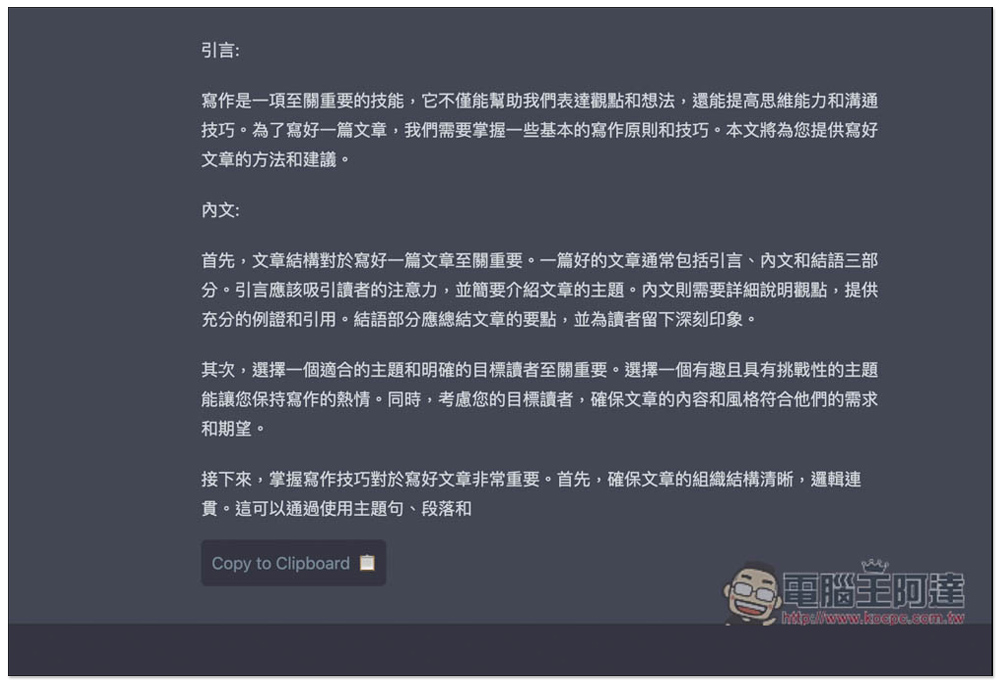
Also, I’m not sure if it’s a problem with the current version. I looked at the screenshots of the extended function introduction. Logically speaking, a one-click copy button should appear on the right side of each answer. However, this was not the case in my test, and it required one more step. First click on the icon to the right of the question you asked at the beginning:
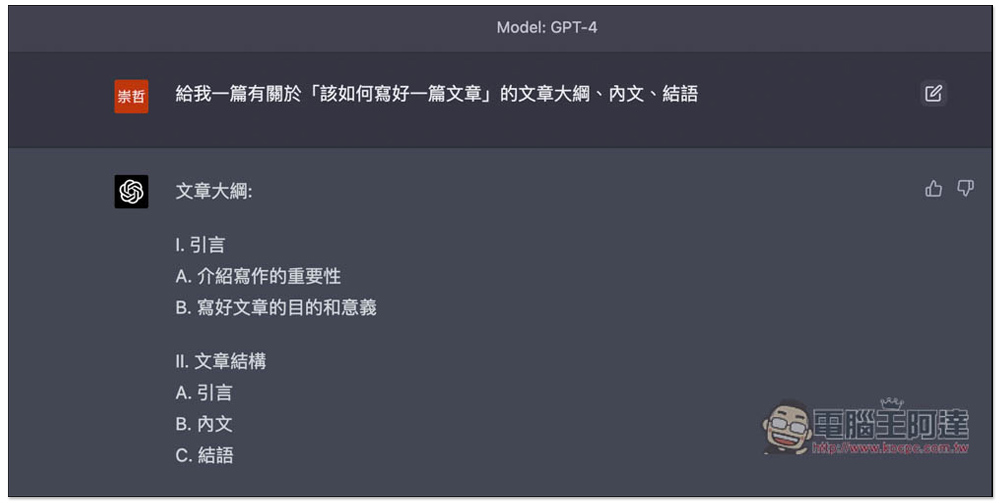
This screen will then be displayed, no need to press any functions:
Scroll down and you will see a one-click copy button (Copy to Clipboard) appearing for each answer, so if you want to copy the content of the previous answer, you can do it through this method (the shortcut key can only copy the content of the last answer):
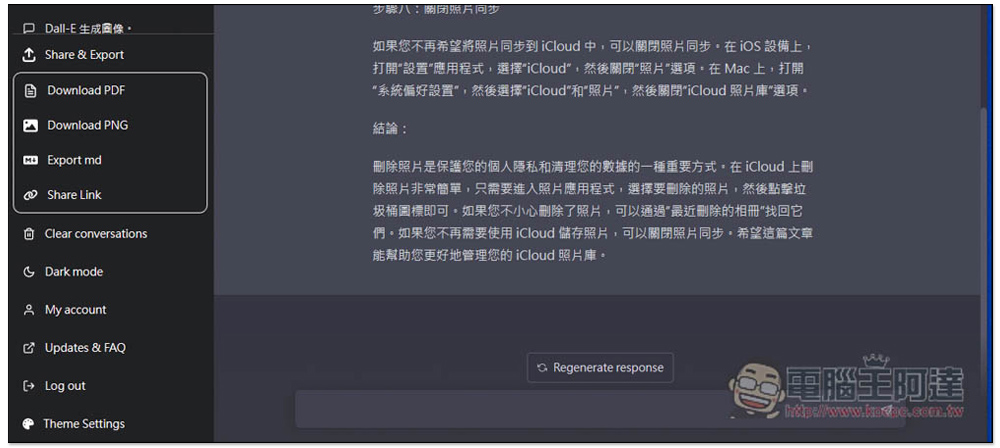
If you want to save the chat history for collection, you don’t have to worry about it. You can use the method we introduced before. ChatGPT Prompt Genius Expanded functions, this can export chat records into PDF, PNG images, or create sharing links:
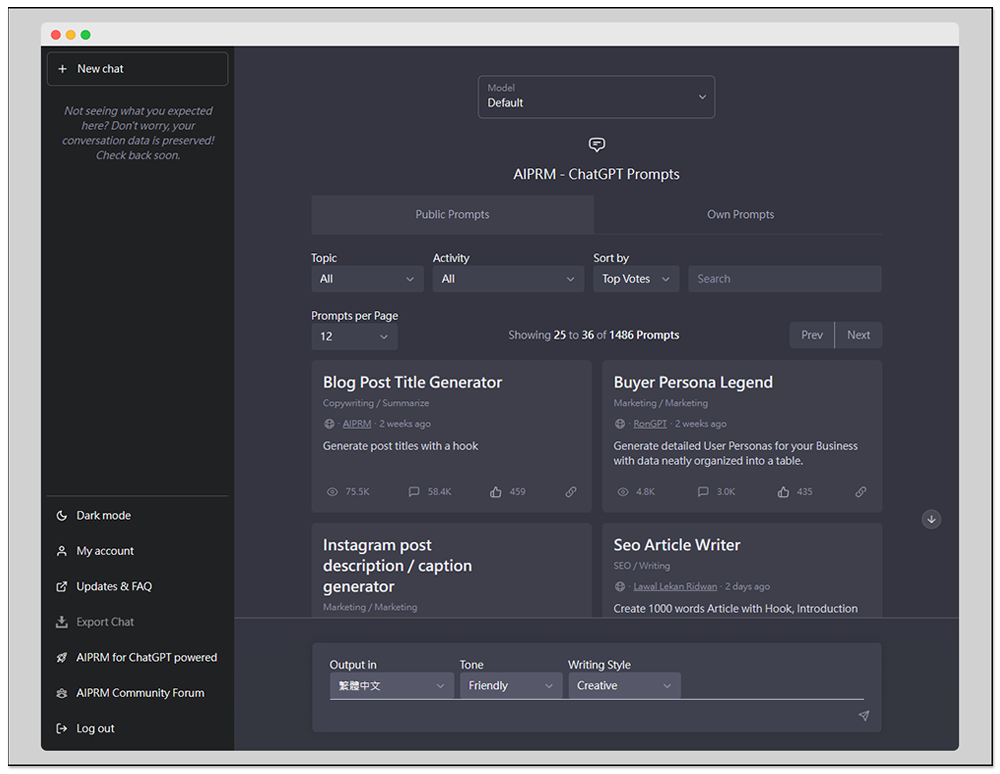
There is also another AIPRM for ChatGPT It also has this function, but this one also provides more than 1,000 prompt templates, which is very rich in functions. People who want to make more use of ChatGPT are highly recommended to try:
Video introduction:
Source: KOCPC Chinese