


When surfing the Internet, sometimes you may want to browse 2 web pages at the same time. Most people should open 2 Microsoft Edge windows side by side. The good news is, now there’s an easier way! Microsoft Edge has quietly added the “Split Screen” function. Once enabled, you can put the web pages you want to browse at the same time in the same window with one click. It is much easier than manually arranging two windows side by side. Edge users must learn to learn it, which can greatly improve the efficiency of browsing online data.

Teach you to enable Microsoft Edge to hide the Split Screen feature and view two web pages in the same window
Microsoft Edge’s “Split Screen” feature has not yet been officially launched, but it is hidden in the stable version, which means you can manually turn it on in the experimental options. After opening the Edge browser, enter “edge://flags” in the address bar:

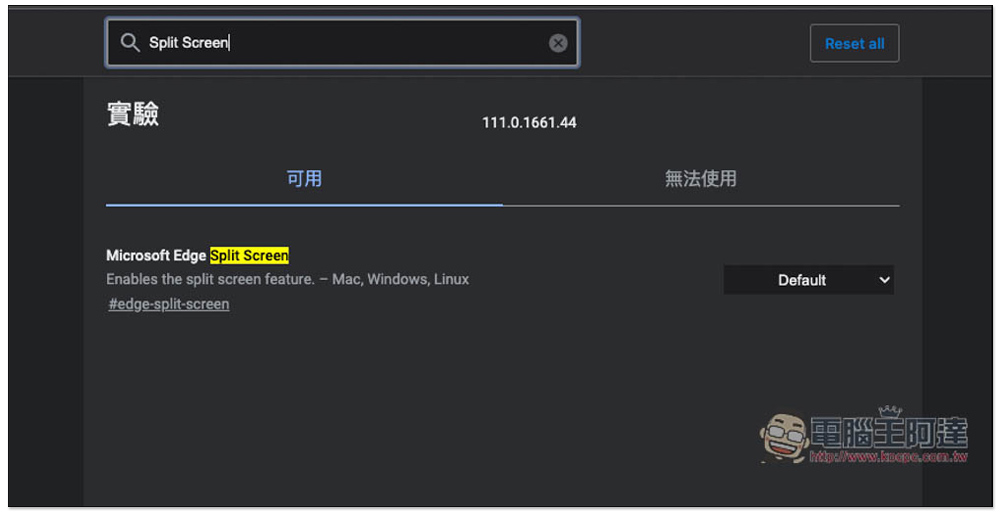
You will enter the experimental function page. Enter the keyword “Split Screen” in the search bar above to find the “Microsoft Edge Split Screen” function. The default on the right is Default, which is not turned on:
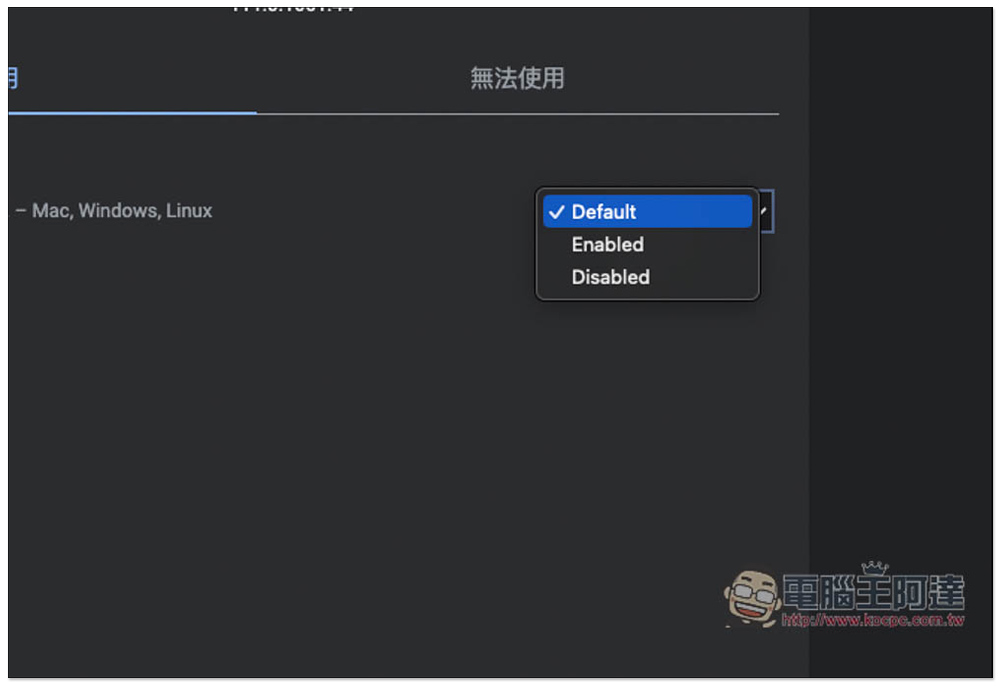
Open the menu and change it to Enabled:
You will be asked to restart the Microsoft Edge browser. If you are dealing with important things, remember to save them first. If there is no problem, click “Restart” in the lower right corner:

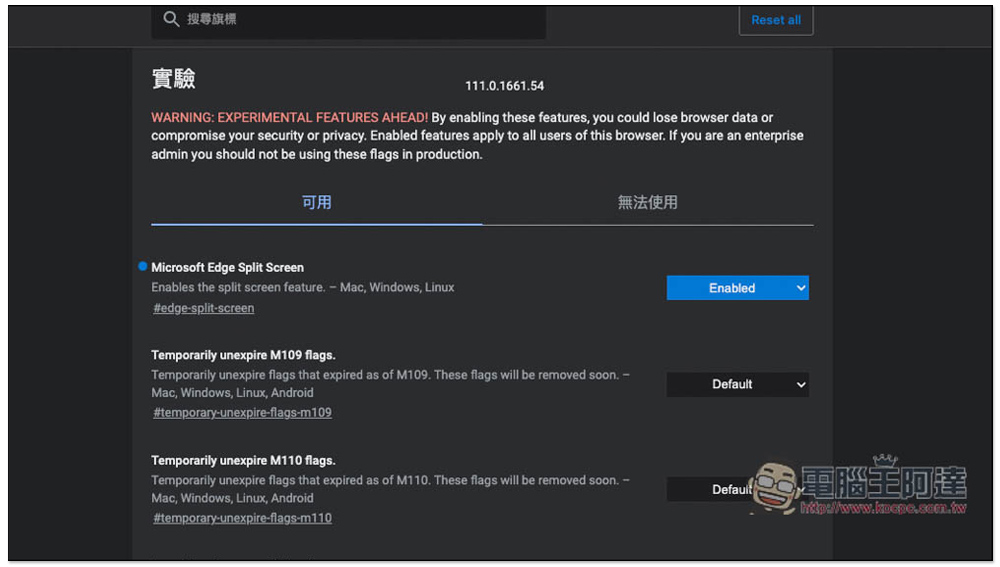
After the restart is complete, you will see that the Microsoft Edge Split Screen function becomes Enabled:
At this time, an icon with a line in the middle of the frame will appear in the upper right corner. This is the split window function. Click it:

You will see that the original screen changes into two small windows. The left side will retain the web page you are currently open, and the right side will allow you to select from the currently open tabs, or enter the URL yourself:
Like this, you can browse two web pages in the same window! The middle bar can also be moved left and right to zoom in and out of web pages, depending on your needs:

Please also pay attention when using it. When you close the tab that enables split screen, both web pages will be closed. If you want to turn off the split screen function, just click the function icon again, so that the two web pages will become independent tabs and will not be closed.
If you don’t see the Microsoft Edge Split Screen experimental feature, make sure your Microsoft Edge version is the latest 111.0.1661.54. Go to Settings -> About Microsoft Edge in the right menu to check. I have to say that the Edge browser is getting better and better. Not only is the system performance usage much lower than Chrome, but it also has many practical new features. If you are still considering whether to jump the nest, I highly recommend giving it a try.
Source: KOCPC Chinese