


The desktop versions of Chrome, Edge, Firefox and other browsers have many useful extensions. I believe some people will also want to use them on their mobile phones. However, the mobile apps of these browsers do not support them. This article will recommend a Lemur Browser – extensions browser app that can install extensions. It not only supports the extensions of Chrome and Edge, but also Tampermonkey. It is completely free.

Lemur Browser – extensions A free browser app for Android that can also install extensions
Lemur Browser – extensions are currently only available for Android, not iOS yet.
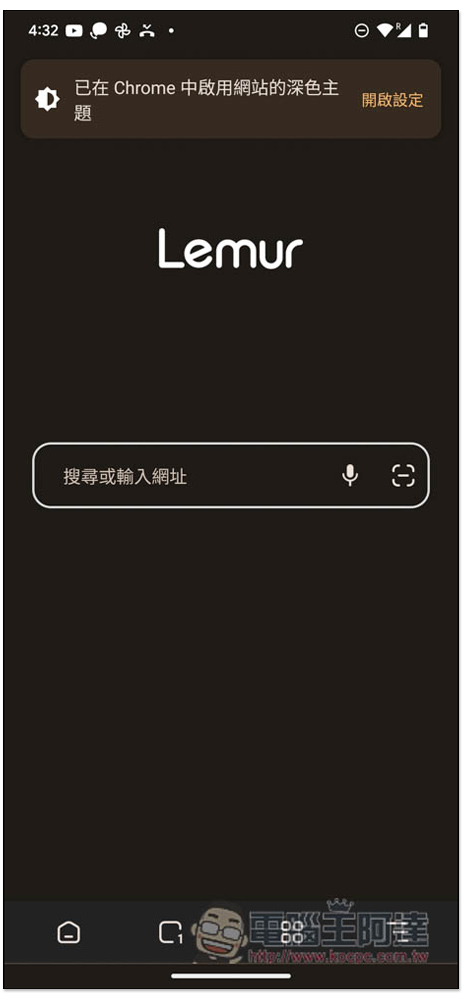
The interface design is very simple. When you open it, you will see the search bar function. However, before starting to use it, it is recommended to adjust some settings in the settings:
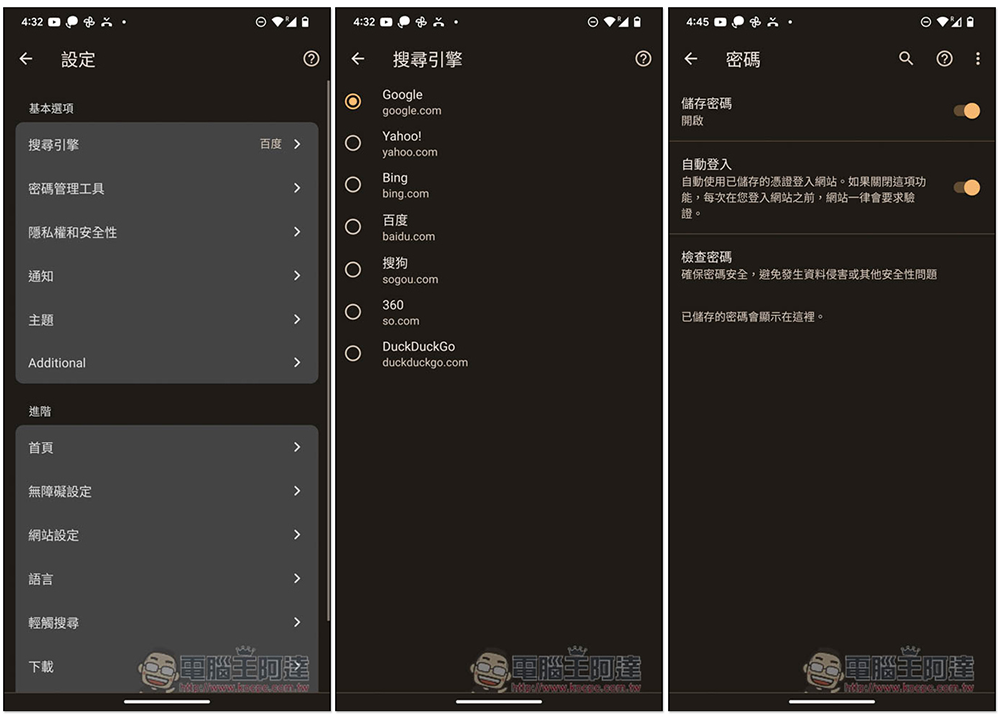
The default search engine is Baidu, but it can be changed to other search engines, such as Google, Yahoo!, and Bing. Password defaults will also be stored. Those who mind are advised to turn them off (in the password management tool). You can also consider turning off automatic login:
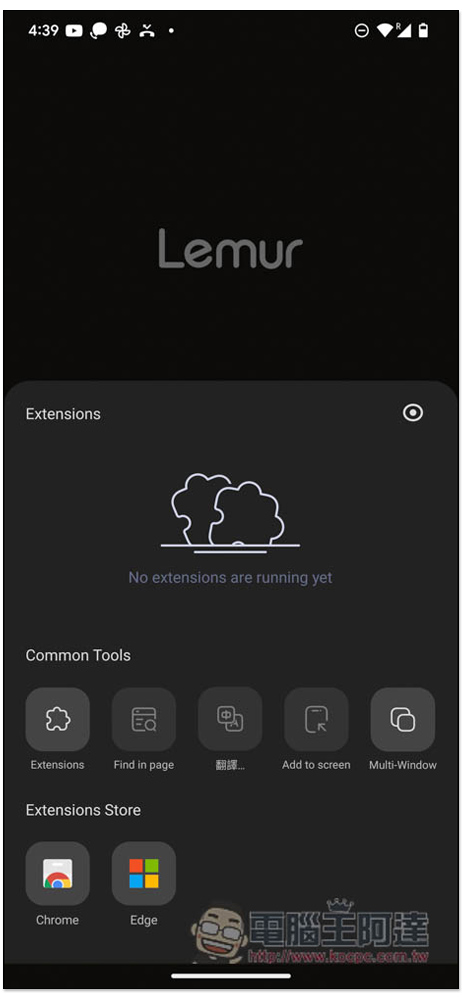
I won’t introduce the usage part here. It’s similar to most browser apps. In the extension part, click the bookmark icon on the bottom toolbar to find shortcuts to the Chrome and Microsoft Edge extension stores. Remember to enter from here. Entering the store through search will require you to use a desktop browser:
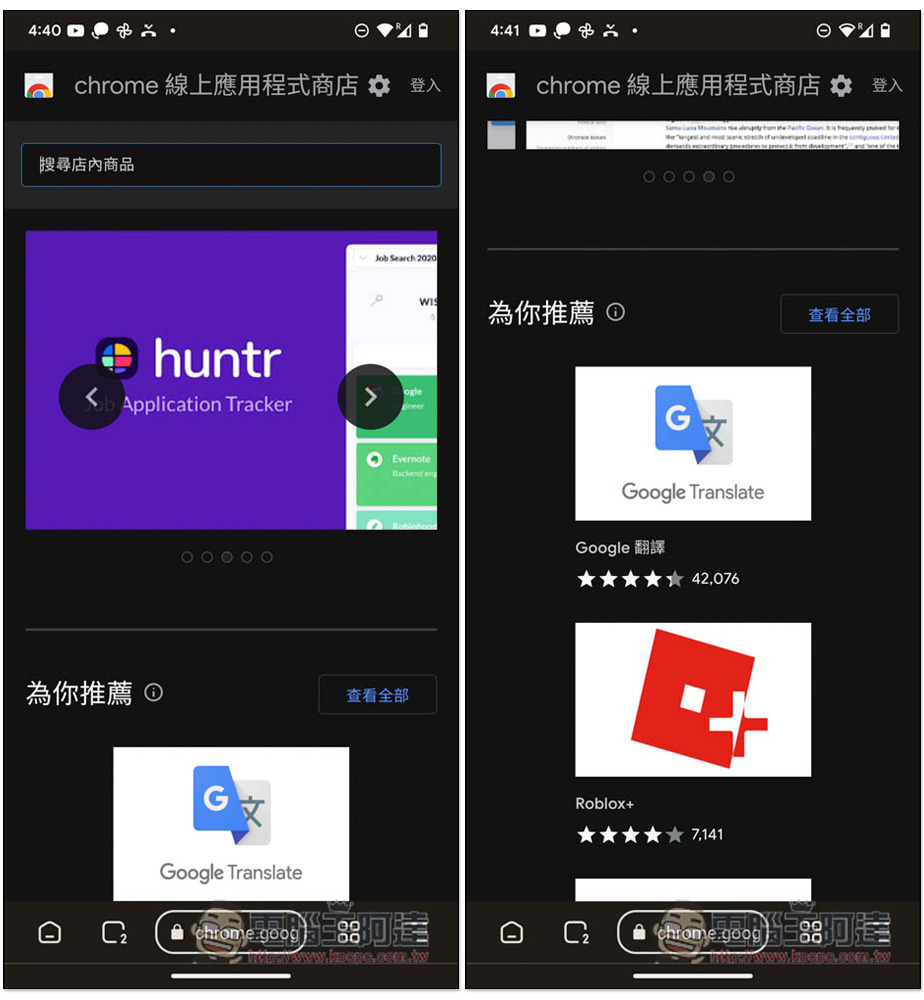
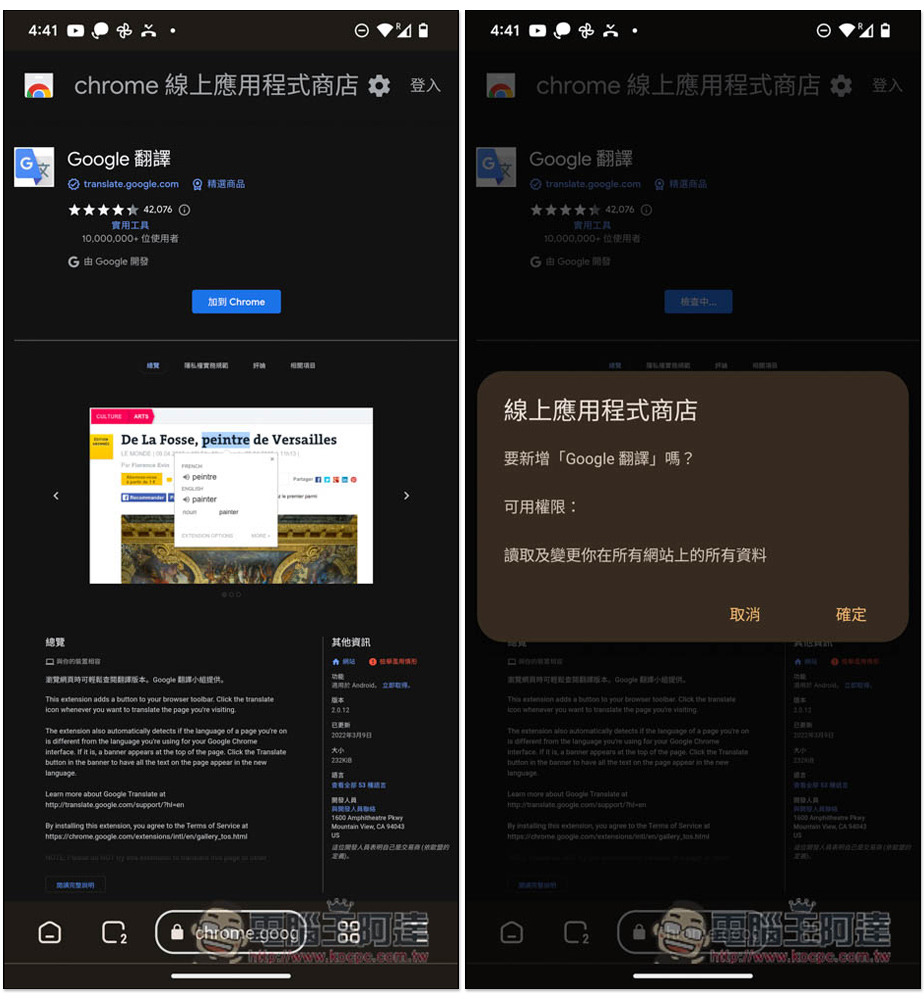
The picture below is the Chrome Online App Store page. Find the extension you want to install. I use Google Translate as an example:
When you enter the extension page, you will see the “Add to Chrome” function. Just like the desktop version of the browser, click OK and it will be added:
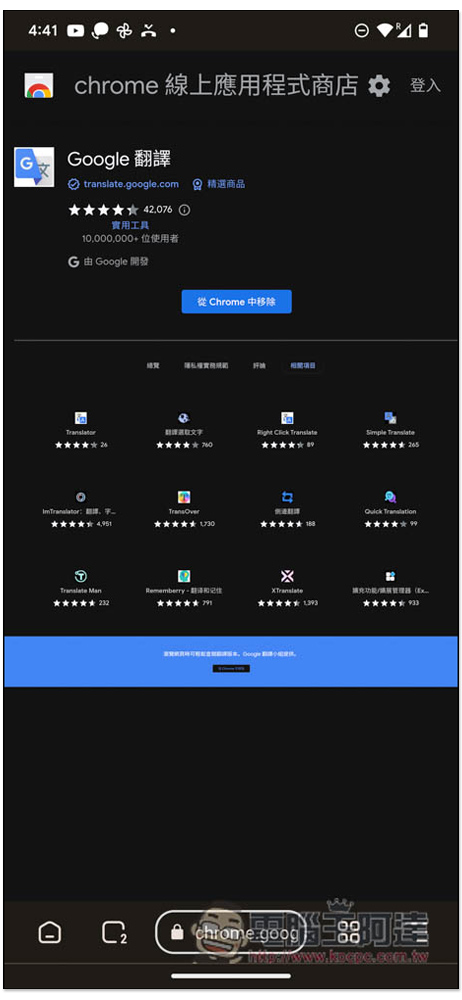
This completes the addition:
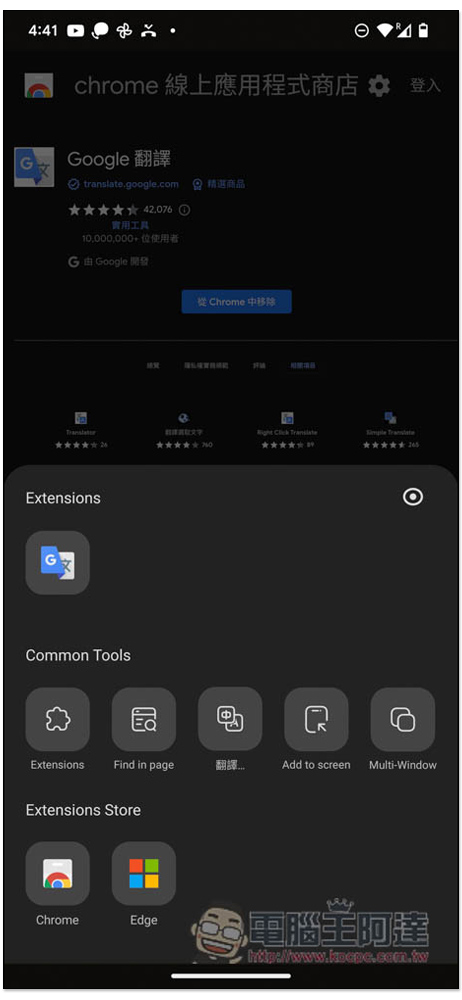
The installed extensions are also stored in bookmarks, with Extensions at the top. And if you want to manage installed extensions, click Extensions in the middle Common Tools, where you can remove or disable specified extensions:
Extensions can be enabled on any web page, but the interface may not be optimized for the mobile version, so some displays are strange, such as Google Translate, where the input box is super small:
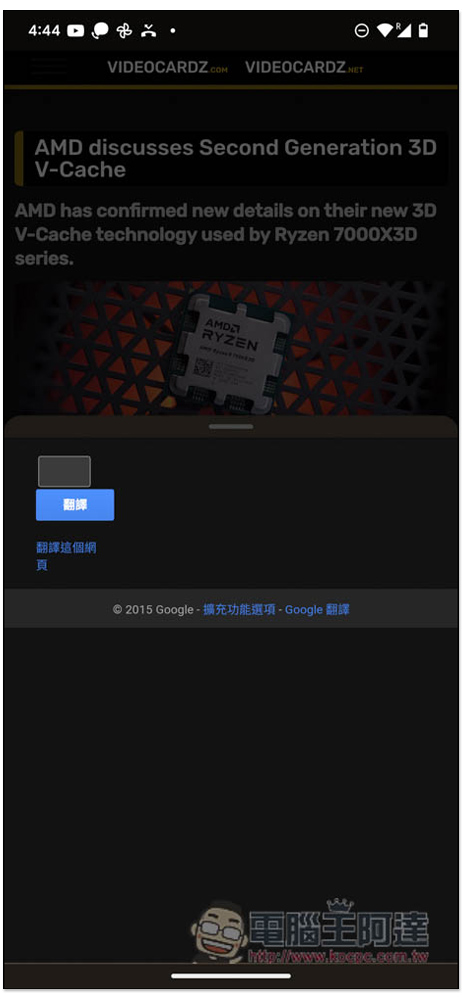
The translated text is not neatly typed, and the user experience may not be that good:
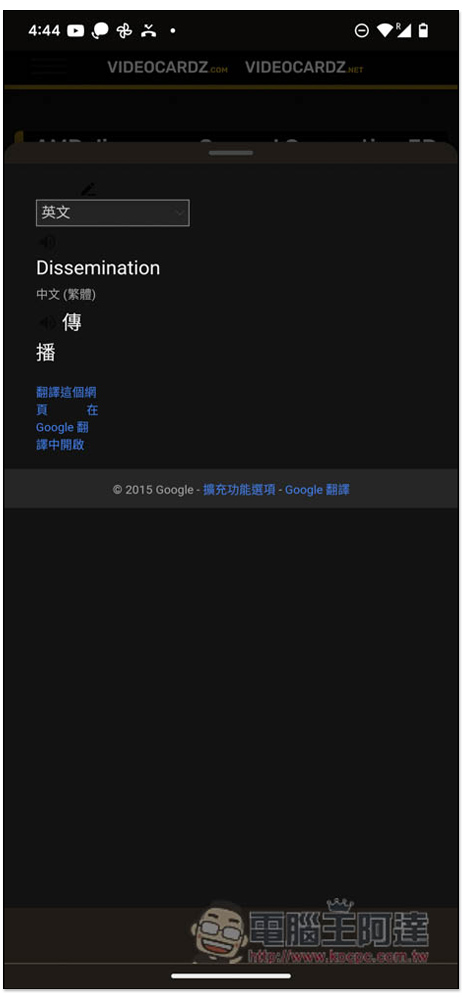
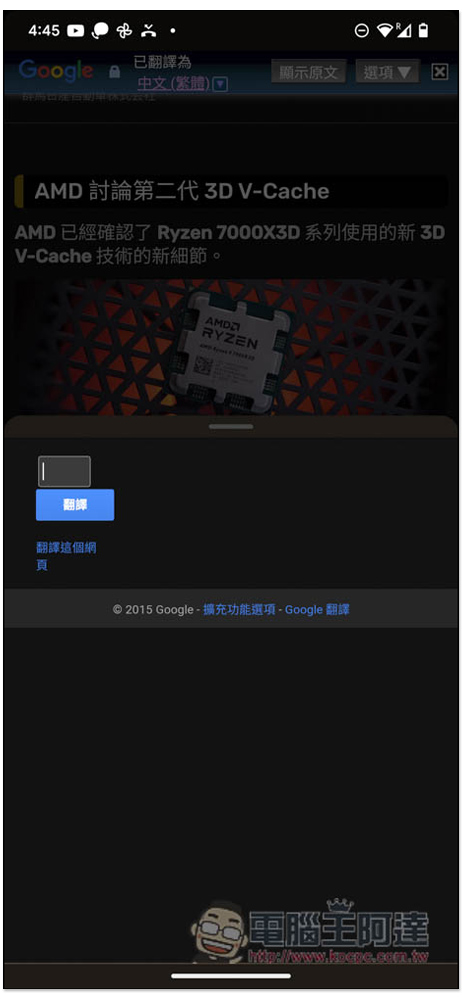
The Google Translate extension provides full-page translation. Just click “Translate this page” below the translation. After clicking, the current webpage will be fully translated into Chinese:
As for Tampermonkey, this part allows readers to try it out on their own, and the operations are basically the same.
In addition, because it is a third-party browser App, for some more important Internet access, I personally recommend using well-known browser Apps such as Chrome, Edge, and Firefox.
Source: KOCPC Chinese