


Some people may feel that even though there are already tools like “Instruction Directory Specializing in ChatGPT” on the Internet. There are even many people who make videos or write articles to teach you how to deeply explore the most powerful functions of chatbots. But, isn’t there a simpler way that doesn’t require slowly inputting the so-called “chanting” or more accurately, “prompting skills (Prompting Skills)”. Now there is! Please continue reading the ChatGPT universal toolbox that turns AI into a “real tool maker”. Simply install the Chrome/Edge extension kit and you can use it! Report text.

Tutorial on how to use the ChatGPT universal toolbox that turns AI into a “real tool maker”. You only need to simply install the Chrome/Edge extension kit to use it!
Although there are convenient AI chatbots such as ChatGPT, New Bing and even Google Bard, basically as long as you can apply for an account, you can use text chat. It is very simple to use these large-scale machine model technologies to obtain information for you and summarize it for you. However, some people may feel that even if there is already something like “A collection of instructions specializing in ChatGPT” Tools like this appear on the Internet. There are even many people who make videos or write articles to teach you how to deeply explore the most powerful functions of chatbots.
But, isn’t there a simpler way that doesn’t require slowly inputting the so-called “chanting” or more accurately, “prompting skills (Prompting Skills)”. Do you even hope that ChatGPT can also provide an automatic prompt response “answer button” experience like Bing? Now, through simple installation of Chrome/Edge extensions and simple search engine settings, you can also simplify your AI experience into the ChatGPT universal toolbox of more convenient tools.
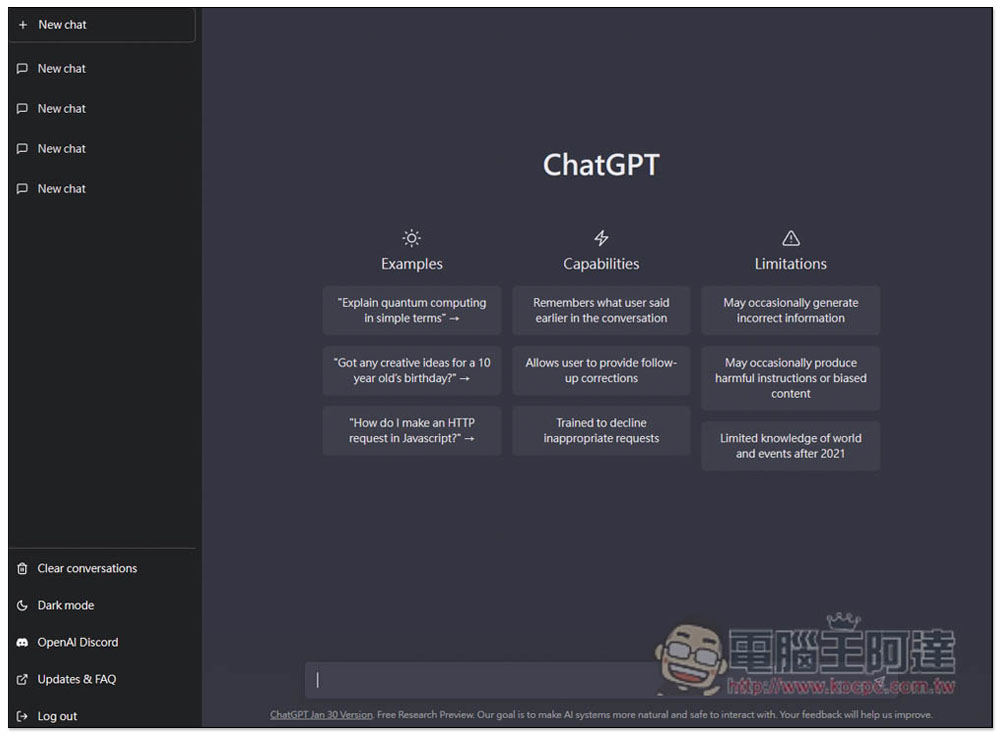
提升 ChatGPT 網站的使用體驗,提供一些好用功能。像是自動從 URL 填入提示、在回應的地方出現自動提示按鈕、以及更多好用功能陸續推出。
ChatGPT 萬能工具箱提供 ChatGPT 網站一些好用的額外功能,可以提升 ChatGPT 網站的使用體驗,目前提供的功能有兩種:
1. 自動從 URL 填入提示:這可以讓你把常用的提示詞(Prompt)透過「書籤」的方式保存下來,並在需要的時候可以快速填入。
2. 在 ChatGPT 回應的地方出現自動提示按鈕:有時候 ChatGPT 沒辦法顯示完整的內容,我們會輸入「繼續」讓 ChatGPT 繼續完成,這些常用的提示詞可以透過按鈕自動輸入。以後會陸續推出好用功能,歡迎大家提供想法與建議。
The above is the official introduction of the “ChatGPT Universal Toolbox” that I will introduce this time. You can find this feature in the Chrome Web Store (Download click me, Microsoft Edge users can also install it from this store).
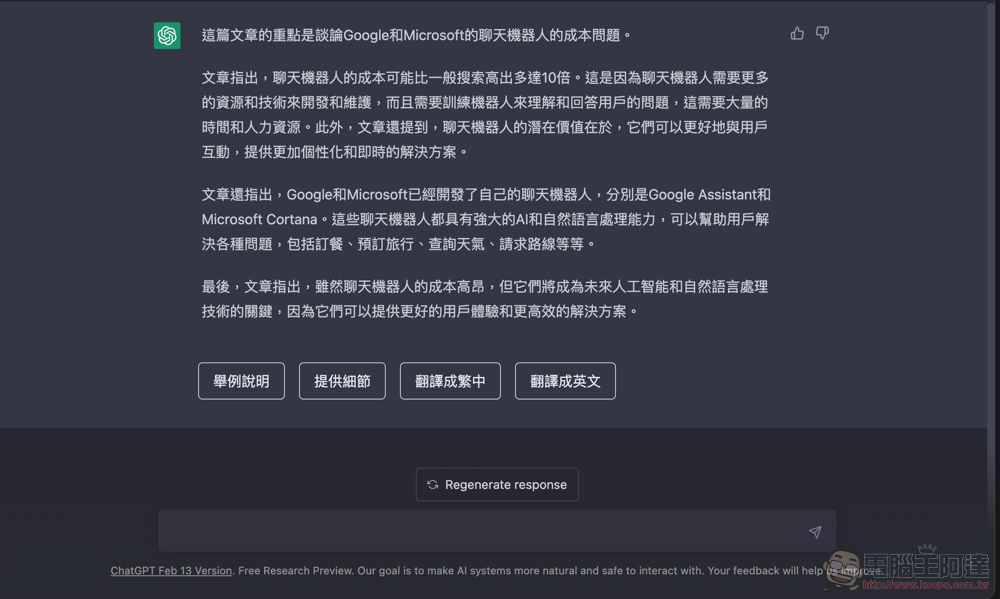
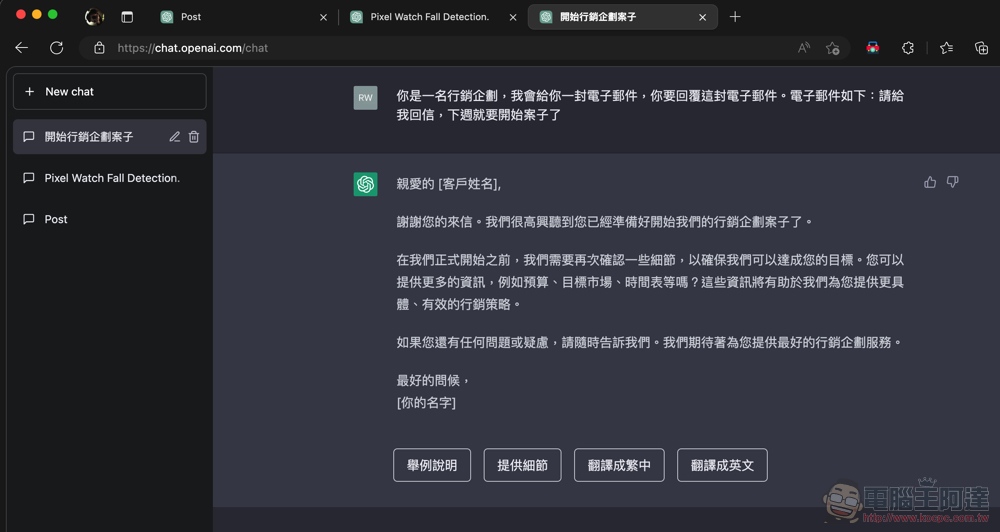
It’s basically as described above, although there are currently only two main functions/tools. But in fact, just having “an automatic prompt button appear where ChatGPT responds” is very useful. And there is no need to set it up at all. You only need to install the ChatGPT universal toolbox. After generating the text content, you can see the corresponding “example”, “translate into Traditional Chinese”, “continue” and other commonly used continuation prompts.
As for the number one function of the ChatGPT universal toolbox, although it is a bit troublesome to set up, it is really easy to use once it is set up! You only need to enter the search engine’s “shortcut” keyword on the address bar, and then press “Tab” on the keyboard to execute the prompt word you set.
Strings such as “You are a professional, I will send you an email, and you need to reply to this email. Email: Attach content” in the ChatGPT command set can be set as needed and used directly on the address bar. Very convenient! It is recommended for friends who often use ChatGPT for specific purposes, that is, who often enter repeated prompt commands. The following provides simple usage instructions.
How to use the ChatGPT universal toolbox to directly search for commonly used prompt words in the address bar
First of all, I suggest you go to “ChatGPT command list“Waiting for the website to find the complete instructions for turning the AI chatbot into a “real tool man” – don’t worry, after this setting, you will no longer have to go to this website to copy again. And if you already have commonly used commands to enter, you can skip this step (that is, you can also refer to whether there is a more accurate way to ask:
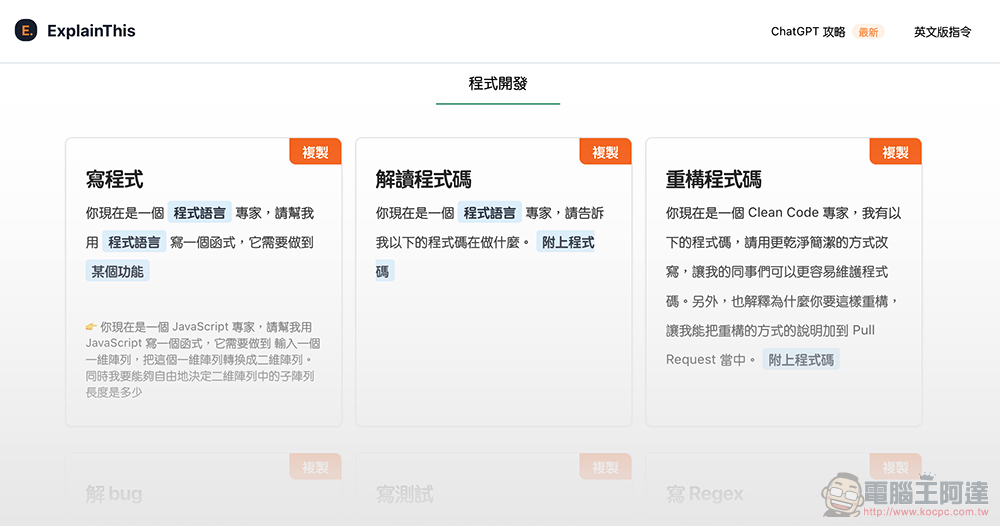
Before going to the next step, it is recommended that you go to ChatGPT and try to paste the text you copied to see if its reply meets your needs. I simply take the instruction of email writing as an example: “You are a marketing planner, I will send you an email, and you have to reply to this email. The email is as follows: Hahaha, this is an email, please reply to me.”
The above is an example of the ChatGPT command set “You are a [professional], I will send you an email, and you need to reply to this email. Email: [content]”. I just randomly substituted the instructions after the text in the middle of the box. Basically, just throw it into ChatGPT and see if there is any resistance reply like “I’m not OOO, I can’t XXX”, and you should be able to use it normally.
Next, you only need to paste the command you just copied on a blank document after the string of commands “https://chat.openai.com/chat#autoSubmit=1&prompt=”, and then change the last “content” part to the substitution code “%s”.
Like just now, it will become “https://chat.openai.com/chat#autoSubmit=1&prompt=You are a marketing planner, I will send you an email, and you need to reply to this email. The email is as follows: %s” – you can also directly copy this paragraph to use.
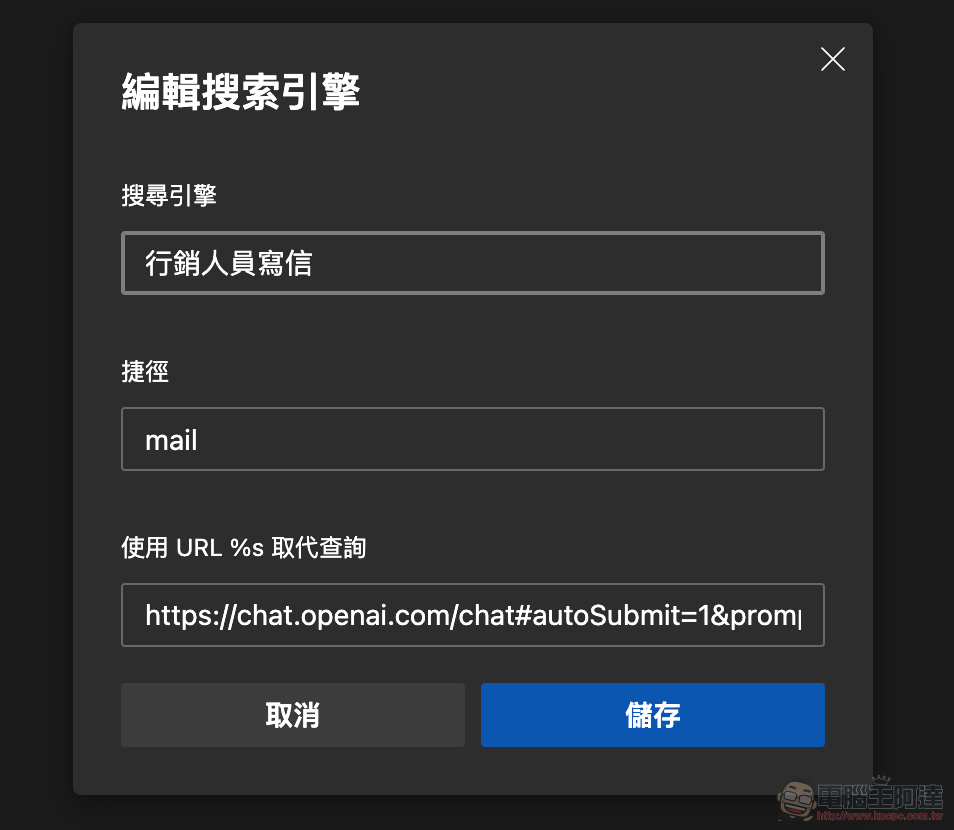
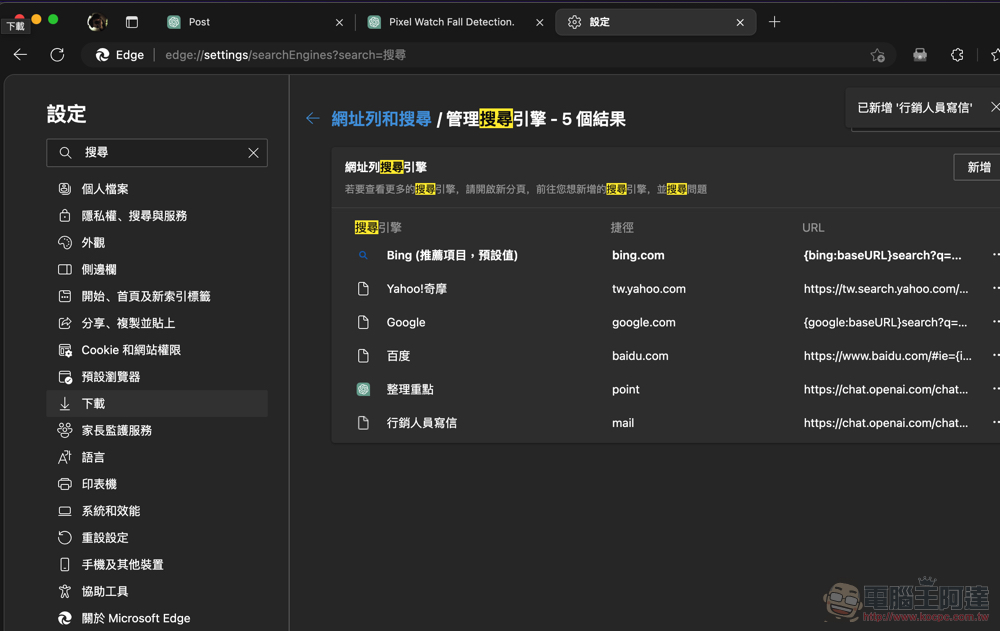
Then we go to “Search Engine > New > Add Search Engine” in Chrome’s “Settings” (Edge’s is more difficult to find, set the URLPut the portal here). The string you just created can be added to the URL search experience in a way similar to a search engine.
On this page, in addition to the name of this “Tool” can be entered in the “Search Engine”. The key point is that “shortcut words/shortcuts” will require you to set a very short string to become a shortcut word in the future; for the “…replacement query” below, you can paste the “https://chat.openai.com/chat#autoSubmit=1&prompt=You are a marketing planner, I will give you an email, and you need to reply to this email. The email is as follows: %s”
Then select “Save” to get a tool (chat machine) person.
How to use this “Tool (Chat Machine) Man”
Since the main focus is to simplify the experience, naturally everything will be super simple after completing the settings.
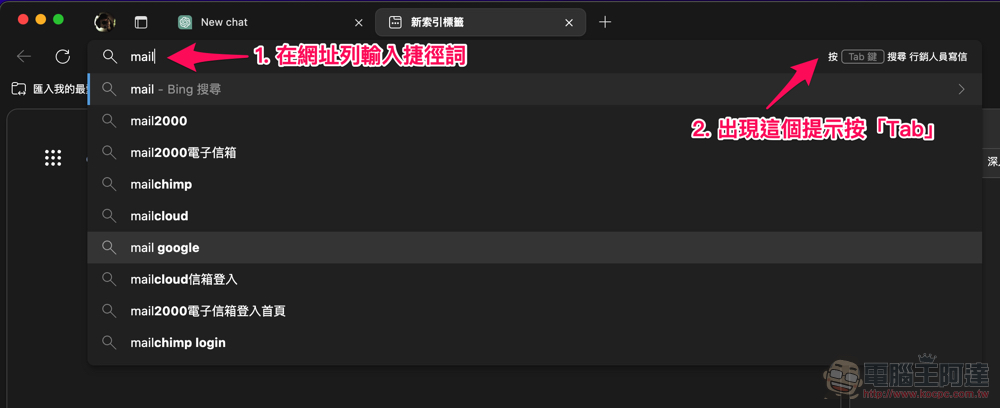
Basically, as long as you enter the shortcut you just set in the address bar of the Edge/Chrome browser, the “Press Tab to Search” tool you just set will appear on the right. Press the Tab key to wake up the “Tool (Chatbot) Man”:
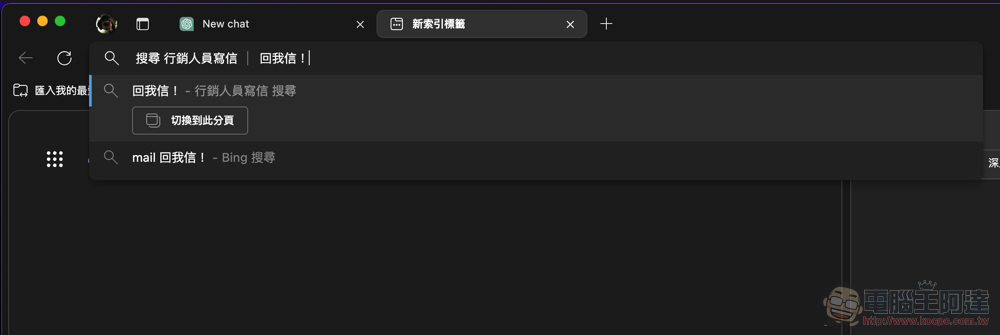
Then paste the string or URL you want it to execute:
After typing, press Enter and it will jump to the ChatGPT page to generate a reply. The convenient answer button of the ChatGPT universal toolbox will appear immediately below:
Conclusion
Although currently the ChatGPT universal toolbox only has two main functions. But basically through the setting of prompt command shortcuts later, I believe that everyone can easily extend from this demonstration teaching to develop various quick “tools” for your own use – just by replacing various occupations or role-playing roles, there will be many changes.
That said, if you want to further utilize the instructions of this toolbox, you can refer to the cited source. The Will Will Web Detailed instruction introduction – Currently, it is basically the part of autoSubmit that automatically sends the form. It can be changed to “0” to allow you to confirm the complete instruction before officially letting ChatGPT execute it. However, I believe that the person who developed this ChatGPT plug-in will provide more functions and instructions in the future. It is recommended that if you want to use this tool more effectively, you can study it in depth.
Further reading:

Source: KOCPC Chinese