


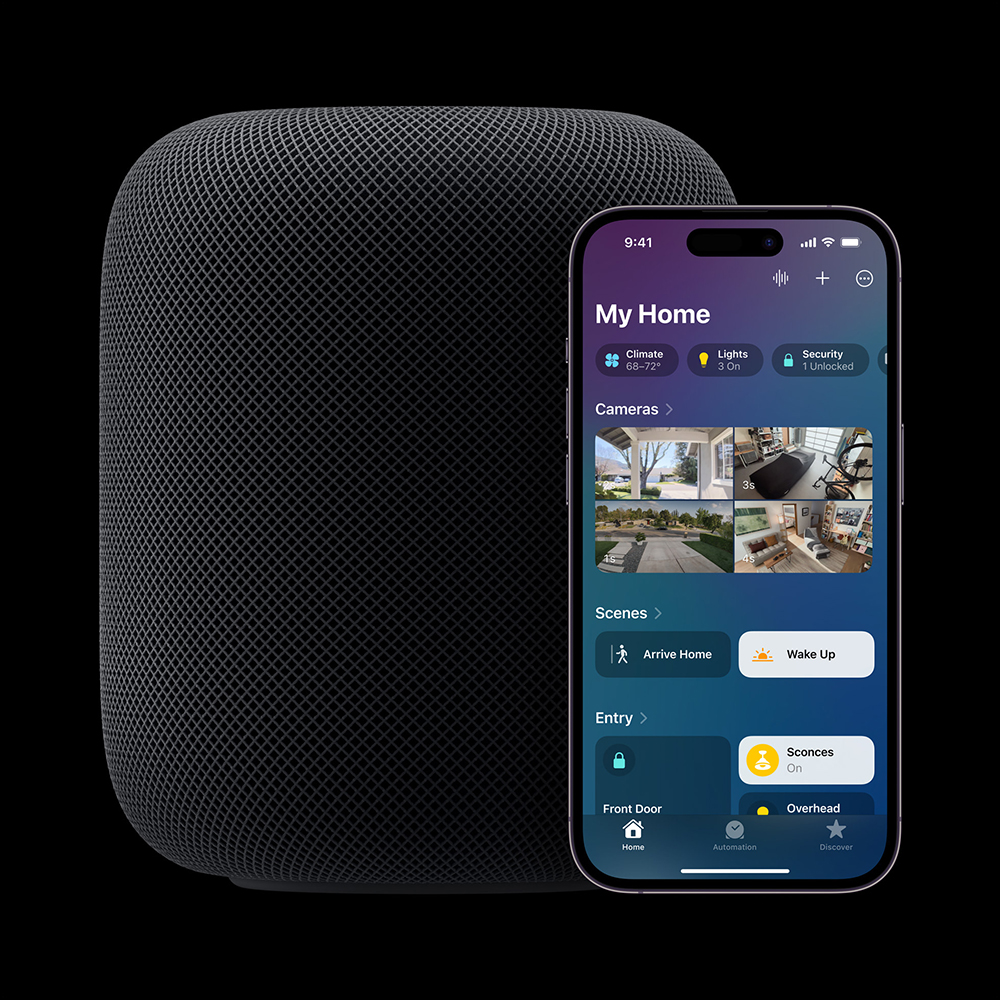
Apple recently released iOS 16.3 update, in addition to support for HomePod (2nd generation), as long asUpdate HomePod to version 16.3, can also HomePod mini Simultaneously supports temperature and humidity sensing functions. How to enable the temperature and humidity sensing function of HomePod mini, and how to query the temperature and humidity of the environment? Continue reading this article to find out!
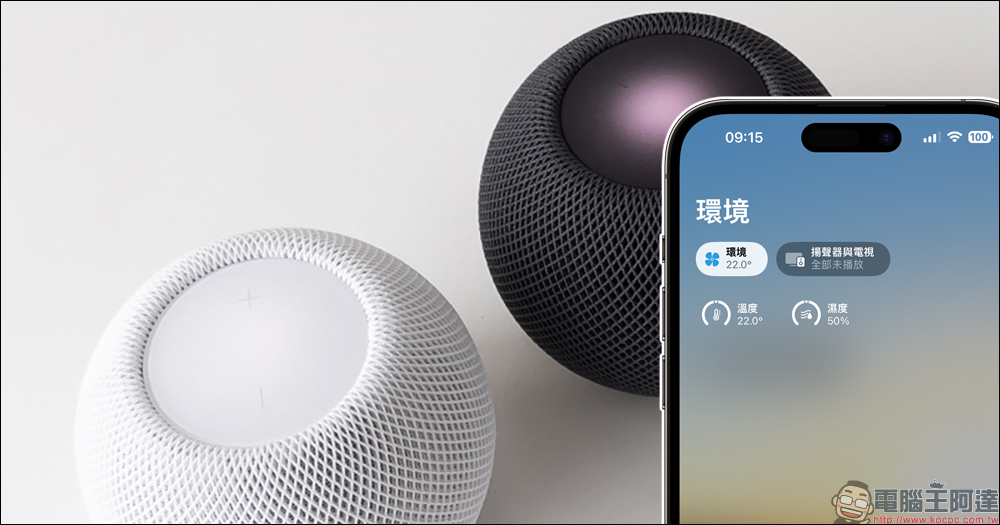
How to use the temperature and humidity sensing function of HomePod mini? Enable and query tutorials (need to update to HomePod version 16.3)
Although HomePod (2nd generation) is not currently on sale in Taiwan, there is still a way to use the latest temperature and humidity sensing functions. Just update HomePod mini to version 16.3 to unlock the previously unenabled temperature and humidity sensing functions!
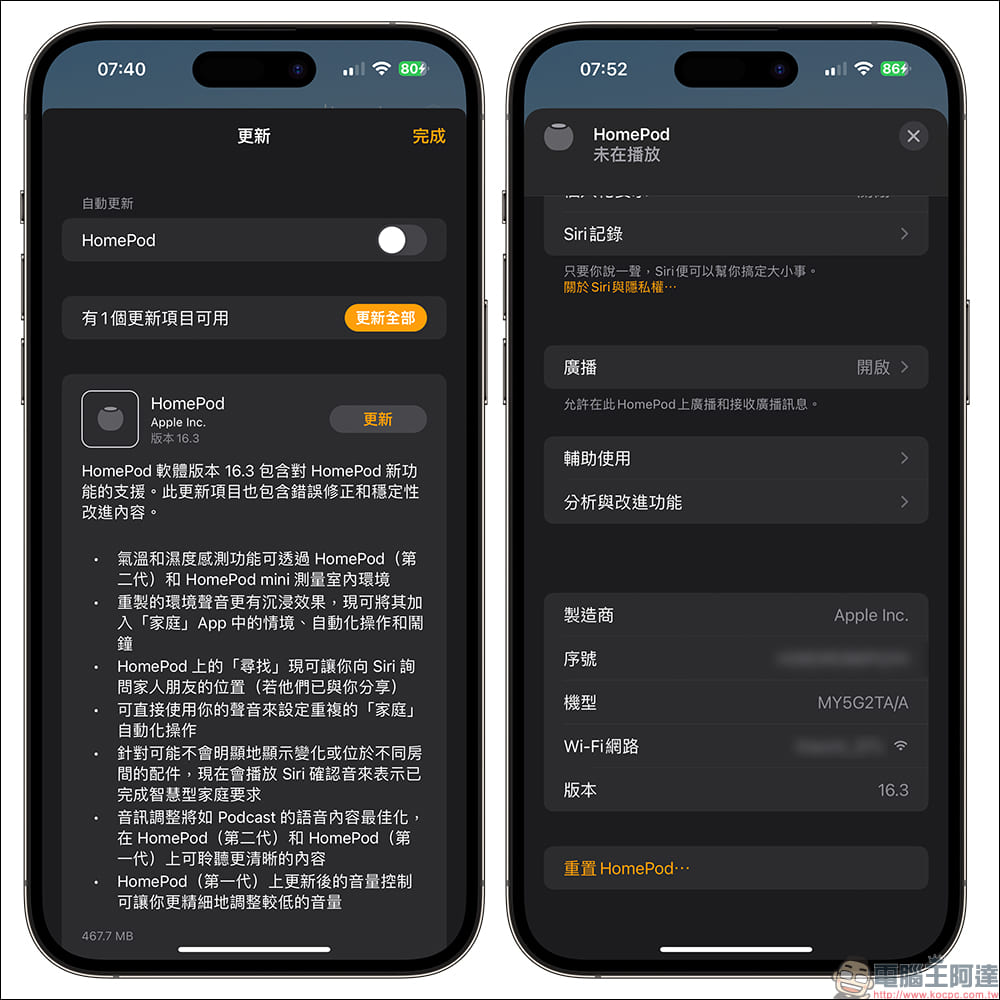
Just update your iPhone to iOS 16.3 first and then open the “Home” App. You can find the latest HomePod 16.3 version from the HomePod mini update project. In addition to bug fixes and stability improvements, the HomePod 16.3 update also includes the following updates:
- Temperature and humidity sensing measures indoor environment with HomePod (1st generation) and HomePod mini
- Remastered ambient sounds are more immersive and can now be added to situations, automations, and alarms in the Home app
- Find Now on HomePod now lets you ask Siri for the location of family and friends (if they’ve shared it with you)
- Use your voice directly to set up recurring “home” automation actions
- Accessories that may not visibly show changes or are in different rooms now play a Siri confirmation tone to indicate completion of a smart home request
- Audio adjustments optimize voice content such as podcasts for clearer listening on HomePod (2nd generation) and HomePod (1st generation)
- Updated volume controls on HomePod (1st generation) let you fine-tune lower volume levels
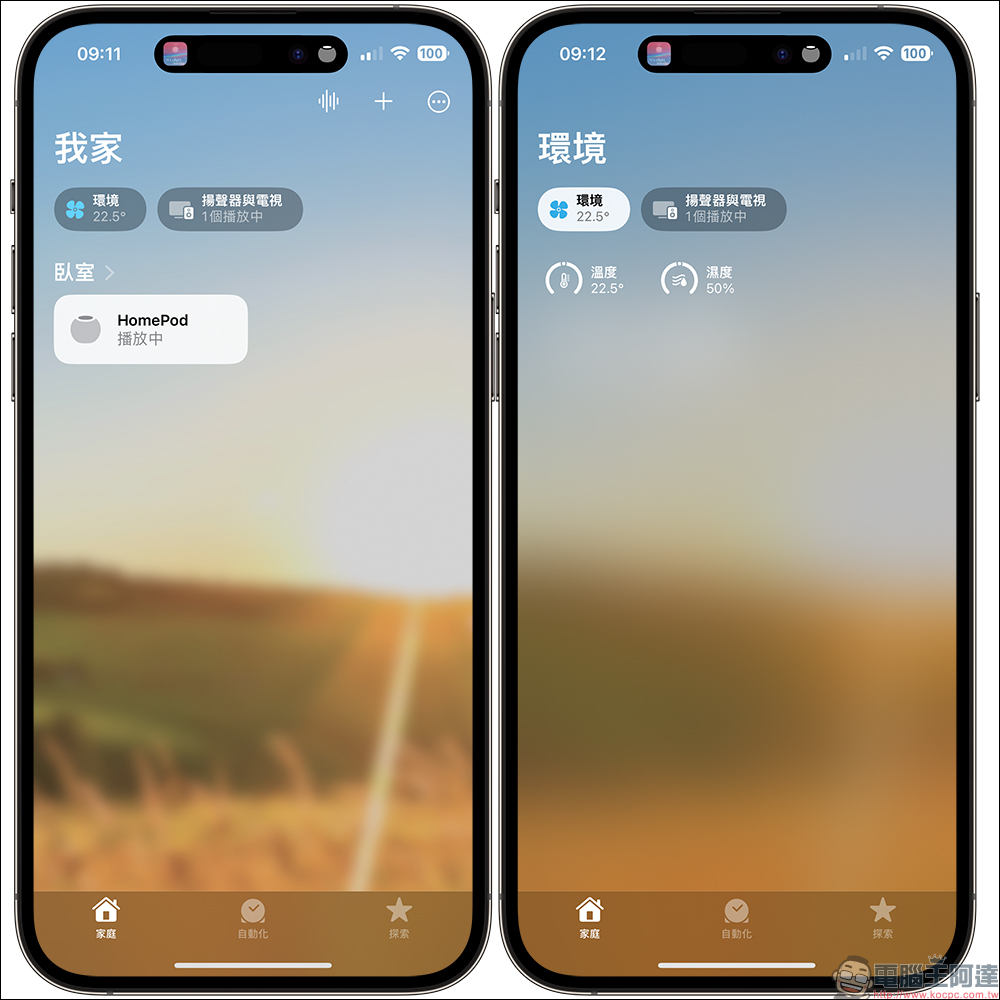
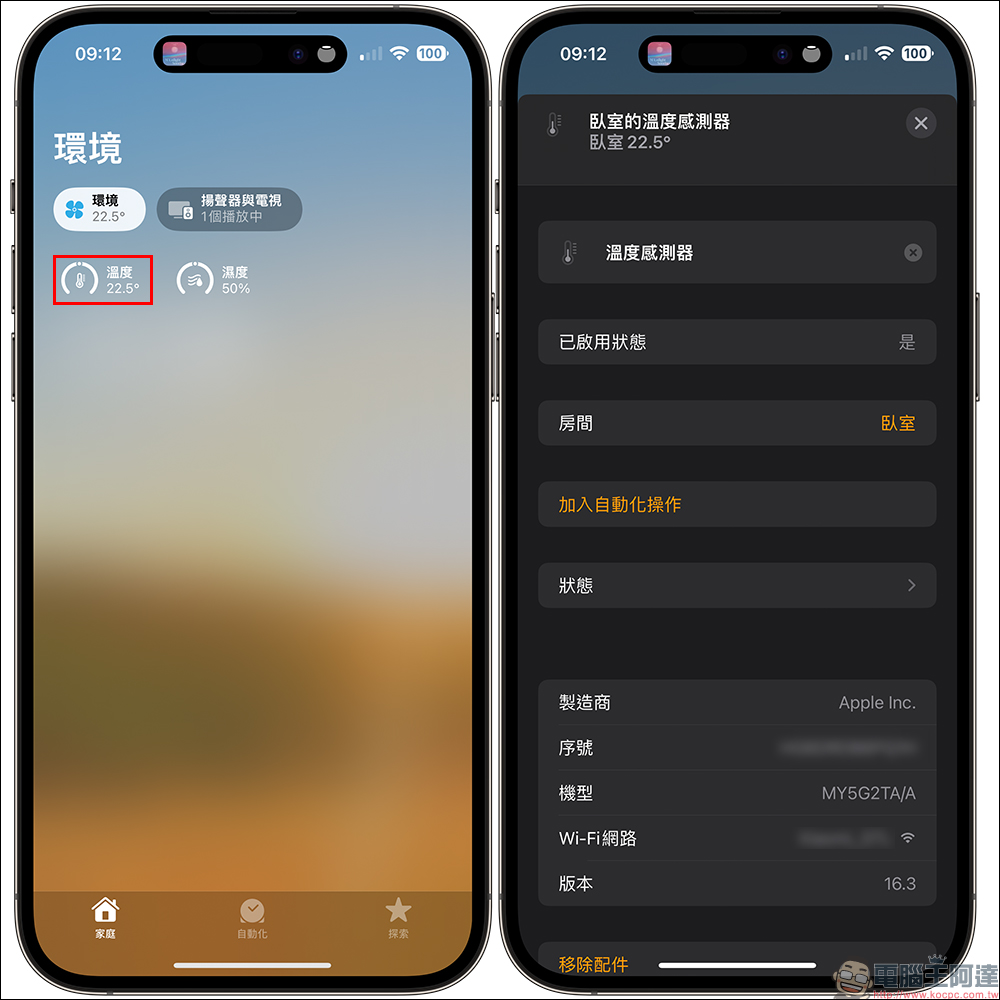
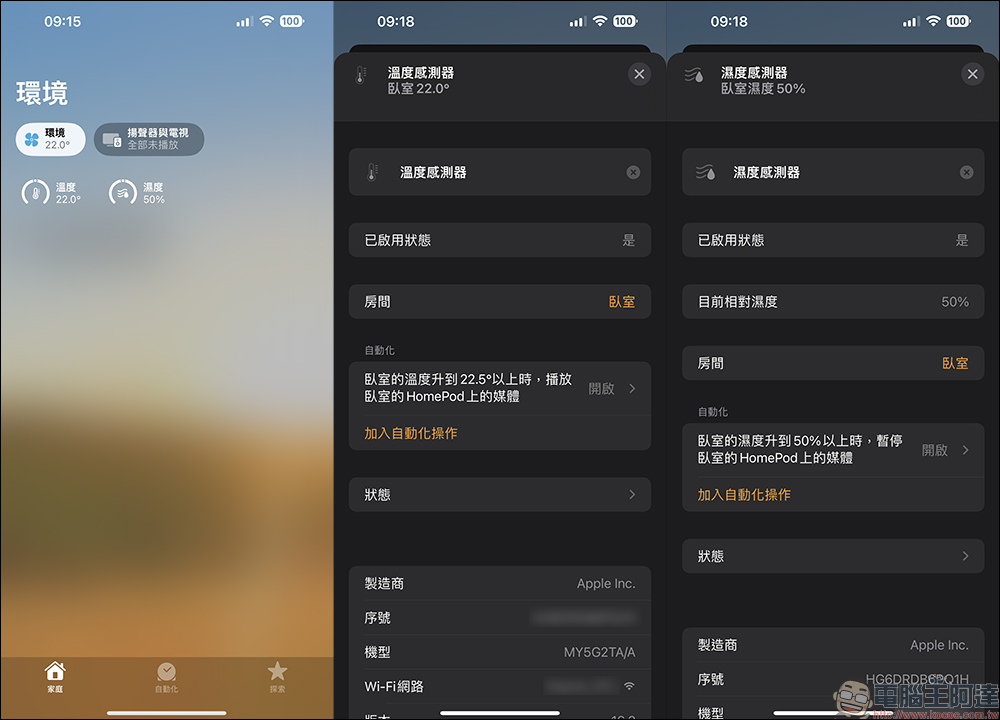
After successfully updating to HomePod version 16.3, you can check the temperature and humidity status of the environment on the Home App homepage. However, when you enable it for the first time, you need to wait about 10 minutes to calibrate the temperature and humidity data of the environment. If it still does not display normally after waiting for more than 10 minutes, it is recommended to close the Home App and try restarting it.
HomePod’s “Temperature and Humidity Sensing” function is optimized for indoor home environments, where the ambient temperature is approximately 15º C to 30º C and the relative humidity is approximately 30% to 70%.
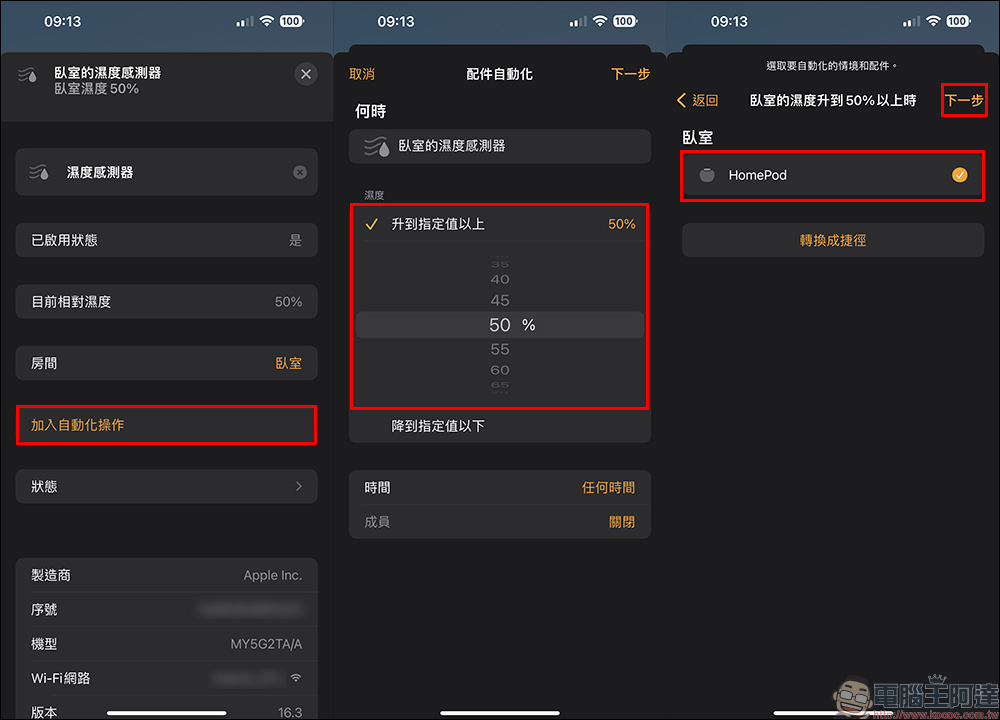
By clicking the “Temperature” icon, in addition to viewing the temperature and activation status of the temperature sensor, you can also further set up automatic operation functions.
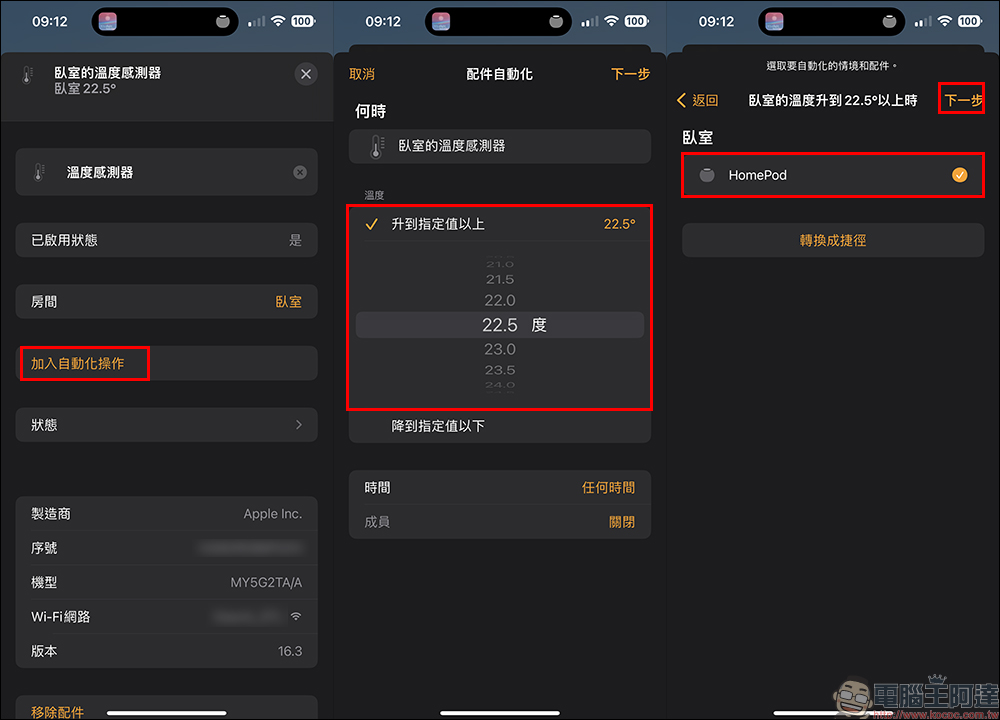
Click “Add Automation Operation” to set which accessory to use for automatic operation when the temperature rises to a specified value (or decreases to a specified value). After selecting, click “Next”:
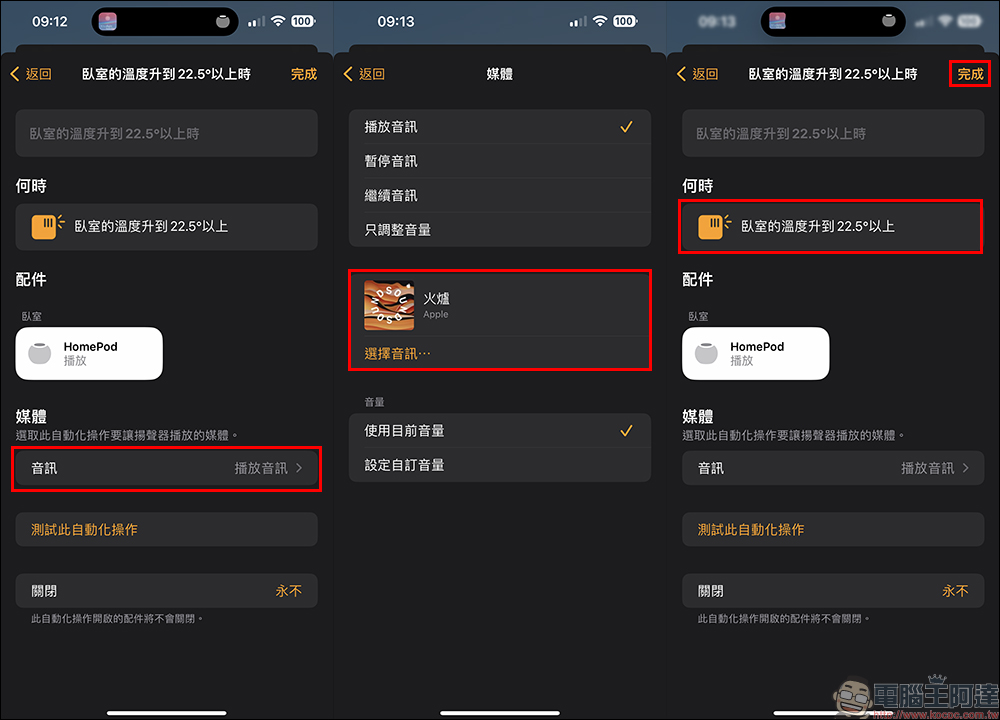
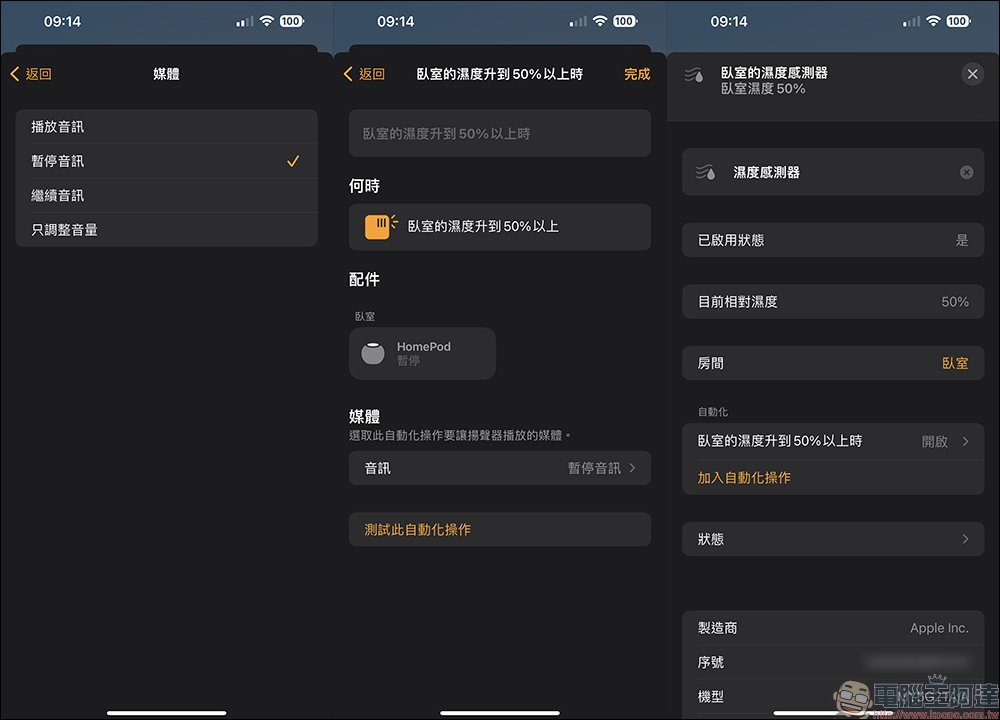
The user can then set what functions the automated operation should perform, for example, they can choose to play audio, and finally click “Finish”.
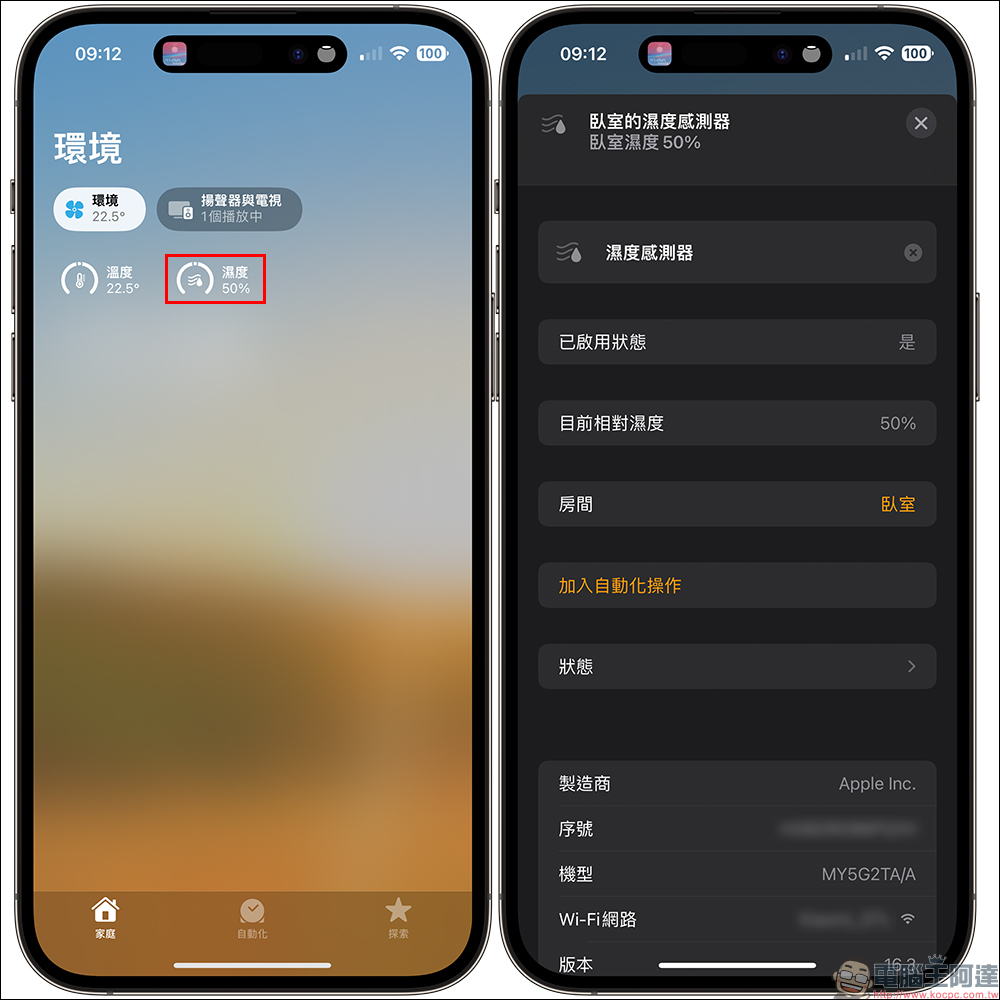
In addition, users can also choose to automate operations through humidity sensors.
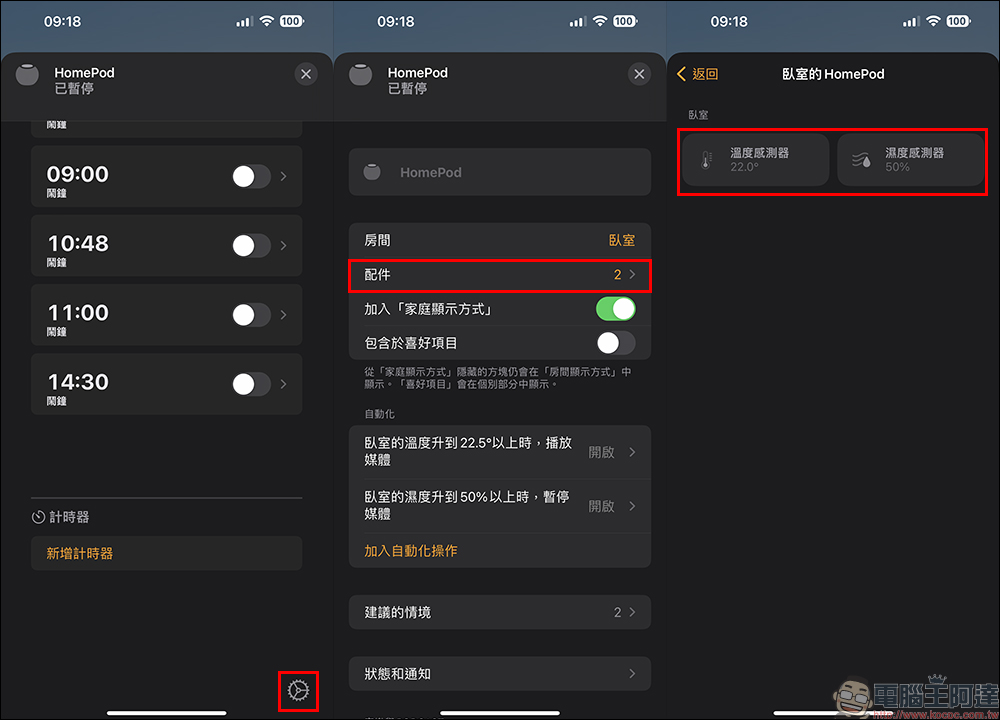
Users can click on the settings of the HomePod mini device to query the data of the temperature sensor and humidity sensor from “Accessories”. If there is an automated operation set up, the relevant settings can also be used to adjust the opening status of the automated operation here.
The redesigned “Home” App allows users to intuitively use, view and organize related accessories. In addition, the App also adds new categories such as home comfort, lighting, and security protection, as well as a new multi-lens display, allowing users to easily set up and control smart home functions.
Further reading:
iPhone 15 Pro new design appearance renderings exposed, with flat screens with curves and ultra-thin borders on the front and rear of the fuselage

Source: KOCPC Chinese