


It’s really effortless to mess up the iPhone home screen. When you have a new iPhone and are excitedly installing various applications for the new machine, which is like a blank piece of paper, these new application icons will appear on your home screen one after another; or after years of use, your home screen is filled with too many applications that you don’t use often or even not at all.
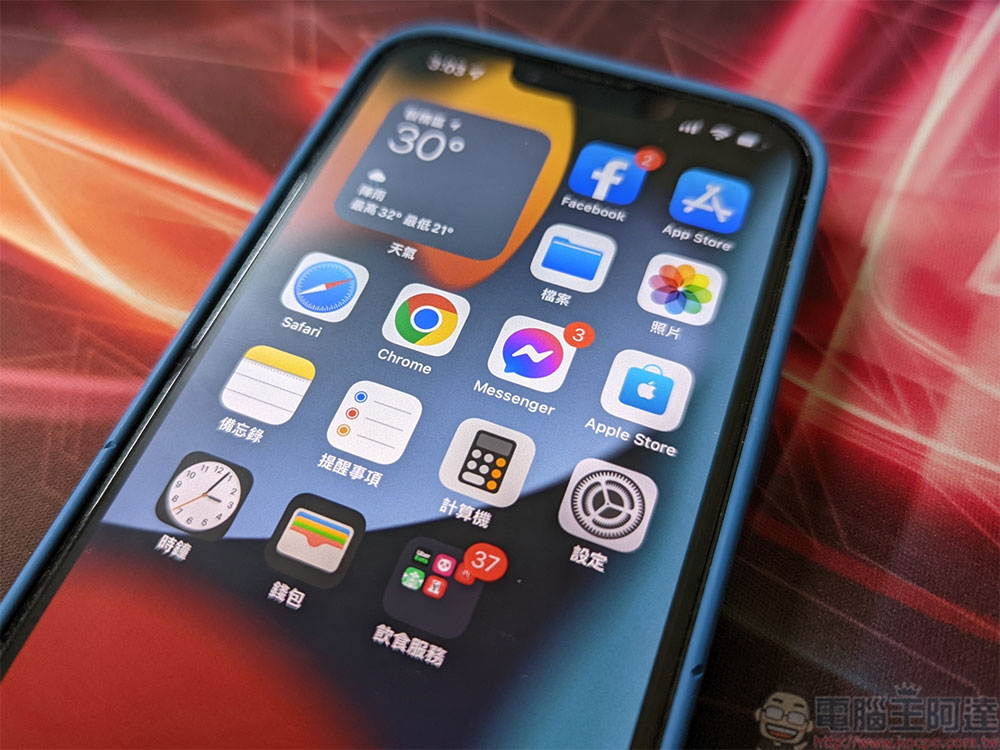
This hidden trick in iPhone allows you to move app icons in batches and quickly organize the cluttered home screen.
I believe that many people like to keep the main screen of their mobile phones clean and tidy, with only commonly used and necessary items displayed. It looks refreshing and neat. Unfortunately, the process of moving a single app around the home screen and organizing it into folders is tedious and tedious. You must first hold your finger on the phone’s desktop until the application icon starts to enter jitter mode, and then use your finger to move it to the location you want to place it. This process must be repeated for each application you want to organize.
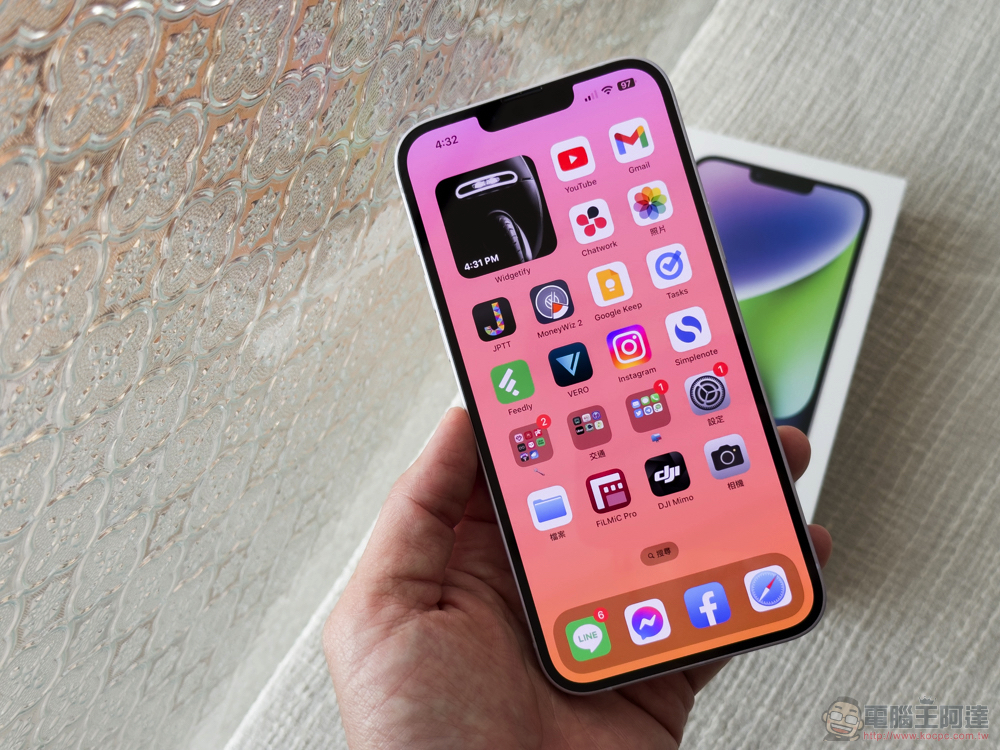
If you have dozens of apps scattered across your home screen, the rearrangement process can take a long time. However, what everyone may not know is that Apple actually allows you to select and move multiple application icons at the same time, and this function is not clearly written or specifically explained by Apple.
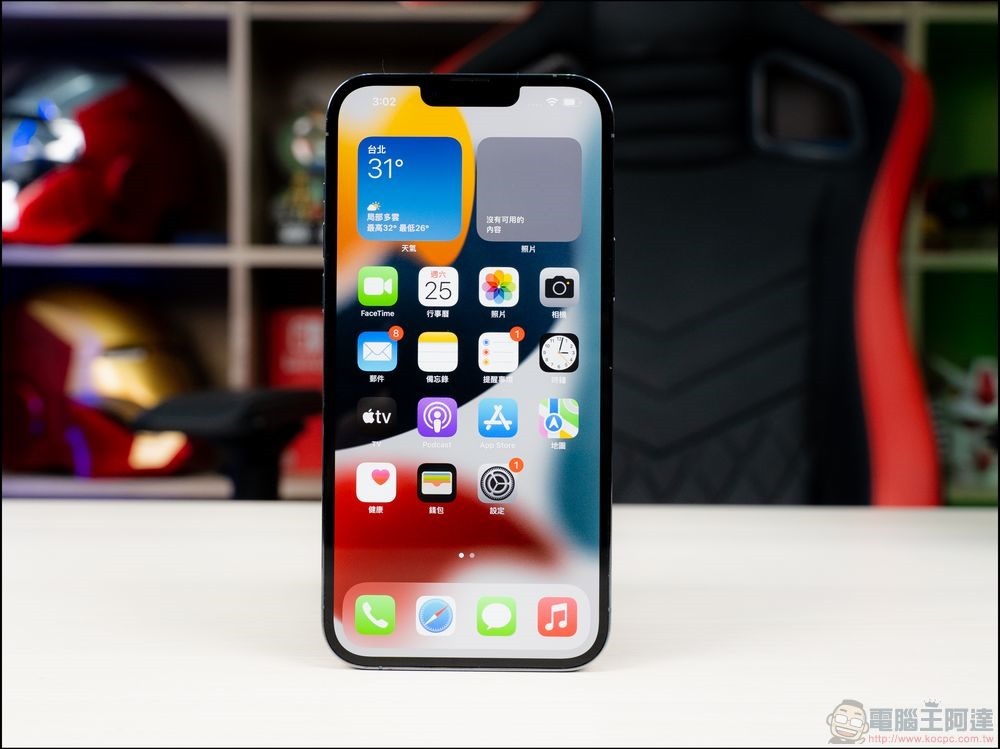
This time we are going to learn this hidden trick seriously, and you can even do it on your iPhone. This technique is suitable for moving a large number of application images that you want to archive to the same folder and desktop:
- First, press and hold the desktop until the application icons start to shake, just like you would when you want to arrange a single application.
- Then tap and hold one of the apps you want to move with your finger without releasing it, and then tap another app icon on the screen with another finger. At this time, you can see a stacked number mark appear on the app that was initially pressed.
- Then move these selected application icons to the folder to be archived or to another desktop at once, and then release your finger. You can take a look at the overall operation in the GIF below:
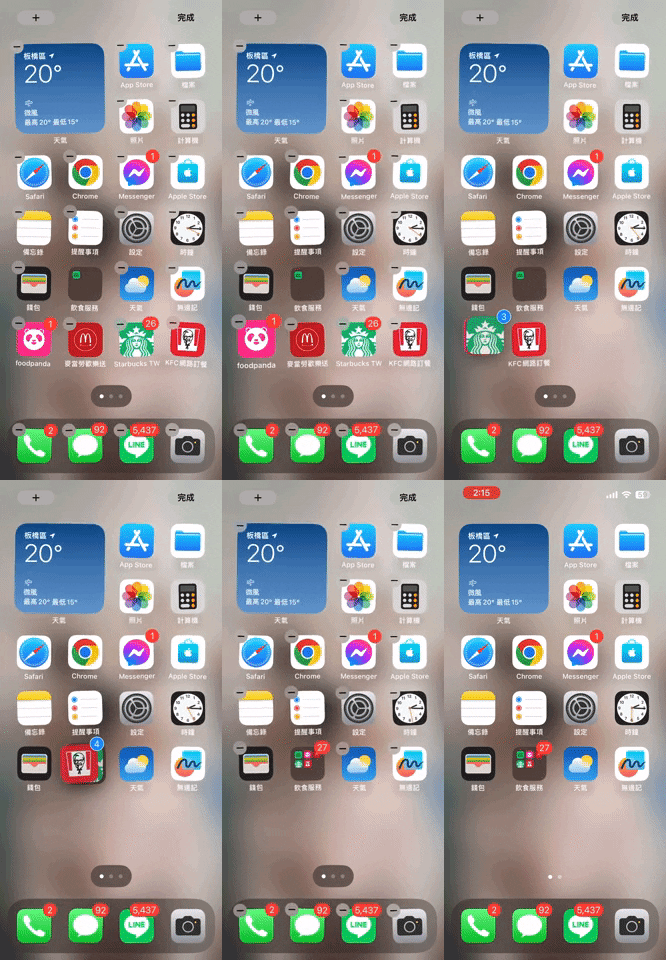
Apps moved using this hiding trick will be sorted in the opposite order to the order you selected. Specifically, the first app you selected will appear in the last position after being moved, and the last one you selected will appear first in the new position. Learning this hidden version trick will save you more time in organizing. It’s time to learn it!
Source: KOCPC Chinese