


When taking a photo, you will more or less encounter an outsider entering the frame, or something destroying the entire photo. In the past, this situation could only be solved by using professional image editing software such as Adobe Photohop. As online tools become more and more powerful, many free tools can now also do it. The ClipDrop Cleanup introduced in this article is one of them. It is free and easy to operate. Just draw the person, object or other thing you want to remove, and it will be automatically removed after 1 to 2 seconds, and the effect is quite good.
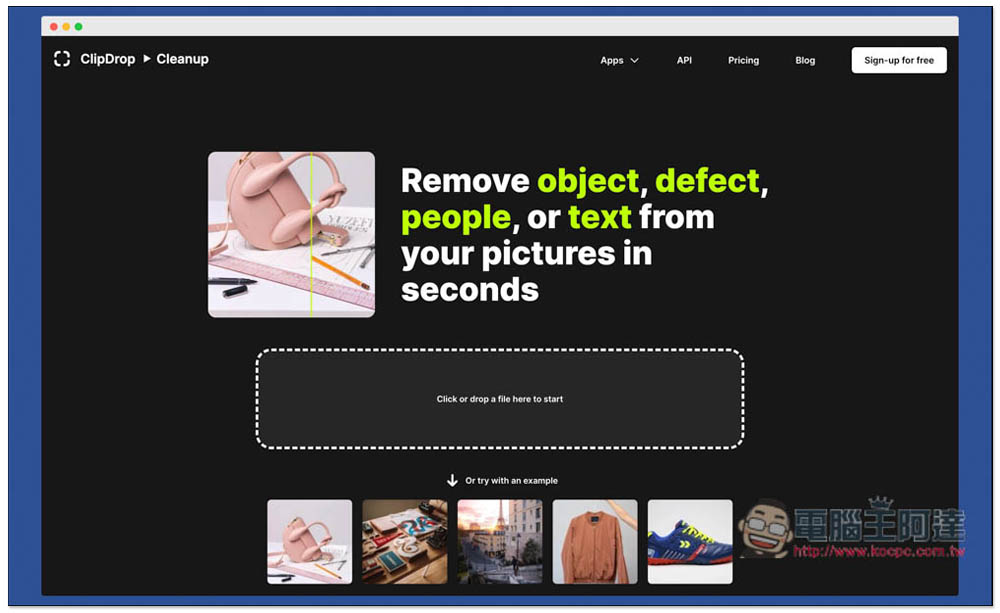
ClipDrop Cleanup can remove unwanted people or objects from photos with just a drawing. It’s easy and free to use.
ClipDrop is a website that provides a lot of free online tools. In addition to the Cleanup function to remove people and objects in photos introduced in this article, it also has the function of removing backgrounds, enlarging photo sizes, replacing backgrounds, etc. People who need it can also try it on their own. After entering the website, you can drag in the photos and images you want to remove. If you want to give it a try first, five sample pictures are provided below. However, the removal effects of the samples are usually very good, so they are not of reference value:
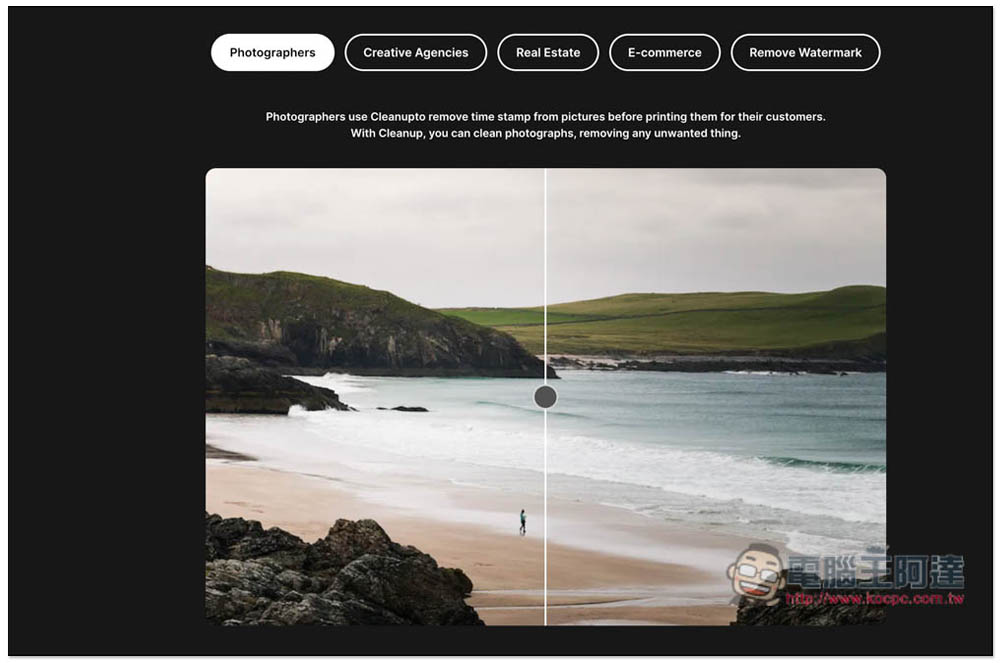
Scroll down and there are photos before and after removal for reference. From what I have tested, this website is one of the best that I have ever tested. It can also be used to remove floating watermarks:
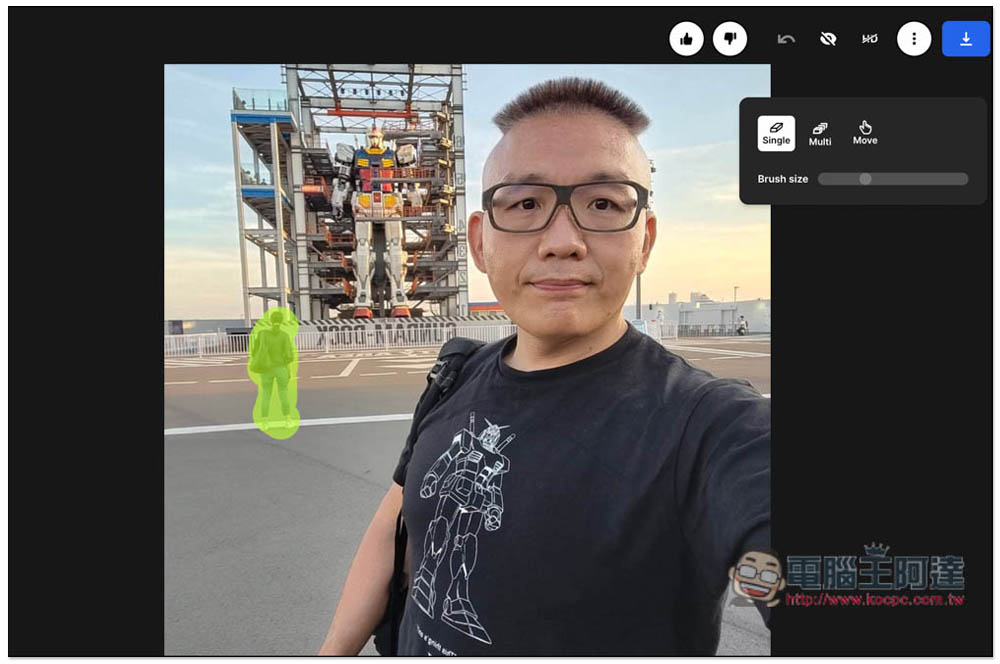
Let me take this photo of Ada as an example. When Ada took a selfie, there was a person standing right behind her, so it was impossible to take the most perfect photo at the moment:
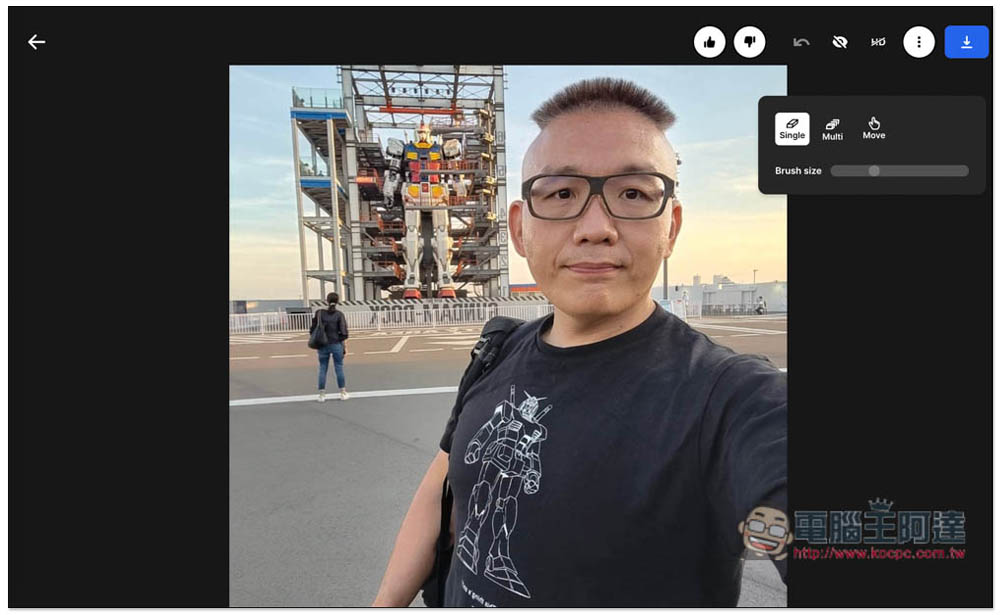
At this time, I started to draw this person. You can adjust the brush size on the right side. You don’t have to be too precise to remove the edges of the characters or objects. Just make sure that they are drawn. I draw like this:
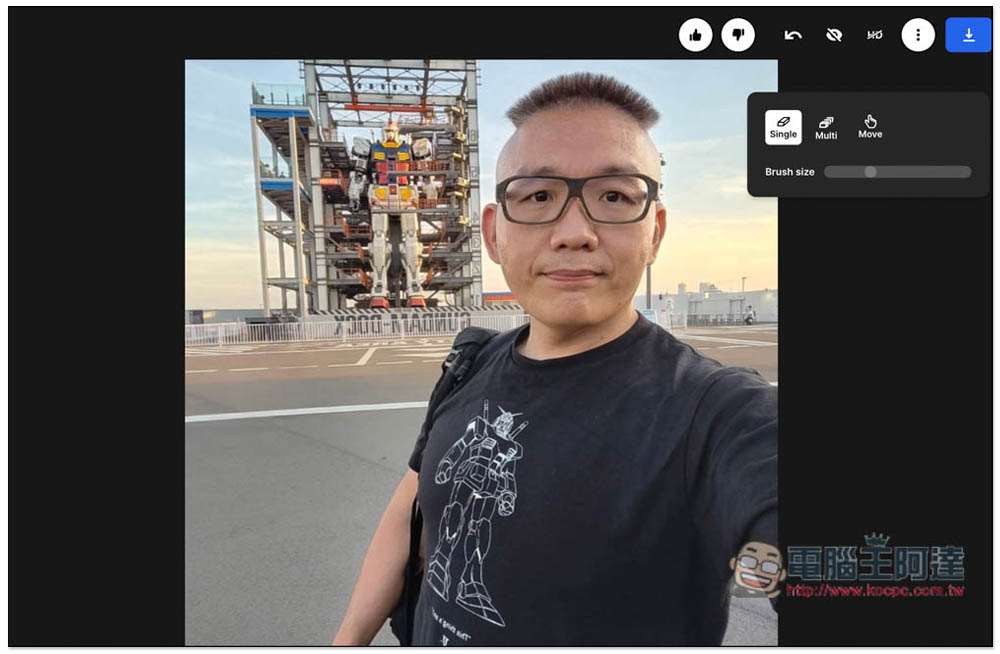
Wait for 1~2 seconds and the character will disappear automatically! The original area was also naturally filled with what was needed. The local white lines and the railings blocked by the body were perfectly filled in. The railing part is really amazing. If I didn’t say it, no one would have been able to tell that there was a person behind:
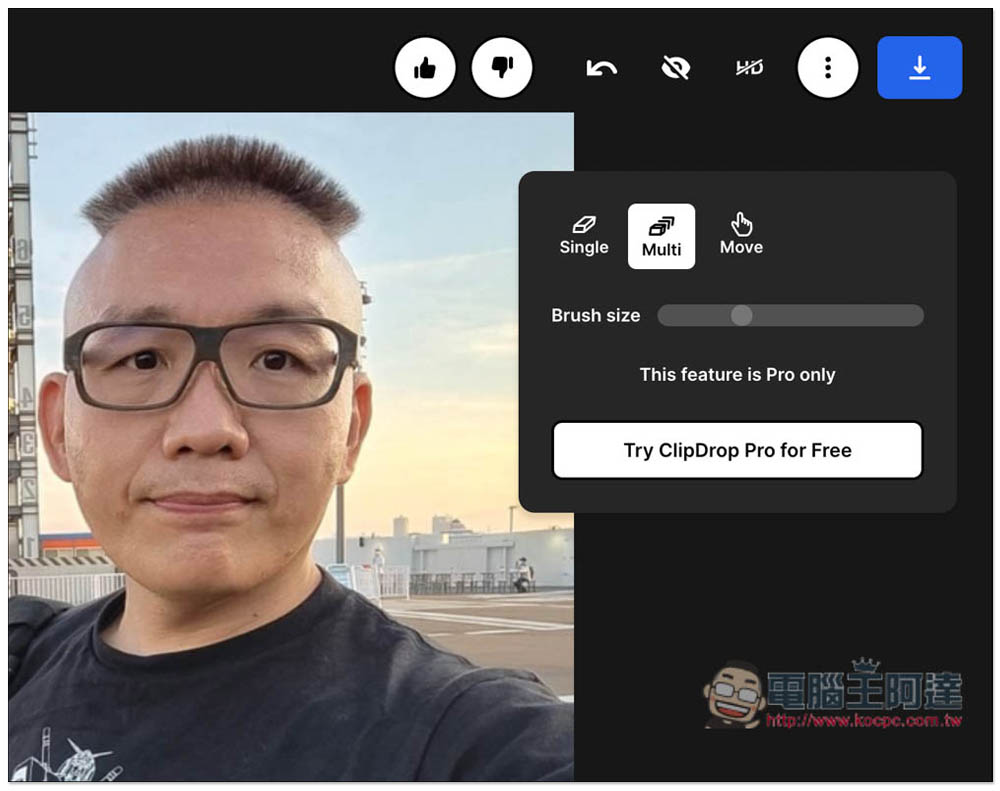
The Multi tool is only available to Pro paid members. I’m not sure what it is used for:
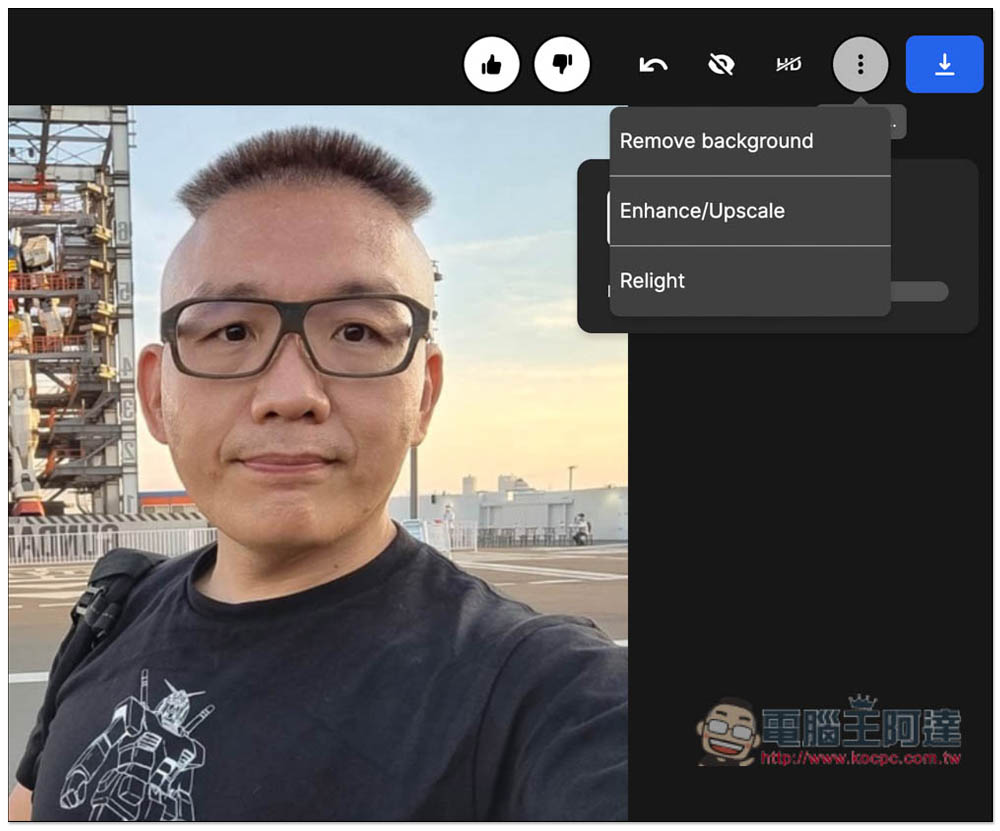
If you are satisfied with the effect after removal, you can click the download arrow in the upper right corner to download it. It also supports directly dropping the image to other ClipDrop online tools, such as: Remove background, Enhance/Upscale, and Relight:
The downloaded image is also a large image without a watermark:
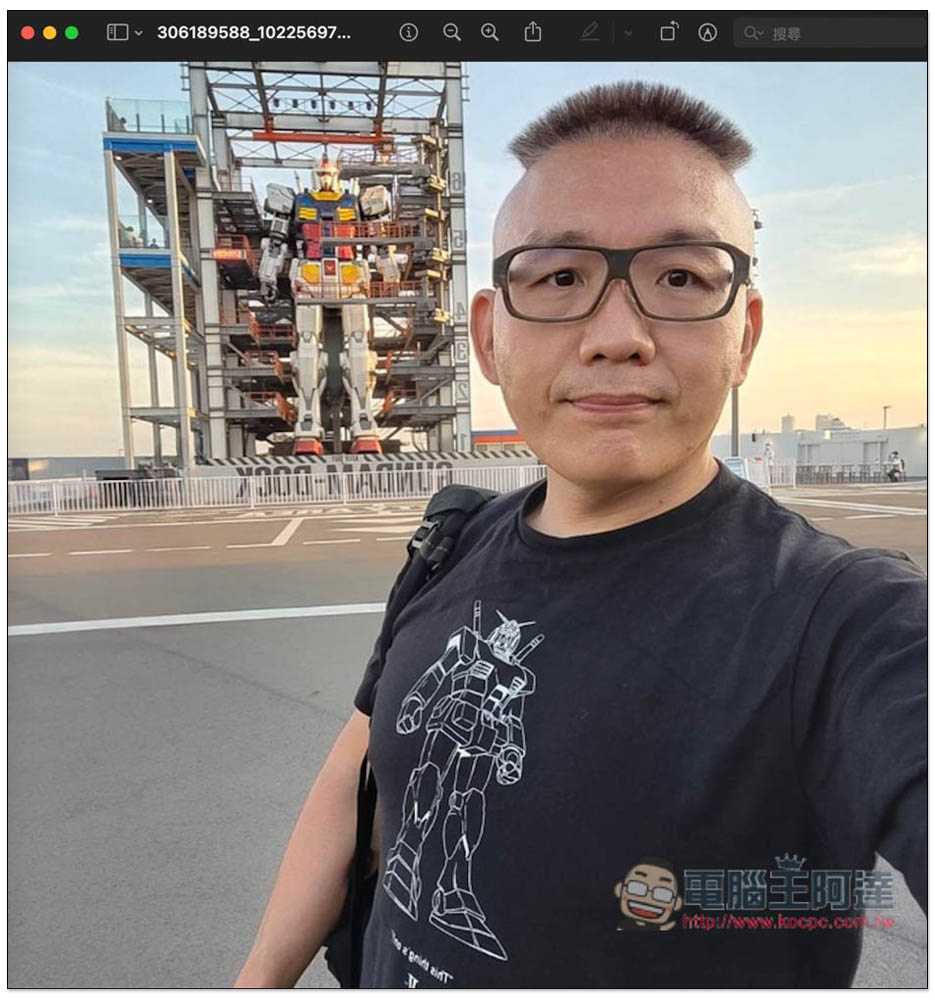
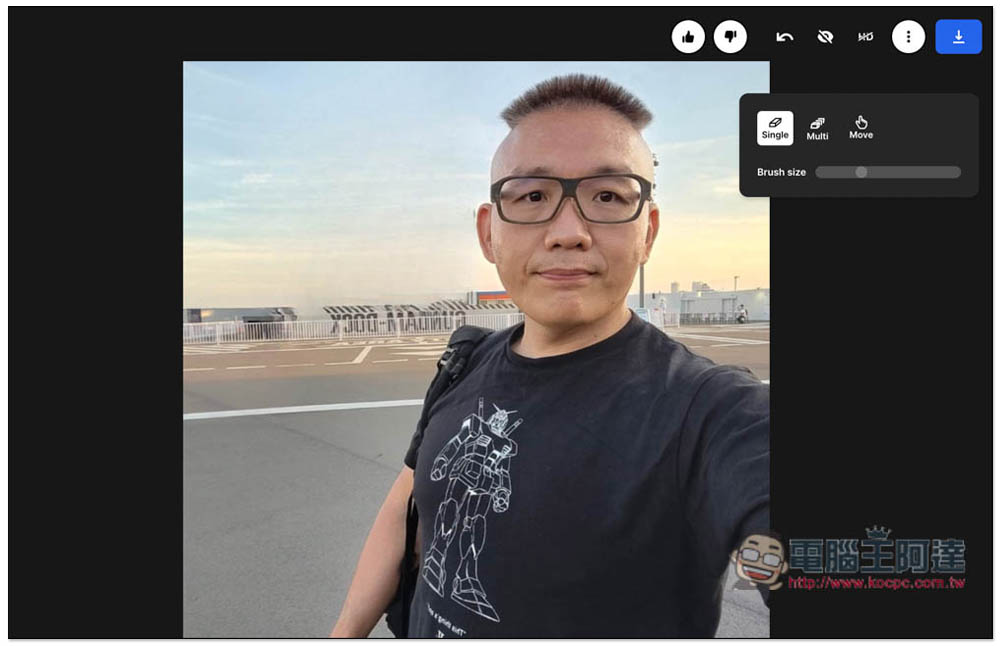
Then I tried to remove the big steel bullet on the back, which was very difficult. But after I finished painting, I didn’t expect that the removal was very good. Although there were some sporadic black edges that were not removed, I could remove these black edges as long as I painted again:
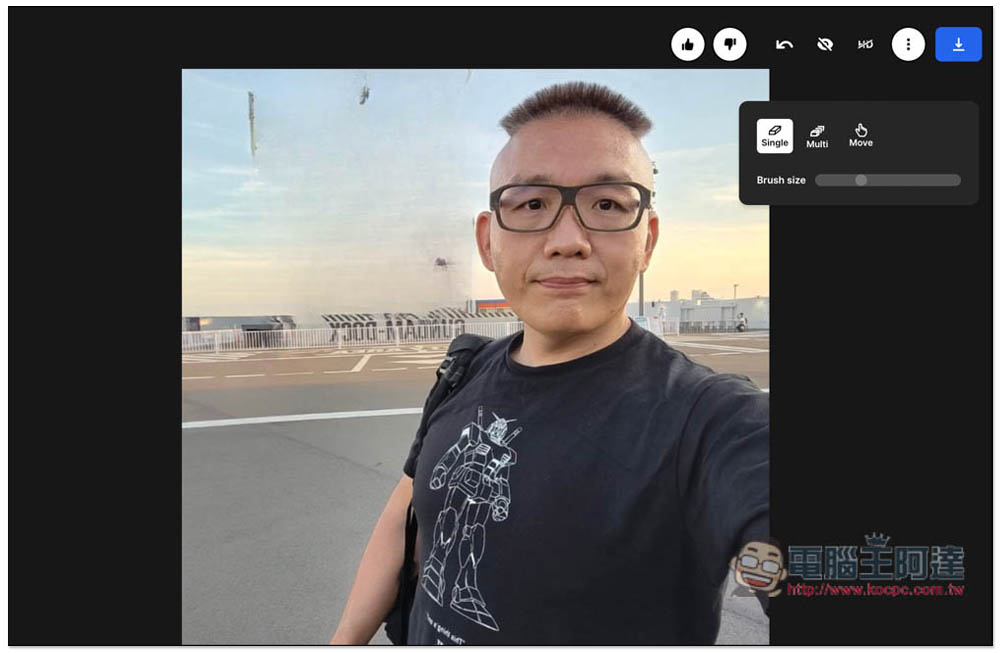
Like this, if you didn’t look carefully, I believe some people would not guess that there was a super large steel bullet behind Ada. It looked like a selfie in a super empty place:
If the effect is not very good after using it, you can also refer to what we have introduced before. SnapEdit、Hana, these two effects are also very good.
Source: KOCPC Chinese