


When people go out for social events, they may receive a lot of business cards at once. Entering the name, phone number, company address, and other details from each card into your phone contacts one by one is time-consuming, making it the most annoying task after collecting a stack of cards. Today, the editor is going to show you how to use ChatGPT to save all the information from business cards into your phone contacts in one go. Both Apple and Android users can do it. If you’re interested, keep reading!
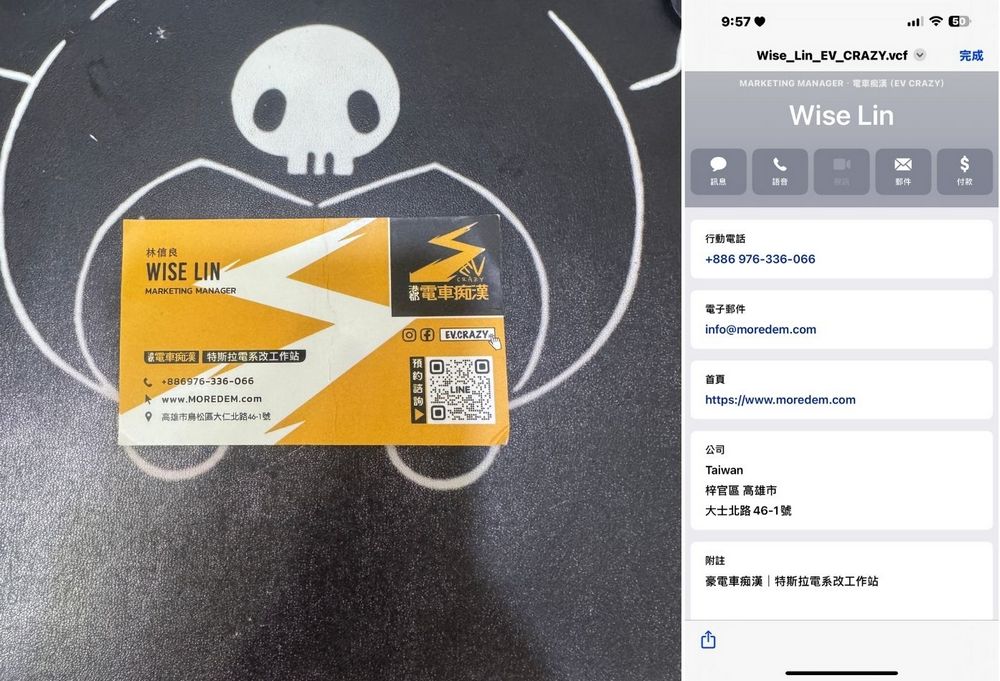
Business Card Organization Hack! Use ChatGPT to Import Contacts to Your Phone with One Click.
When you go out for group meals or social engagements, you might sometimes receive business cards. When there are too many cards, you get lazy about manually entering all the info into your phone’s contacts. Do you have a drawer full of business cards that you never have time to organize? Today I’ll show you how to use ChatGPT to import business cards into your phone contacts in just two simple steps. Both Android and iPhone users can do this.
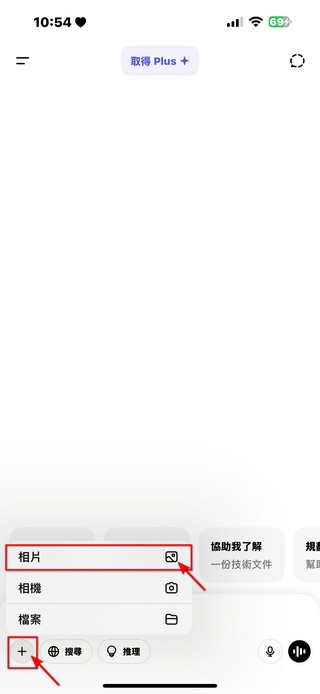
First, take photos of the business cards of the contacts you want to add. After taking the photos, open ChatGPT and click the “+” to upload the card photos.
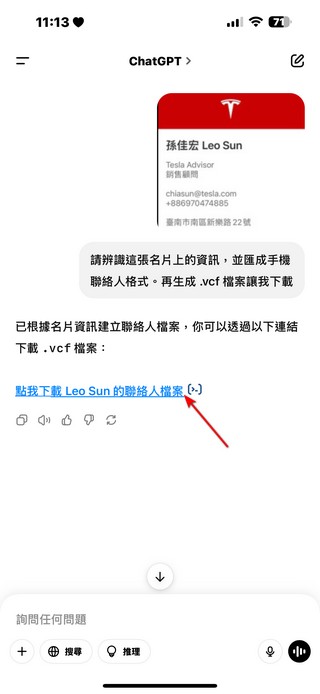
Next, type “Please identify the information on this business card, convert it into a phone contact format, and generate a .vcf file for me to download” in the chat box. Then you’ll see the contact vCard file that ChatGPT created for you. Clicking on the file, you’ll see that the name, mobile phone number, email, company address, and other information from the business card have been organized into a phone contact format. (Just remember to double-check that all the information is correct!)
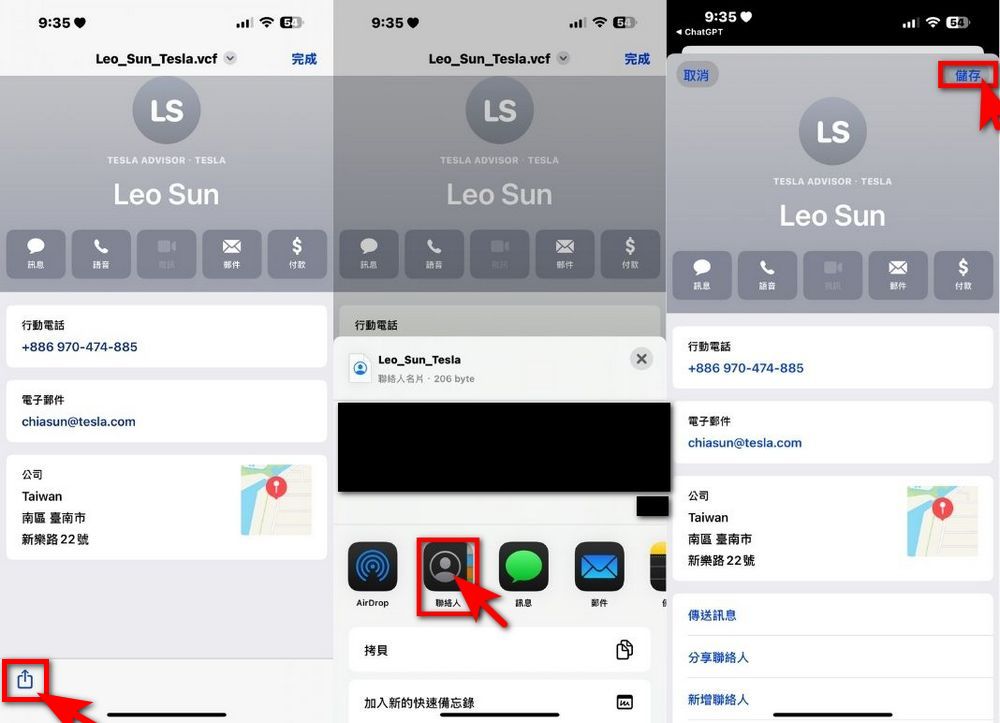
Click Share in the bottom left corner → Contacts → Save, and then you can see the contact info from that business card in your Contacts. If there are typos, you can edit them right after saving. Isn’t that simple? Also, you can take multiple business cards in the same conversation for ChatGPT to recognize, and it will give you the files in order. After importing, it’s still recommended to check for typos.
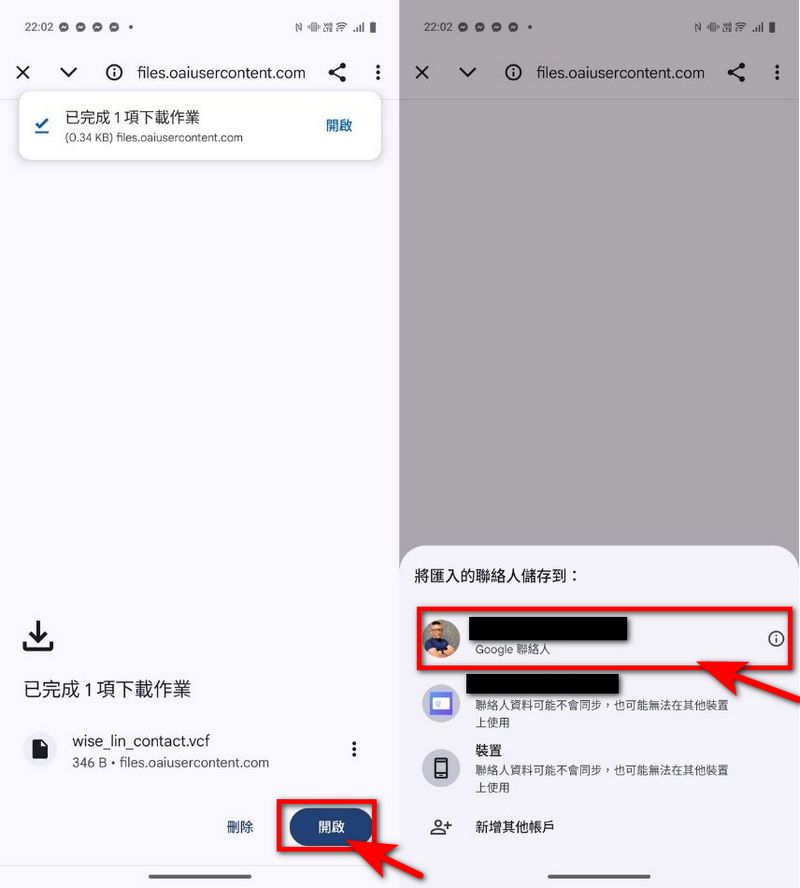
For Android users, the steps for downloading a .vcf file are a bit different. After tapping download, you’ll need to open the file manually, and once it’s open, you’ll need to save the imported contacts to Google Contacts. After that, they should show up in your phone’s contacts. Some people’s phones may display an error after saving, but don’t worry—it’s just a display error. The data will still be imported.
With just a few actions, ChatGPT can help you organize your business cards, and you don’t even need to be a paid member to use it. No more staring at a pile of business cards feeling stuck!
Source: KOCPC Chinese