


A few years ago we introduced a server located in Germany with the high security of SSL encryption PDF24 Tools online tools, in order to make users feel more at ease, they have also launched an offline version of the “PDF24 Toolbox”. The functions of the web version are also available in the offline version, such as editing, converting, OCR, etc., and it supports Chinese. I recommend it to everyone.

PDF24 Toolbox, a completely free offline PDF software with many functions and easy to use
After entering the PDF24 Toolbox (PDF24 Creator) page, click Download to find the installation point. In addition, if you only want to use online tools, click “All Tools” in the upper left corner:

Three options will appear. If you have Windows 10 or above, download the first Windows 10 and newer. If you have the following, download Windows 10 and older:
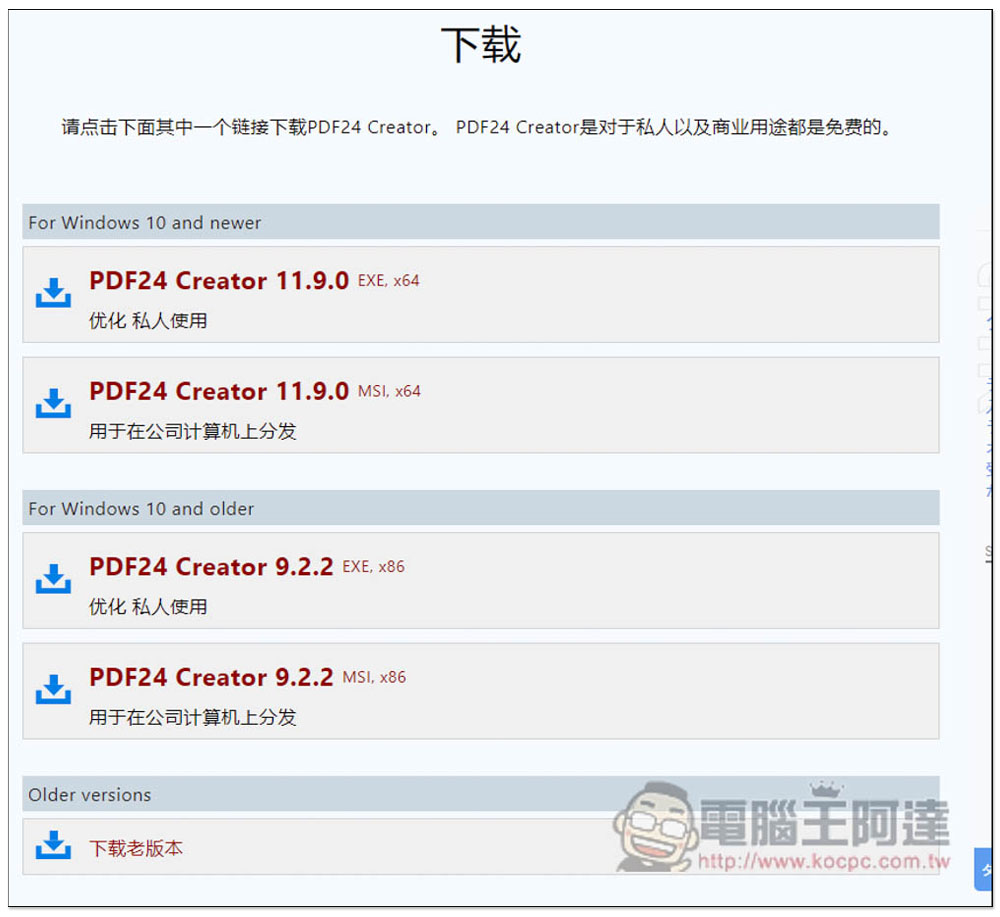
Although the installation process does not support Chinese, the software does. If there are no special needs, just click Next:

You can start using it after installation. It provides many functions, including: merge, compress, edit, convert (convert to other formats or vice versa), encrypt/unlock, split, rotate, remove, expand, sort, webpage optimization, add watermark, add page number, sign, annotate, confidential blackout, crop, flatten and merge, delete and edit the original data. What’s even better is that all used PDF files will be recorded so that you can use them again later:
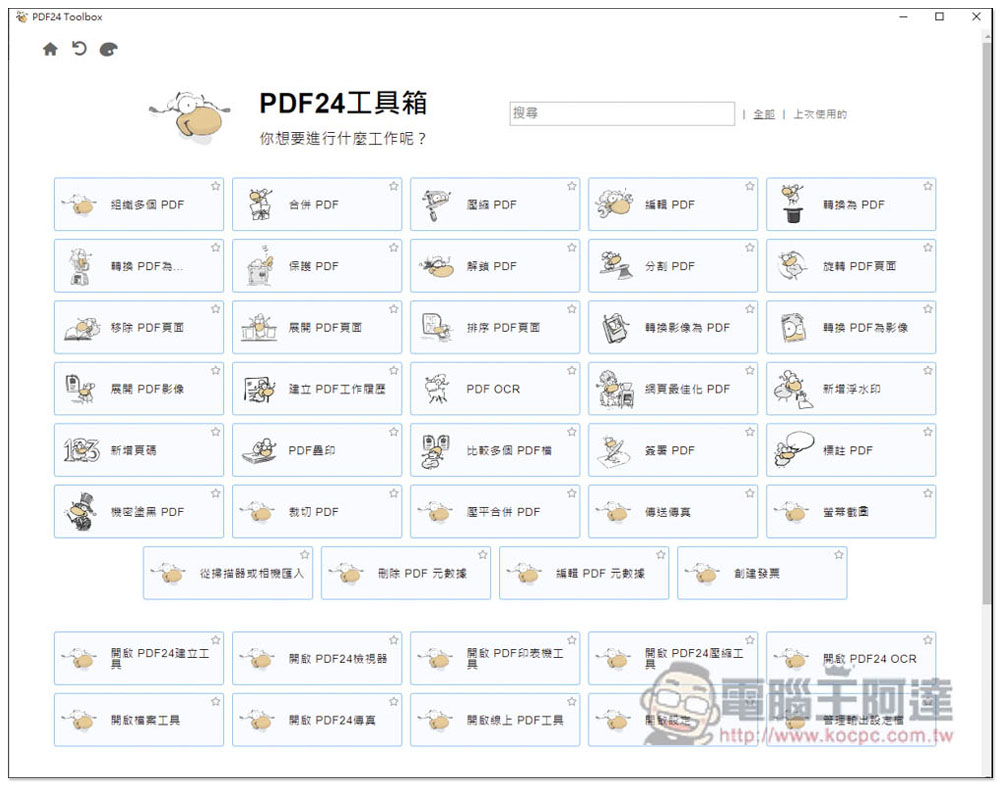
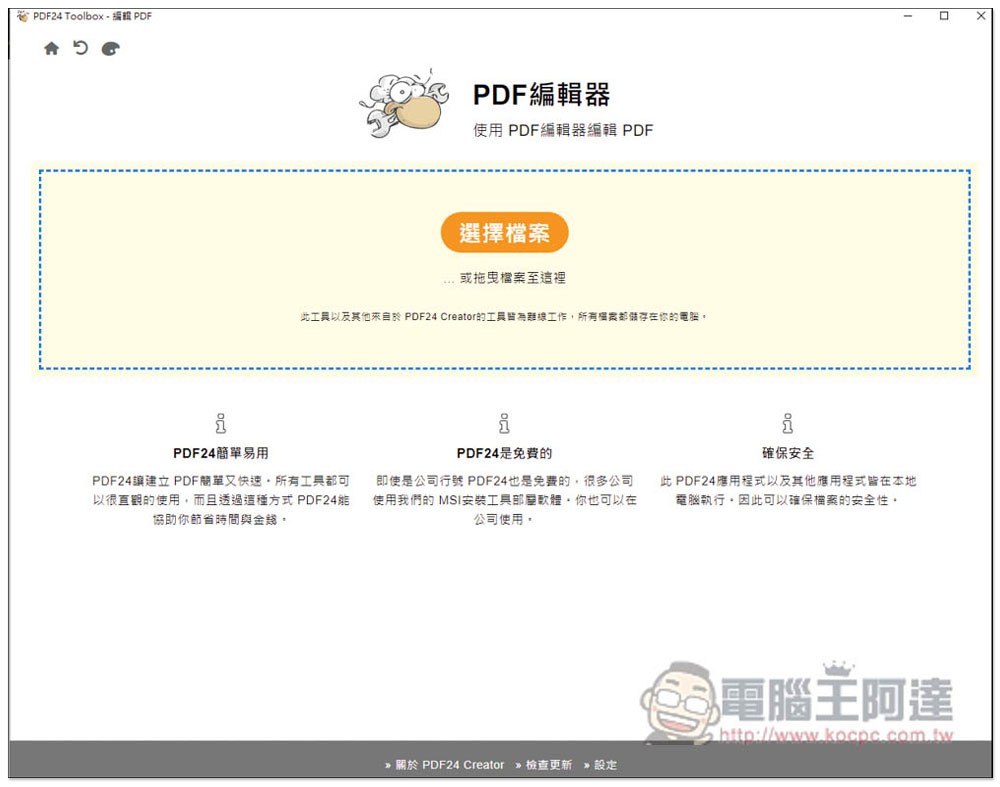
The operation interface is the same as the web version, but all processes will be completed locally to ensure file security. For the PDF editor, after entering the function page, select or drag the PDF file you want to use:
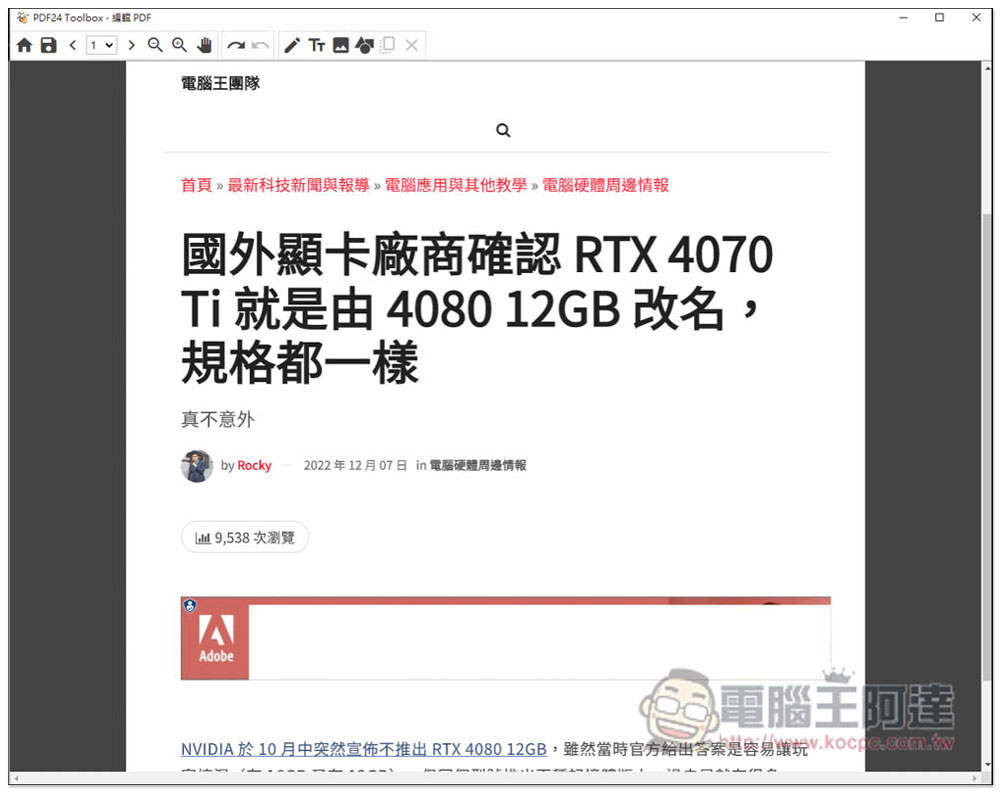
On the editing page, you can add text, pictures, draw highlights, etc. Of course, compared with some professional PDF software, this one only has basic editing functions:
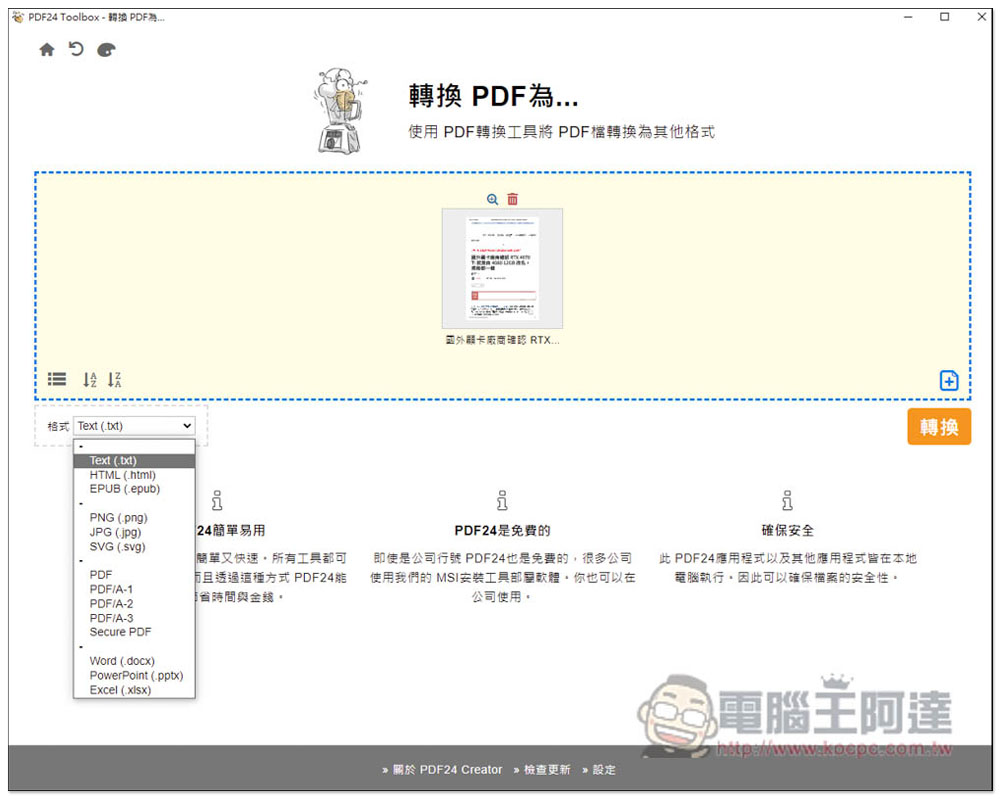
In the conversion part, after reading the PDF file, you can select the format you want to convert in the lower left corner. It supports .txt, .html, .epub, .png, .jpg, .svg, .docx, .pptx, .xlsx, etc. After selecting, click Convert and the conversion will start. The speed is very fast:
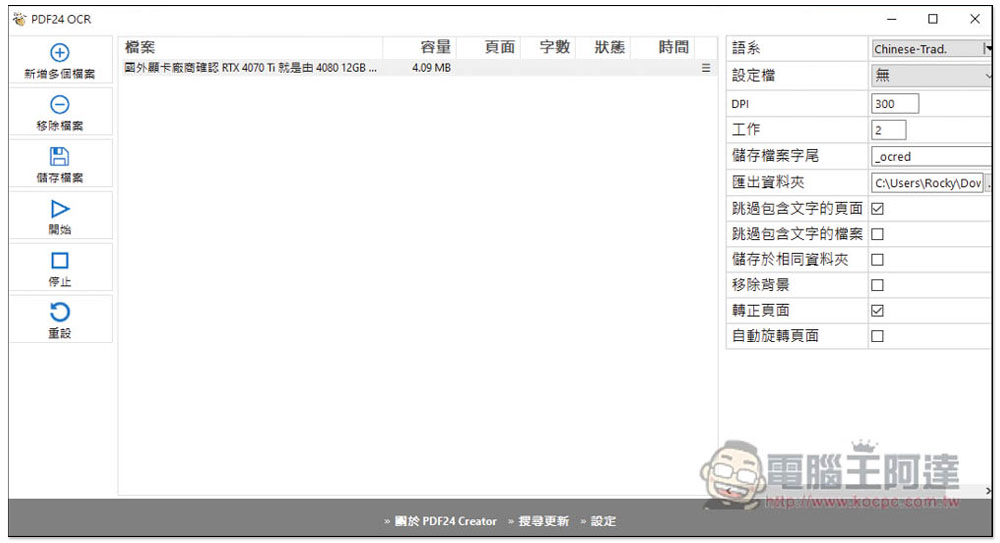
The picture below shows the OCR function. After reading the file, you can set it on the right, including OCR language, DPI, export folder, profile (quality), etc.:
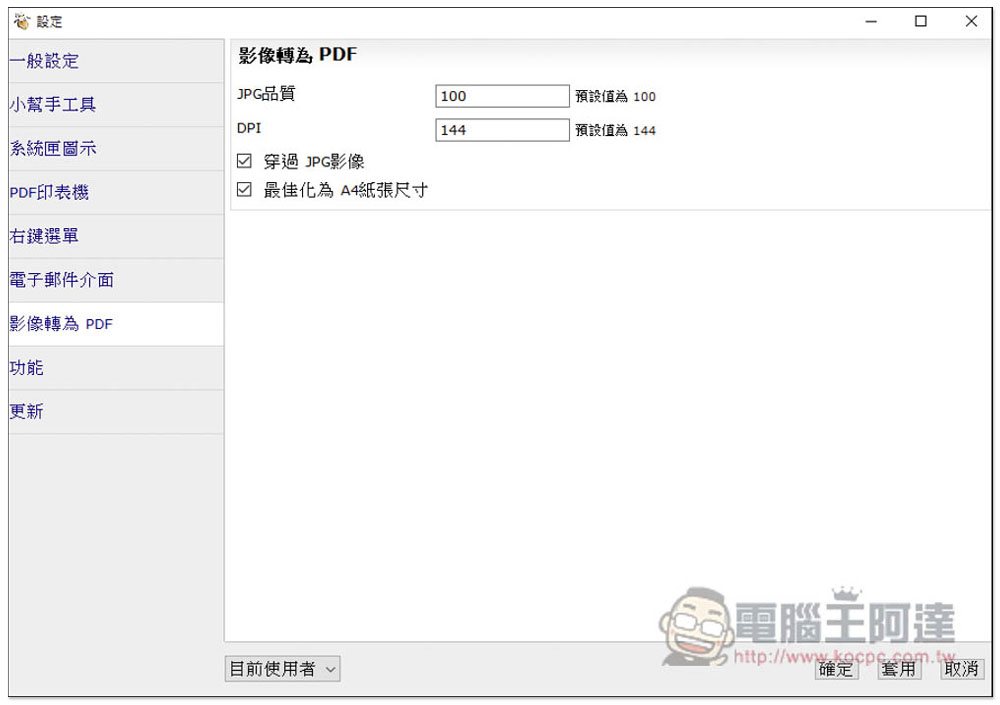
There are also some settings that can be adjusted in the settings, such as JPG quality when converting images to PDF, DPI, PDF printer, right-click menu (displayed by default), various enabled functions, such as: fax, email, online PDF tools, importing images from scanners or cameras, OCR text recognition, etc.:
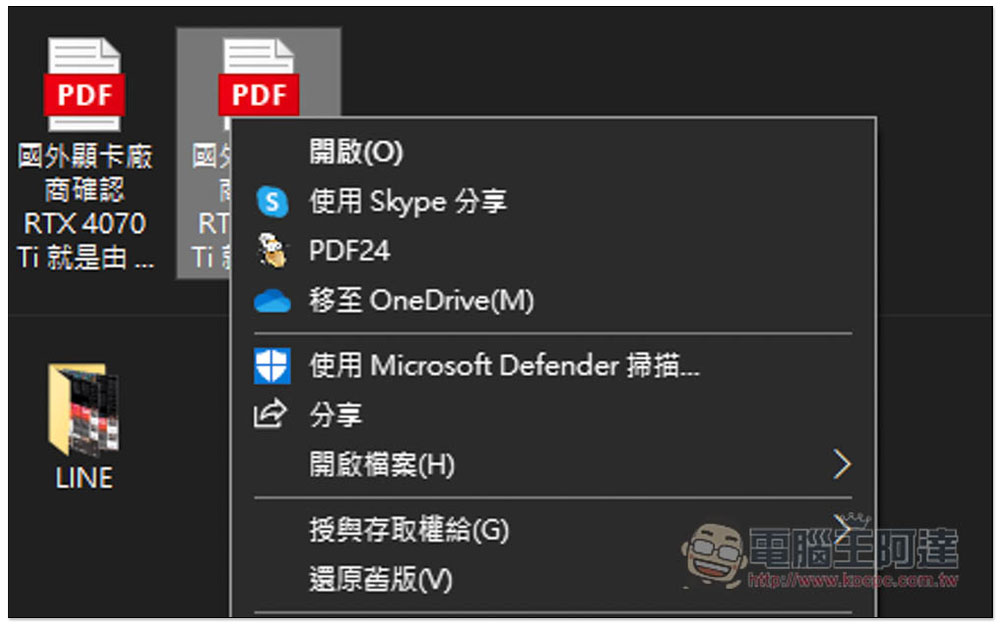
When there is a PDF file to be edited or converted, you can also directly open the right-click menu and open it with PDF24, which saves a reading action:
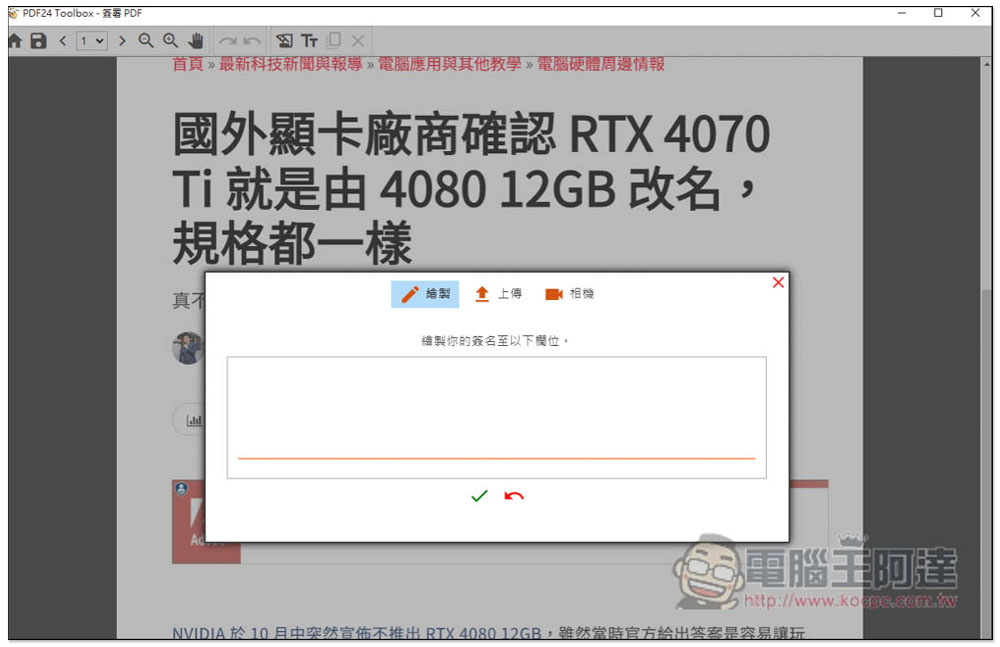
It also supports the signing function. Friends who often need to sign PDF files can just use this offline tool instead of using online tools, which is more secure:
For general PDF needs, this one should be able to meet it, but if you want more advanced ones, such as editing text in PDF, you need to find other more professional PDF software.
Source: KOCPC Chinese