


Previously, we showed you how to export SRT subtitle files directly through CapCut ( Article link ), but as CapCut continuously updates and improves, these features have also begun moving toward a paid model (and using older versions of CapCut no longer works either). So if you also need to transcribe subtitles from videos and haven’t paid for a CapCut membership, this article will teach you how to use Google AI Studio for subtitle recognition—saving time and storage space while also improving recognition accuracy. Below, we’ll walk you through the entire process step by step so you can quickly get started.
Extract the audio before recognition.
Although Google AI Studio can upload videos for recognition, it’s not recommended because video files are simply too large. So please first convert the video with subtitles you want to recognize into an MP3 audio file. Here I’m using CapCut, but of course, if you know how to use other software, that works too.
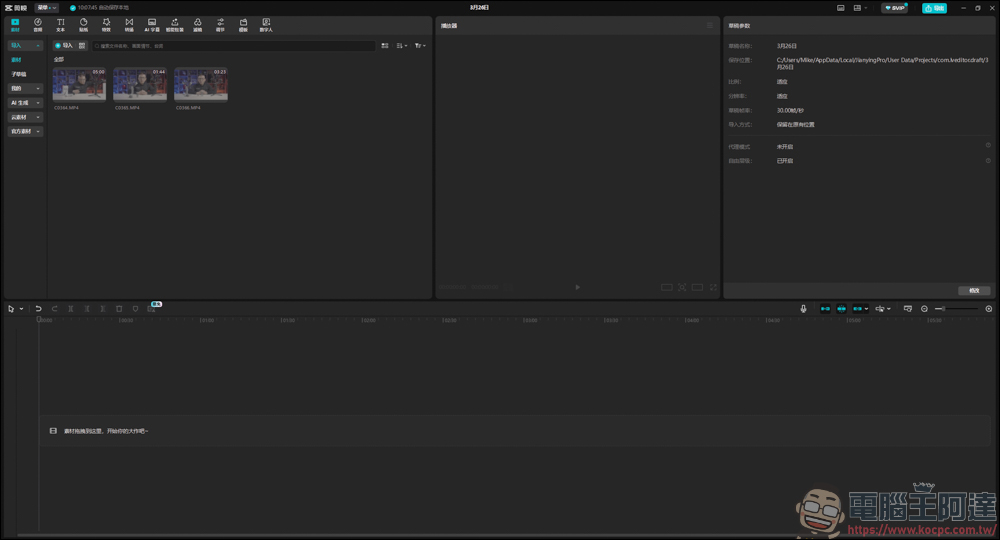
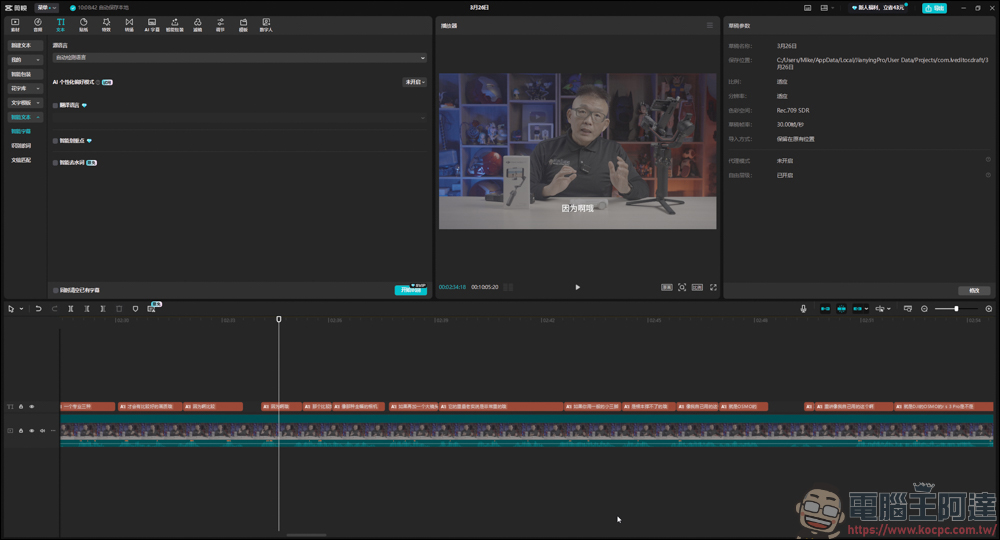
Drag all videos into the sequence:
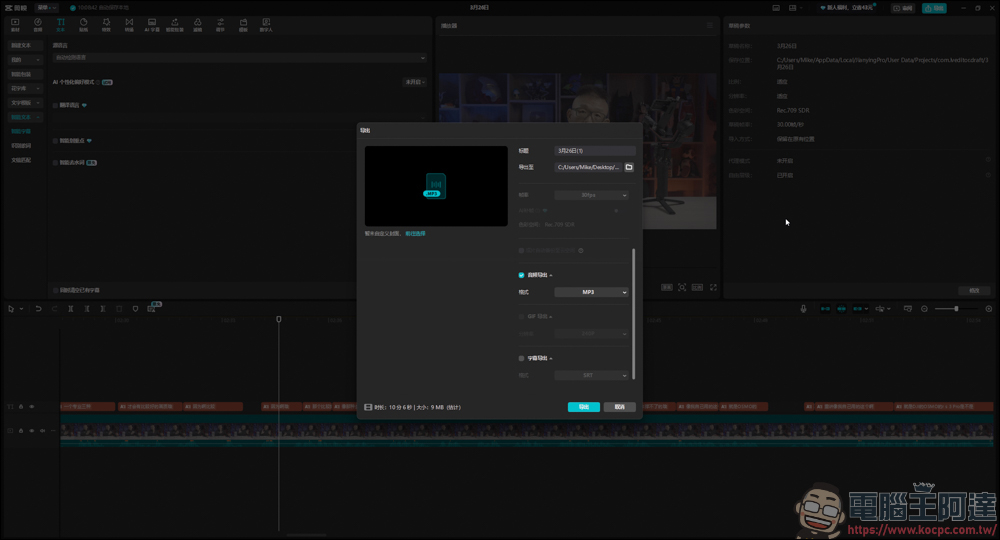
Next, when exporting the project, just choose audio export and change the format to MP3, which is an audio file:
Use Google AI Studio to identify audio file subtitles.
Next, enter Google AI Studio. Here’s the URL. ) Jinde must first log in to a Google account to use it. Previously, Editor Rocky also wrote about how to use Google AI Studio to generate videos, for those interested.Click me :
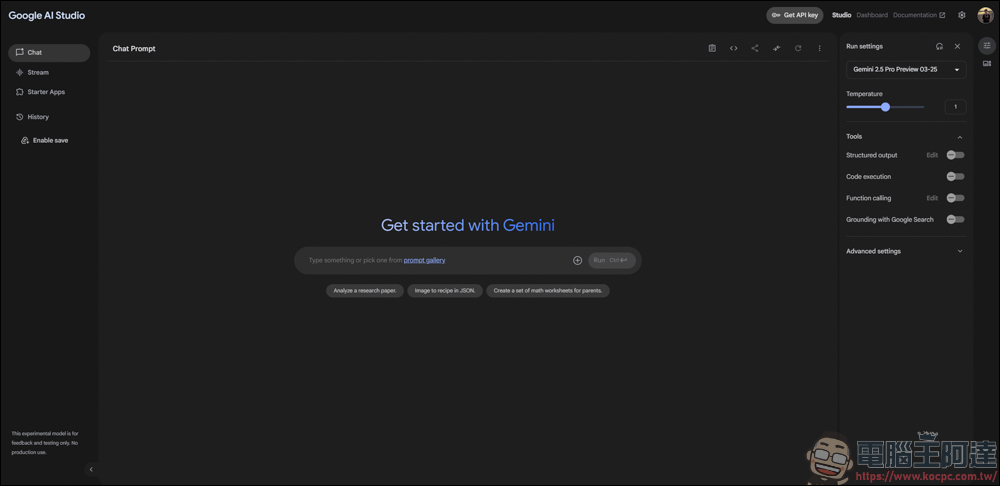
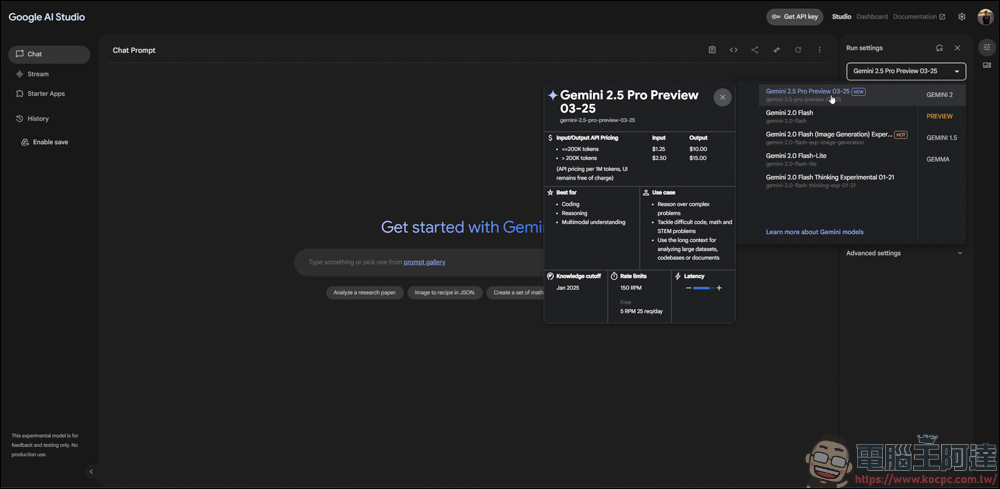
Before starting, you need to select a model first. The model can be chosen from the dropdown menu in the upper right corner. What’s being used here is Gemini 2.5 Pro Preview 03-25, which is free to use, but it does have token limitations.
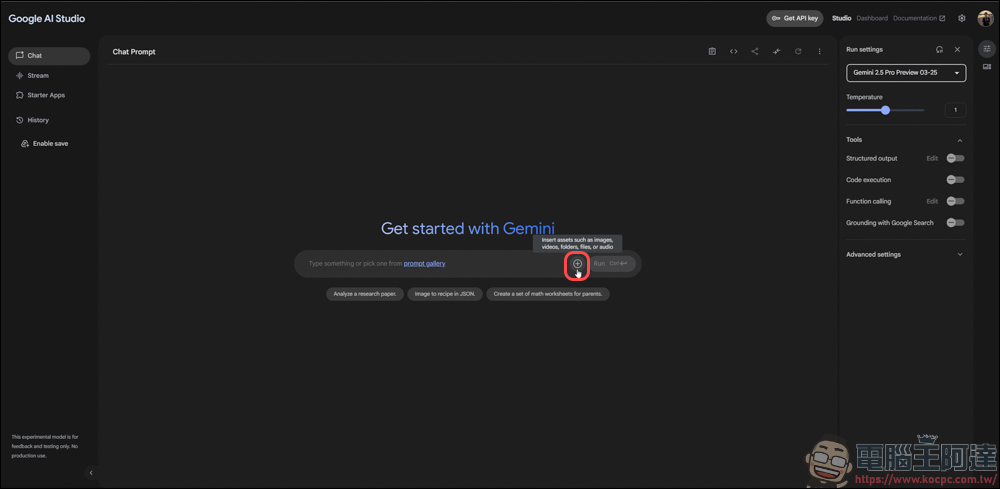
After selecting, click the “+” in the dialog box.
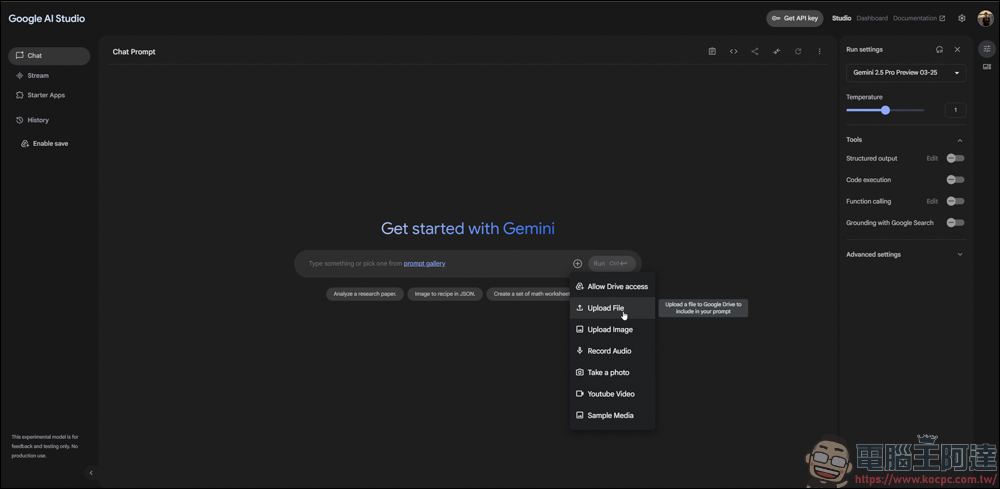
Select Upload File to upload an audio file:
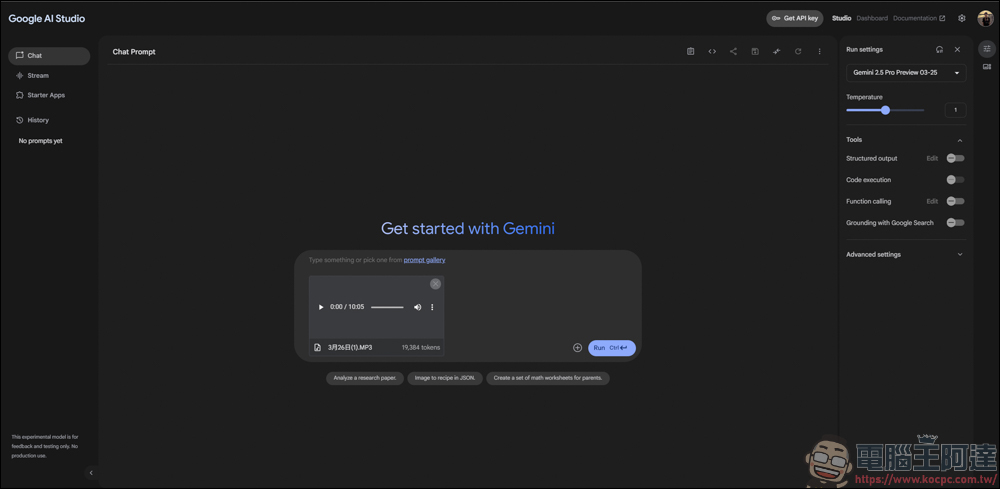
Once you select an audio file, it will automatically upload to the chat box. Since MP3 files are relatively small, the upload is very fast. However, if you send a video directly, a lot of time will be wasted on the upload.
Method 1 – For CapCut Users
Subtitle recognition can be divided into two methods: one is the version that outputs plain text. The command I input for subtitle recognition here isTranscribe this audio into subtitles in Traditional Chinese, no punctuation, correct speech-to-text errors, each sentence no more than 27 charactersBecause in my Premiere subtitles, one line is limited to 27 characters at most (depending on the style you set), that’s why there’s a limit on the number of characters per line.
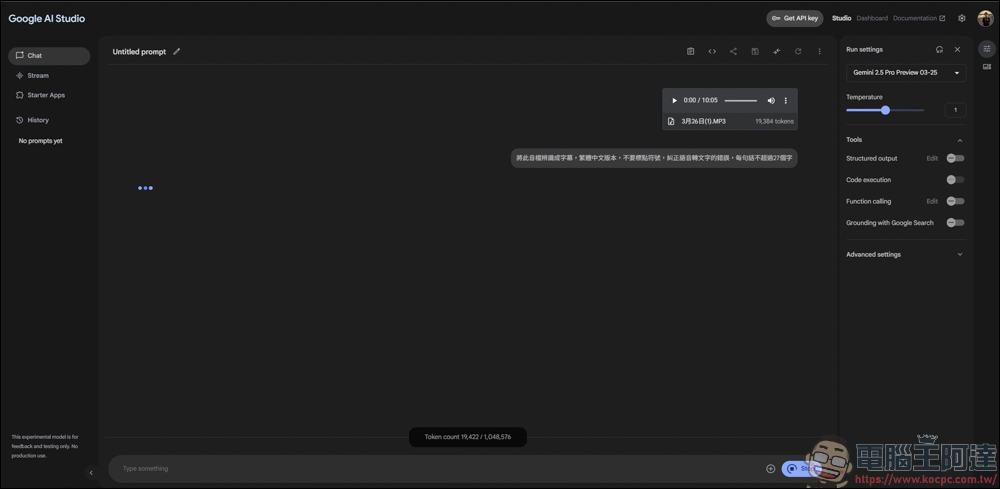
After a short wait, Google AI Studio will transcribe all the spoken content in the audio file into text.
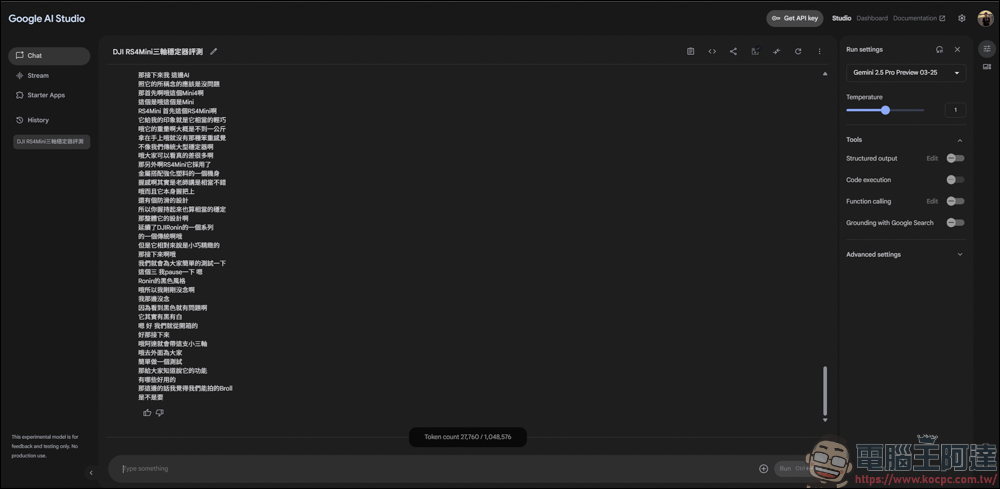
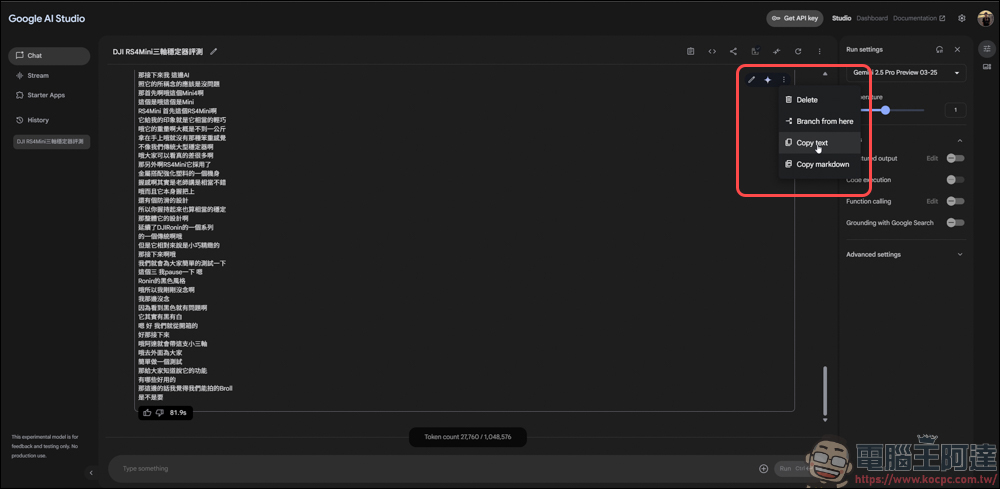
Next, to copy the text, click the … in the text box, then press Copy text to complete the copy 🙂
If you’re using CapCut for editing and haven’t purchased the VIP feature, just copy the text you just had, then find the script matching feature in CapCut:
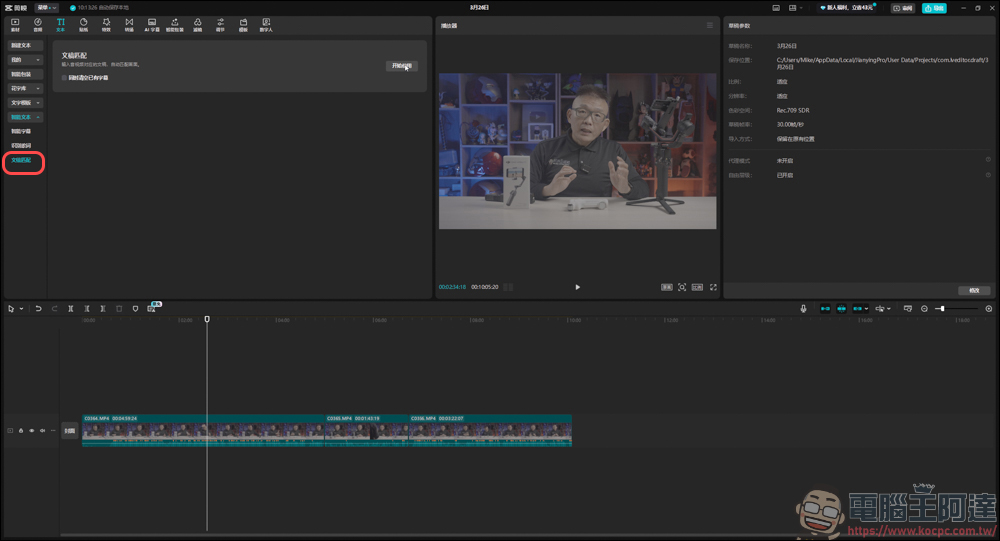
Copy the previous text to the matching function’s dialog box.
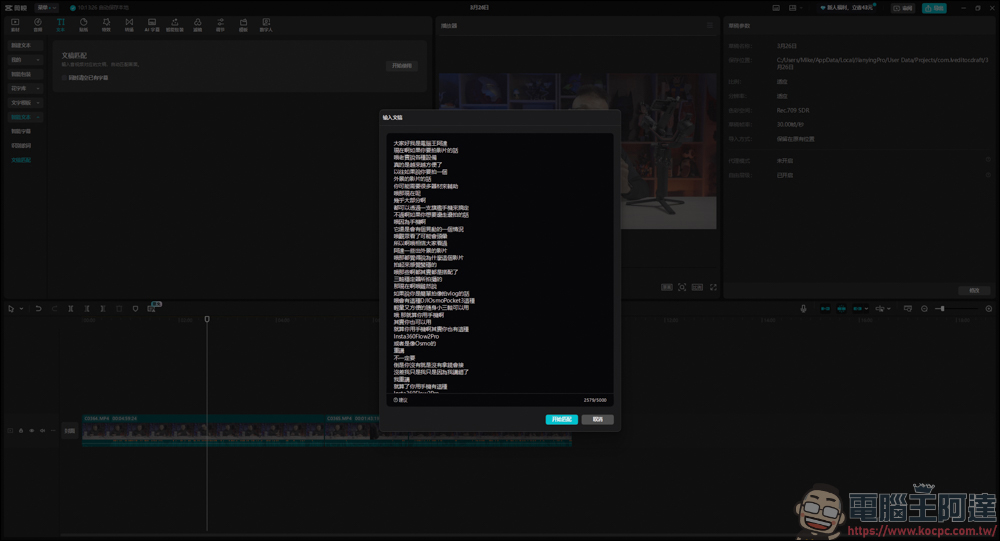
Then let CapCut automatically detect the subtitle positions. As long as the timeline of the video you originally exported the MP3 from hasn’t been changed, it will key the subtitles onto their original positions.
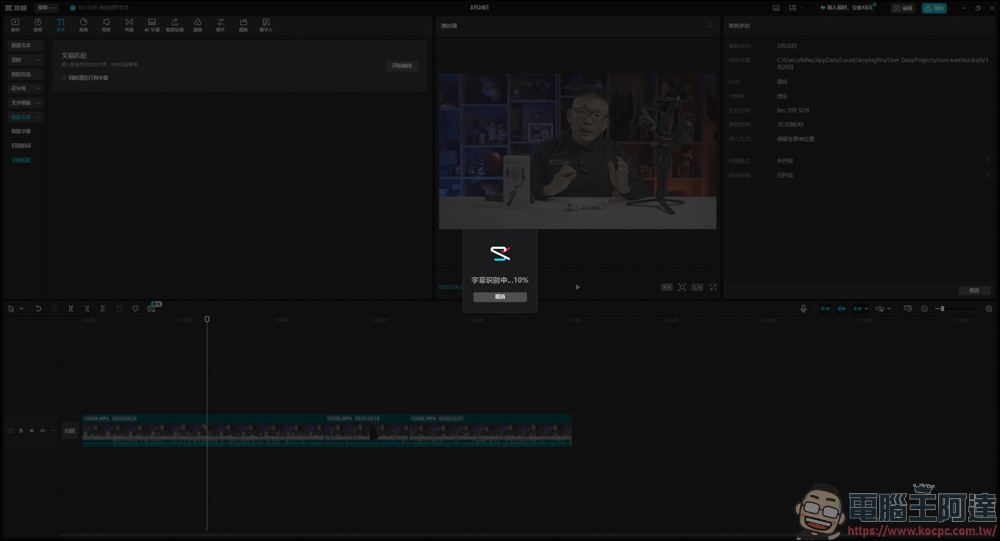
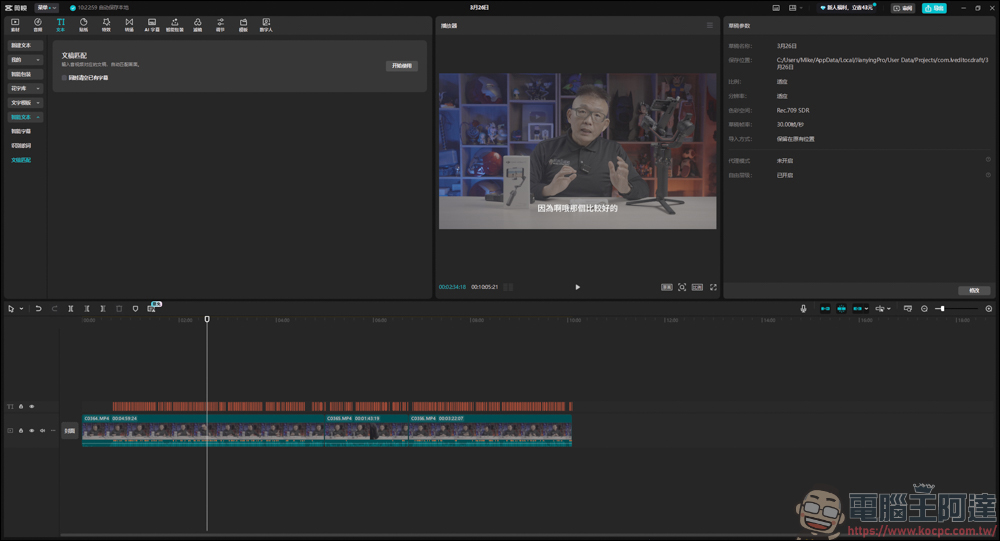
The matching time isn’t long—it takes less than a minute to get it done. This way, even if you haven’t purchased CapCut’s VIP features, you can still use this method to quickly add subtitles to your videos. However, there will be some cases where filler words or English words get run together, so you’ll still need to proofread it yourself once.
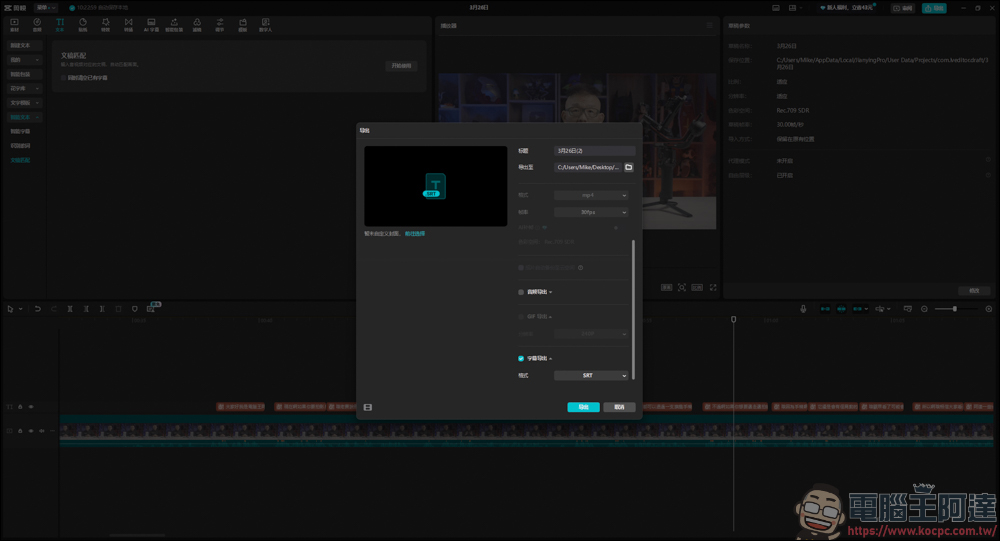
If you want to move the subtitles to another editing software to work on, just export the SRT subtitle file on its own:
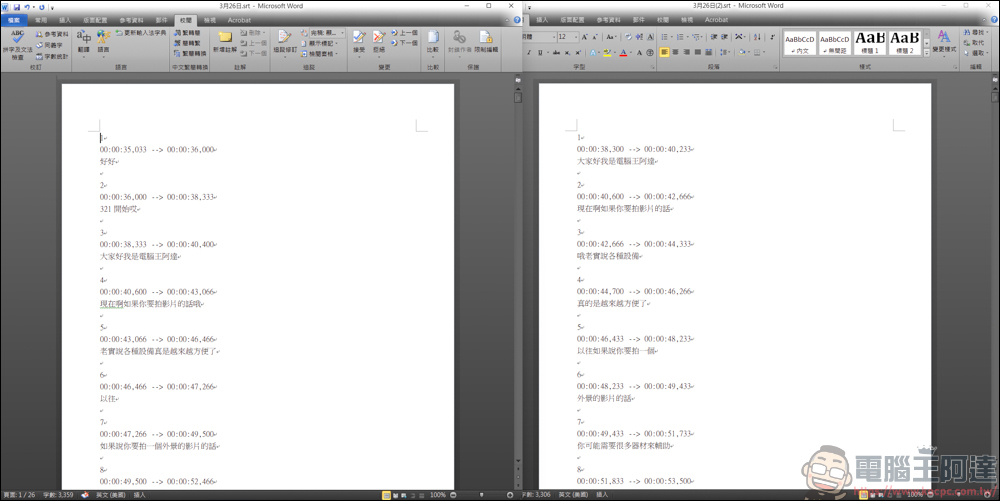
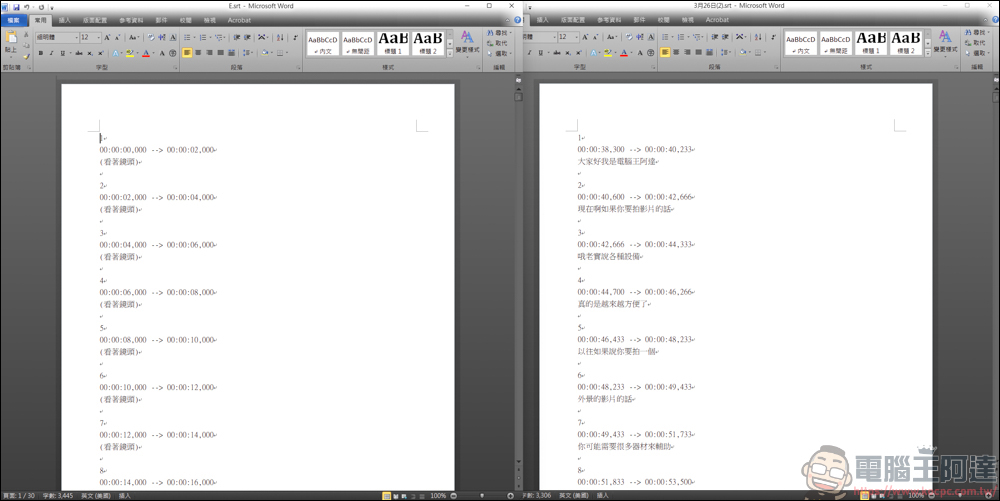
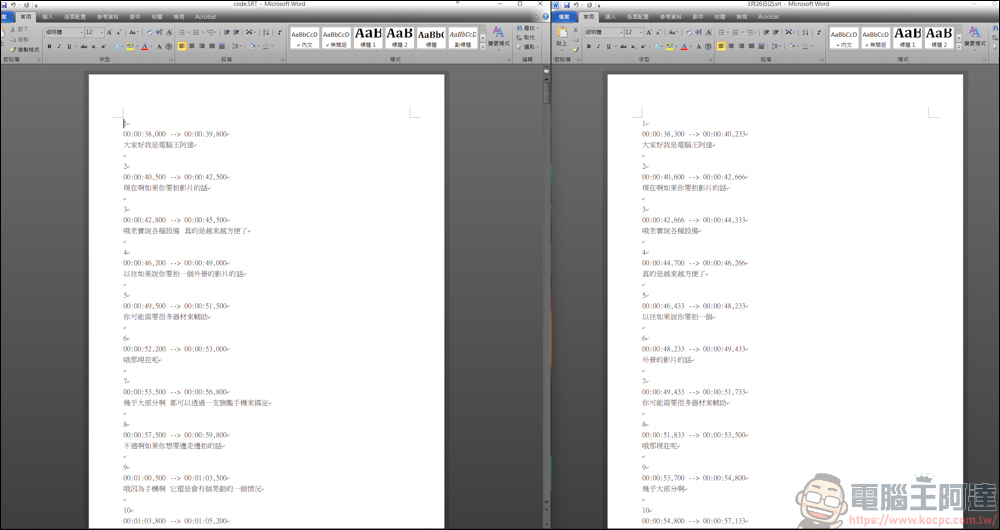
The image below shows, on the left, the SRT exported using CapCut’s own subtitle recognition feature (converted to Traditional Chinese), and on the right, the text recognized by Google AI Studio (saved from CapCut as an SRT). From my own observation, CapCut transcribes all dialogue in the video into text, so even some self-talk content in the video gets converted to text. As for Google AI Studio, since I asked it to correct speech-to-text errors, some self-talk content was not transcribed, and Google AI Studio is also far better at recognizing English than CapCut. When CapCut encounters English words it can’t understand, it converts them into Chinese characters. I think this is also where Google AI Studio is smarter.
Also, in terms of subtitle fluency, Google AI Studio is better. CapCut’s recognition sometimes sets breakpoints based on the tone of voice in the video, which causes subtitles that should appear as one sentence to be forcibly split into two segments, making proofreading take a bit more time. However, both share the same common issue in that filler words like “ah,” “oh,” and “hey” also get transcribed into text. But if you give Google AI Studio instructions to avoid these filler words, this situation can probably be prevented :
Comparing Google AI Studio and Whisper
Since I only used CapCut for subtitles, after it became paid, I switched to using Whisper. The advantage of Whisper is that it can be used locally (you need to download the model first). Since there’s no need to upload videos or audio files, it’s quite convenient to transcribe directly on your computer. However, the processing speed takes a bit more time than the two software mentioned above.
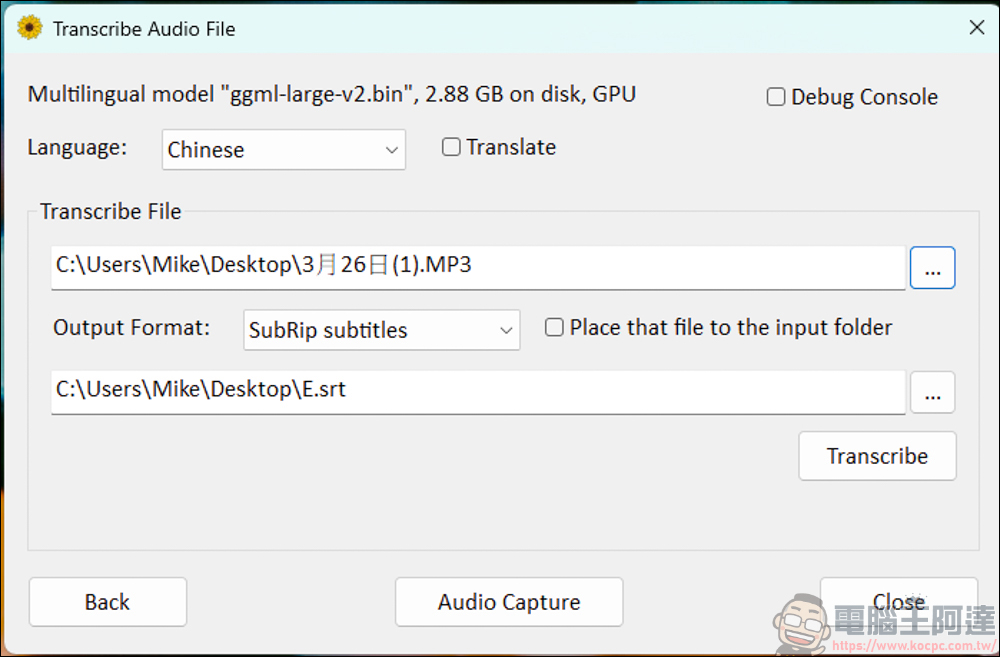
Whisper’s recognition accuracy is quite good, and it doesn’t even produce filler words. Its ability to recognize mixed Chinese and English is also nearly perfect. It’s really useful!
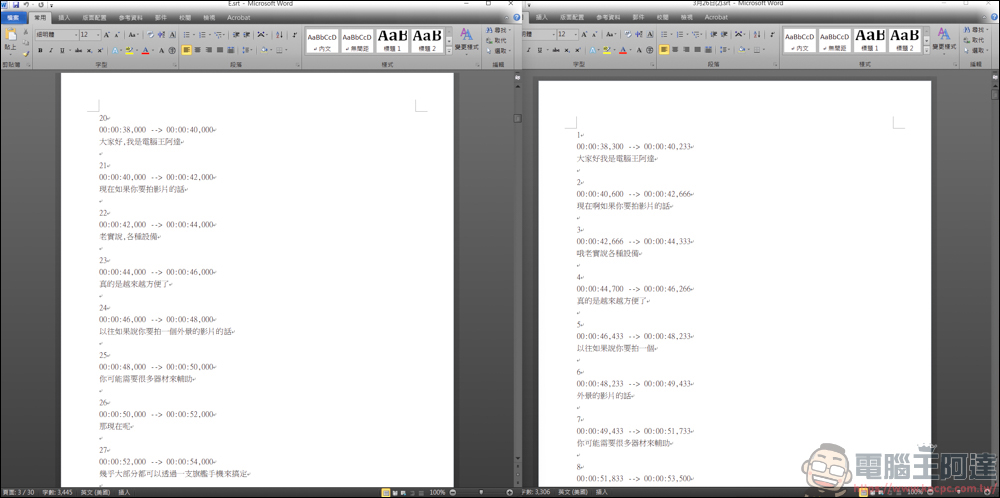
However, the biggest problem with using Whisper so far is that it generates a lot of unnecessary subtitles. For segments with no speech at all, it will produce nonsensical captions. Even worse, I once encountered a five-minute video where two minutes of subtitles were completely unrecognizable. Now that Google AI Studio is available, I probably won’t be using Whisper for a while :
Method 2 – Directly Export SRT Version
If you’re not using CapCut for your editing work, there’s another way to export SRT subtitles. There are also two methods for converting to SRT subtitles: one is to use the transcribed text mentioned above and then convert it to SRT subtitles; the other is to use the audio file directly to convert to SRT subtitles. The results of the two methods are slightly different, and I’ll give you a quick demonstration here. First, on the original content in Google AI Studio, the command I entered wasConvert to SRT version, each line no more than 27 characters. :
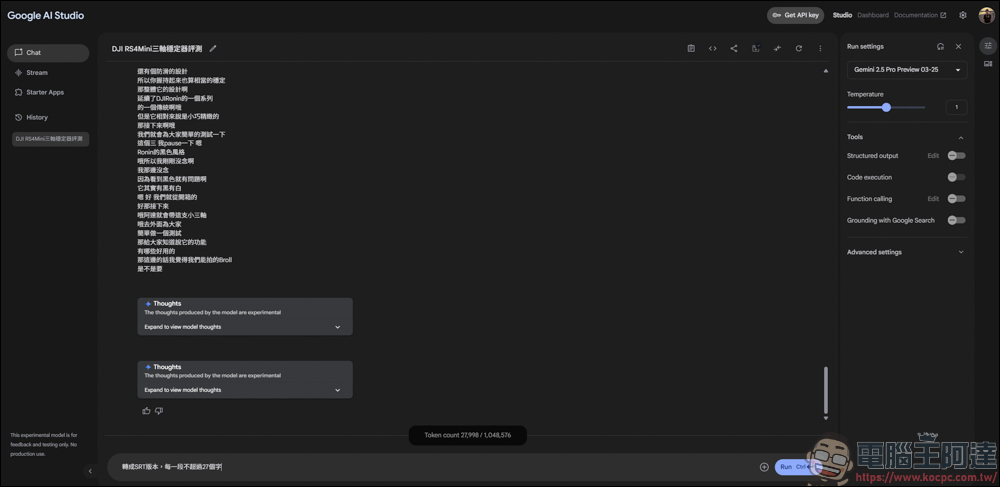
Next, it will edit the original text together with the uploaded audio file to create subtitles with a timeline.
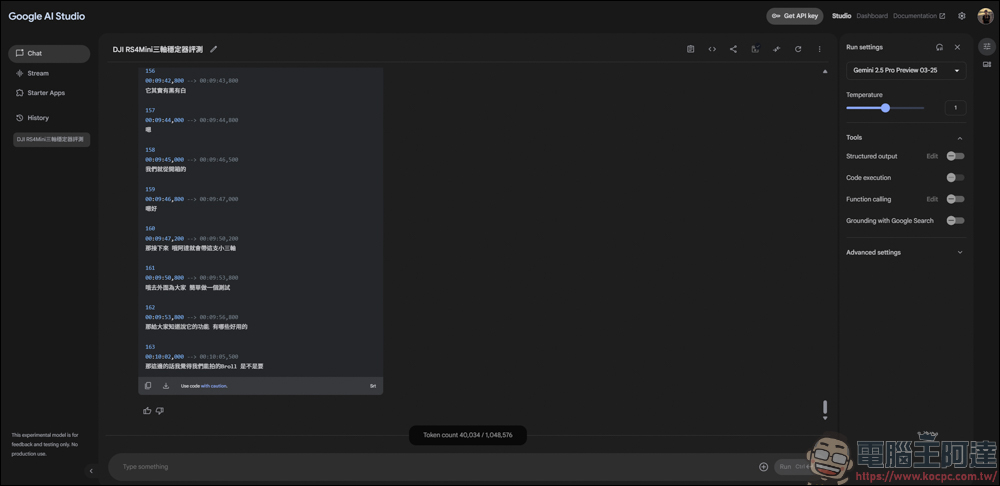
After the transcription is complete, click the download option in the text box.
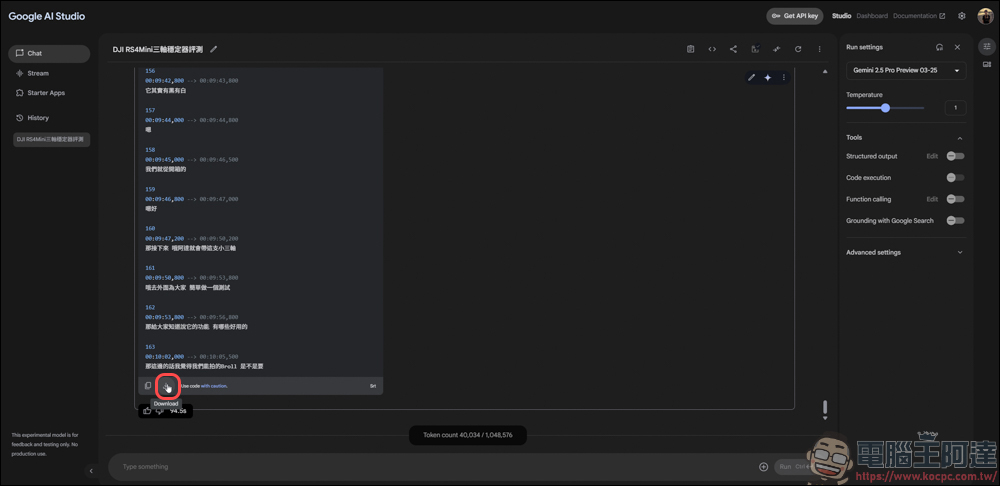
Save the file, but the downloaded file is only a TXT file, so you’ll need to change it to SRT yourself:
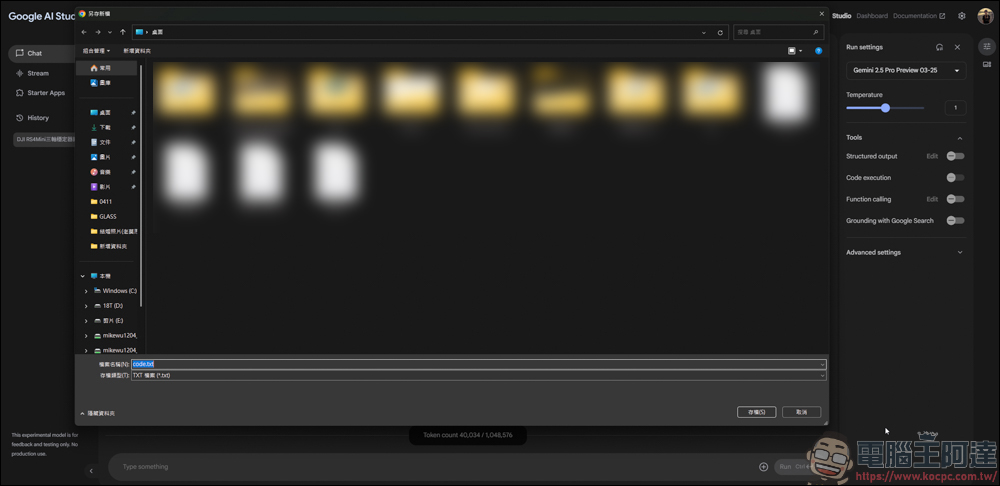
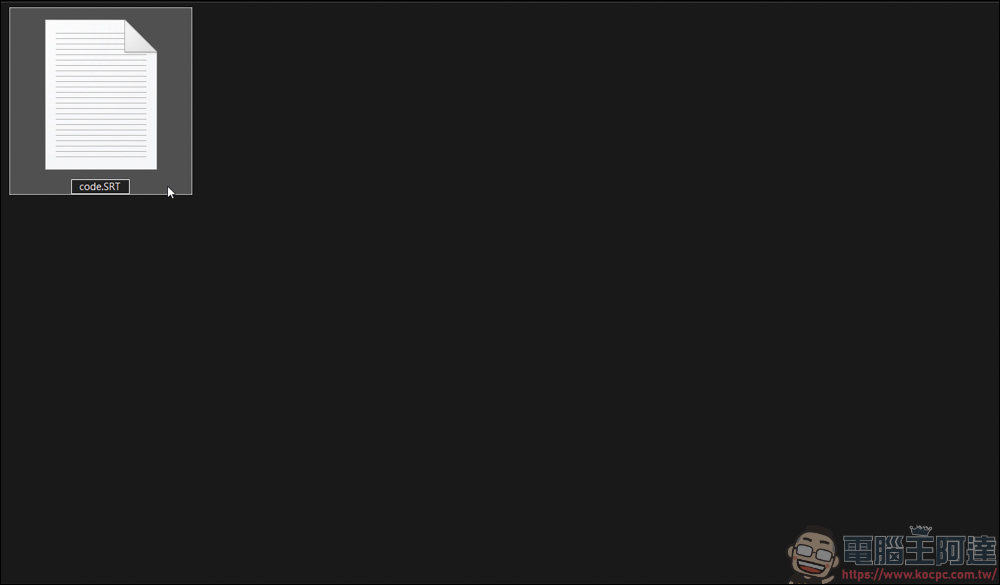
Change the extension of the downloaded TXT file to SRT, and it will become the SRT subtitle version.
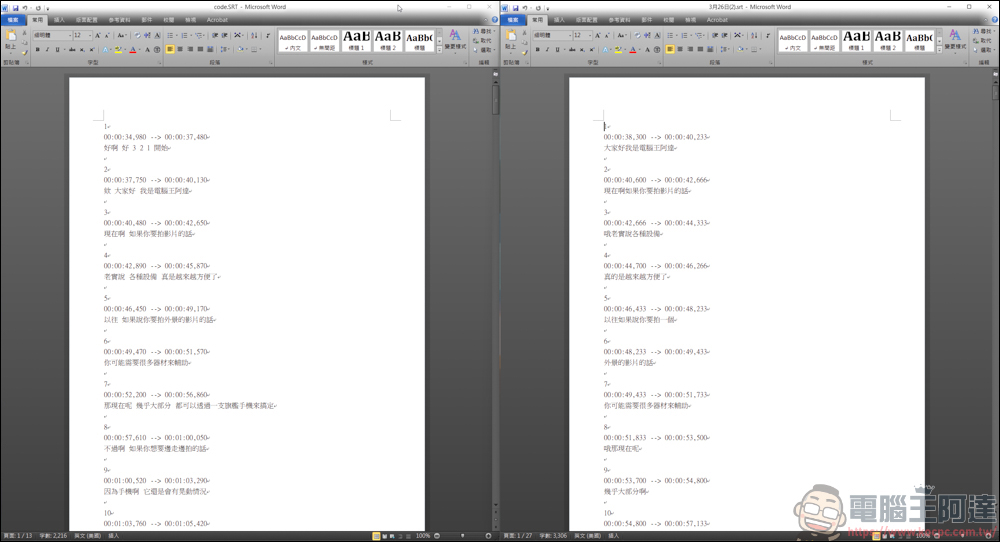
Comparing briefly with the previously exported SRT file from CapCut, the left side is the version later generated by Google AI Studio, and the right side is the SRT exported by putting the text transcribed by Google AI Studio into CapCut. Although the text in both versions is the same, the formatting is slightly different: when using Google AI Studio to convert to SRT, sentences are more often continuous; whereas the SRT from plain text going into CapCut and then exporting has more sentence breaks. It just depends on which version you prefer:
Another method would be to directly transcribe an SRT file. Same as before, just upload the audio file, and the steps are the same as those taught earlier:
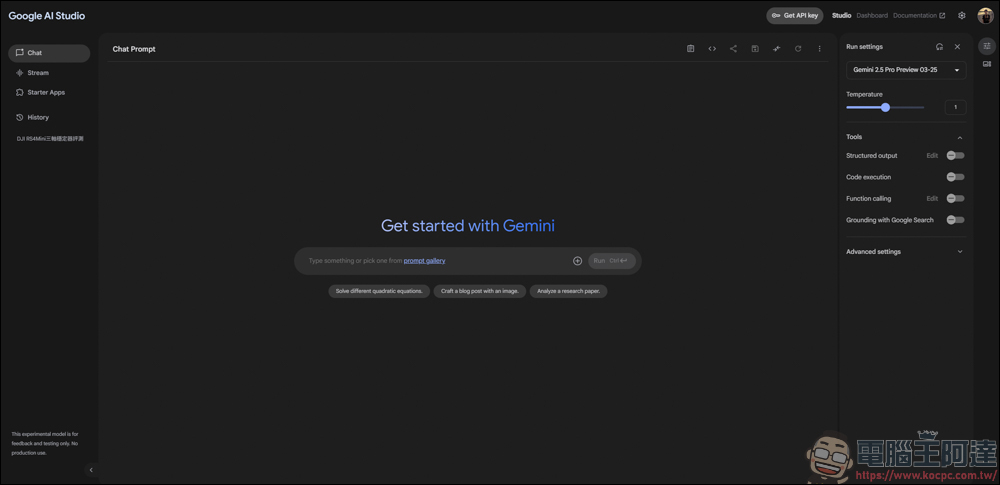
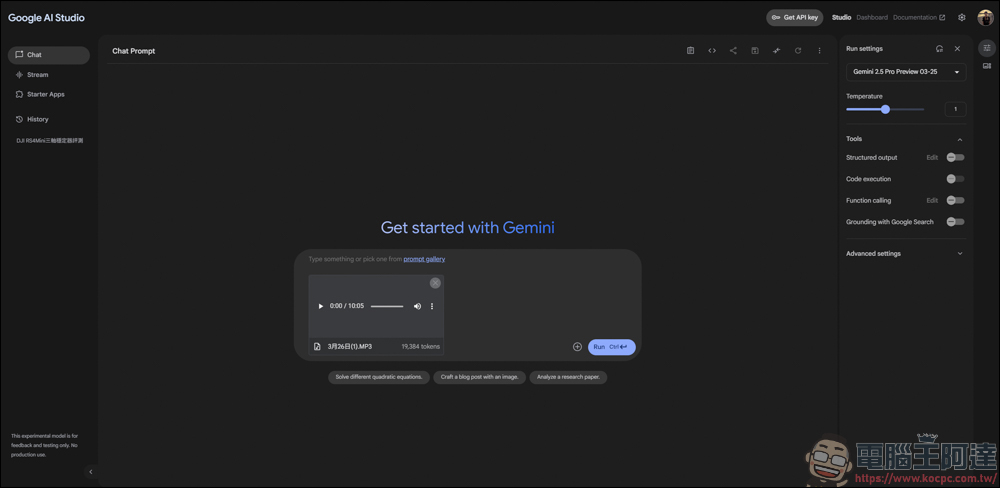
The command given here is「Convert this audio file into subtitles, Traditional Chinese version, no punctuation, correct speech-to-text errors, each sentence no more than 27 characters, need SRT text versionWhen placed in the quotation marks, Google AI Studio will automatically generate an SRT version:
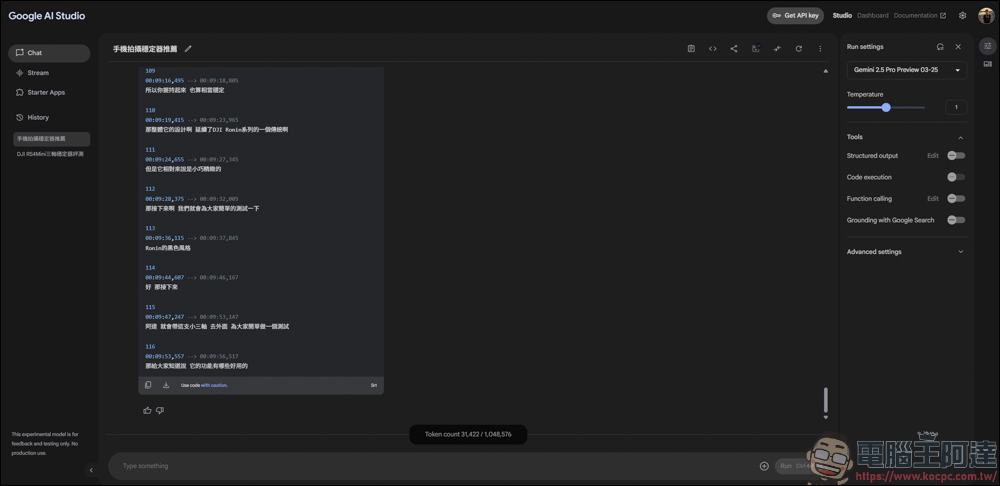
I won’t go into the details of downloading and changing file extensions. Here, I’m comparing the SRT version directly generated by Google AI Studio (left) and the SRT version transcribed and then exported from 剪映 (right). The directly generated SRT version has fewer sentence breaks, but honestly, I don’t like that version as much, because after putting it into editing software, you still have to cut subtitles and adjust positions. If you combine the two subtitle tracks into one, the processing will be a bit faster.
Of course! This depends on each person’s usage habits. What I’m used to, you may not be used to. That’s all for this tutorial on using Google AI Studio to recognize subtitles. Hope it helps all readers 🙂
Source: KOCPC Chinese