


Windows 11 has been officially released for a short time. Just like previous Windows systems, it also has several different versions, and each contains different features, making different versions of the system suitable for different user groups. For the general public, Windows 11 Home Edition and Professional Edition are the two main options, so what are the differences between the two? How to upgrade from the home version to the professional version?
What is the difference between Windows 11 Home and Pro? How to upgrade from Home Edition to Professional Edition?
As the name suggests, Windows 11 Professional Edition has richer features than the Home Edition, but most computers and laptops are equipped with the Home Edition. Even Microsoft’s own Surface devices are preset to be the Home Edition, unless you choose a Professional Edition model from the beginning. In this tutorial, the author will show you how to upgrade from the home version to the professional version, and will also help you analyze the reasons for the upgrade.
Why would you want to upgrade to Windows 11 Pro?
As mentioned earlier, there are some features in Windows 11 Professional that are not available in the Home version, but what exactly are you missing? For most users, the home version is enough to satisfy you, but for computers used by professionals and business management, the professional version covers more comprehensive aspects. Let’s use a table to quickly take a look at the differences between the two:
| Function | Home version | Professional version |
| Set up using local account | × | × |
| Join Active Directory/Azure AD | × | ○ |
| Hyper-V | × | ○ |
| Windows Sandbox | × | ○ |
| Microsoft Remote Desktop Connection | client only | ○ |
| BitLocker device encryption | × | ○ |
| Windows Information Protection | × | ○ |
| Mobile Device Management (MDM) | × | ○ |
| group policy | × | ○ |
| Enterprise State Roaming with Azure | × | ○ |
| Assign access permissions | × | ○ |
| Dynamic Provisioning | × | ○ |
| Windows Update for Business | × | ○ |
| Kiosk mode | × | ○ |
| Maximum supported memory | 128GB | 2TB |
| Maximum number of supported processors | 1 | 2 |
| Maximum supported processor cores | 64 | 128 |
One of the features unique to Windows 11 Pro is BitLocker encryption, which helps protect the data on your computer from outside attacks. Encrypting data means only you can access it, which is especially important if you’re concerned about data privacy and security. Another exclusive feature is support for remote desktop connections, which allows you to connect to and control your computer from anywhere, for example, controlling your office computer from home for emergency work during a long vacation. Hyper-V virtualization allows you to create and run virtual machines to test specific environments or risky software without damaging the host computer.
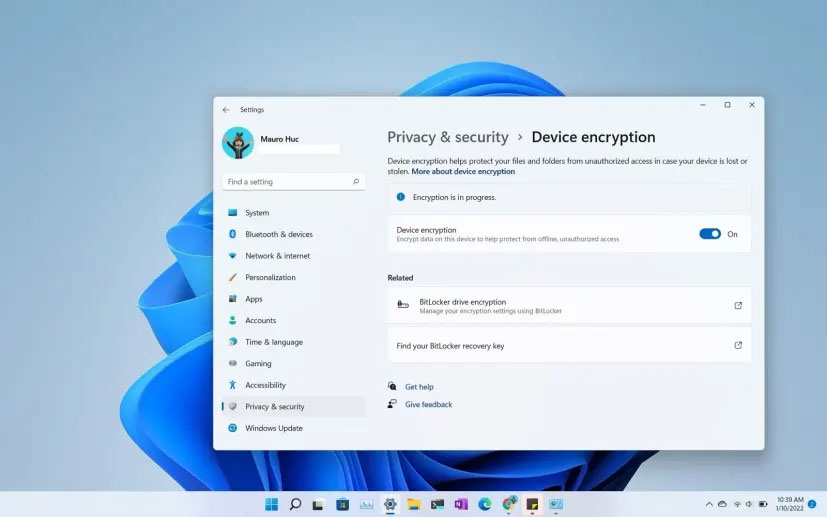
More features of Windows 11 Pro include the ability to join Azure Active Directory or business aspects. Originally, Windows 11 Pro also allowed setting up devices with local accounts out of the box, but now that both versions require an internet connection, you still need a Microsoft account to set up Windows 11 Pro for personal use.
How to upgrade from Windows 11 Home to Pro?
If you want to upgrade from the home version to the professional version, there is no need to reinstall the operating system. The whole process is not troublesome at all, it just costs some money.
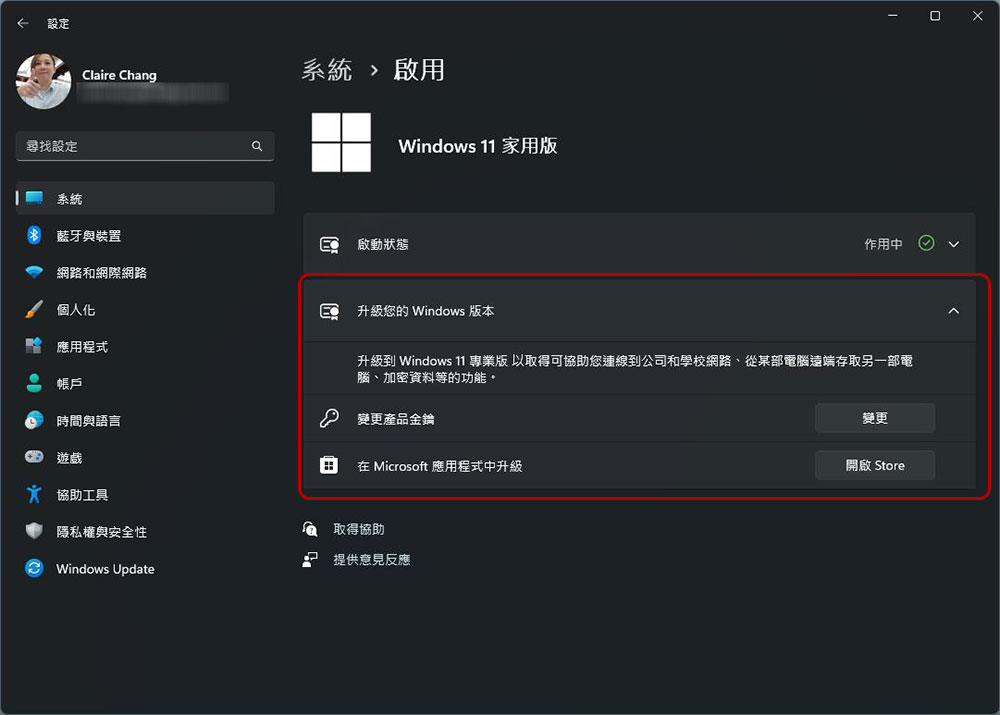
- Open the Settings app and click Enable.
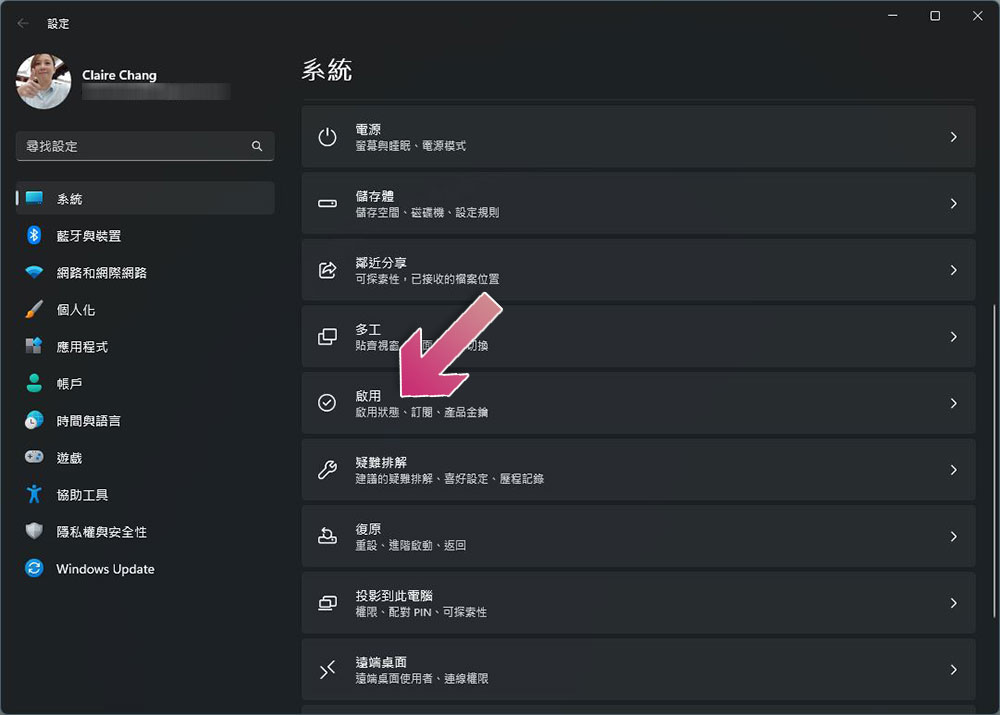
- Expand the “Upgrade your Windows version” folding menu. If you already have a key, click “Change Product Key” and enter the key; if you don’t have a key yet, click “Open Store” to purchase.
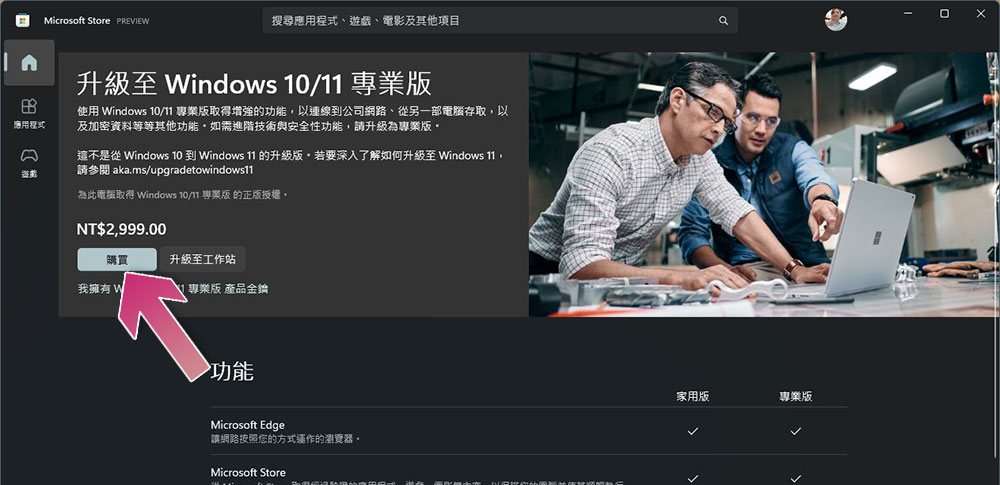
- Just click “Buy” on the Microsoft Store upgrade page. The current official upgrade fee is NT$2,990. Of course, you can also purchase a more favorable Windows 11 Professional Edition key from other channels and enter it from the change product key in the previous step.
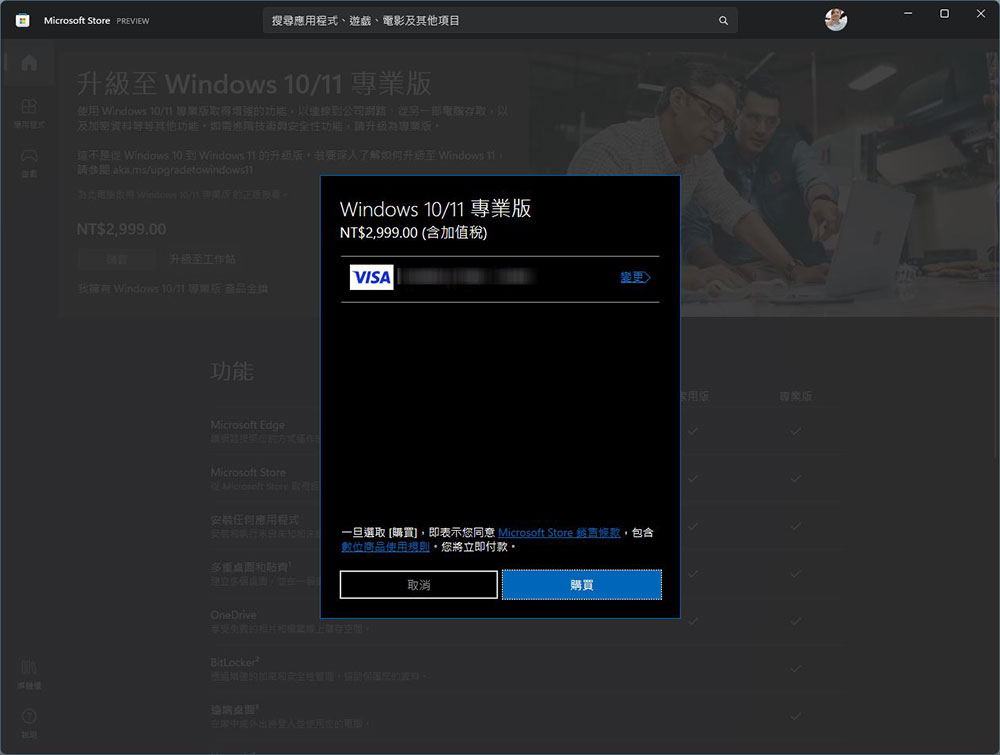
- Next, after entering your PIN or password, select your payment method to checkout.
Windows 11 Home and Professional editions actually use the same installation file, so you don’t need to reinstall the Windows 11 operating system or anything to upgrade. You just need to reboot to configure your version of Windows, and the next time you use your computer, it becomes the Professional edition.
Source: KOCPC Chinese