


When you encounter a Street View car in real life, when it drives by, you may make some funny expressions or actions in the hope of being included in Google Maps Street View. Some people will choose to turn away and hope not to be photographed at all. Depending on how much you value privacy, some people are not happy with their home and license plate numbers appearing publicly on the Internet, and Google has left some leeway to allow you to obscure your home.
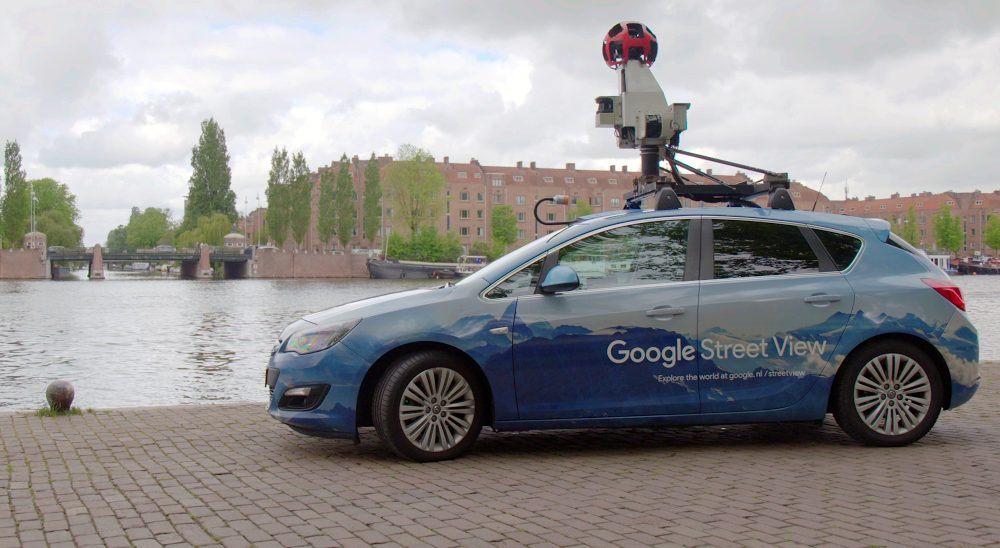
How do I apply to Google to blur my home and license plate on Map Street View?
Although Google Street View faithfully captures everything captured by Street View car cameras, some people feel that their privacy is being invaded by having their homes on a platform that everyone can browse. If you don’t want the appearance of your home to be seen by people on the Internet, there is a method that can help you blur the house on Street View so that others cannot see it directly. This process works on mobile devices and computers and can be easily completed in just a few minutes.
Apply using your Android phone or tablet
If you want to apply to Google to blur your home from Street View from your Android phone or tablet, you only need to have the Google Maps app on your phone and one minute of free time. You don’t even need to submit any files or log in to your account.
- Open the Google Maps app on your Android device.
- Enter your home address in the search field at the top. If you have already saved the address there, please re-enter the query manually.
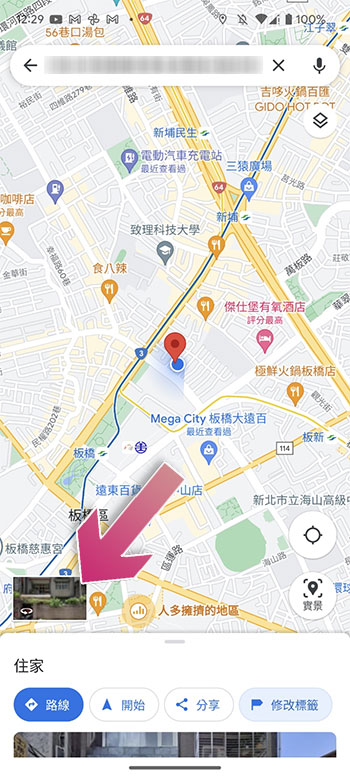
- After finding the location, click on the street view square in the lower left corner of the screen, where you can see photos of houses or streets.
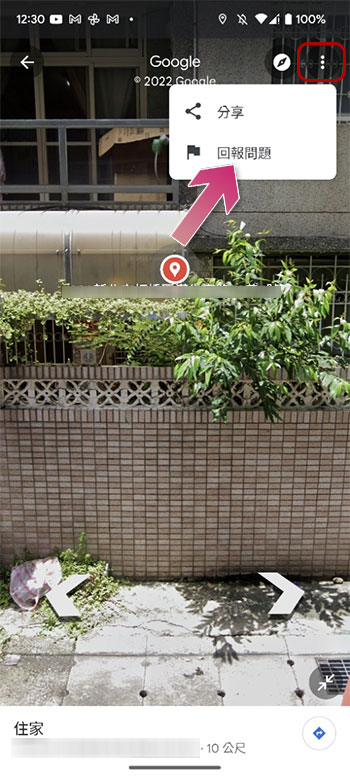
- Next, click on the three-dot menu in the upper right corner and select “Report a Problem”.
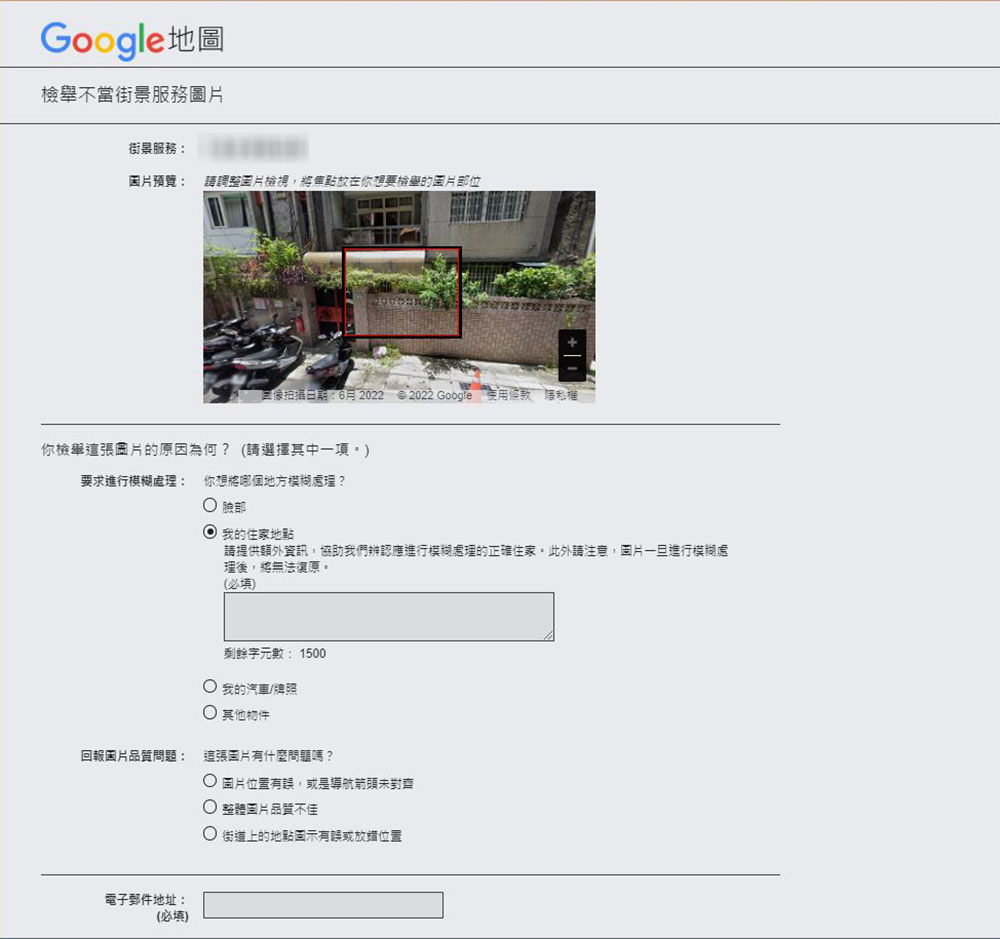
- Then adjust the red square on the displayed page to circle your home or license plate. Click “My Home Address” for the reason for blurring below; if you want to blur your own license plate number, select “My Car/License Plate”. When you click on the required box, be sure to be as specific as possible about why it should be blurred so the Google team understands your needs.
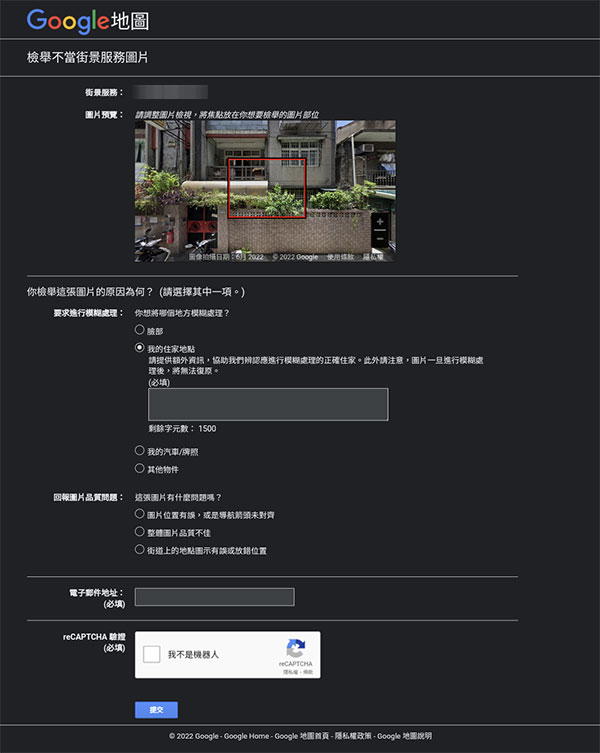
- Finally enter your email address and submit after verification.
Apply from the computer web version
It is also very simple to apply for blurring from your computer. No matter which operating system you are using, you only need to do it through the browser.
- Open Google Maps on your computer using your favorite browser.
- Manually enter your home address to search.
- Drag the orange man from the lower right corner to your home location on the map. You need to aim at the street, Google will highlight the street in blue, put the little guy on the blue street.
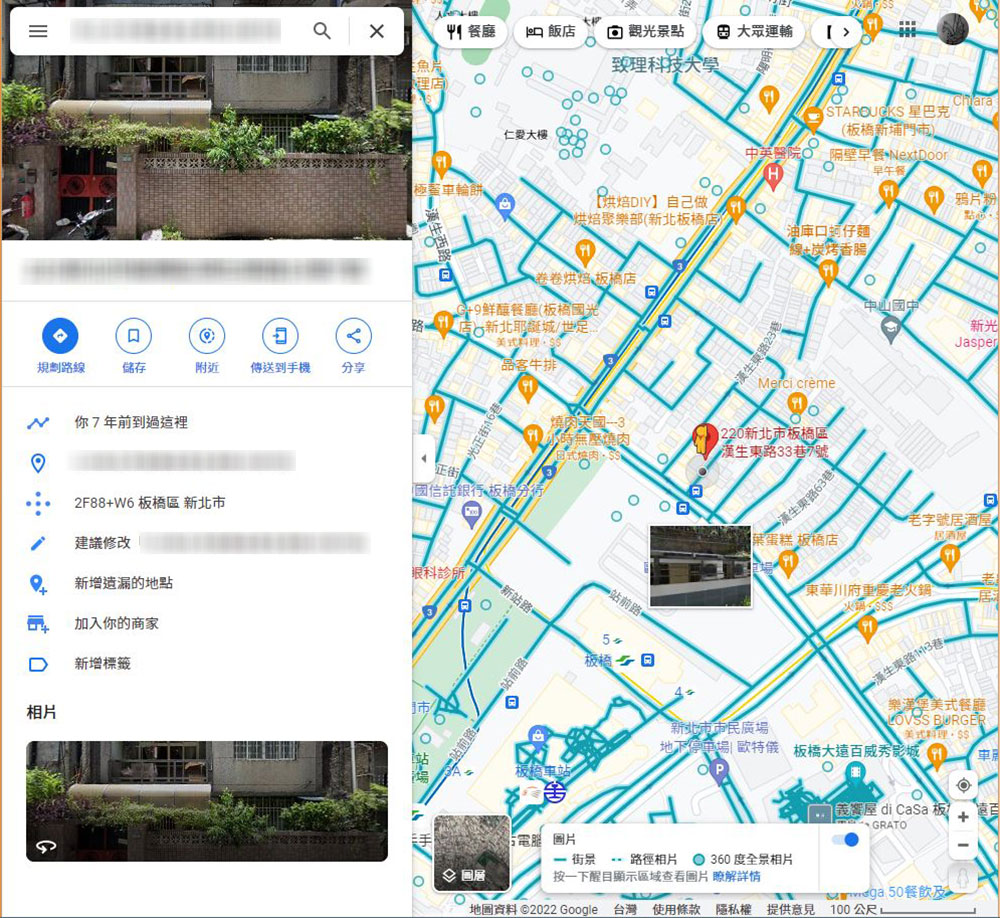
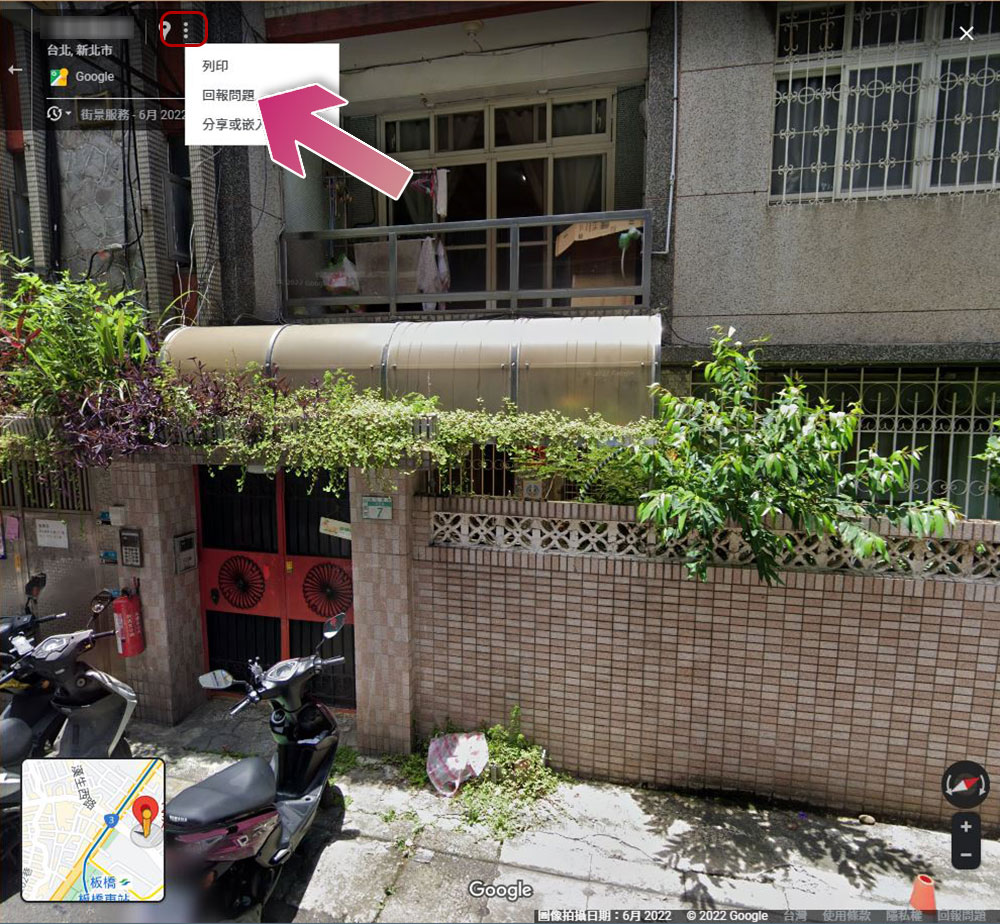
- After seeing pictures of streets or houses or cars, click on the three-dot menu next to your home address and select “Report a Problem” from there.
- Then adjust the box, select the reason for blurring, and describe it in detail in the box, then enter the email and verify it before sending.
No matter which of the above methods you use to submit a vague request, after the application is accepted by Google, although your home and car will still appear on Street View, they will be processed in a blurry manner so that others cannot snoop. In addition, this process is also irreversible, and once blurred, it cannot be restored and unblurred. In addition, Google only provides street view blur. In the satellite image part, since it is provided by a third party, Google cannot help you process this. As for how long the operation time will take, there is no standard process for this. You must wait for Google to update the data and check it yourself.
Source: KOCPC Chinese