


When iPhone or iPad users want to highlight specific content on a picture, using the built-in editing function to “mark” is the easiest and fastest way. However, I believe that many people always swipe when making circle selections, and it is difficult to draw circles, squares, and triangles. In fact, with the marking function on iOS/iPadOS, you can easily circle perfect geometric shapes with just a small change in operation!

iPhone screenshots and image editing “marking” skills, a must-learn for patients with circle selection compulsion
In addition to using the built-in image editing function of LINE, when many iPhone and iPad users want to highlight specific content on the picture, choosing to use the built-in editing function of the system “Photos” App to mark is another option. However, no matter how dexterous the hands are, it is still quite difficult for most users to circle the ideal circle. They often circle it randomly like the picture below. If you have obsessive-compulsive disorder about the neatness of the picture, it will be a little uncomfortable.

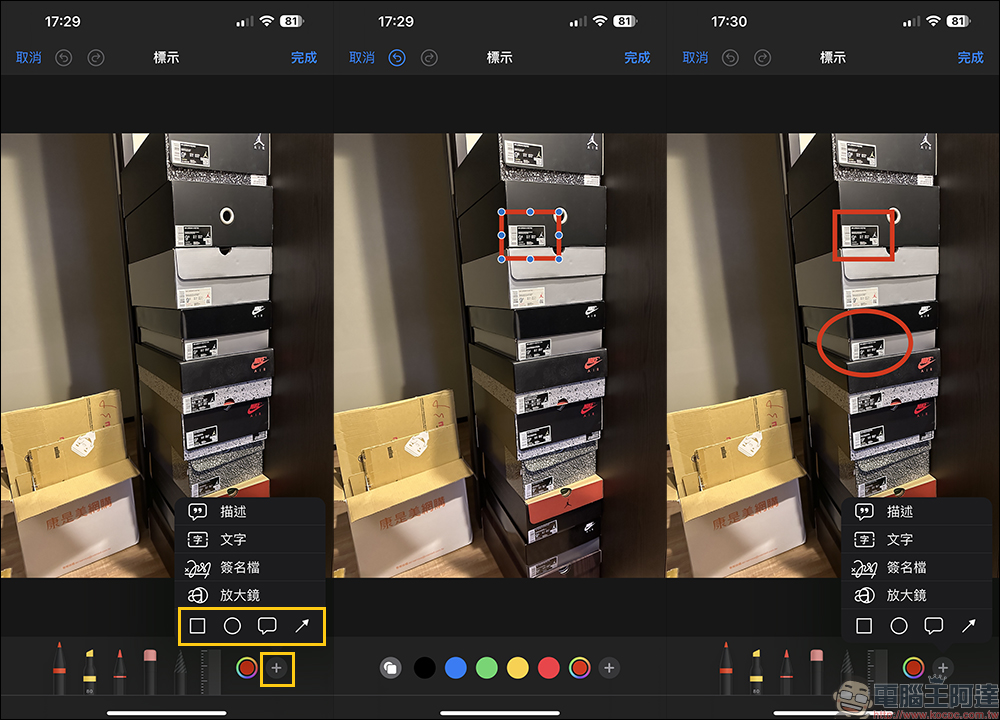
However, in fact, in addition to the selection of various brushes, the “Markup” function of iOS/iPadOS image editing also has built-in descriptions, text, signature files, magnifying glasses, and various geometric frames and arrow marks that can be used. However, it is relatively time-consuming to use these geometric frame tools to mark some image selections. Next, I will share with you simpler “marking” tips.
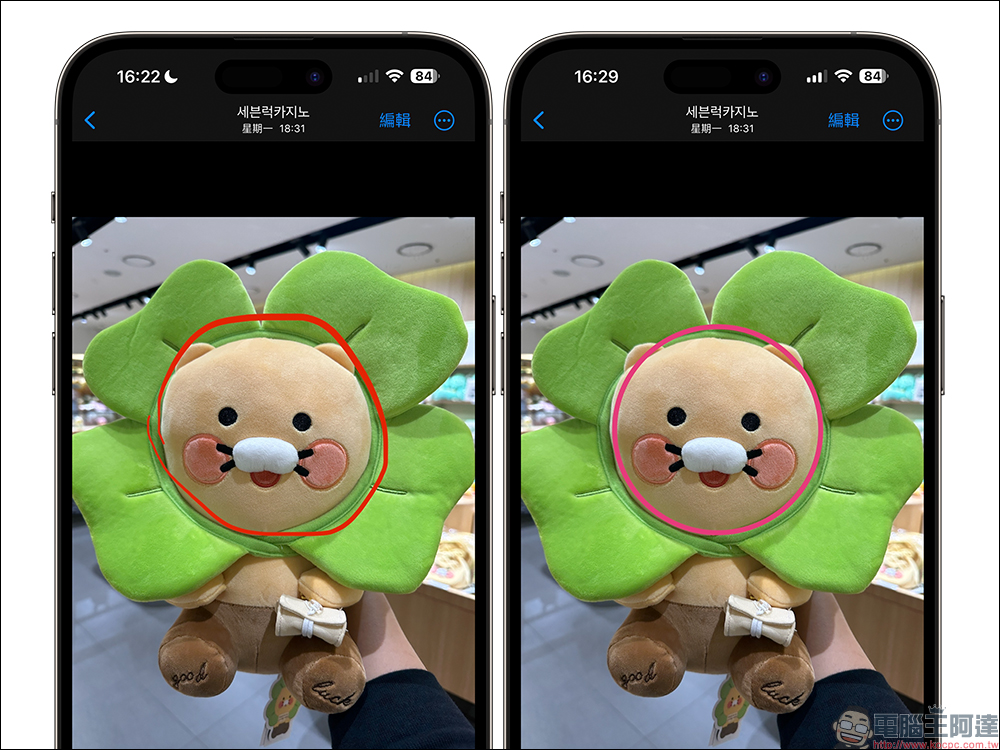
First, let’s take a look at the general operation of manual circle selection, which is like this. It is very difficult to draw a perfect circle without gaps.

However, in fact, as long as you don’t rush to remove your finger from the screen after drawing a circle, the system will automatically turn it into an ideal circle.

Comparing the difference in results between the two circle selection methods, you can see that the circle drawn through this little technique is quite perfect.
In addition to circles, sometimes when we want to mark an oval, it is equally difficult to circle a beautiful oval.

It’s often like this. Although it can highlight the scene you want to emphasize, it doesn’t look so beautiful.

If you use the marking tips we shared today and stay for a few seconds after circling, you can easily complete the perfect elliptical circle marking.

When sharing pictures every day, you can use this method to easily and quickly mark the ideal geometric frame. This is also a trick that many people have not discovered after using iPhone or iPad for many years.

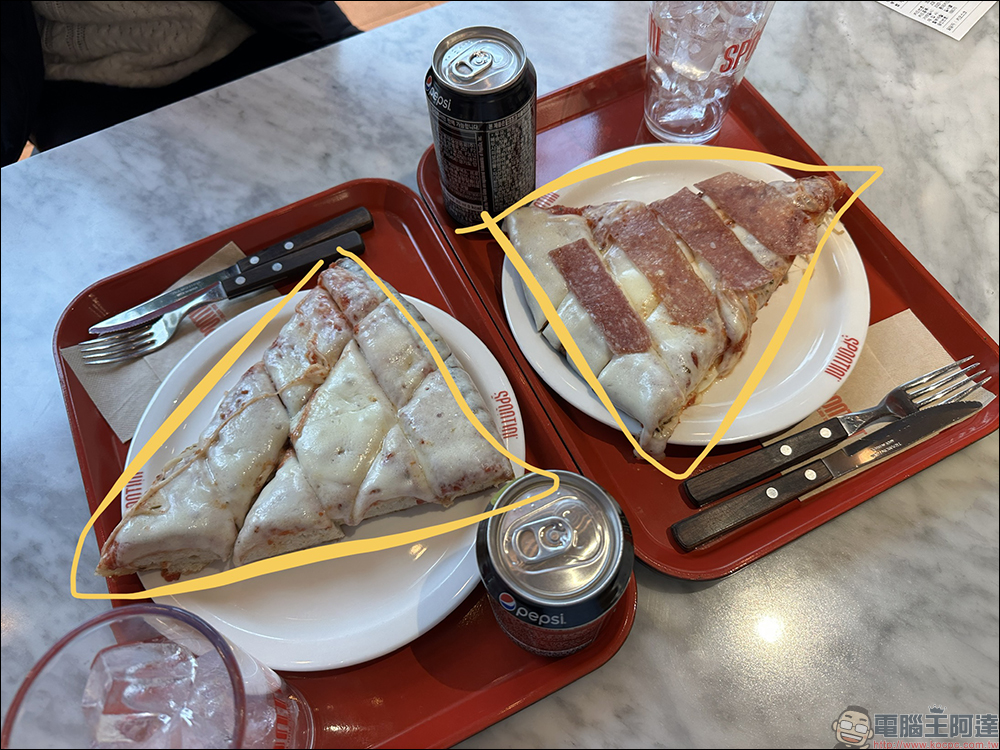
In addition to various circles and squares, this method can also draw beautiful triangles. Before learning this method, the triangle we could draw might look like this:
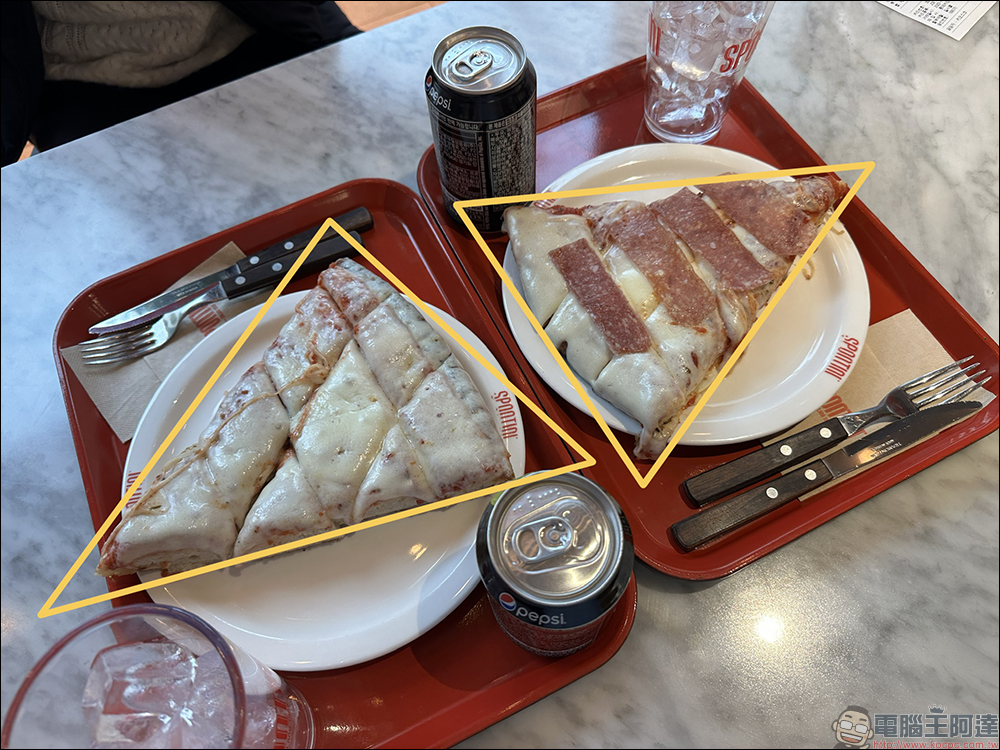
But after learning the marking tips shared this time, we can draw beautiful triangles!
The marking function can not only draw basic geometric figures, but also draw arrows such as hearts and arcs/straight lines.

In addition, stars can also be easily drawn through this method.

summary
In fact, in the iOS/iPadOS system, there are many useful tips that many users may not notice at ordinary times. In the past, we would use the built-in image editing functions of other apps to mark the content we want to mark. However, as long as you practice a little bit with the system’s image editing functions, you will find that these functions are also quite easy to use. For example, the “marking” tips for image editing shared with you this time, users do not need to download another app. When editing, they only need to circle and hold for a few seconds to select various beautiful and beautiful marks.
Further reading:
Tutorial on downloading LINE voice messages. Saving important messages to your phone is super easy.

Source: KOCPC Chinese