


Do you ever feel frustrated when watching YouTube because you can’t understand what’s being said in the video? Although some videos have embedded CC subtitles, having to keep your eyes on the subtitles the whole time isn’t always convenient. Today I’m introducing a Chrome extension called “YouTube Dubbing.” YouTube Dubbing can convert the language in videos into one you’re familiar with and generate subtitles for you. It can turn English into Chinese, Korean into Chinese, or Japanese into Chinese, helping you overcome language barriers and tedious subtitles. If you’re interested, keep watching!
Can’t read or understand foreign-language videos? YouTube Dubbing instantly translates subtitles + adds voice-over for you!
YouTube Dubbing is an AI tool for real-time translation and dubbing that offers users accurate, synchronized dubbing for free. All you need to do is add YouTube Dubbing to Chrome extensions to overcome language barriers. Despite its name, YouTube Dubbing also supports platforms such as Bilibili, Udemy, and GameDev. If you’d like to know how to use it, read on.
Go to Add YouTube Dubbing to the Chrome Web Store
Click the link above to see YouTube Dubbing, and click “Add to Chrome” to add YouTube Dubbing to your Chrome browser extensions.
After you join, will you see a system prompt to add YouTube Dubbing? Just click to add the extension.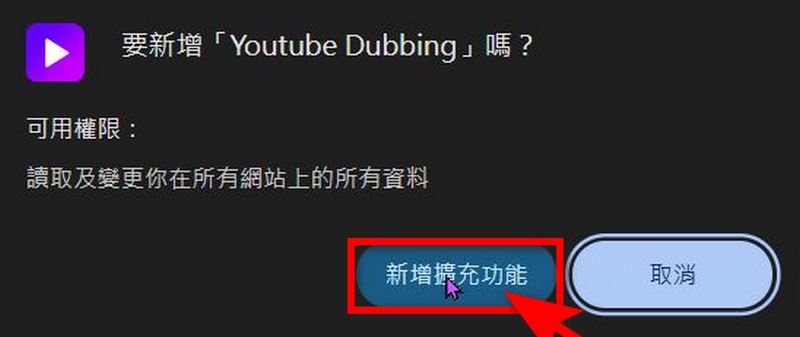
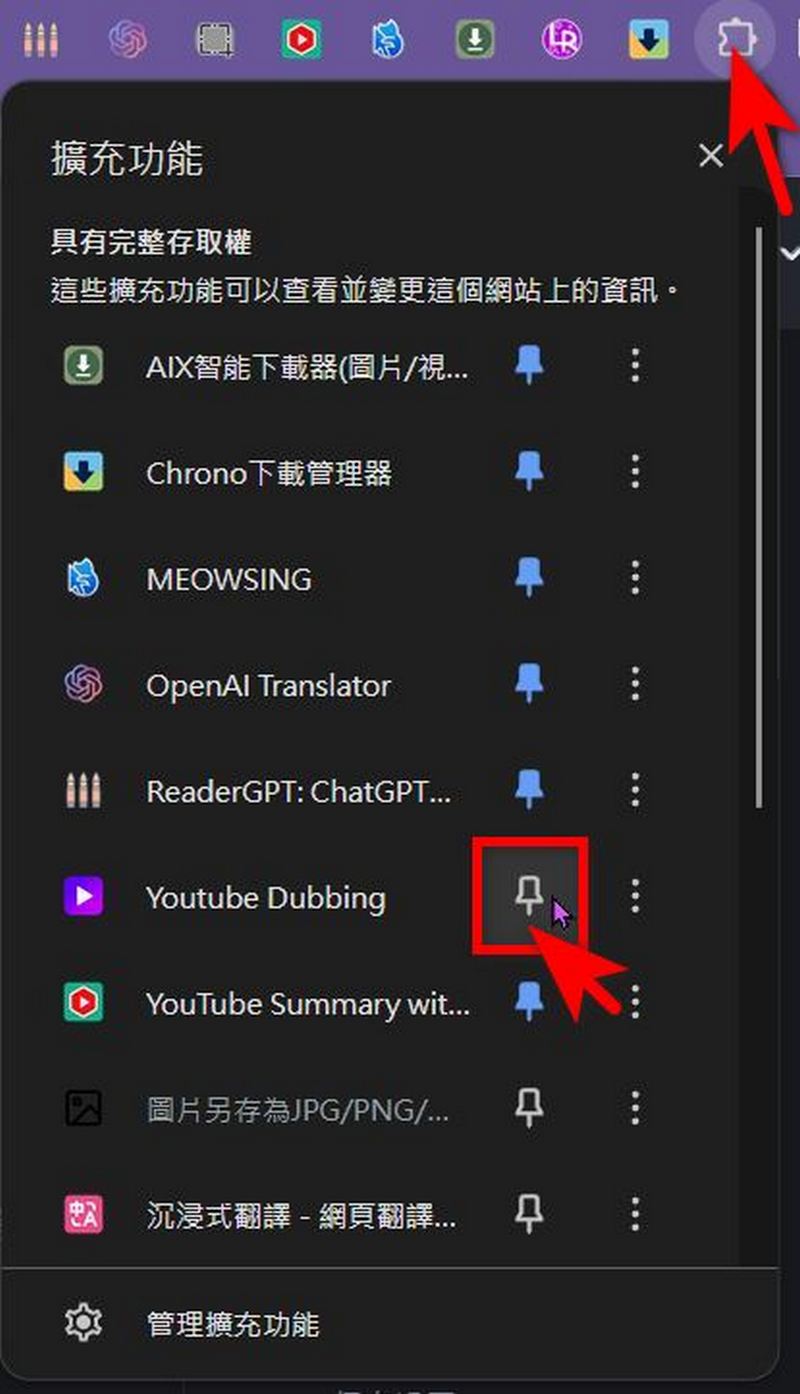
Next, pin YouTube Dubbing to your extensions bar. After pinning, you’ll need to register—just use Gmail to sign up. First, let me remind you that YouTube Dubbing is a product launched by a Chinese company. If that bothers you, you might consider the other similar products we’ve introduced before.
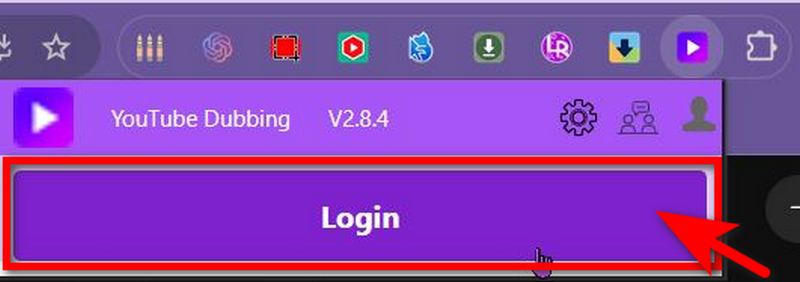
After registering, you need to set up YouTube Dubbing. Click the YouTube Dubbing icon in the extensions bar to set Source Language and Target Language. Source Language is the language used in the video you’re watching, while Target Language is the language that YouTube Dubbing translates into. Turning on Subtitles also lets you listen to the translation while reading subtitles. You can configure it according to your needs. A reminder: YouTube Dubbing lists Taiwan’s translation option as “China Taiwan”. If that bothers you, it’s better not to use it.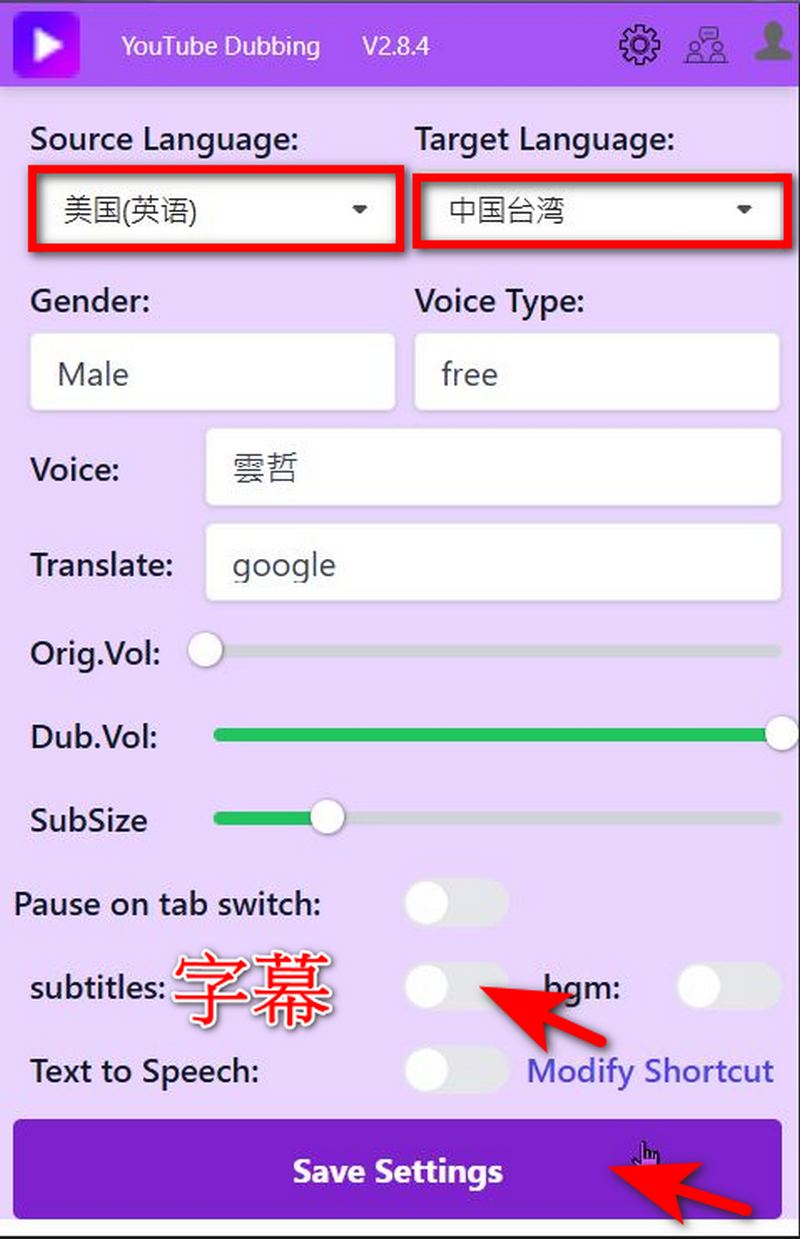
After setup, you can open platforms like YouTube, Bilibili, Udemy, and GameDev to use YouTube Dubbing. Once configured, when you open these platforms, a play icon like the one in the box will appear below the video progress bar. Clicking the play icon will make YouTube Dubbing start providing real-time voice translation, so you can understand the content of the video.
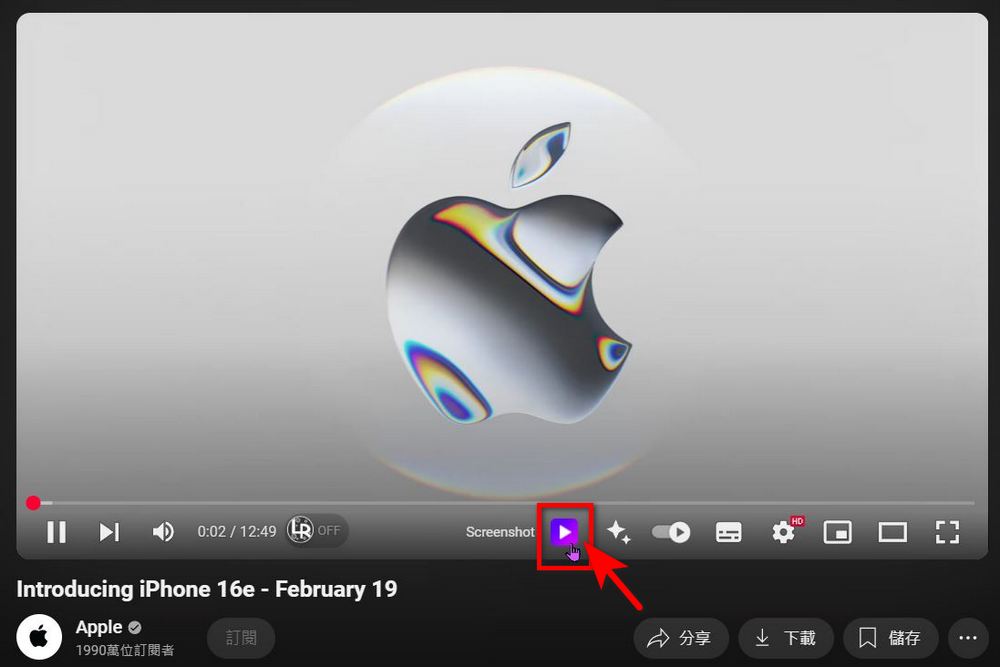
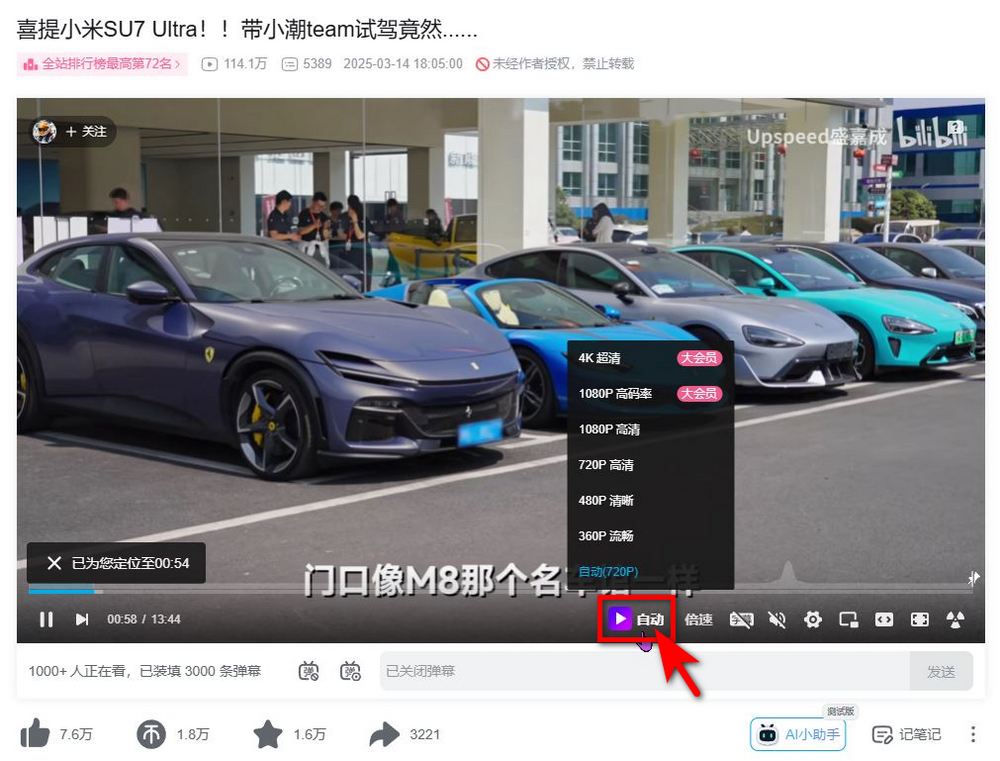
To use YouTube Dubbing, the video you’re watching needs to have embedded CC subtitles available, in any language. If there are no subtitles, YouTube Dubbing will show that it can’t translate.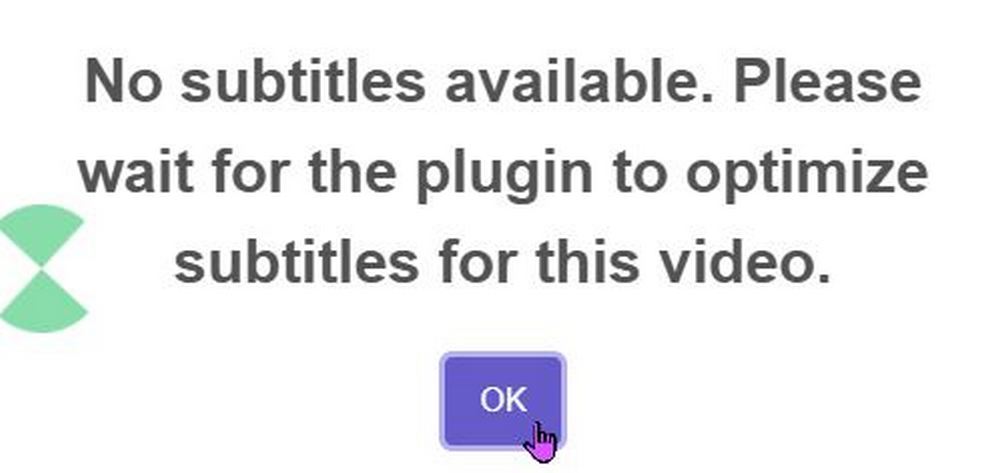
YouTube Dubbing is available to users for free, allowing them to translate five videos per day. At the moment, it seems like the five-video limit doesn’t include any length restrictions (?). If you’re interested, feel free to try it out yourself.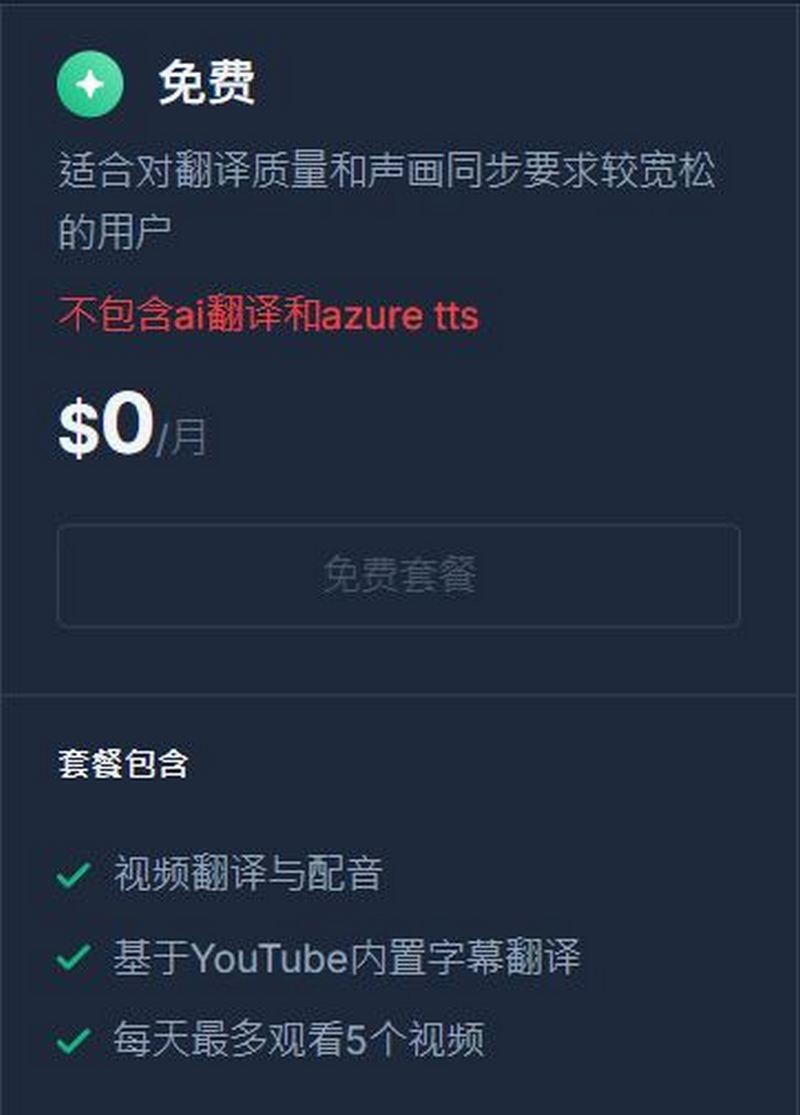
Source: KOCPC Chinese