


Everyone must have encountered data loss or accidental deletion. There are many file rescue tools on the market now, but not all of them can rescue your files, so the more you try, the better, especially free software. This WinfrGUI free file rescue tool can also be collected and graphicalized to make Microsoft’s official file rescue function easier for everyone to use.
WinfrGUI free file rescue tool can retrieve lost files from SSD/HDD/USB/memory card
Some people may not be aware of it, but Microsoft has actually launched its own Windows File Recovery file rescue function for users to use. However, Windows File Recovery uses the command line function, which is not easy for ordinary users to use. WinfrGUI is a graphical software for this function, and the operation method is the same as most rescue tools.
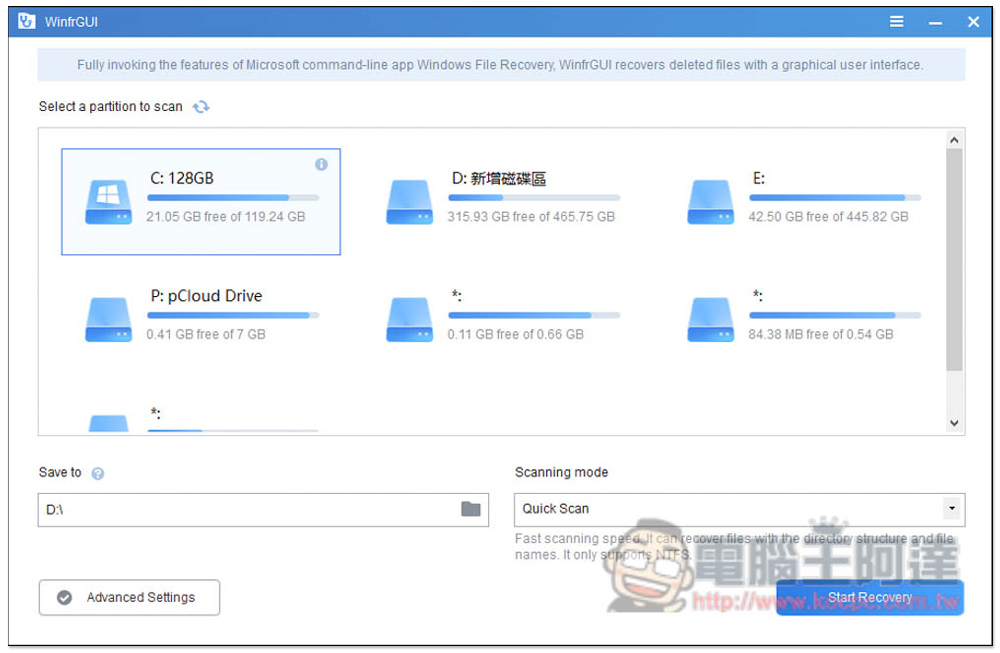
It supports Windows 10 and Windows 11 operating systems. Although it is currently only available in English, the operation is simple, so you don’t have to worry too much about incomprehension. After opening it, you will see all the hard drives in your computer. The default is Quick Scan. After selecting the hard drive you want to scan, press Start Recovery and the scan will start:
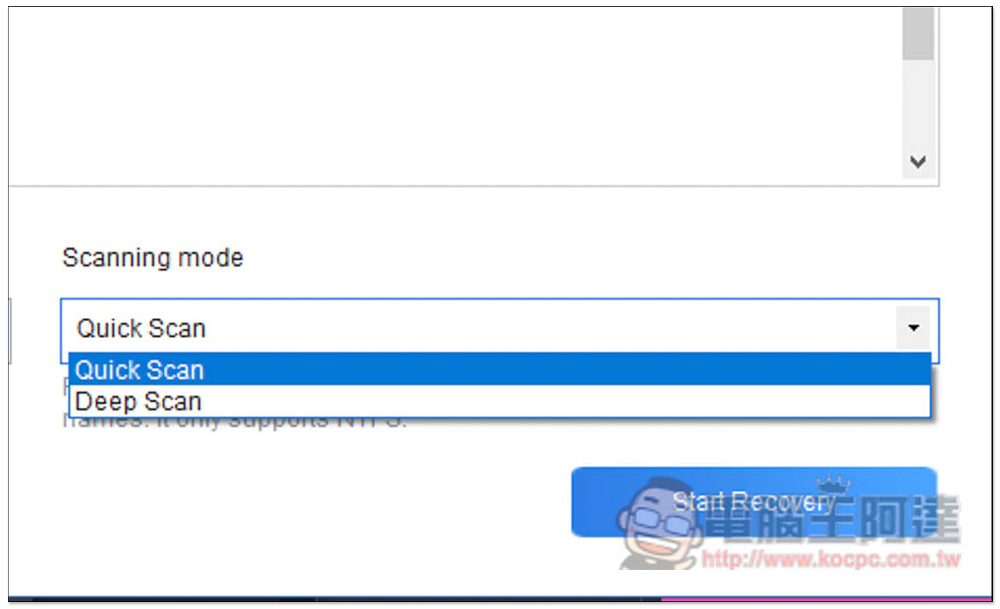
There are two scanning modes: Quick Scan and Deep Scan. You can use Quick Scan at the beginning. If you really can’t find the file you want, you can change to Deep Scan:
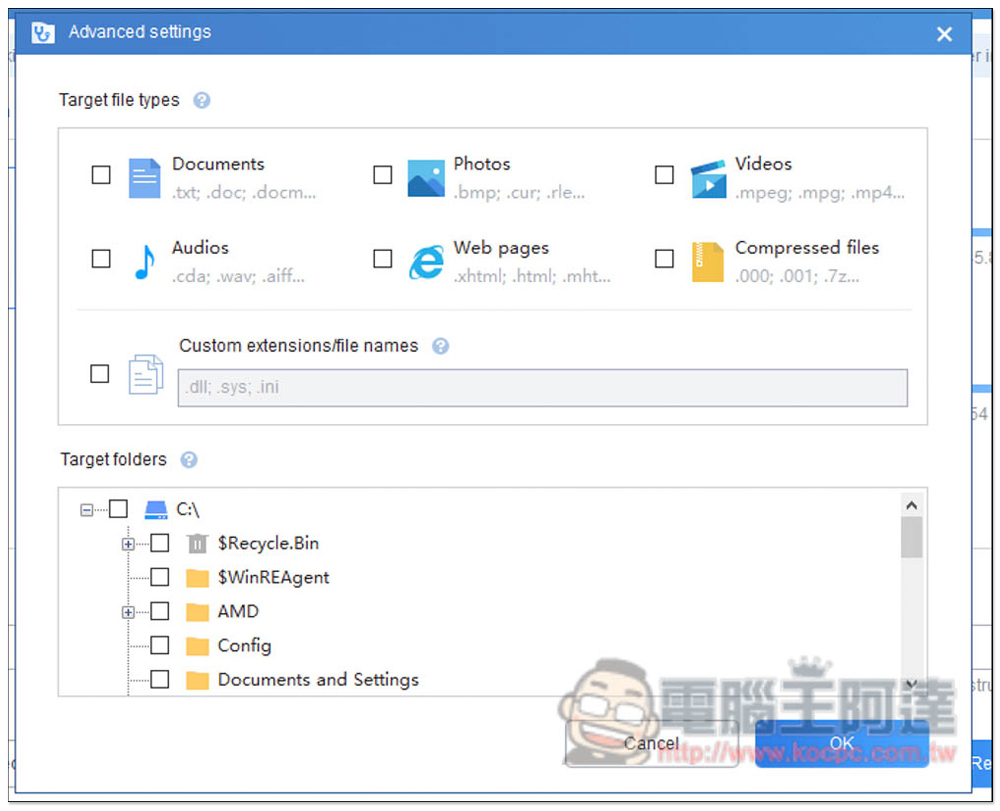
Supported formats include documents (txt, doc, docm…), photos (bmp, cur, rle…), videos (mpeg, mpg, mp4…), music (cda, wav, aiff…), web pages (xhtml, html, mht…), compressed files (000, 001, 7z…). By default, all will be scanned. If you want to save time, it is recommended to check the files you want, which will shorten the scanning time a lot. In addition, if you only want to scan a certain folder, you can also set it in Advanced settings. First, you select the hard drive to be scanned, and then open Advanced settings. Below Target folders you can:
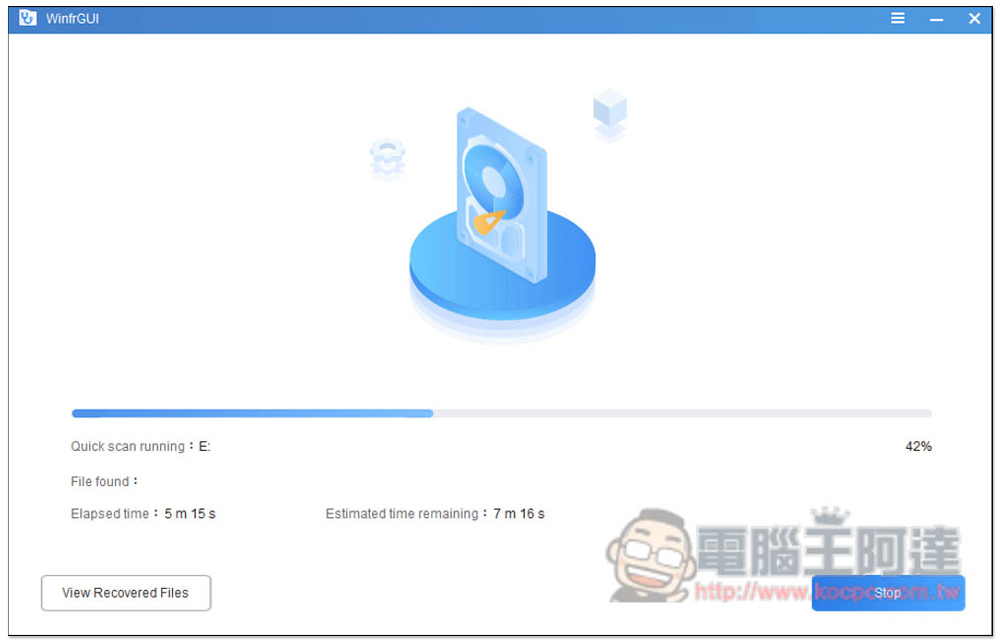
The scanning speed is pretty good, depending on how big the files are. After the scan is completed, you will also be told how many files were found (Files Found). Click View Recovered Files to view all scanned files:
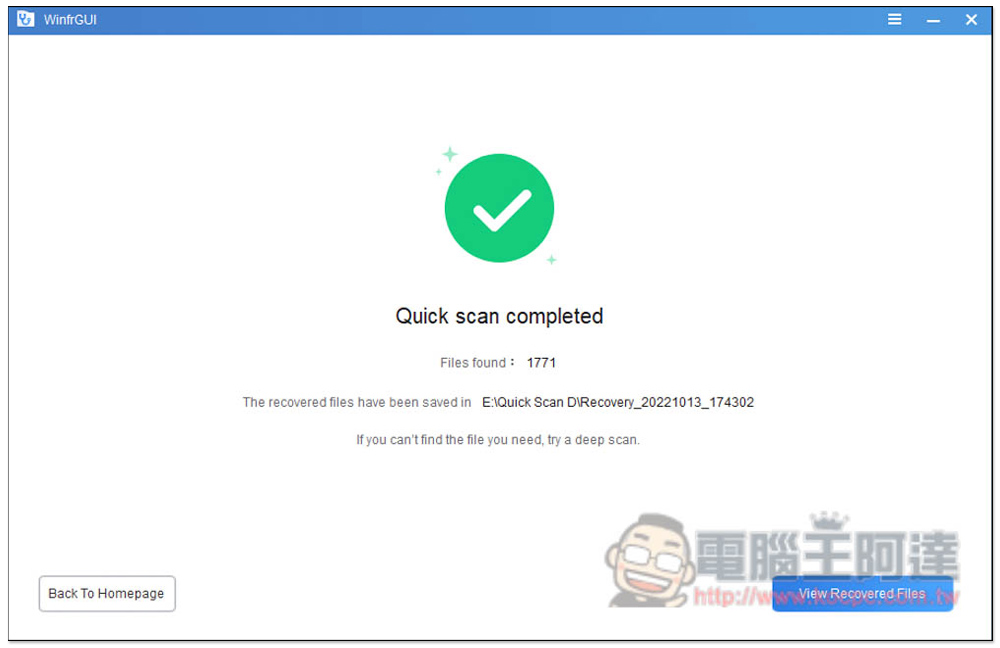
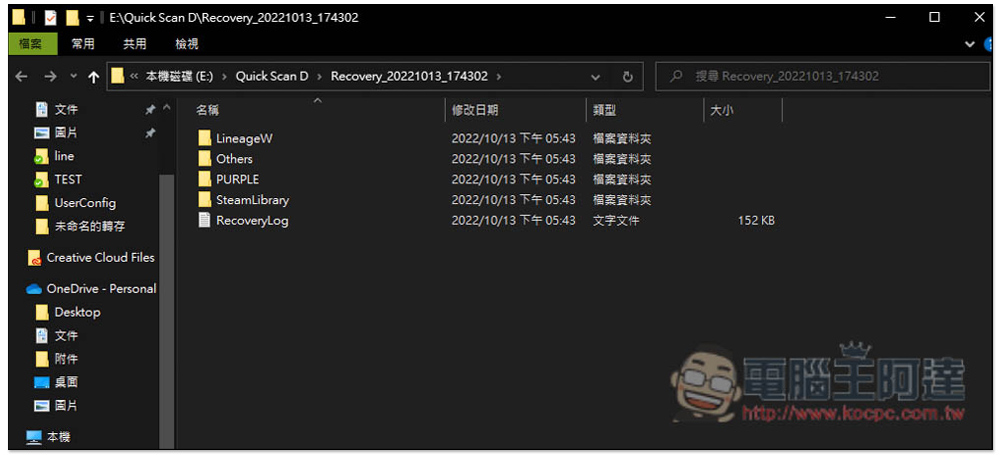
The scanned folder will open, which will be divided into categories first, including what folder it was found in, what type of file it was found in, etc.:
The file systems this supports include NTFS, FAT, exFAT and ReFS, basically all the common ones.
But in the end, I have to remind you that this WinfrGUI may not be able to retrieve your files. If it fails, try other models. For those with budget, the paid version will definitely be better.
Source: KOCPC Chinese