


Although previous actual measurements have shown thatBattery life improves on most iPhone models after upgrading to iOS 16, but this is the result of the benchmark software test, and it must be different from the actual use. In actual use, it is more likely to encounter some bugs that lead to increased power consumption. If you feel that the battery is easily discharged after upgrading, this article will compile a few methods to extend/improve battery life. It may not necessarily solve the problem, but you can at least try to use it first and wait until the new iOS version is updated to see if there will be any improvement.
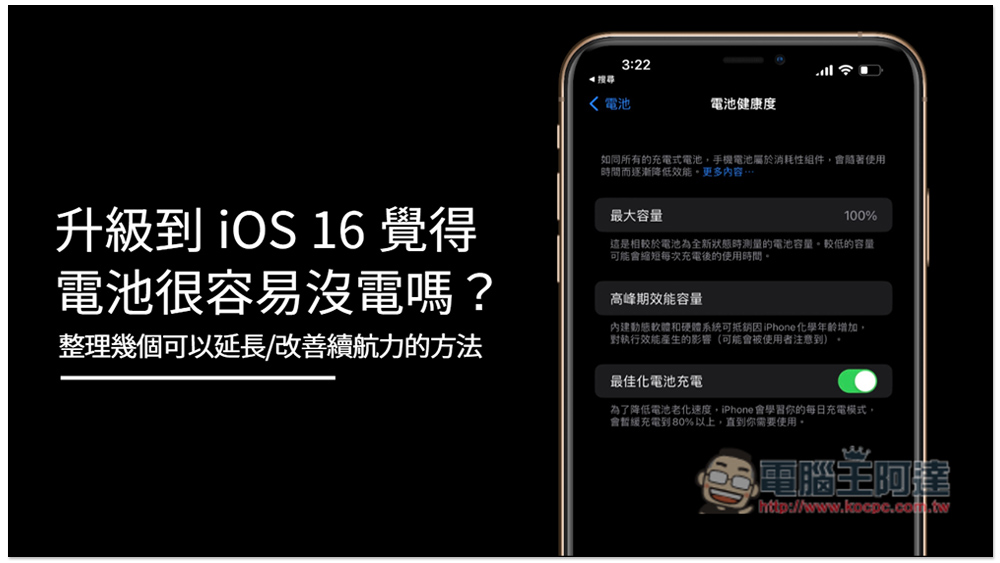
Several ways to extend/improve battery life
After upgrading my iPhone 13 Pro Max to iOS 16, I have not encountered this problem. It feels the same as before. In any case, if you want to improve or extend the battery life, please try the following methods.
1. Restart iPhone
No matter what problems you encounter, if you haven’t tried restarting your computer yet, please try it first. Restarting your computer can fix some small random errors.
2. Reduce dynamic effects
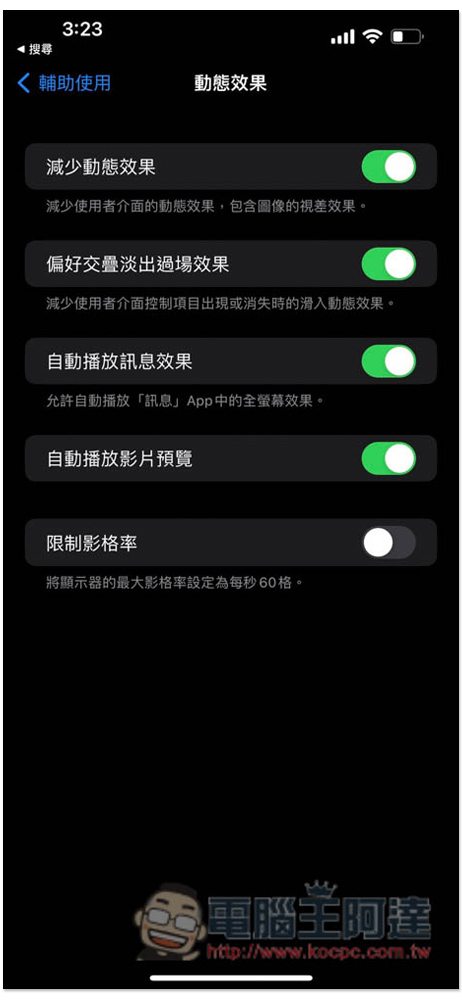
The function of dynamic effects is mainly to provide smoother screen switching to improve the user experience, but this will also consume more hardware resources, thereby increasing power consumption. Therefore, if you want to improve battery life, you can turn off this function. In Settings -> Accessibility -> Dynamic effects options, you can find the function of reducing dynamic effects. Please turn it on (turns green). Please also turn on the “Prefer overlap and fade out cutscene effect” below:
3. Stop background app refresh
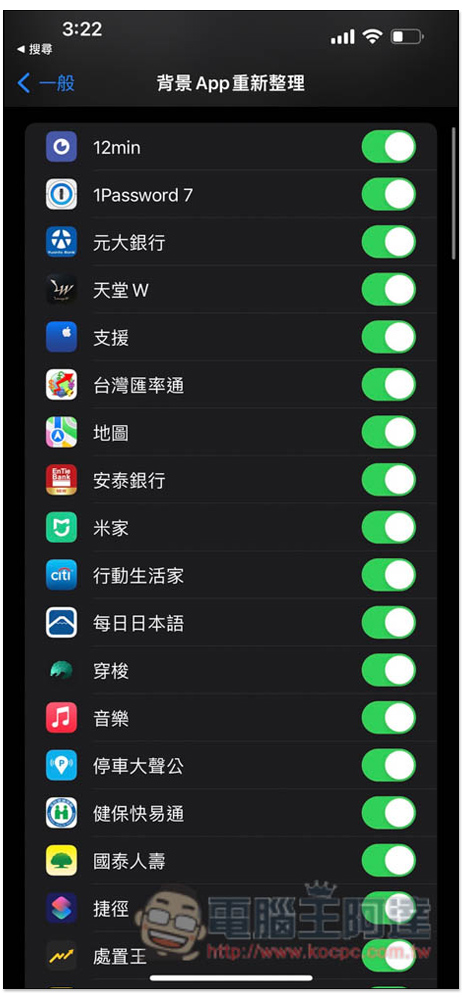
Although background app rearrangement allows us to reopen and use it faster, it will also quietly consume power in the background. If some apps happen to malfunction or crash, the power consumption may be even faster, so you can consider turning off this function in exchange for more usage time.
Go to Settings -> General -> Background App Refresh to find the relevant settings. You can specify the apps to close (if you know which ones are particularly battery-consuming):
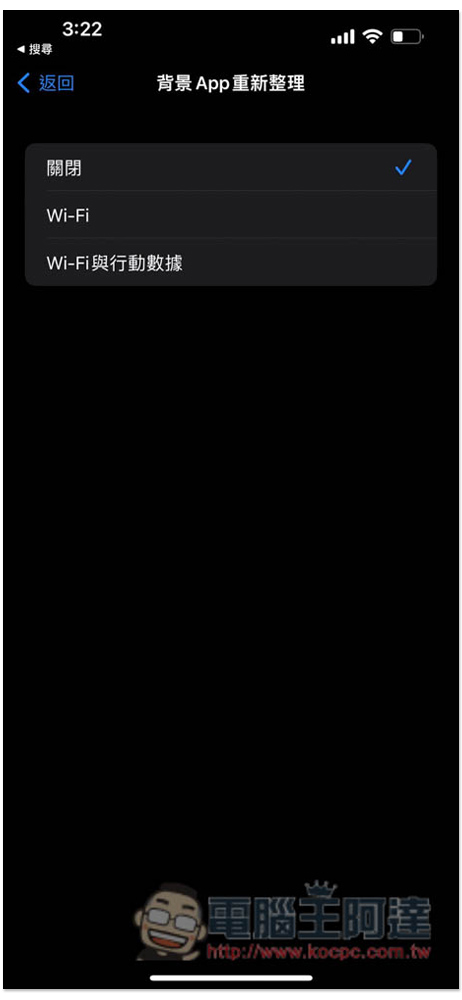
Or just turn them all off:
4. Disable location services
The iPhone location service is turned on by default, which means that the iPhone’s background is always active. Although it does not consume a lot of power, turning it off is still helpful. Open Settings -> Privacy & Security -> Location Services and turn off the switch above:

5. Check if there is a new version update
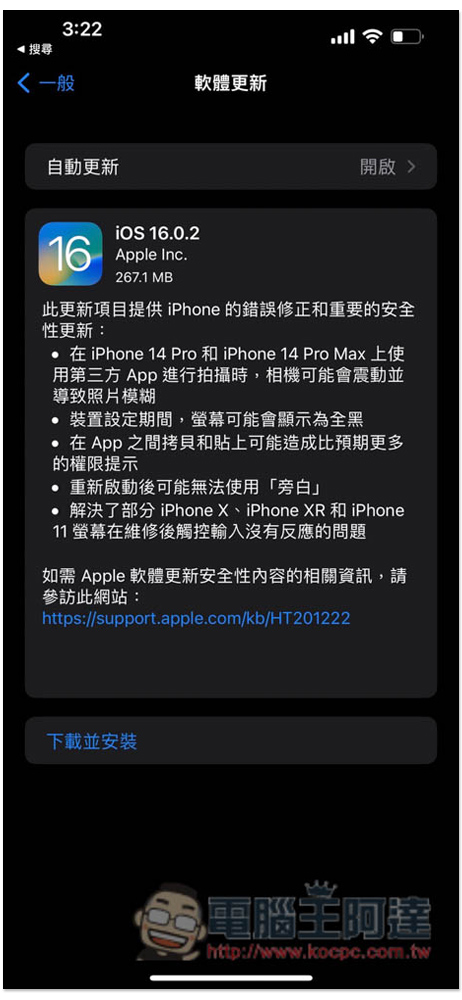
Sometimes it may be some system bugs that cause battery consumption to increase. In this case, Apple usually launches a new version soon to fix the problem, so please check to see if there is a new version update. Open Settings -> General -> Software Update, iPhone will automatically check if there is a new version, if so, please click Update:
6. Enable Low Power Mode
Low power consumption can be said to be of great help to battery life. It will automatically disable some power-consuming functions and fix some settings. It is very useful when the iPhone is almost out of power, so if you want to extend the use time, low power consumption mode will be your good helper.
other
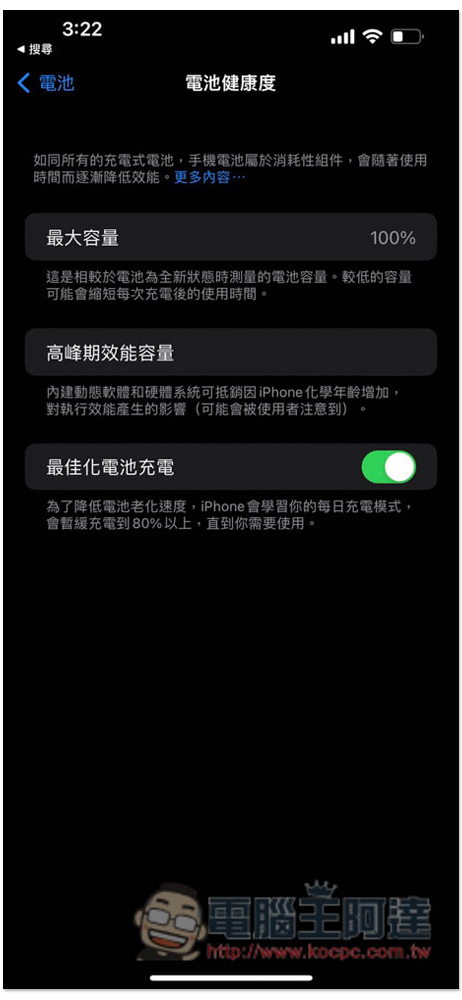
In addition to the above, there are some usage habits and settings that are also recommended. For example, it is best to keep the iPhone battery at more than 15% at all times, and do not charge it until it is completely empty every time. It is also recommended to turn on “Optimize Battery Charging” in battery health, as well as enable dark mode, etc.:
Source: KOCPC Chinese