


On September 13th, the official iOS 16 update was finally released for everyone to download and install. This latest version of the operating system only supports new models after iPhone 8, and some of its features are restricted to stricter model and processor restrictions. Although there are many updates and new functions in the entire content, I have selected 6 special functions for everyone to learn quickly!
The official version of iOS 16 is here, learn 6 special features such as locked wallpaper, keyboard tactile feedback and more!
hey-hey! I believe that many people, like me, downloaded and installed iOS 16 as soon as possible. There are many small changes and updates that may not be discovered until you use it. Of course, there are also big changes that can be directly seen with the naked eye. This time, the author compiled 6 new functions that are very practical and interesting for everyone to share with you, brothers! superior!
Customize lock screen background
Apple has redesigned the iPhone lock screen this time. The new lock screen function allows you to customize the background wallpaper, date display method and time font with a very personal style:
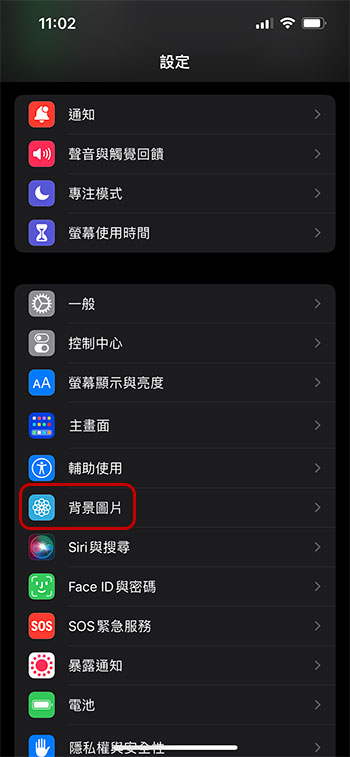
- Open the “Settings” app and click “Background Image”.
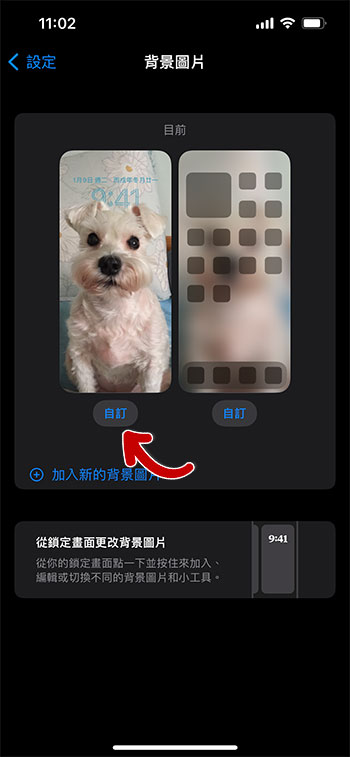
- Click “Customize” to choose your favorite background image. Basically, both the application background and the locked background can be customized. If you do not customize the application background, the system will automatically use the locked background with a sandblasted feel as the base image.
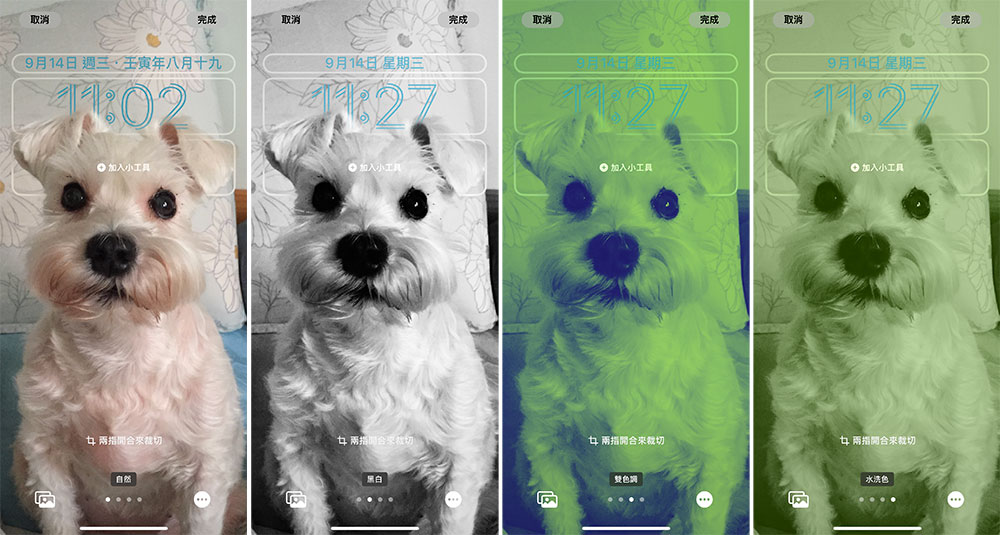
- You can use two-finger pinching to adjust the crop size and position of the base image. There are four styles for you to choose from: natural, black and white, two-tone and washed colors (swipe left or right to switch).
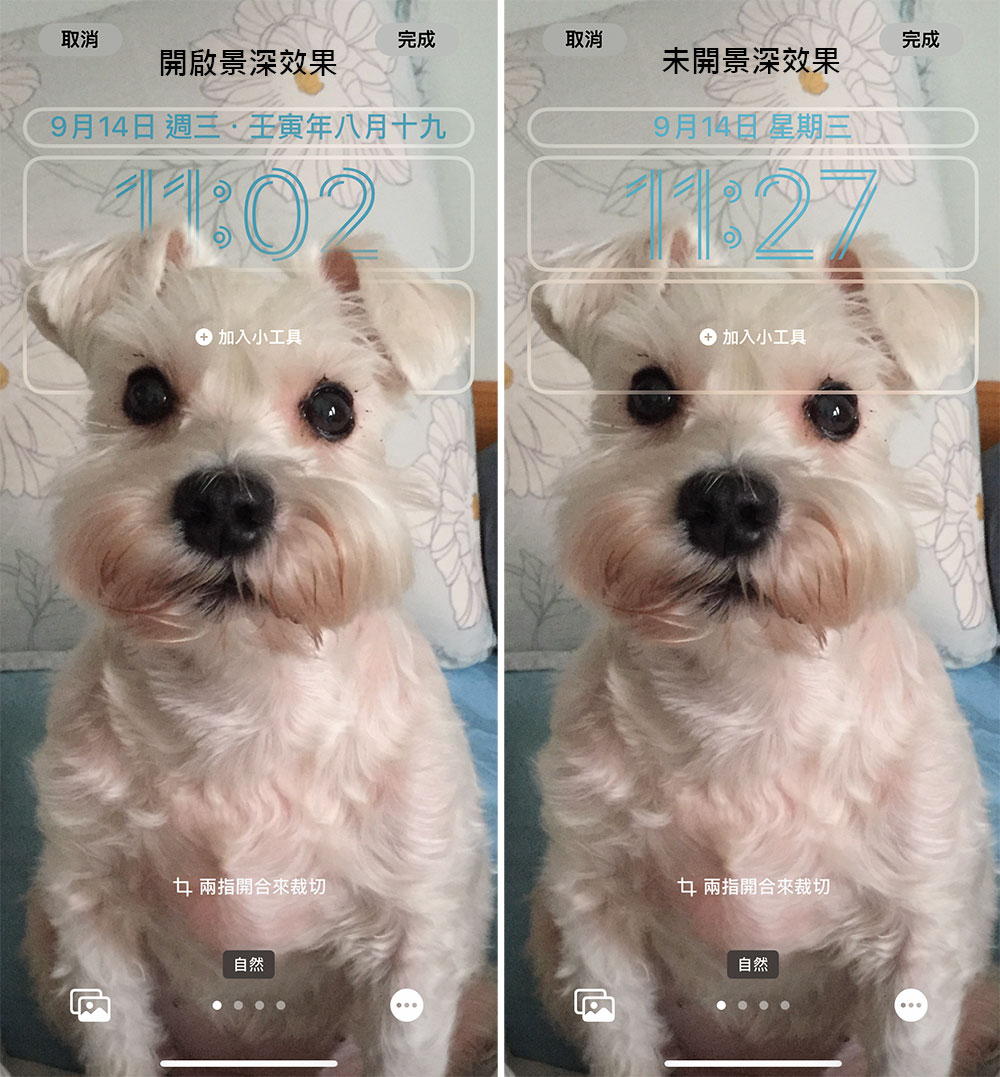
- Click the three-dot symbol in the lower right corner to choose whether to enable the “depth of field effect”. The depth of field effect mentioned here refers to moving the subject of the photo to the top layer. After clicking, you only need to select the subject to pull it above the time display. You can take a look at the example below (focusing on the dog head and ears):
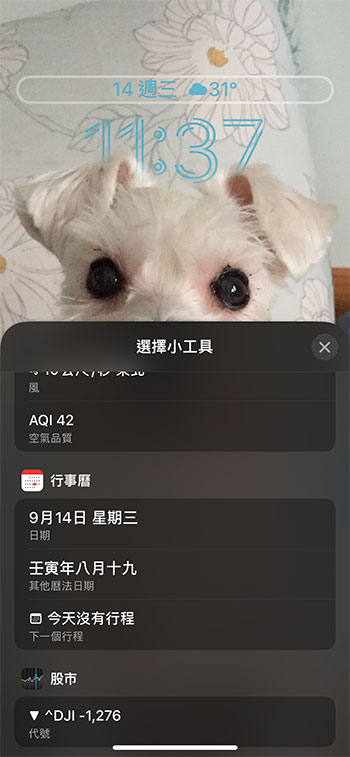
- If you want to set how the date is displayed, just click on the date box. For example, the lunar date displayed by default is not used by me at all, and it can be turned off from here. In addition, because weather conditions are an item I care about, I added this function display here.
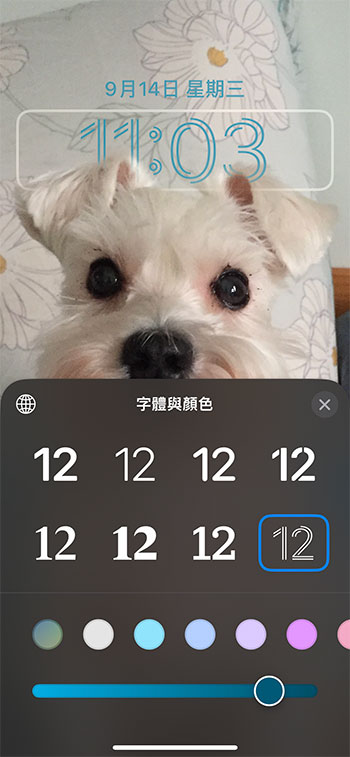
- To set the font and color of the time display, similarly click on the clock field to enter the editing interface. In addition to choosing existing colors, you can also choose your own colors from the color palette and adjust the shades, which gives you a high degree of freedom.
Set up lock screen gadgets
This function is actually a derivative of the previous locked wallpaper. It is very simple and can be operated on the same interface. However, I still list it separately to make it clearer.
- Open the “Settings” app and click “Background Image”.
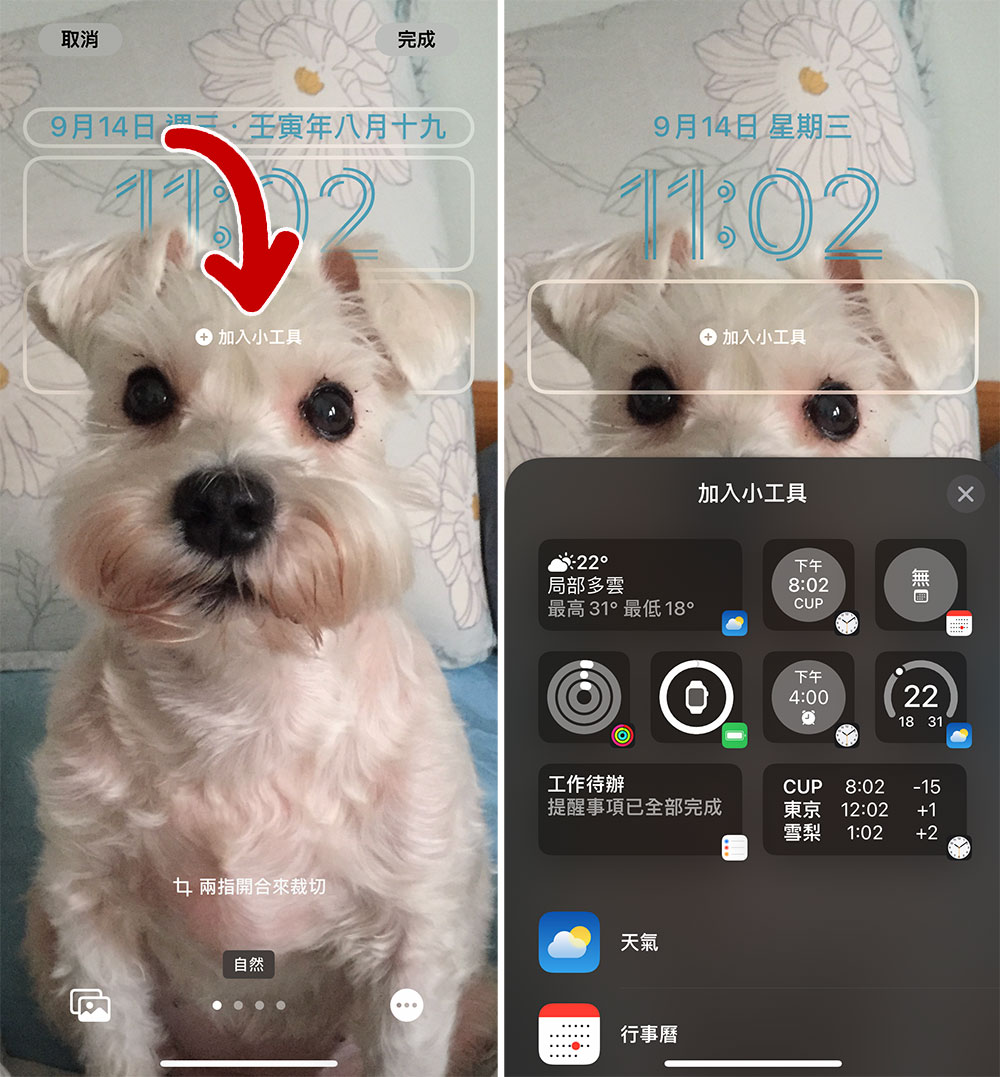
- After clicking “Customize” under the lock screen display, click the “Add Gadget” box to select the gadgets you want to add to the lock screen.
Battery percentage display
Although the iPhone’s battery icon can give you an approximate idea of how much power is left, the ratio may not be that accurate. Since the 2017 iPhone However, this function is limited by models, such as iPhone 12 mini, iPhone 13 mini, iPhone 11 and iPhone XR.
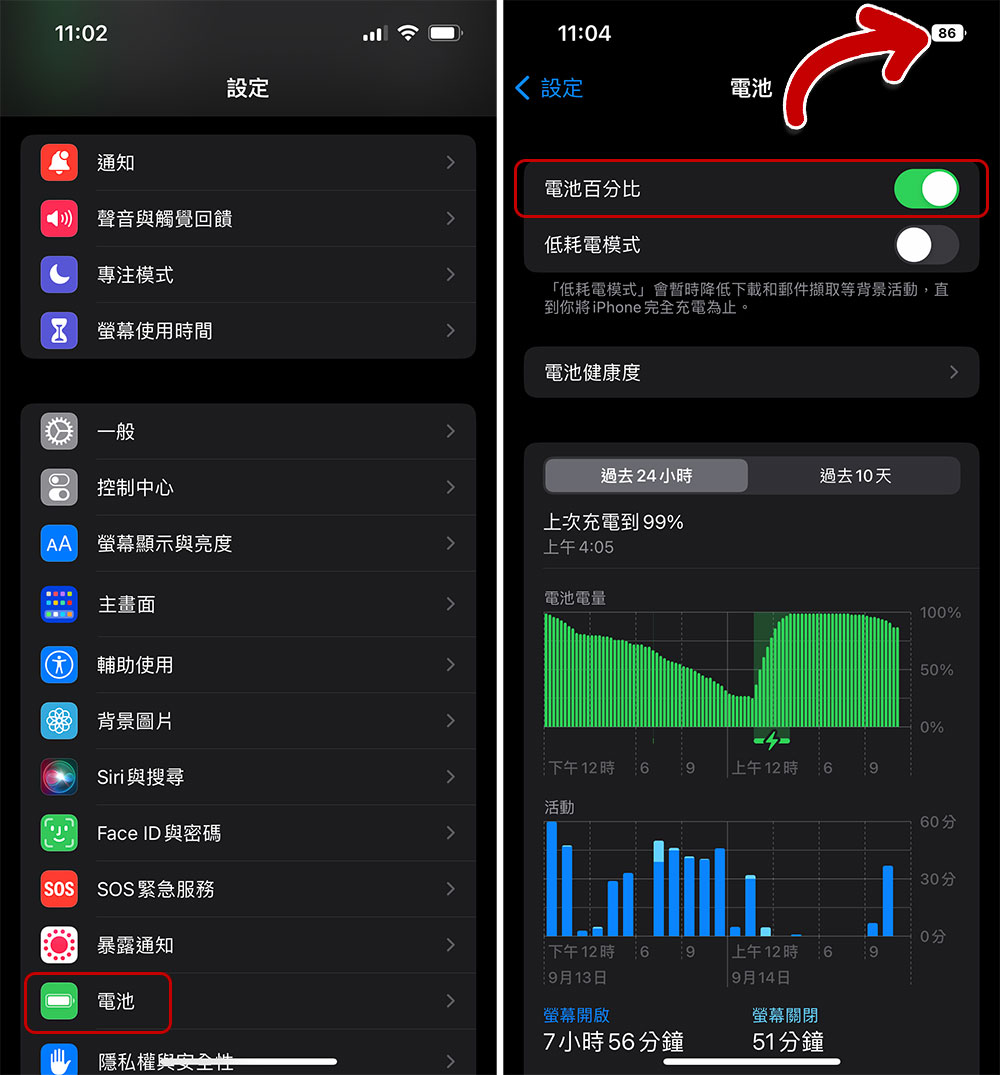
- Open the Settings app and tap Battery.
- Turn on the “Battery Percentage” switch at the top and you will see a percentage display on the battery icon in the upper right corner.
Vibration tactile feedback for keyboard input
In the past, if you wanted to have vibrating tactile feedback to improve the feel of mobile phone input, you had to rely on third-party applications. Now Apple has finally added vibrating tactile feedback to keyboard input on iOS 16. This function is most suitable for fast users who often type on mobile phones. The slight vibration will become stronger as the typing speed increases, allowing you to know more clearly whether you are typing successfully.
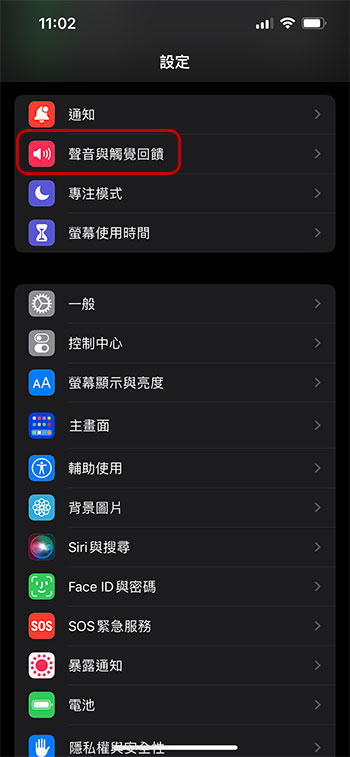
- Open the “Settings” app and click to enter the “Sound and Haptic Feedback” item.
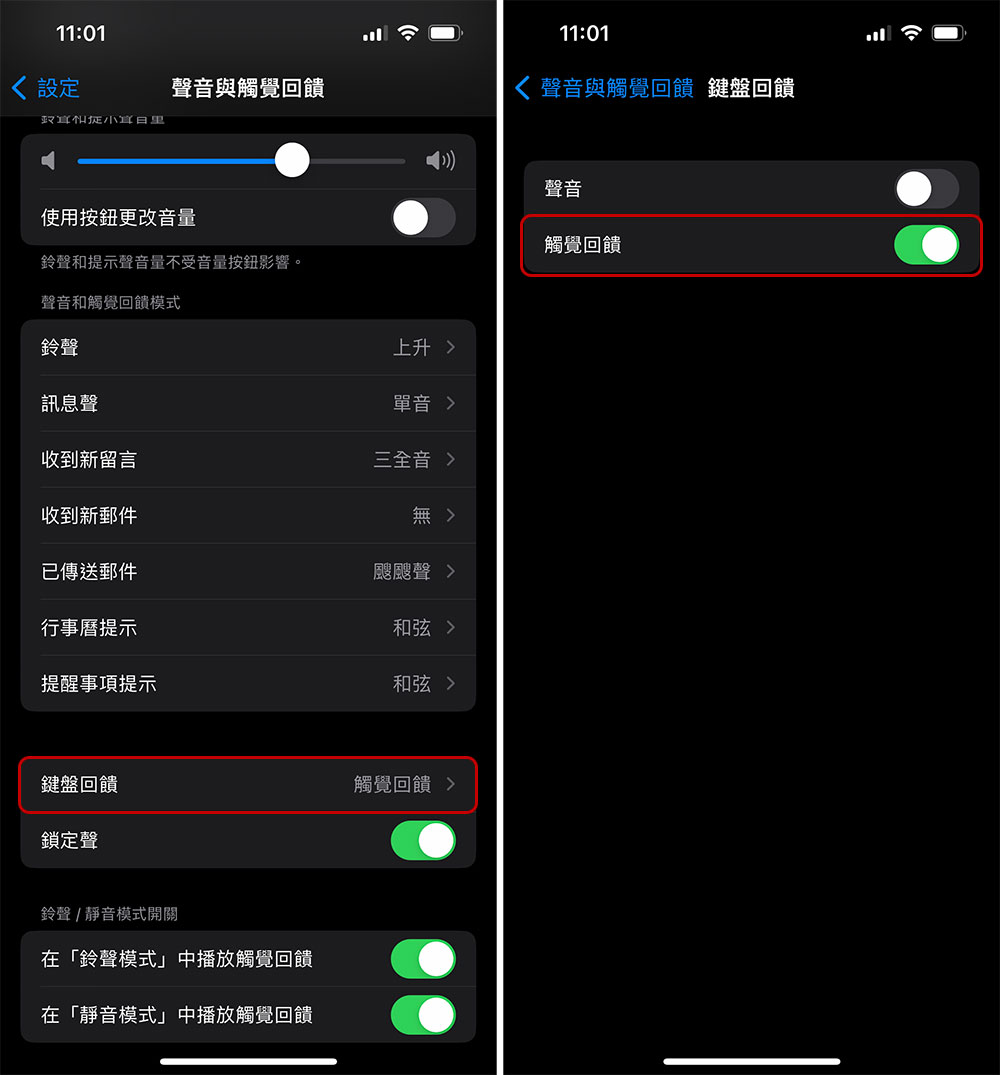
- Scroll down and click on the “Keyboard Feedback” item. After entering, turn on the “Vibration” switch. If you prefer typing sound effects, you can also open it from here, but in fact it is not recommended for daily use, as chatting in meetings will be easily discovered (?).
Memorize photos with one click
Are you still memorizing apps? On iOS 16, you no longer need to rely on third-party apps! And the process is very simple, AI will help you judge, and you can also share it directly to social chat applications and iPhone messaging applications.
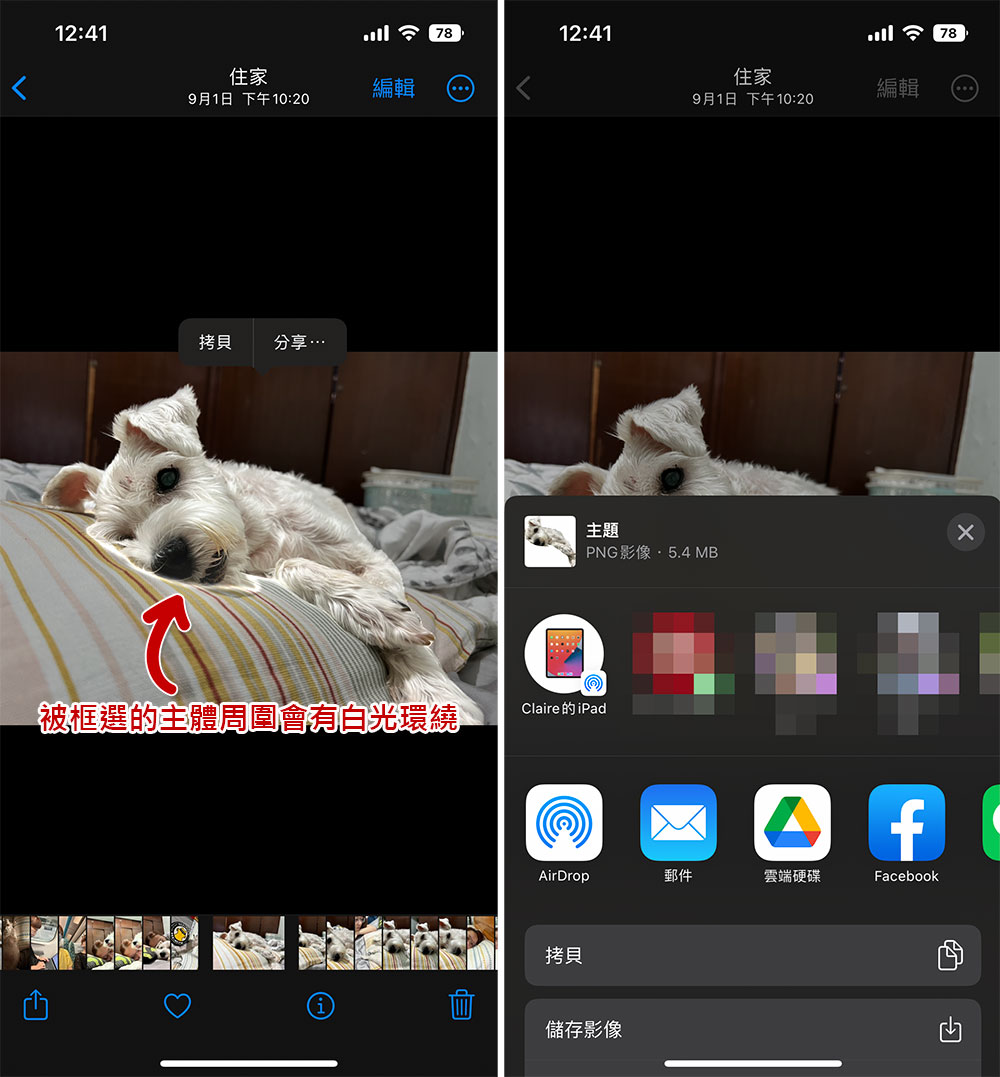
- Select the photo you want to remove in the “Photos” app, then press and hold directly on the subject until the subject flashes and the surroundings start to glow.
- Then select Copy or Share from the tool options that appear next. Copy can copy the main body for you to use later; sharing can help you directly paste it to other chat applications or other delivery and archiving methods. It should be noted here that the current message application on the iPhone that I tested will be a PNG file. If it is sent using LINE, it will be a JPG file. Therefore, you can save the file first and then use a third-party application to convert it into a PNG file.
- In addition, if your chat application is open, you can also directly grab the subject from behind and drag it to the left side of the screen to other applications to send it directly.
Convert exchange rates using the “original text” in the camera app
The “original text” feature first appeared on iOS 15, but iOS 16 received another upgrade. If you often shop on foreign websites or travel abroad, you no longer need to rely on third-party applications and Siri to convert exchange rates.
- Open the “Camera” app and aim at the target. If the system determines that it is text, a yellow frame will appear to select the text frame. An “original text” icon will appear in the lower right corner of the screen. Click it.
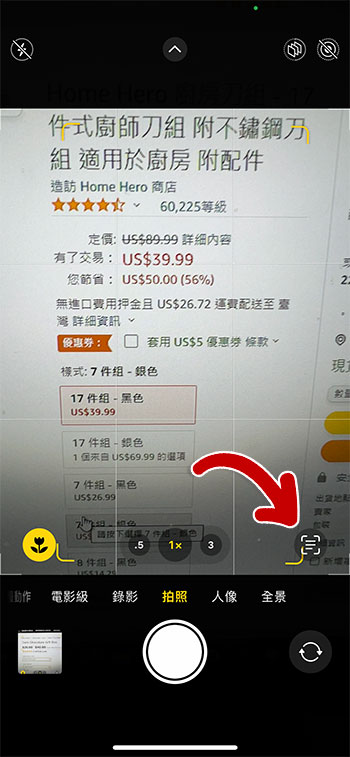
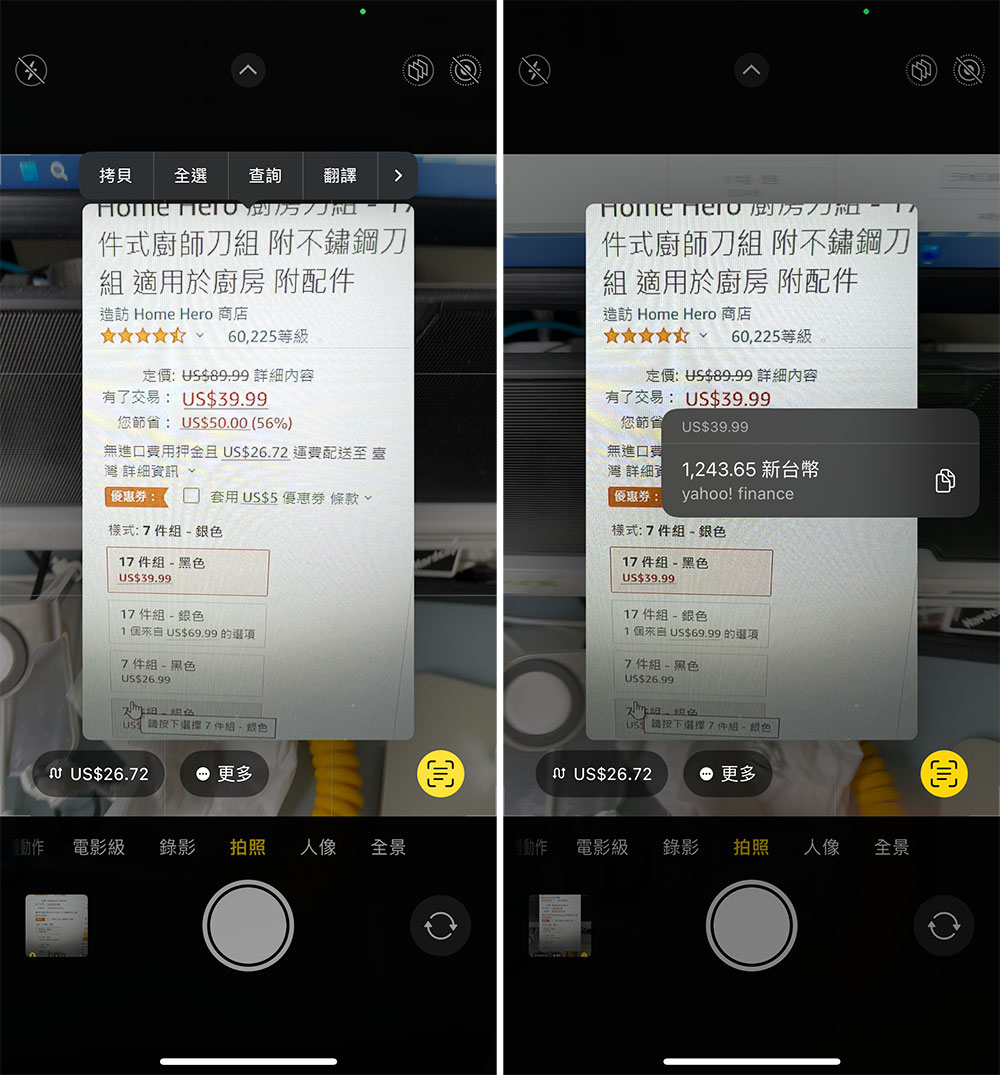
- Next, in the screen captured by the original text function, you can see that there is a bottom line under the part judged to be the price. Click on this area and the converted currency amount will be immediately displayed on the screen.
The six functions compiled this time are the ones that I think are the most practical and direct in life. Of course, there are more new functions waiting for you to play with yourself, and some functions will not be released until later. Everyone will wait and see!
Source: KOCPC Chinese