


Do you all remember the Image Playground and Genmoji features related to image generation that Apple mentioned during its keynote last September? Apple said at the time that with Image Playground and Genmoji, Apple users would be able to use Apple Intelligence to generate images and emoji. As long as you can think it up, Apple Intelligence can generate it. After the keynote, the editor switched their region to the U.S., changed the language to English, and set the system to U.S. settings, all just to wait for the day Image Playground and Genmoji would launch. After a long wait, the editor suddenly noticed an app on their phone that they had never downloaded, and that was when they realized Image Playground had quietly rolled out. Today I’m here to share the editor’s hands-on experience with Apple’s Image Playground and Genmoji, so everyone can get a sense of how to use them before the official launch in Taiwan. If you want to try them out yourself, you can also check out this article to learn how to get early access to Image Playground and Genmoji.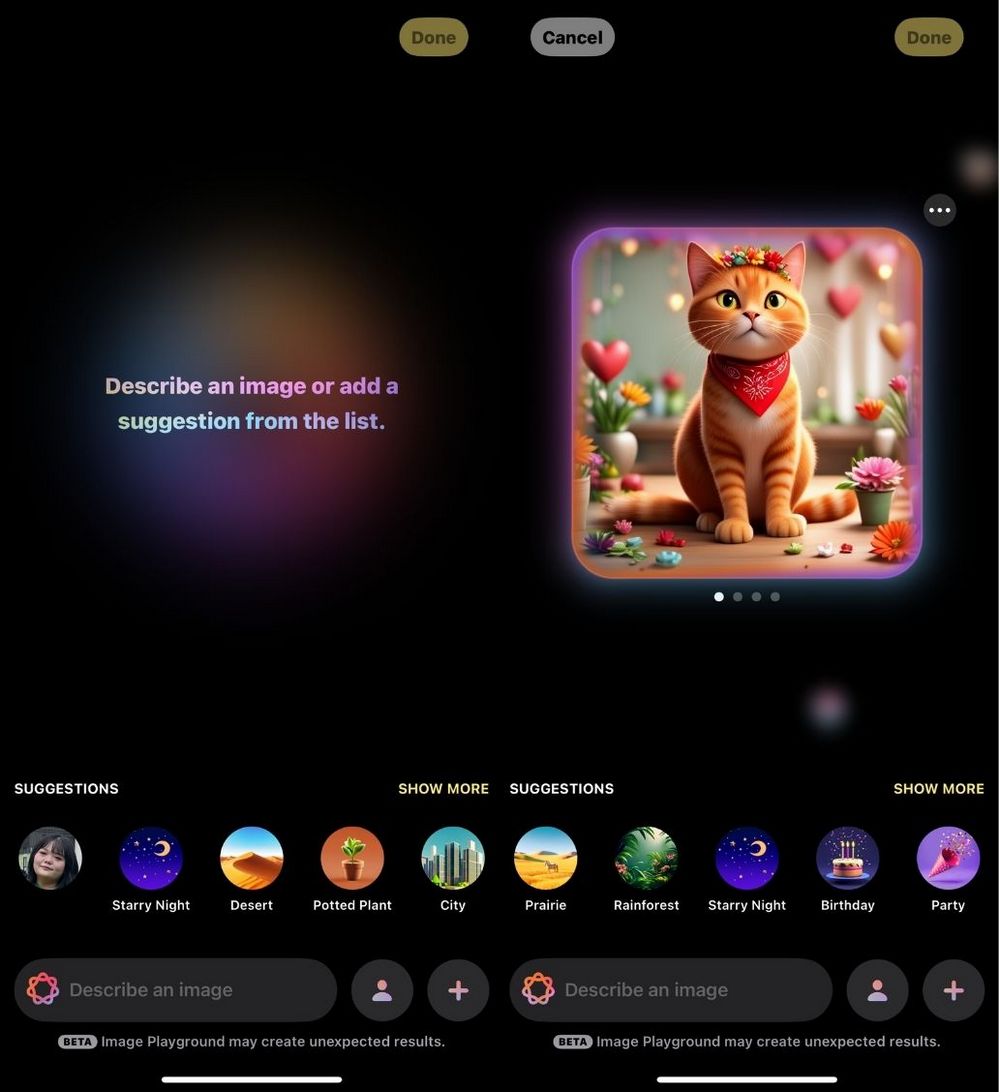
Genmoji & Image Playground Usage Guide! Complete Early Access Tutorial
Today’s hands-on review of Apple Image Playground and Genmoji will be broken down into several steps. First, you need to set up your phone, and after that, update the iOS system. Only then can you start trying out the new Apple Image Playground and Genmoji features. To make it easier to read, you can click the titles below to jump straight to the section you want to learn about.
- Phone settings
- Update the iOS system
- Experience Apple’s new Image Playground feature
- Experience Apple’s new Genmoji feature
Phone Settings
For those who want to try Image Playground and Genmoji early, first set your phone’s region to “United States” and the language to “English”. For Apple Intelligence, set the language to “English (United States)” and the Voice to “American”. If that’s too much trouble, you can just refer to the image below: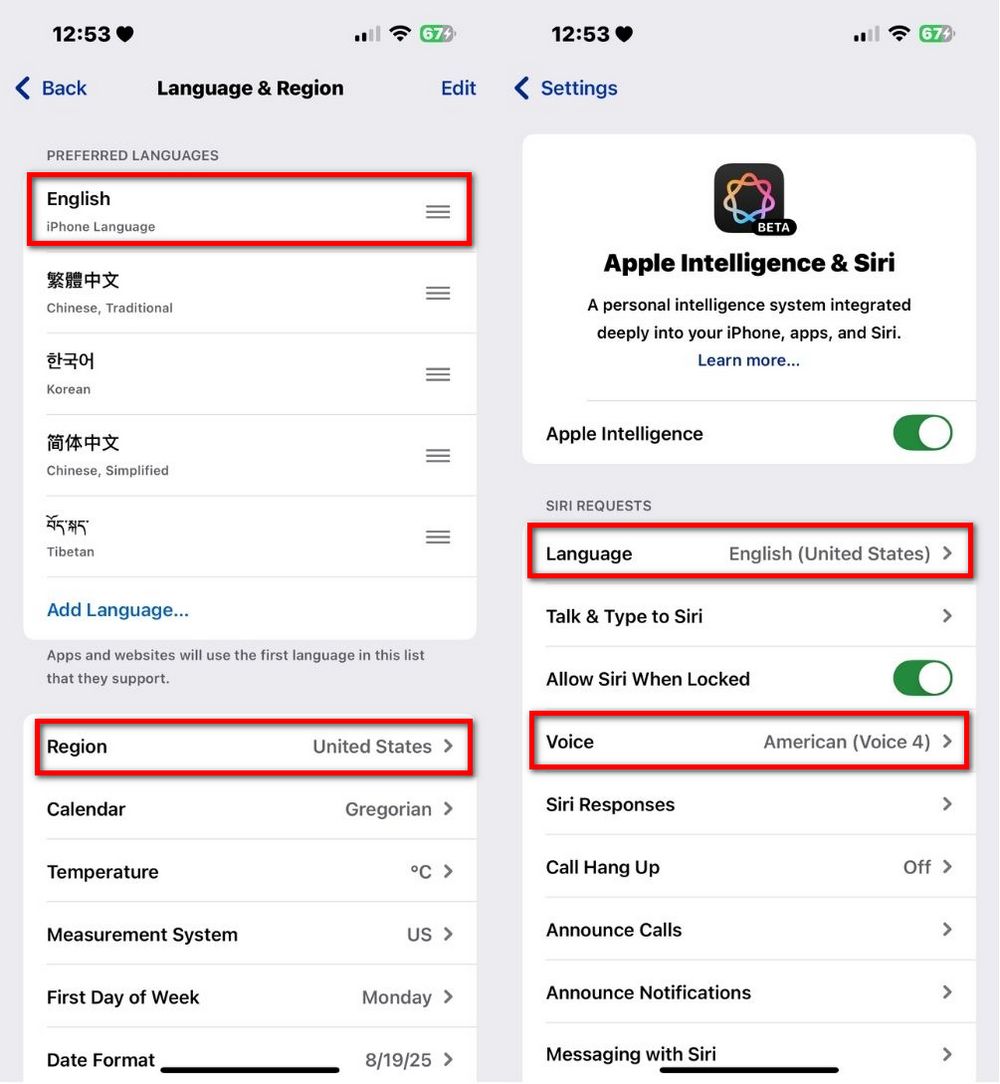
Update the iOS system.
After completing all these settings, you’ll still need to update iOS to use Image Playground and Genmoji. According to the official announcement, those who want to experience Image Playground need at least iOS 18.2 or above, and your iPhone must be an iPhone 16 model, iPhone 15 Pro, or iPhone 15 Pro Max. The editor here has already updated to the latest version, iOS 18.3.1.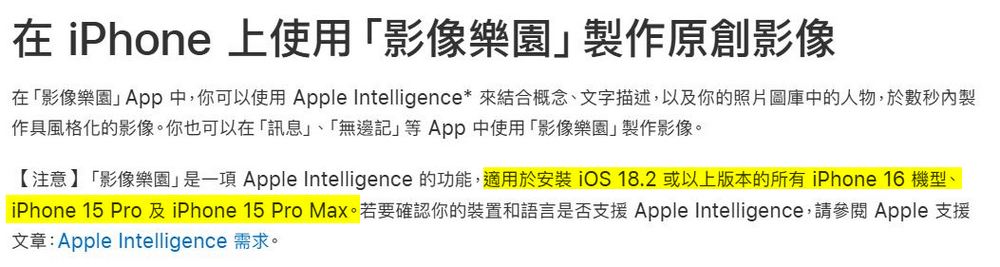
Experience Apple’s New Image Playground Feature
Set up your phone, and after updating the iOS system to iOS 18.2 or later, the Image Playground app should appear on your device. At that point, you can start exploring Image Playground and Genmoji features. However, note that the first time you open Image Playground, it will show that it’s downloading support for Image Playground. If you see this screen, connect to WiFi and charge your phone. (The editor waited about half an hour on this screen, and only after restarting the phone and repeatedly clearing background apps did it finally work. If you’re having trouble getting it to load, you can try the editor’s method.)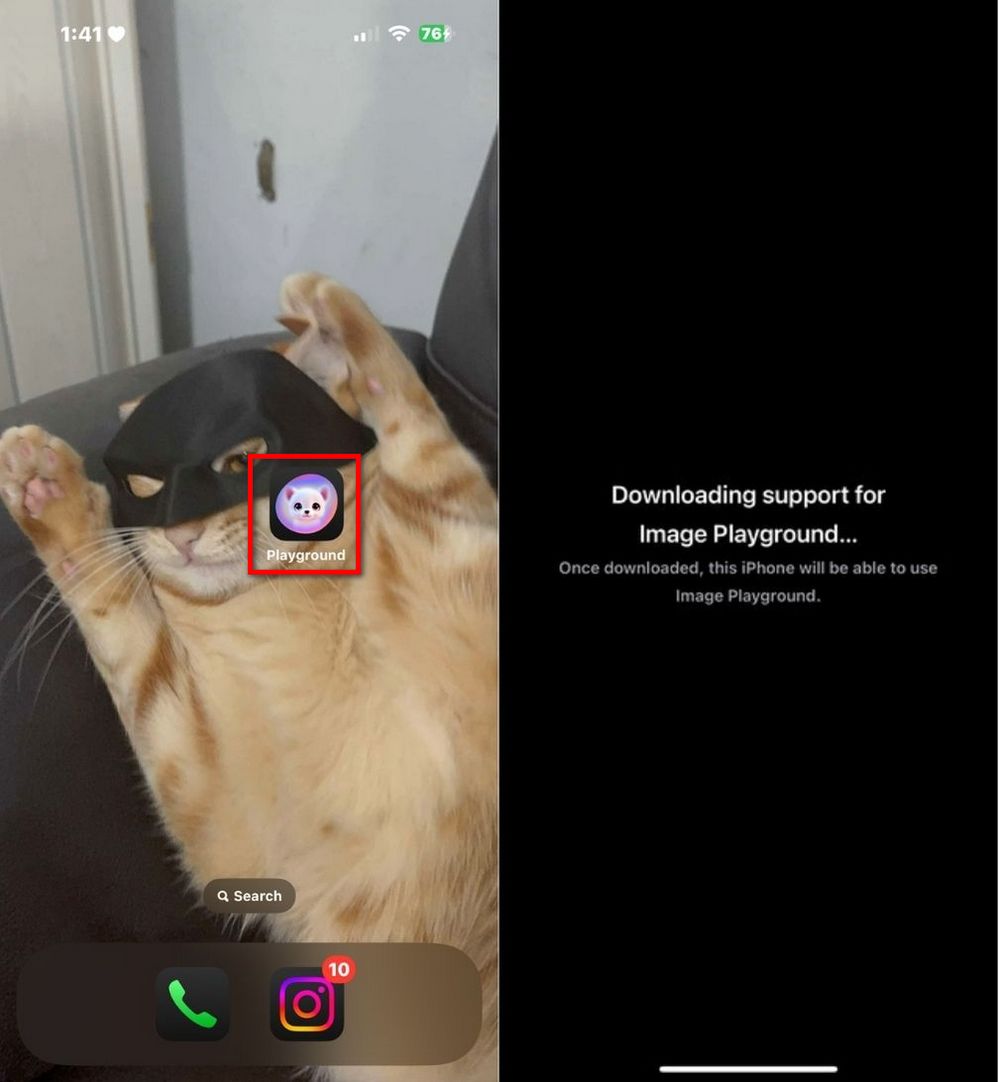
If you open your Image Playground app and see this screen, it means your phone can finally use Image Playground. Since Image Playground has a lot of features, today I’ll mainly introduce the most important parts first. Once you understand those, you should be able to explore and experiment on your own.
This screen shows the Image Playground interface. You can enter the subject, clothing, and accessories you want to generate in the box. After clicking send, you’ll see Image Playground generating the image for you.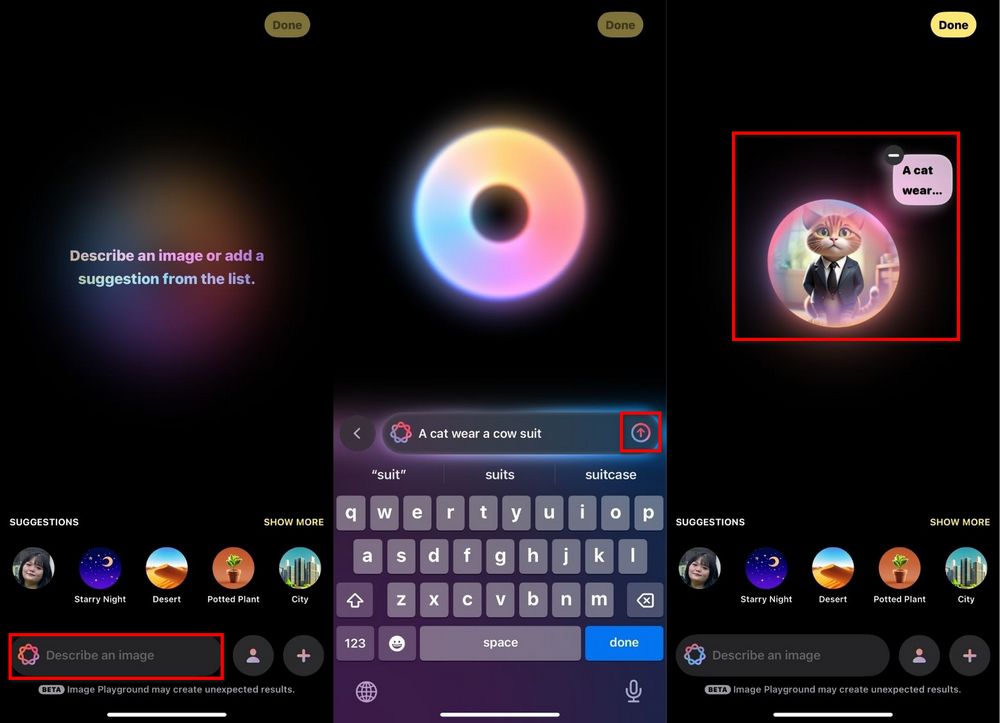
If you don’t know what to enter, Image Playground also offers many options for you to choose from. Click SHOW MORE, and Image Playground provides various options for themes THEMES, costumes COSTUMES, accessories ACCESSORIES, and places PLACE for you to choose: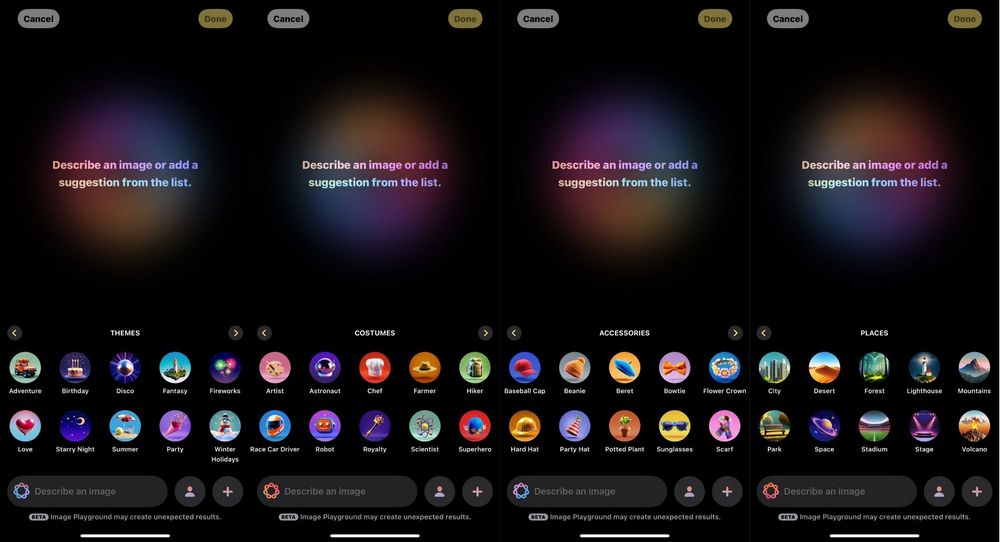
Click on the image to see it in more detail. Image Playground can generate up to 12 images for the same request at a time. If you are satisfied with a photo during generation, you can click “⋅⋅⋅” to save it.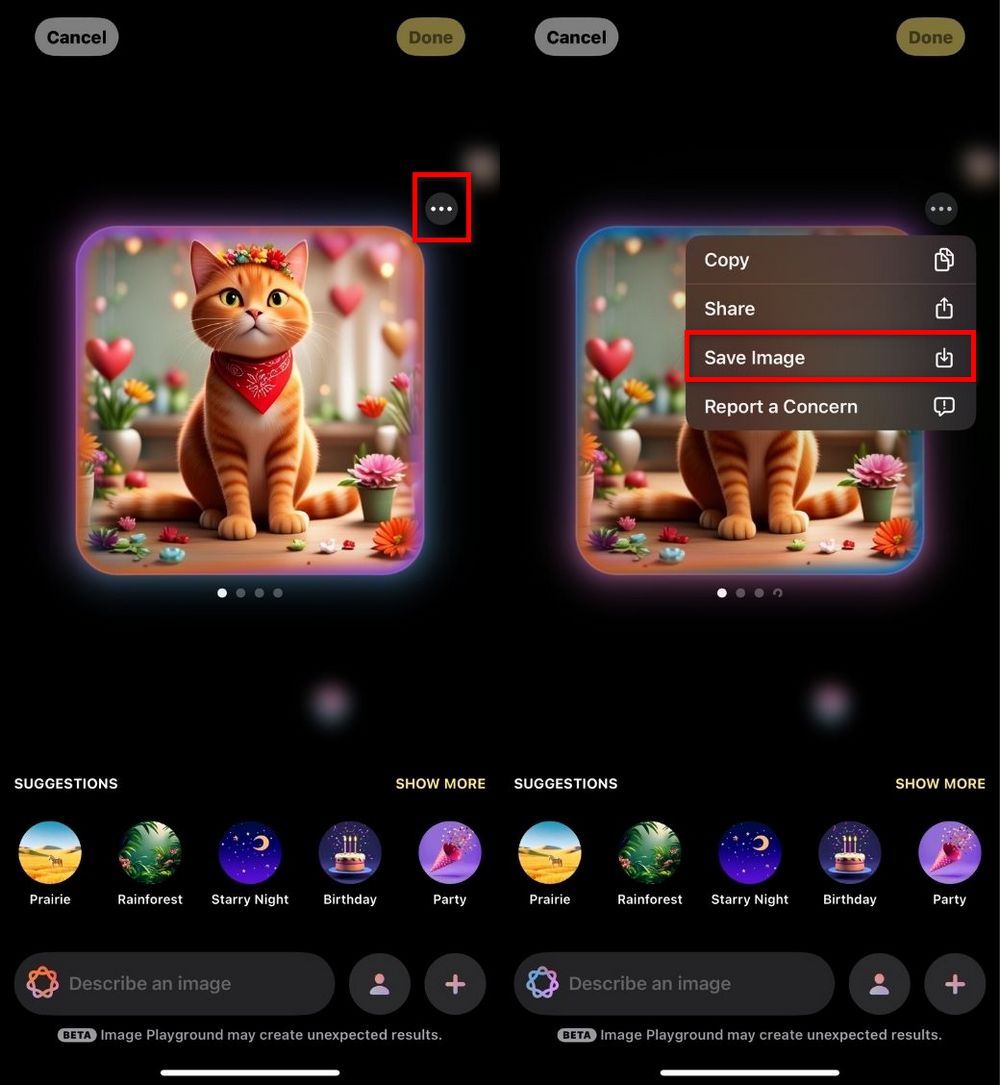
Once you’ve decided on the final content you want to generate, click Done and the image will be saved to your image history library. Click the + below the library to continue generating images.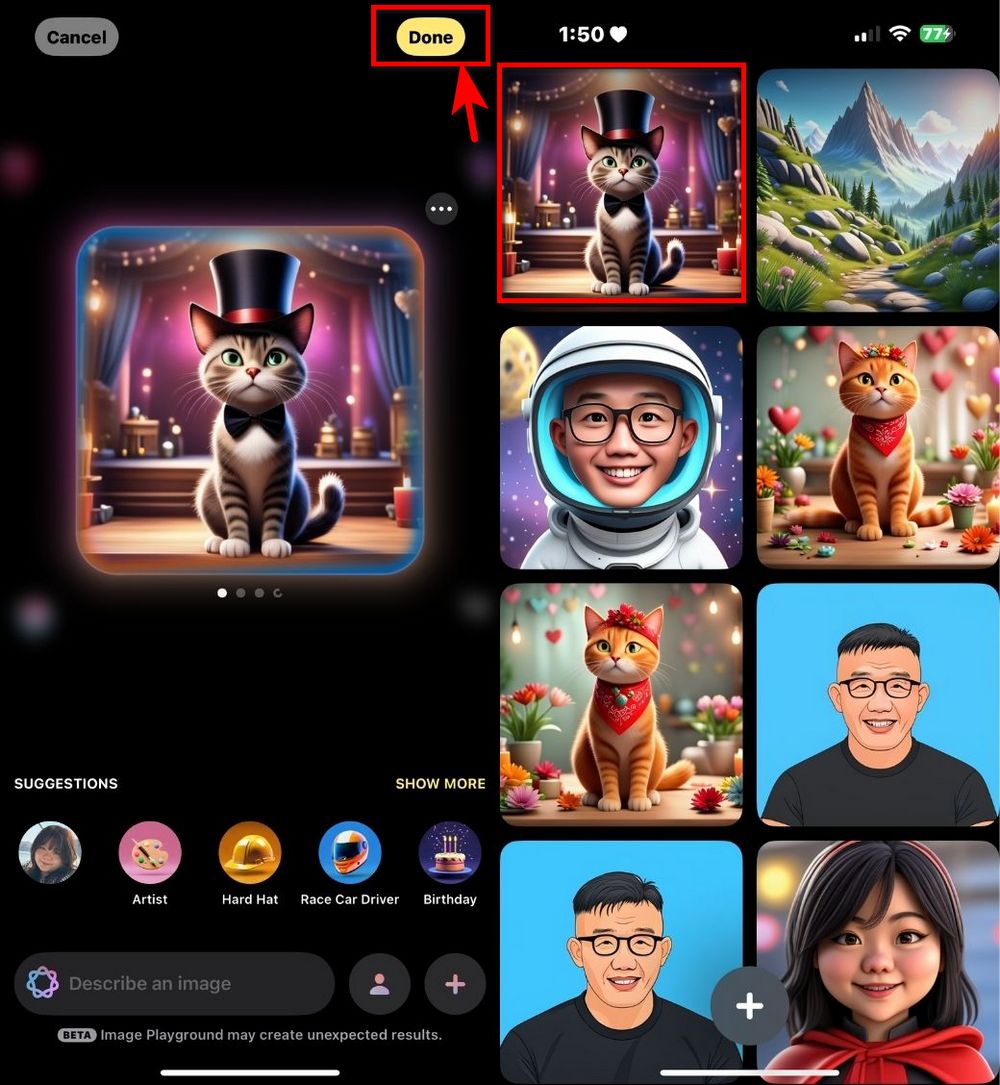
Besides letting Image Playground do its own thing, you can also use your own photos to have it generate pictures that look like you. Tap + → Choose Photo, then pick a photo from your library to use as a reference for Image Playground. After you’ve chosen, Image Playground will generate images based on your photo. Of course, you can also enter additional details you want it to generate.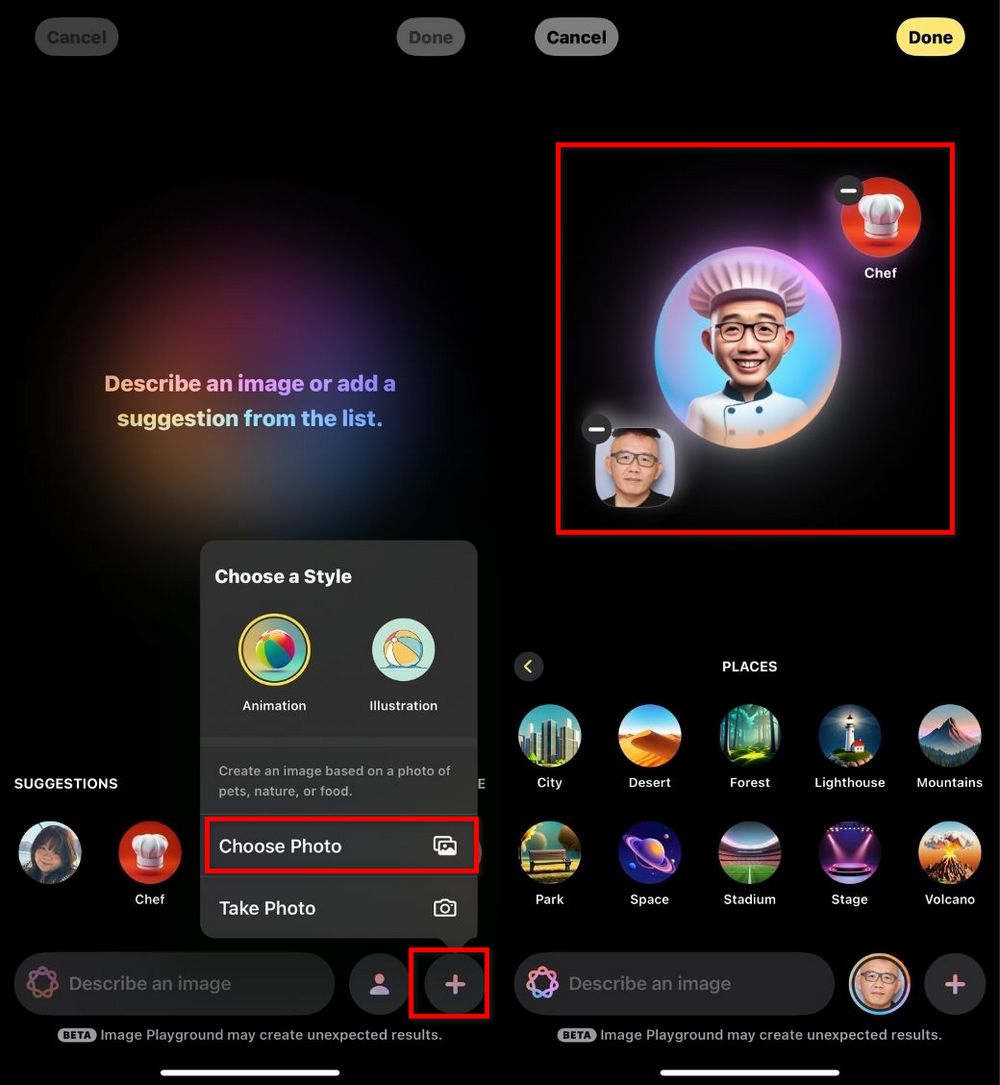
Images generated with Image Playground can be directly shared with friends or saved for personal use.
Experience Apple’s new Genmoji feature
If you can experience Image Playground, that means you can also use the Genmoji feature. Based on the editor’s testing, while you can generate Genmoji just by typing text, Genmoji generated in other chat apps will appear as images. Only Genmoji created in Apple’s built-in Messages app will appear as emoji.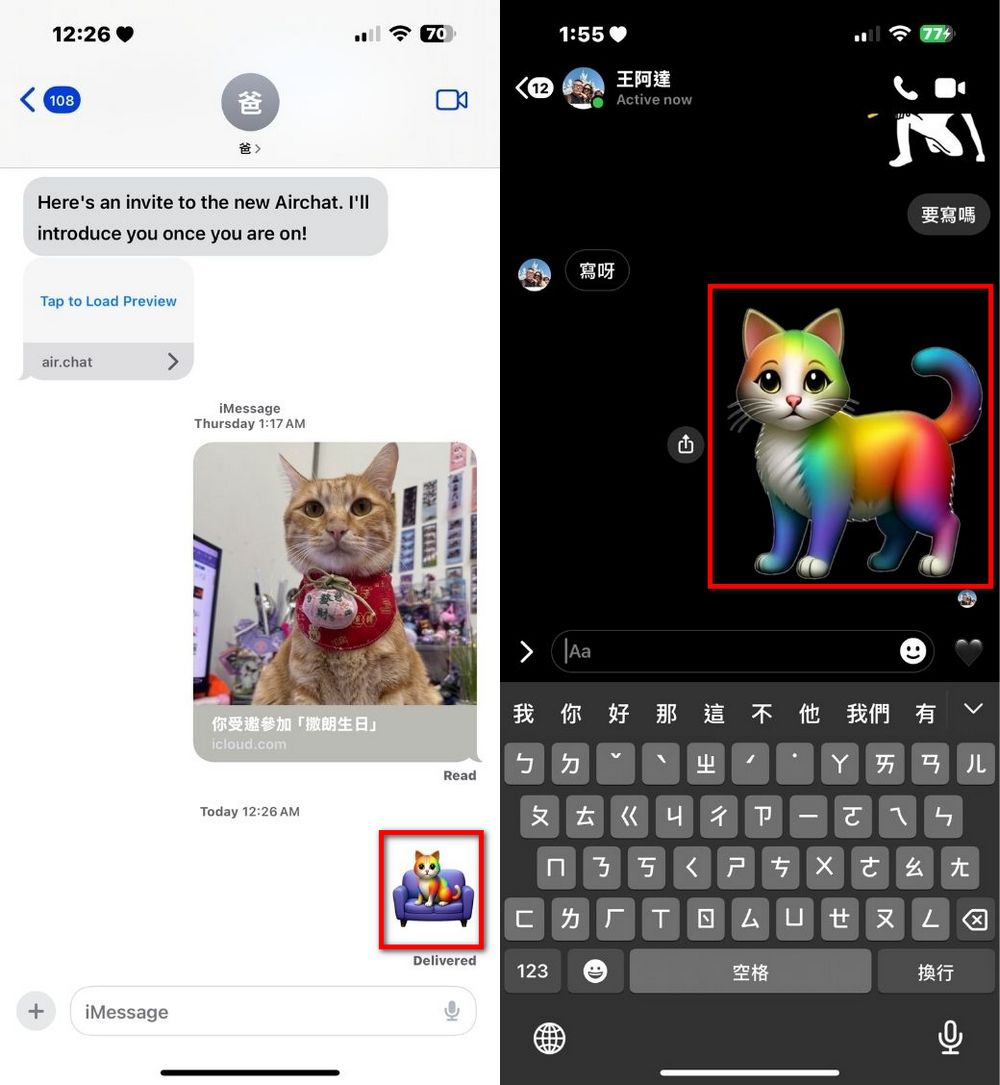
How do you generate Genmoji? Tap on your keyboard’s
 Switch to the emoji keyboard, then you’ll see at the upper right of the on-screen keyboard
  Click.You can start generating Genmoji right away. In the “Describe Genmoji” field, enter a description of the emoji you want, and Genmoji will generate a personalized emoji for you. To add the generated Genmoji to a message, select the Genmoji you’d like to use and tap “Add” to send it to your friends.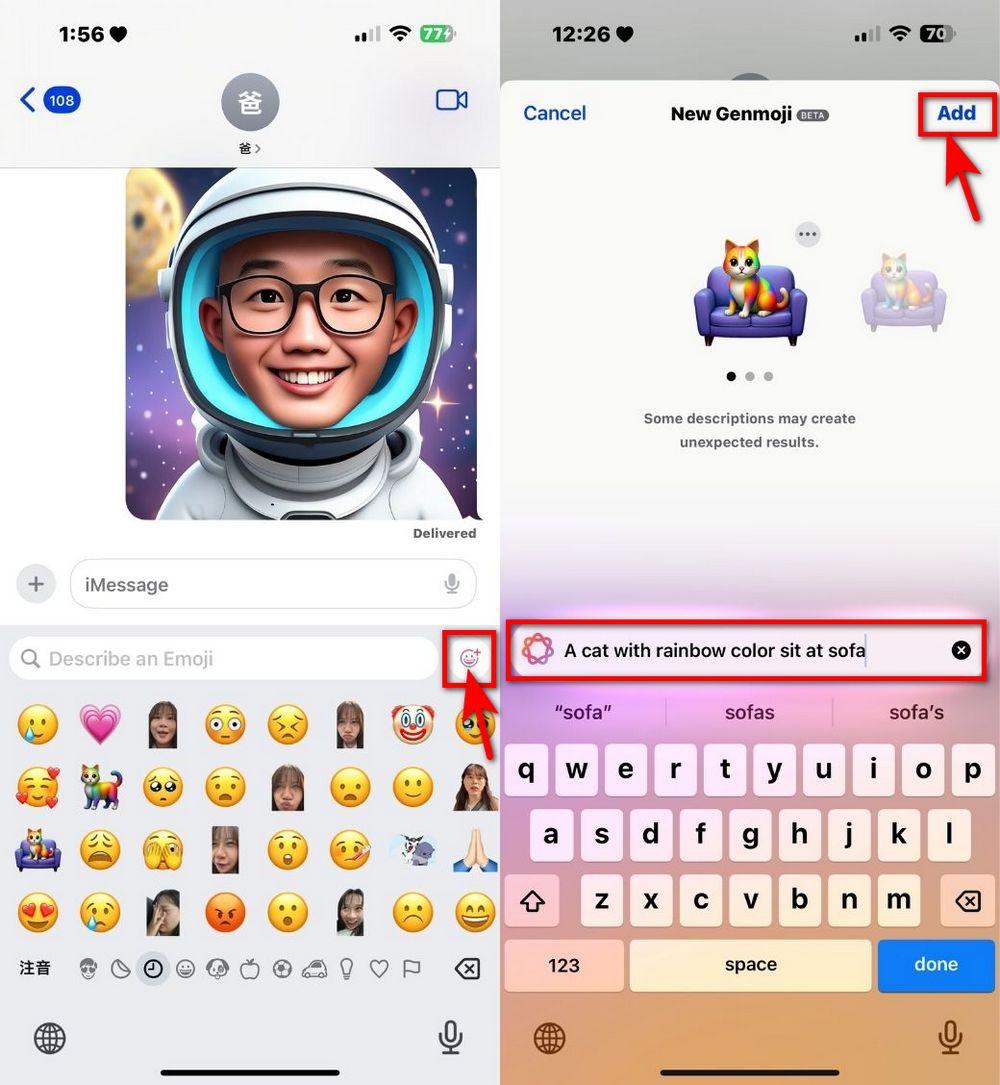
That’s all for this Apple Image Playground and Genmoji tutorial. If you’re interested, you can follow the phone setup guide from our earlier tutorial to get early access to Image Playground and Genmoji. If you think changing your phone settings is too much hassle, Apple saysApple Intelligence will launch Chinese support this April.Although it may not support the Taiwan region, we can still look forward to seeing whether Taiwan will be able to use it by then.
Source: KOCPC Chinese