


Sometimes, you check a file sent by a partner in Google Docs. There is a picture in the file, but when you want to download it, you find that Google does not give you this option. In this case, most of the time you can only copy it and use an image editing tool to process it, but there will be a problem of resolution distortion. How to deal with it if there is no image editing tool? Although the method is a bit convoluted, this time I will teach you how to download the clear images in the file.

Want to download images from Google Docs but don’t know how? Teach you three methods at once!
The author often receives press releases that insert images into files, but do not attach large image files. I want to download images in Google Docs but there is no clear function to use. After research, I found three ways and share them here with everyone who suffers from image downloading problems.
Download file as HTML file (easiest)
Although it is not as easy as right-clicking to download, this method is currently the simplest and most direct one.
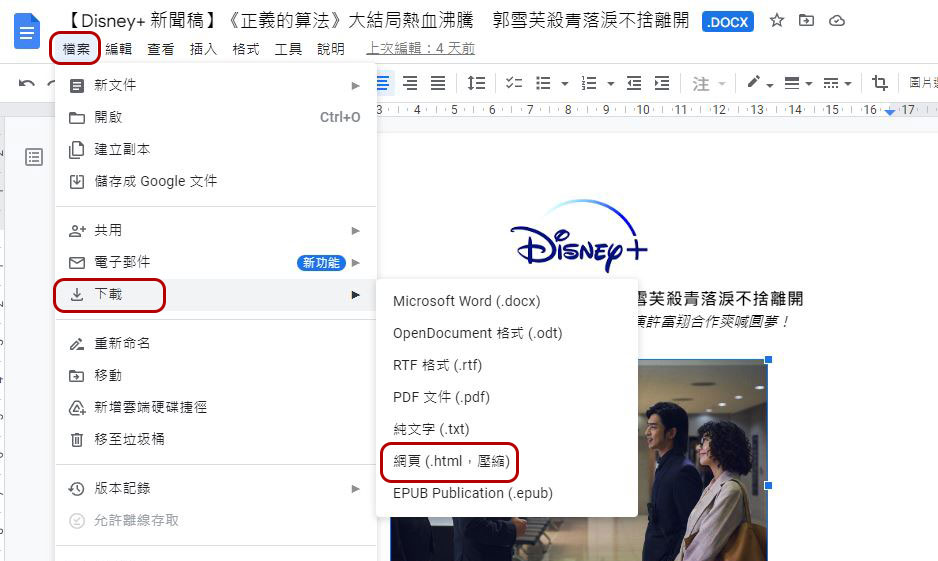
- First open the target Google document, then click “File” on the toolbar, select “Download”, and specify the format of “Web Page (.html, compressed)” to download.
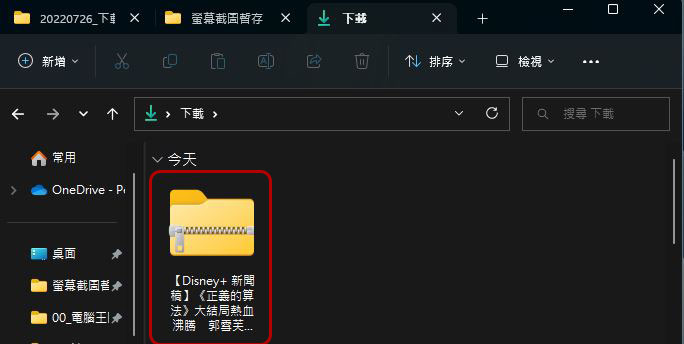
- The downloaded file will be presented as a compressed file.
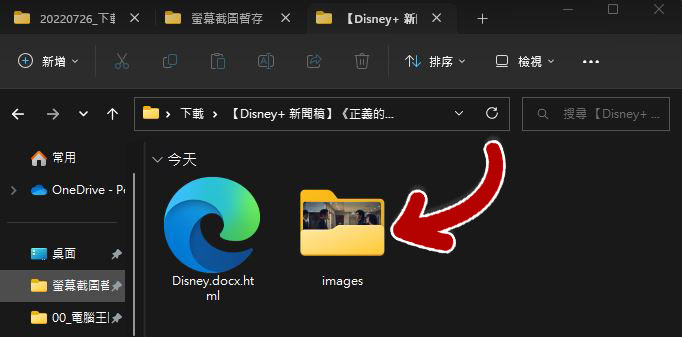
- After unzipping the file, you can see that it contains a folder called “images”. All the images in the entire file can be found in this folder.
Download from “Publish to the Web”
This method is a bit more circuitous than the previous one, but it is still quite effective. You can try it if your company or unit computer is locked for downloading.
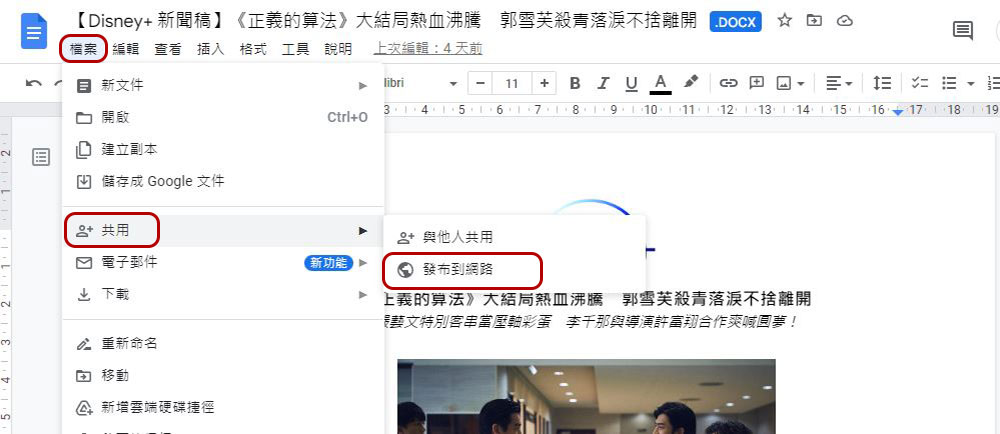
- With the target Google Doc open, click “File” on the toolbar, select “Share” and click “Publish on the web.”
- You can choose to post a link or embed it. Click the “Send” button under the “Links” tab and click “OK” when it asks you if you really want to perform this action.
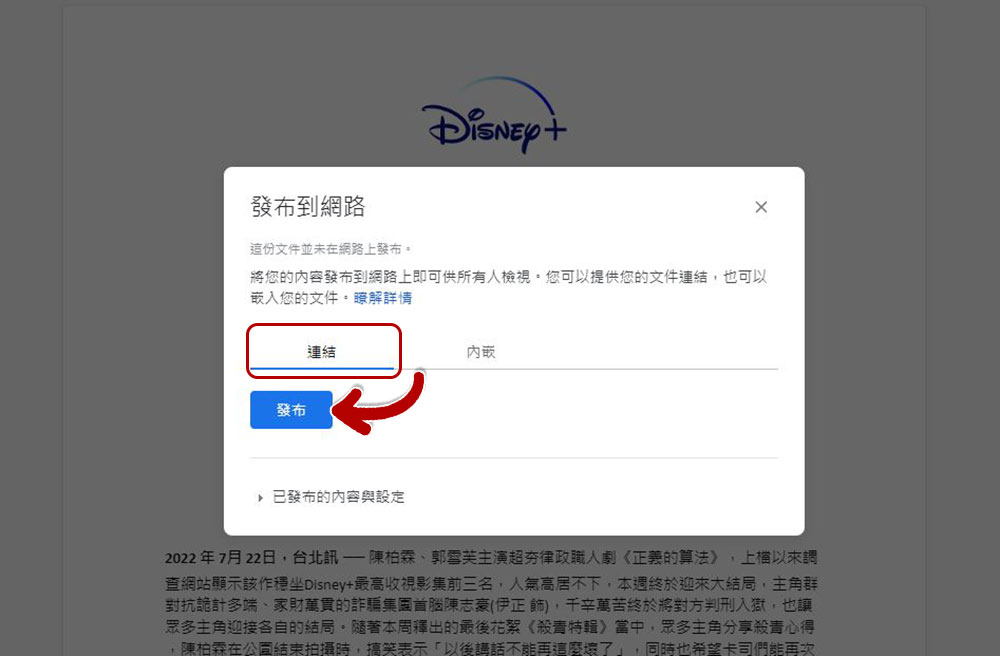
- Copy the link in the next pop-up window and paste it in a new tab or window.
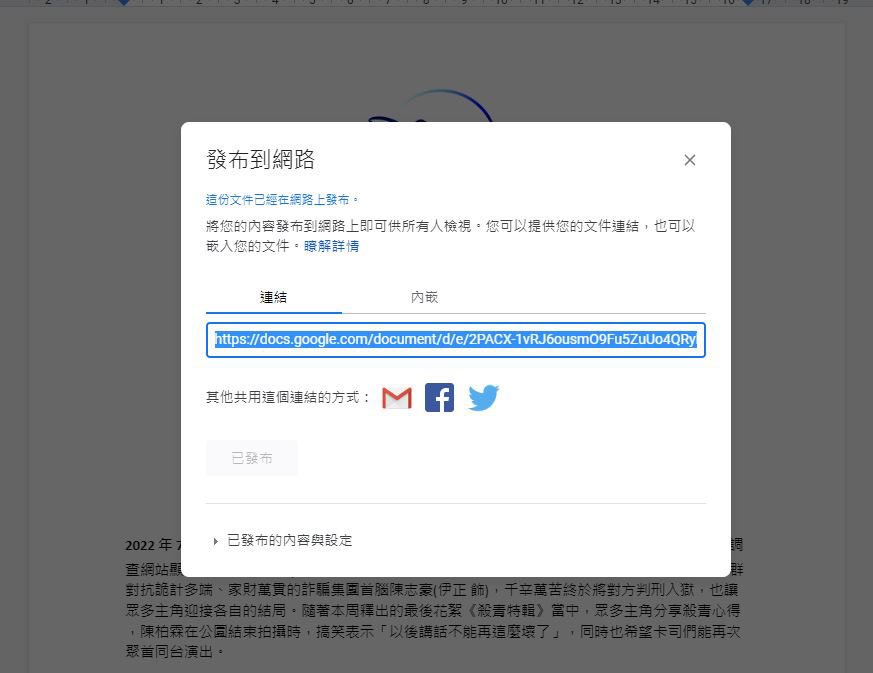
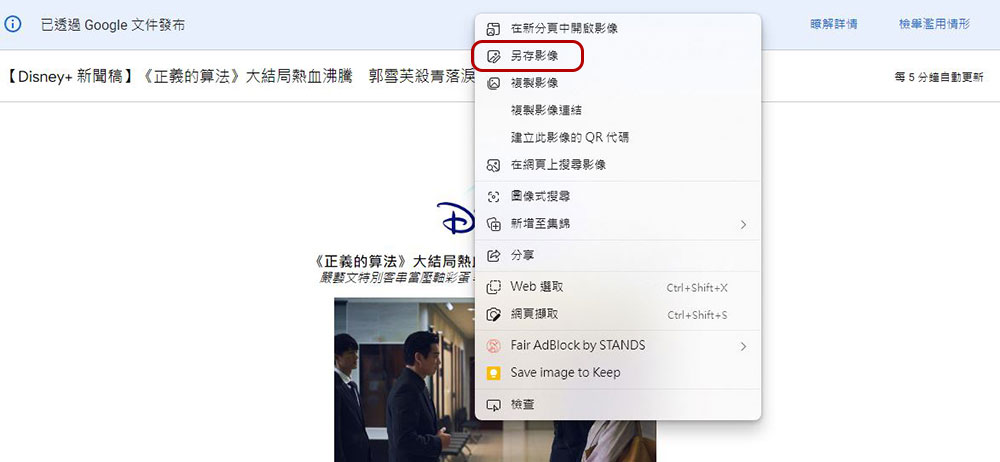
- In the newly opened tab, you can right-click the image you want to download to save it as a file, just like you do on other websites.
Download from Keep
Google’s logic is a little weird, and while you can’t download images from Google Docs, you can download them from Keep, Google’s note-taking app.
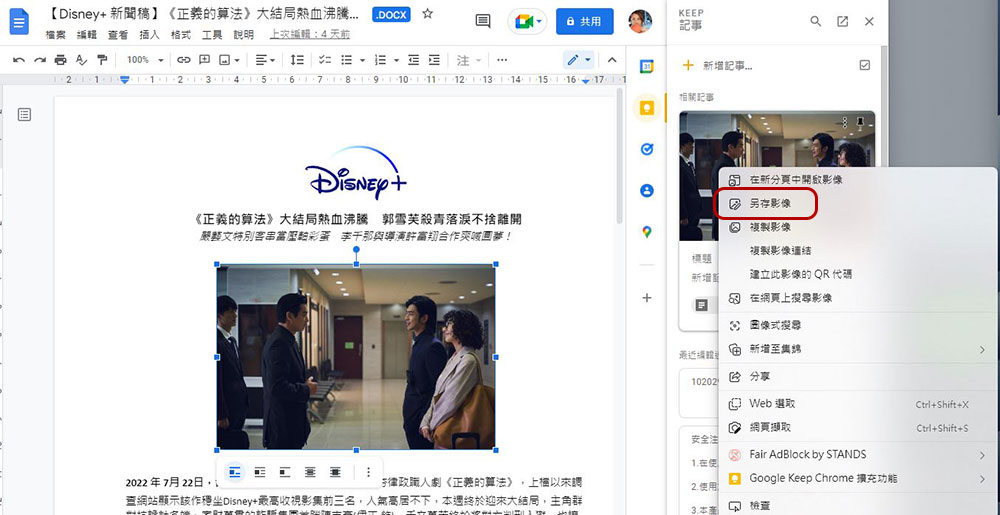
- Right-click the image you want to download and select “Show more actions” and select “Save to Keep”.

- Then you can see the stored image in the sidebar Keep that appears, or you can directly open Keep to see it. Right-click on the photo you want to download and select “Save Image As”.
The above three are currently the fastest ways for me to download images from Google Docs, but the first method is still recommended. It is simple and can directly download a large package of image files without having to operate each one separately.
Source: KOCPC Chinese