


The Chinese New Year is coming soon, are you overwhelmed by all kinds of trivial matters? Here are some tips for iPhone and iPad users, including memos, multi-tasking, reminders, FaceTime, simulcast sharing and other functions that are useful for note-taking and collaboration. As long as you master these tips, you can help you be more calm in your daily work and life at the touch of a finger.

An easy-to-use memo for note-taking and collaboration
The Notes app is great for storing lists and collaborating with others. You can create shared lists to record daily necessities, New Year gifts, or Spring Festival plans. This is very practical for Spring Festival and travel planning, and can also help you complete your work easily. Everyone in a shared note can add, edit content, or check off completed items.
To collaborate on a note, do one of the following:
- In the notes list, swipe left on the note you want to share, then tap the share image.
- Open the note you want to share, tap it, then tap Share Note.
- Tap Sharing Options, then select Can change or View only. If you select “Can make changes”, you can also set up settings that allow collaborators to invite other collaborators to join.
- Choose how to send the invitation (for example, using Mail or Messages). Note that everyone you share with needs to be signed in with their Apple ID to edit or view the note.
With iOS 15 and iPadOS 15, Notes has more ways to help you stay organized, including: The Mention function in Notes allows shared members to notify each other of important updates. Just enter @ and a name anywhere in the note to discuss who is bringing what dishes for the New Year, or who is responsible for sending gifts to an elder. They’ll be notified of updates and can quickly access the note with one tap. You can also track content added by others with the new Activity display. Activity in a note shows all recent changes, including updates (changes made since the last time you opened the note), all activities in the note, or highlights (showing each collaborator’s name, date, and changes).
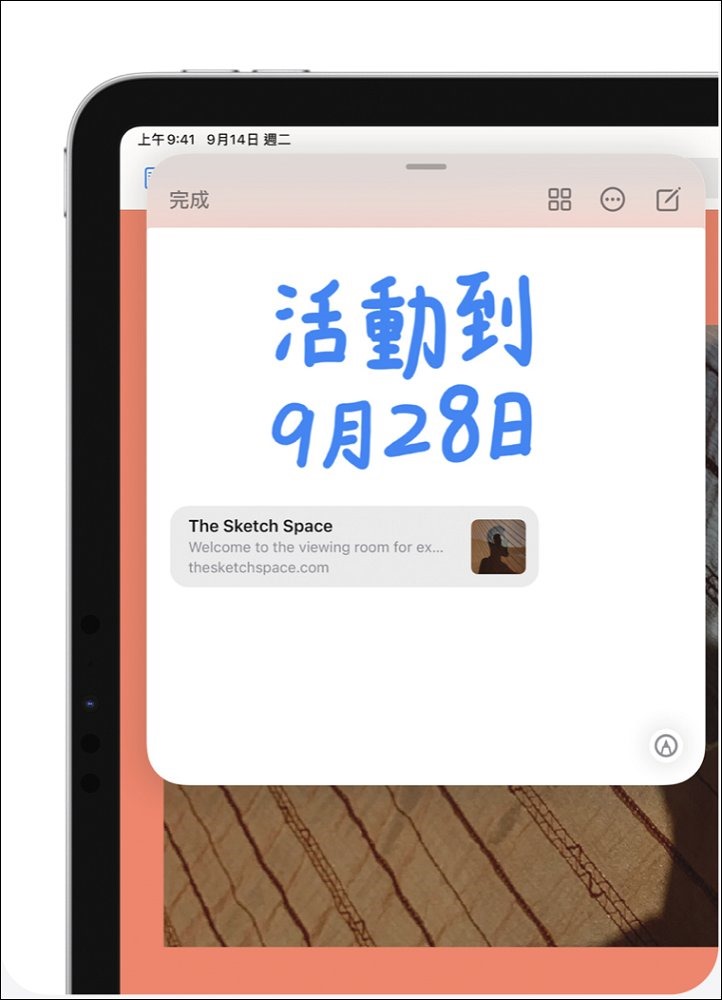
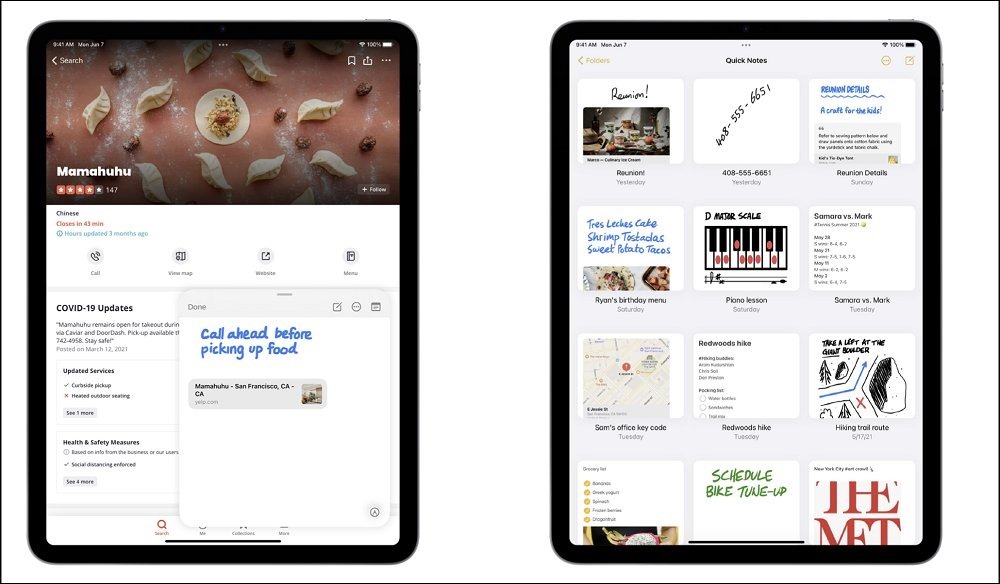
iPad users can also use Quick Notes to easily and quickly take notes anywhere, and even add links to apps or websites to provide relevant content. Just swipe up from the lower right corner of the display with your finger or Apple Pencil to start making a Quick Note. Whether you are looking for a recipe or a gift on Safari, you can execute “Quick Notes” anywhere in the system to jot down inspiration. You can also add a link to an app or website to create relevant content so you can easily review what you saw later. Moreover, “Quick Notes” created on iPad will also appear on your iPhone and Mac.
Make good use of the “multitasking” function
Take advantage of iPad’s multitasking capabilities to make your planning more efficient. Make your shopping list while browsing your favorite stores, whether you’re buying sausages, mullet roe or bird’s nests for gifts, all at a glance; or build your favorite playlists on Apple Music while watching how to fry fish on YouTube. A new multitasking menu at the top of the screen is just a tap away, allowing you to easily create full screen, Slide to Front, Split Display, and in some cases create a central window so you can use multiple apps at the same time. iPad mini fits easily in your handbag and is perfect for multitasking.
Reminders
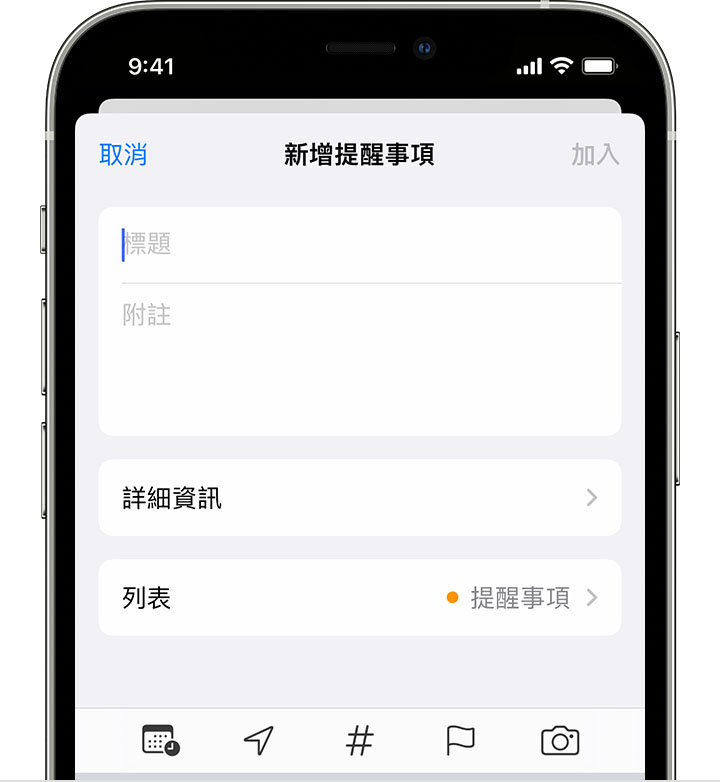
Set Reminders to track your to-do items and help you remember important information. iPhone and iPad users can use the label function to organize reminders in a quick and flexible way. Add tags such as #年ev or # junior high school to your reminders, and you can easily search and filter content in your “Reminders” list. Any tags you create will automatically be added to the tag browser as a button. Just tap one or more of the tag buttons in the tags section to view all of the tagged reminders in your lists. If you select multiple tags, you’ll only see all reminders with the selected tags.
Useful features of FaceTime
Whether you are celebrating the New Year with your loved ones or celebrating the holidays with family members far away, you can create FaceTime links in the Calendar on your iPhone or iPad and share these links with invitees. Are there any relatives or friends abroad who cannot return to Taiwan to get together? During the epidemic, why not celebrate the New Year virtually? You can create a link to the FaceTime call and put the link in the “Place” field. Even if your relatives and friends are not Apple users, they can use the link to join the call. Android and Windows users can now join FaceTime calls from the browser. You can also set reminders to remind you of events in advance so you don’t forget.

Zhonglele’s simulcast sharing
Want to watch your favorite shows with friends and family far away? You can continue to watch movies, listen to music, or share your screen content during a FaceTime call. “Simulcast sharing” is a brand new way that allows you and your family and friends to share a wonderful experience even if you are separated from each other.
To use FaceTime sharing, add an event in the Calendar app and double-click on the existing event. Then tap Location or Video Call and enter the physical location or tap FaceTime to enter the video link for the remote event.

Other useful software
The following third-party apps are also highly recommended to keep your to-do list watertight when preparing for the New Year!
- Water Polo Checklist – To Do List & Memos & Reminders: Here, each of your to-do tasks will become water balloons. After completing the task, pop them with all your strength. You will enjoy a full sense of accomplishment when the water balloons explode. This will make you look forward to crossing out your to-do tasks every day, and you will develop a high-efficiency living habit without knowing it!
- Focused Traveler – Flow Timer: When your time is cut into pieces by school, family, and work, but you have many tasks to deal with, training yourself to quickly enter a “focused” state is the secret to maintaining productivity. “Focused Traveler” combines the concepts of white noise, Pomodoro timer and mountain climbing to help you achieve your goals more naturally.
- Note Adventure: To-Do Time Management Tool: “Memory Adventure” is a notebook that makes to-do lists full of fun! Studies have found that simply writing something down increases your chances of doing it in the end by 33%. By being aware of and accurately recording your daily tasks, and using the list as a navigation map, you can move towards your goals with concentration.
Source: KOCPC Chinese