


When you want to organize and rearrange the iOS home screen, you generally have to manually move the Apps one by one. If the number is small, there is no problem, but if there are many, it will be troublesome. It takes a lot of time to move and switch pages, which is quite tiring. There is actually a little trick hidden in iOS 14: “Move multiple specified Apps at one time”, such as: moving three Apps of Facebook, Chrome, and Instagram at one time. Let’s teach you how to use it.
iOS Hidden Trick: Quickly Move Multiple Apps at One Time
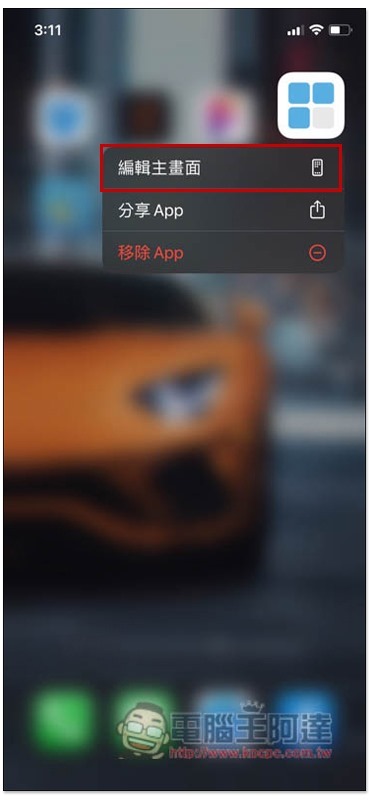
To use the hidden technique of quickly moving multiple Apps at once, you can also go to the jitter screen first. You can long press anywhere on the home screen, or long press an app to pop up the menu, and then choose to edit the home screen:
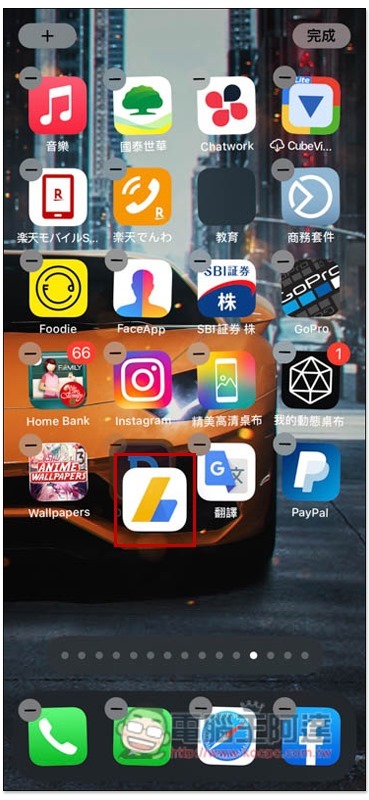
Then long press and hold one of the apps you want to move, and slide it to another place on the screen, as shown in the figure below:
Continue to hold this App, and now use other fingers to click on the Apps you want to move together. These Apps will automatically be combined and show how many Apps you have selected:
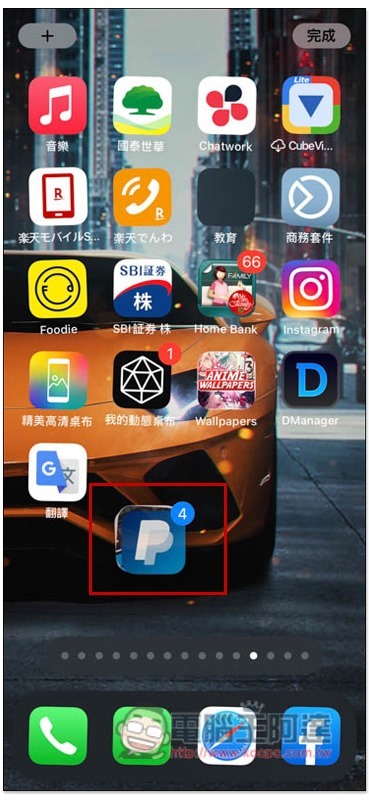
You can also continue to group apps by swiping to another home screen until you’ve selected them all:
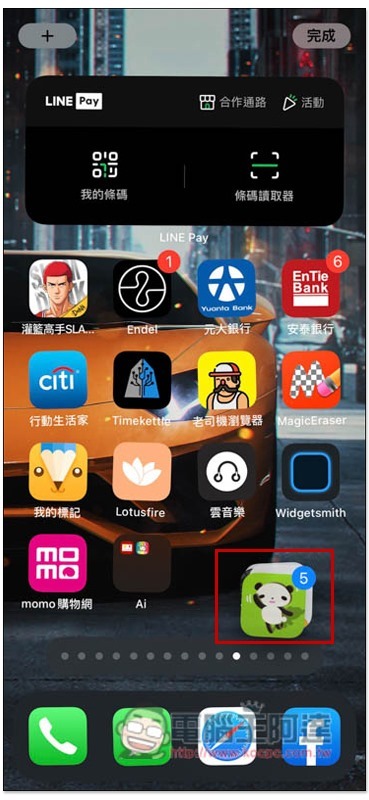
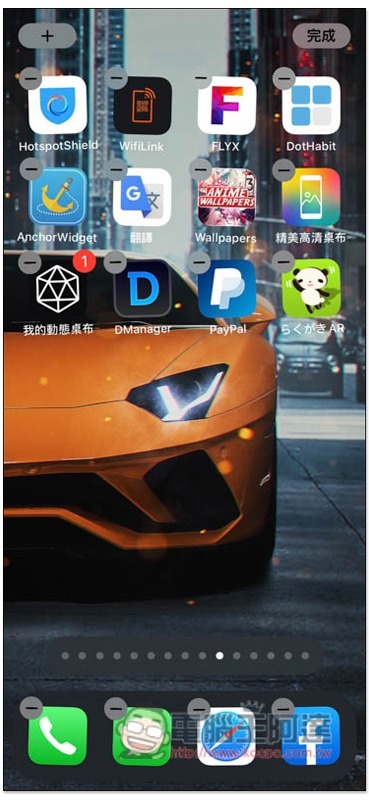
Finally, drop these Apps to the home screen where you want them:
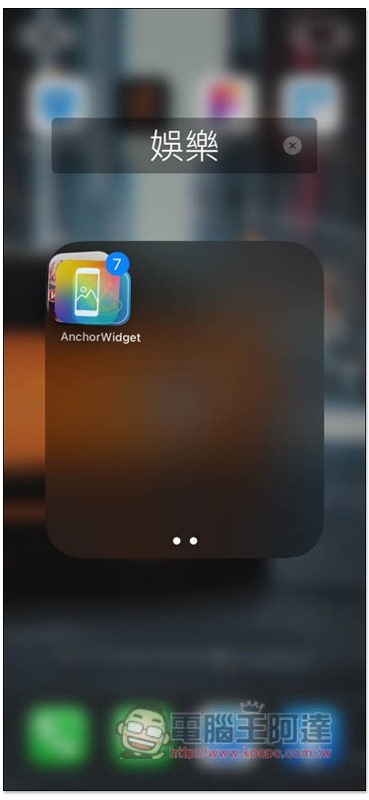
You can also move it to the top of the Apps you want to create a category folder together. All selected Apps will be dropped into this folder at once:
With this operation technique, it will no longer be difficult to organize or rearrange Apps in the future. It is an absolute must-learn for lazy people and those who often download a bunch of Apps.
In addition, if you have some Apps that you don’t want others to see, you can use this technique to put those Apps on the same screen and hide the page. Plus this won’t delete Apps, so you can do it with confidence.
Enter the jitter screen as usual, and then click the horizontal bar below:
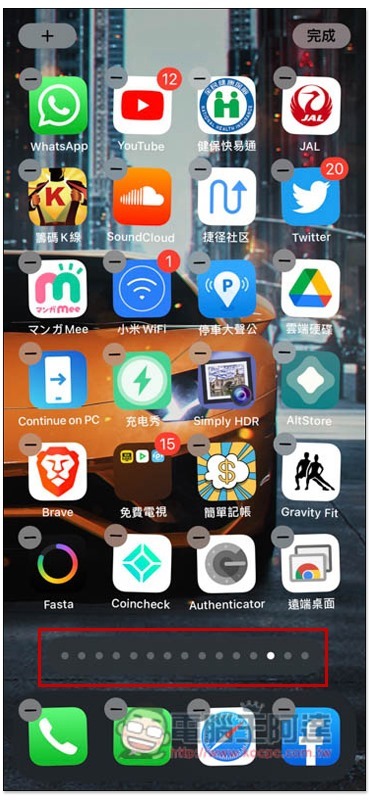
You will enter the editing page, uncheck the page you want to hide, and you will no longer be able to see this page when you return to the main screen:
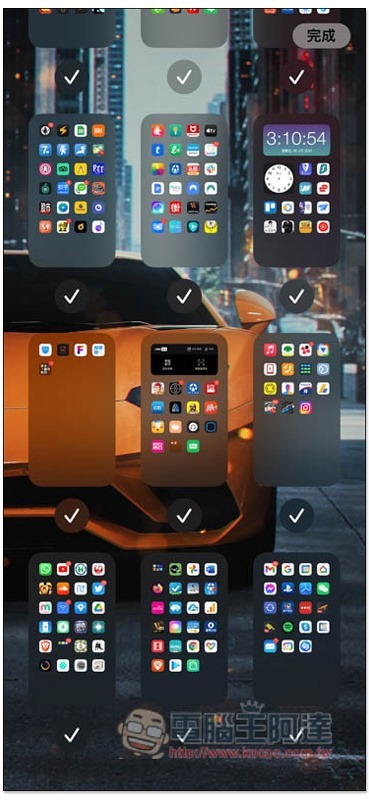
If you want to use the apps with this hidden page later, you can find and activate them through Spotlight keyword search.
Source: KOCPC Chinese