


Many people are used to charging their iPhones aside during work, and many people put their iPhones on the bedside to charge while sleeping to feel at ease. If you want to know the current time at any time, in addition to watching the time from the clock in your life environment such as watches and computers, you are already used to reaching out and tapping your iPhone to wake up the screen and watch the time on your iPhone. If you don’t want to reach out to touch your phone to check the time in the above situation, then today I will share a trick to automatically turn on the clock display when the iPhone is charging!

iPhone “charging automatically turns on clock display” operation tutorial (automated operation with Zen Flip Clock App)
Many iPhone users may have purchased an Apple Watch. For example, the Apple Watch will automatically turn on the clock display mode when it is connected to the charging cable for charging, which is very convenient for people who want to put it on the desktop to watch the time. However, what if you want to use a larger screen iPhone to enable the clock display while charging? Let’s first demonstrate the actual effect of automatically turning on the clock display when charging the iPhone shared today. You can see that when the iPhone starts charging, a page-turning clock app will be opened simultaneously.
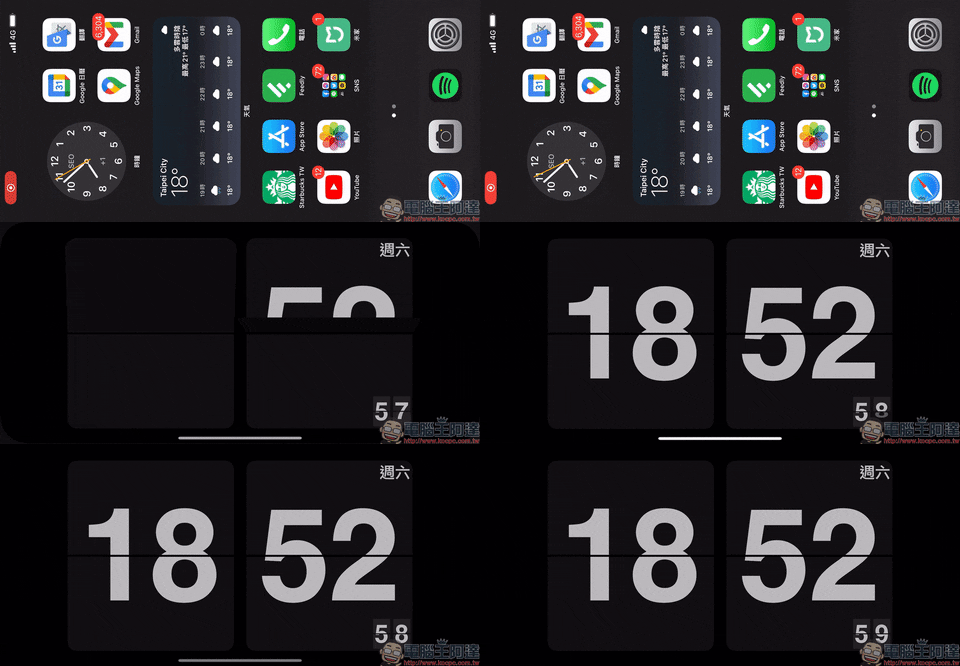
The operating logic behind this tutorial on automatically turning on the clock while charging the iPhone is actually quite simple. It mainly uses the “automatic operation” function of the “Shortcut” App, and then opens the specified App with the current command during charging.
Download Zen Flip Clock App
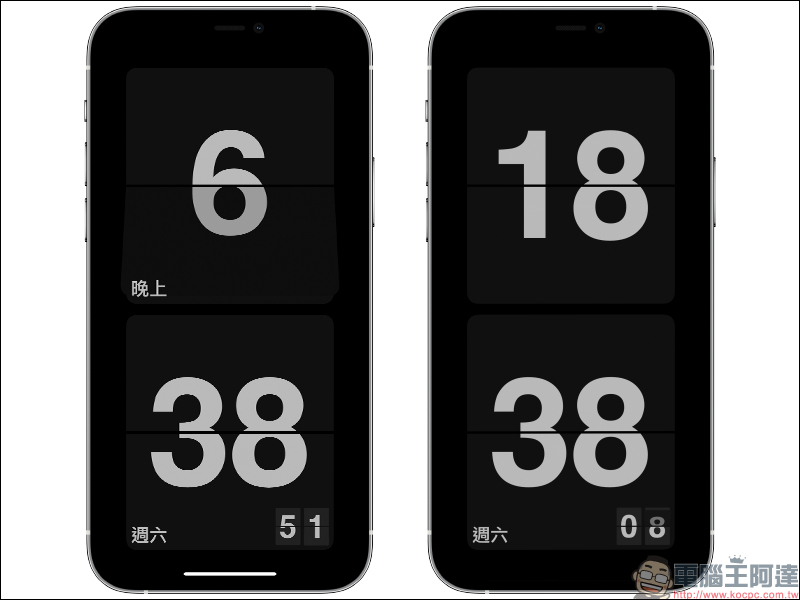
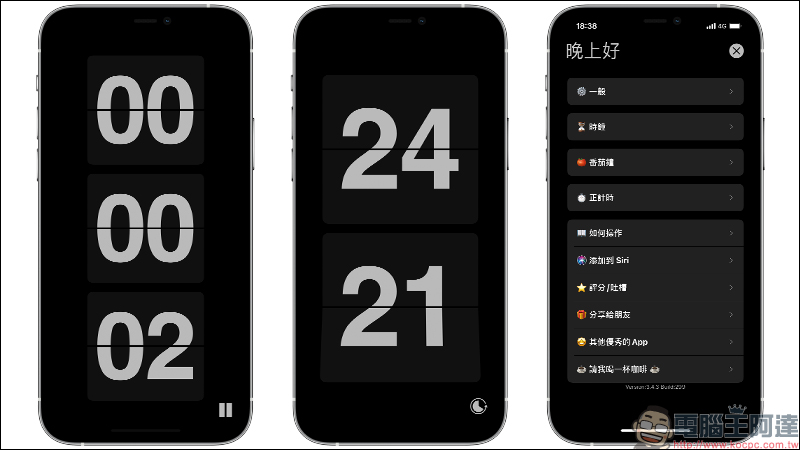
First, go to the App Store to download the Zen Flip Clock app (Click here to download). Let’s briefly talk about the basic functions of Zen Flip Clock App. It can display the current time with a flip-type digital clock. Users can also customize basic time information such as 12/24-hour format, seconds display, and day of the week display.
Zen Flip Clock App also supports functions such as Pomodoro, timer, etc., and can also support iOS 14 desktop gadgets.
Zen Flip Clock App Download:Click here to go to (App Store)
Create “automated operations”
After having a general understanding of the above-mentioned apps, let’s get to the core part! In fact, it is not necessary to use the Zen Flip Clock App to automatically turn on the clock display during charging this time. You can also switch to other apps according to your personal preferences or needs.
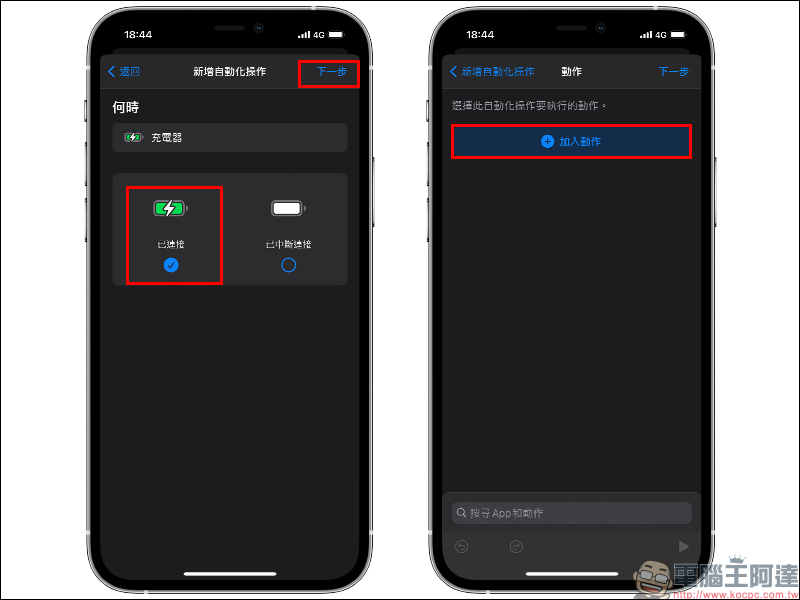
Next, to start creating personal automation operations for iOS, first open the “Shortcut App” and switch to the “Automation” page, click “Create Personal Automation Operations”, and then select “Charger” in the new automation operation:
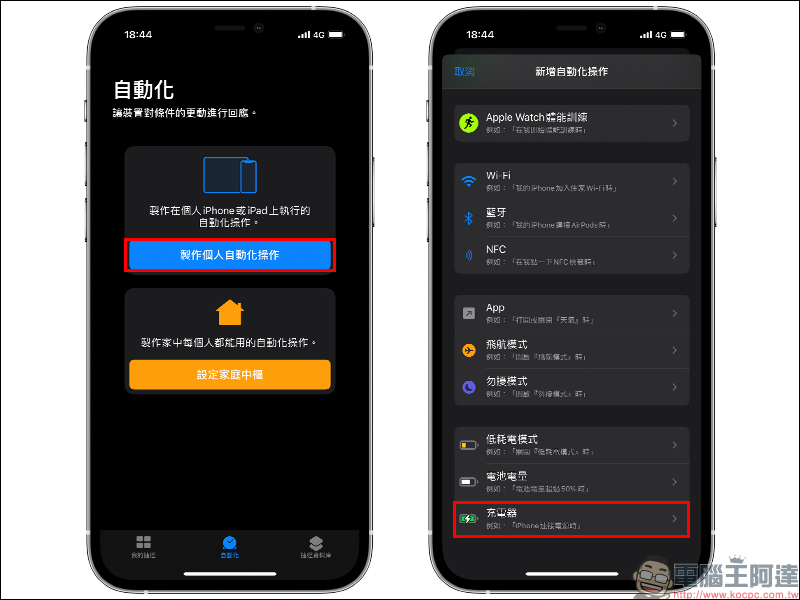
On the page when the charger starts automatic operation, check “Connected” and click “Next”, then select “Add Action”:
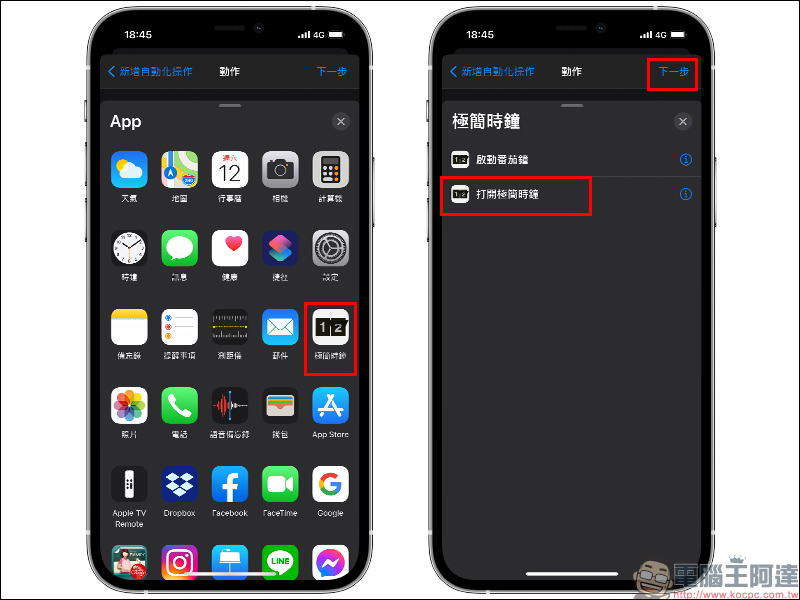
For the action part, since this time a minimalist clock (Zen Flip Clock) is used for demonstration, after clicking on the minimalist clock, select “Open minimalist clock” and click Next:
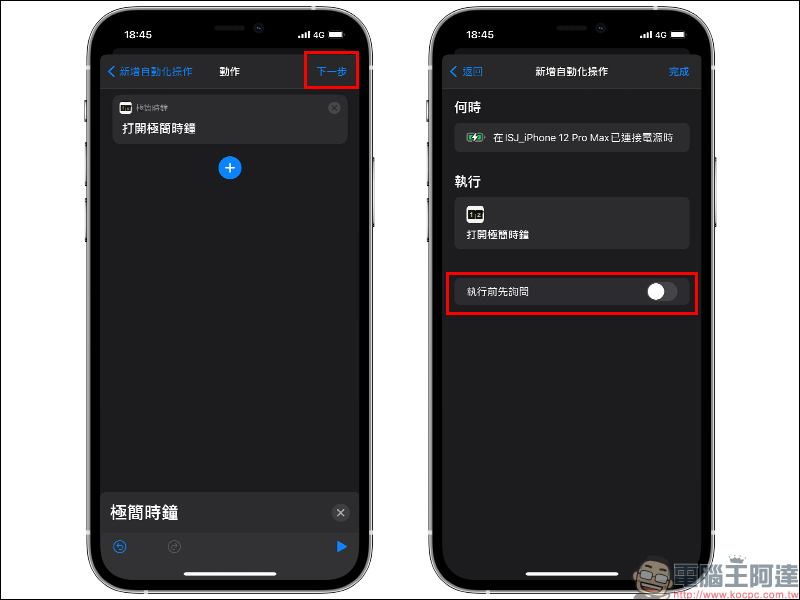
Continue to select the next step, and in the last step, turn off the “Ask before executing” function, so that this operation will be automatically enabled when the iPhone is charging without asking the user whether to enable it:
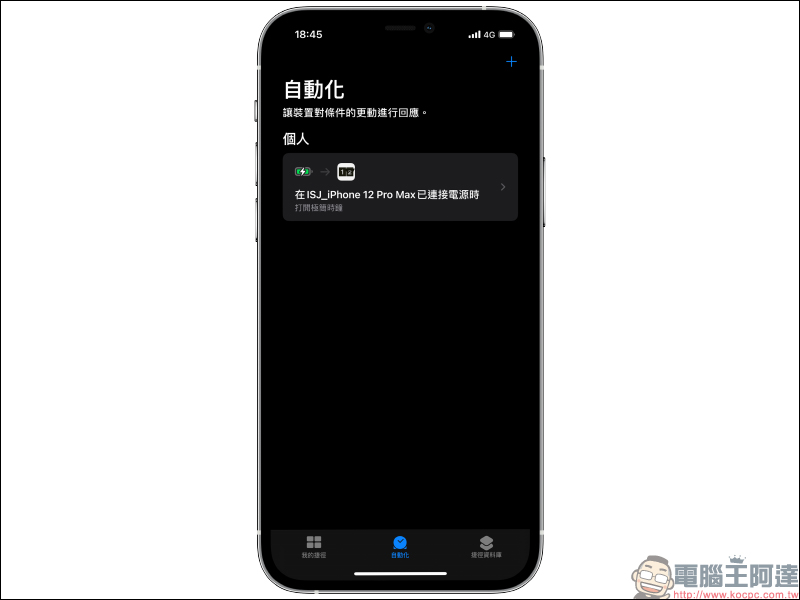
After clicking Finish, you have successfully created an automation operation that automatically turns on the clock display when the iPhone is charging! It is worth mentioning that the Zen Flip Clock App that is paired with this time will display a constant light when it is open. For users who want to use their iPhone as a small clock, you may want to try it!
Further reading:
Tips for independently adjusting the alarm volume in iOS 14: no need to synchronize with the system volume, no longer afraid of missing the alarm sound

Memoji Christmas dress-up instruction, how to play with Santa hats and red masks!

Source: KOCPC Chinese