


If you have friends who are making videos, you should have heard of the computer software “Format Factory”. If I need to transfer videos in various formats, I will often transfer them through Format Factory, which is a very well-known software on the Internet. However, today I am not going to teach you how to transfer videos. After all, the output formats of many devices now are mostly MOV or MP4. Therefore, the requirements for film transfer are not that important, unless you need another special format. Today! The author will not introduce various film transfer formats, but “desktop recording” that is very needed by some people. If you are a teacher or someone who teaches computers, or even someone who wants to send your computer screen to a friend, Format Factory can easily help you record your computer desktop :
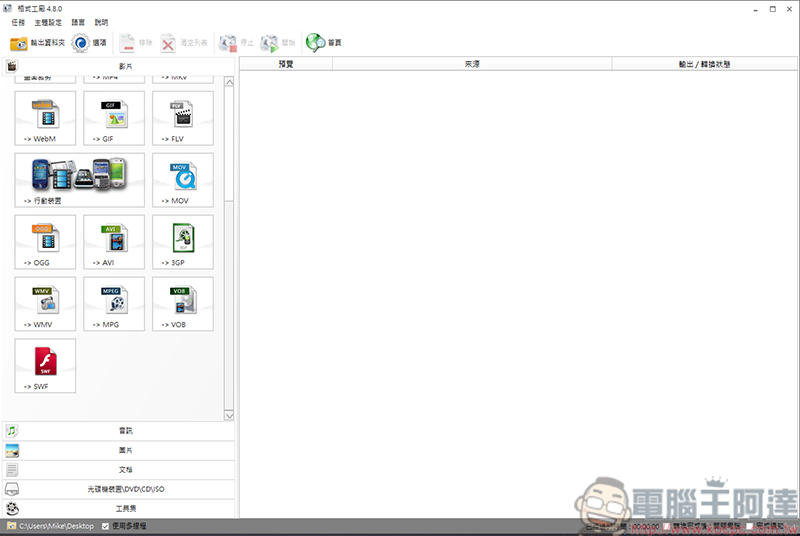
With versatile film transfer software, computer screen recording is the simplest
First! Go to Format Factory’s webpage to download the software:
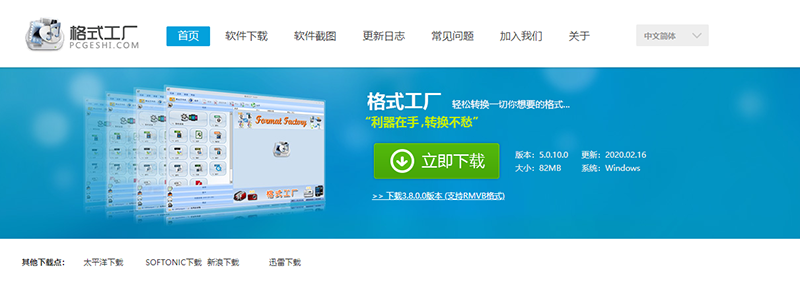
Download address
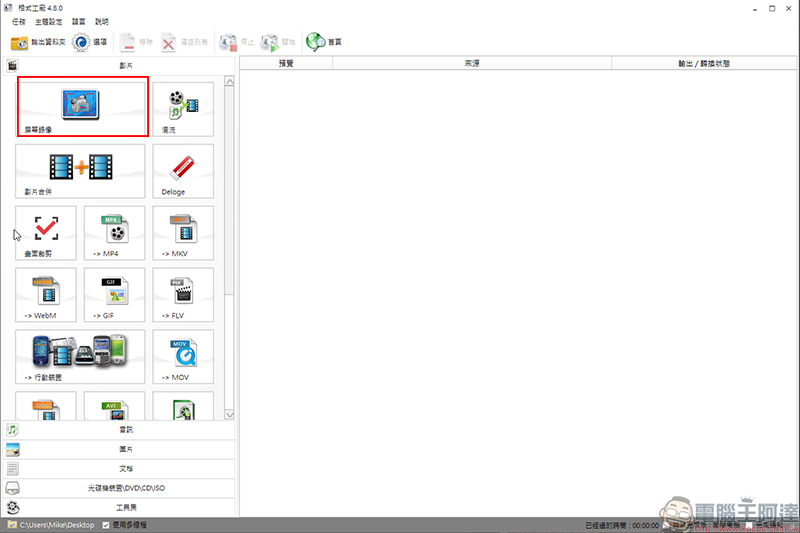
After installation, click “Screen Recording”:
After entering, you will enter this screen:
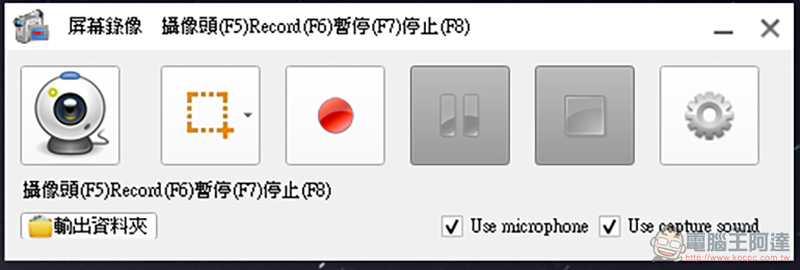
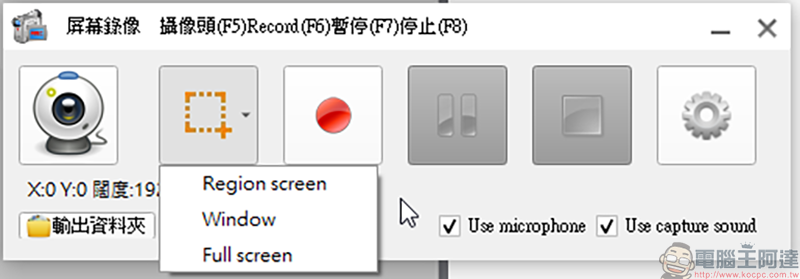
If you have a video camera installed, you can click on the first function. If you want to customize the screen area, you can click on the second option. Here you can choose to customize the screen size, program window size and full screen. Press the third red dot and it will record directly:
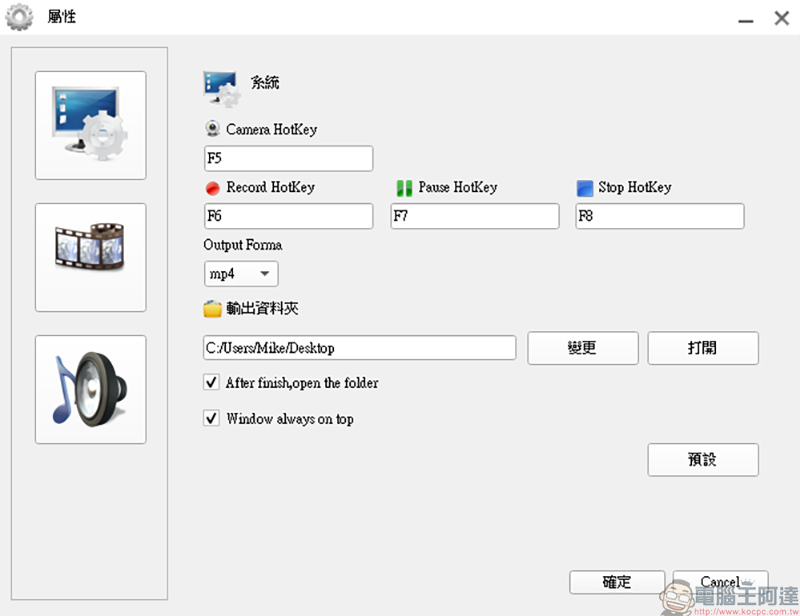
Then we enter the options to set up. On the first screen, we can set the video camera start hotkey, video start hotkey, pause hotkey, stop hotkey, and select the output format. However, currently only MP4 can be selected:
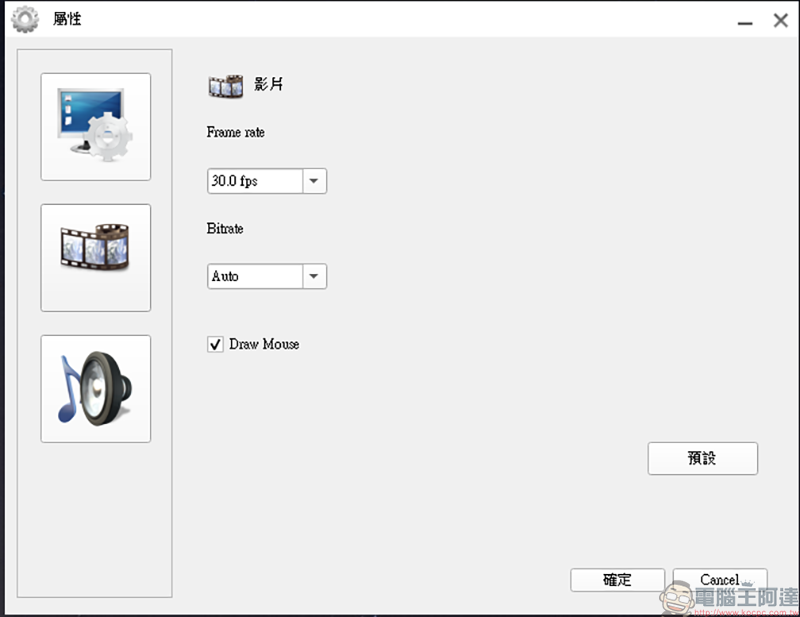
The video options allow you to select the number of frames, bit rate, and mouse pointers:
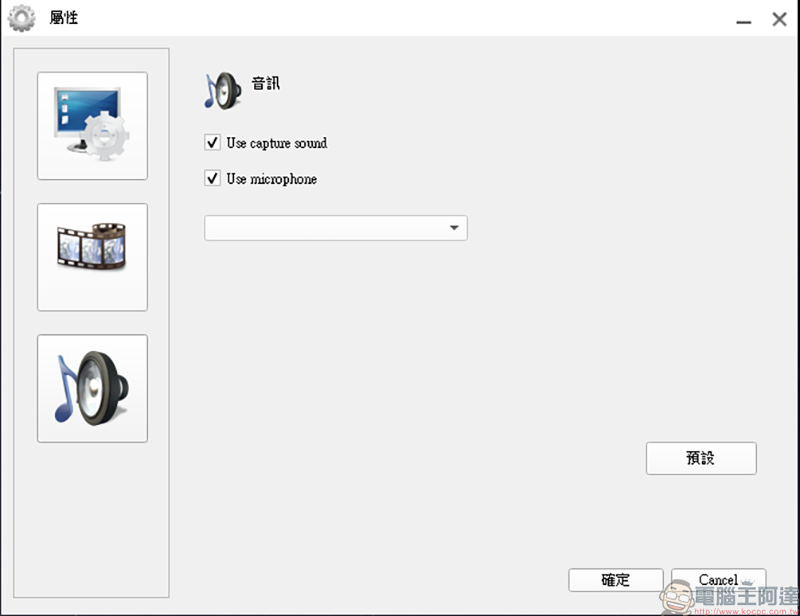
Finally, for audio, you can choose whether to use the computer’s sound and microphone:
Once everything is set up, you can easily record. Here is a video test to show how convenient it is:
This is currently the most commonly used software for me to record my desktop, because if the recorded file is too large, I can also rely on Format Factory to compress it. Isn’t it fast, simple and convenient!?
Source: KOCPC Chinese