


Almost all users who use computers as their main work platform on a daily basis have more or less keyboard shortcuts that they are accustomed to, such as the well-known “Ctrl/Command + C” to copy, “Ctrl/Command + V” to paste, etc. Did you know? In macOS, you can also set dedicated and universal shortcut keys for a single application or the entire system. Follow the author to do it now!
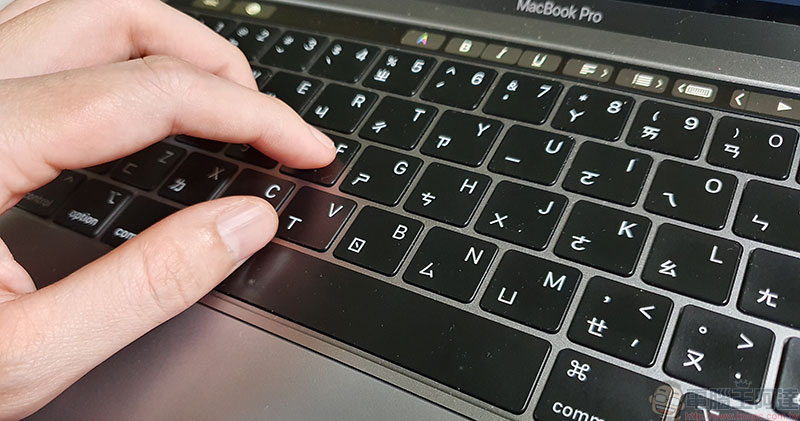
How to customize dedicated and universal shortcut keys on macOS?
There are two types of shortcut key settings on macOS. One is to create dedicated shortcut keys for specific applications, and the other is to set shortcut keys that are common to all applications.
Application-specific shortcut key settings
Before customizing application shortcuts, you had to click on the multi-layered paths from the application’s function menu to operate them one by one. Of course, it was not as fast as using keyboard shortcuts directly.Let’s take the horizontal flip function in the “Photos” app as an example., what should I do if I want to set it to a shortcut key combination like “Command + Shift + H”? Once you learn it, you can follow the same steps in other applications:
1. Open “System Preferences” and enter the “Keyboard” item.
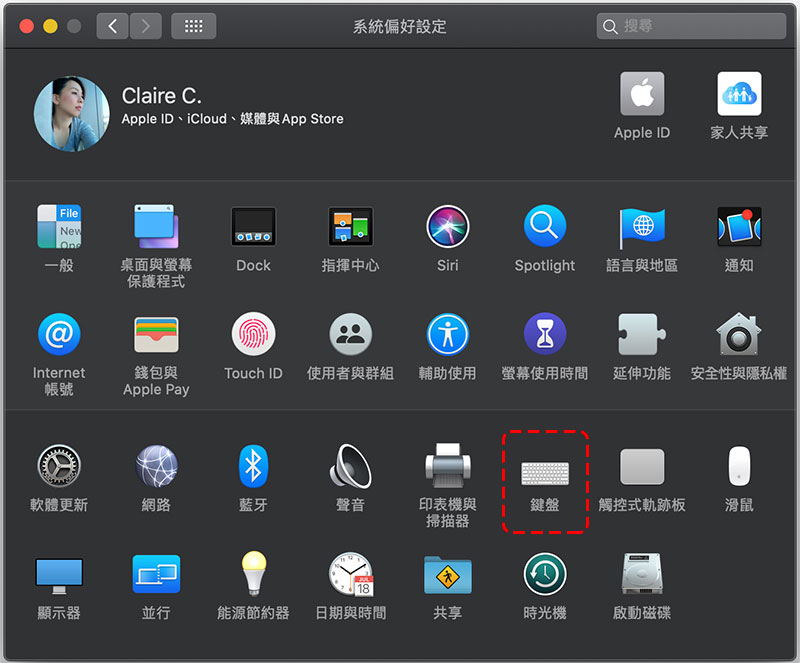
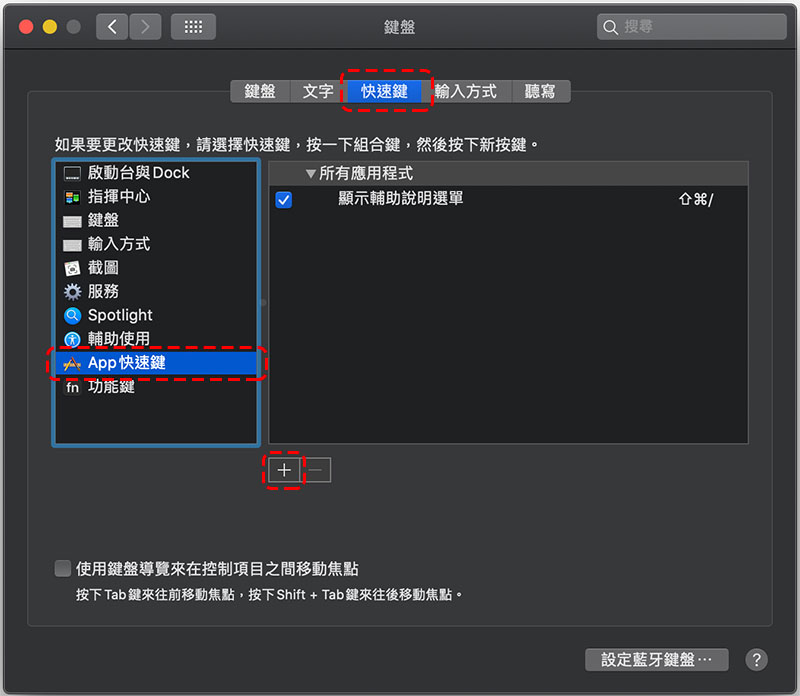
2. After entering the “Quick Keys” tab, select “APP Shortcut Keys” in the type on the left, and then click “+” below.
3. In the settings field that appears, in the first field, select the application you want to add a dedicated shortcut. In the demonstration, of course, choose Photos; in the second field, fill in the correct name of the function that currently corresponds to the new shortcut key, and in the demonstration, fill in horizontal flip; in the last field, enter the shortcut combination you want from the keyboard, which must contain change buttons such as Command, Option, Shift, or Control.
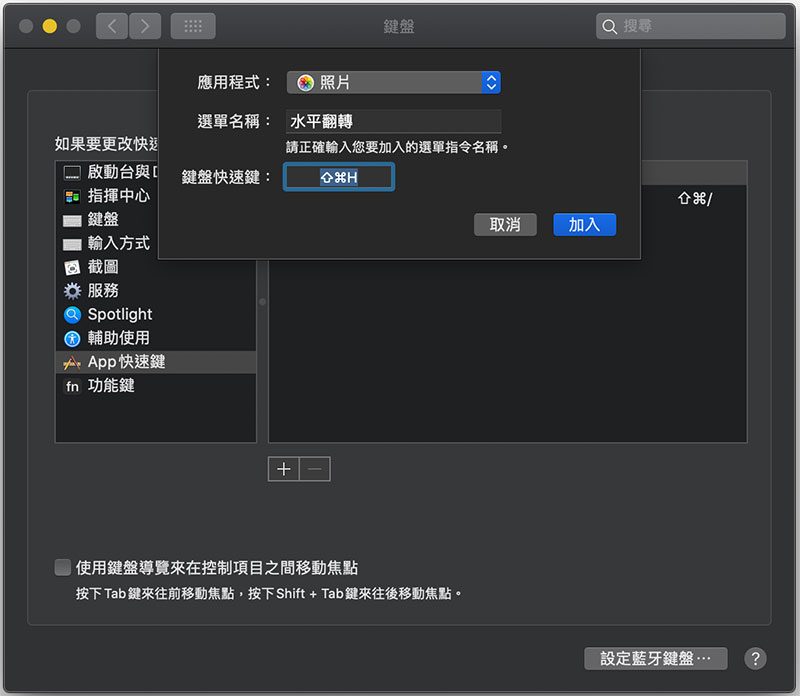
It is recommended that you use more intuitive buttons when setting combination shortcut keys. The reason why the horizontal flip in this example is set to “Command + Shift + H” is mainly because the English name of this function is Horizontal. Don’t be too tricky and fail to remember it yourself, otherwise you will lose the essence of shortcut keys to simplify operations.
Set shortcut keys common to all APPs
In addition to setting dedicated shortcuts for a single application above, you can also set common shortcuts for all applications. For example, some functions are obviously very useful, but they are hidden deeply. The “Save as PDF” function is the best example. It is often hidden in the print dialog window, so here I will use this function as an example to tell you how to make it easier to use.
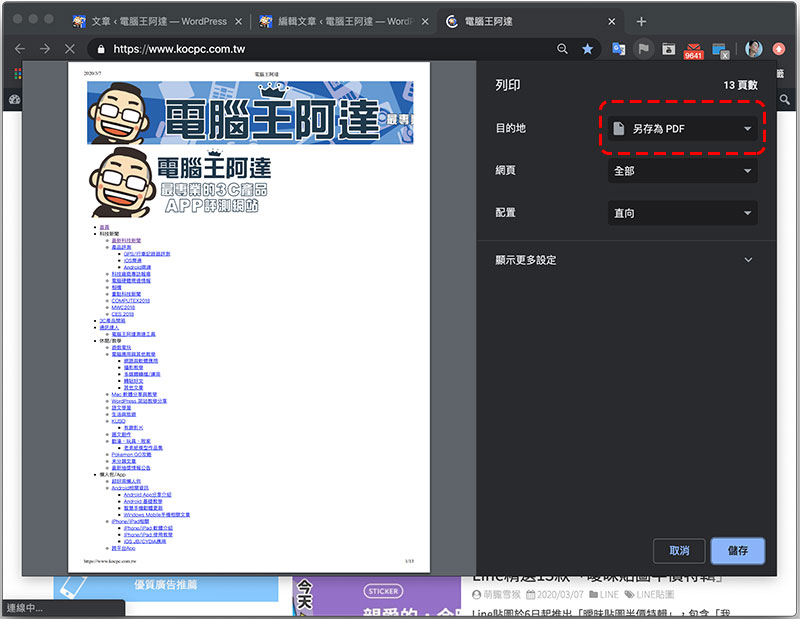
The setting method is very simple. In fact, it is the same path as setting the dedicated shortcut above, only the last step is slightly different. When setting a universal shortcut, select “All Applications” for the application name in the first field, correctly fill in the corresponding function in the second field, and enter the shortcut key combination in the third field as well.
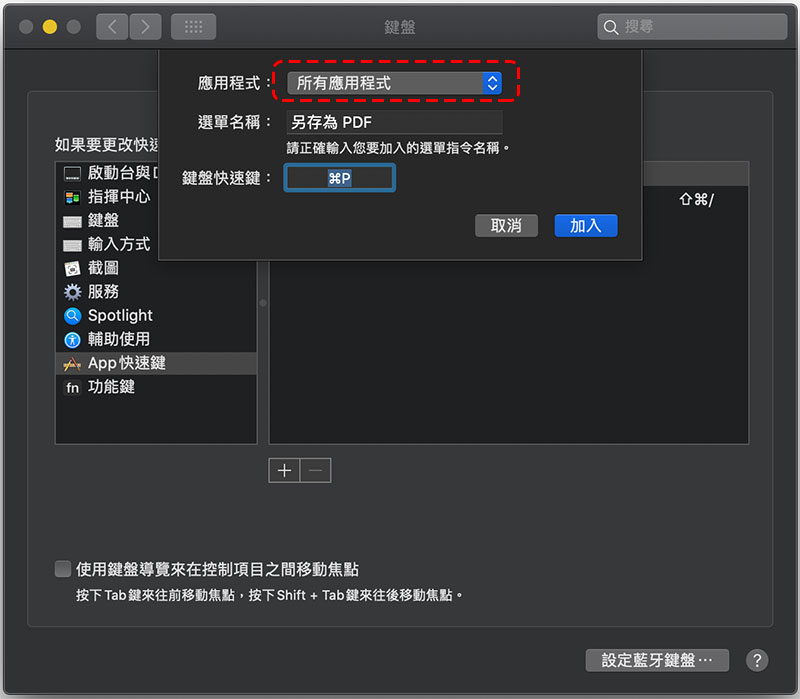
Are you a little confused when you see this? Obviously “Command + P” is for printing! Since the Save as PDF function exists in the print function and does not belong to the first-level function, there will be no conflict between these two sets of shortcut keys. Therefore, when using the shortcut keys, you must press “Command + P” twice, once to open the print dialog box, and once to execute the Save as PDF function. This should be clearer to everyone!
Source: KOCPC Chinese